Operations PIM - Update Basic Product Information via Import
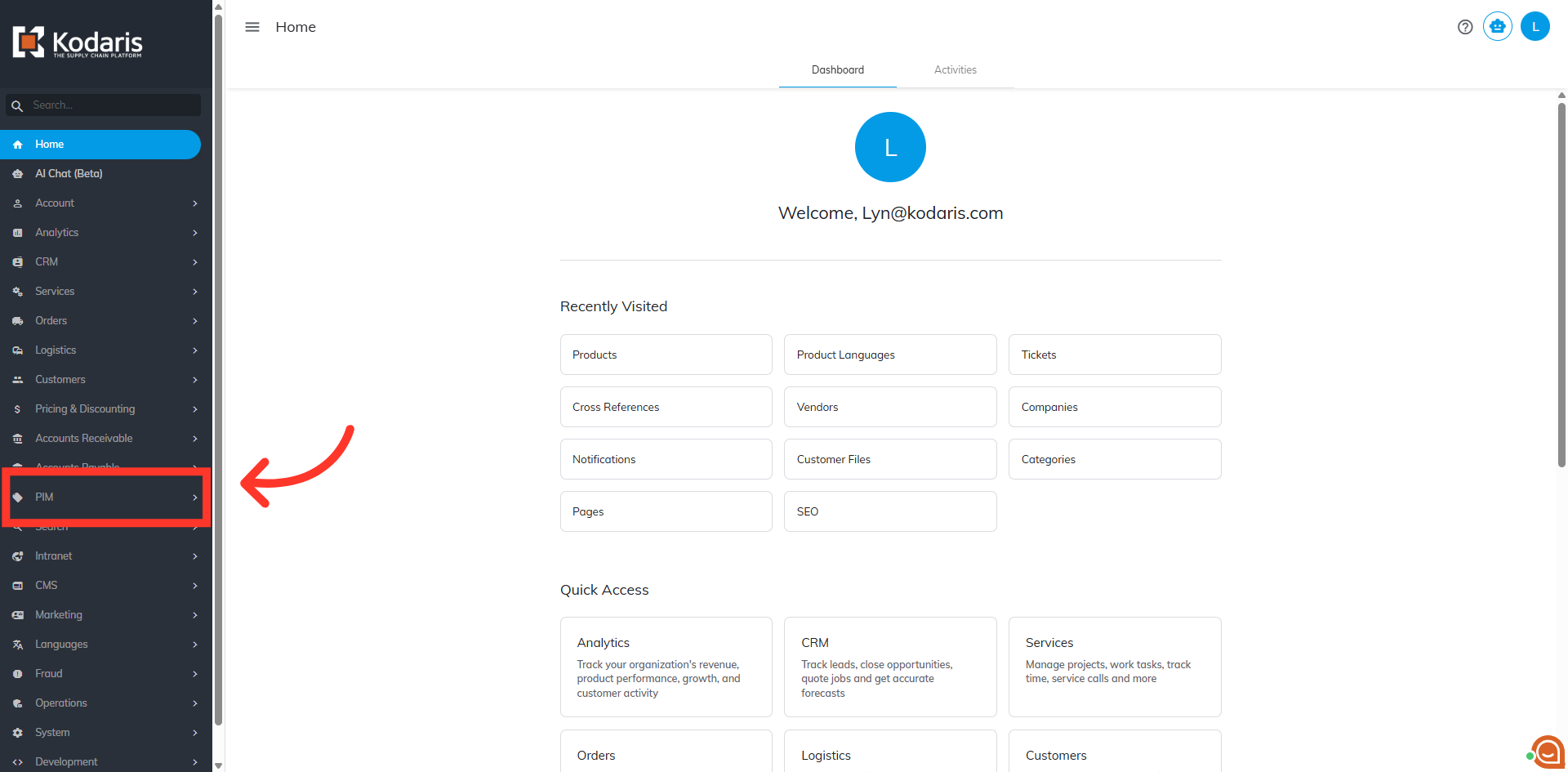
Navigate to "PIM"
To update product information by import, navigate to the "PIM" section in the Operations Portal.
Click "Products"
Then, click "Products". In order to access, edit, and export products, you will need to be assigned the role of "administrator" or "superuser". Or have the roles of: "productView", "productEdit", "exportEdit" and "exportView".

Go to "Data"
Go to the "Data" tab.

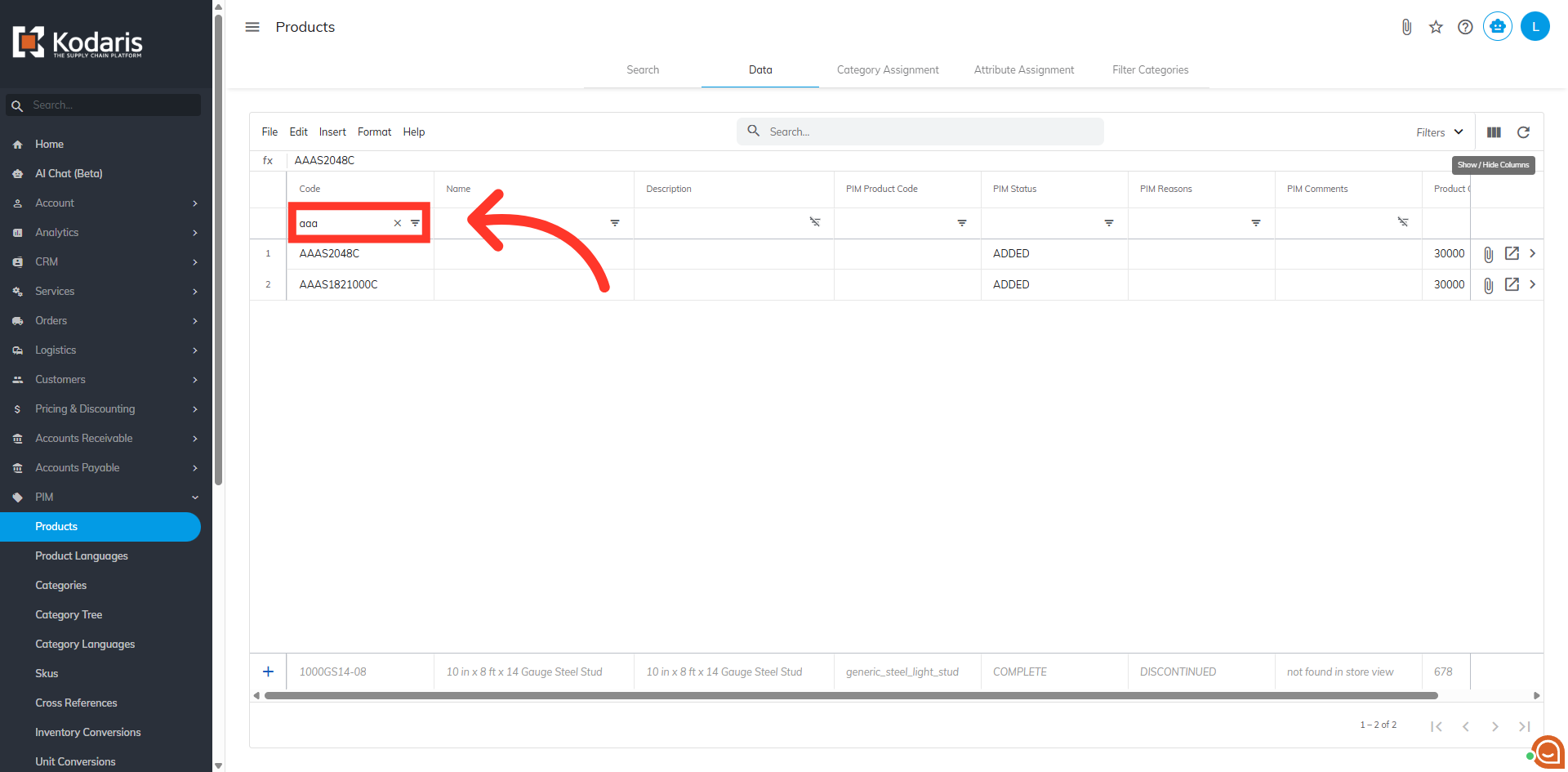
Enter the product code or keyword
You can search for the products that will need the basic information updated by entering the product code or keyword in the "code" column.
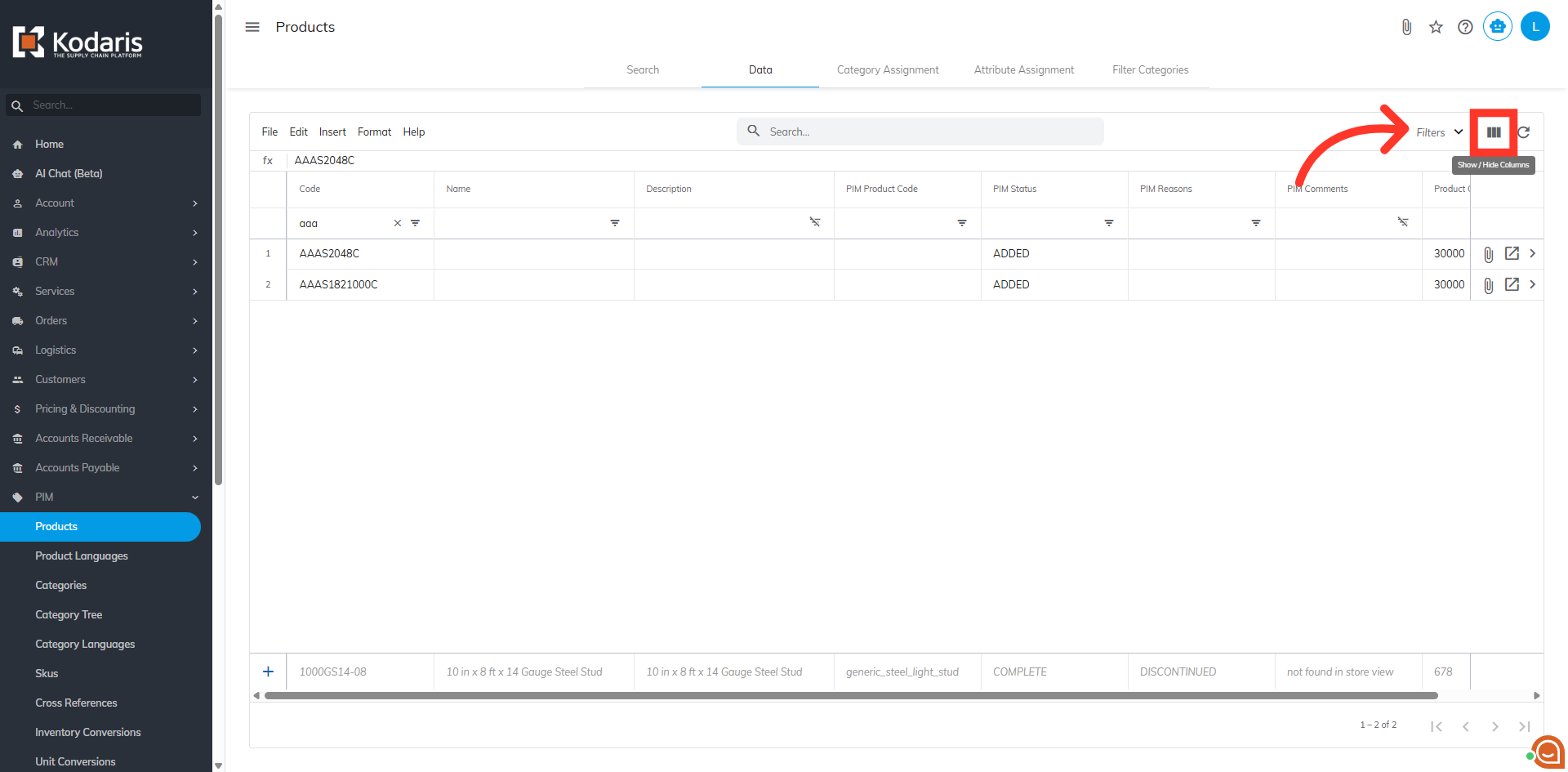
Click the "Show/Hide Columns" icon
Click the "Show/Hide Columns" icon to customize the data columns displayed.
Select the needed columns
In order to update the basic product information by import, you will want to add the "Code" column to your screen. The code is required when importing, as it is the identifying factor for matching information. You can update many different fields by import when using the PIM Data screen, and today we will go over updating some basic product information. For this example, we will select the columns: "Name", "Description", "PIM Product Code", "PIM Status", "PIM Reasons", "PIM Comments", and "Product Order". If you would like to remove any columns from this screen before exporting, unselect any columns to remove. Most PIM fields listed on the data grid can be updated by import as well. If you would like to update specific PIM product data by import, and are not sure how to complete the task, please reach out to your account manager and we will be happy to help.

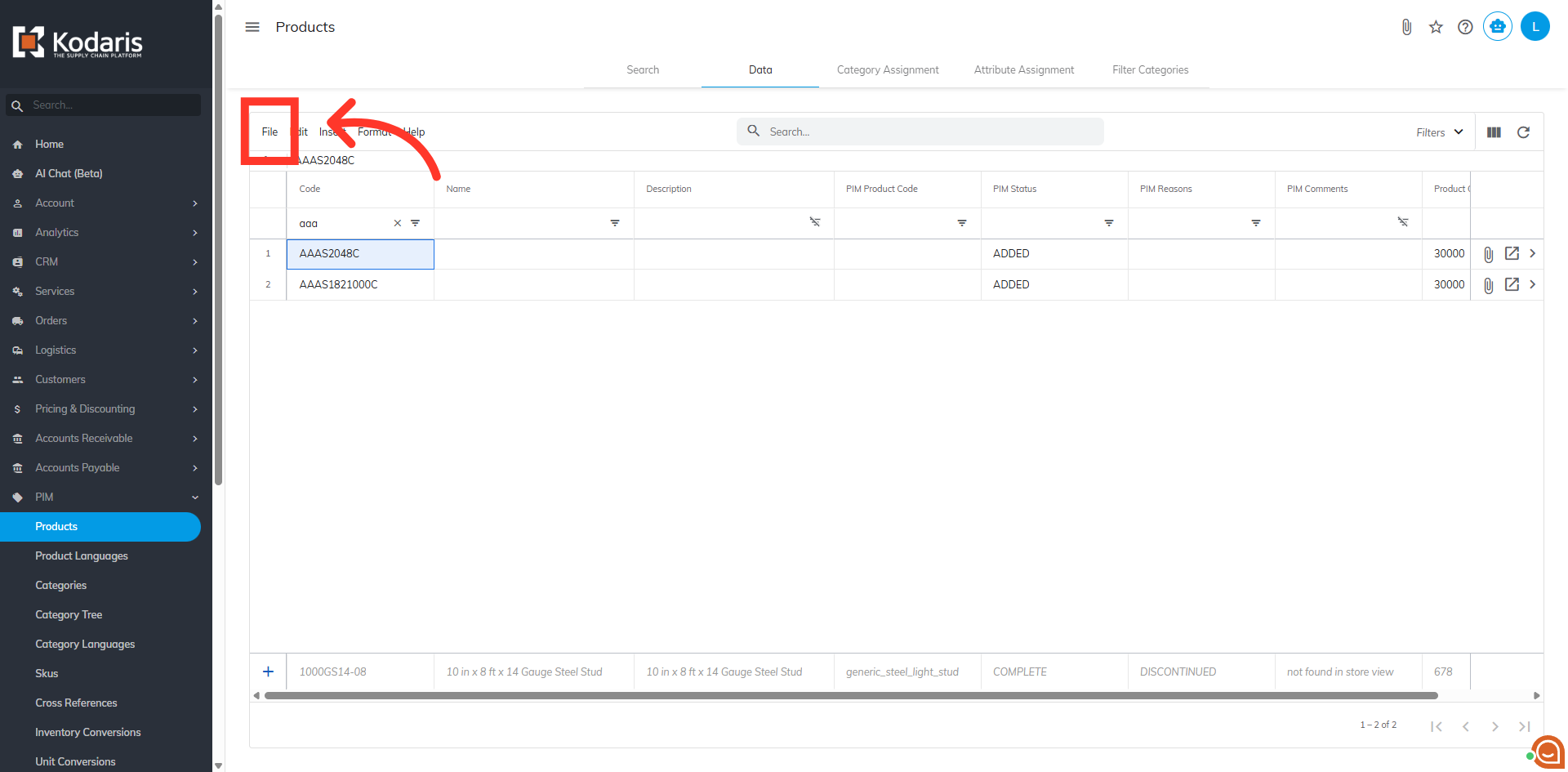
Click "File"
Once you have the data ready to export, click "File".
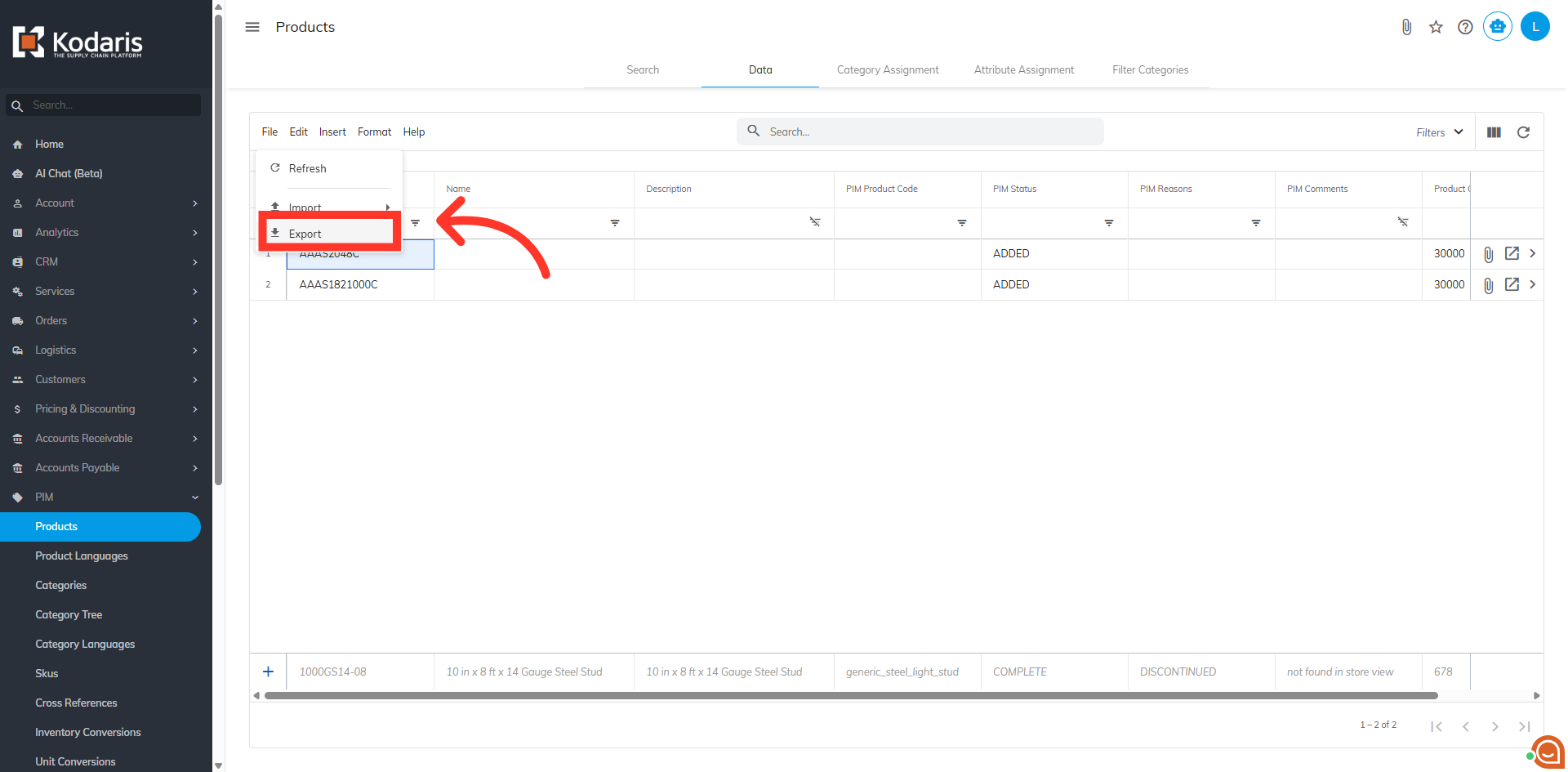
Select "Export"
Then, select the "Export" option. This export will have the needed header row and data that will be used for importing back into the system when using the "Data" screen.
Name the export file
You can choose to name your export by clicking into the field and typing to update the name.

Select a warehouse, if needed
There is also an option to select a warehouse if you want to export by warehouse.

Click "Save"
Then, click "Save" to save the file to your computer. It can take a little while for the export to finish if you are exporting a large amount of data. The file will be downloaded and saved to your computer.

Header Row
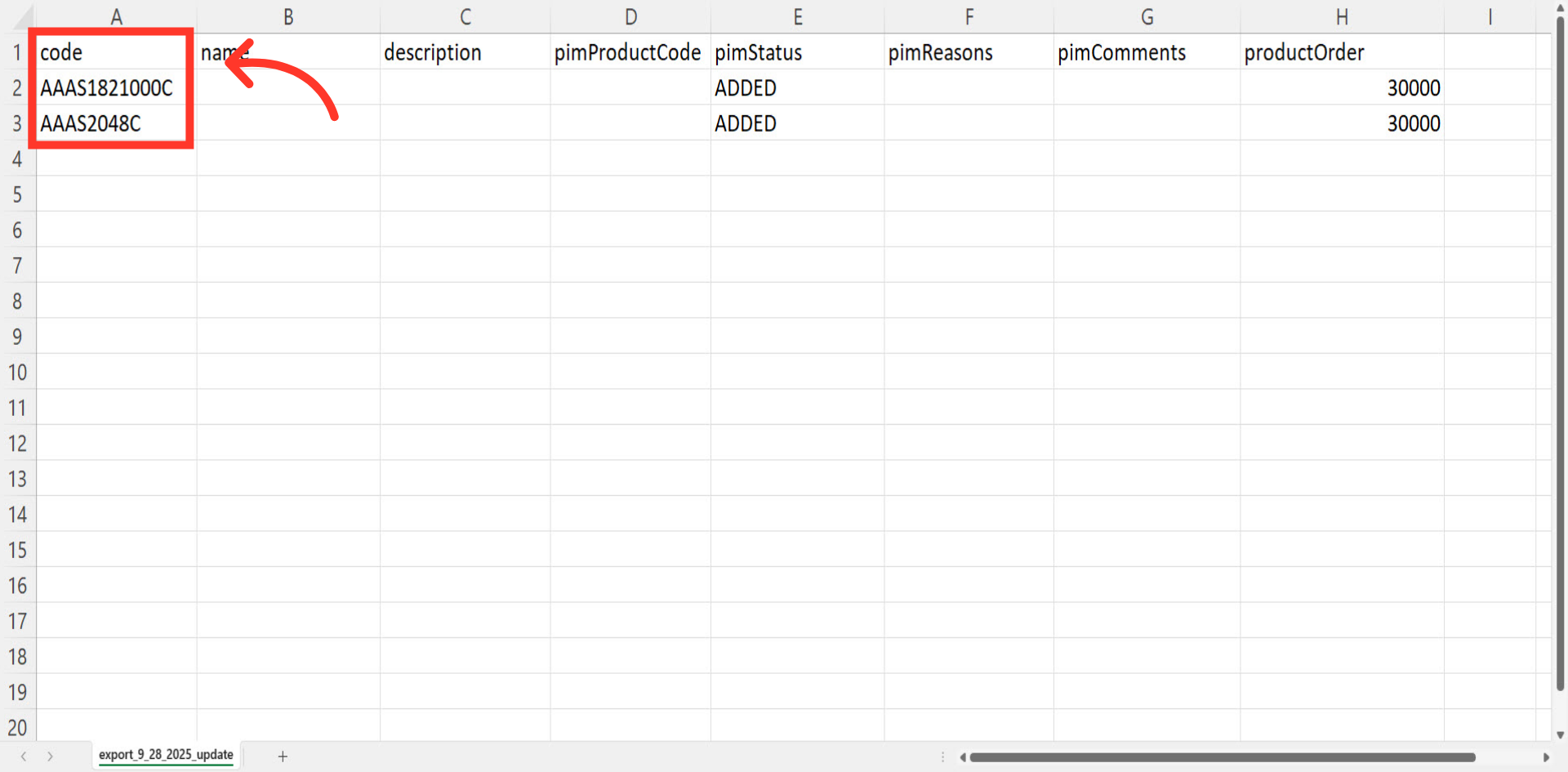
You can see in this sample export that we have the header row that is needed to import data, and also the exported data from the data tab.

"code" = product code
The "code" column contains the product code. When importing data, the code is required as it is the identifying factor for matching information.
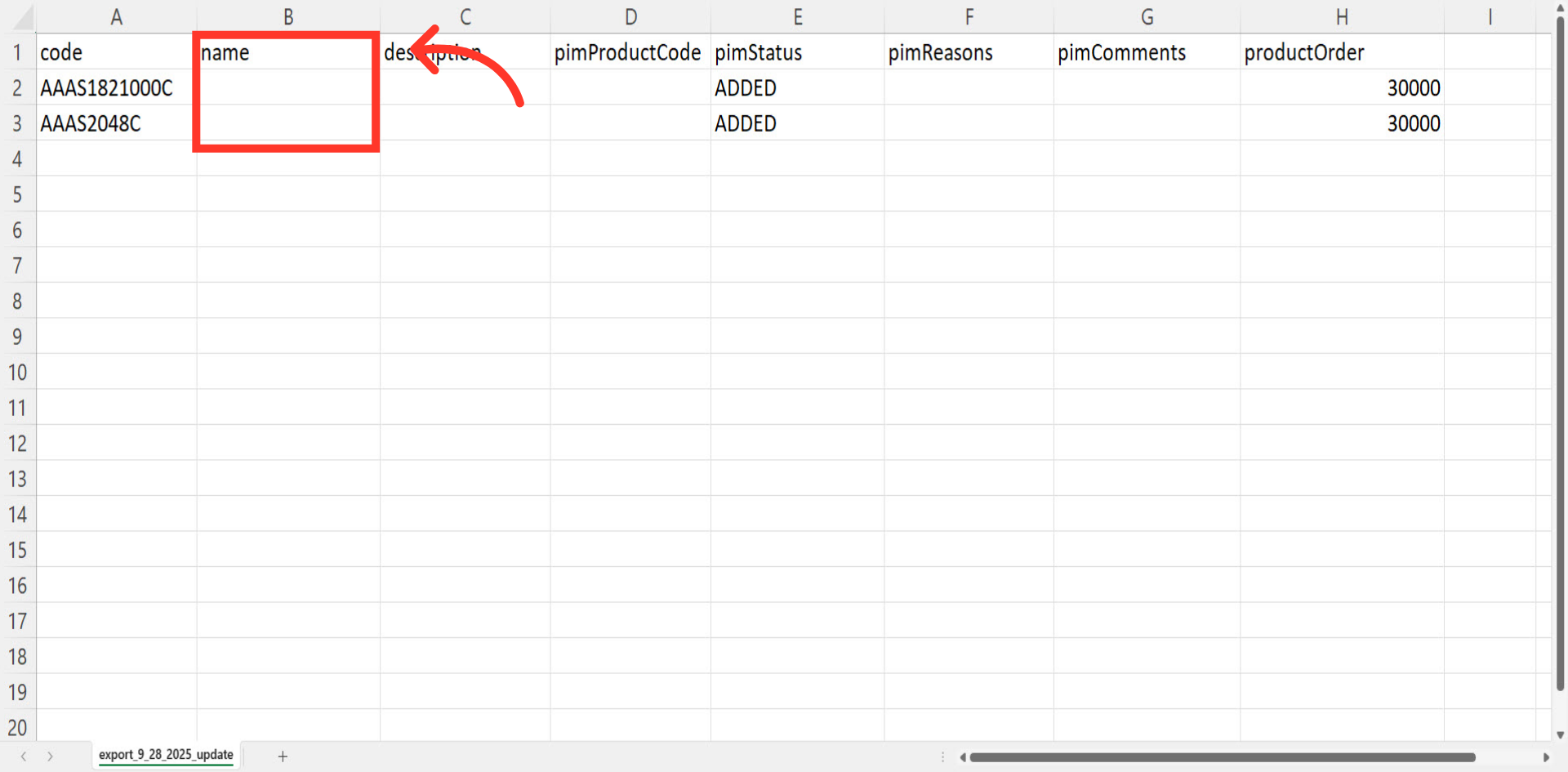
"name" = product name
The "name" column contains the name of the product on the product page. You can make any needed updates to the names, and update with this import. This "Name" will be visible to customers.
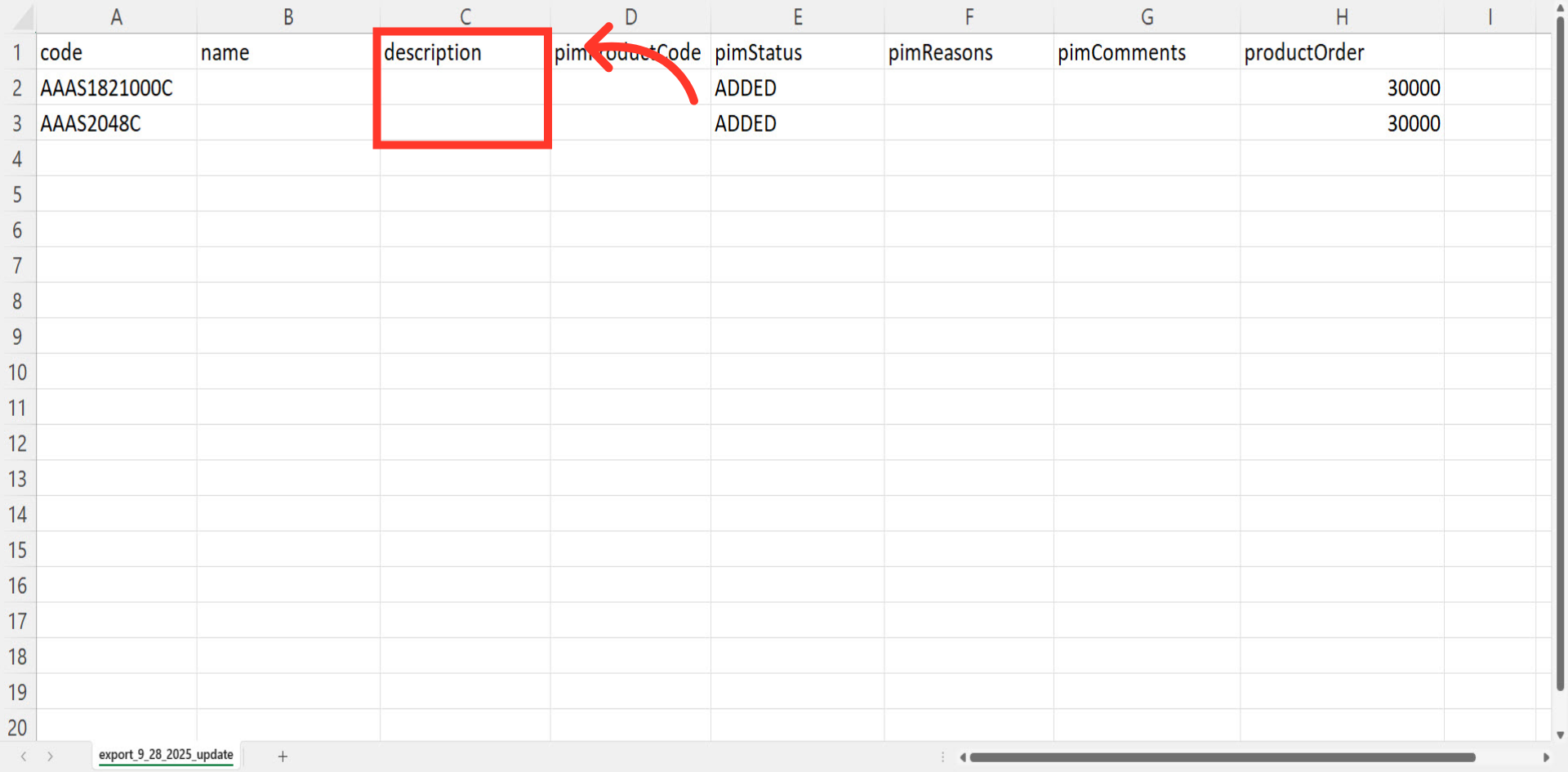
"description" = product description
The "description" column contains the product description on the product page. You can make any needed updates to the description, and update with this import. This is visible to customers. If you would like the description to be formatted with the import, the description will need to be in HTML format.
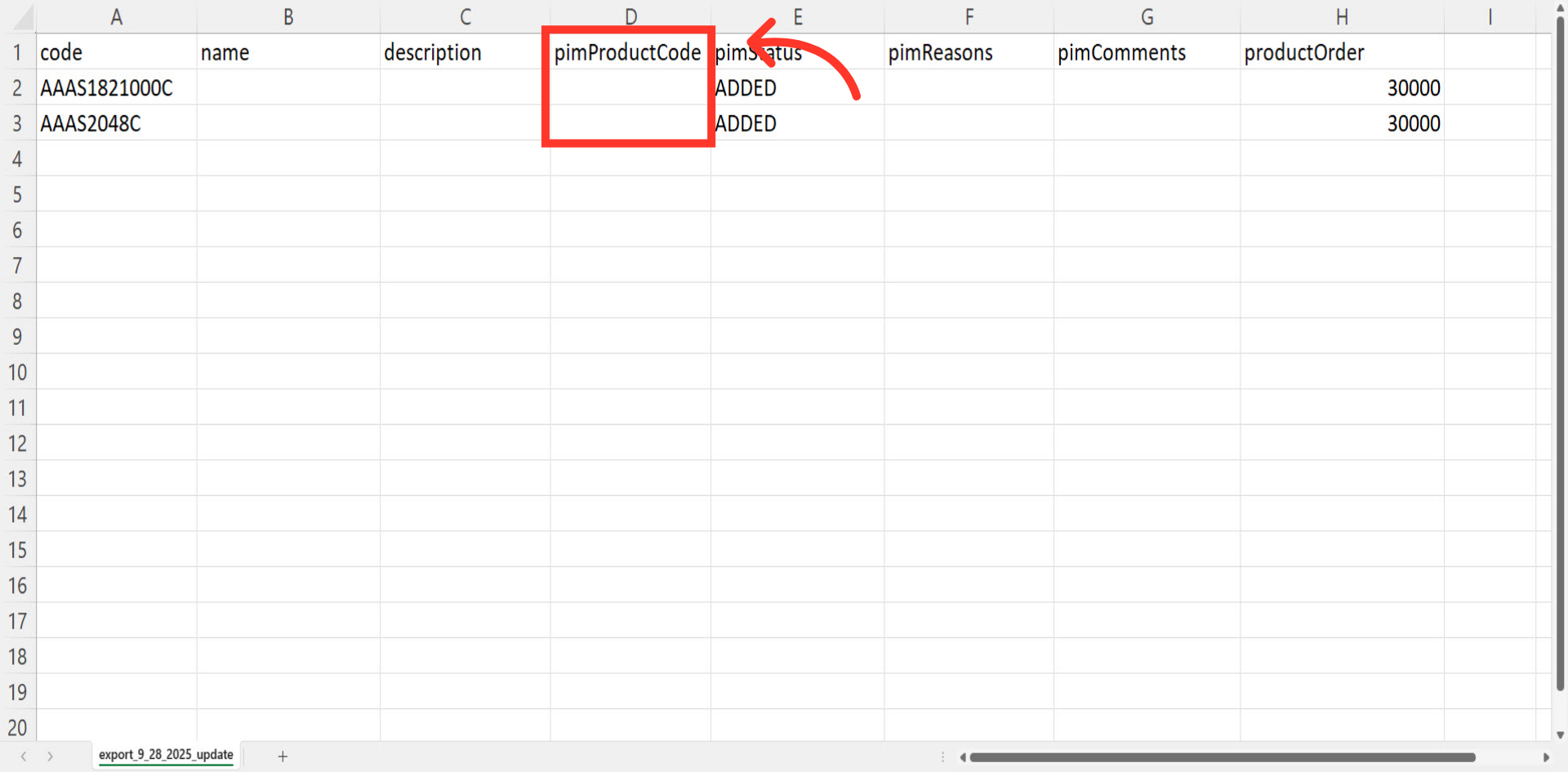
"pimProductCode" = PIM Product Code
The "pimProductCode" is a field that is ufor internal use only, and can be updated with helpful information that is related to the product. This could also be an internal code that is used with your workflow. The PIM product code is not visible to customers.
"pimStatus" = PIM Status
"pimStatus" can be used to show the status of a product. Updating this field by import can be helpful if you need to mass update the status of many products at one time. PIM statuses are not visible to customers.

"pimReasons" = PIM Reasons
"pimReasons" is another filtering tool that can be helpful if there are reasons why a status was chosen on a product. Updating this field by import can be helpful if you need to mass update the status of many products at one time. PIM reasons are not visible to customers.

"pimComments" = PIM Comments
"pimComments" can be used for internal comments on products, and are not visible to customers. Updating by import can be helpful if you would like to remove the existing PIM comment and replace with a new PIM comment on several products at a time.

"productOrder" = Product Order
"productOrder" can be imported as well. This is a numerical value. The lower the number, the higher the product will be placed.

Example Spreadsheet
Once you have entered the data that you would like to update, save your spreadsheet as .CSV file which is spreadsheet compatible and your file is ready to import. Be sure the spreadsheet you are using only contains the data that you would like to update by import. If you remove data from a cell in the spreadsheet, the data imported into the system will be blank for that field.

Click "File"
To import the data, click "File".

Click "Import"
Click "Import". In order to import data, you will need to be set up as an “administrator” or “superuser” or have the roles of: importEdit & importView.

Click "Default Product Mapping Update Only"
Since we only want to update existing product information with this import, we will want to chose the "Default Product Mapping Update Only".

Choose the file and click "Open"
Choose the saved .CSV file and click "Open" to import. Please be sure that you select the correct file, as there are no rollbacks for imports.

Uploading Spreadsheet
If you are importing large amount of data, it may take a short amount of time to complete. The import will continue to run in the background.

Import Report
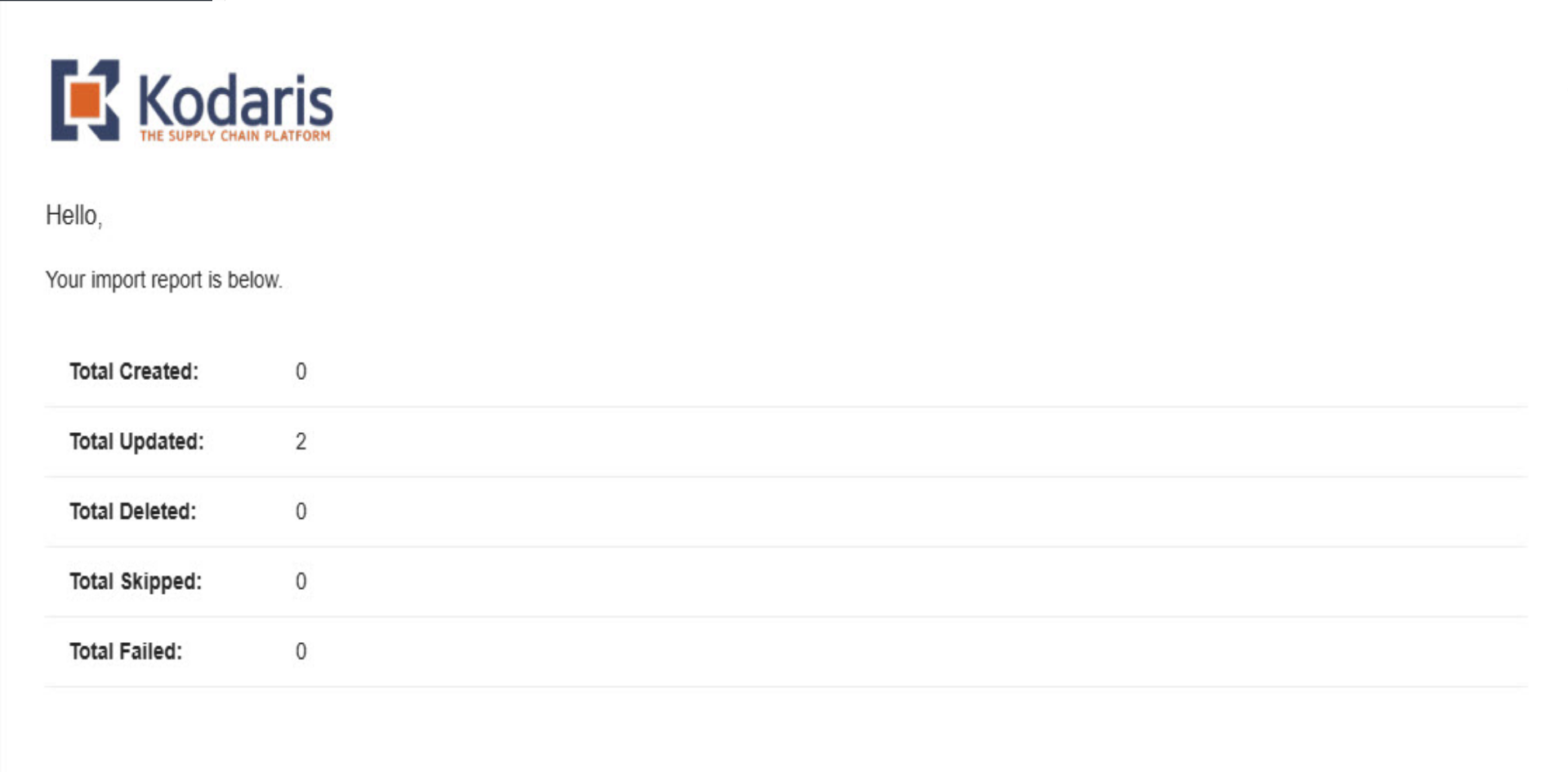
Once the import is complete, you will receive an email with the report of your import.