Operations Customers - Create Company Catalogs (Manually)
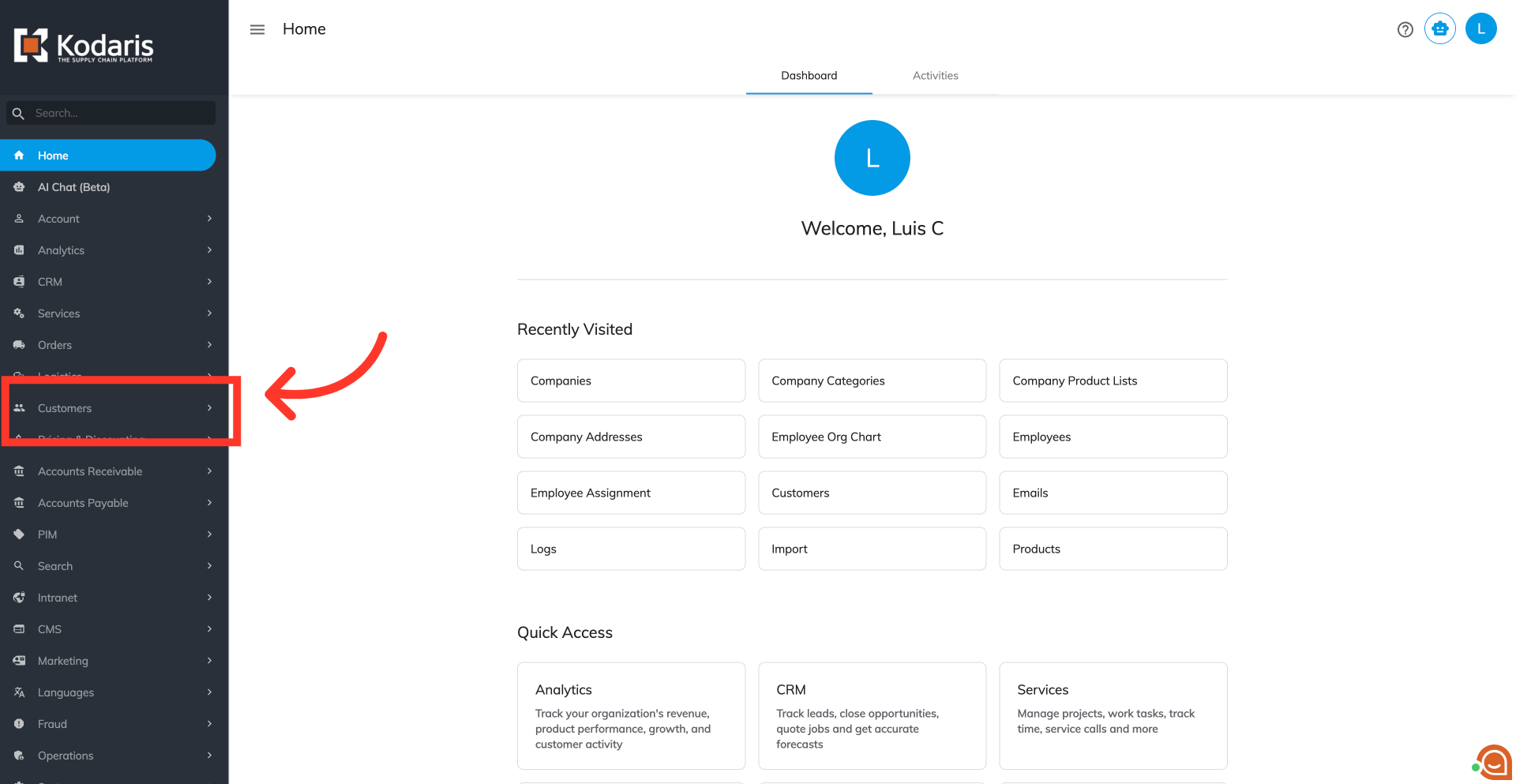
Navigate to "Customers"
You can create "Company Catalogs" on your commerce site for your customers. "Company Catalogs" can be customized to your customers needs. To do this, navigate to "Customers" section in the Operations Portal.
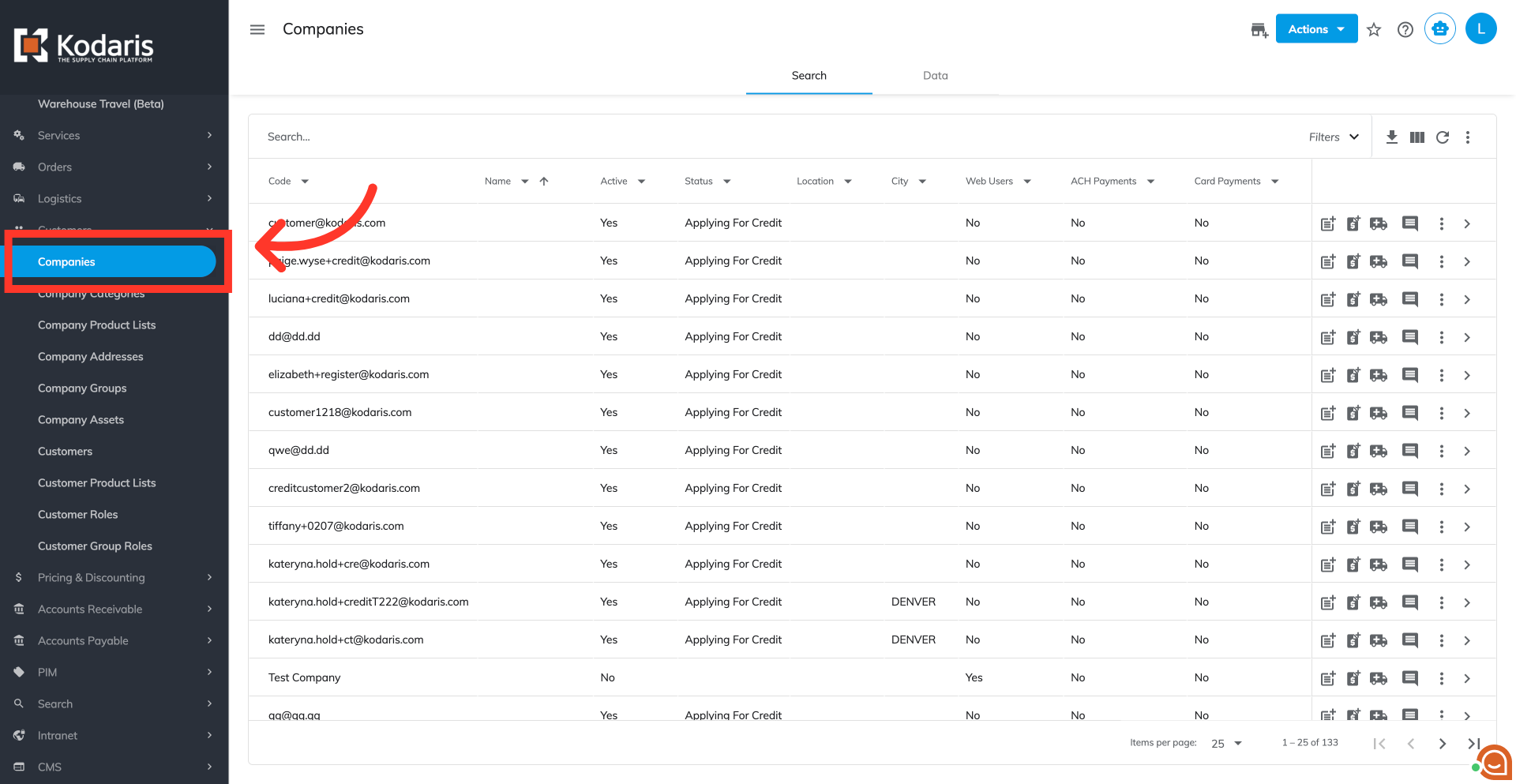
Go to "Companies" screen
Then, go to the "Companies" screen. In order to access "Companies" you will need to be set up either as an "administrator" or a "superuser", or have the appropriate roles: "companyView," "crmCompanyView," "companyEdit," "crmCompanyEdit," and "dispatch".
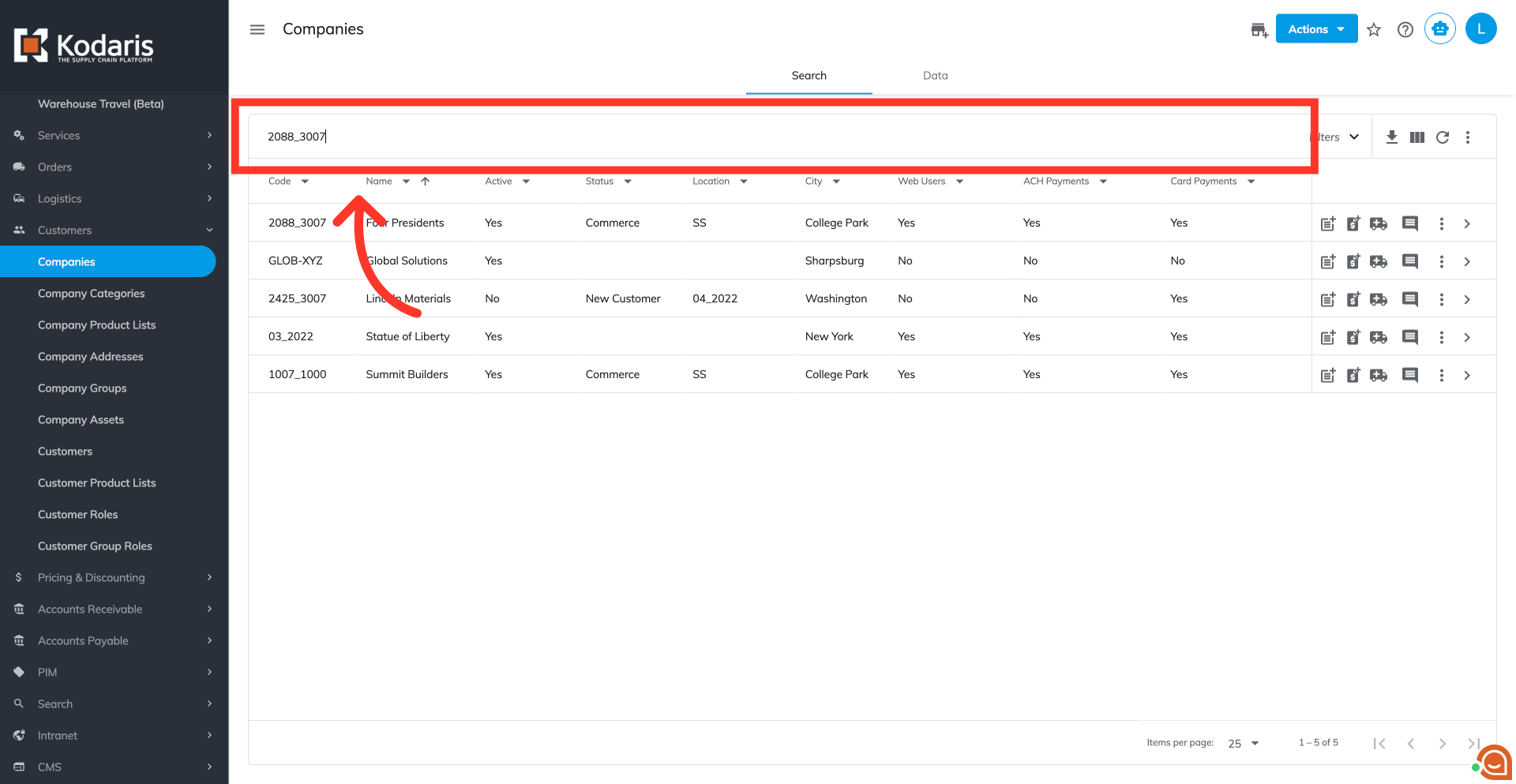
Search for your company
Enter keywords to search for the company.
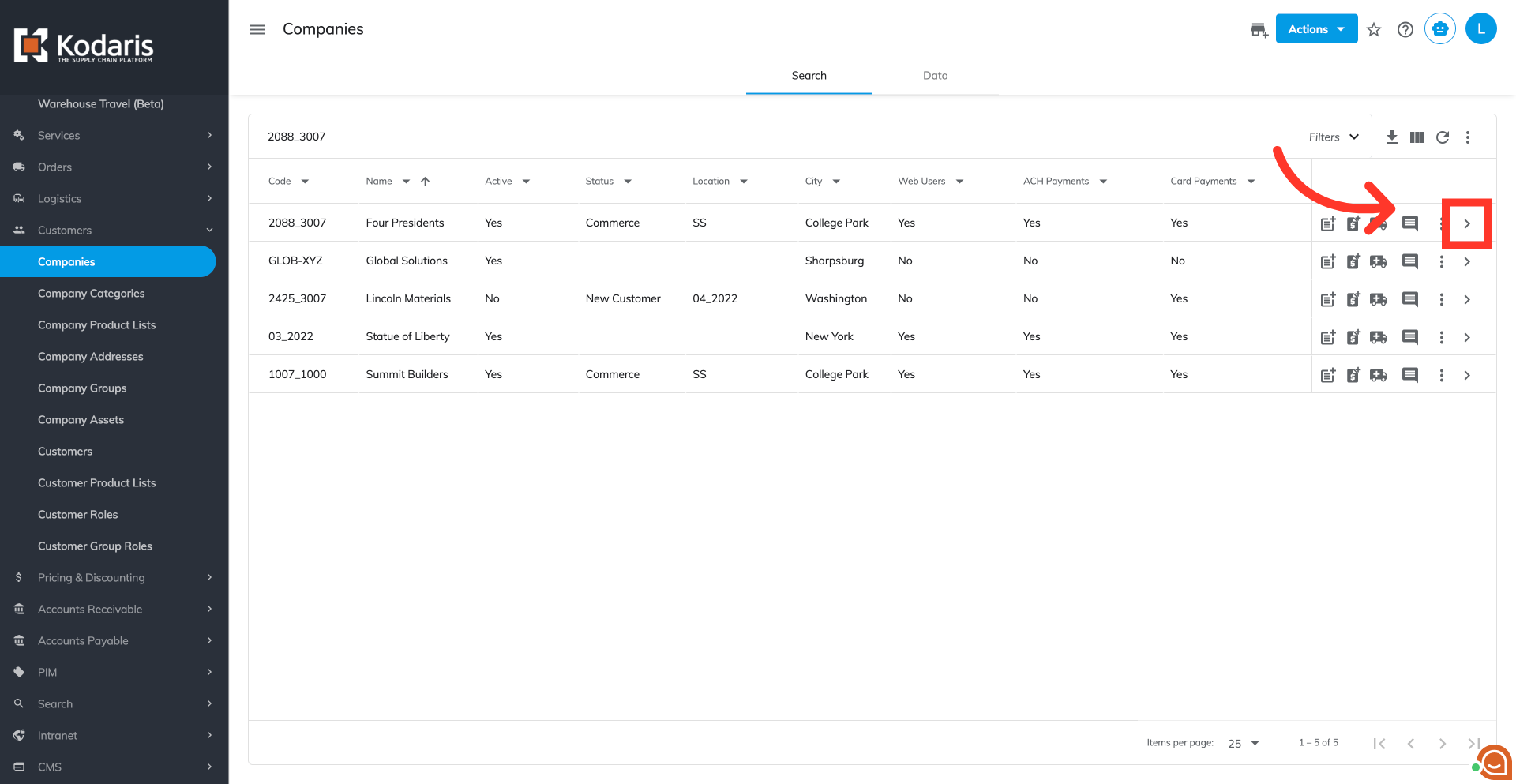
Click the more details icon
Look for the company and click the more details icon.
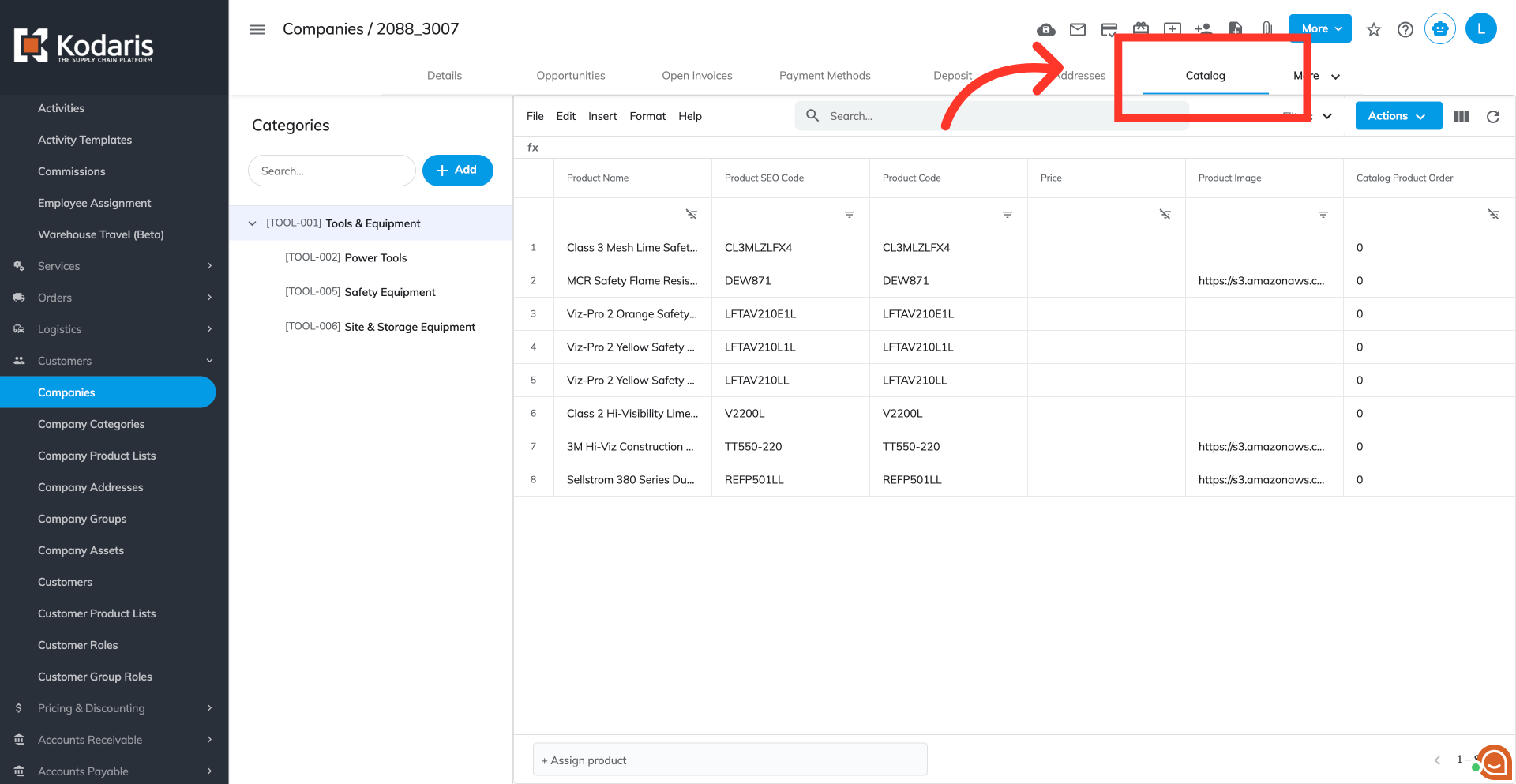
Go to "Catalog" tab
Go to "Catalog" tab.
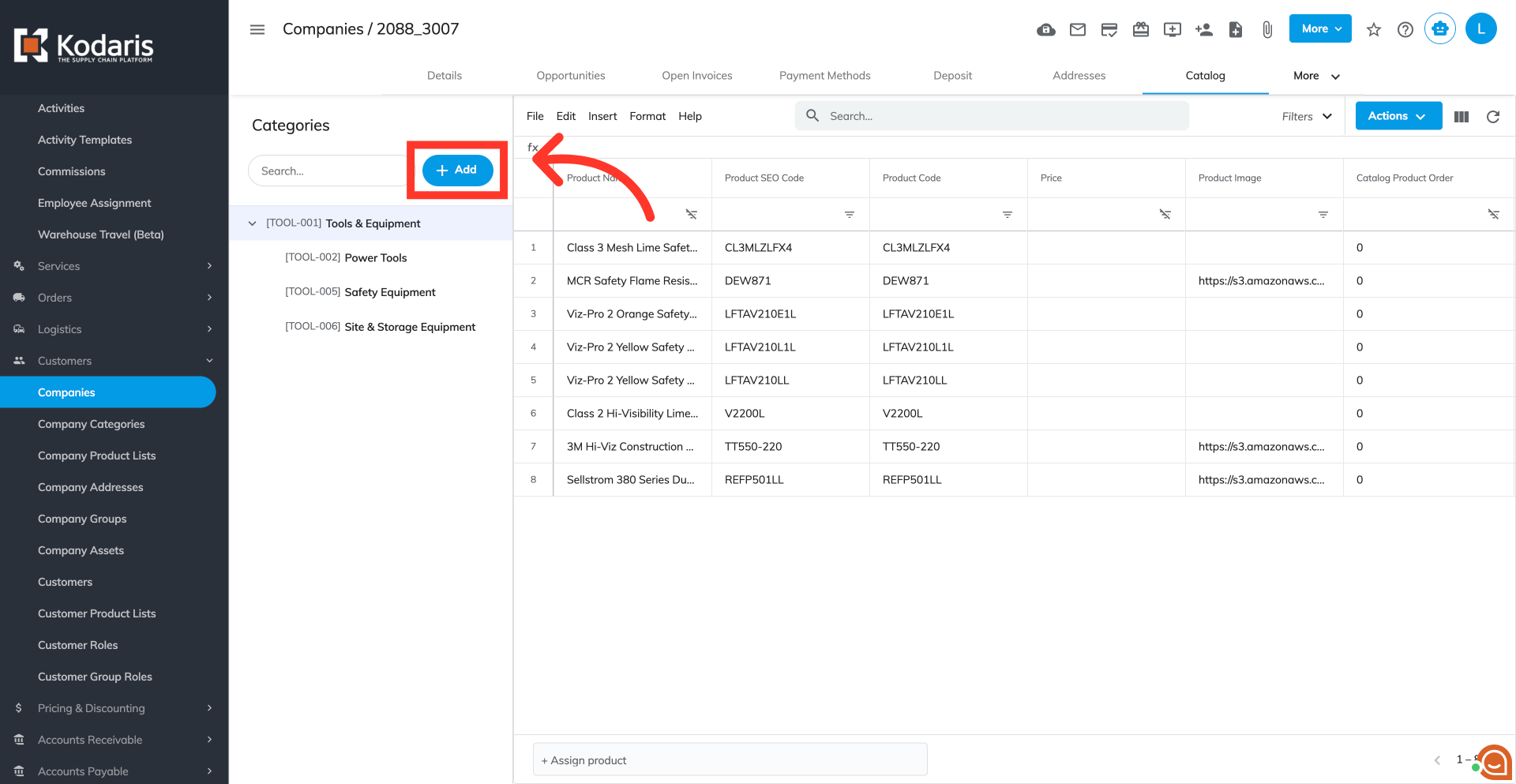
Click the "+ Add" button
This screen is for setting up company catalogs. To manually create a new catalog for your customers, click the "+ Add" button. This will display the "Add Category" form.
Fill in your catalog information
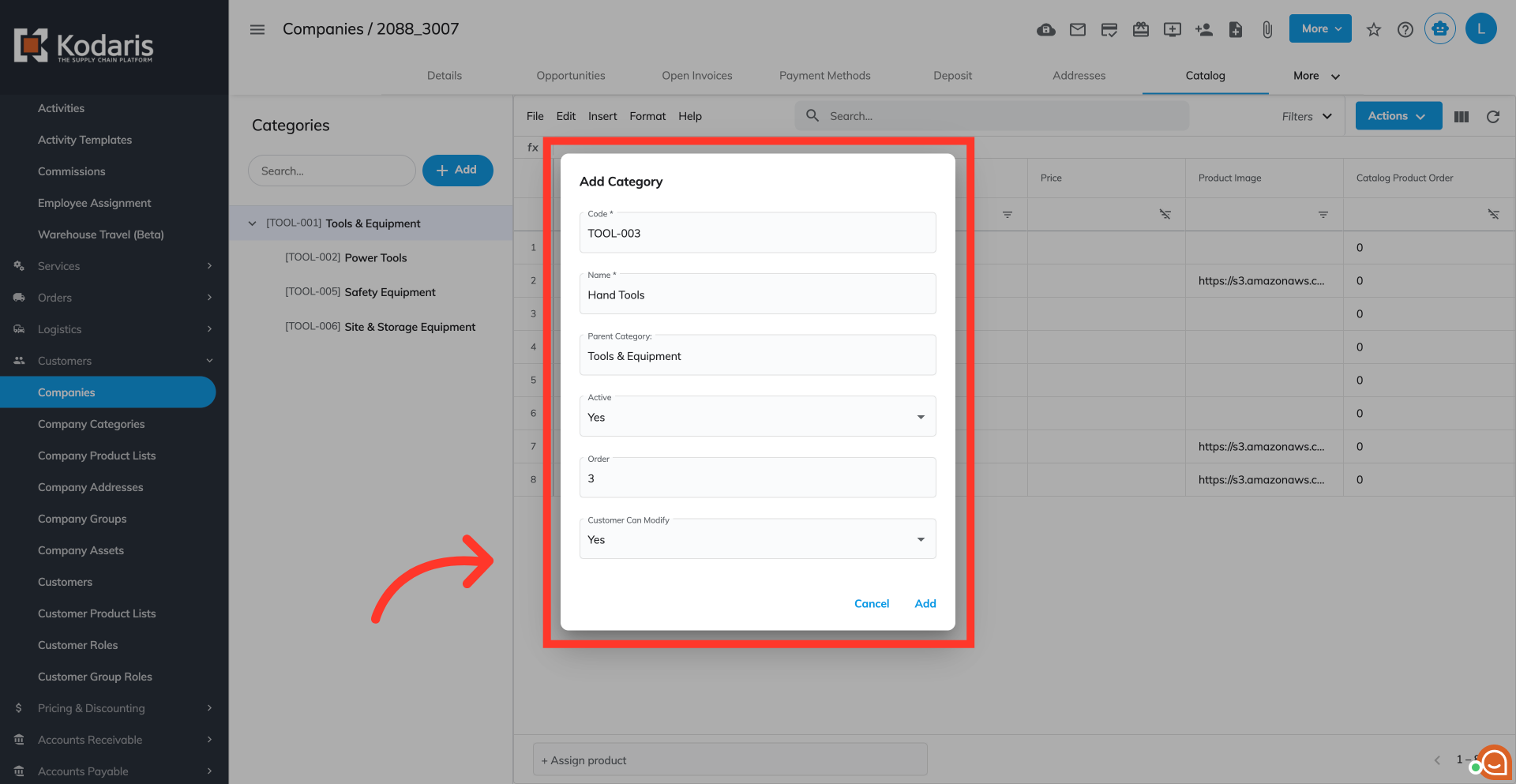
Fill out the "Add Category"form with your catalog information.
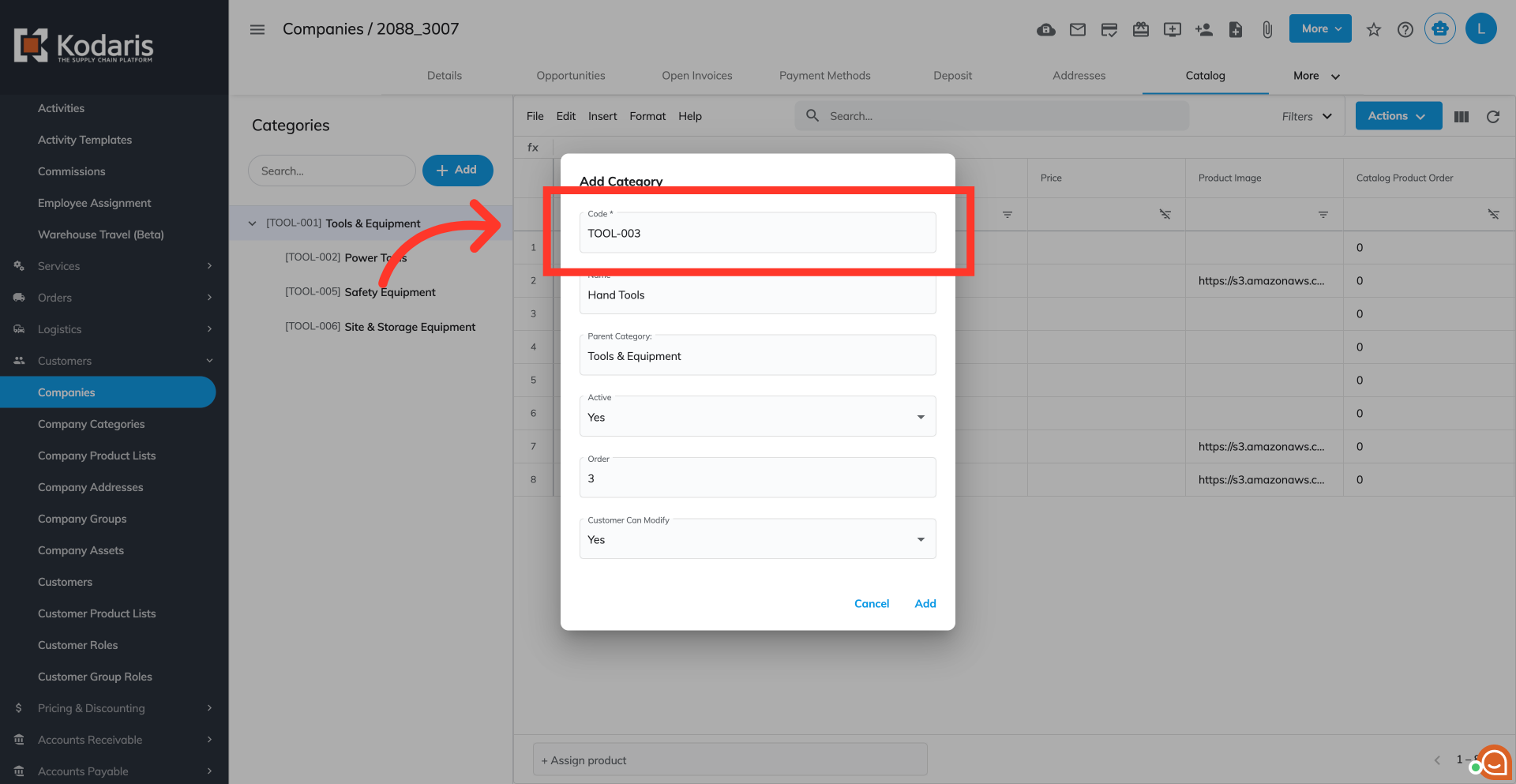
"Code" field
Type in a unique code for the new category. An error code will appear if the code is already in the system.
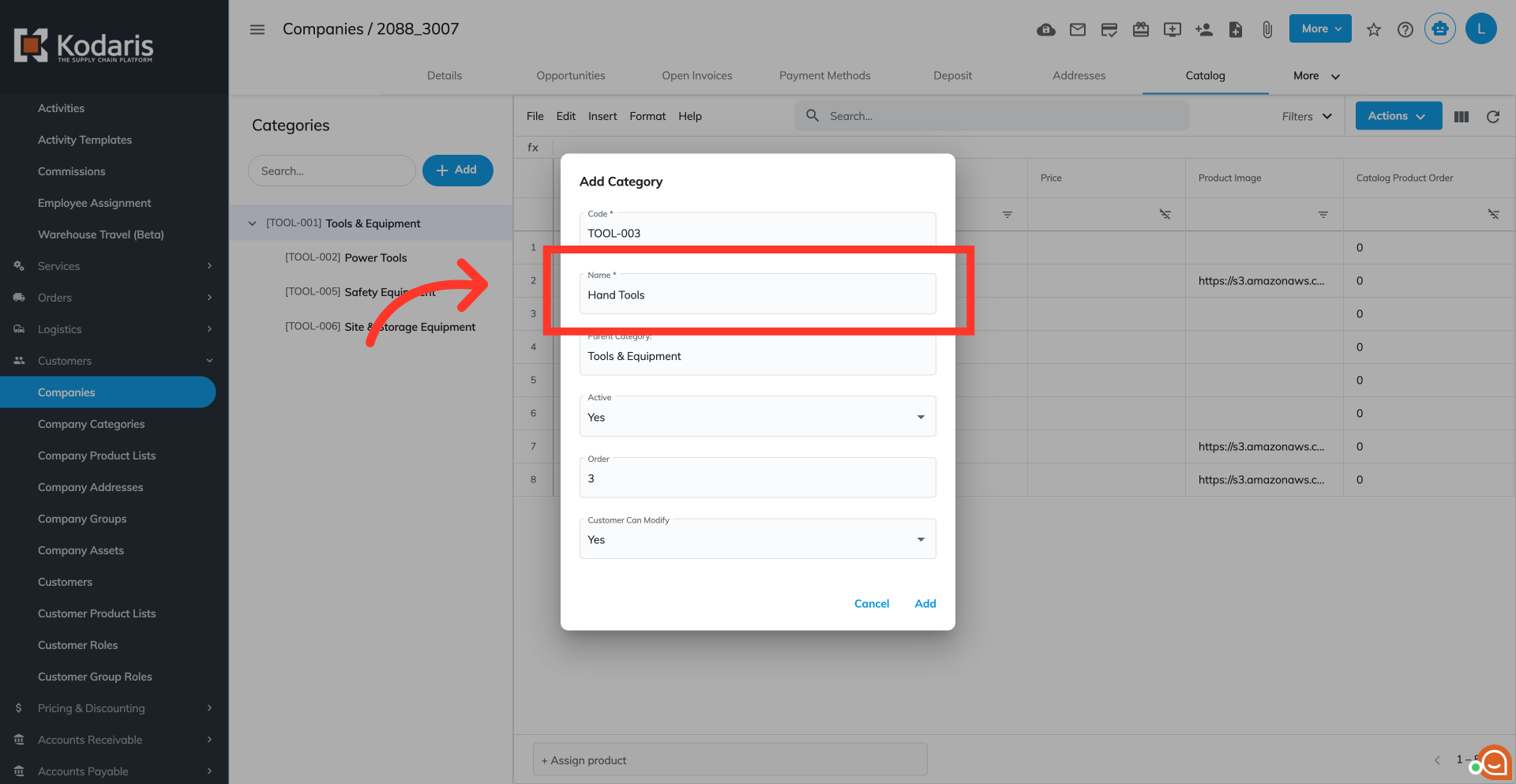
"Name" field
Enter a descriptive and user-friendly name for the category. This name will be displayed to your customers
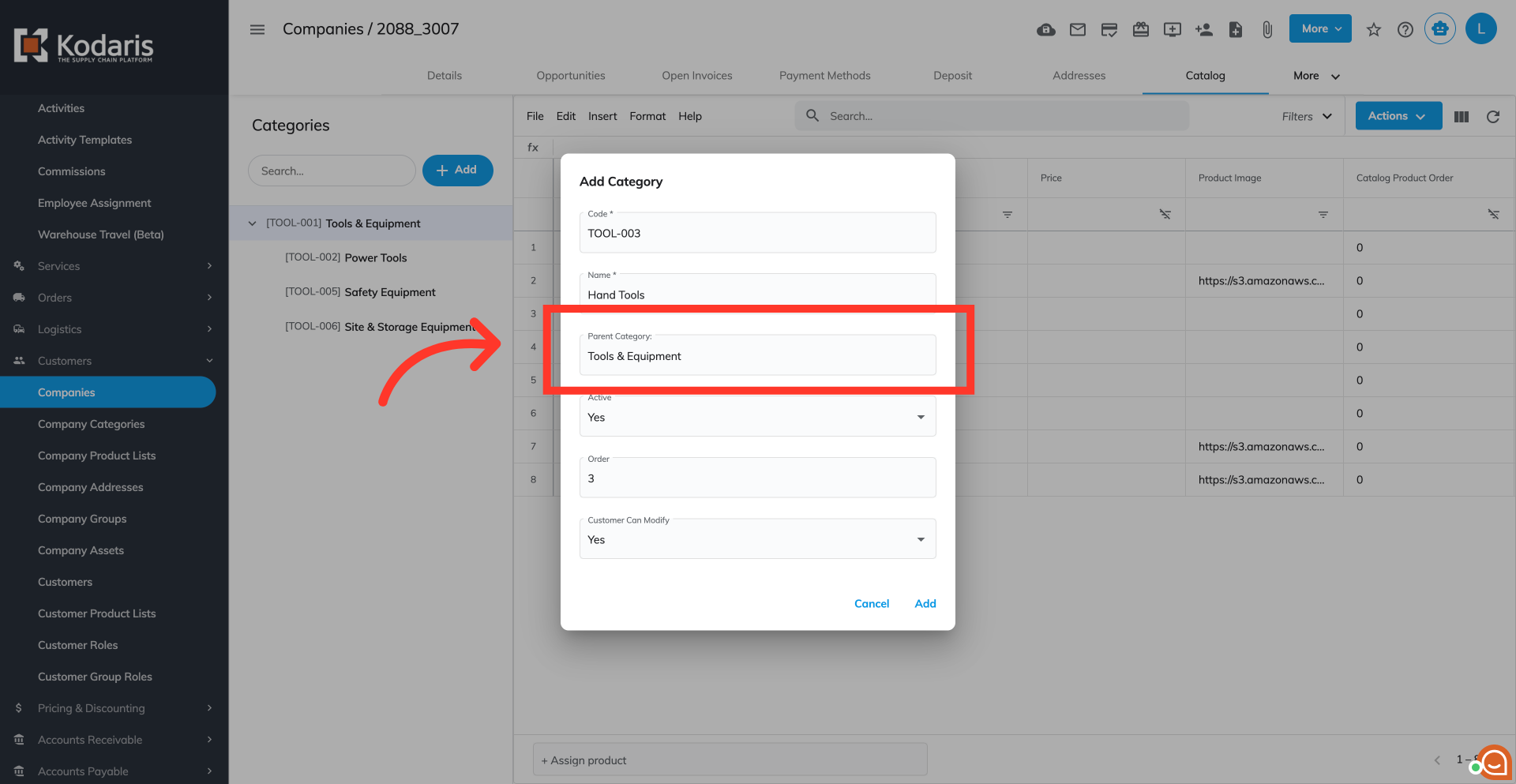
"Parent Category" field
The "Parent Category" dropdown displays all existing categories on the company. If you would like to assign a parent category, you are able to select the parent category from the dropdown. The dropdown is type as you search. If you leave the field blank, no parent category will be assigned.
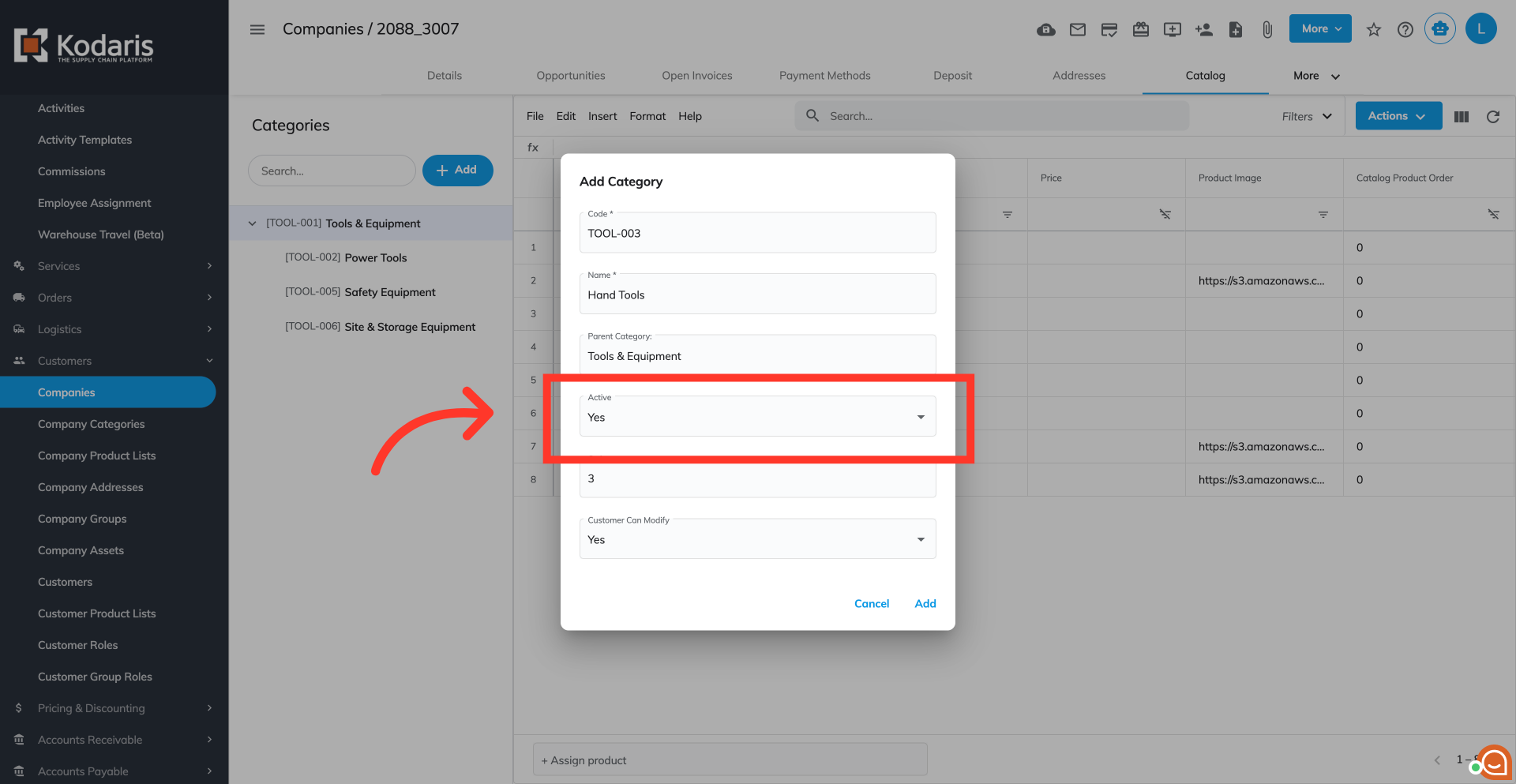
"Active" field
This field is set to "Yes" by default, but you can choose "No" from the dropdown if needed. If you choose "No", the category will not be visible to customers.
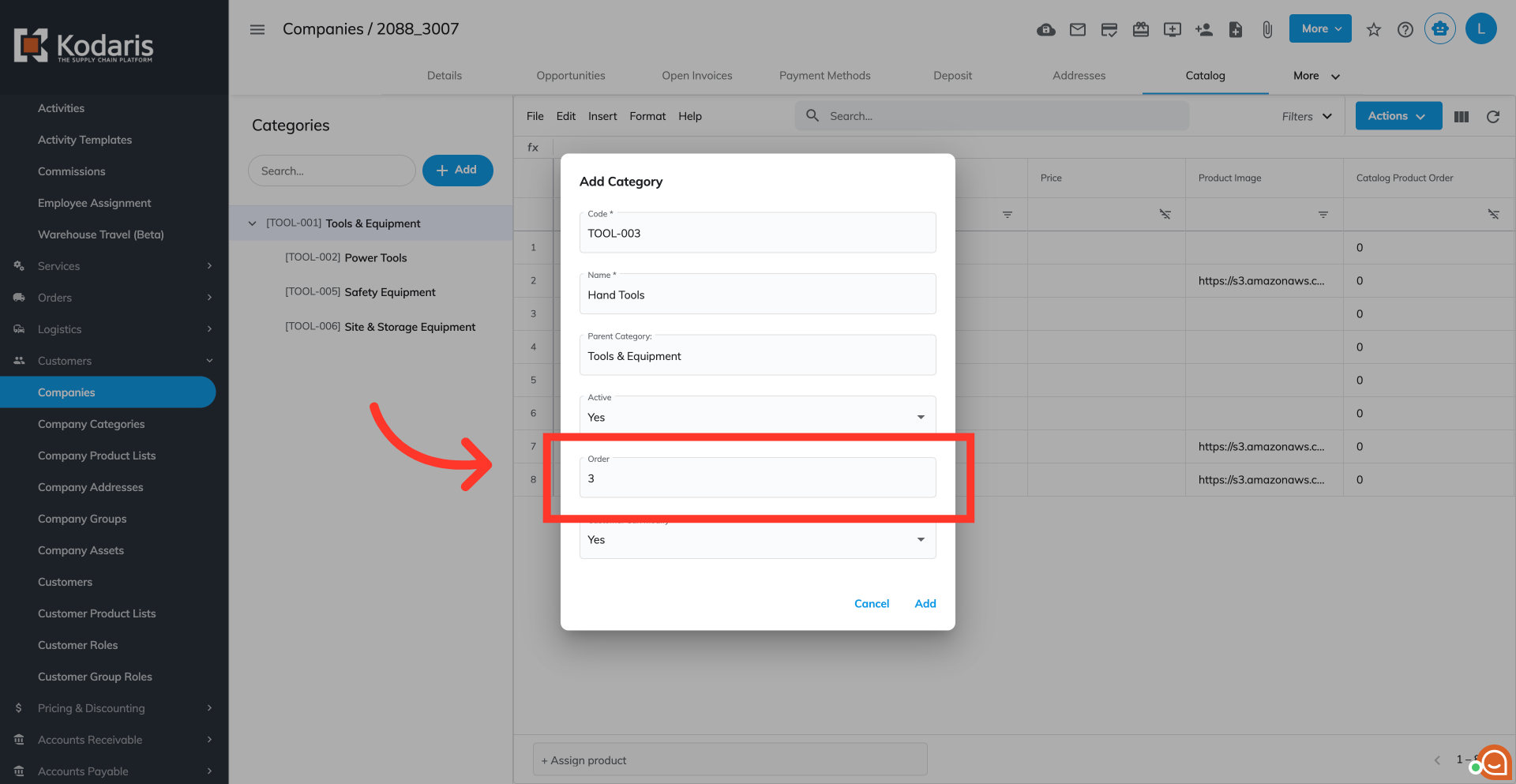
"Order" field
This setting manages the arrangements of your categories as displayed on your customer site. The lower the value, the higher the category will be listed.
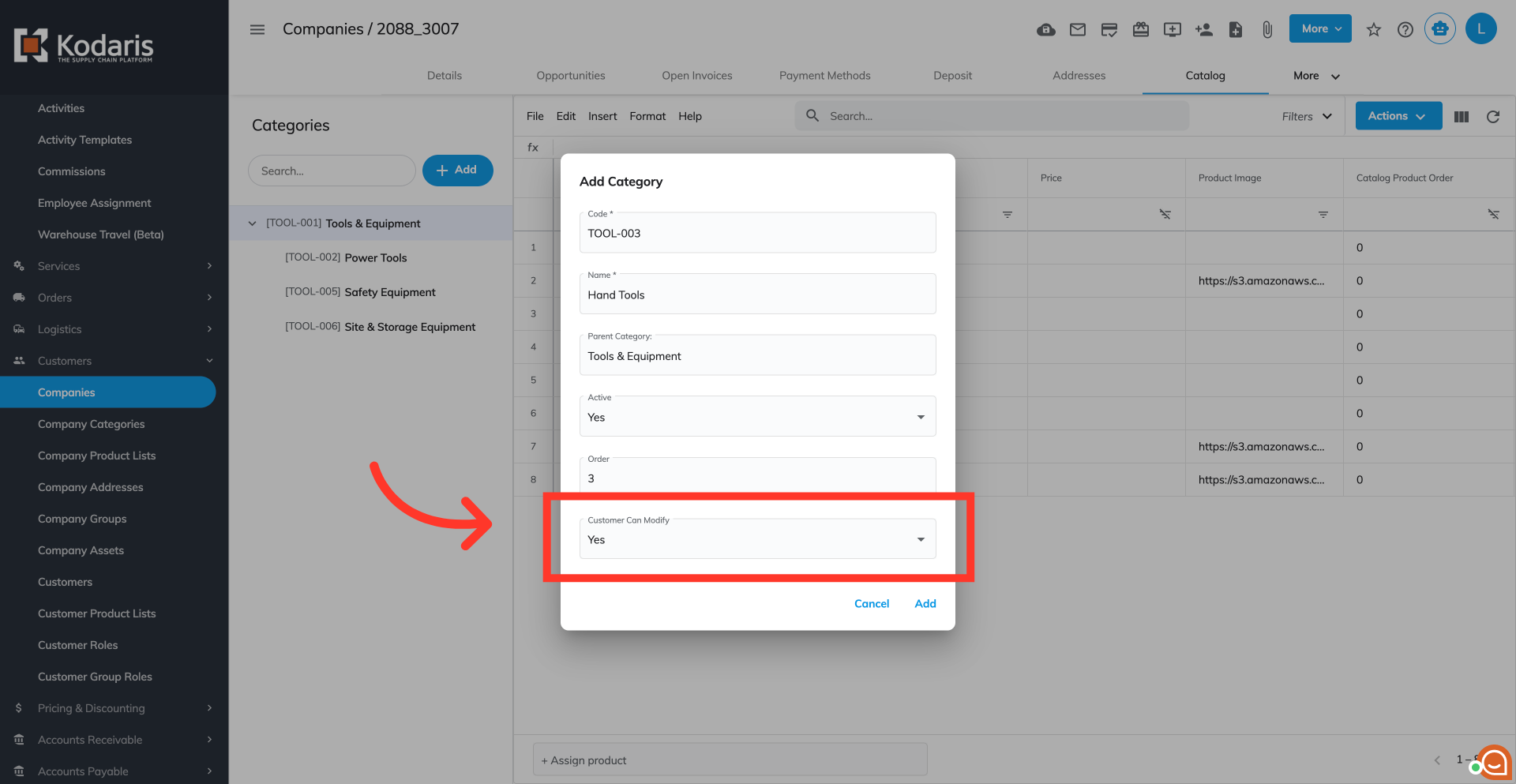
"Customer Can Modify" field
This allows customers to make updates to the category on the customer site.
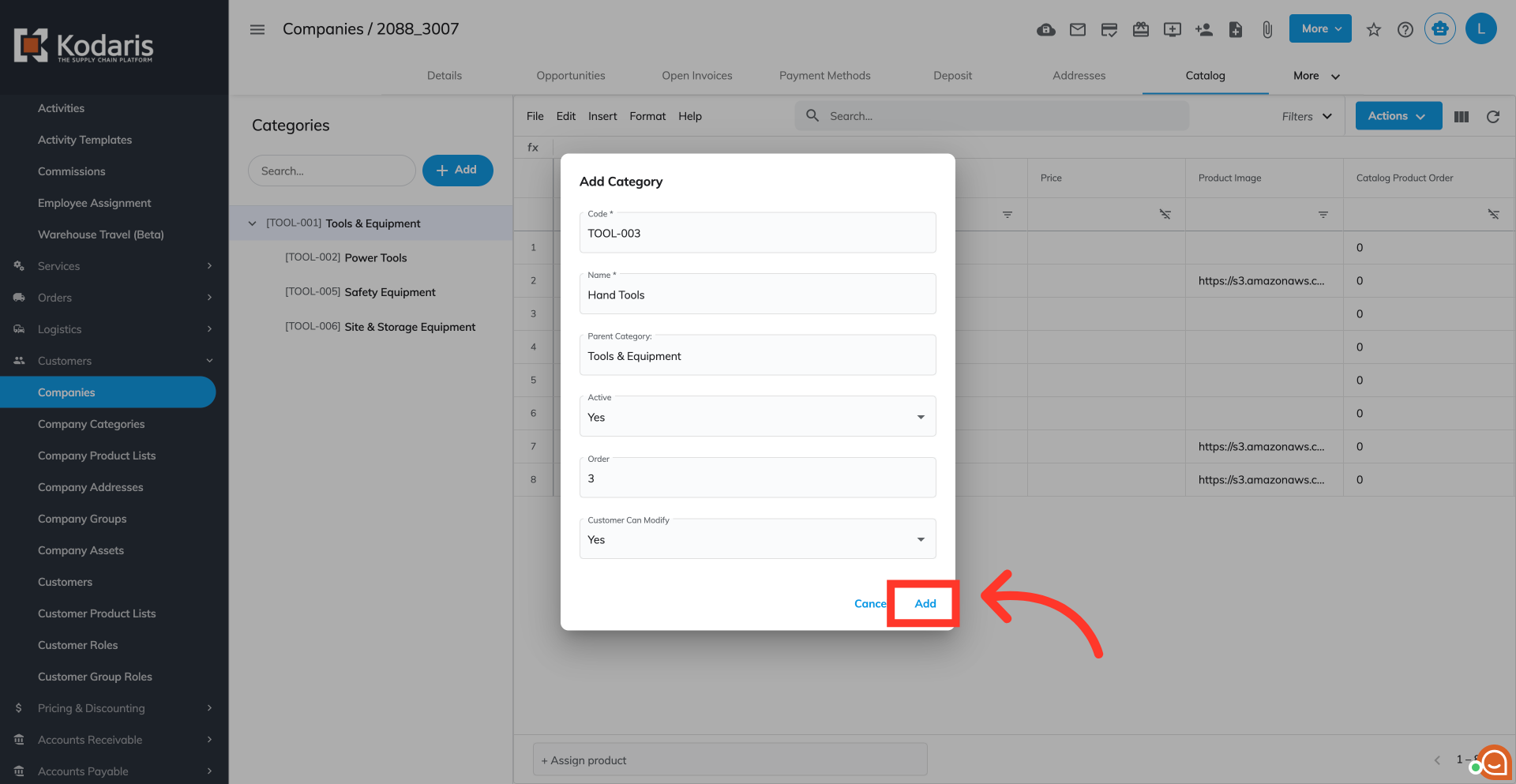
Click the "Add" button
Once done, click on the "Add" button to confirm creating the category. You can assign and manage products within the category you just created. Multiple categories can be created if needed.
New company category added
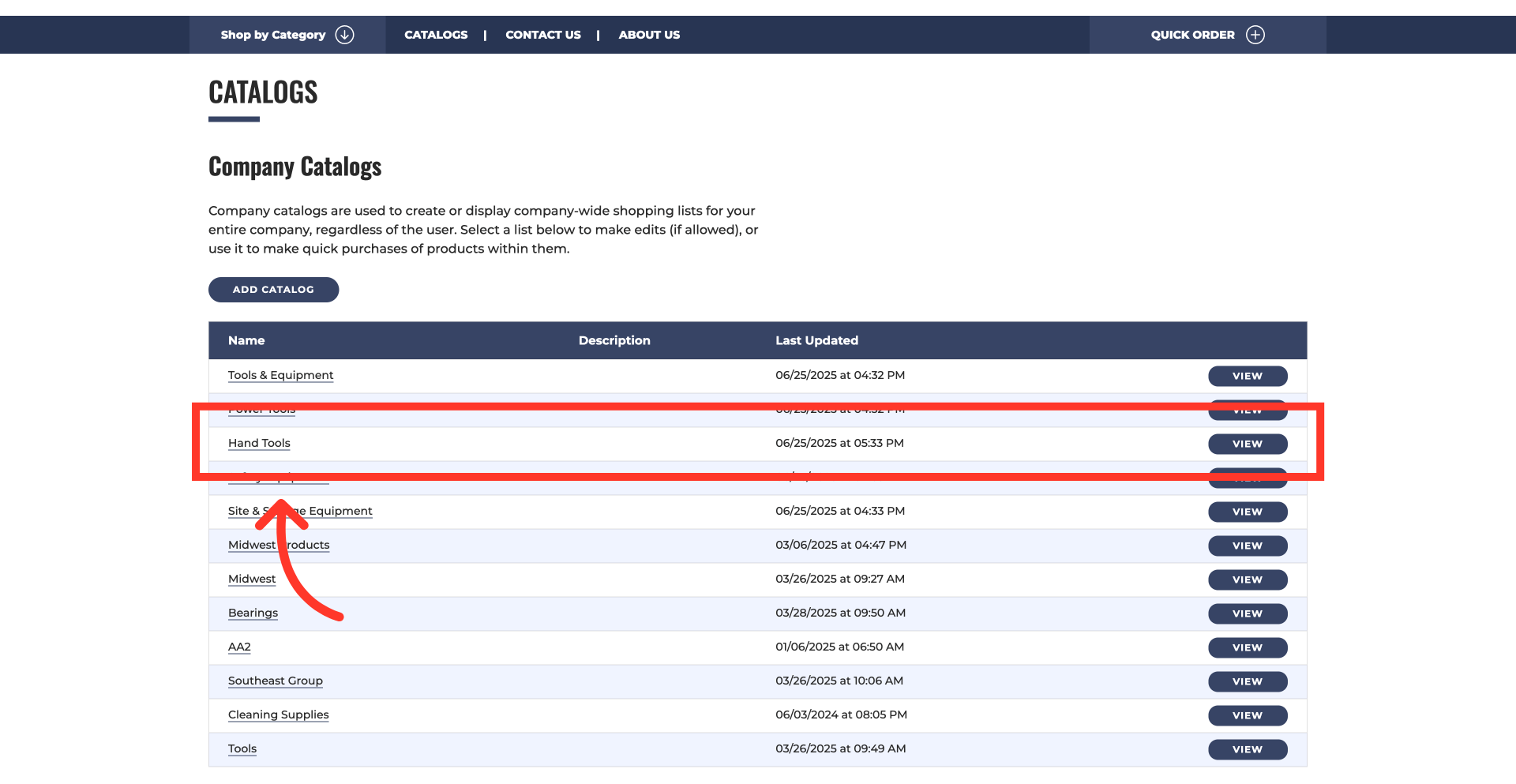
The company category should appear in the "Company Catalogs" section of the customer's "Company Catalogs" page.