Operations Customers - Sort & Filter Company Addresses in the Spreadsheet View
Navigate to "Customers"
To sort and filter data for company addresses, navigate to the "Customers" section in the Operations Portal.

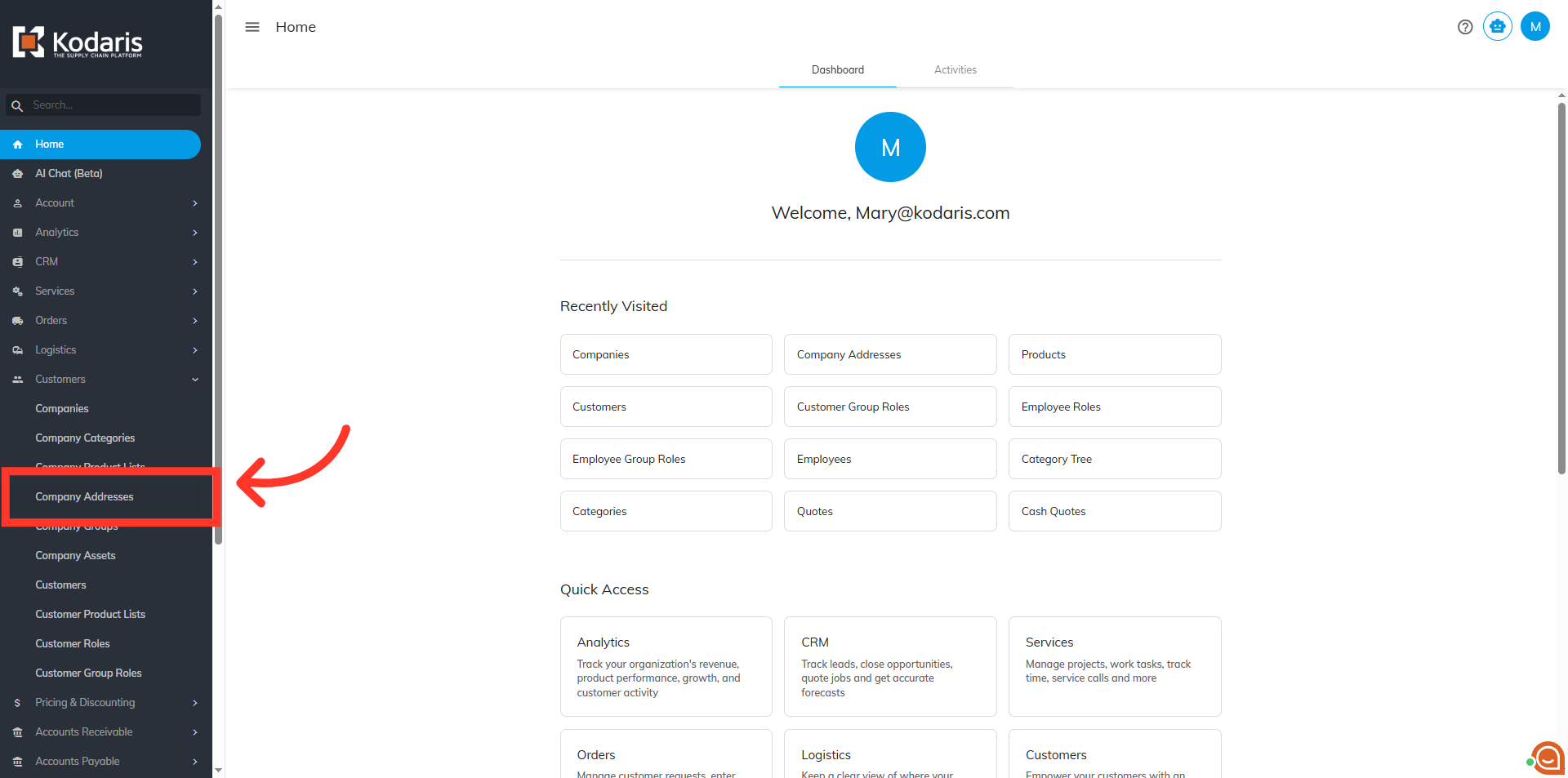
Click "Company Addresses"
Then, click on the "Company Addresses". In order to access “Customer Addresses” you will need to be set up either as an "administrator" or a "superuser", or have the appropriate roles: “companyAddressView” and “companyAddressEdit”.
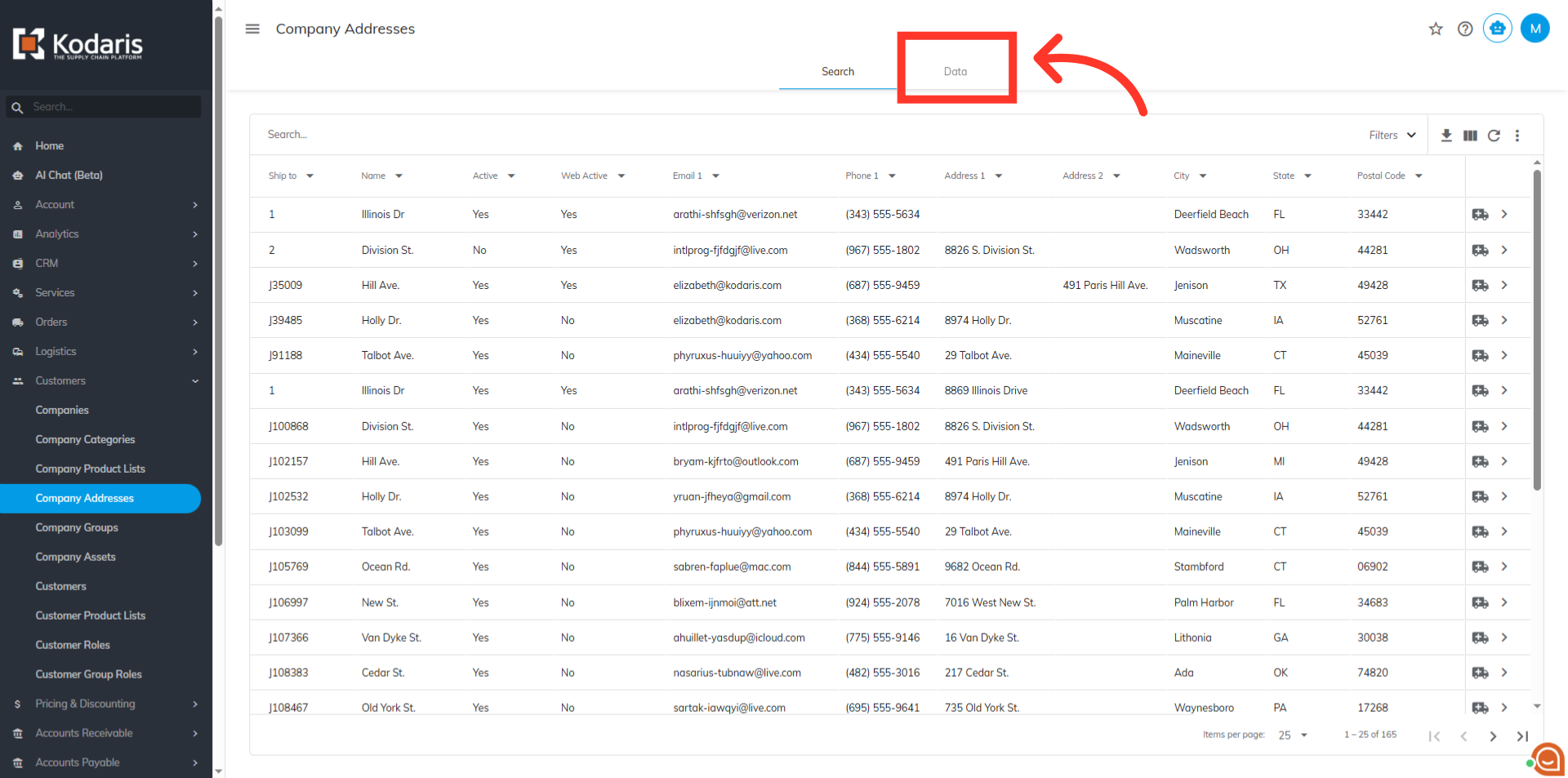
Click on the "Data" tab
Click on the "Data" tab.
Click on the arrow icon to sort data in a column
Click on an arrow icon in a Column Header to sort data.
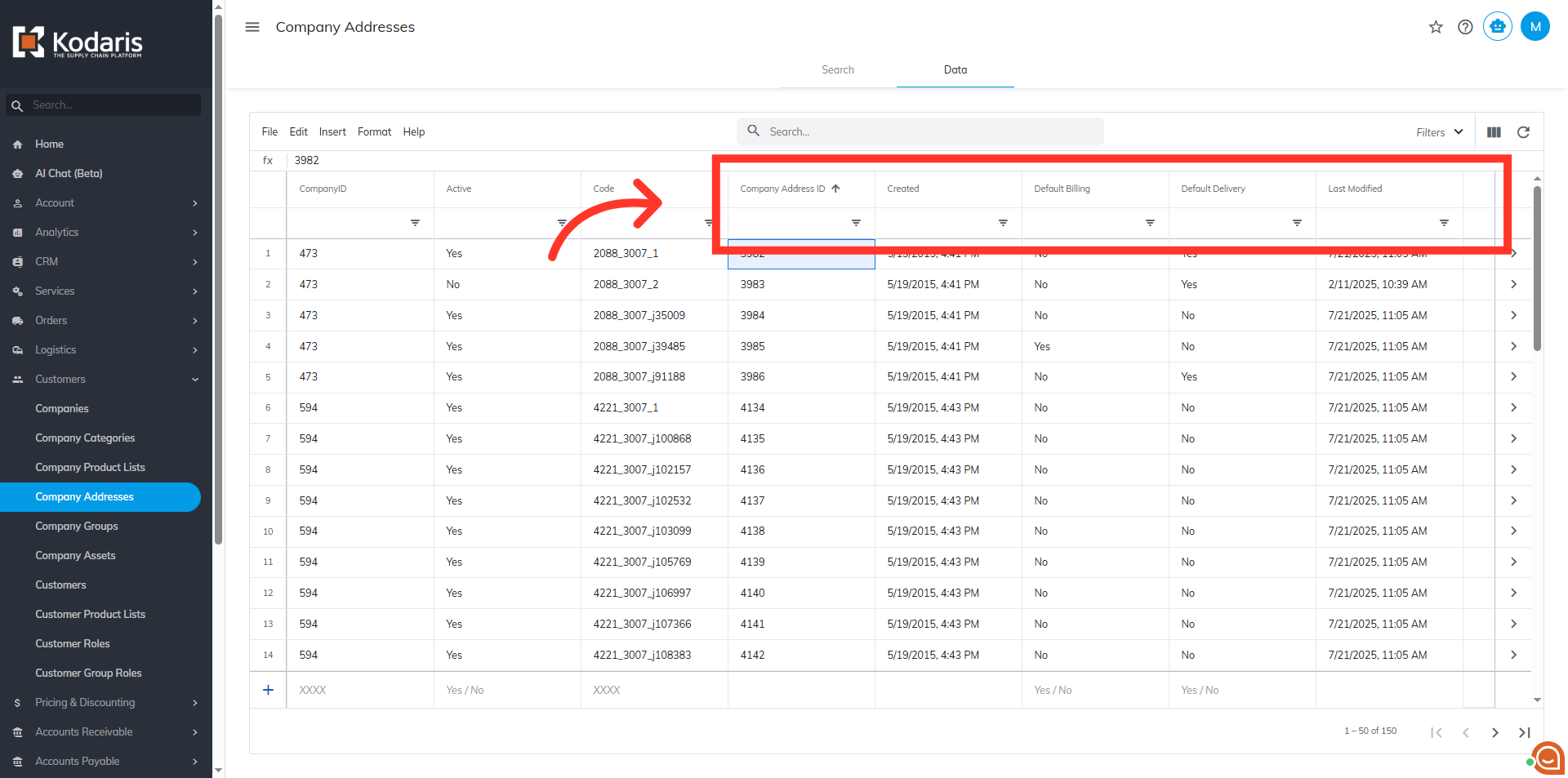
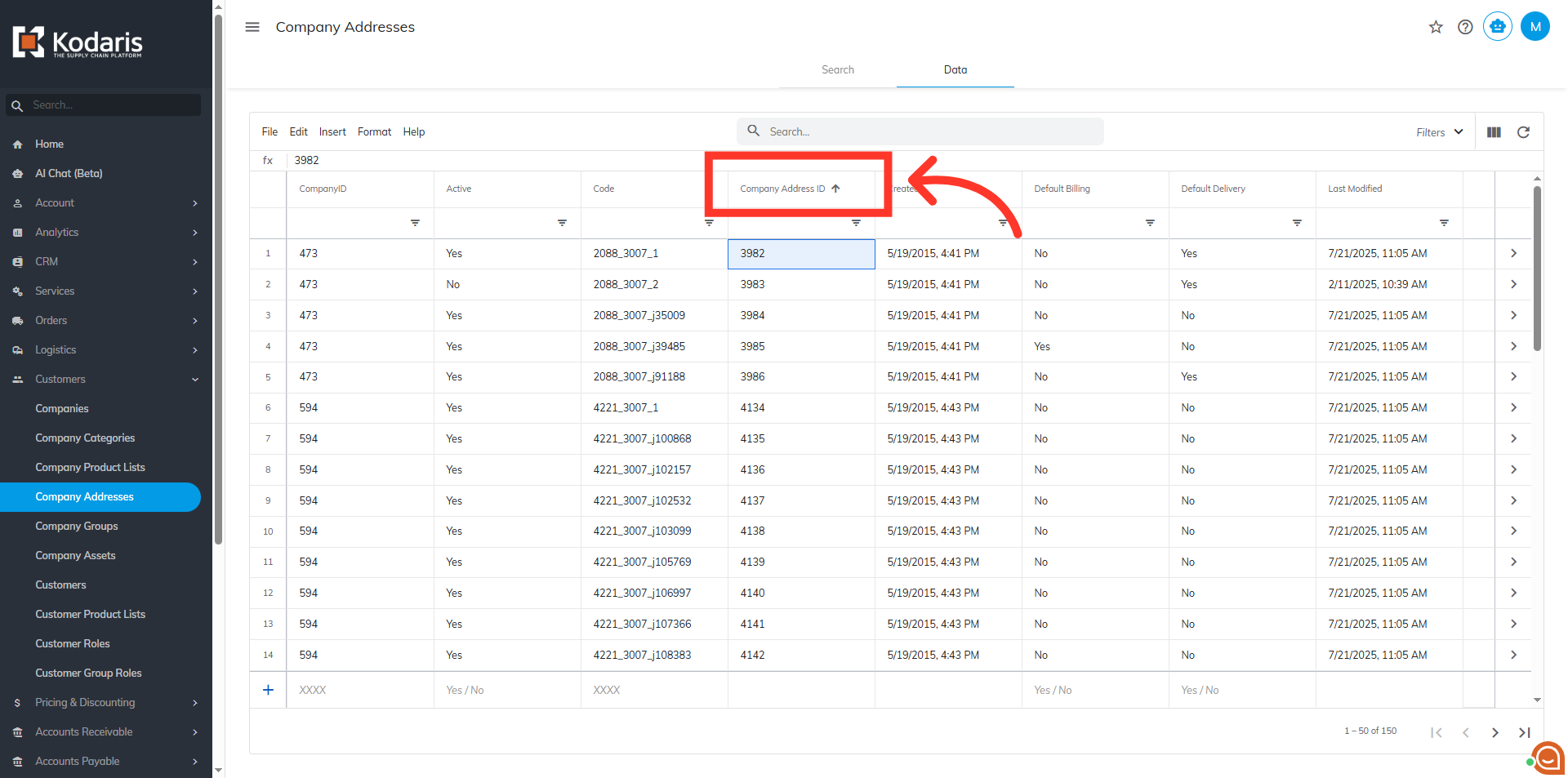
Sort data in ascending order
The upward arrow indicates that the data is being sorted in ascending order.
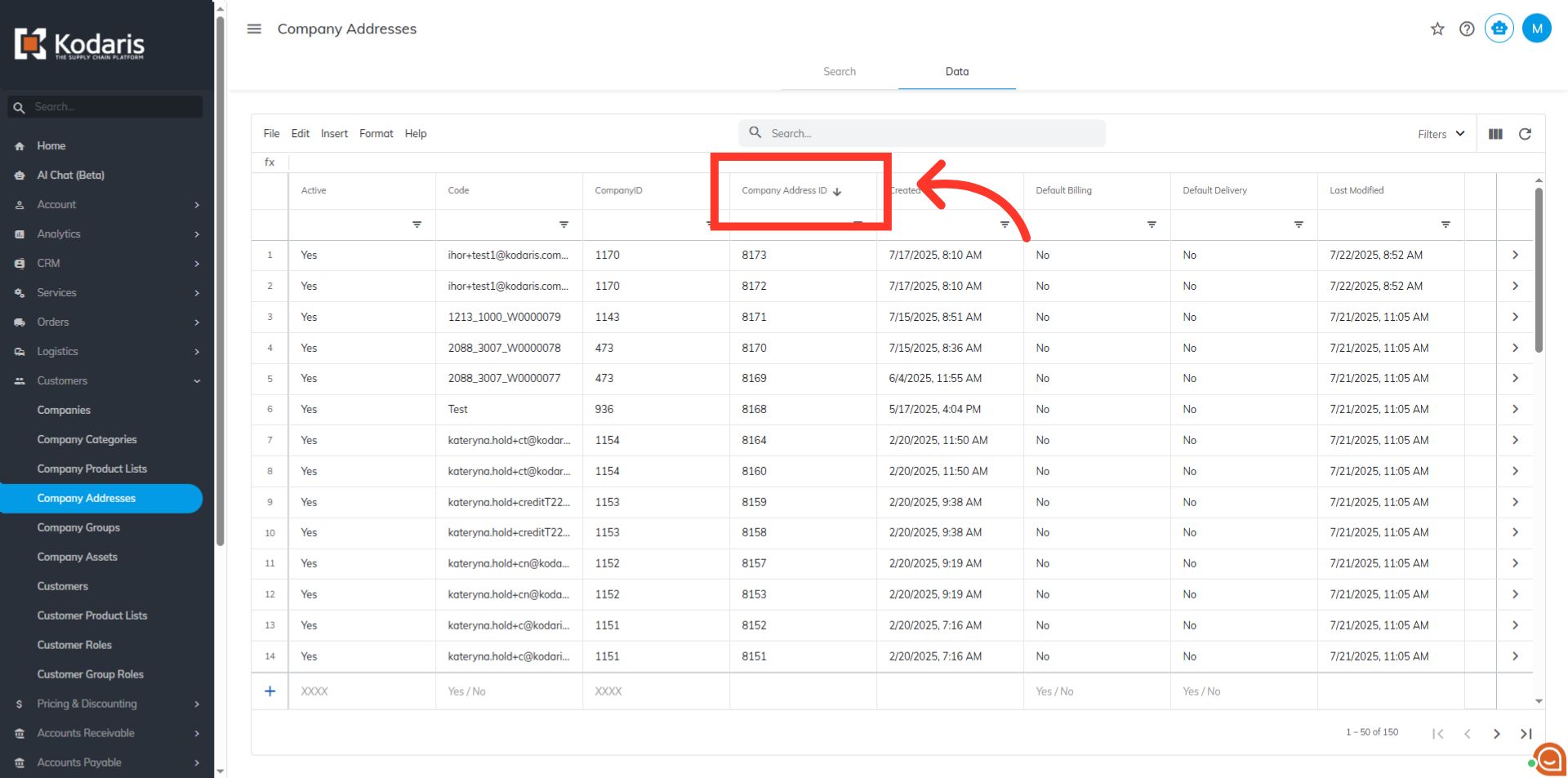
Sort data in descending order
Click the arrow again, and it will change to a downward arrow, indicating that the data is being sorted in descending order.
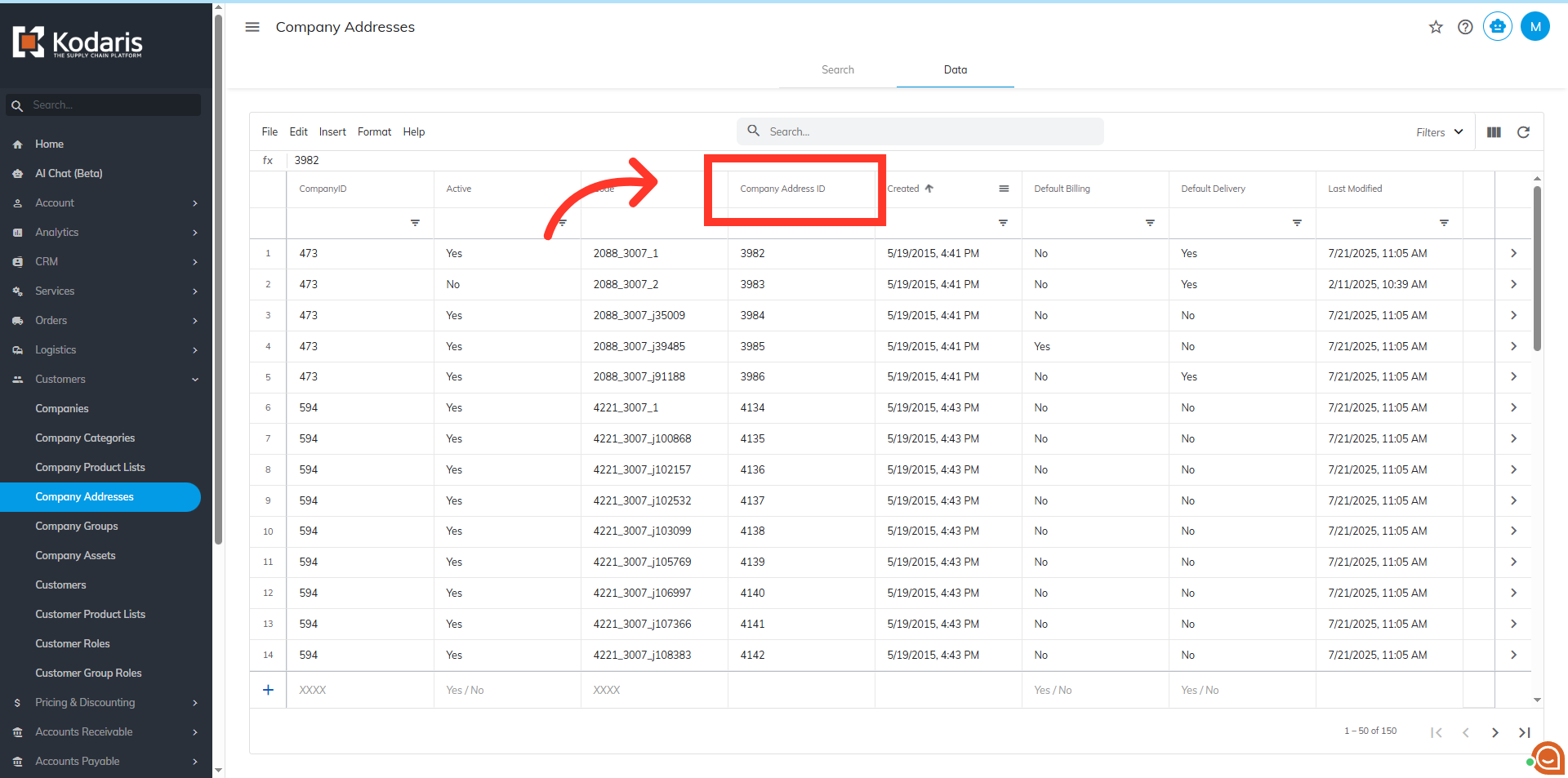
Click the arrow again to remove the applied sort option
If you click the arrow icon one more time, it will then clear the applied sort option.
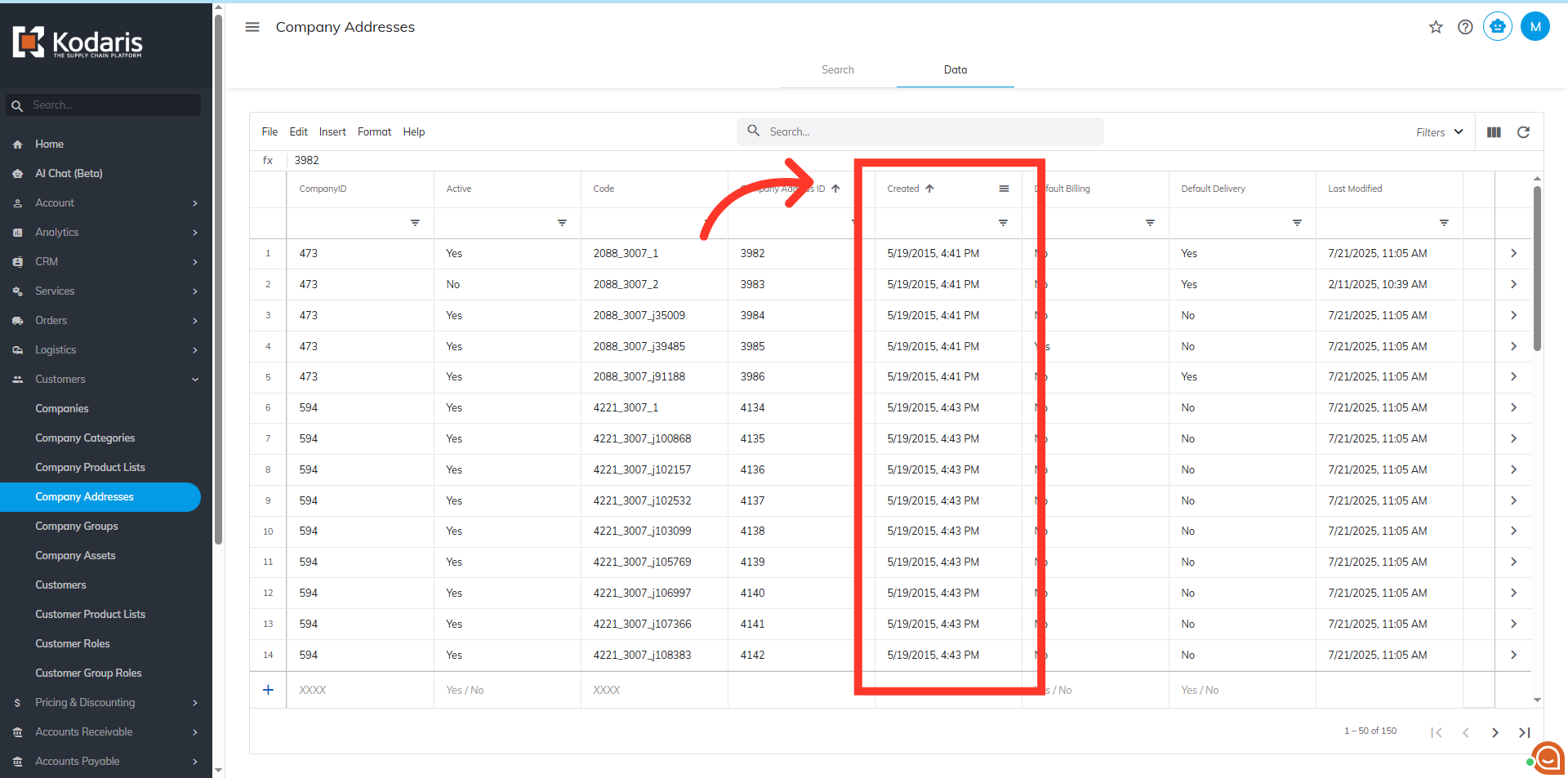
Do the same for other columns to sort data
You can do the same for other columns to sort data.
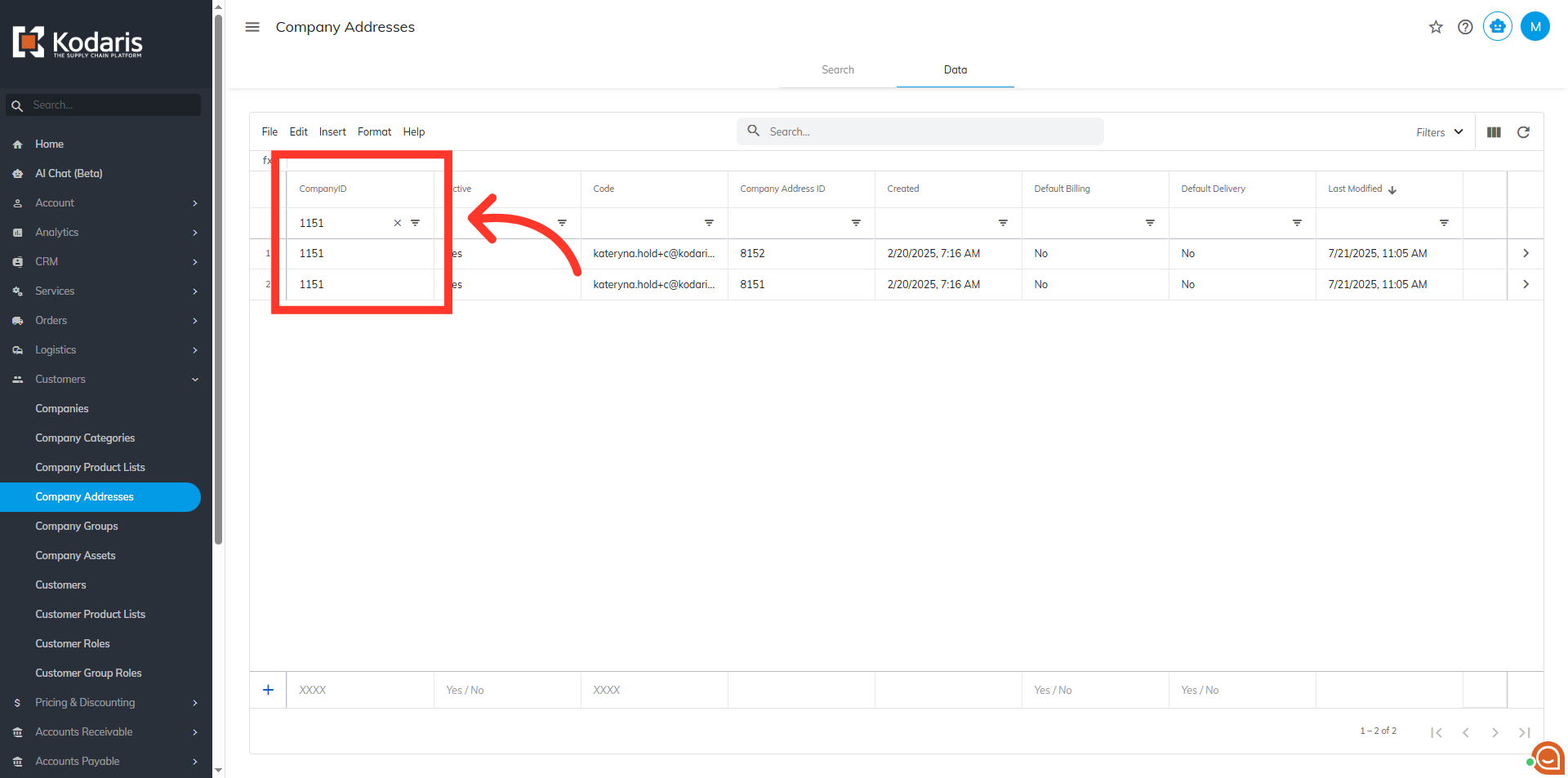
Enter data in the field that you want to filter
To apply a filter, enter your data in a filter field and press Enter.
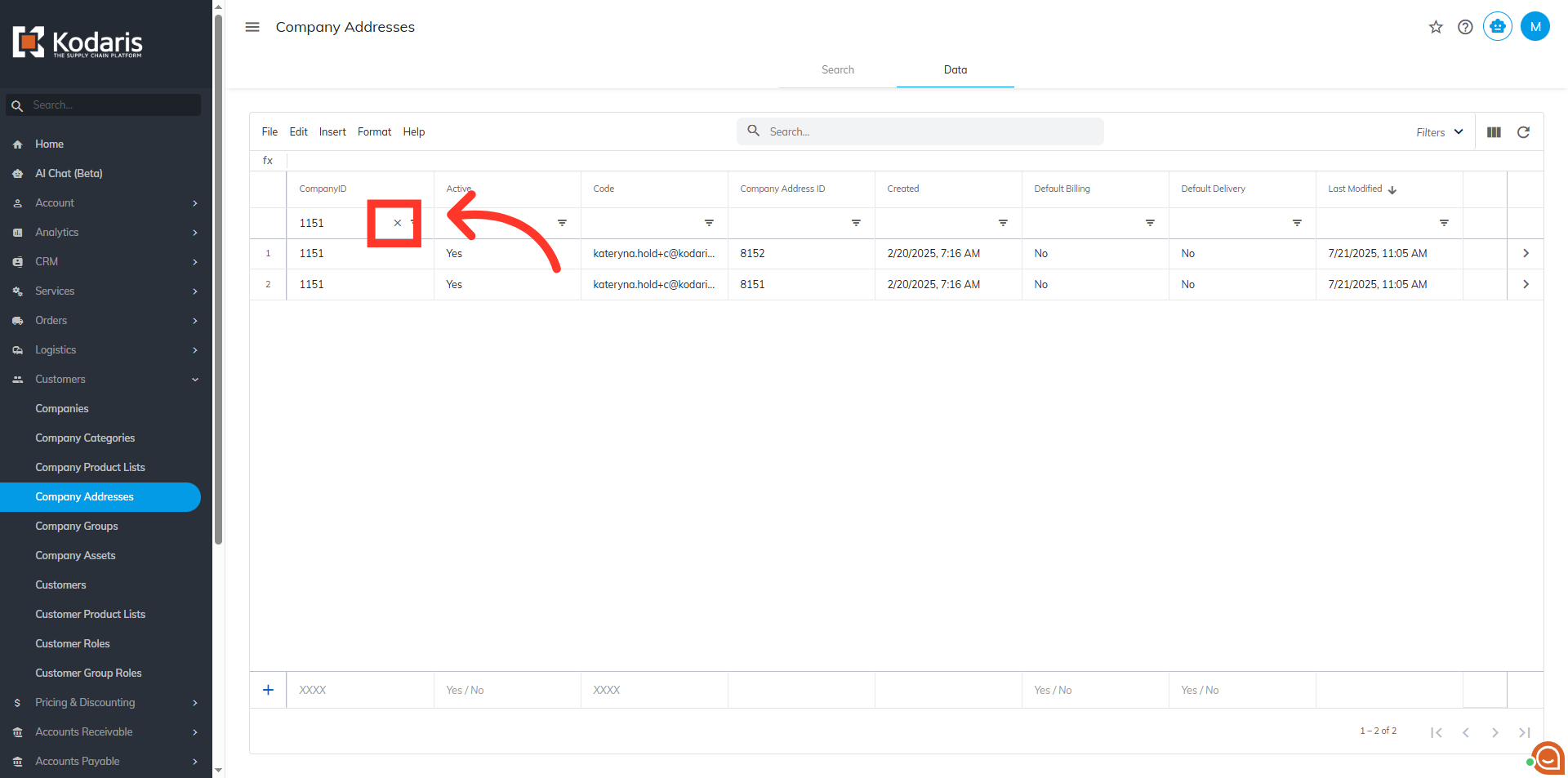
Click "X" to clear filter
Click "X" to clear the filter.
Filter data in other columns
You can filter other columns as well.

Click the "Filters" icon dropdown
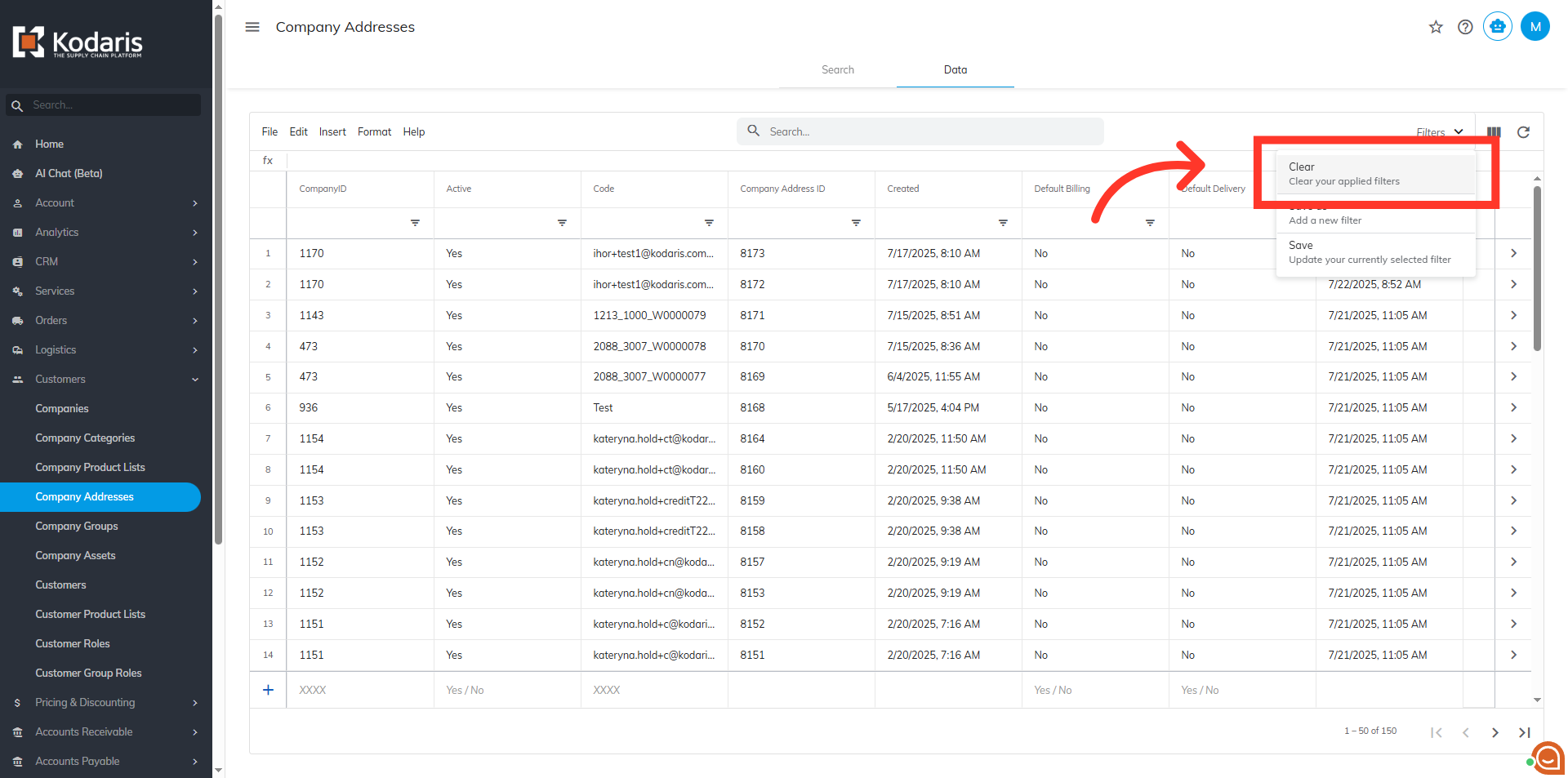
To easily remove all the filters and sorting options you have applied, click on the "Filters" dropdown.

Click "Clear your applied filters"
Then, click on the "Clear" option.