Operations Companies - Assign a Child Customer Account under a Parent Account
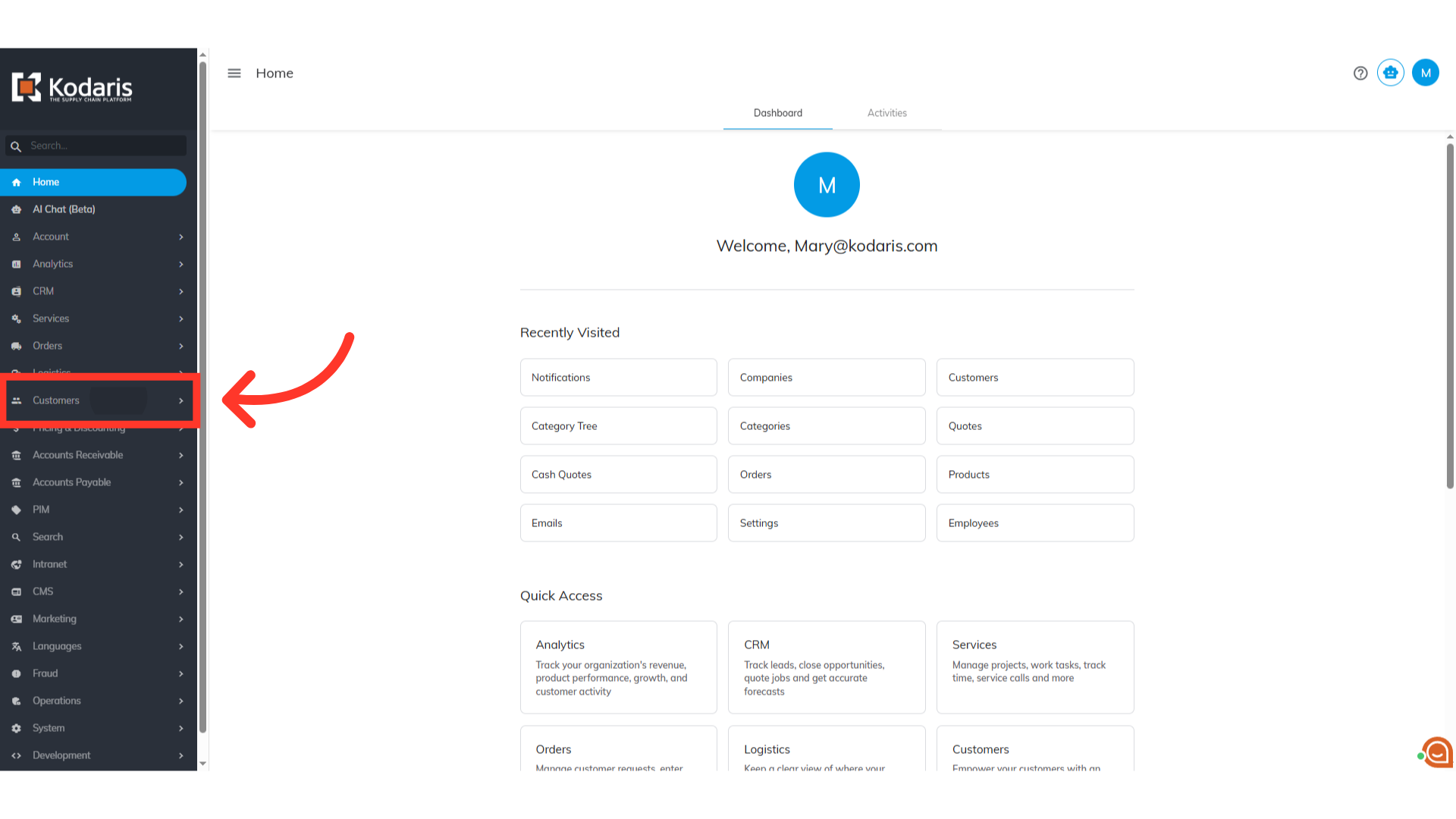
Navigate to "Customers"
To assign a child company to a parent company, navigate to the "Customers" section in the Operations Portal.
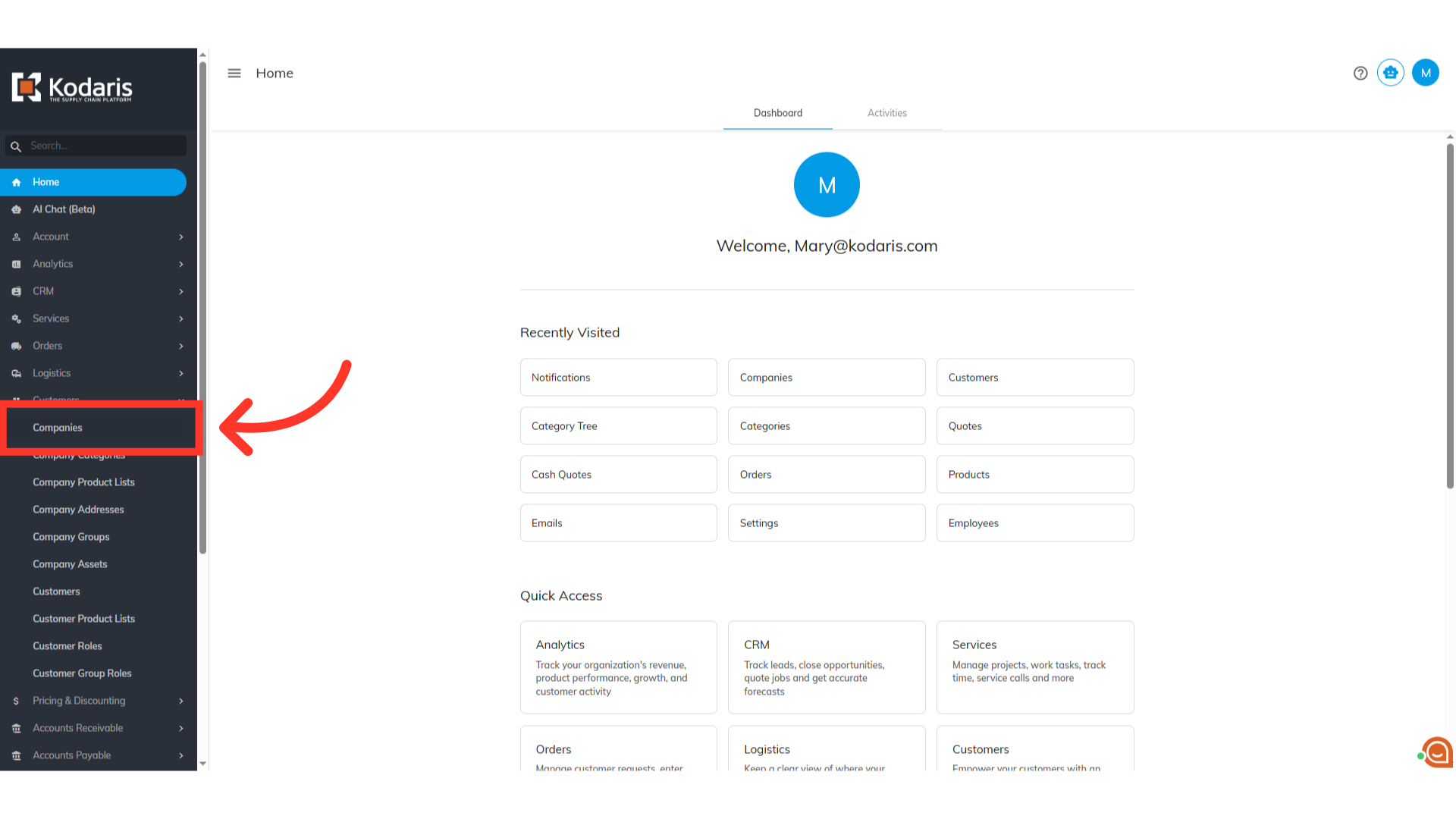
Click "Companies"
Then, click "Companies". In order to access "Companies" you will need to be set up either as an "administrator" or a "superuser", or have the appropriate roles: "companyView and companyEdit", or "crmCompanyView and crmCompanyEdit". Just a reminder, "crmCompanyView and crmCompanyEdit" access only allows employees to view companies that are assigned to them.
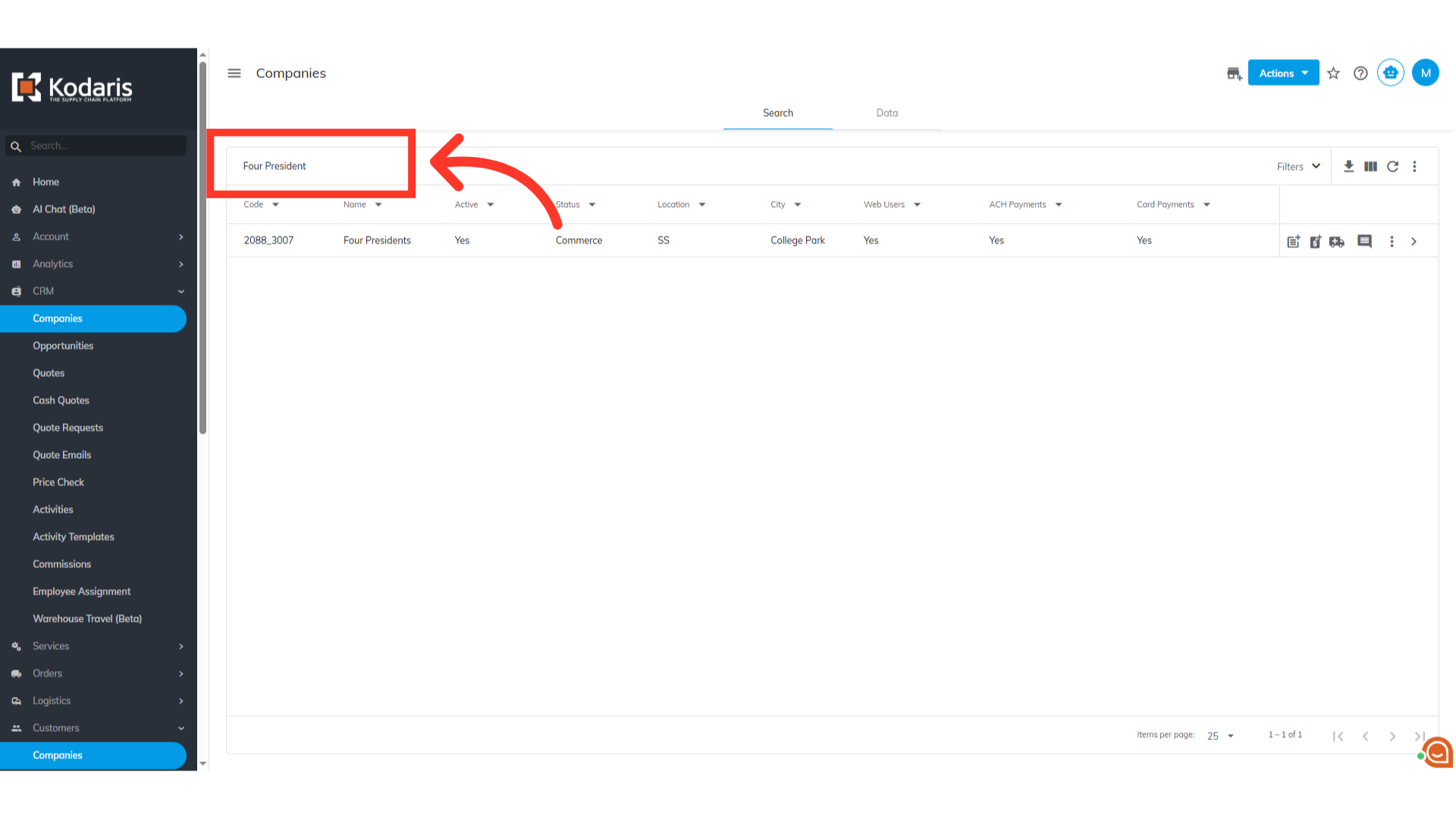
Search for the parent company
Enter the parent company code or name in the field to search.
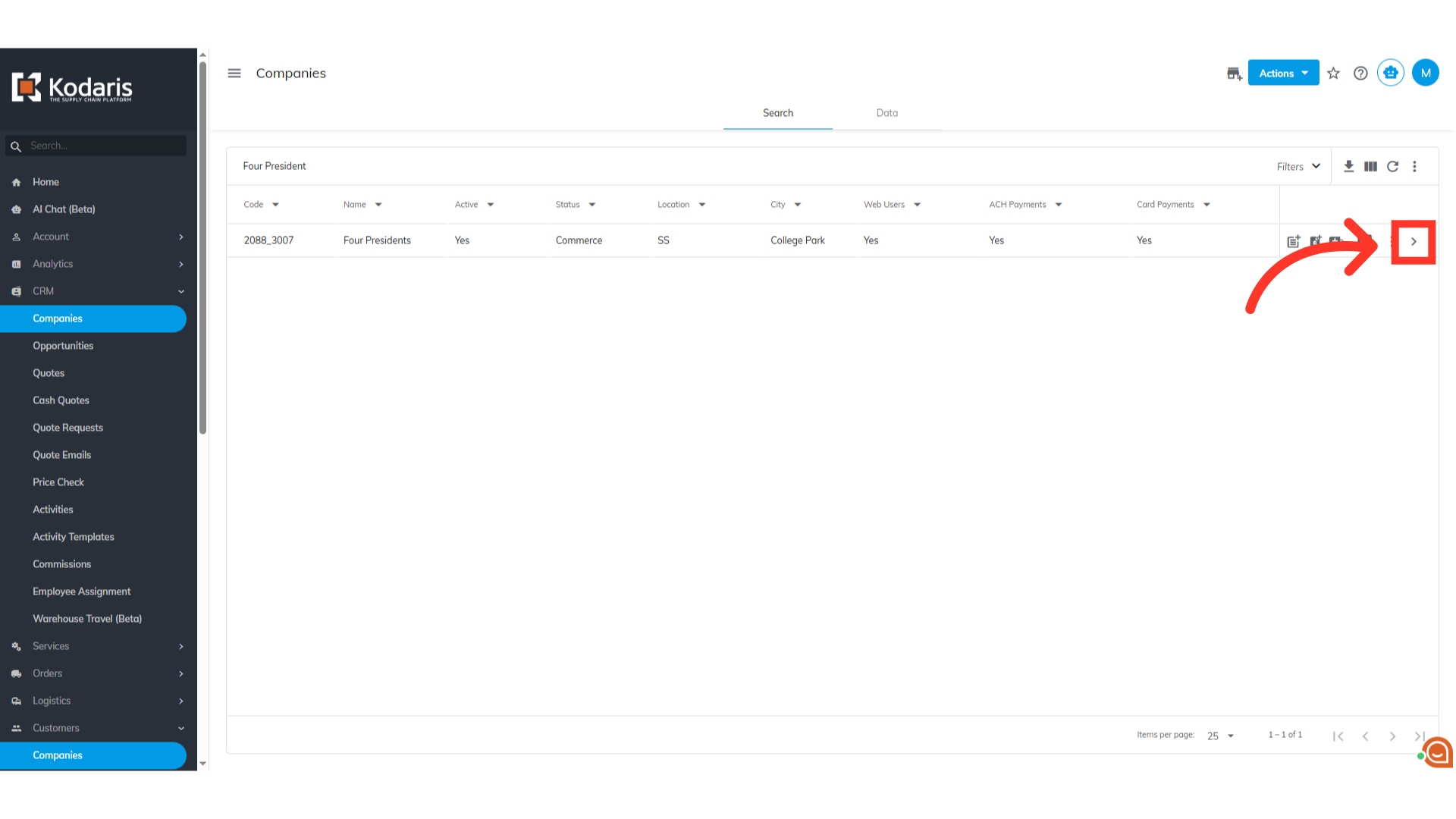
Click on the more details icon
Then, click on the more details icon to view company details.
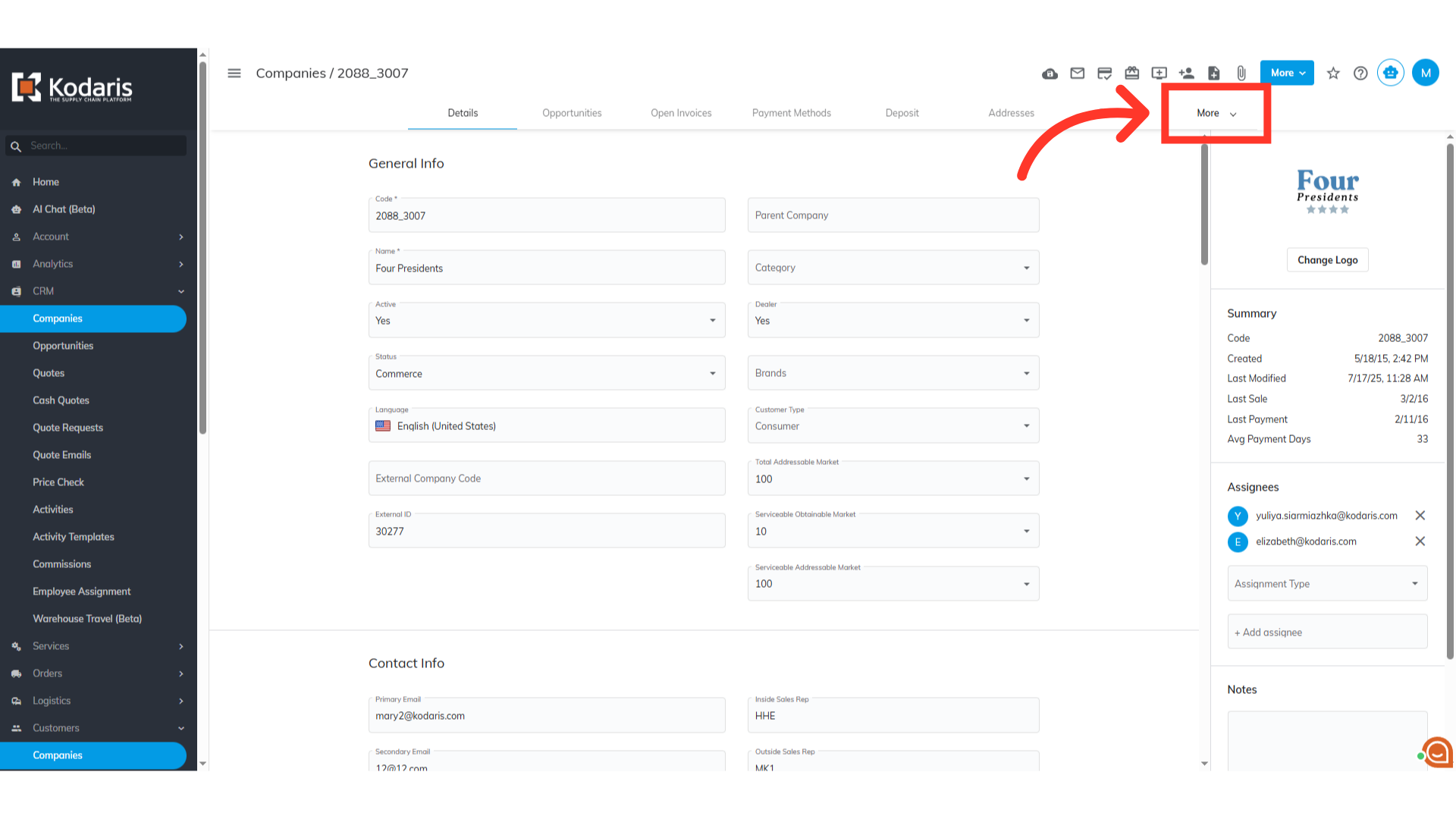
Click "More"
Access additional tabs by clicking on the "More" tab dropdown.
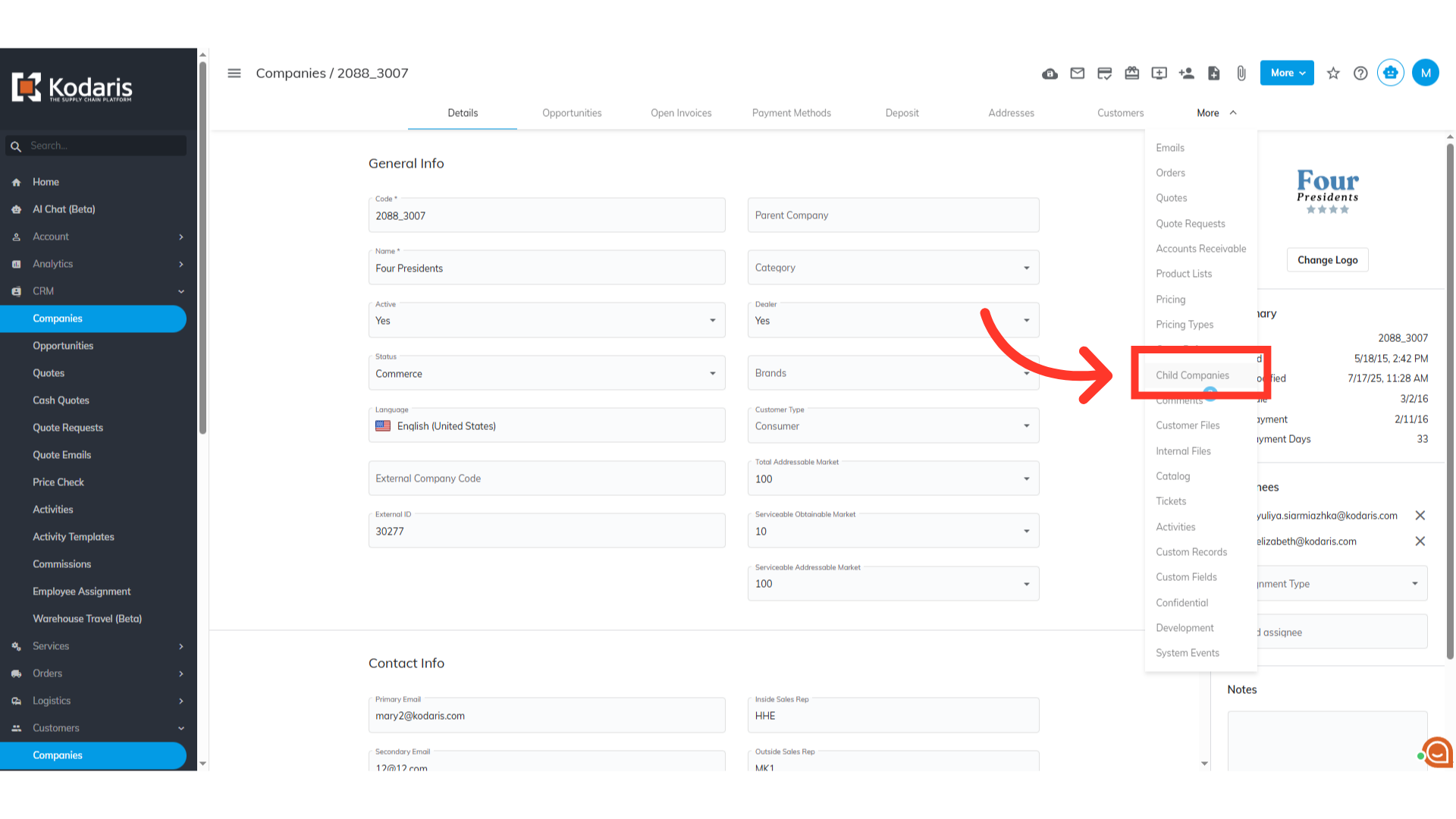
Select "Child Companies"
Select "Child Companies".
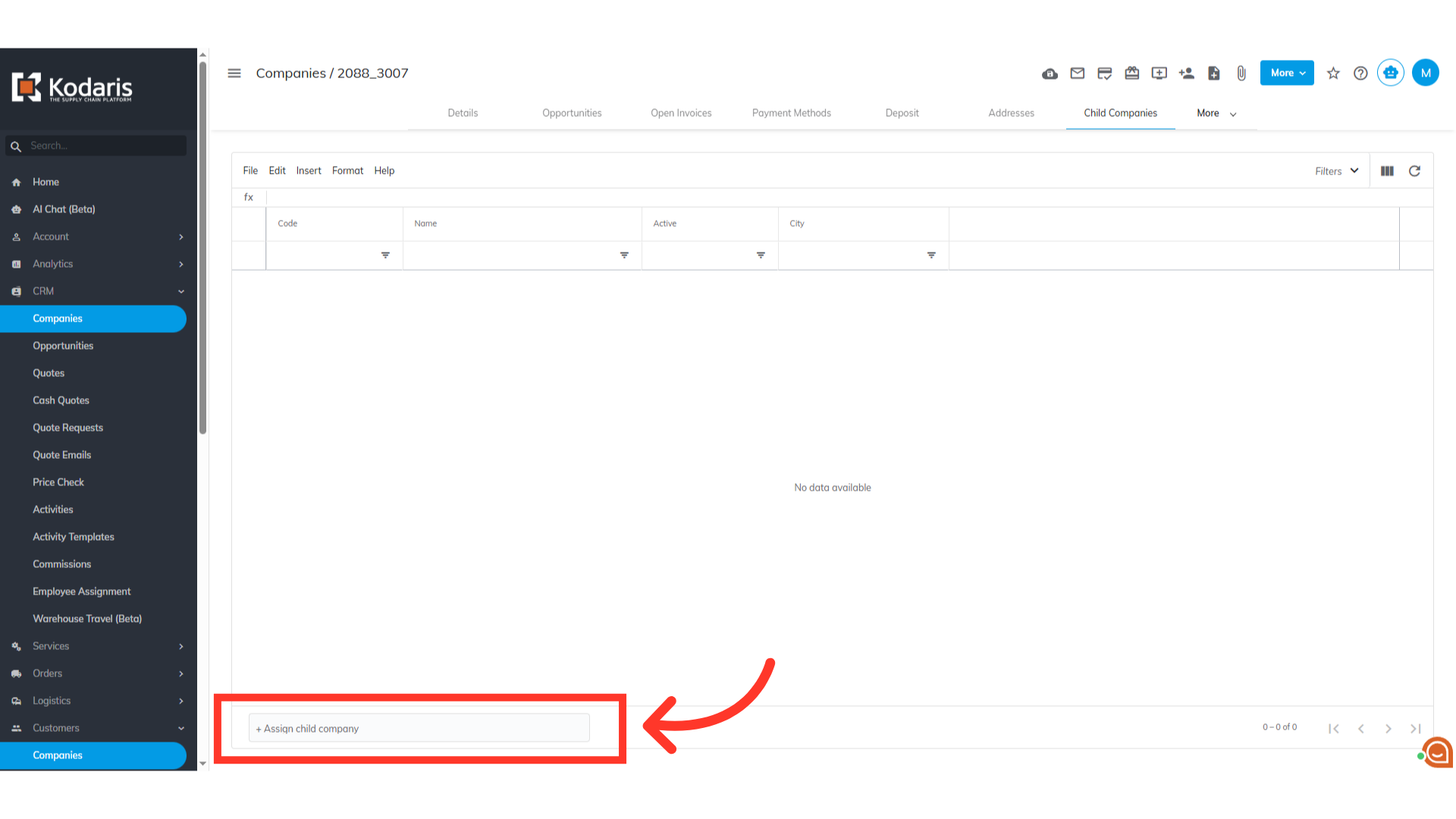
Click the "+Assign child company"
At the bottom of the screen, click on the "+Assign child company" field to add child companies.
Type in the company name or code
Type in the child company name or code in the field and select it from the options that will appear.
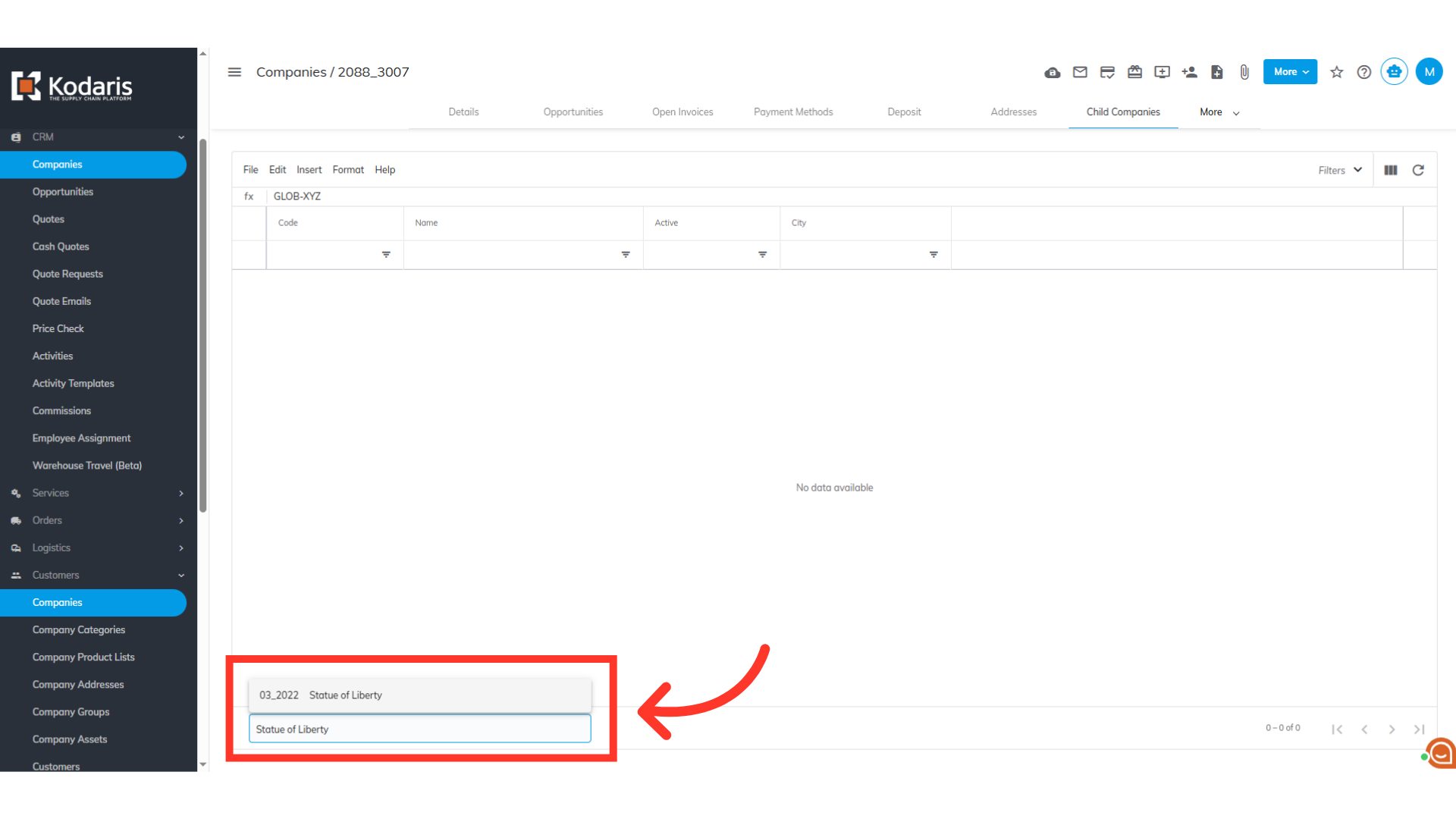
The account has been assigned as a child company
The company has been assigned as a child company.
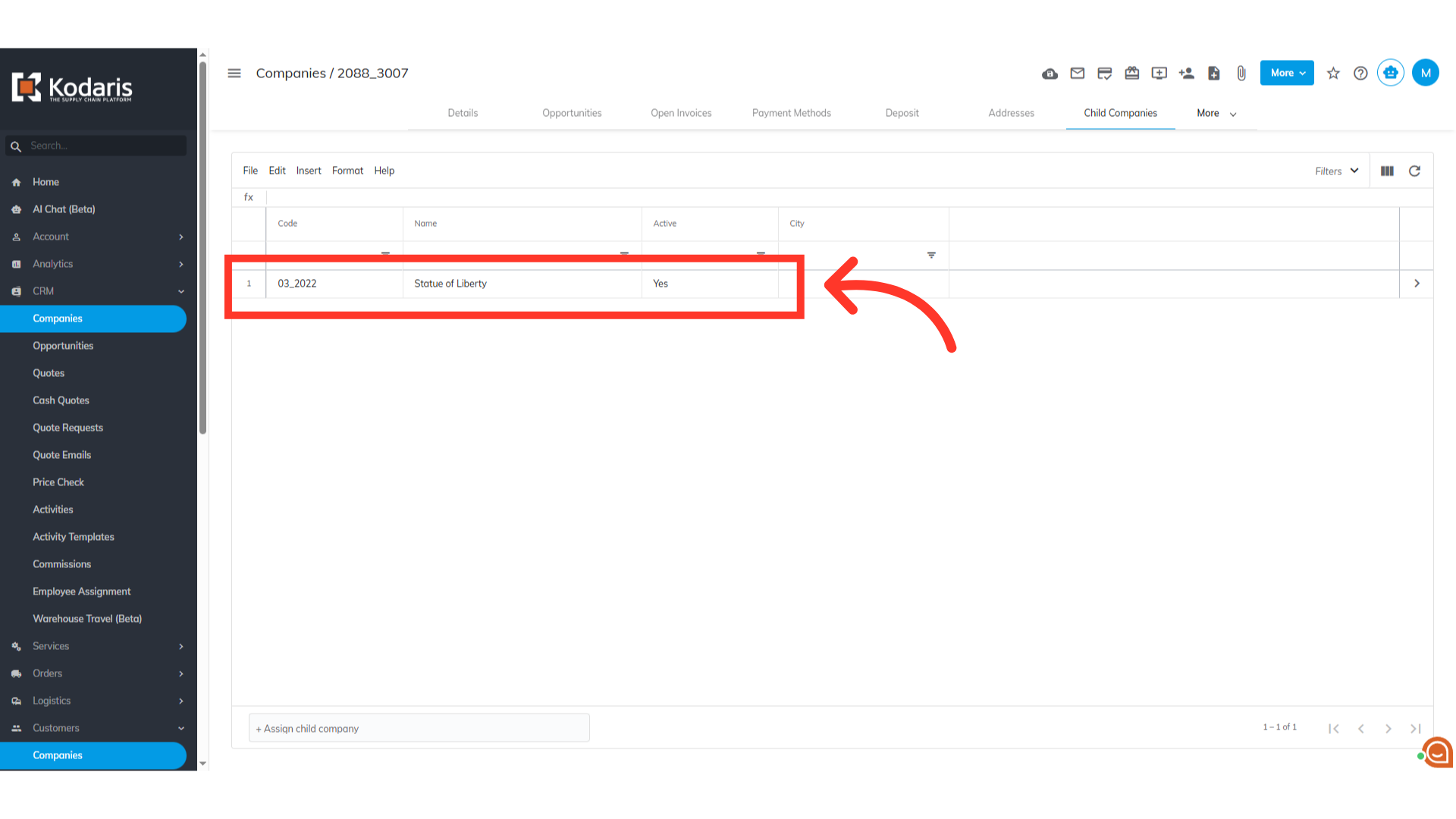
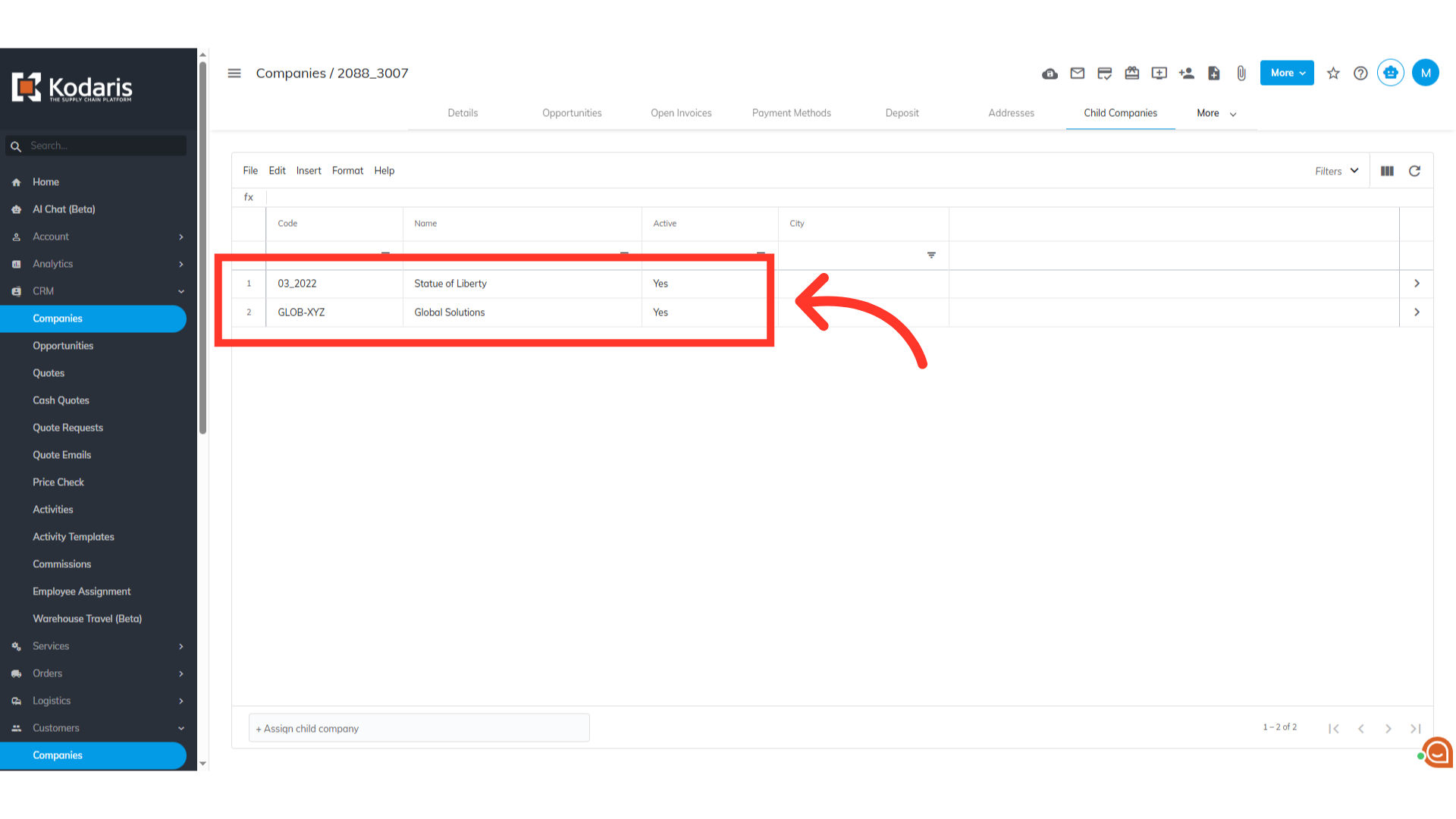
All the child accounts will be added to the list
Repeat the process to assign multiple child companies. All the child companies for the parent account will be added to the list.