
Operations PIM - Manage Product Order in Company Catalogs Manually
Navigate to "Customers" section
Updating the “Catalog Product Order” field allows you to customize the order or position in which you would like products to appear in a company catalog. To do this, navigate to "Customers" section in the Operations Portal.

Click "Companies"
Then, click "Companies". In order to access "Companies" you will need to be set up either as an "administrator" or a "superuser", or have the appropriate roles: "companyView and companyEdit", or "crmCompanyView and crmCompanyEdit". Just a reminder, "crmCompanyView and crmCompanyEdit" access only allows employees to view companies that are assigned to them.

Search for the company
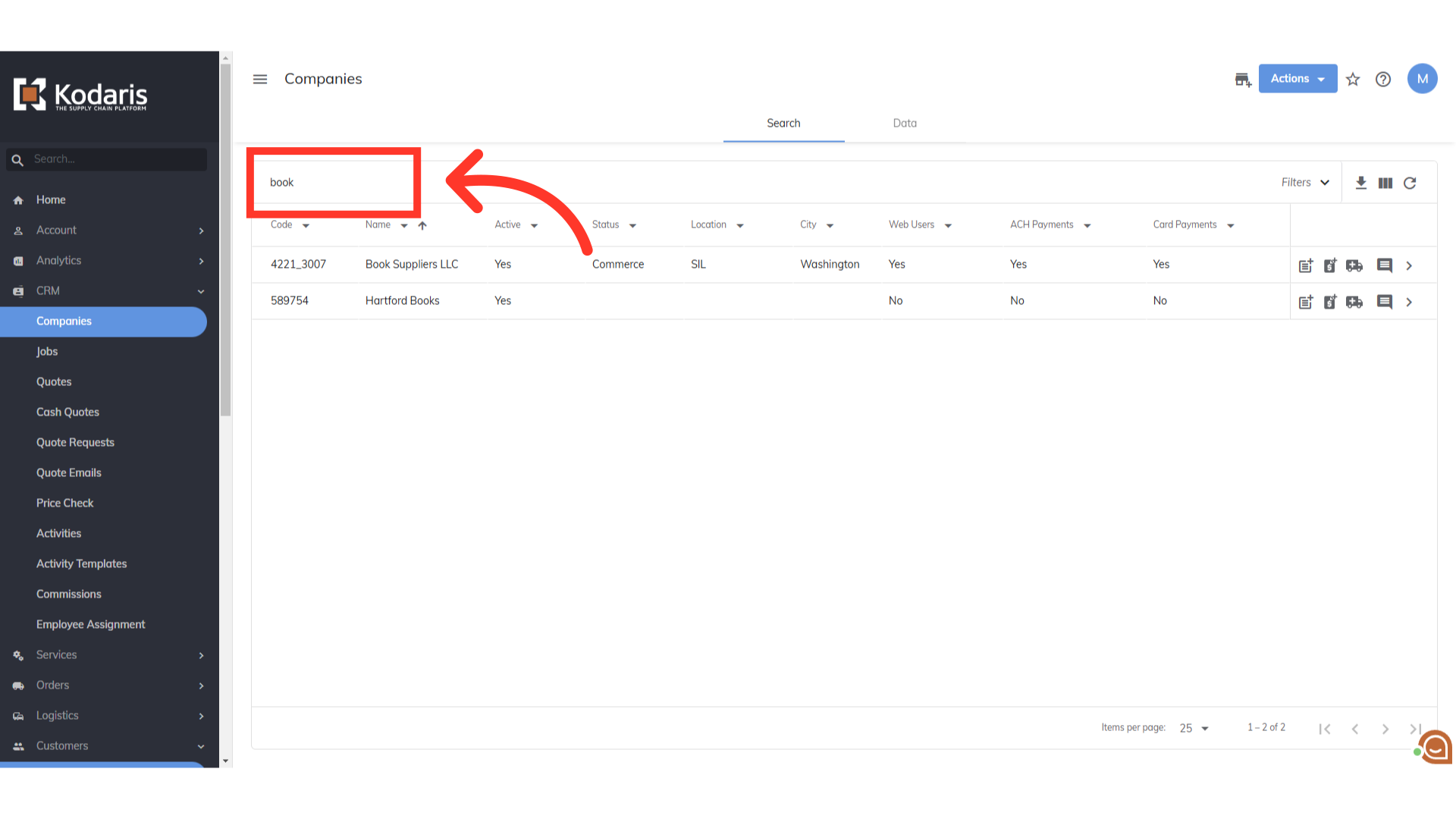
Search for the company you would like to update.
Click the more details icon
Click on the more details icon.
Scroll to the "Catalog" tab
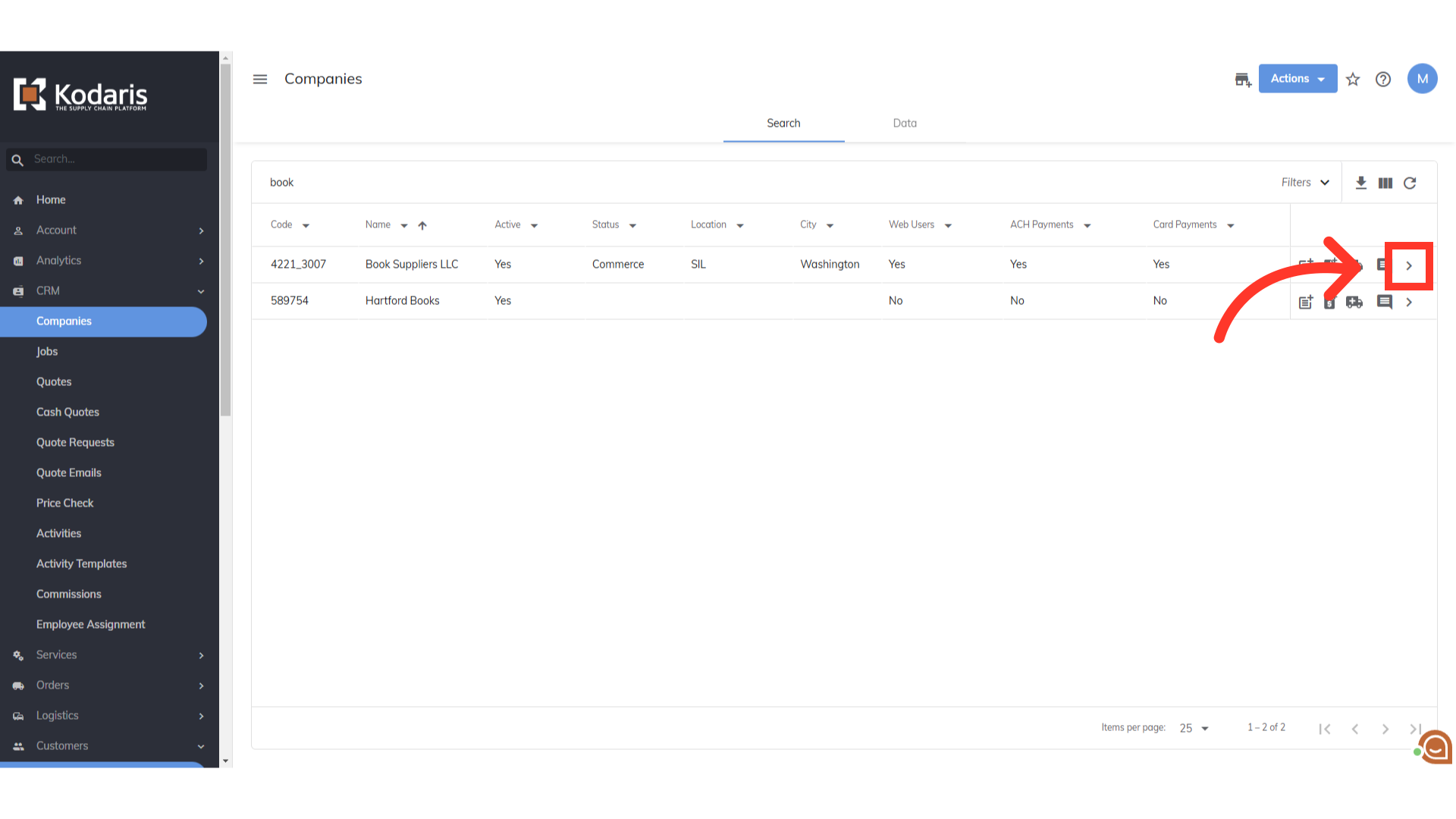
Scroll to the "Catalog" tab.

Click the "Catalog" tab
Click the "Catalog" tab.

Double-click the cell to enter a number to order the products
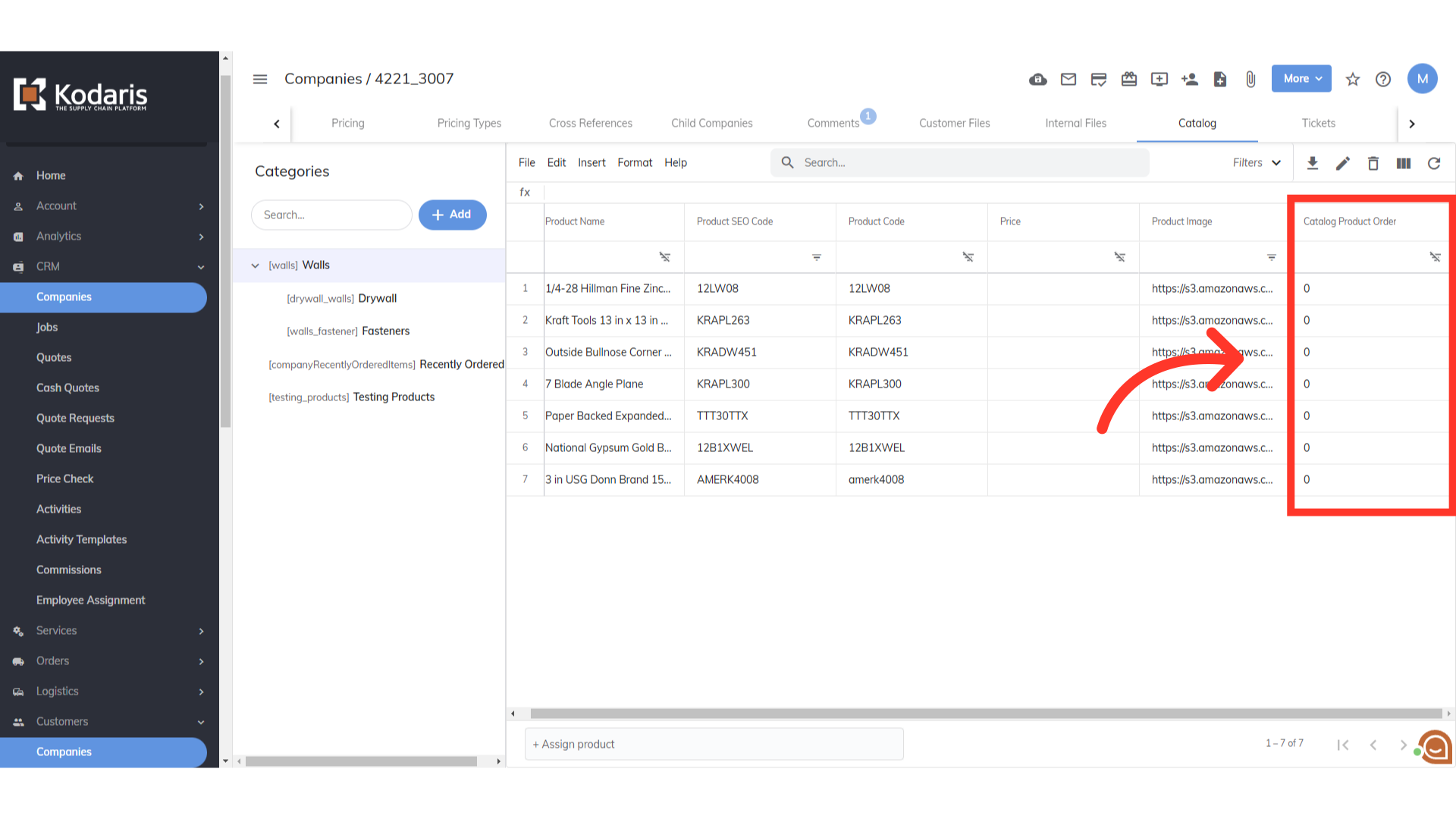
The column "Catalog Product Order" allows you to customize the order or position in which you want the products to appear in the catalog. You can update the values manually. Double-click the cell to enter the number indicating the order in which you want the items to appear. The lower the number, the higher the product will be on the page.
Updated Order
Here's the updated order to display in the customer Catalog.

Customer's catalog reflecting the order that was set
And you can see this sample customer catalog reflecting the order that was set.
