Operations CRM - Company Details Payments Screen Overview
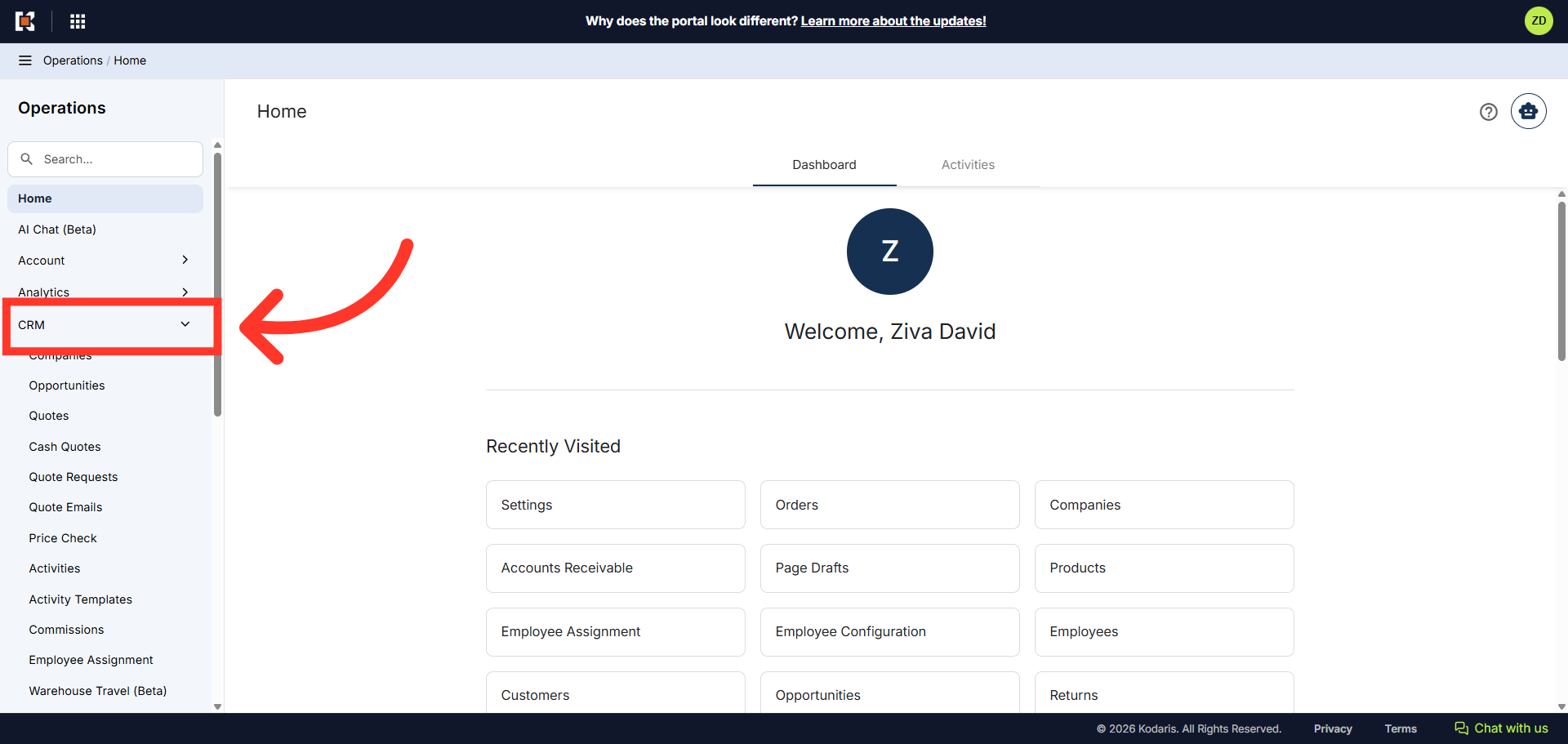
Navigate to "CRM"
You can view company details, issue a charge, credit, pay invoices, and also enter deposits on behalf of a customer in the Operations Portal. First, navigate to the "CRM" section.
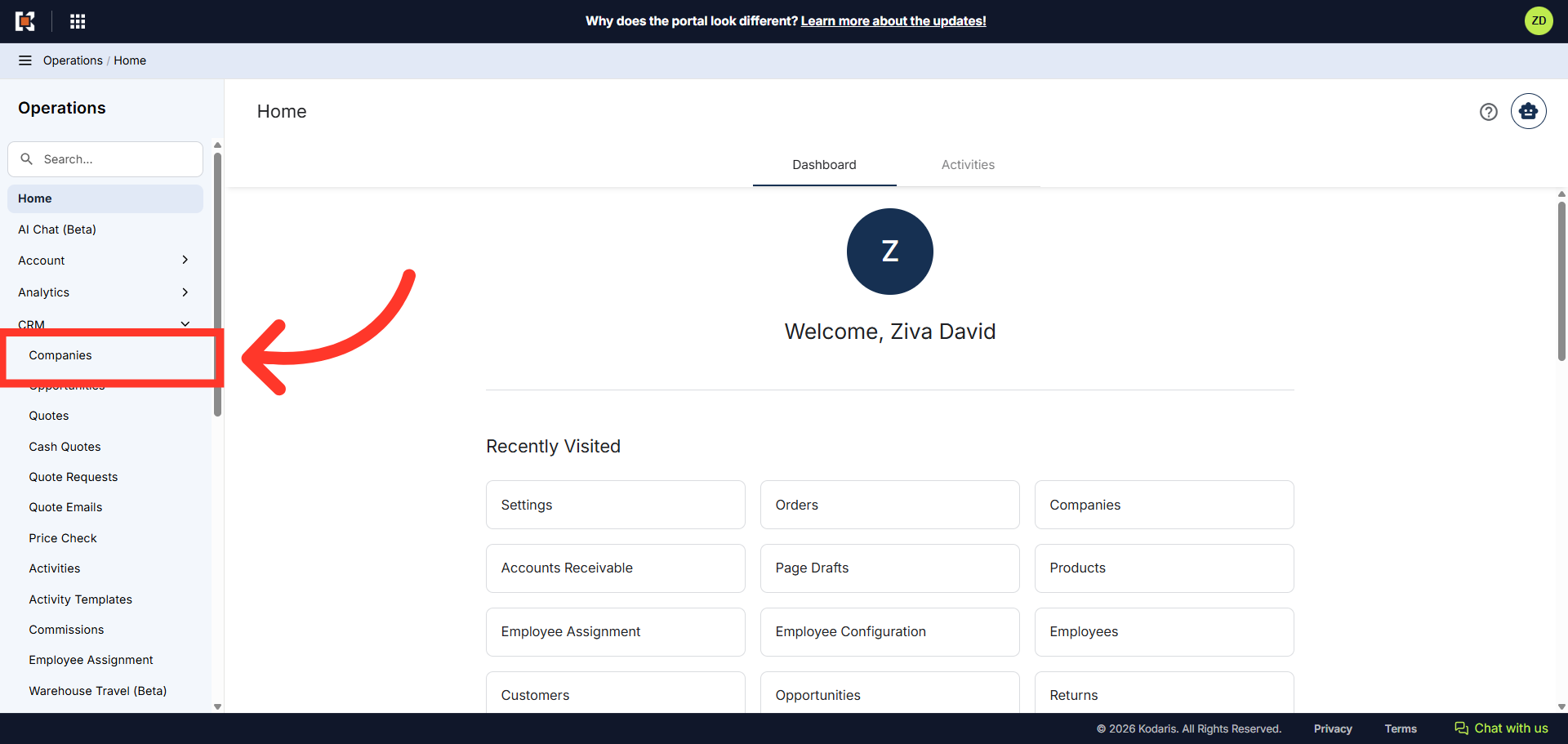
Click "Companies"
Then, click "Companies". In order to access "Companies" you will need to be set up either as an "administrator" or a "superuser", or have the appropriate roles: "companyView and companyEdit", or "crmCompanyView and crmCompanyEdit". Just a reminder, "crmCompanyView and crmCompanyEdit" access only allows employees to view companies that are assigned to them.
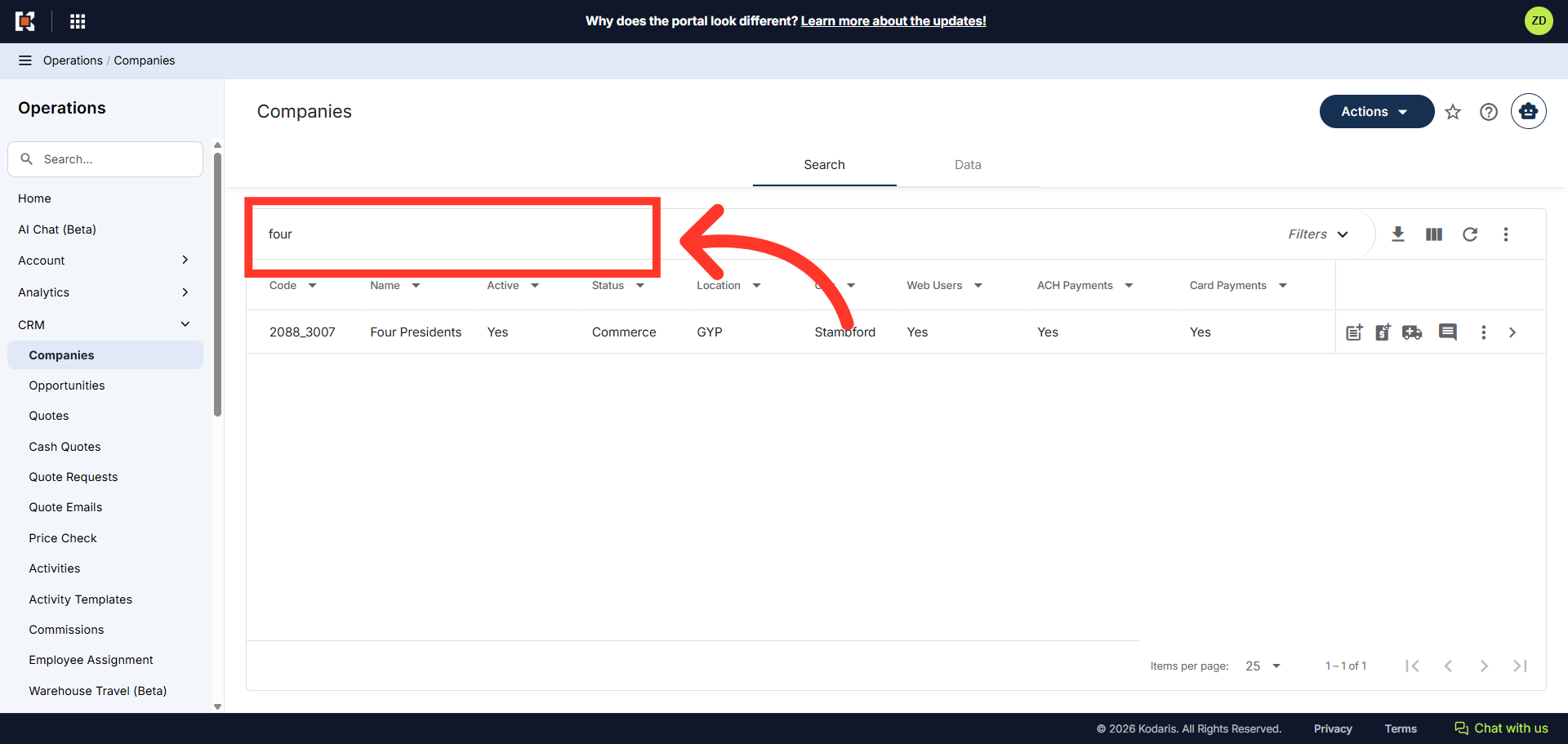
Search for the company
To quickly locate the company you wish to view, enter a keyword in the Search field to search.
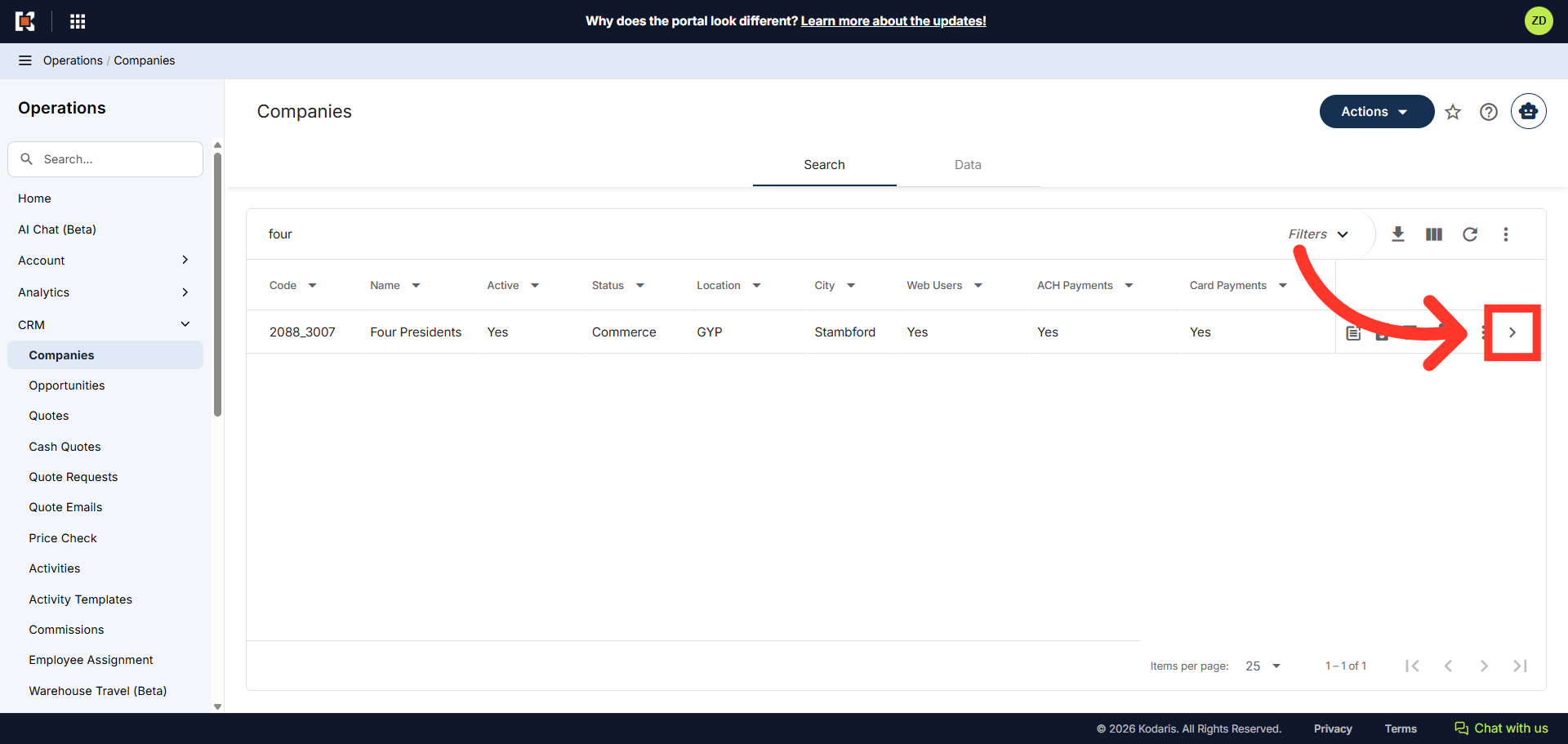
Click the more details icon
Click the more details icon to view the company details.
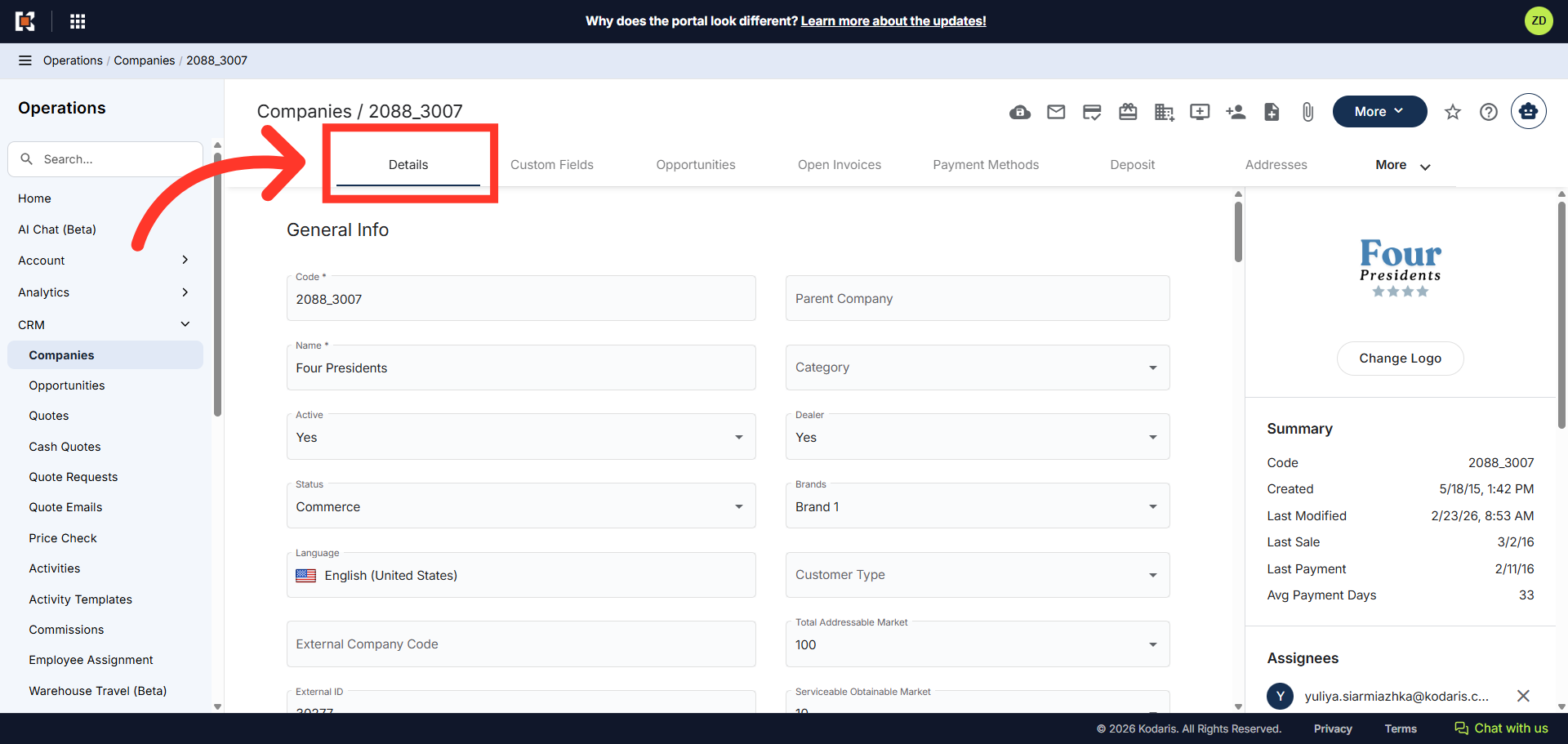
Company "Details" tab
The company details tab displays an overview of the company such as, address, contact details, and shipping information.
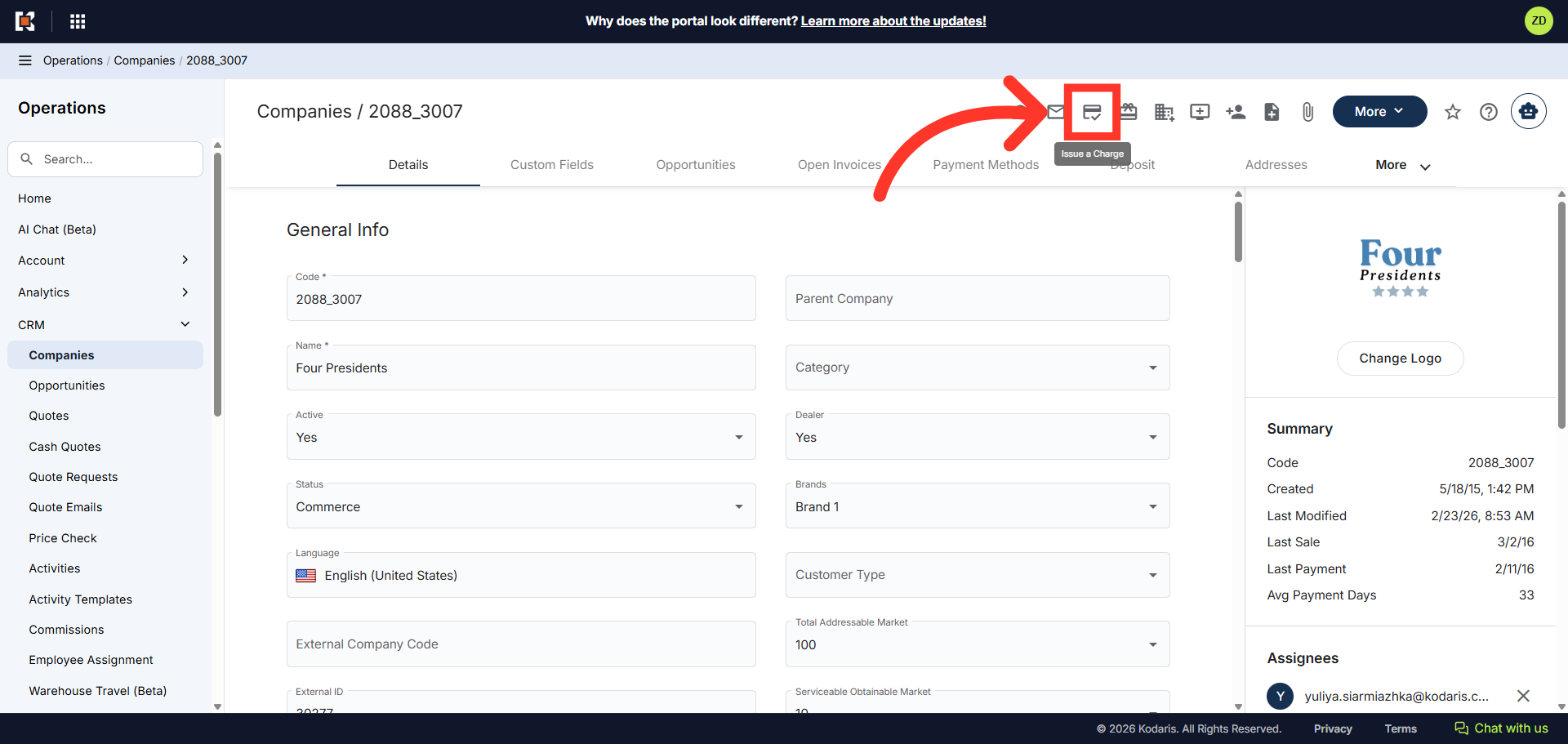
"Issue a Charge" icon
The "Issue a charge" feature allows you to make a charge to the customers account using either a saved payment method or a new payment method.
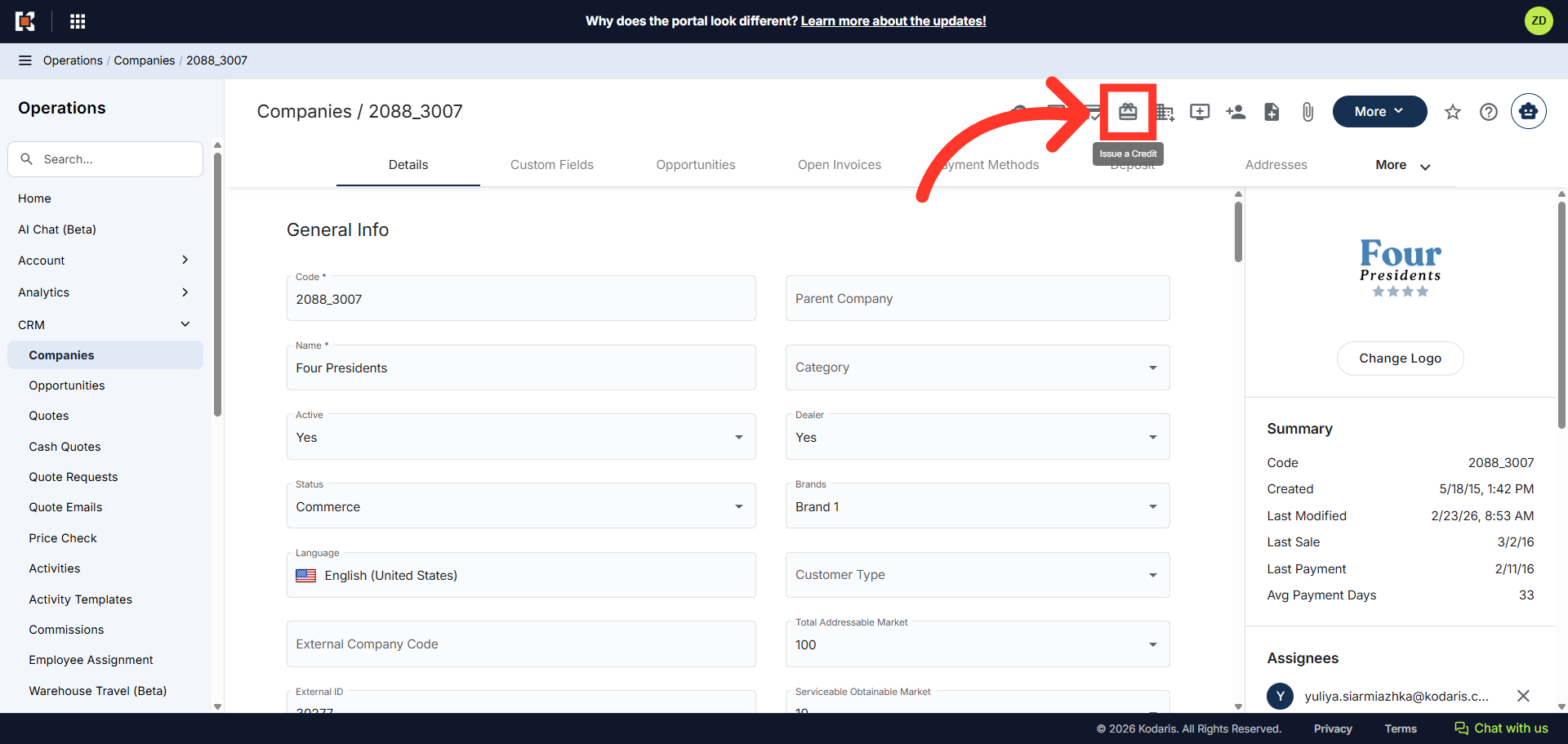
"Issue a Credit" icon
The "Issue a Credit" feature allows you to issue a credit to the customer and apply it to a credit card or bank account.
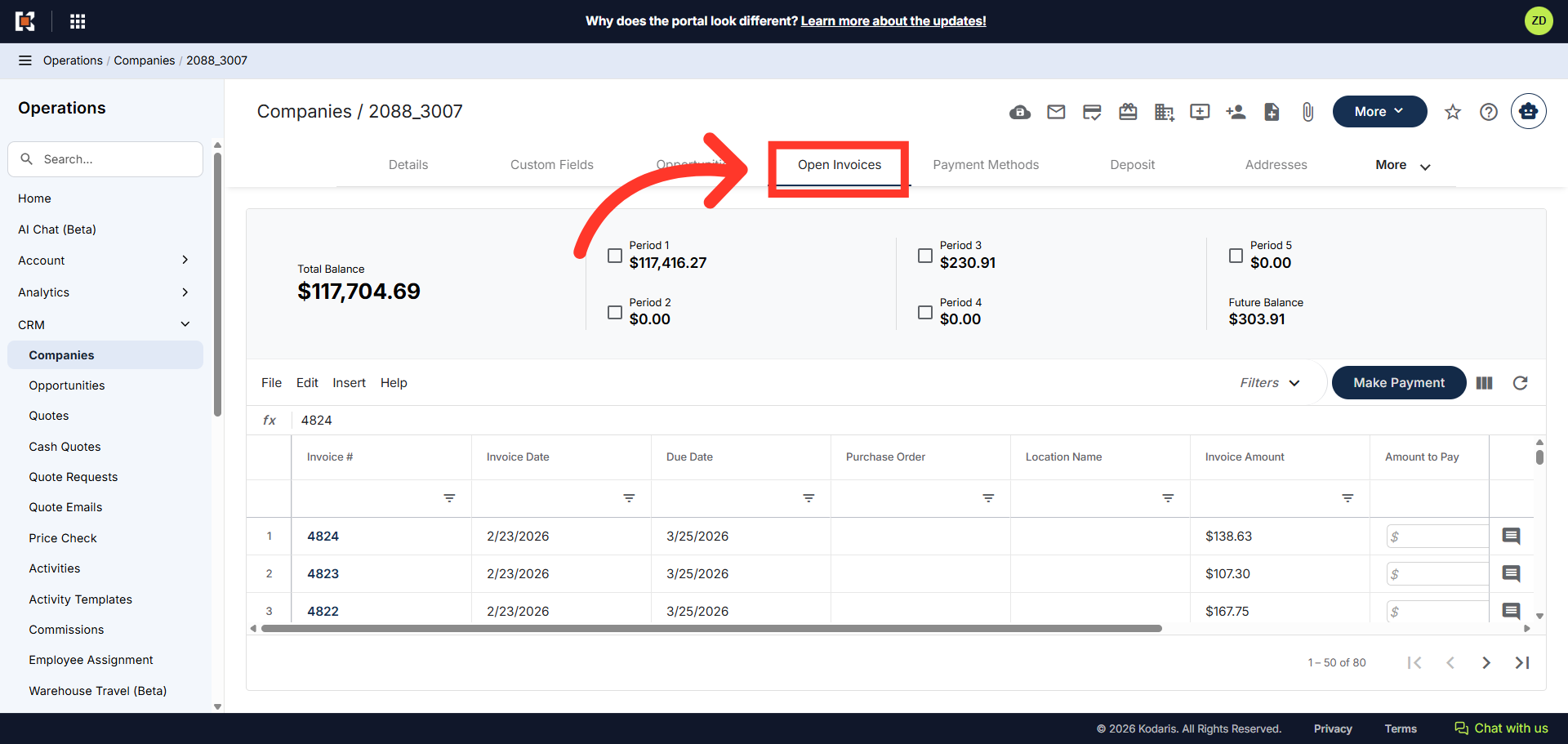
"Open Invoices" tab
You can also pay invoices on behalf of your customers by clicking on the "Open Invoices" tab and selecting one or multiple invoices from the list. Payment will be made using either a saved payment method, or by adding a new payment method.
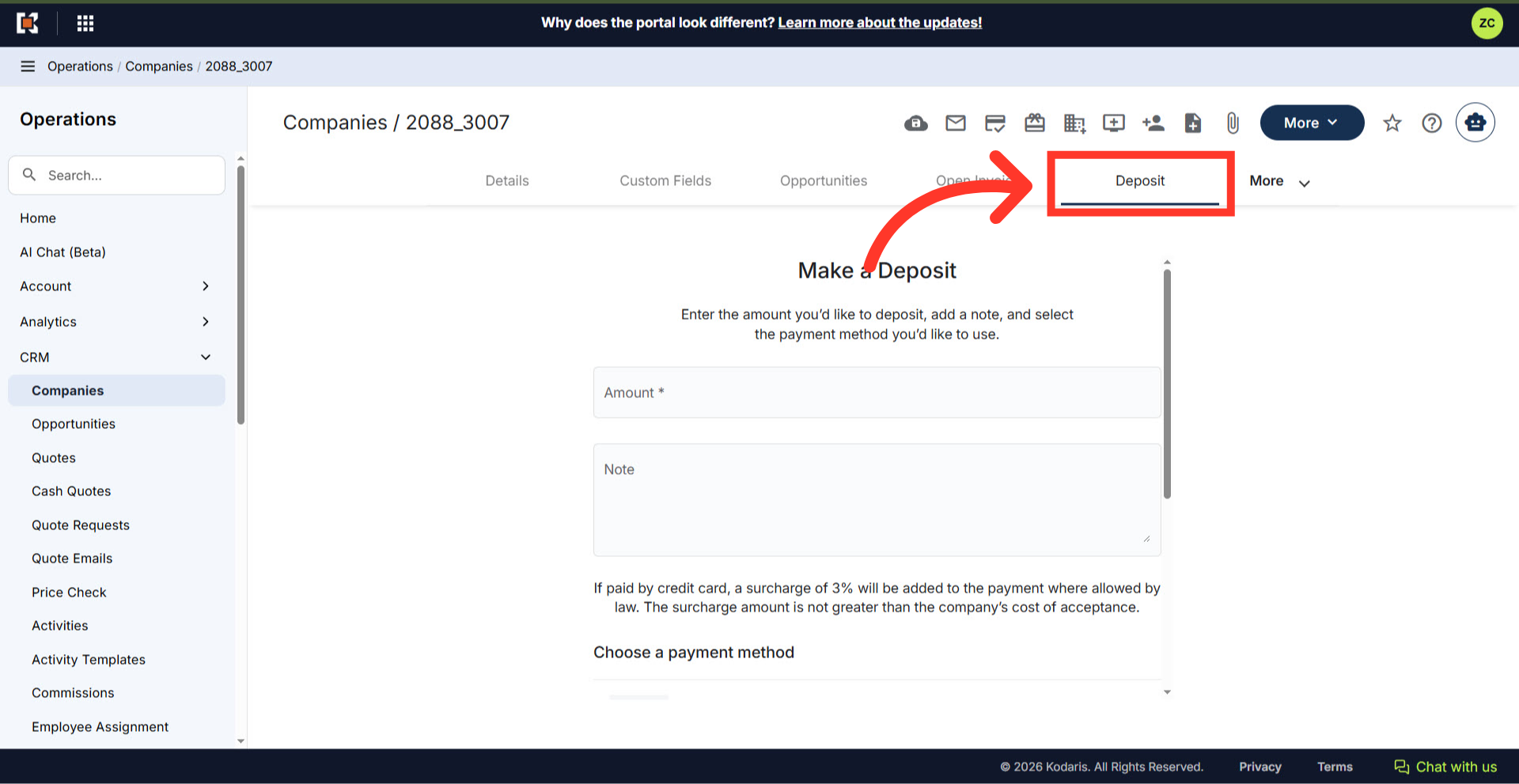
"Deposit" tab
A deposit can be made on behalf of the customer by clicking the "Deposit" tab. When making the deposit you will enter the amount, a note with the purpose of the deposit and select the method of payment from the saved payment methods, or you can enter a new payment method.