Operations System - Enable or Disable Employee Sign In With Microsoft
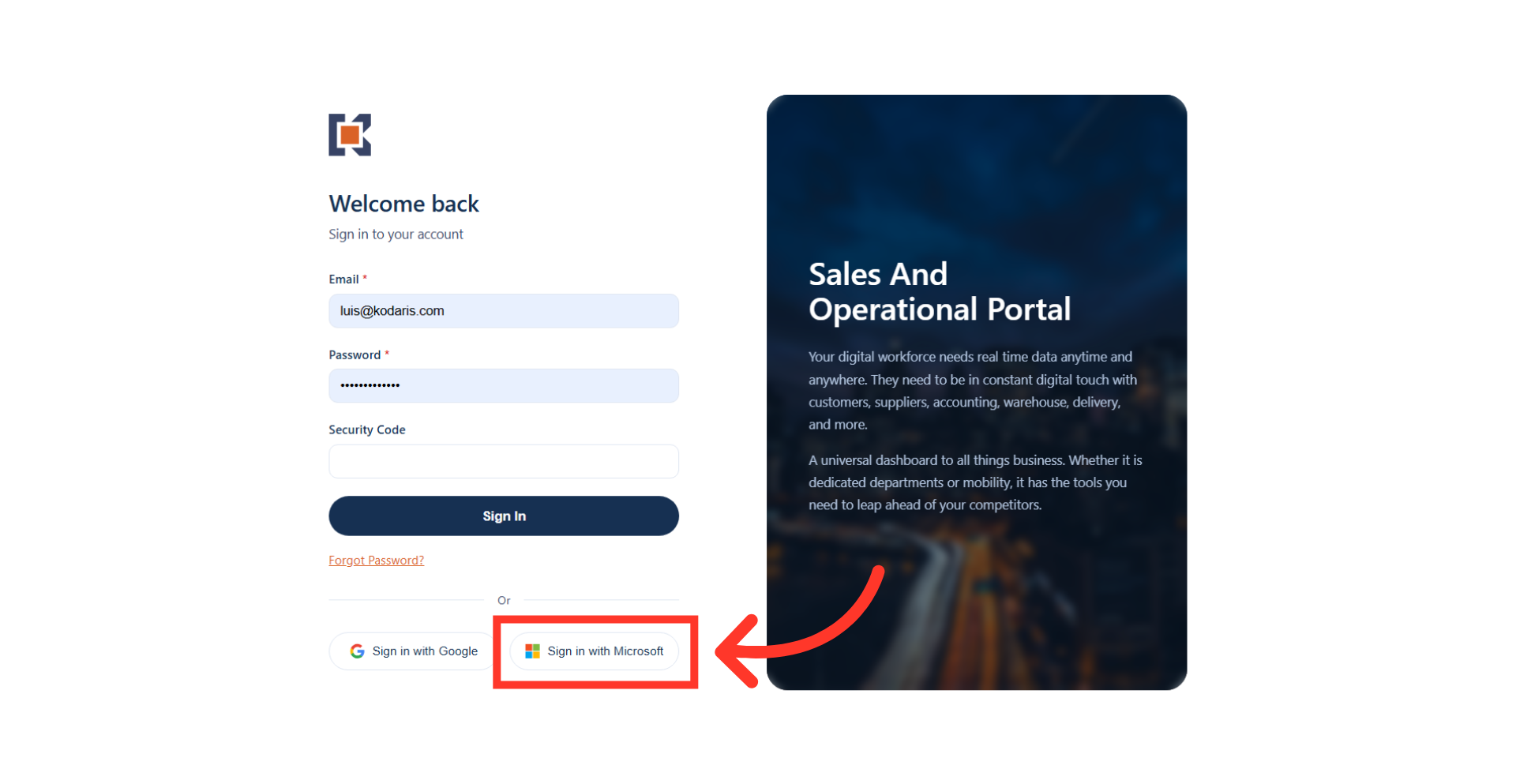
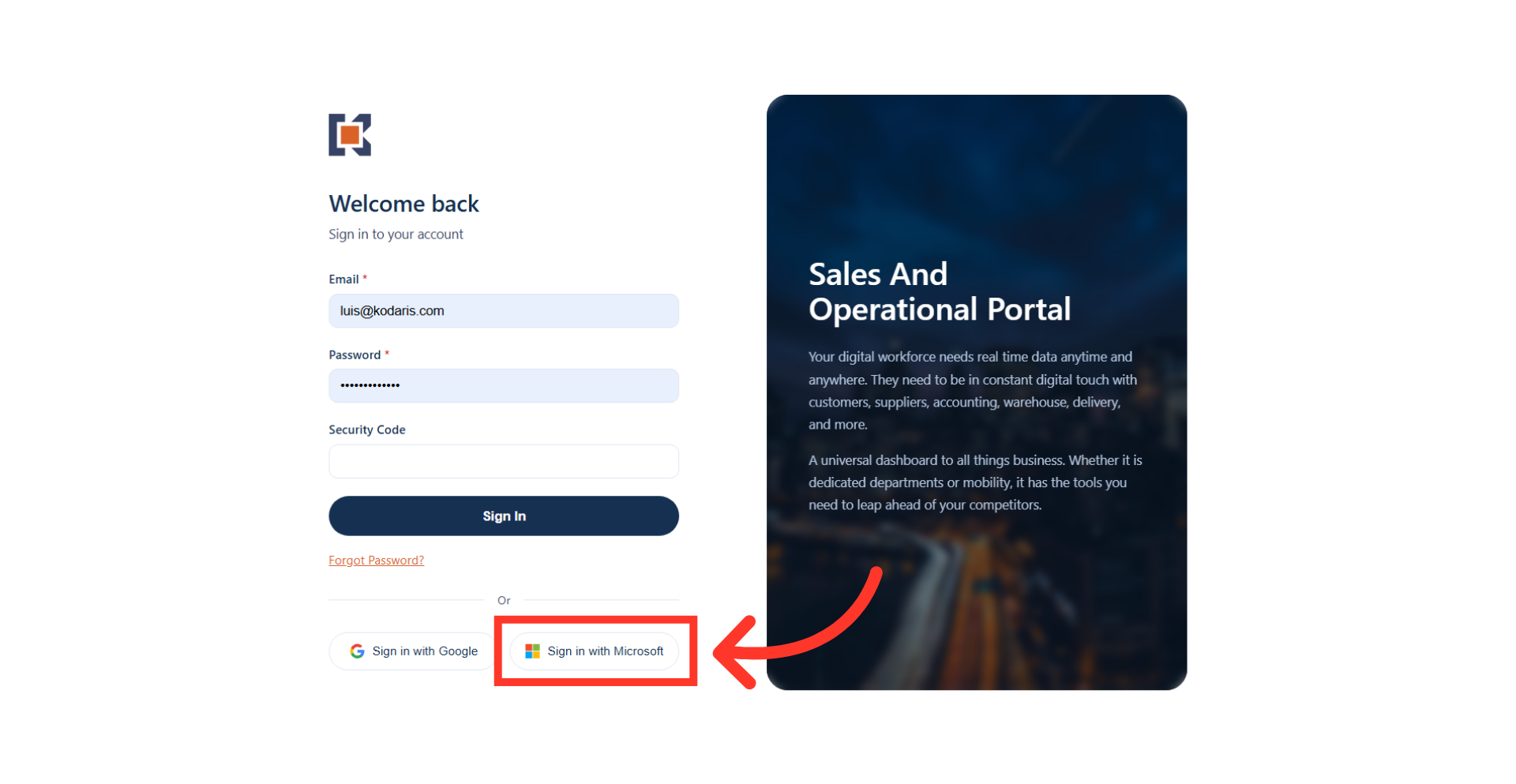
"Sign In With Microsoft" button
The "Sign In With Microsoft" feature allows users to sign in securely using existing Microsoft credentials.
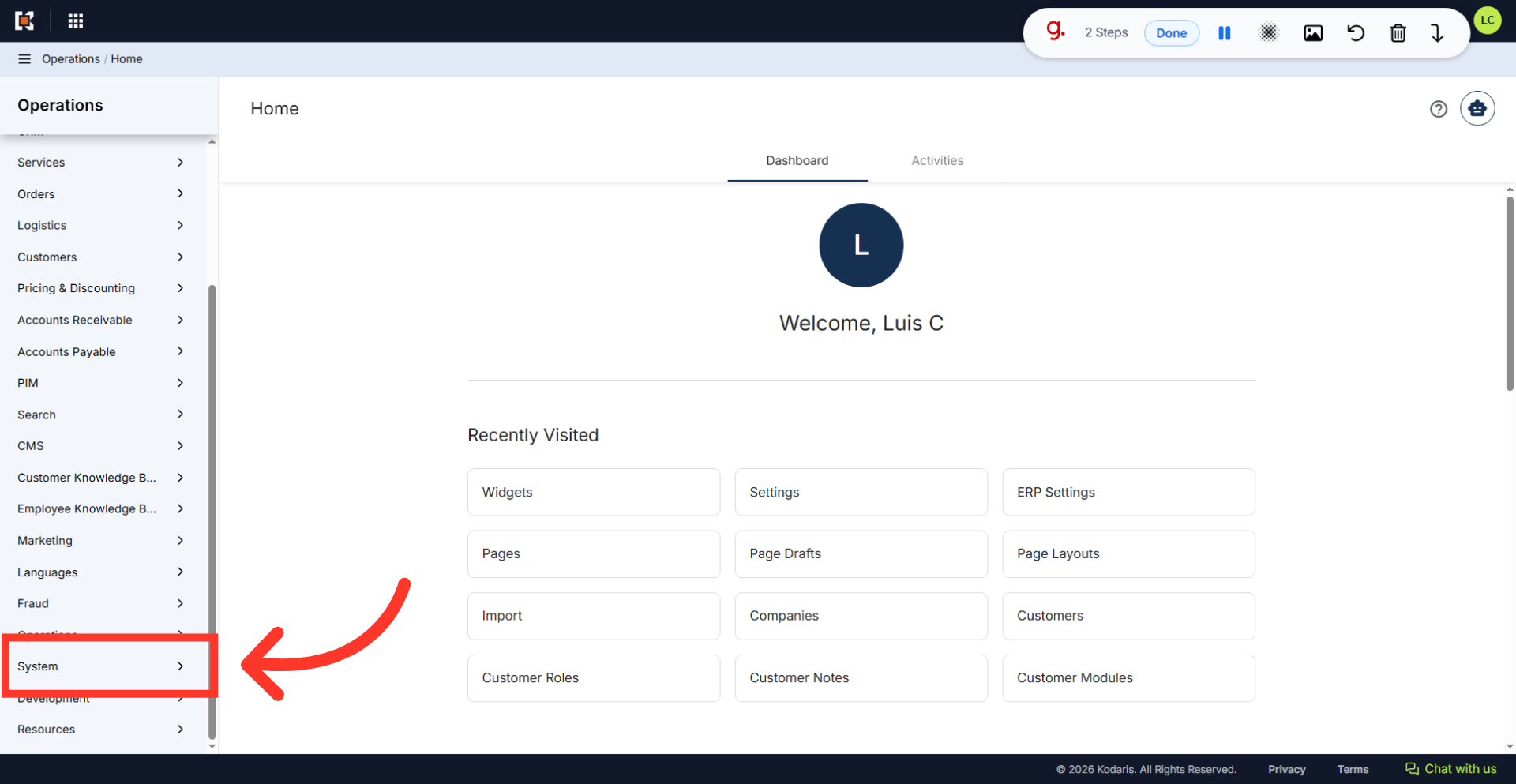
Navigate to "System"
To enable this feature in your operations portal, navigate to "System" in the operations portal.
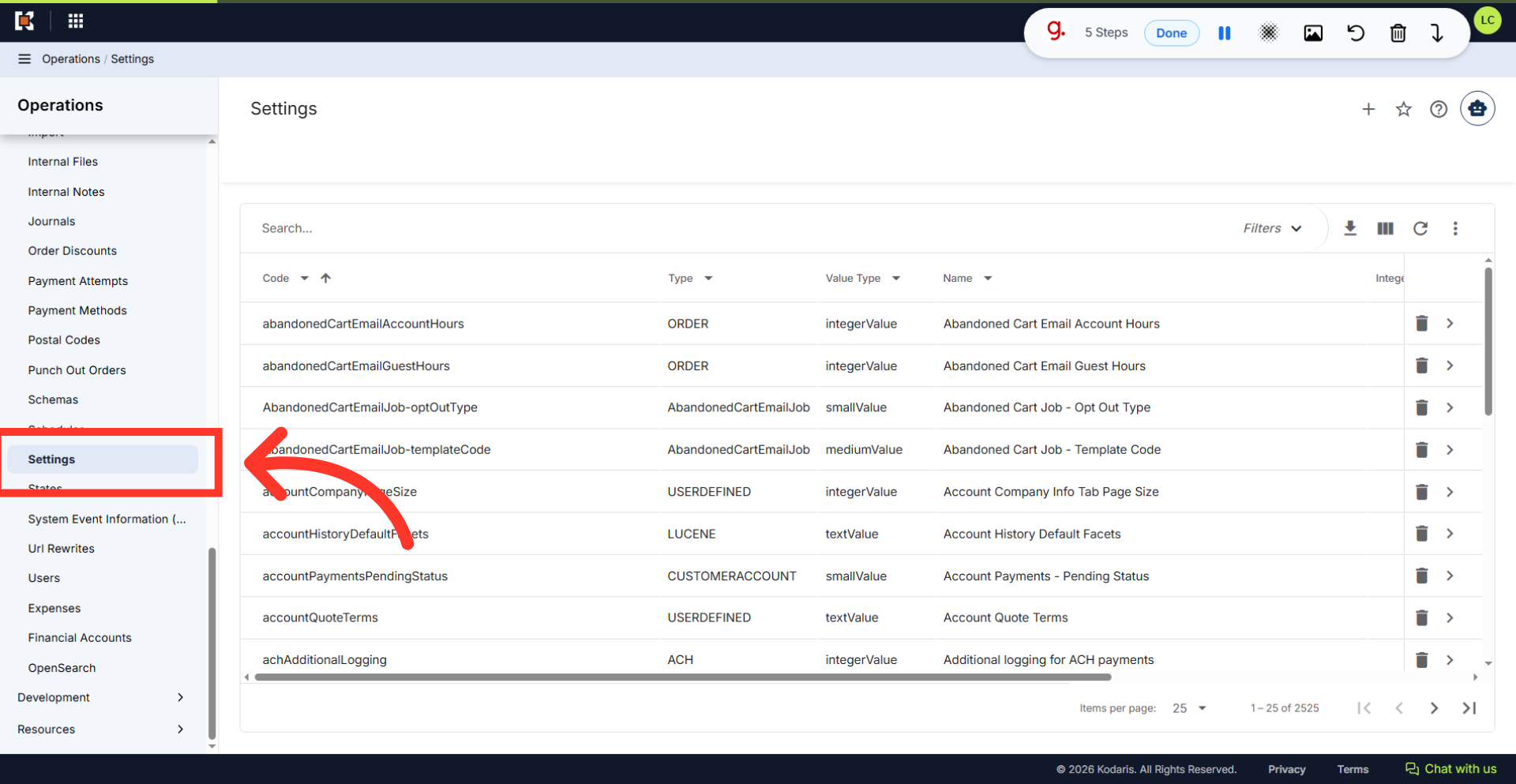
Click "Settings"
Click "Settings". In order to access and edit settings, you will need to be set up either as an "administrator" or a "superuser", or have the following role: "settingEdit".
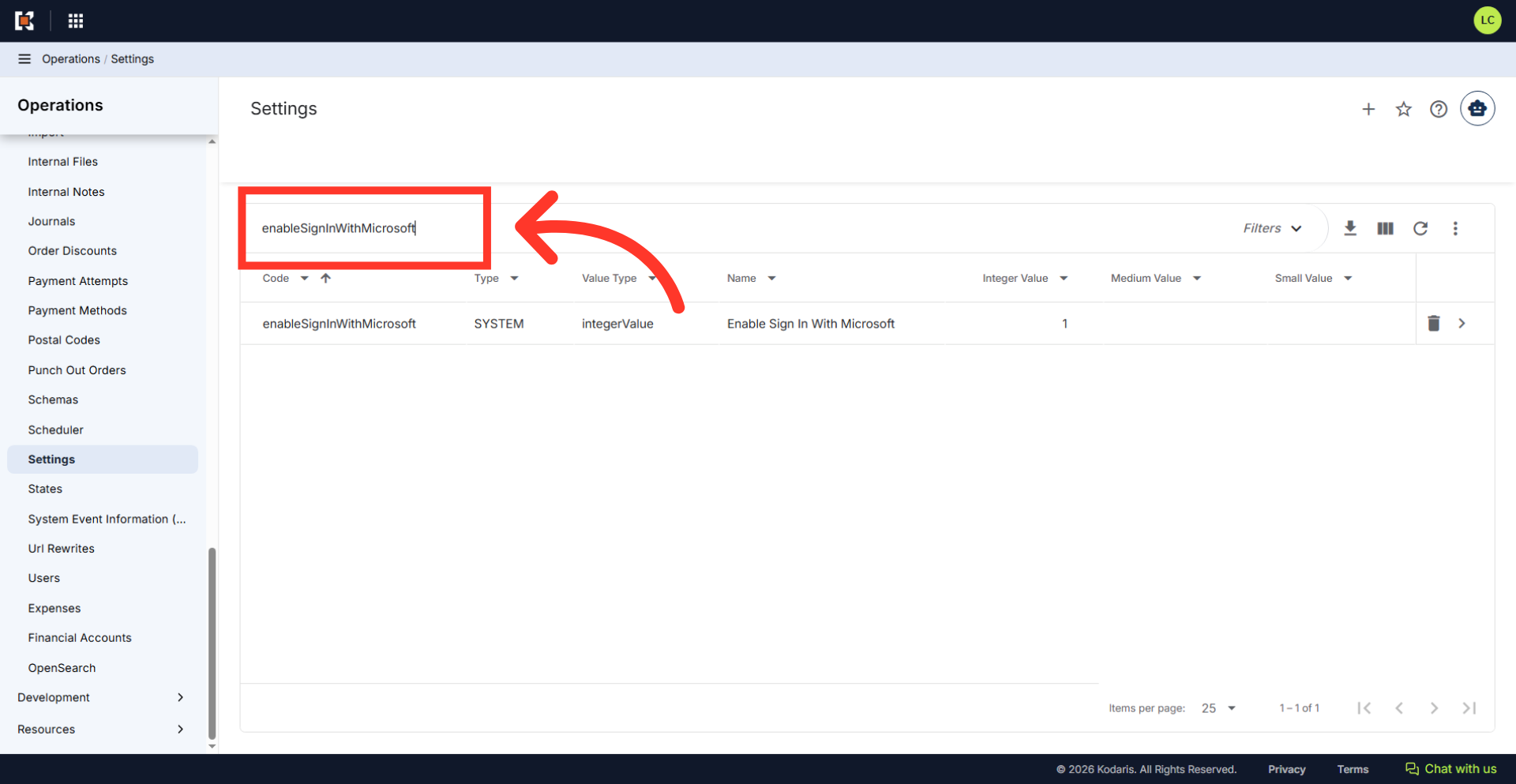
Search for "enableSignInWithMicrosoft"
Type in "enableSignInWithMicrosoft" into the search bar.
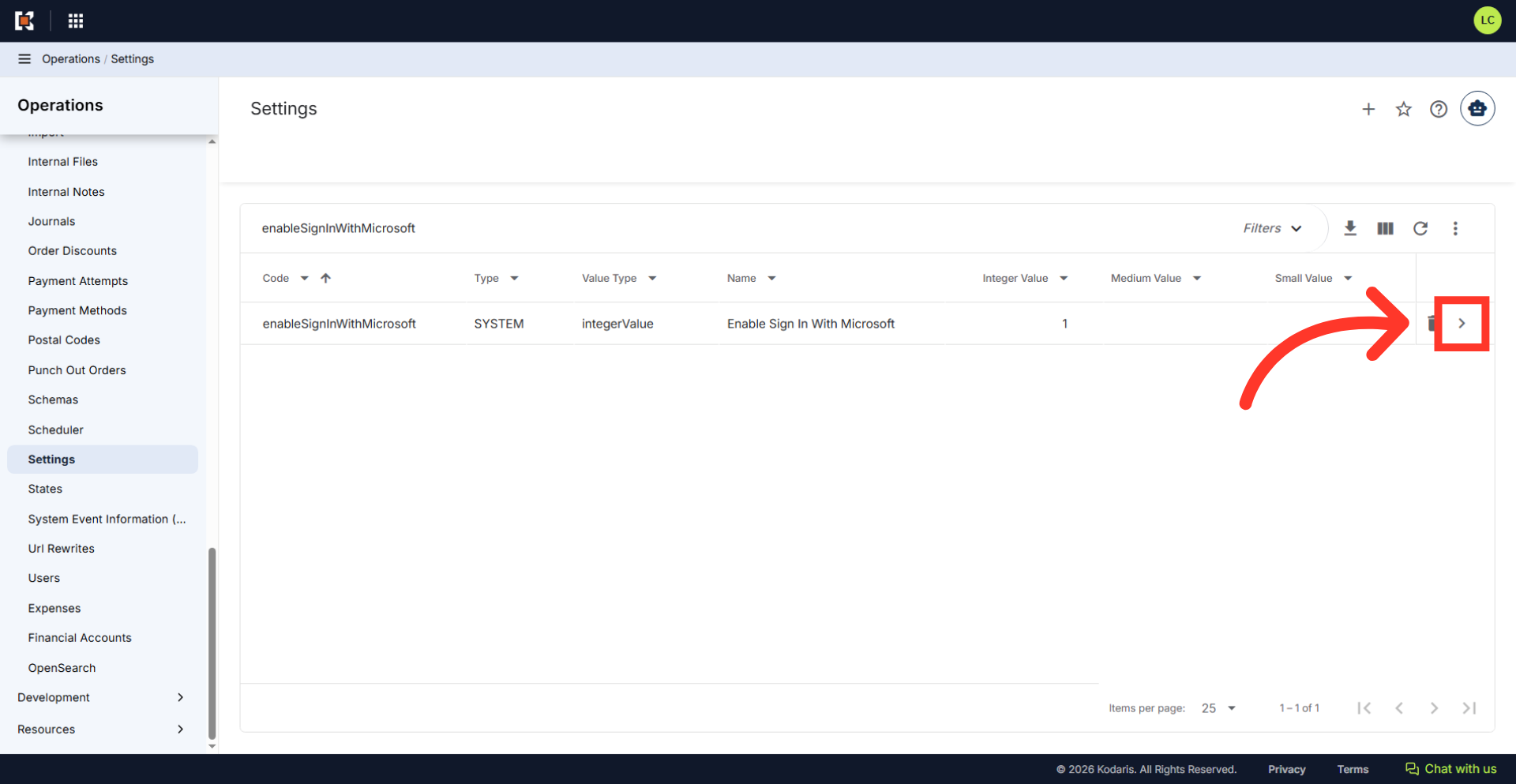
Click the more details icon
Click the more details icon to open the setting details page.
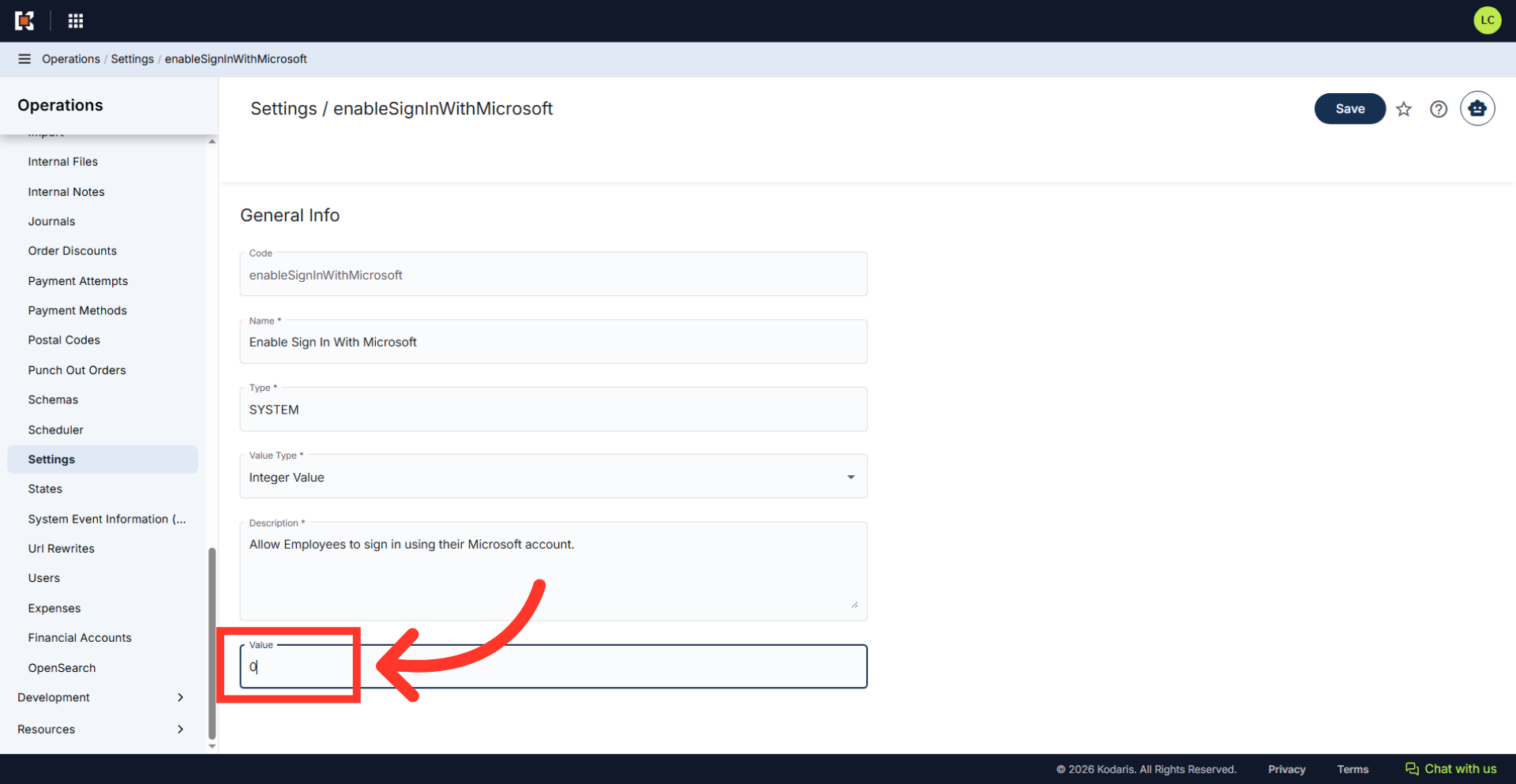
Update the "Value" field
Type "1" in the "Value" field to enable the "Sign In With Microsoft" feature. To disable this feature, enter "0".
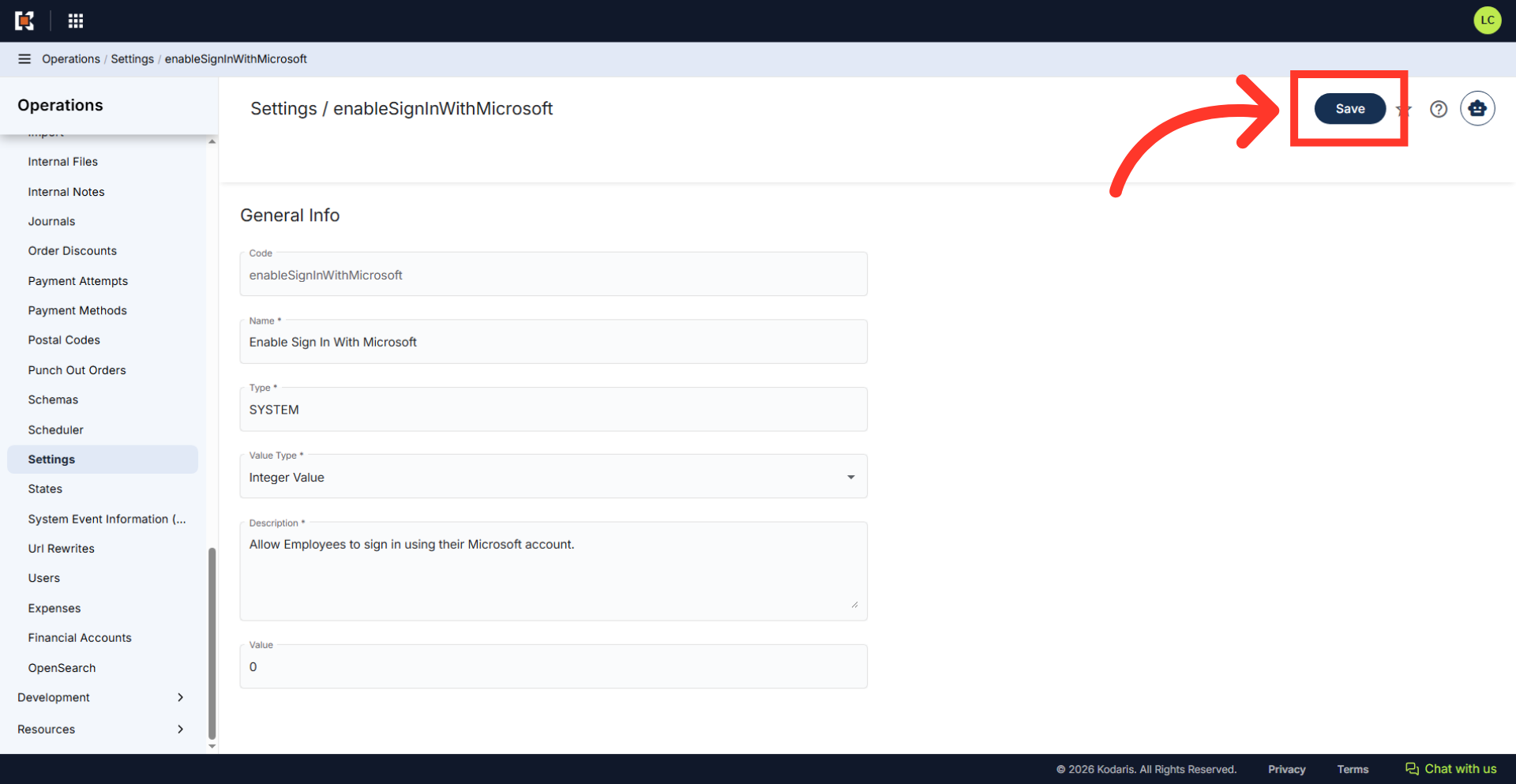
Click "Save" button
Select "Save" to apply changes.
Select the "Sign In With Microsoft" button
To verify the update, go to the operations portal login page and select the "Sign In With Microsoft" button.
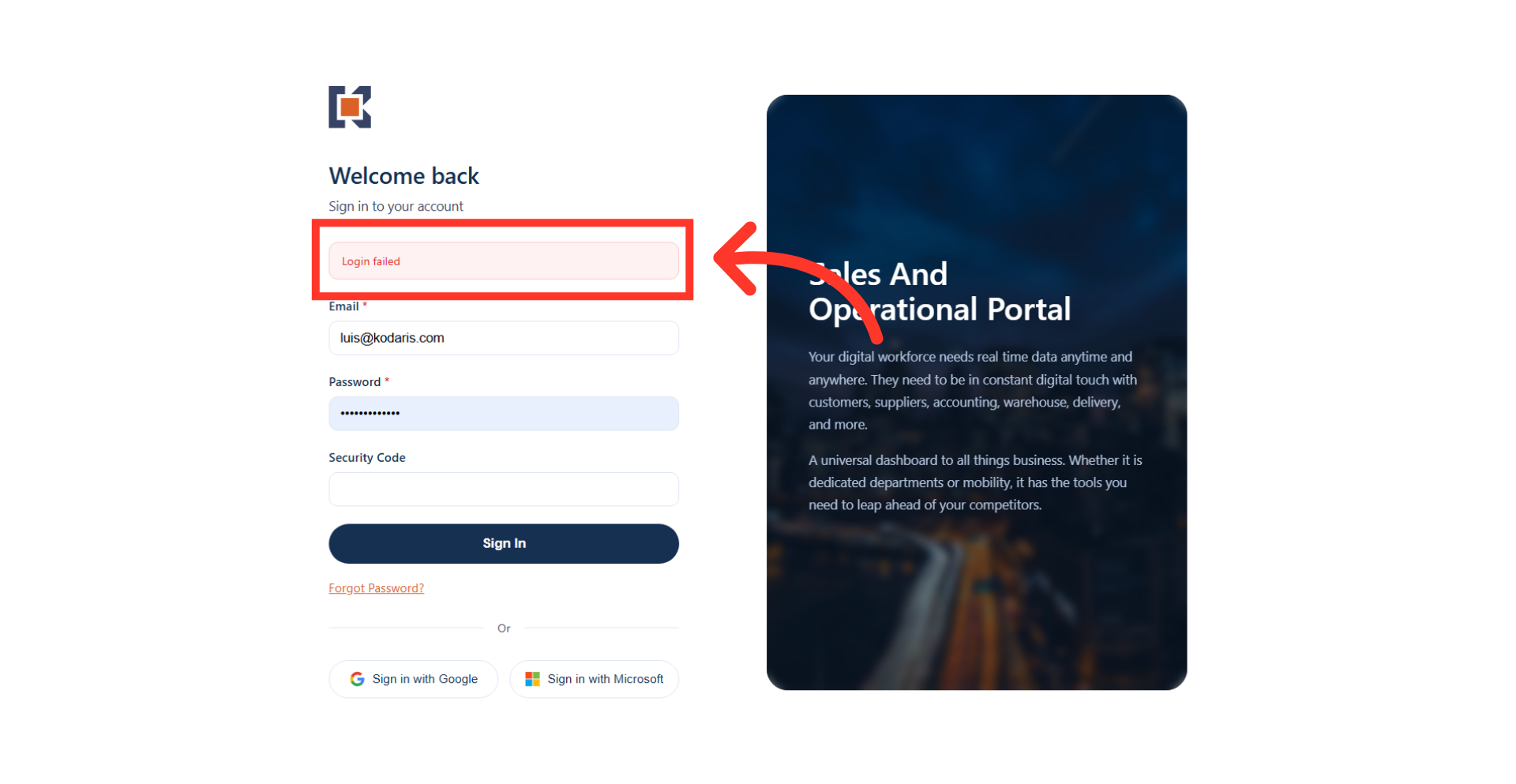
Login error notification
If disabled, the "Login failed" error message will appear when logging in with the "Sign in with Microsoft" option.