Operations Portal - Set Up Employee Password Policy
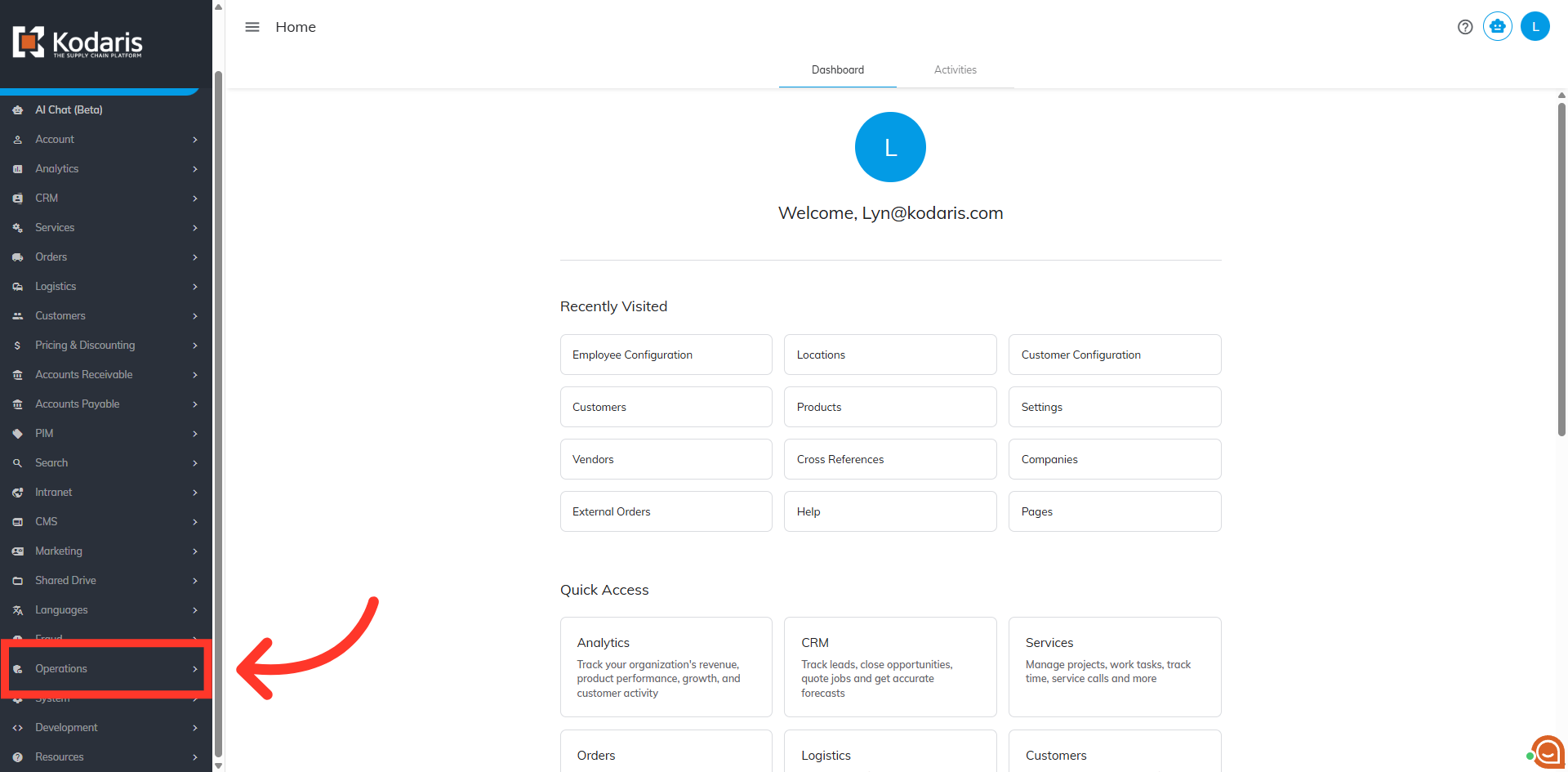
Navigate to "Operations"
To set up an employee password policy, navigate to the "Operations" section in the operations portal.
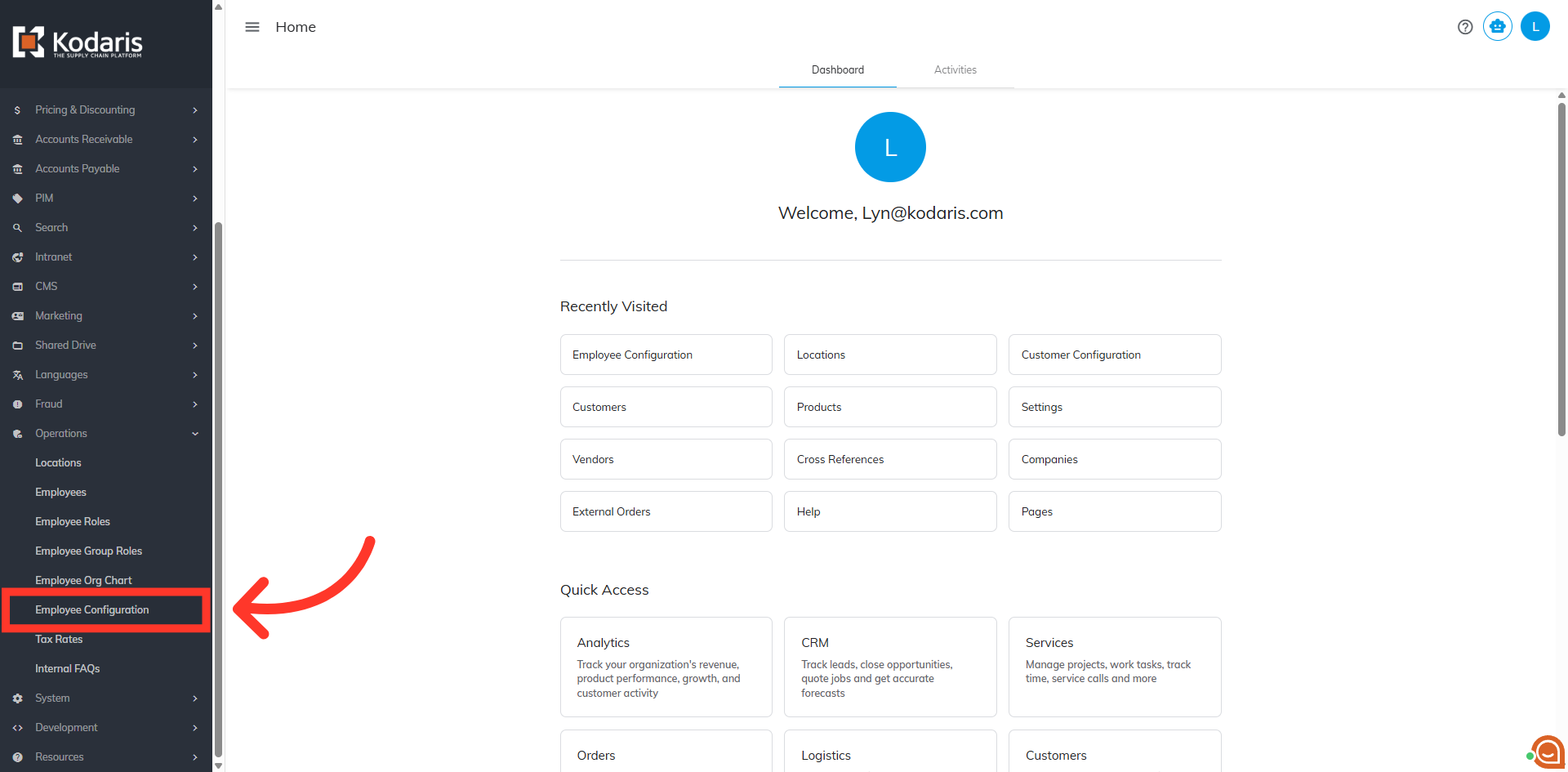
Click "Employee Configuration"
Then, click "Employee Configuration". In order to access and update "Employee Configuration" you will need to be set up as an "administrator or a "superuser", or have the following roles: "settingEdit" and "settingView".
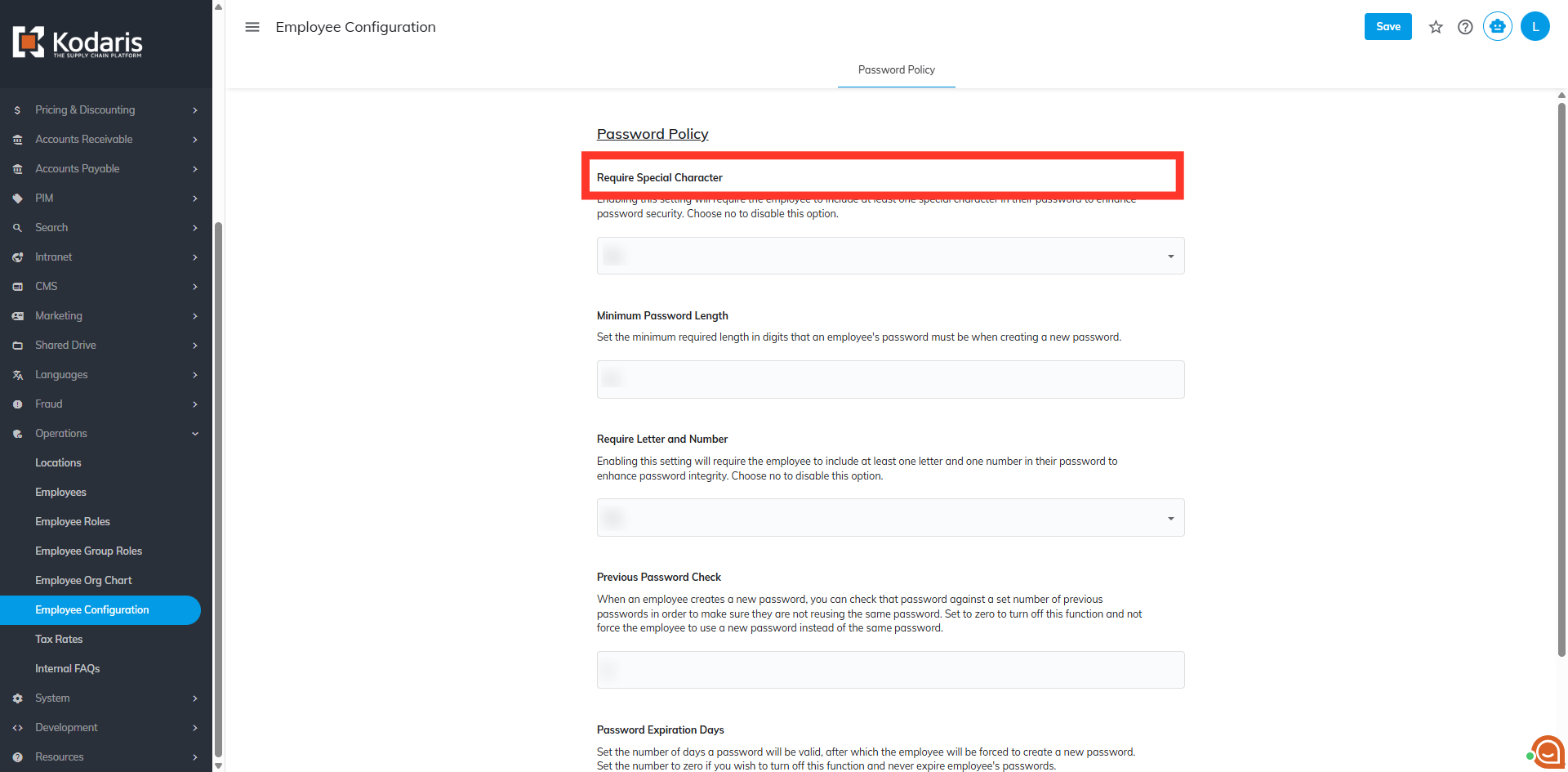
"Require Special Character"
The "Require Special Character" setting will require the employee to include at least one special character in their password to enhance password security.
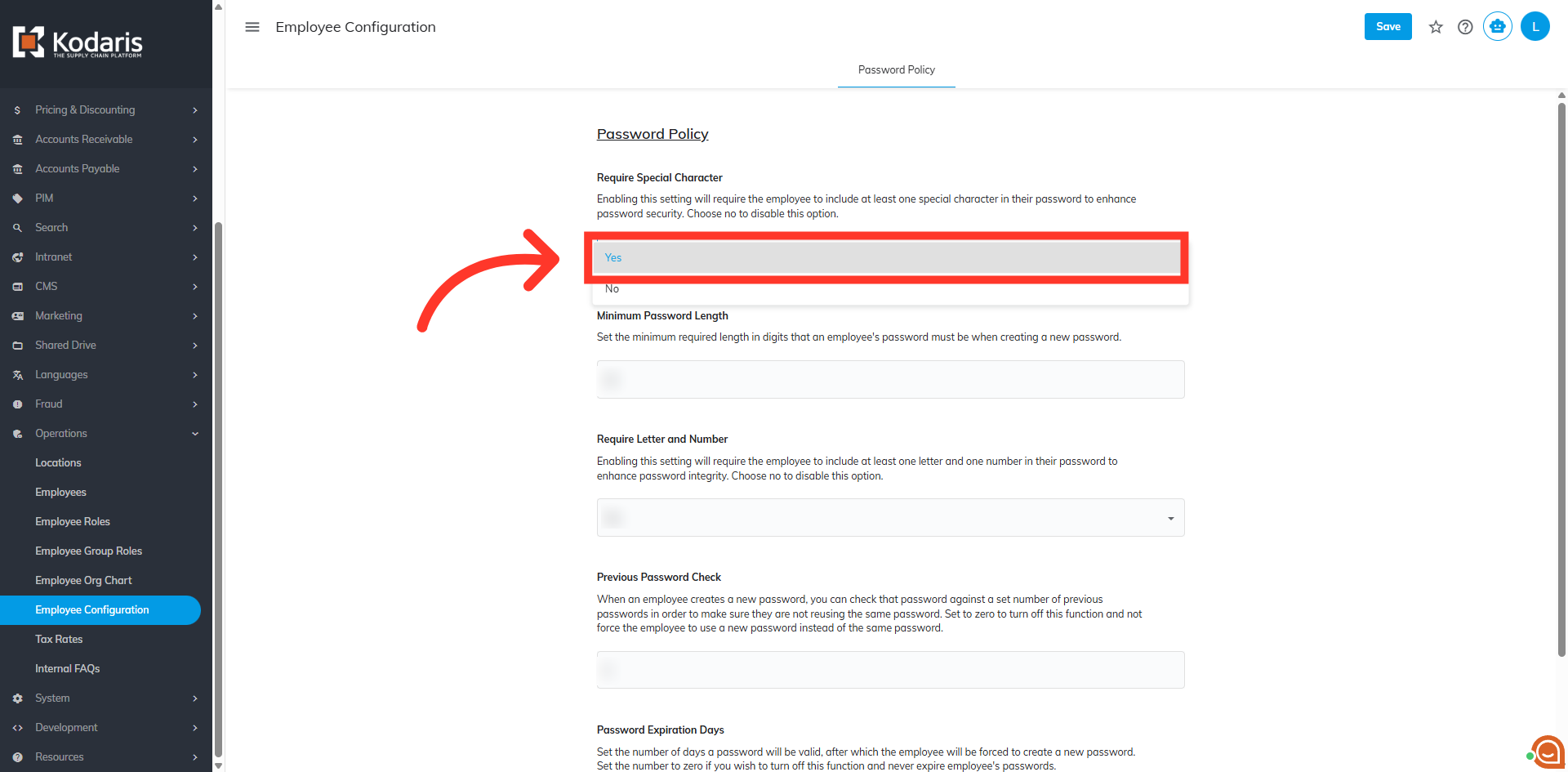
Select "Yes" to enable
Select "Yes" to enable this setting. Choose "No" to disable this option.
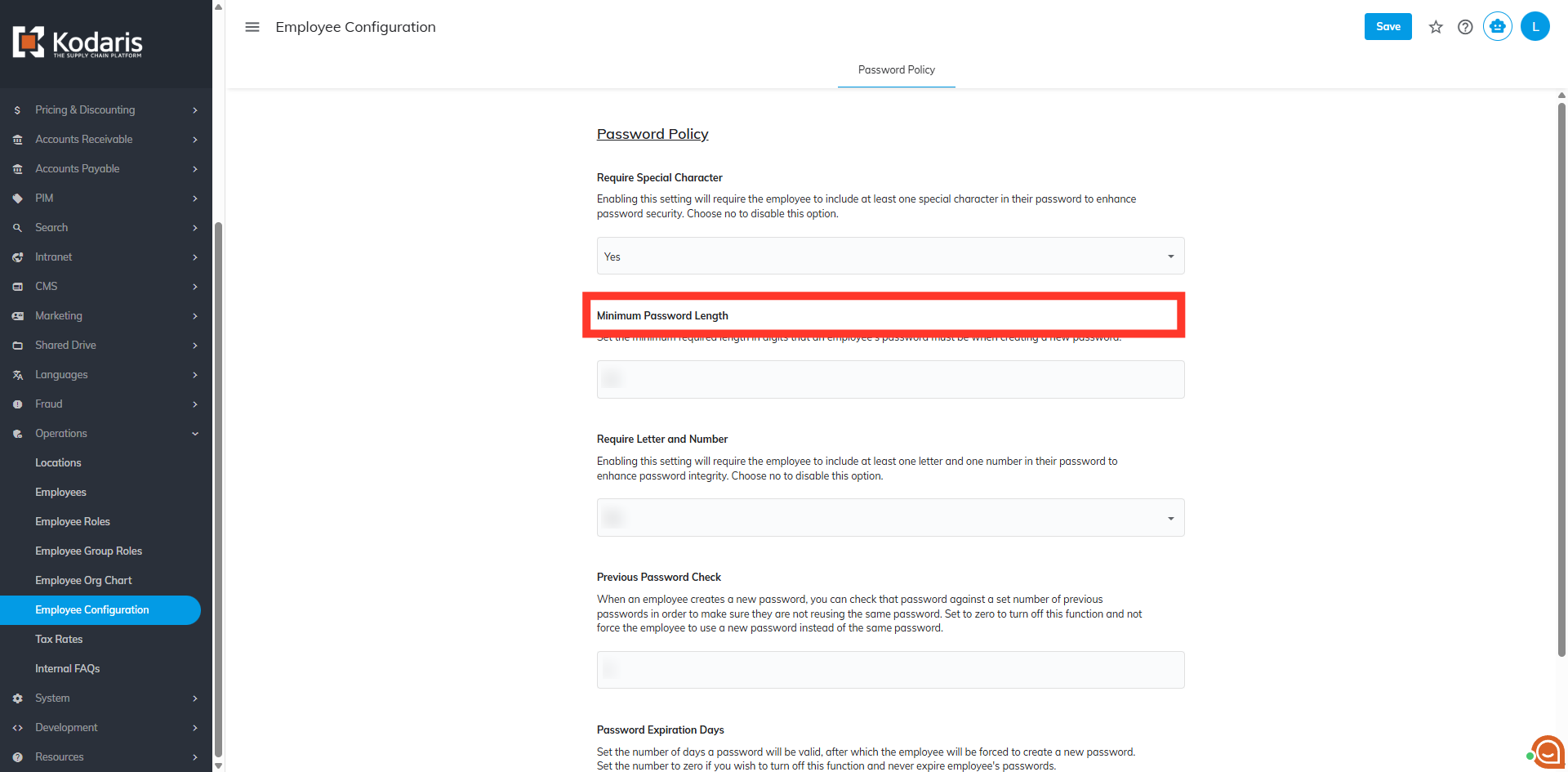
"Minimum Password Length"
The "Minimum Password Length" setting is used to set the minimum required length in digits that an employee's password must be when creating a new password.
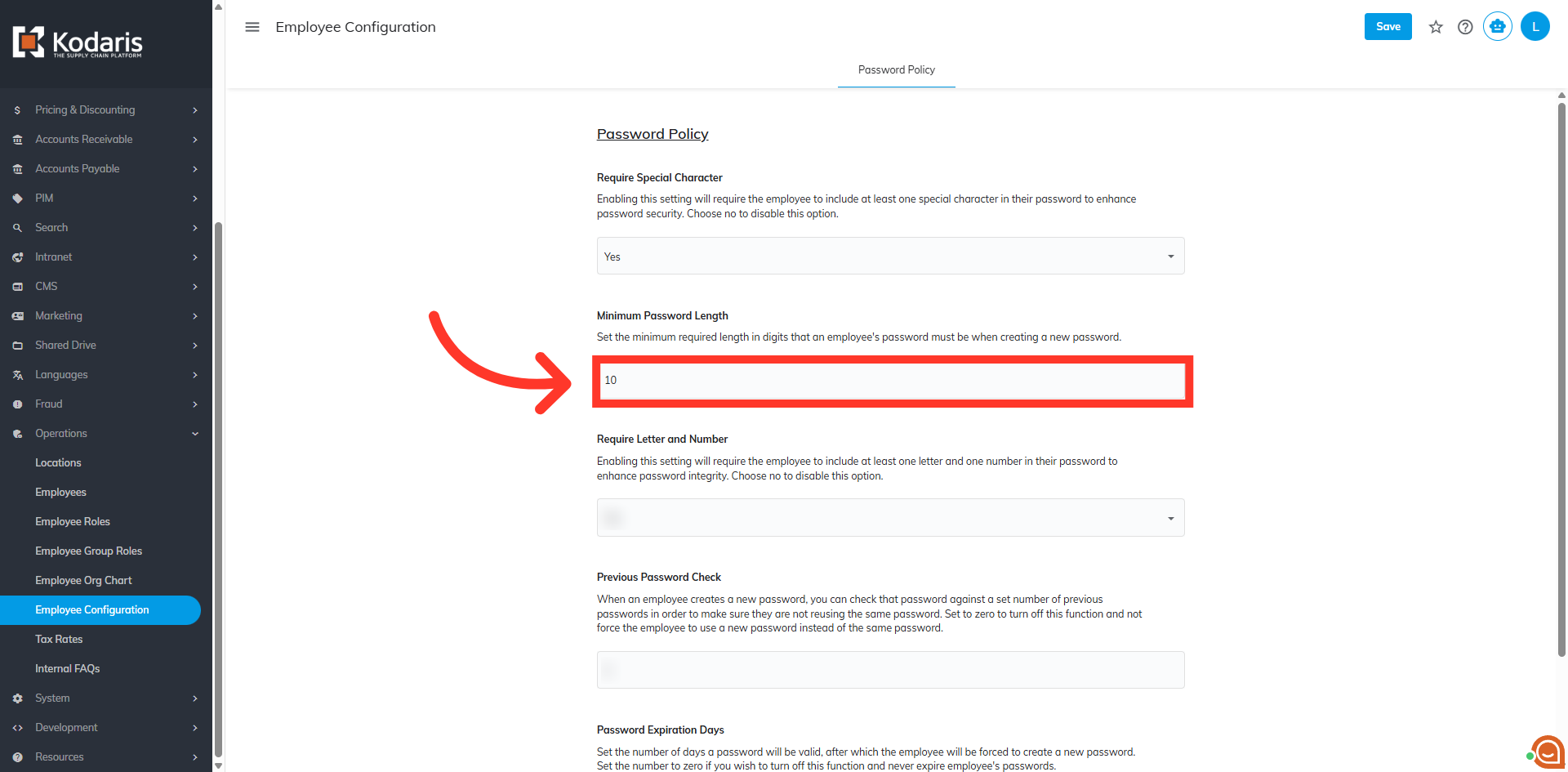
Enter your desired value
Enter your desired value for the minimum password length.
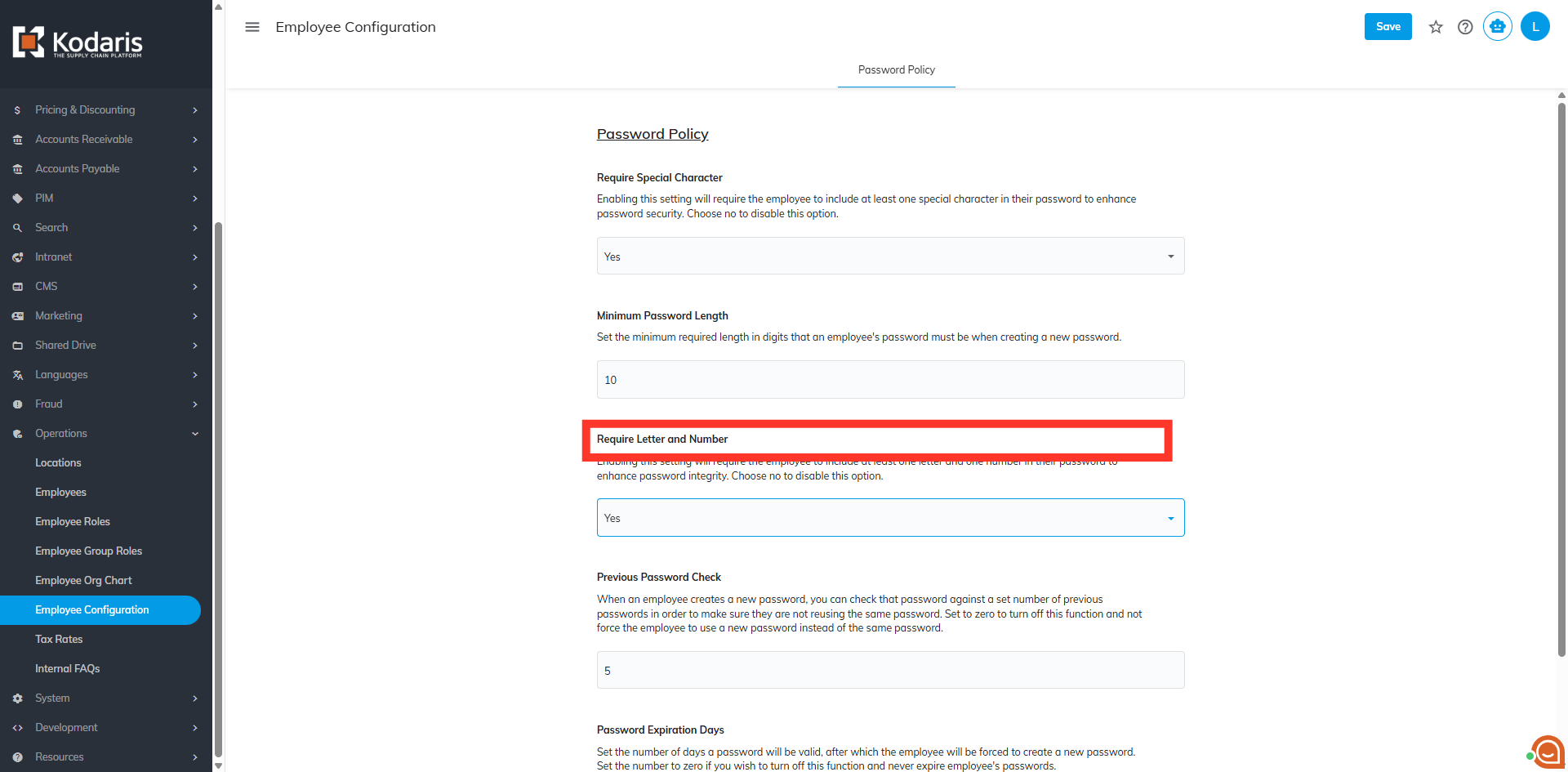
"Require Letter and Number"
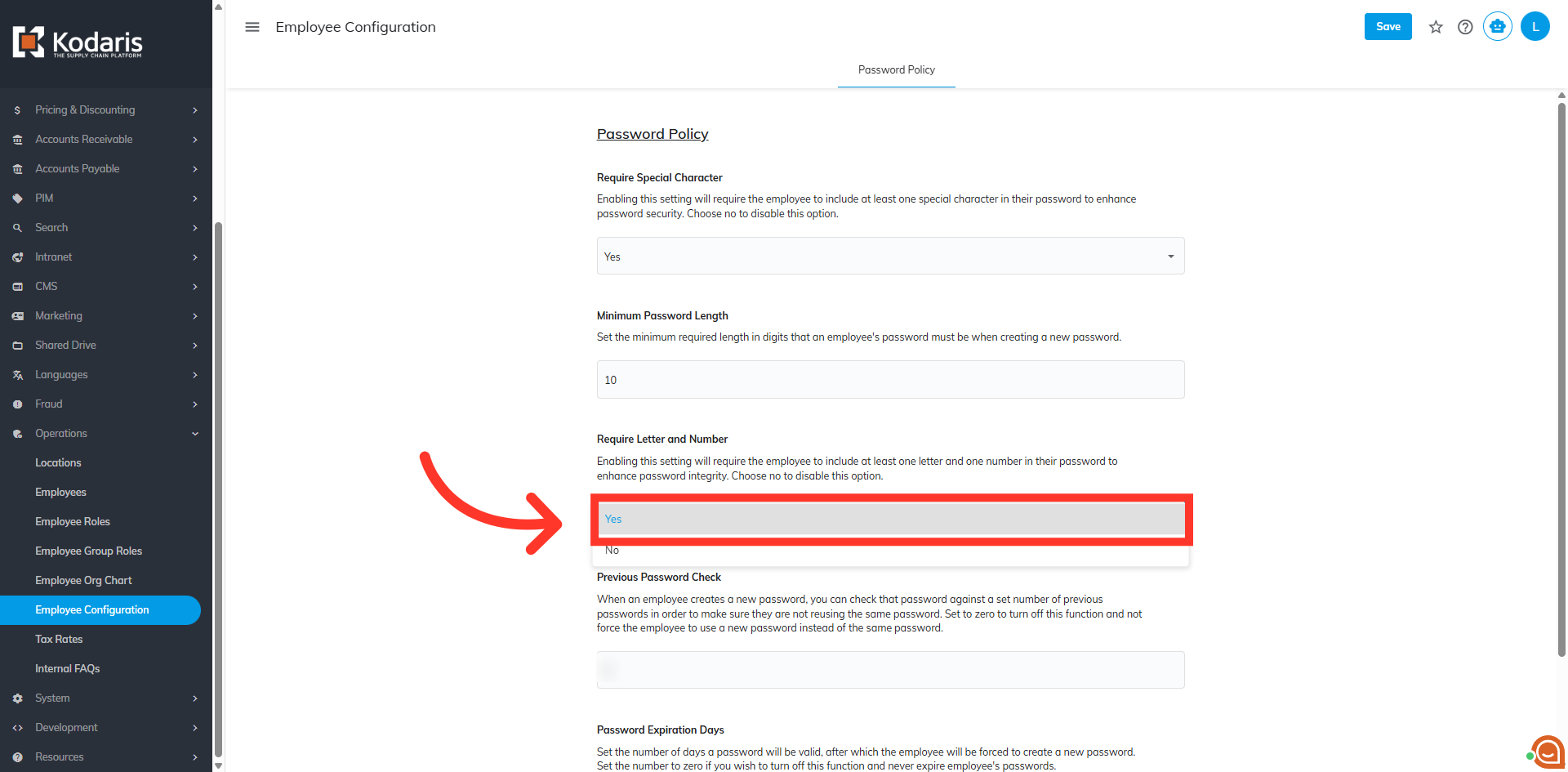
The "Require Letter and Number" setting will require the employee to include at least one letter and one number in their password.
Select "Yes" to enable
Select "Yes" to enable this setting. Choose "No" to disable this option.
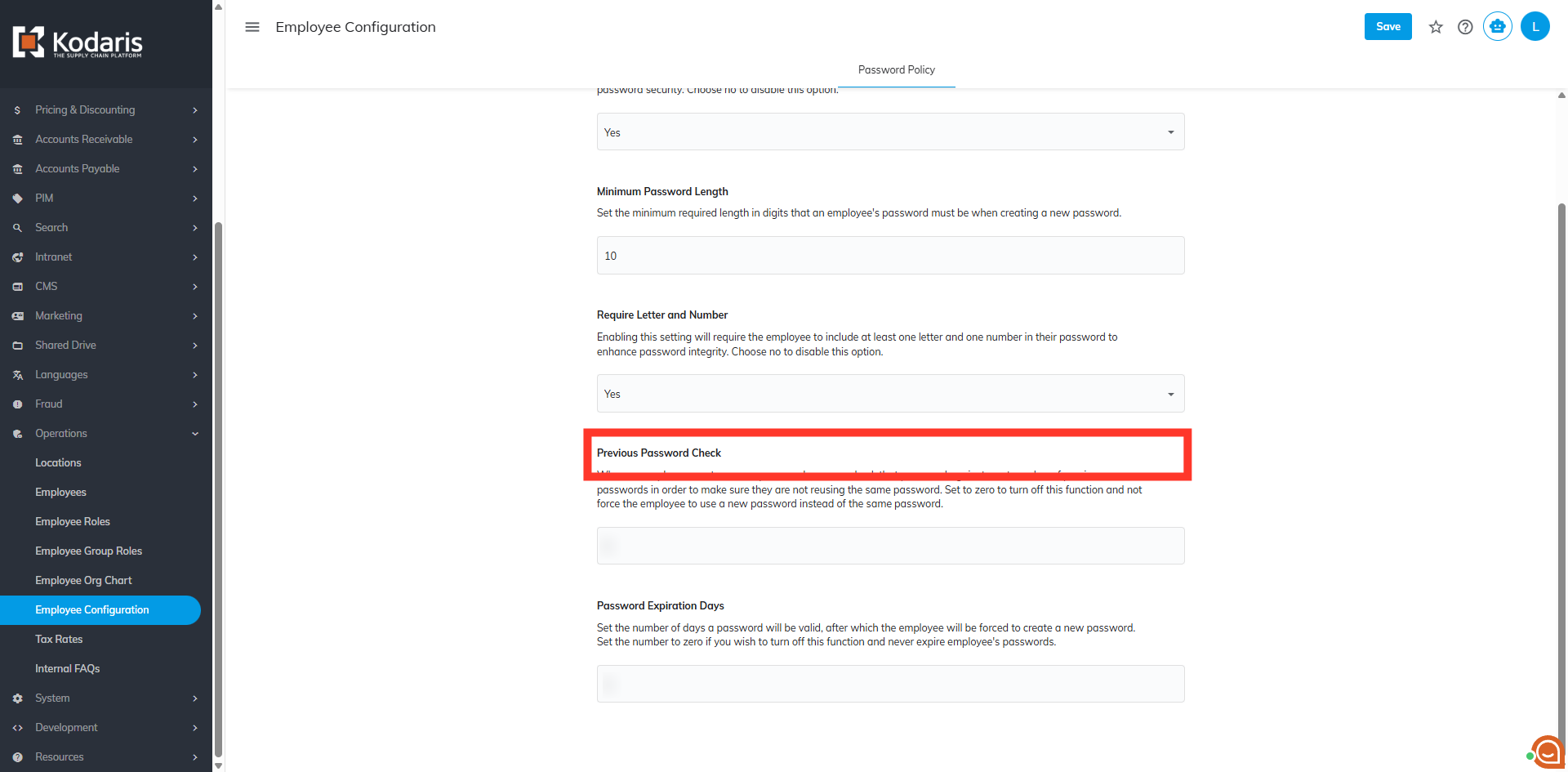
"Previous Password Check"
When an employee creates a new password, you can check that password against a set number of previous passwords in order to make sure they are not reusing the same password in the "Previous Password Check" setting.
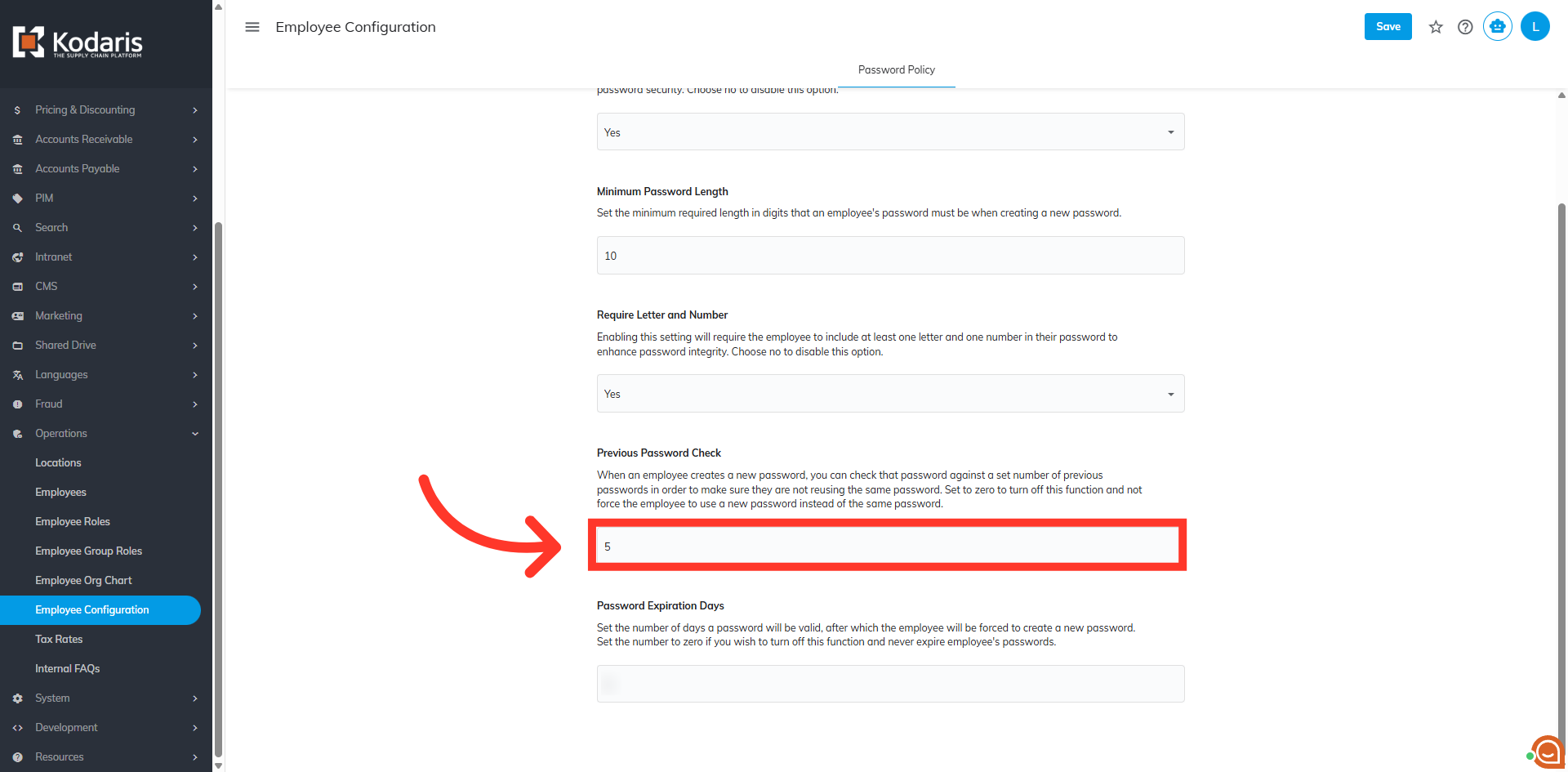
Enter your desired value
Enter the number of previous passwords you want the system to check to avoid reusing the same password. Set to zero to turn off this function and not force the employee to use a new password instead of the same password.
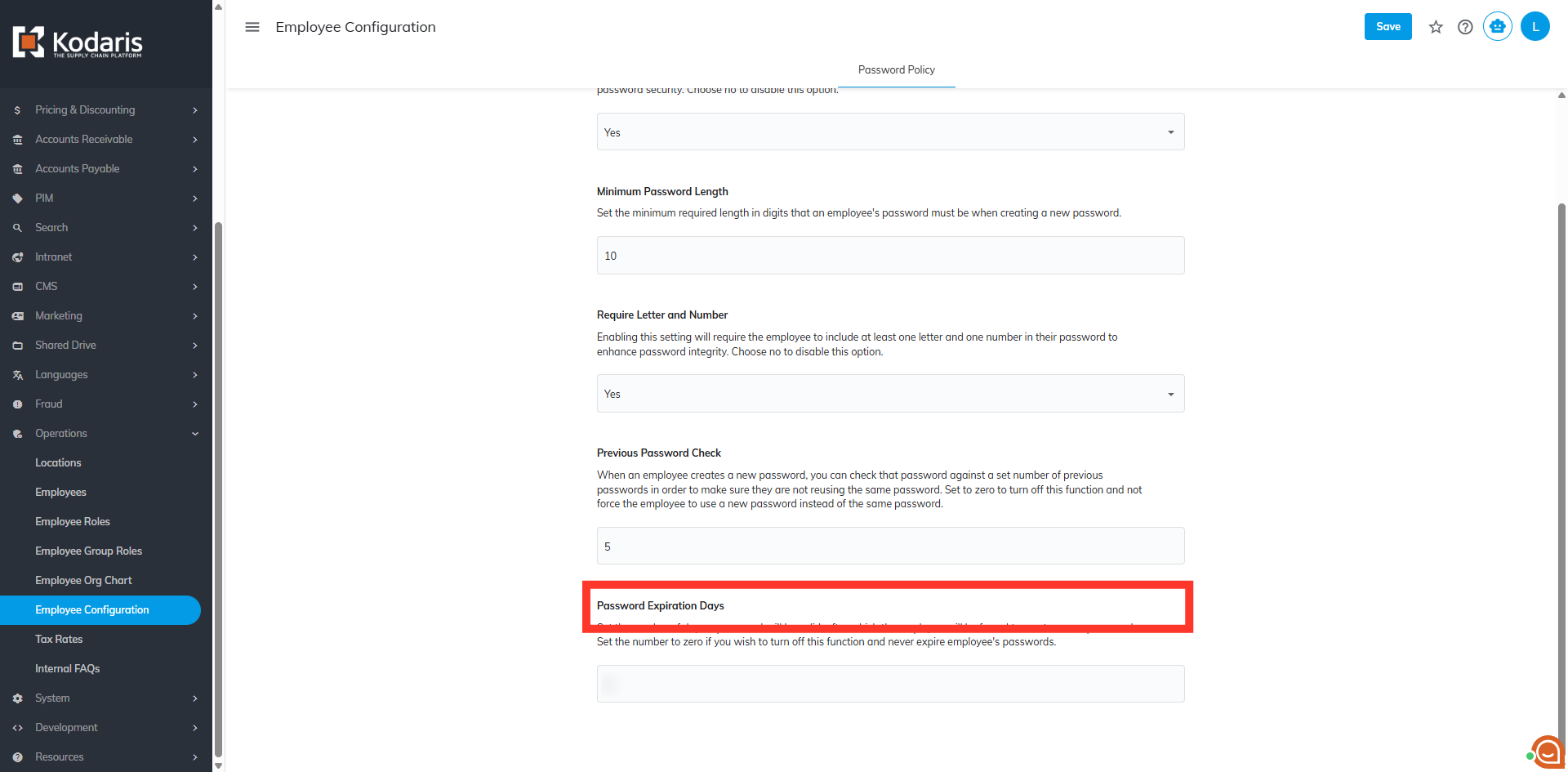
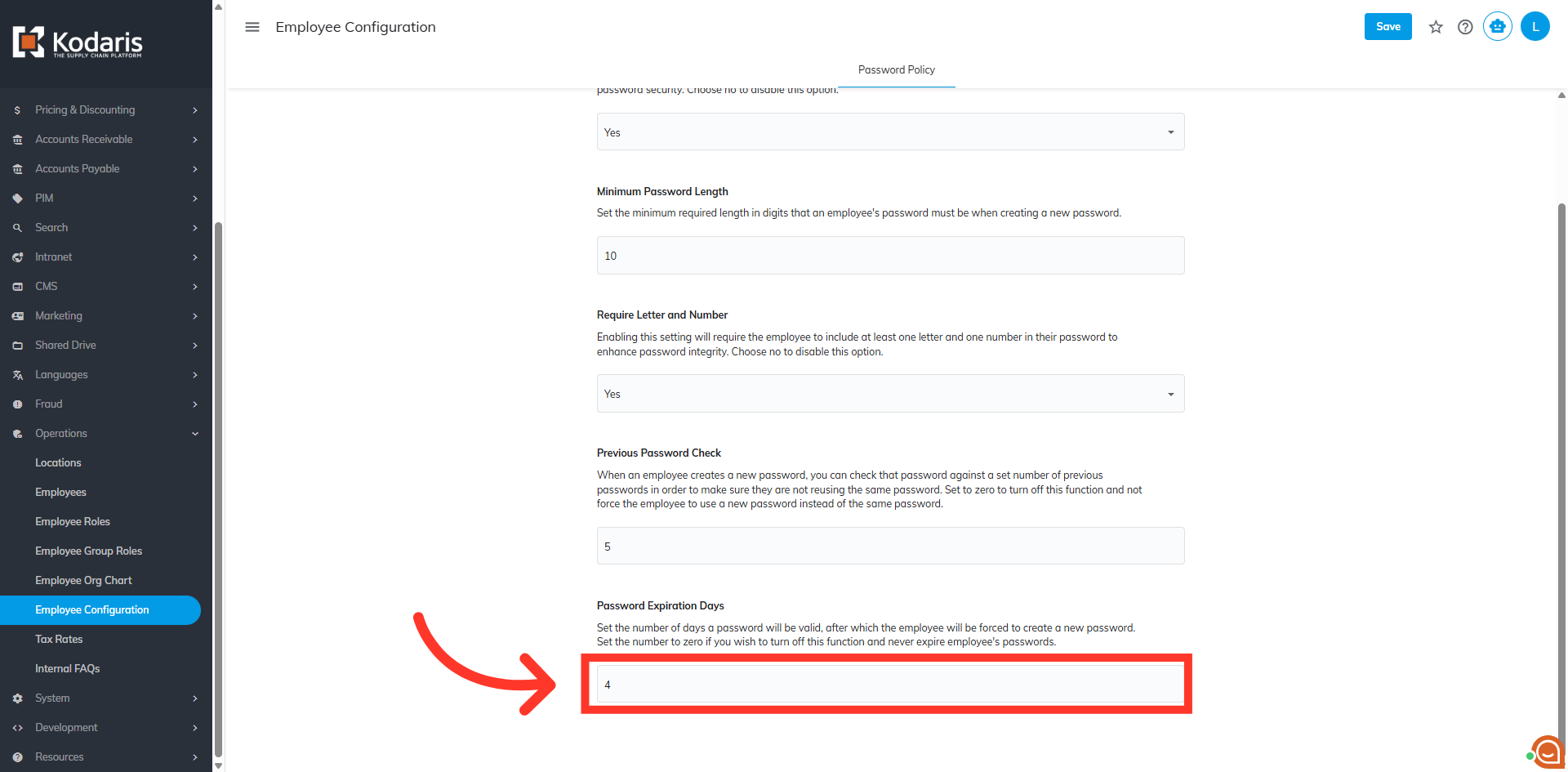
"Password Expiration Days"
The "Password Expiration Days" setting is used to set the number of days a password will be valid, after which the employee will be forced to create a new password.
Enter your desired value
Enter the number of days you want the password to be valid. Set the number to zero if you wish to turn off this function and never expire employee's passwords.
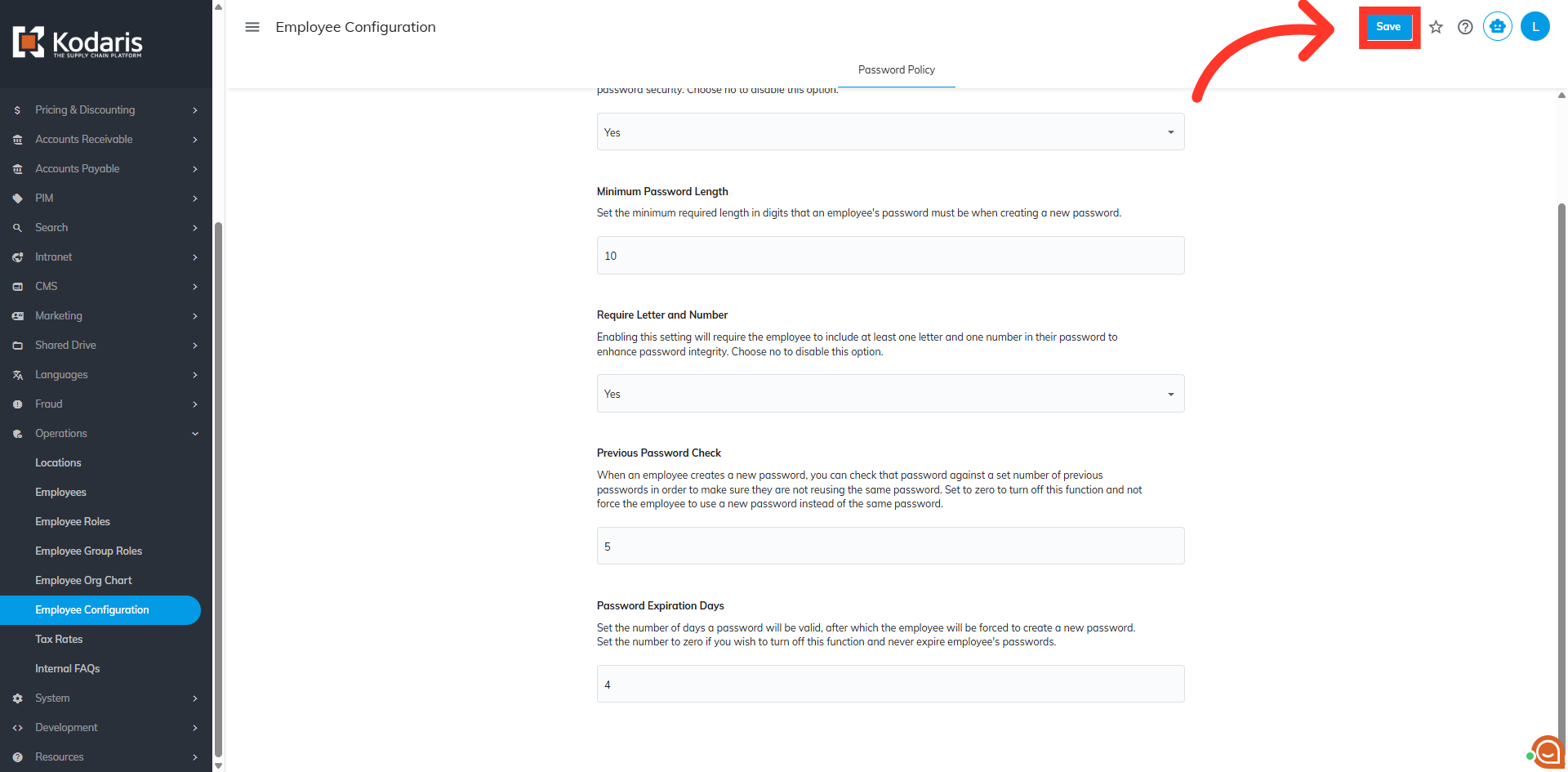
Click "Save"
Then, click "Save" to apply the settings.