Operations CRM - Create a Ticket Linked to an Opportunity
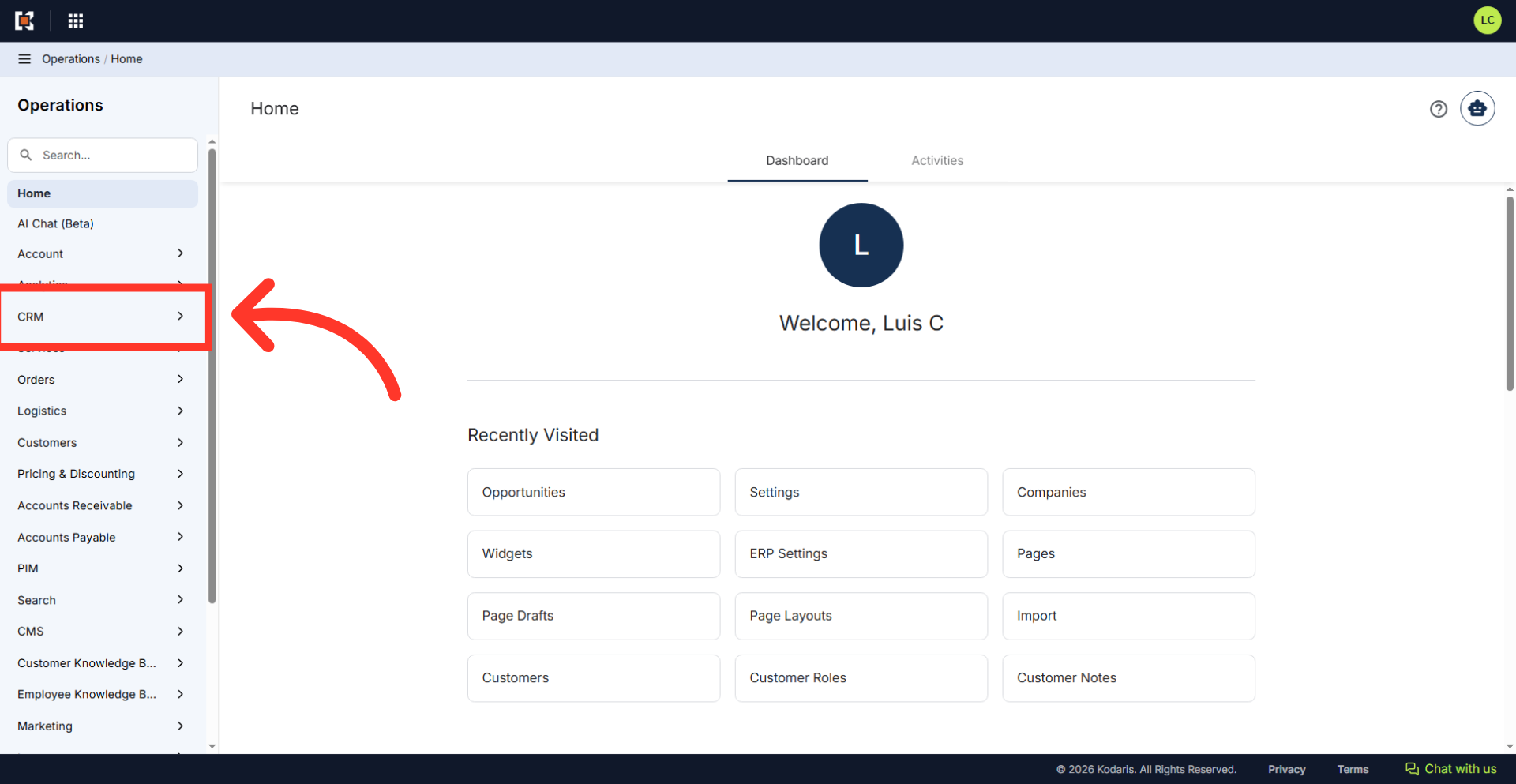
Navigate to "CRM"
To create a ticket and link it directly to an opportunity in the CRM, navigate to "CRM" in the operations portal.
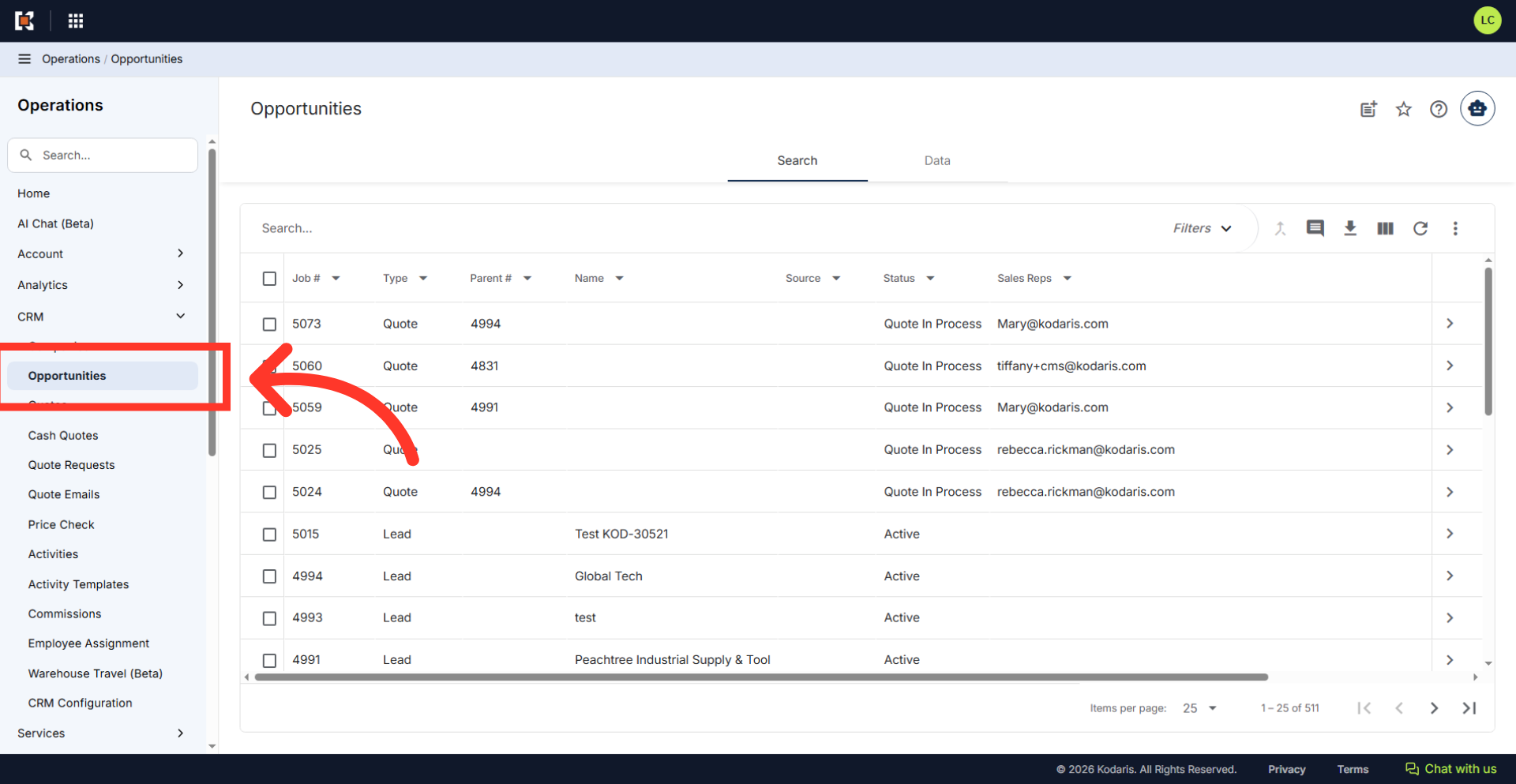
Click "Opportunities"
Click "Opportunities". In order to access and update "Opportunities" you will need to be set up either as an "administrator" or a "superuser", or have the roles of: "accountQuoting" or "dashboardSearch".
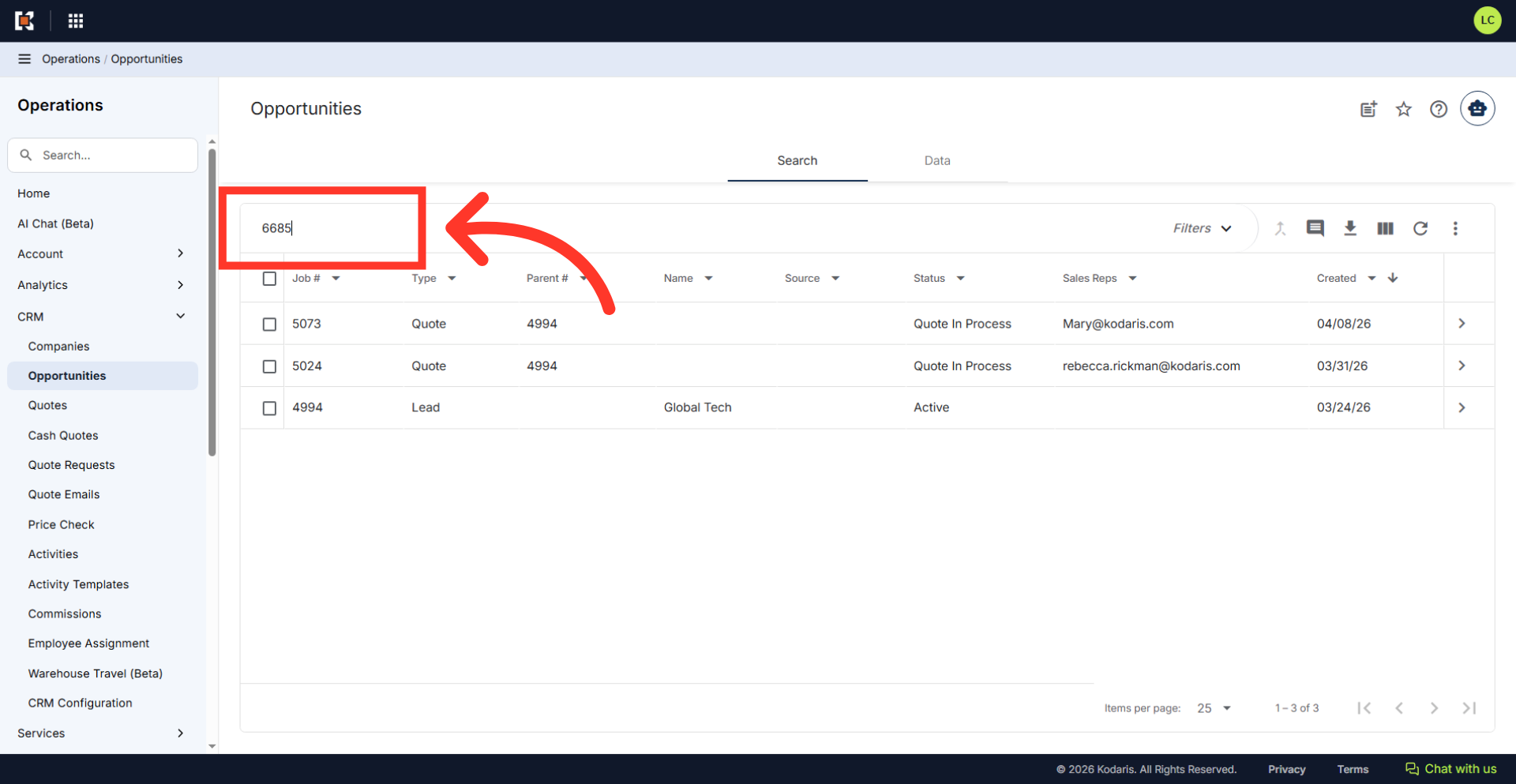
Search for the opportunity
Search for the opportunity that you would like to create a ticket for
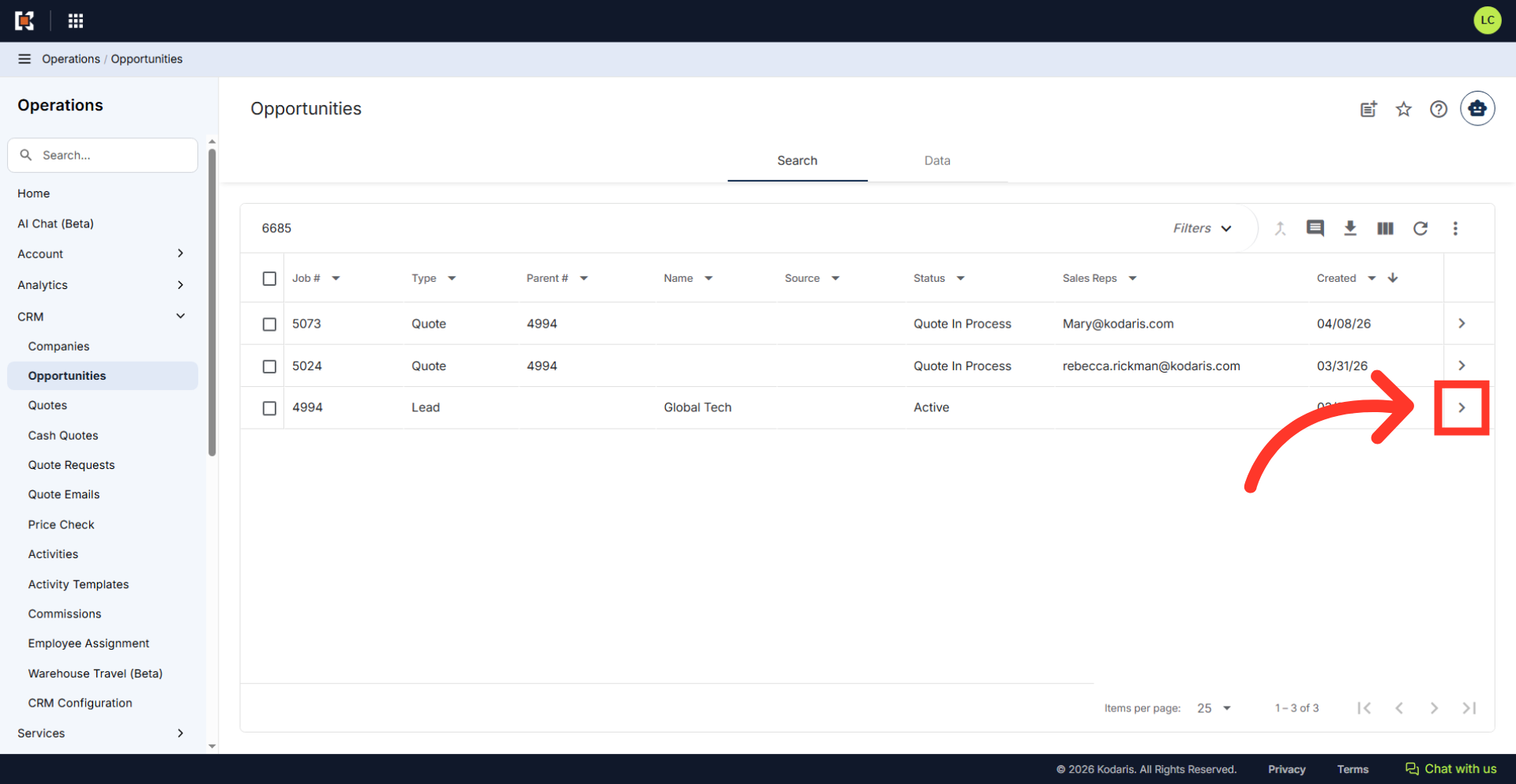
Click the more details icon
Click the more details icon.
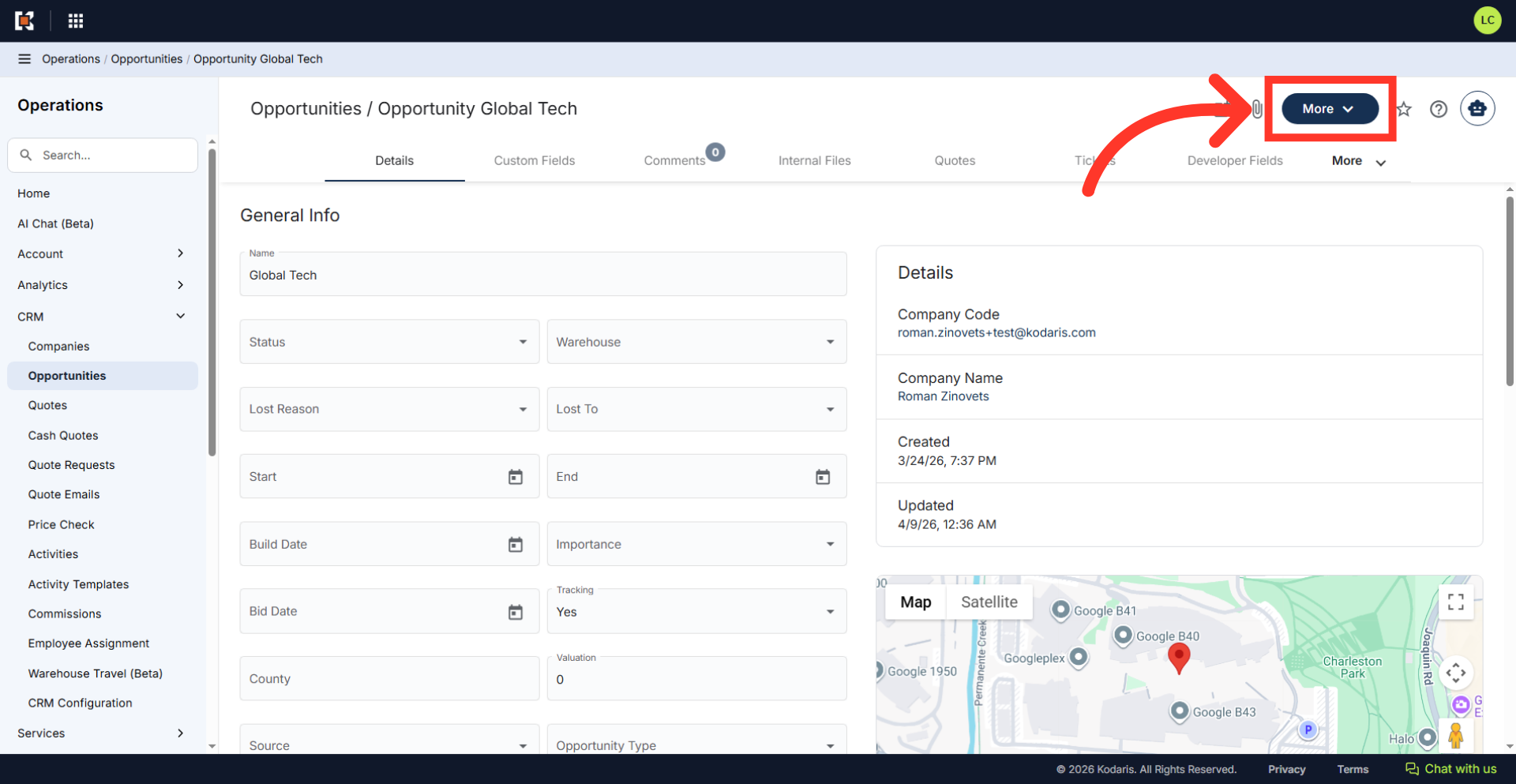
Click "More"
Click "More" to open additional options.
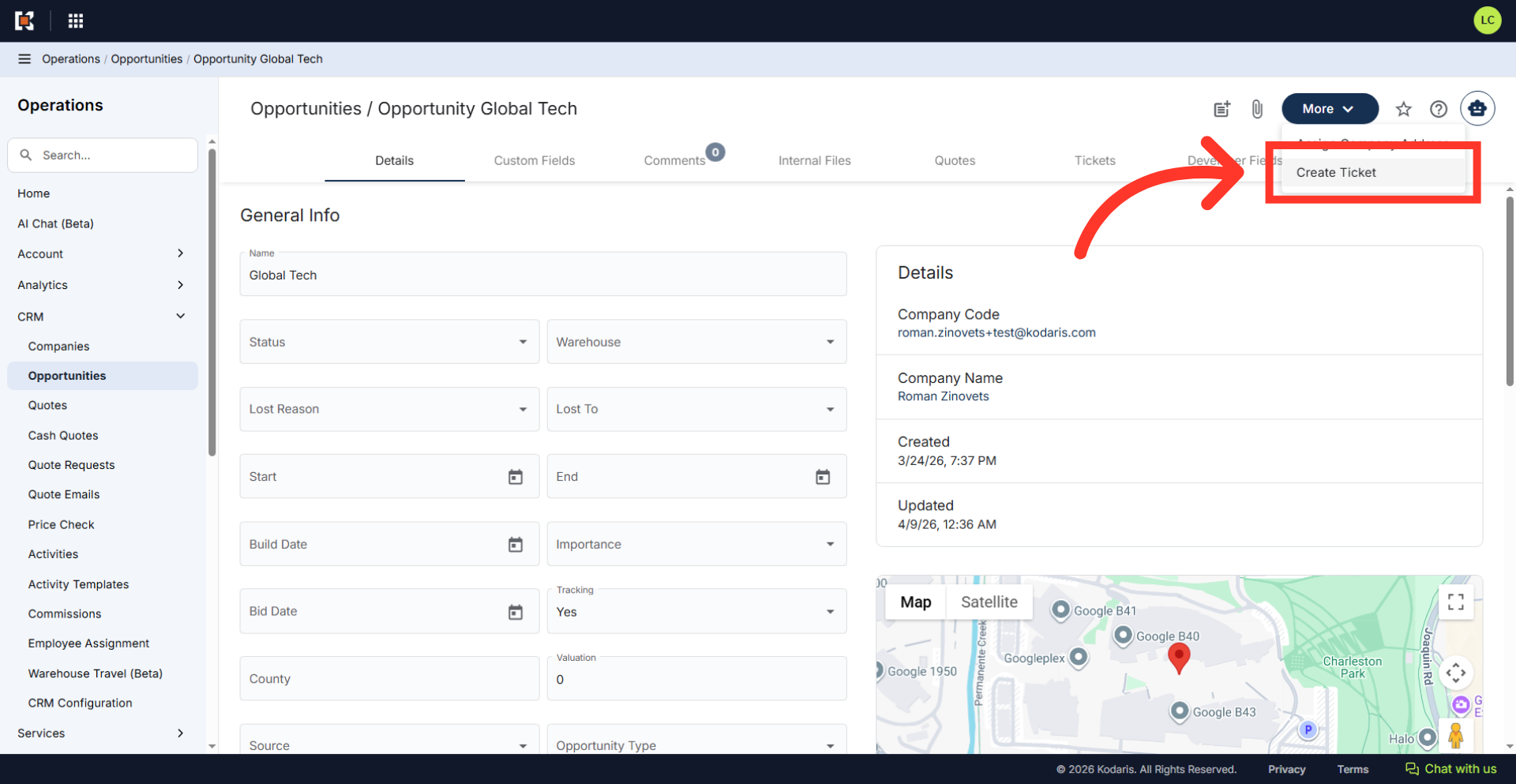
Click "Create Ticket"
Click "Create Ticket".
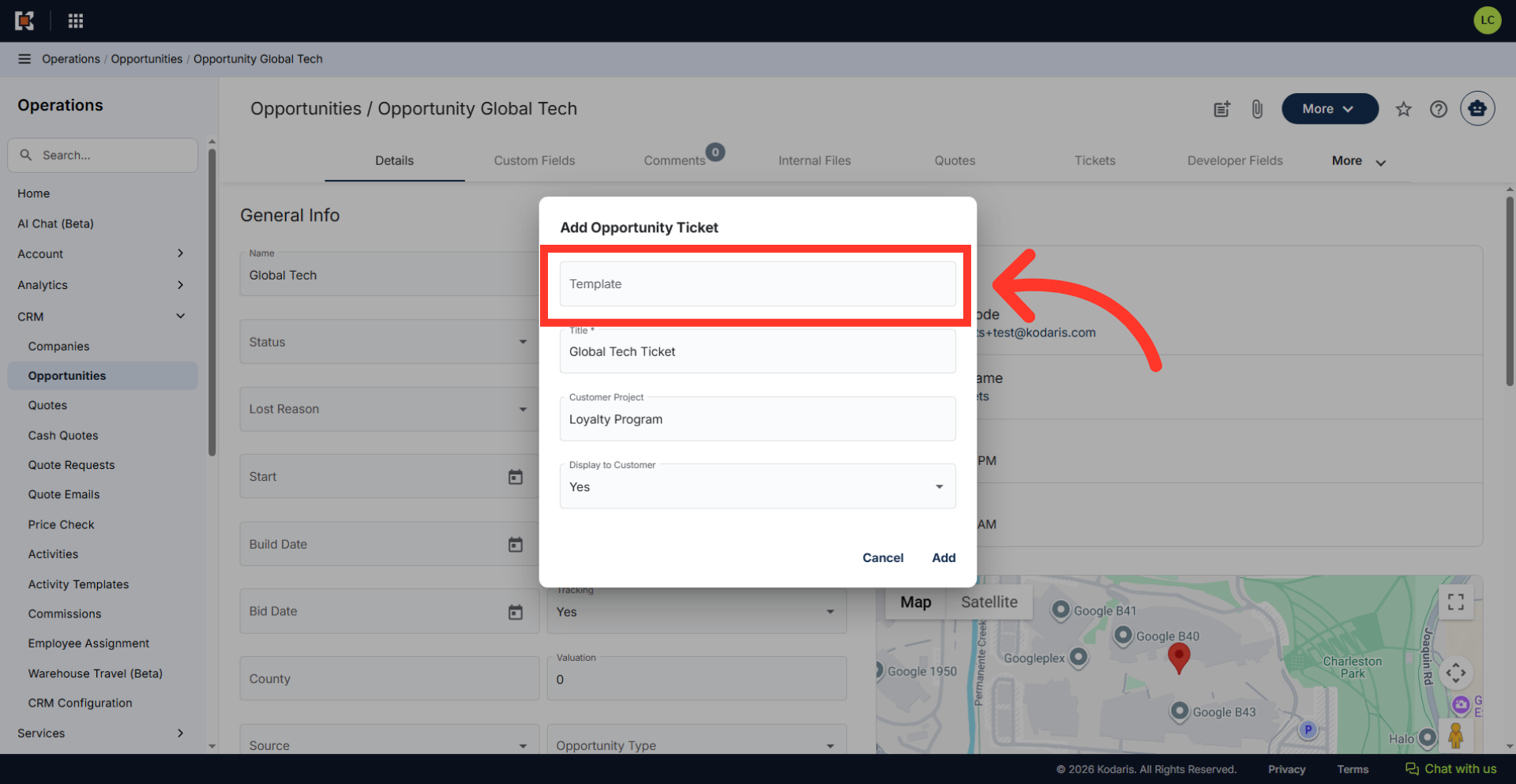
Select a Ticket Template
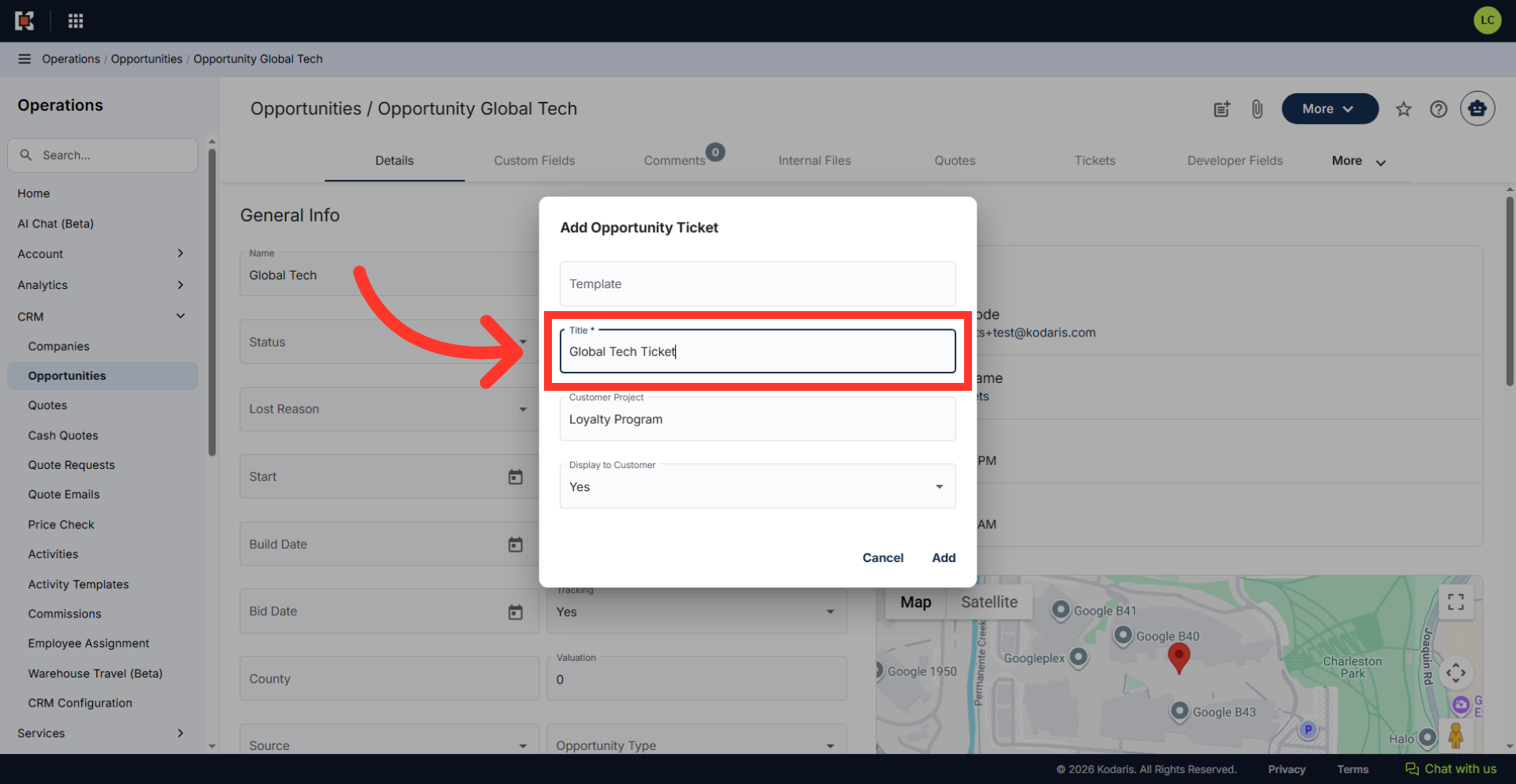
"Add Opportunity Ticket" dialog box should appear. If you would like, you can select to use a ticket template.
Enter ticket title
Type in a ticket title in the "Title" field.
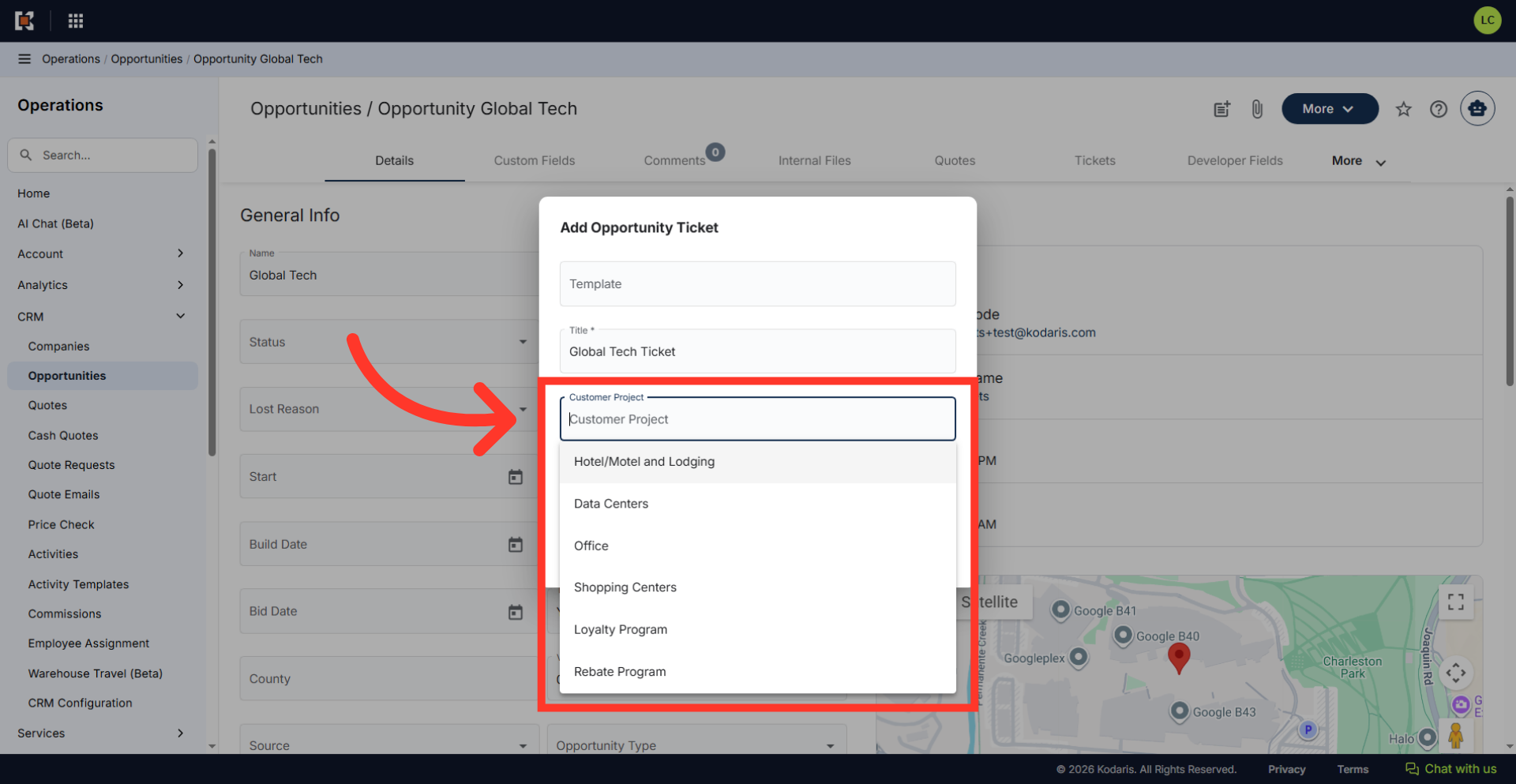
Select a "Customer Project"
If you would like, update the "Customer Project".
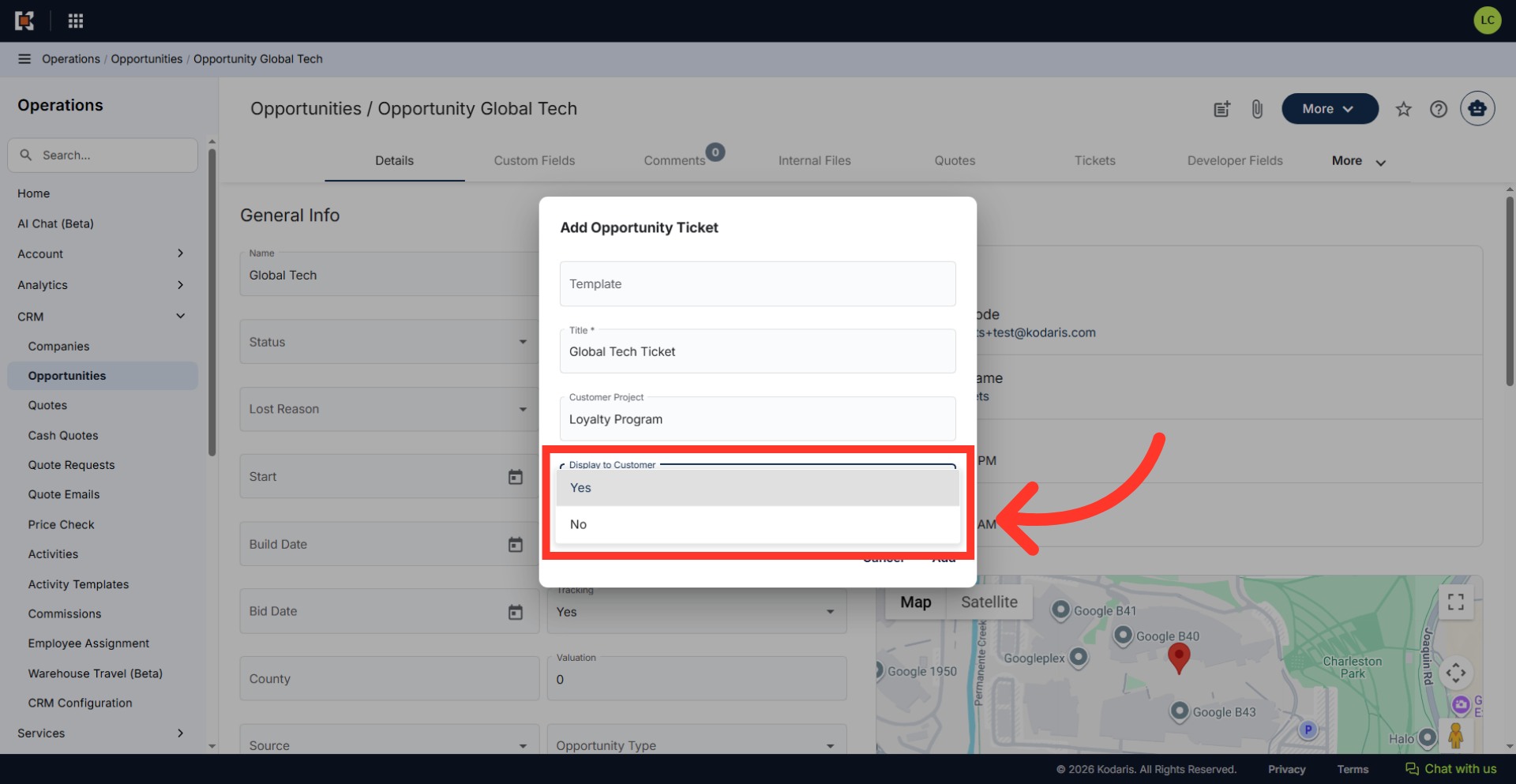
Select from the options
Click the "Display to Customer" dropdown and select from the options. "Yes" if you would like to display the ticket to your customer, "No" if you do not.
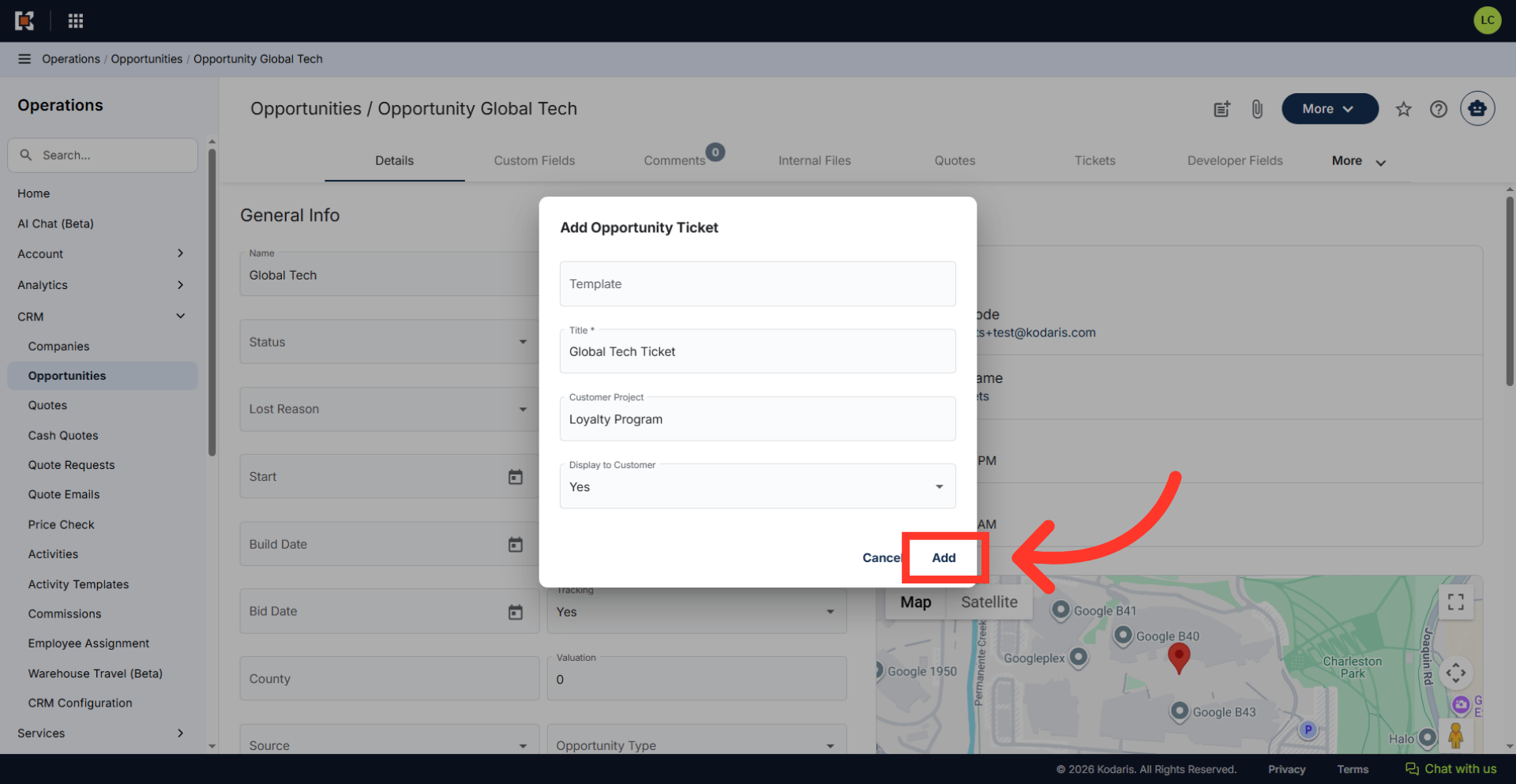
Click "Add"
Click the "Add" to create the new ticket.
Review and update ticket details
Once the ticket has been created, you will see the ticket details screen and can update any needed details.
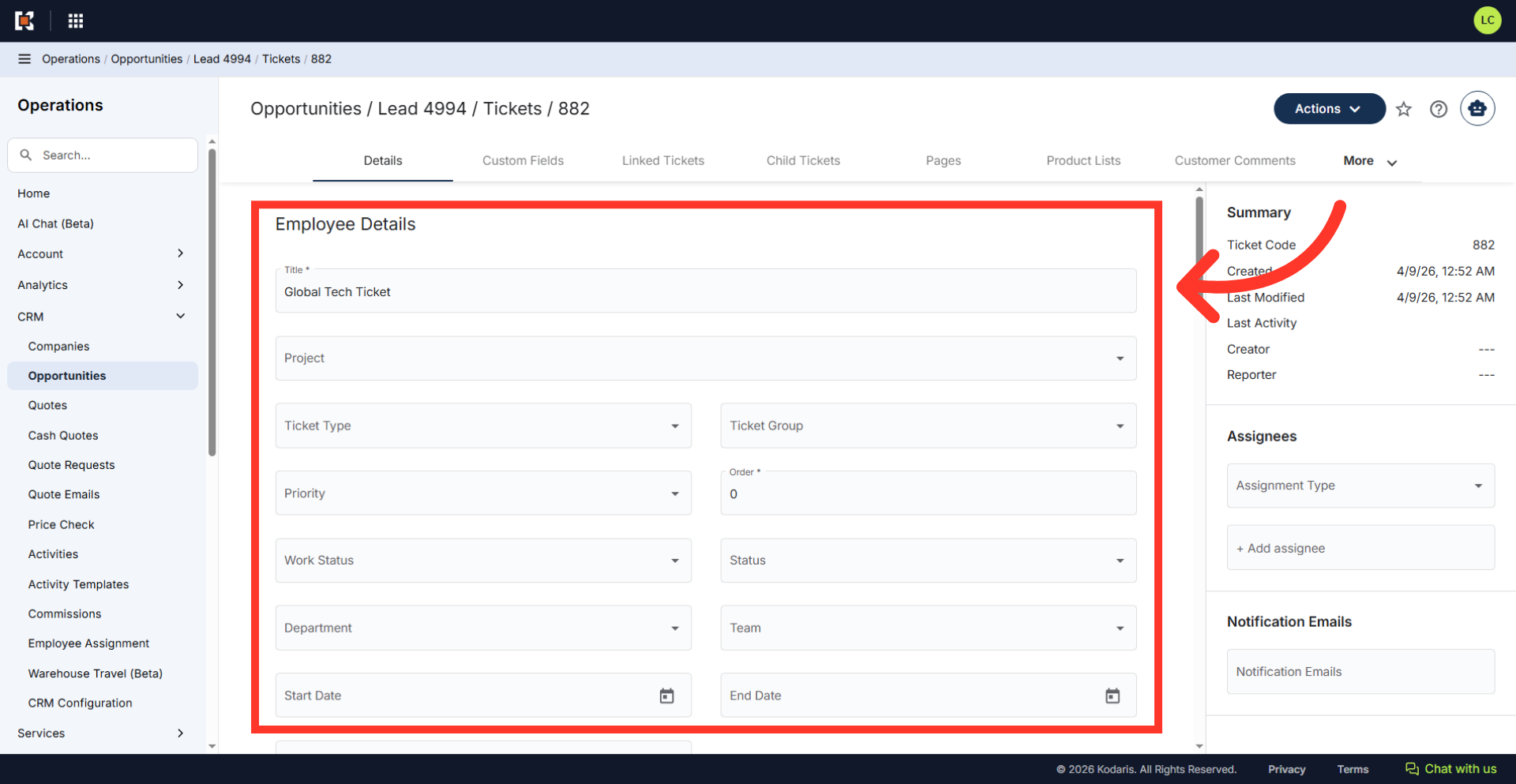
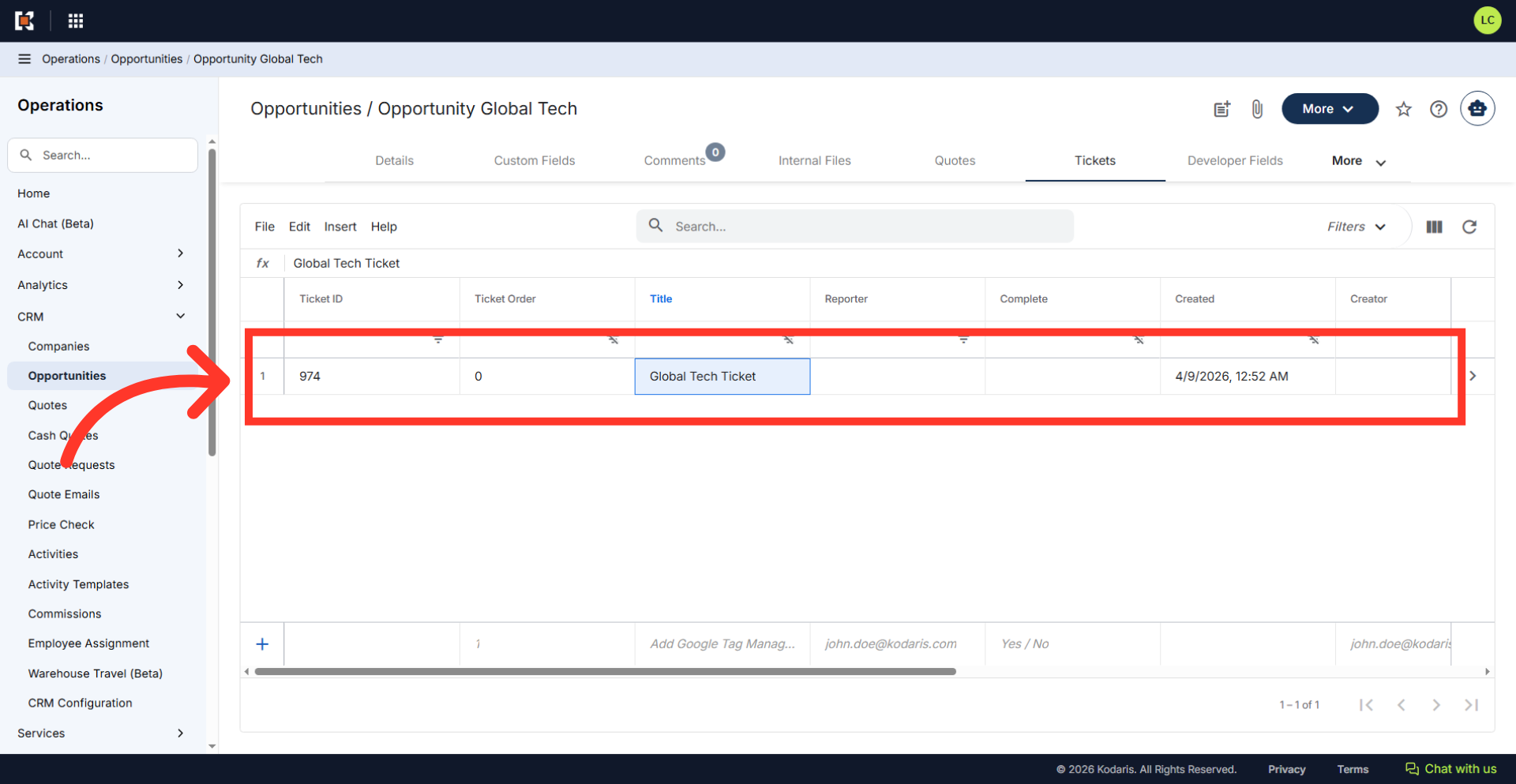
Verify the ticket
You can also view created opportunity tickets by viewing the "Opportunity Tickets" tab on the opportunity.