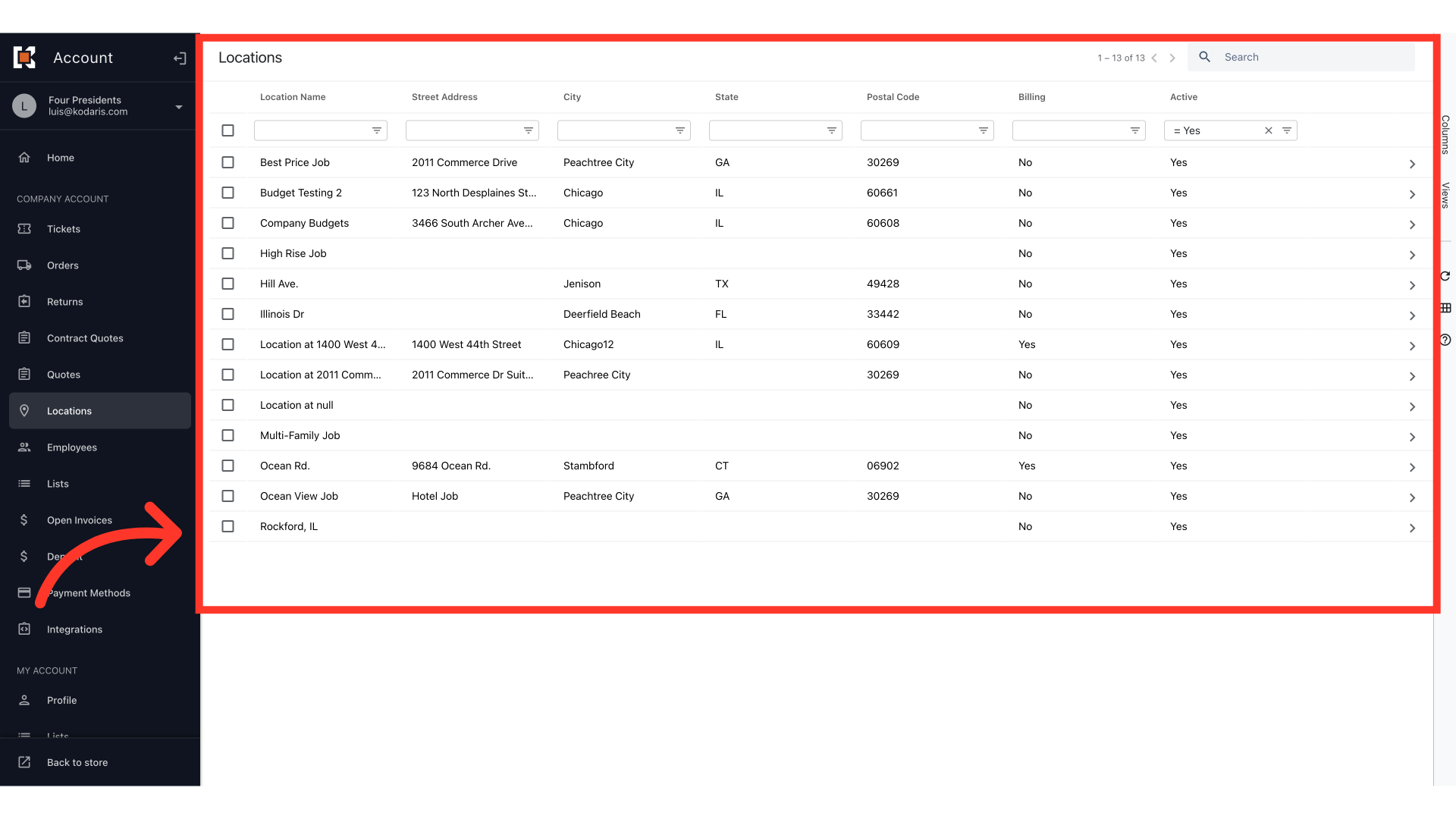
Operations Portal - Assign View All Locations to Customer
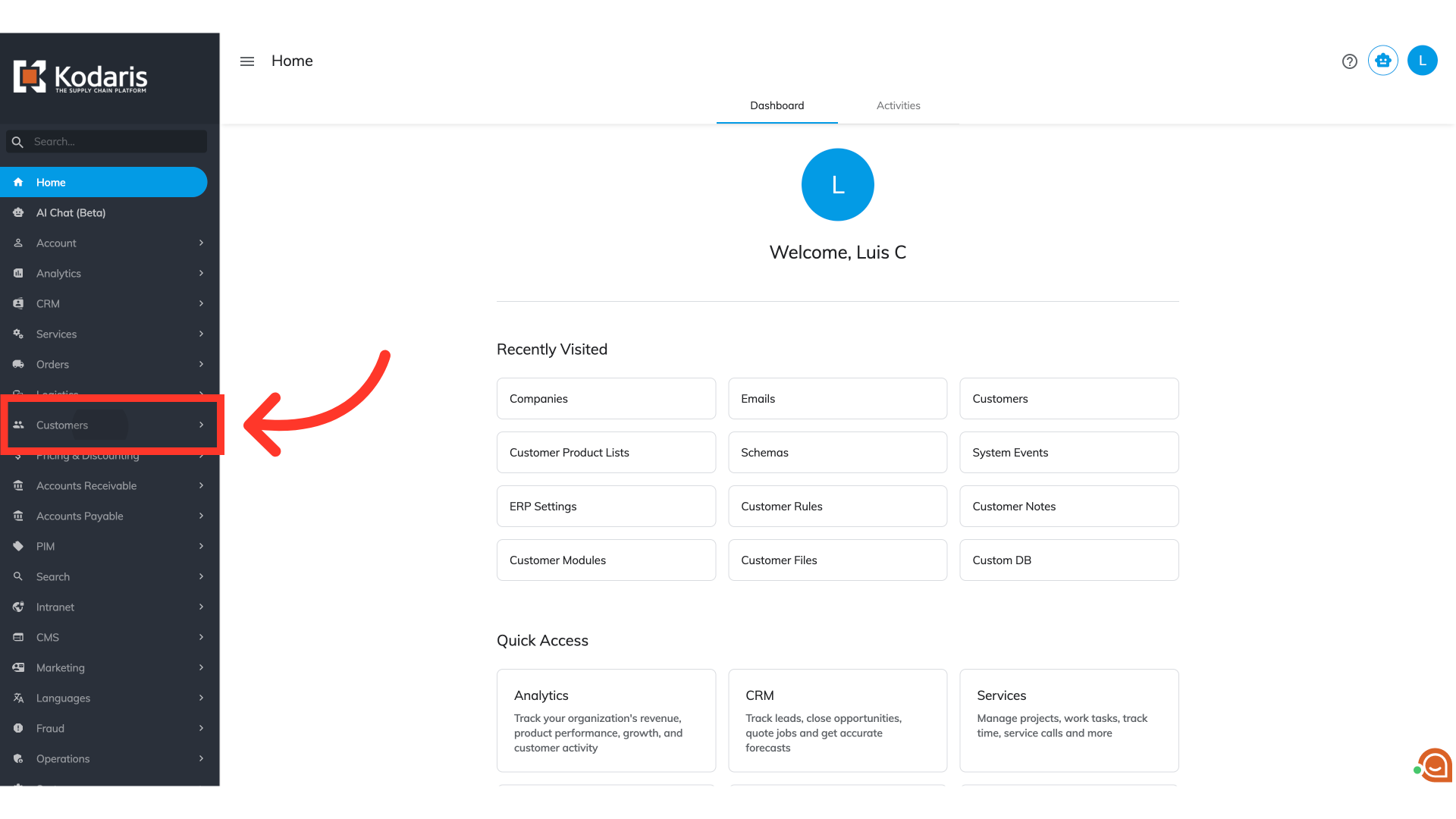
Navigate to "Customers"
To enable a customer with access to all associated shipping addresses of the company on their account and during checkout, you will need to assign the "ViewAllLocations" role to your customer. To do this, navigate to the "Customers" section in your operations portal.
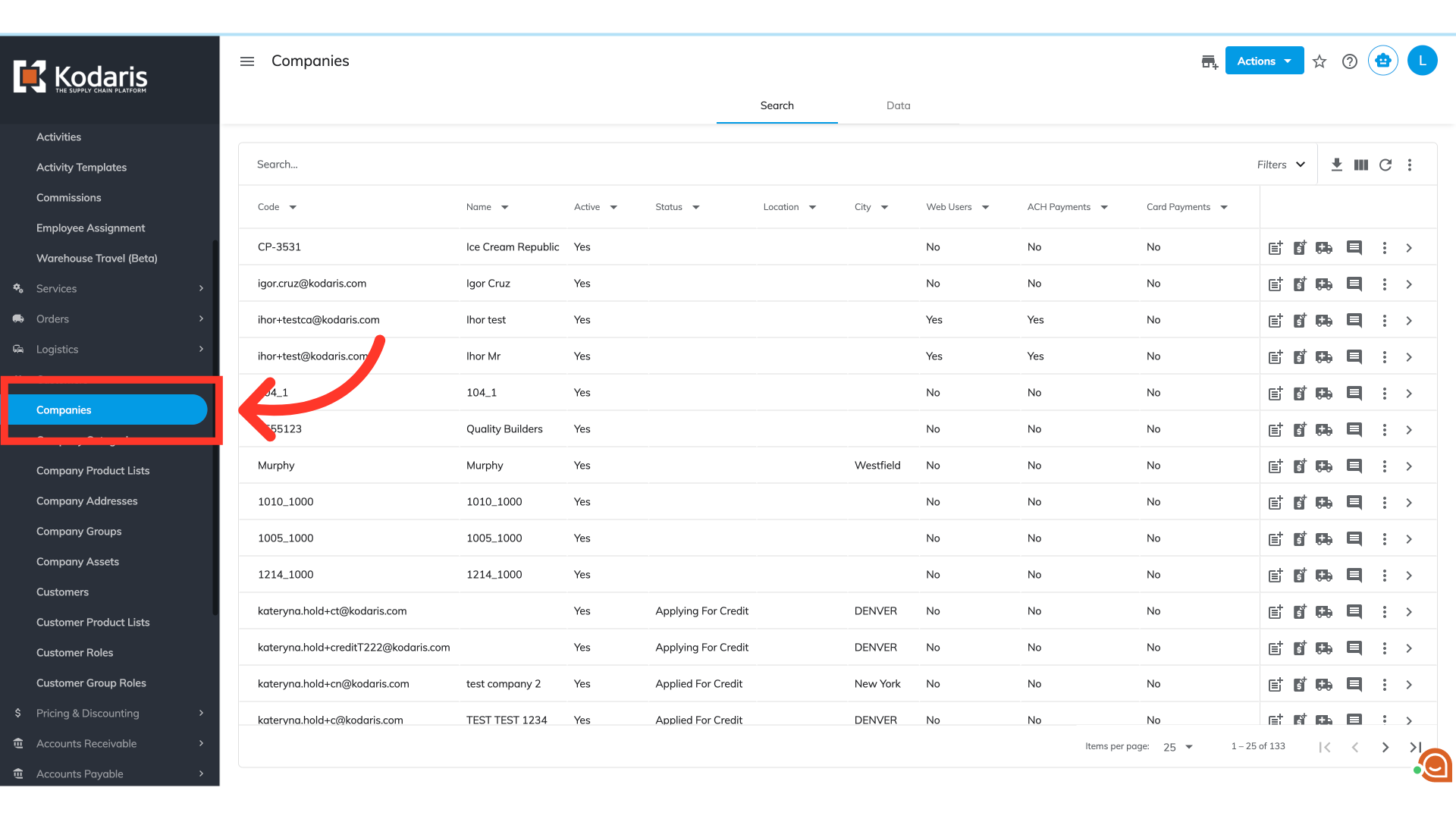
Go to the "Companies" screen
Then go to the "Companies" screen. In order to access "Companies" you will need to be set up either as an "administrator" or a "superuser", or have the appropriate roles: "companyView" and "companyEdit".
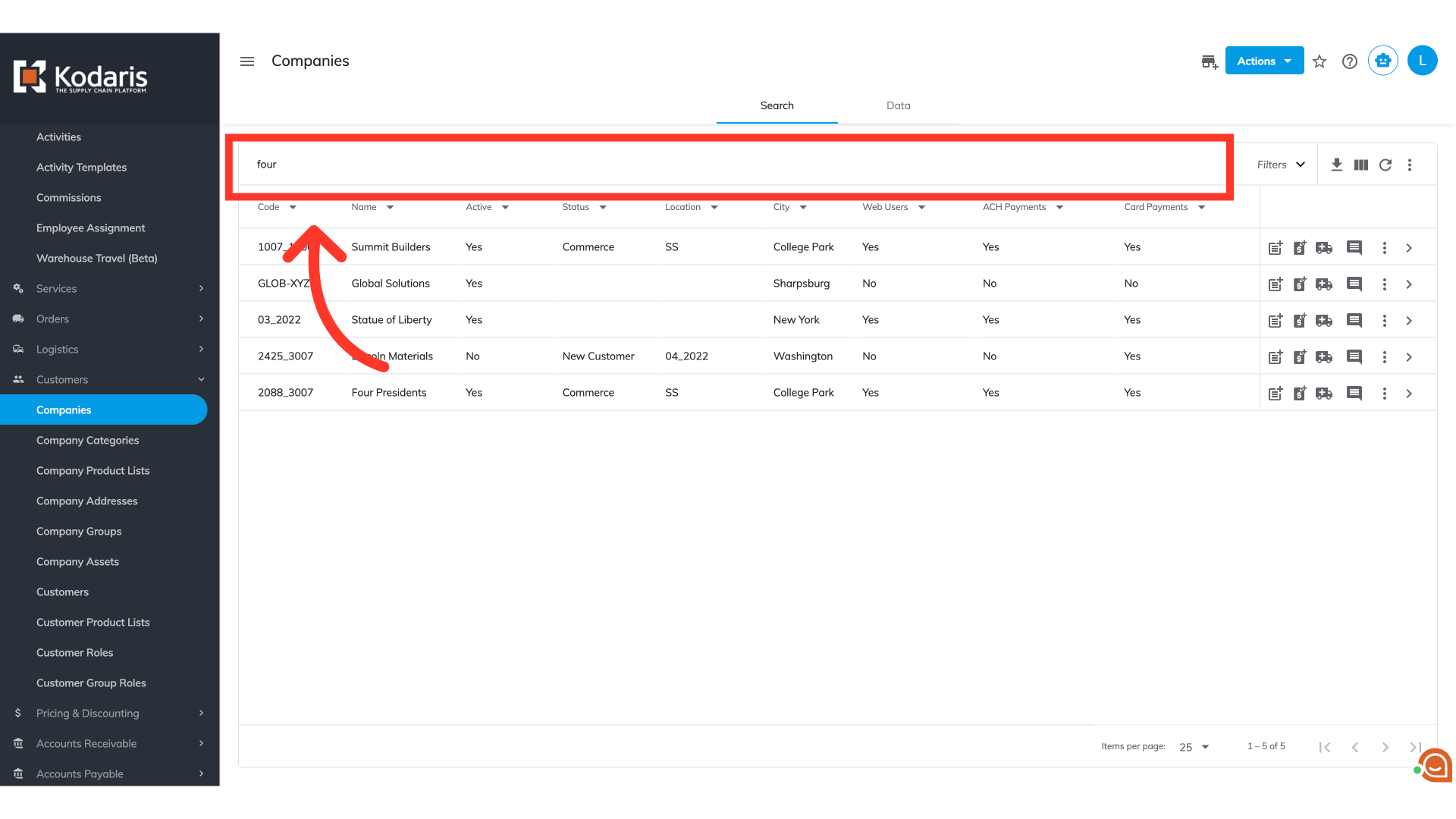
Search for your company
Use the search bar or use your column filter to locate the specific company that your customer is a part of.
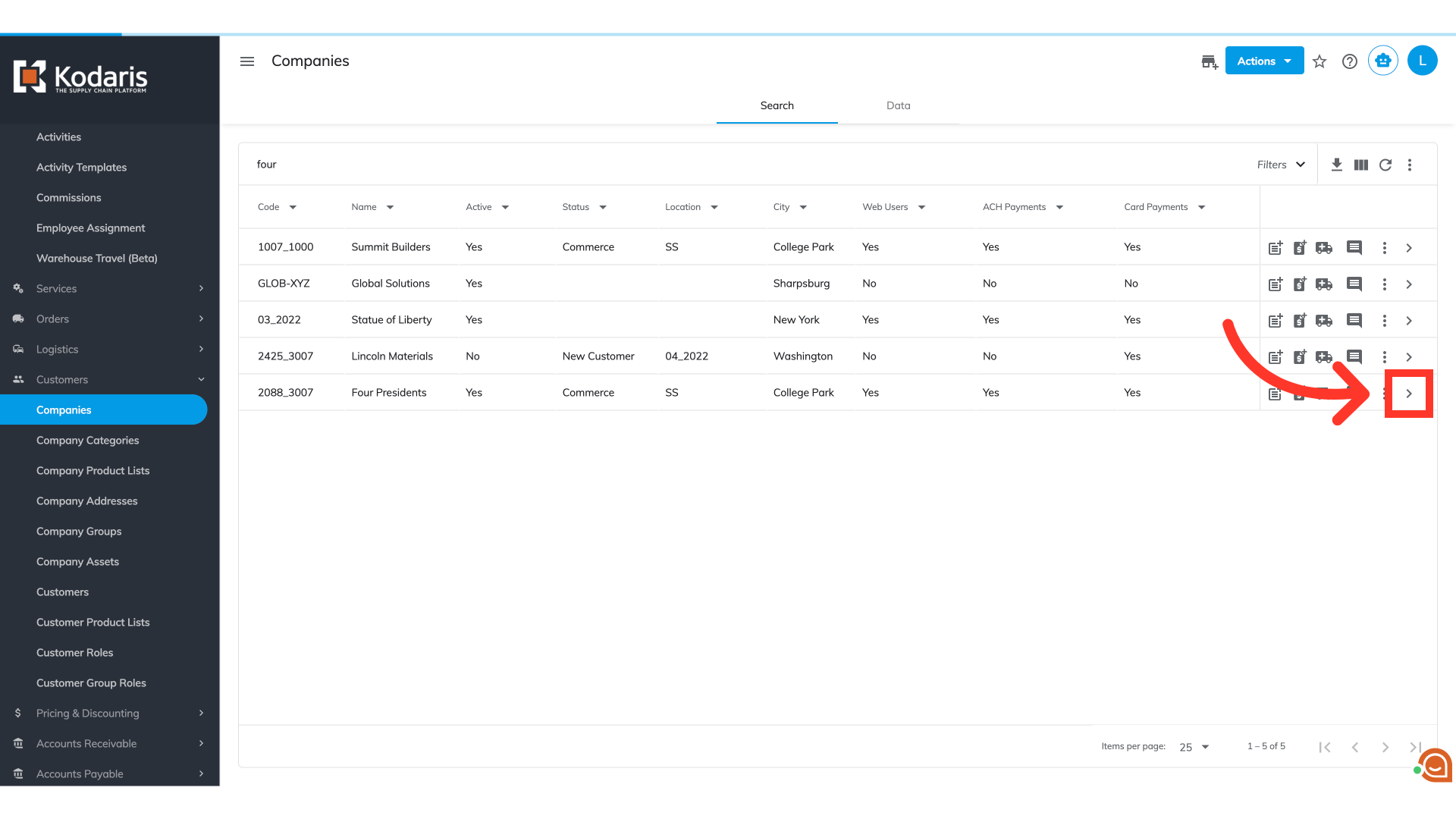
Click the more details icon
Click the more details icon.
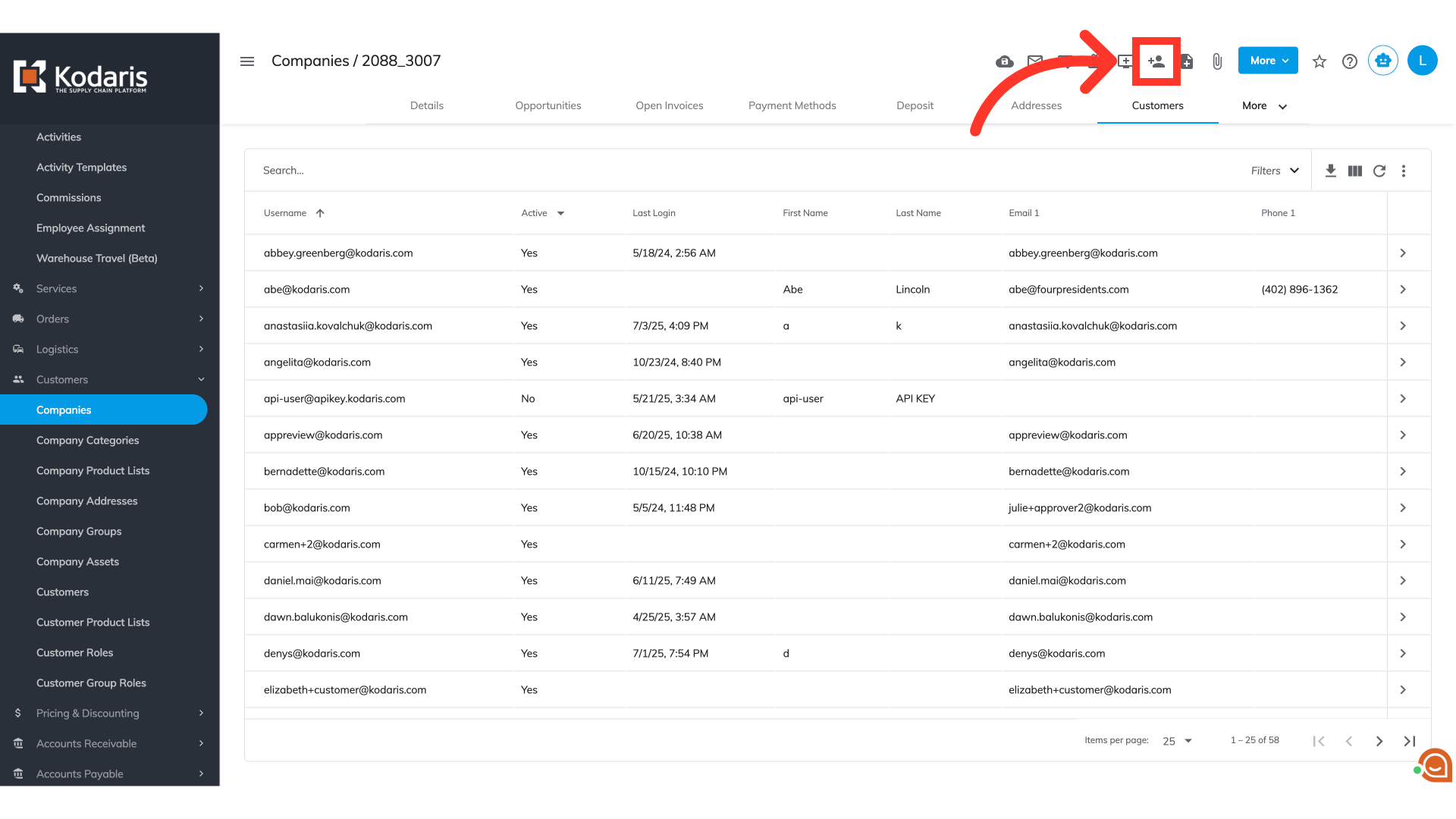
Click the "Add Customer" icon
If you're adding a new customer, click the "Add Customer" icon.
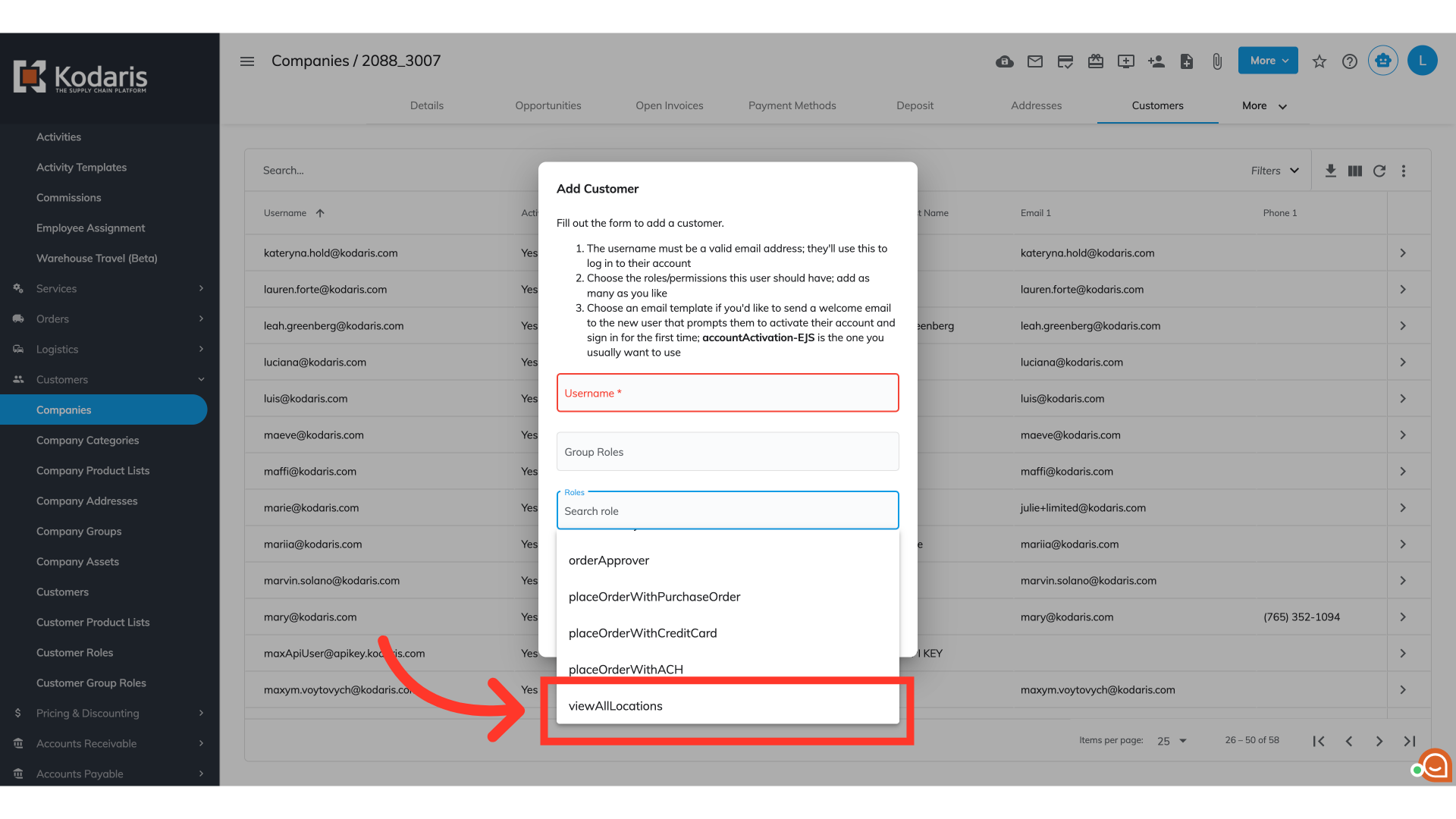
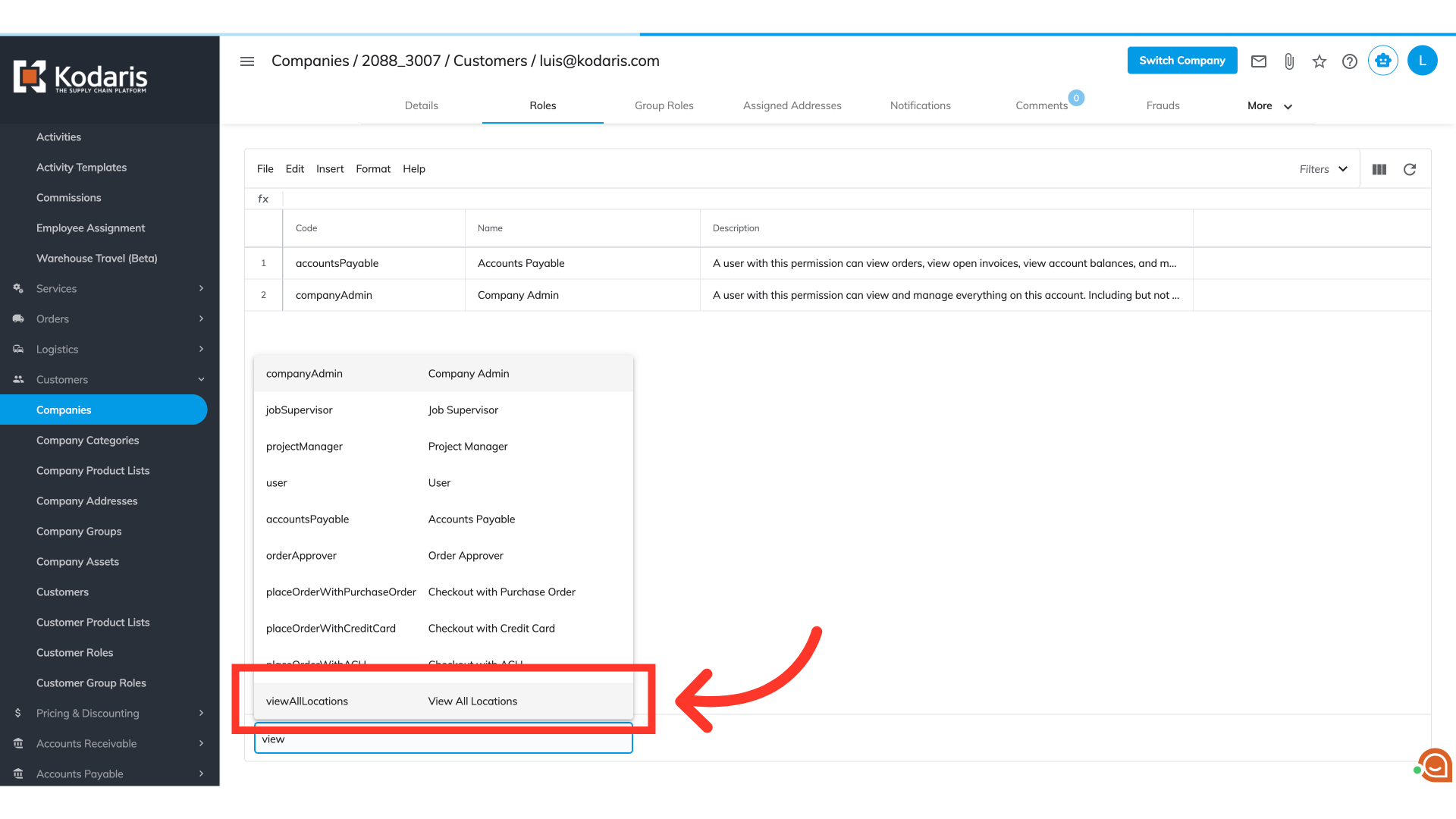
Search and select "viewAllLocations" role
Then, search and select "viewAllLocations" role in the "Roles" field.
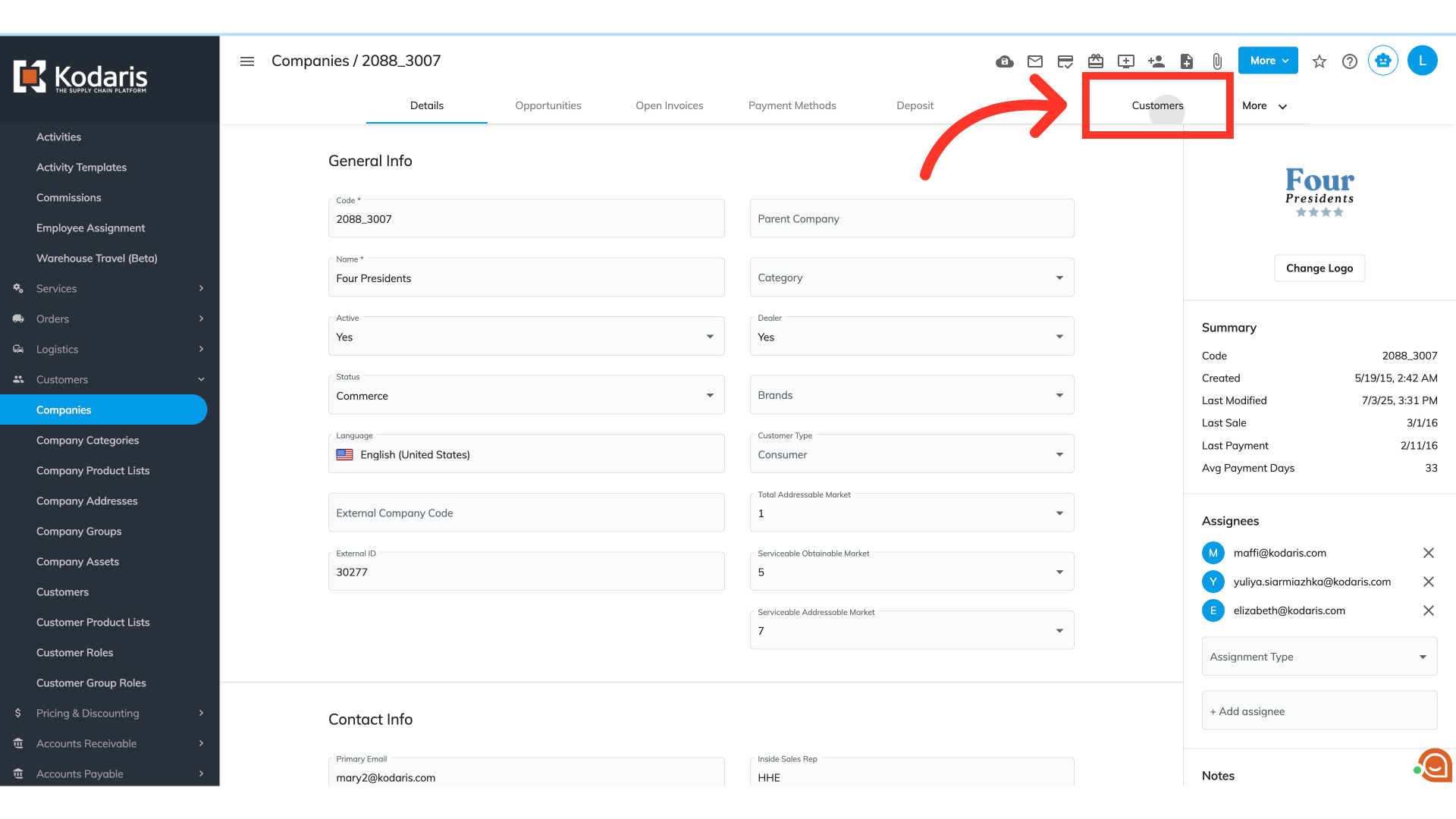
Go to "Customers" tab
If you're setting up an existing customer, go to the "Customers" tab within your selected company.
Search for the customer
Search for the customer you want to work with. You can use the search bar or filters to narrow down your list.
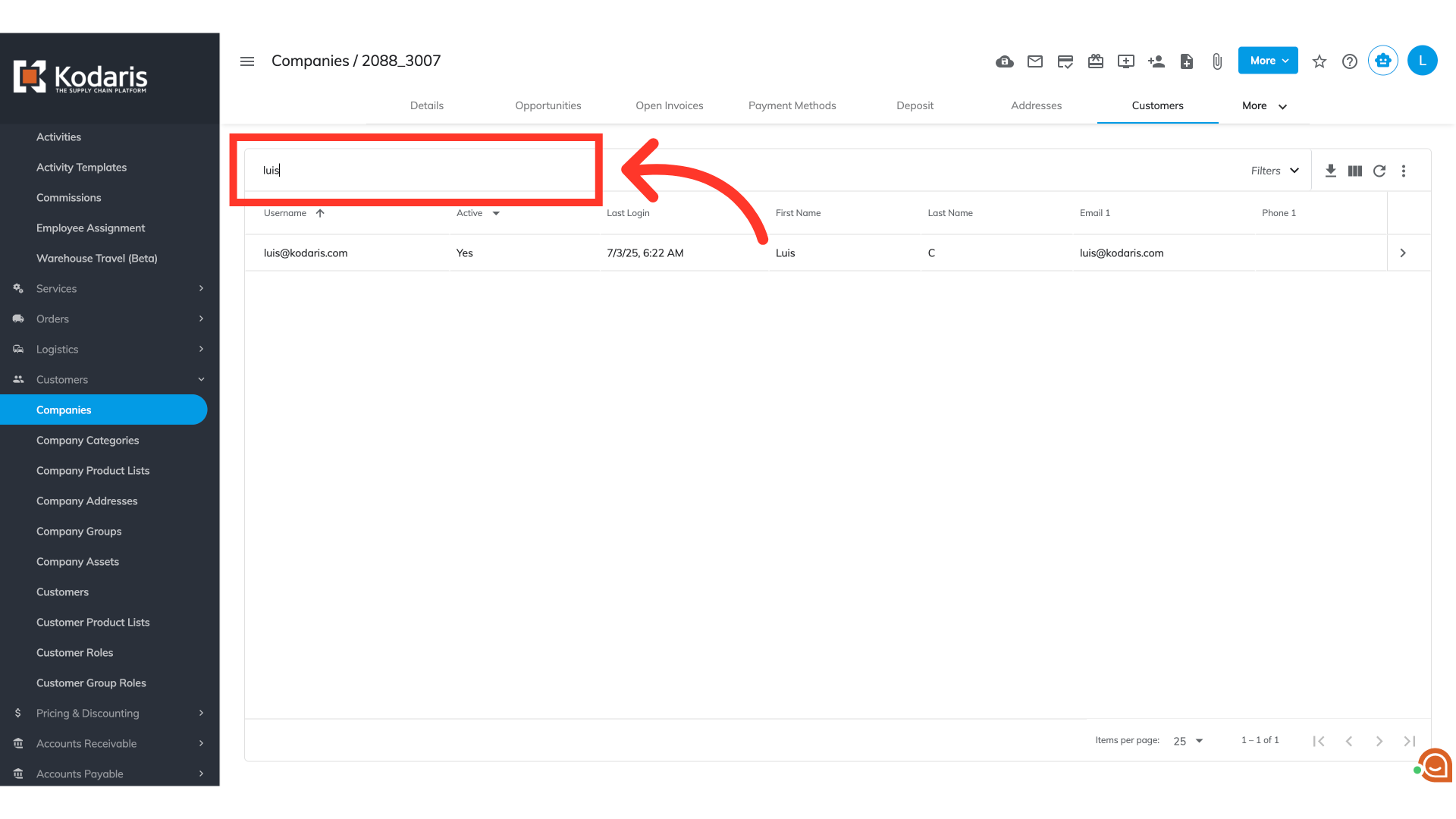
Click the more details icon
Once found, click the more details icon
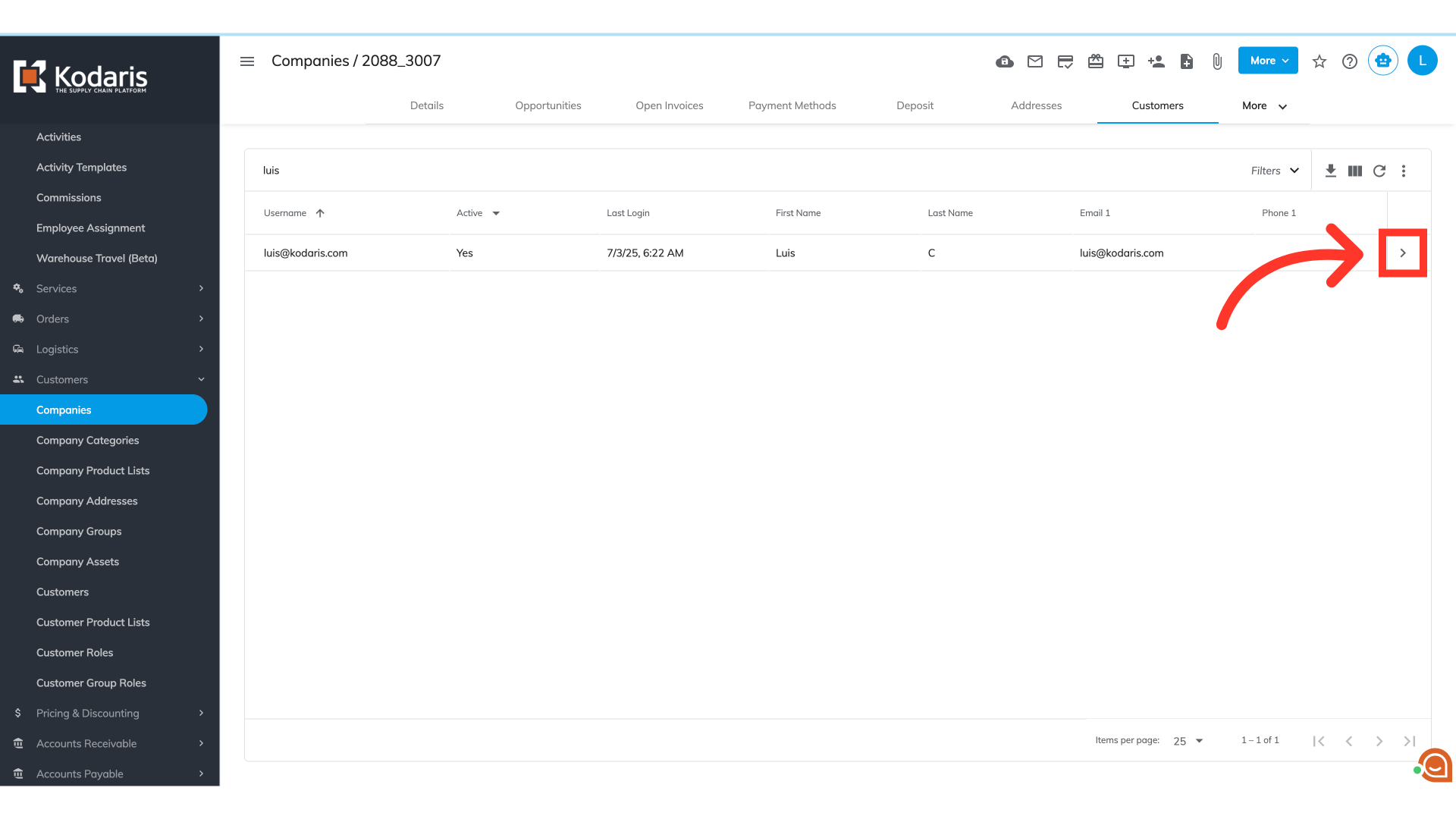
Go to "Roles" tab
Go to the "Roles" tab of your selected customer.
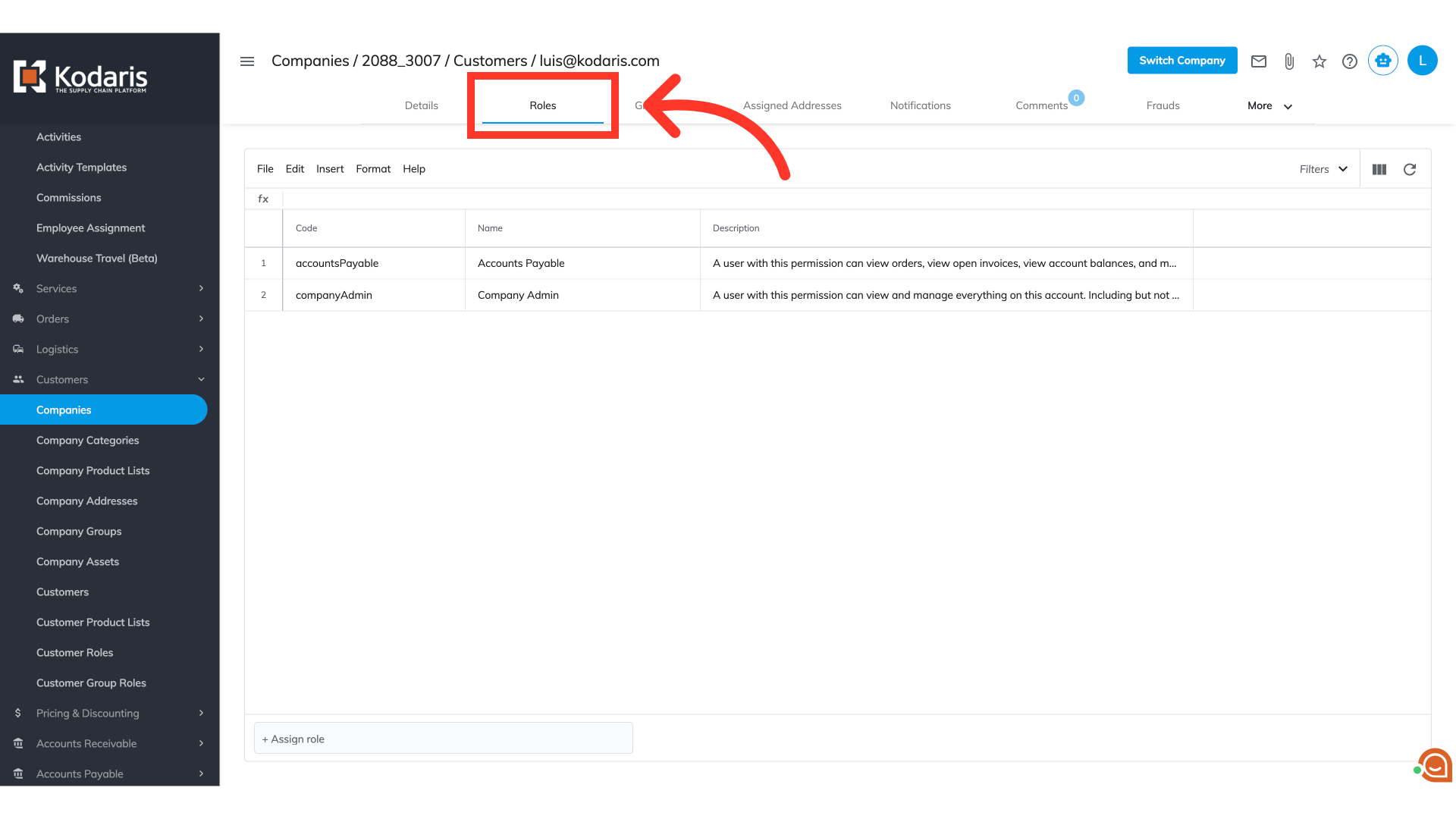
Click on the "Assign Role" field
Click on the "Assign Role" field.
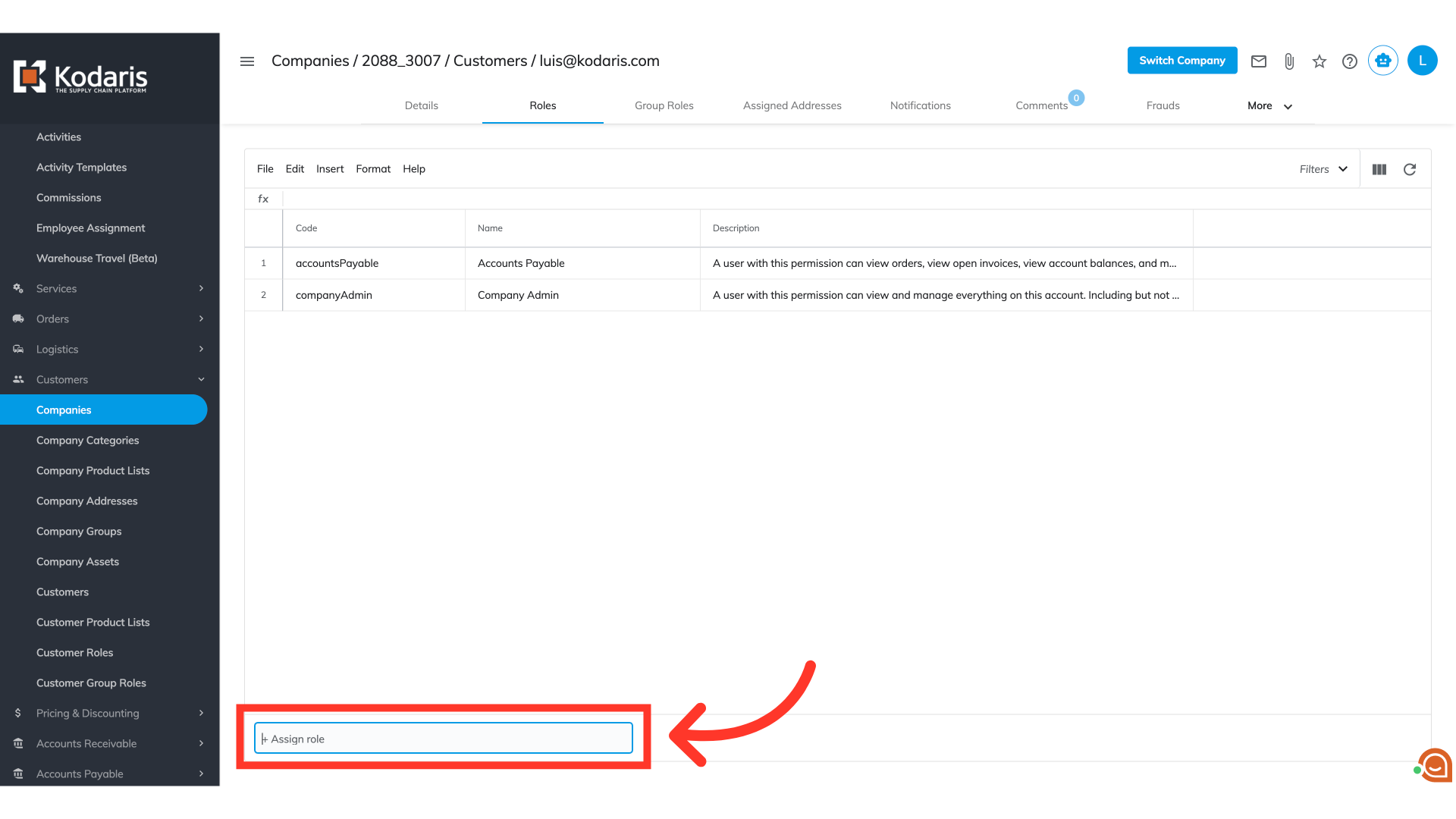
Type in and select "ViewAllLocations"
Type in and select "ViewAllLocations" to assign the role to this specific customer.
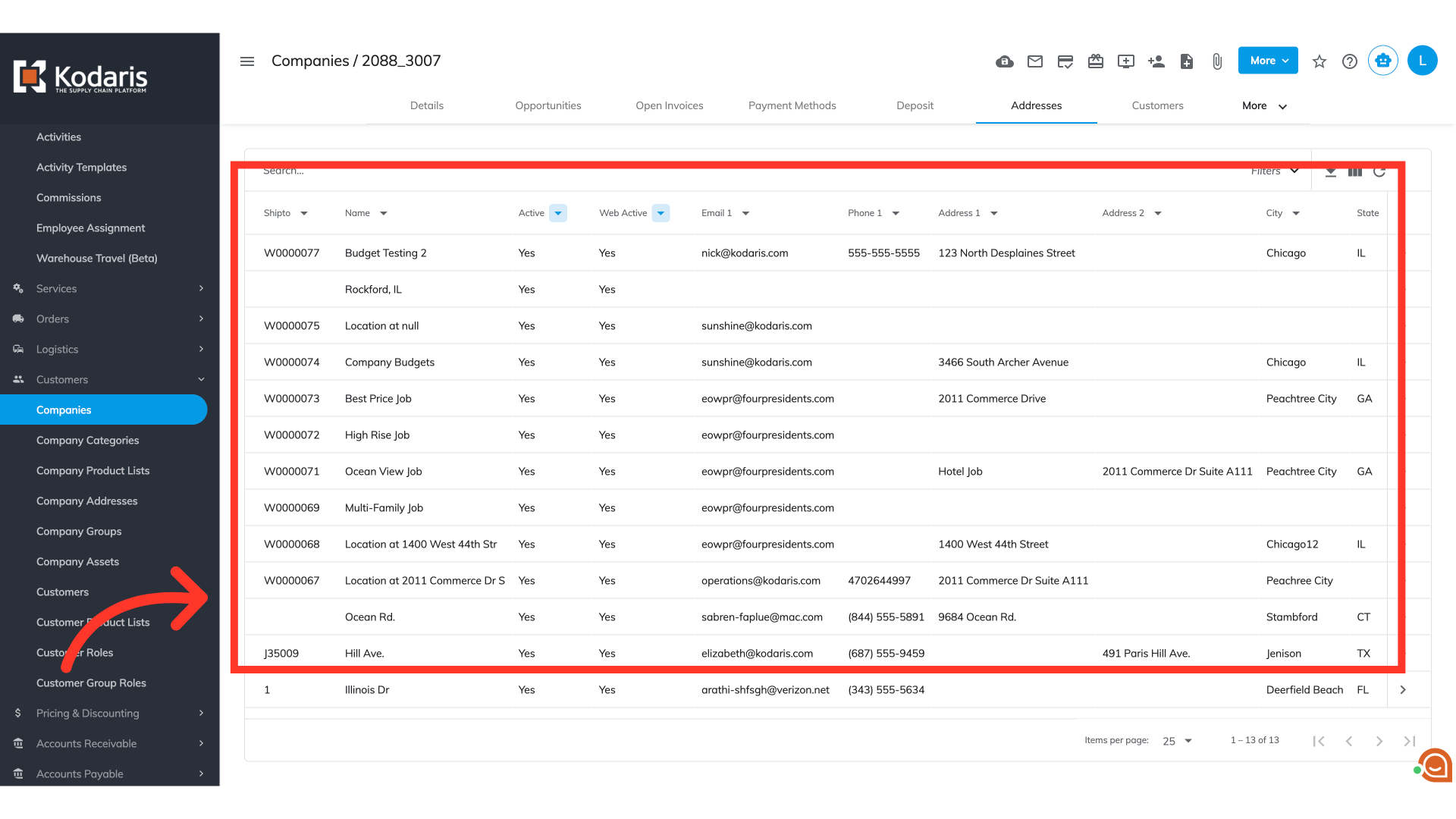
"Addresses" tab
All the locations under the company account's "Addresses" tab will now be viewed by this specific customer.
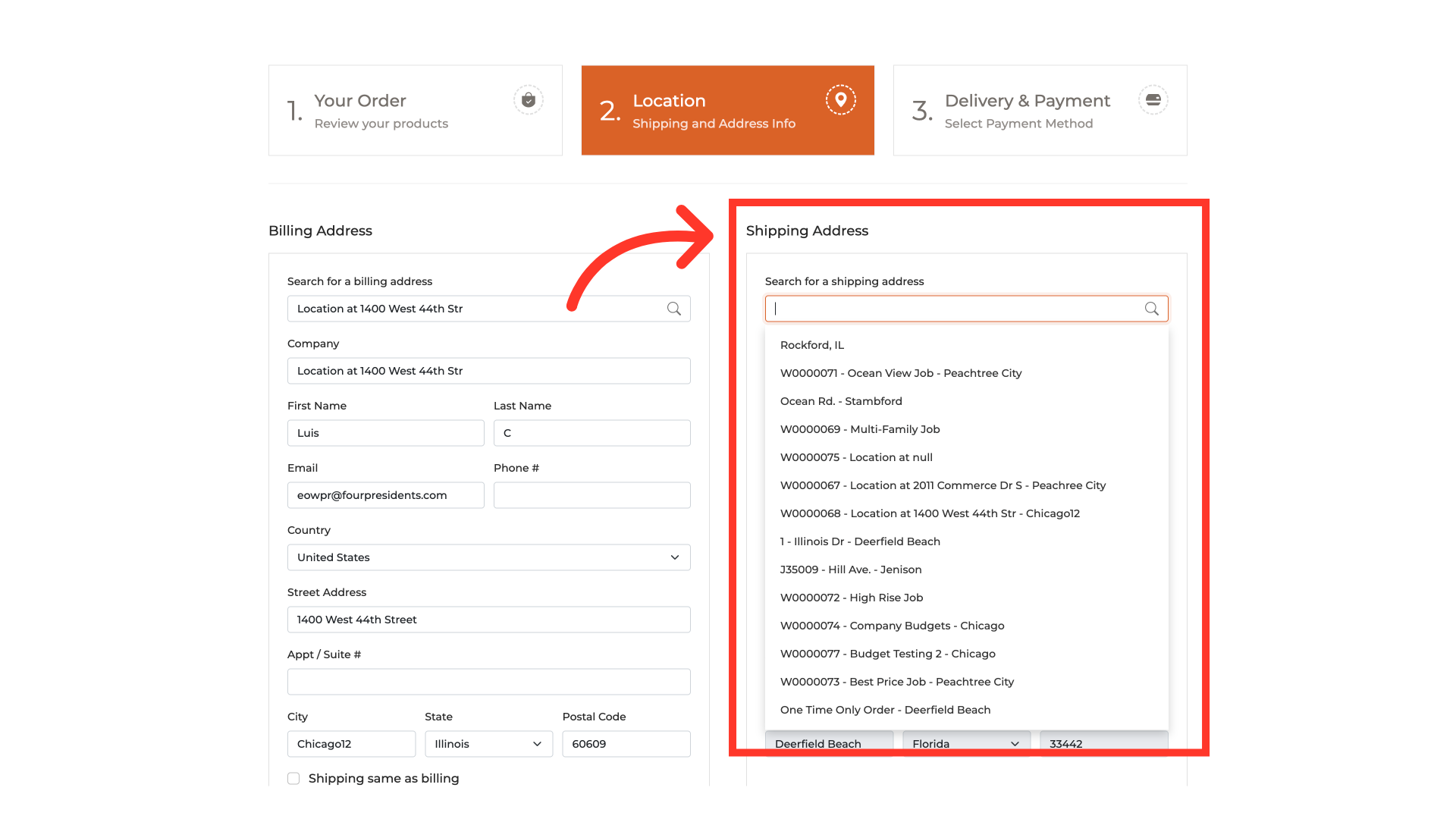
Customer Shipping Addresses
During checkout on the customer site, the "Locations" section will now allow the customer to search and select from all the available shipping addresses under the company account.
Customer Portal - "Locations" screen
The customer will also see all the addresses listed in their customer portal "Locations" screen.