Operations Customers - Send Existing Customers an Account Activation Email (Multiple Customers)
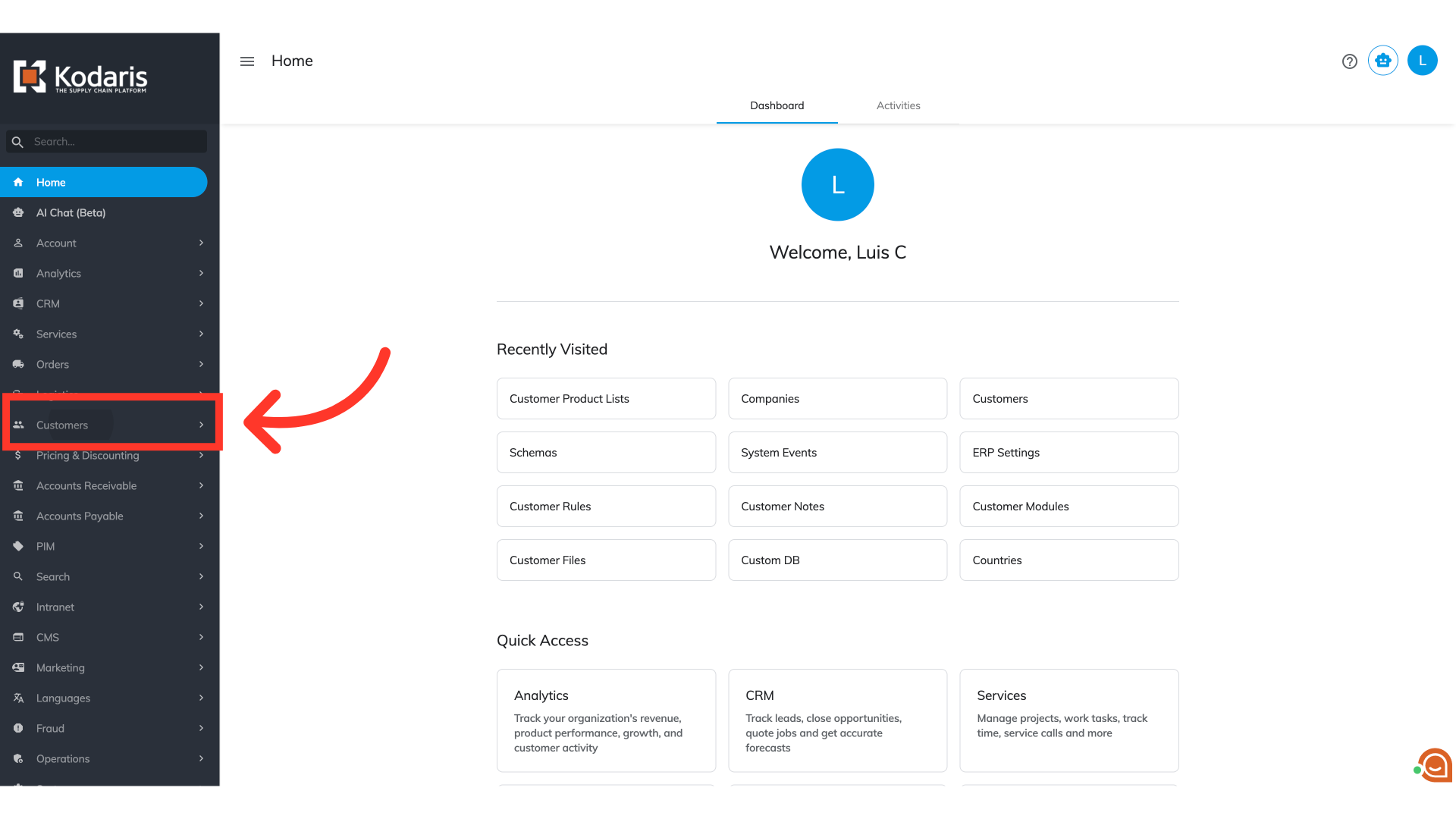
Navigate to "Customers" section
To send account activation emails to multiple existing customers, navigate to the "Customers" section in the operations portal.
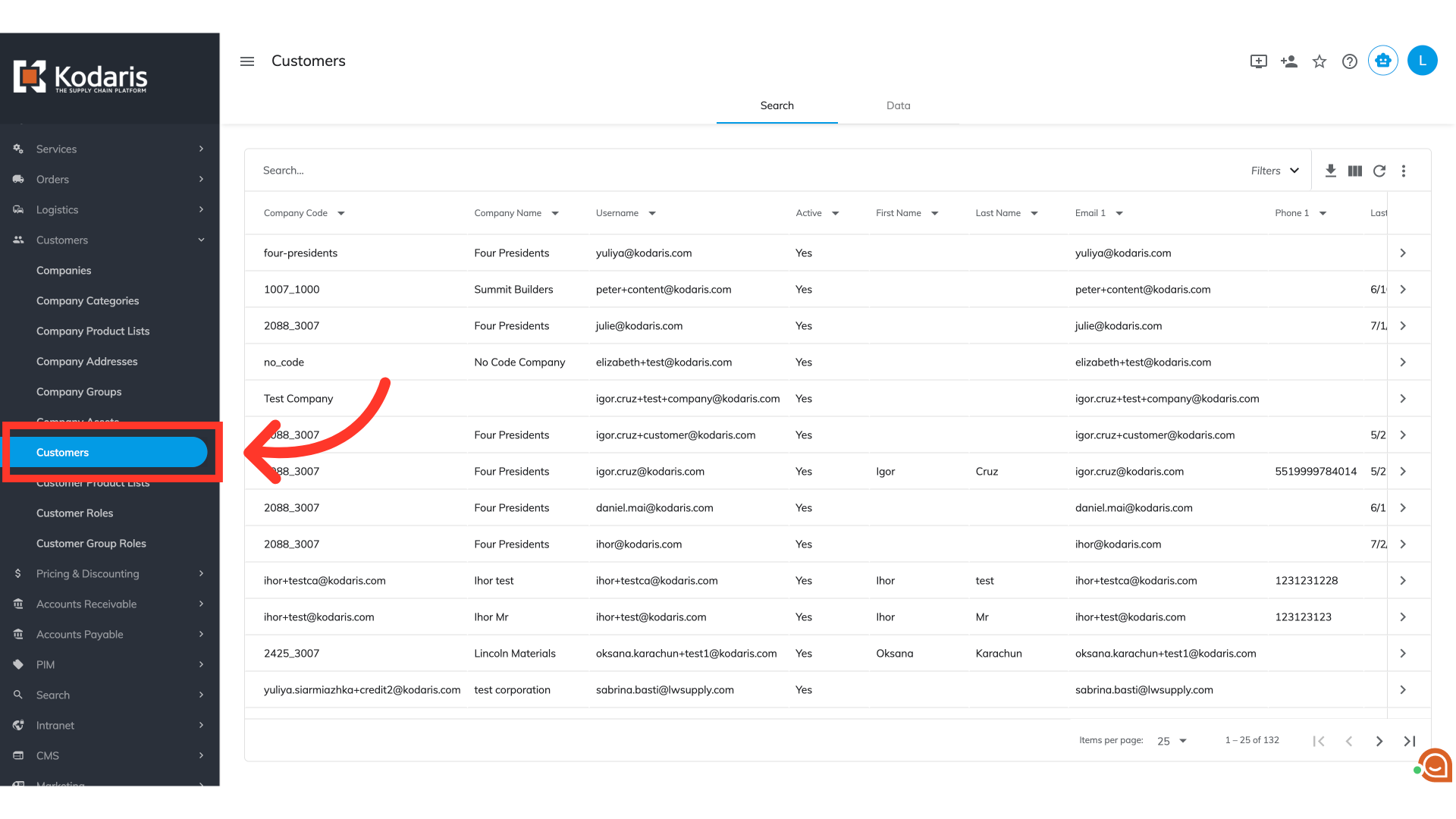
Access "Customers" screen
From there, select "Customers". In order to access "Customers" you will need to be set up either as an "administrator" or a "superuser", or have the appropriate roles: "customerView" and "customerEdit".
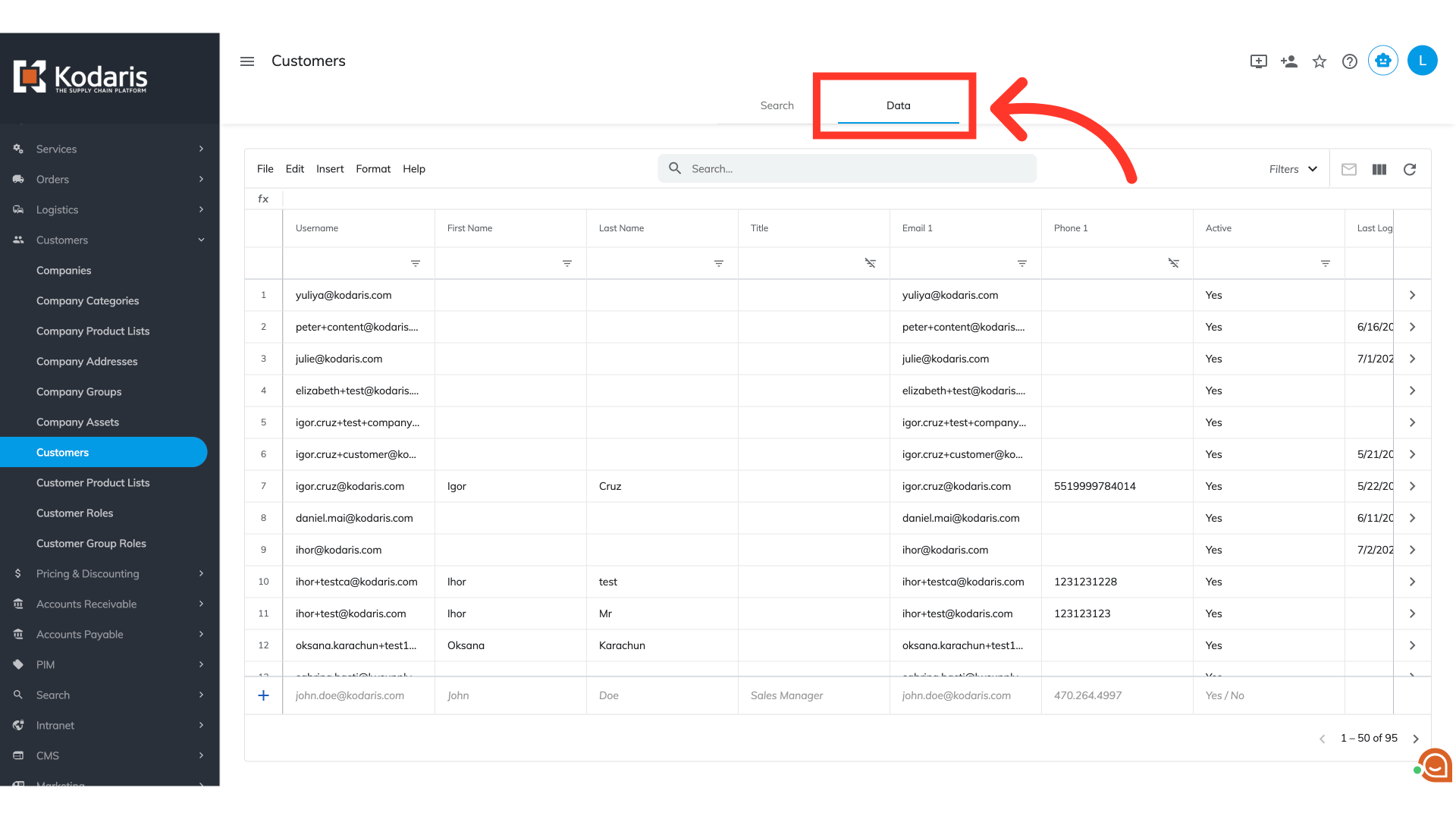
Go to "Data" tab
Click on the "Data" tab.
Click "Search Data"
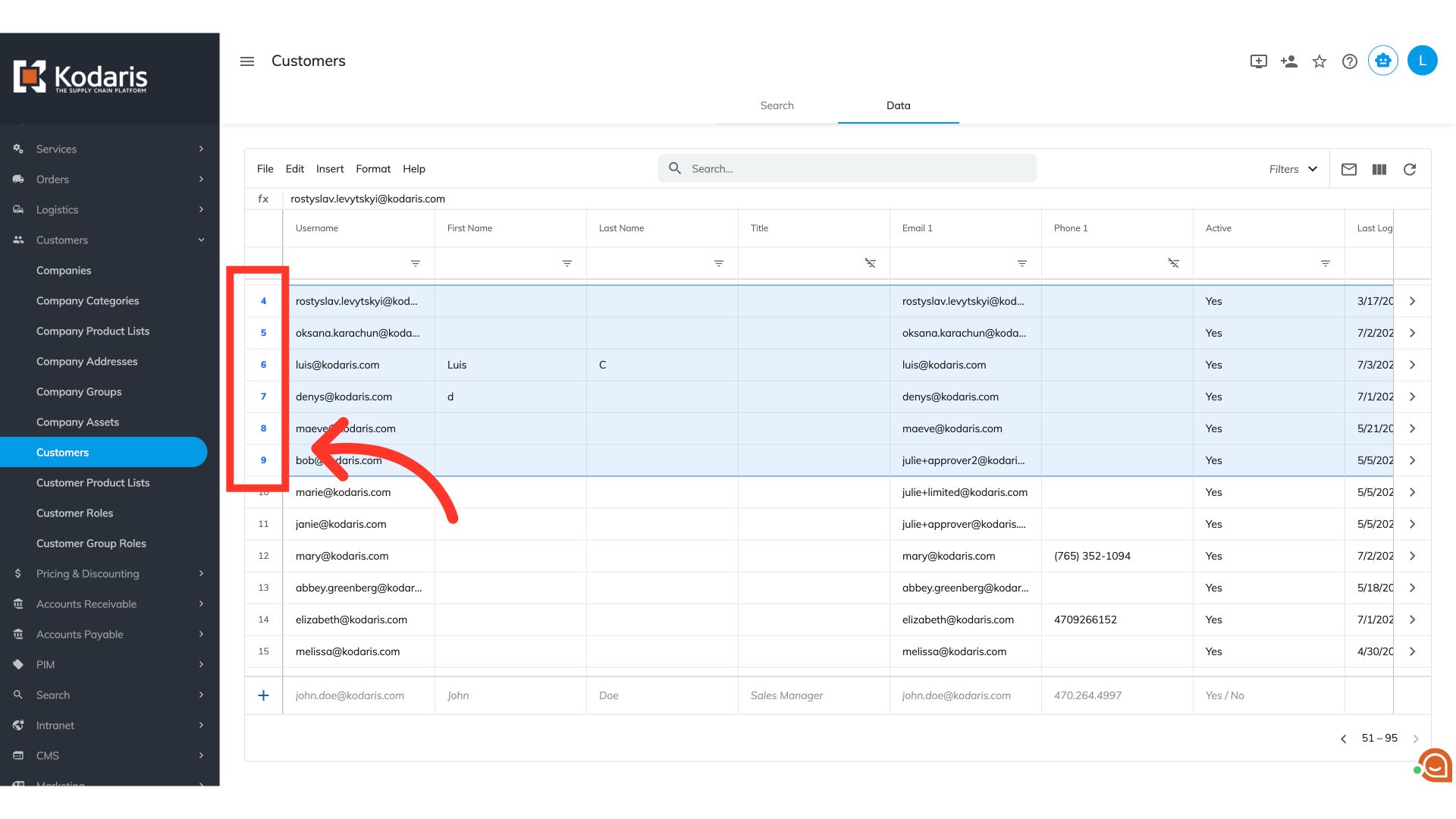
You can select multiple customers by clicking and dragging up or down on the row number. The customers you are selecting in this step will receive an account activation email.
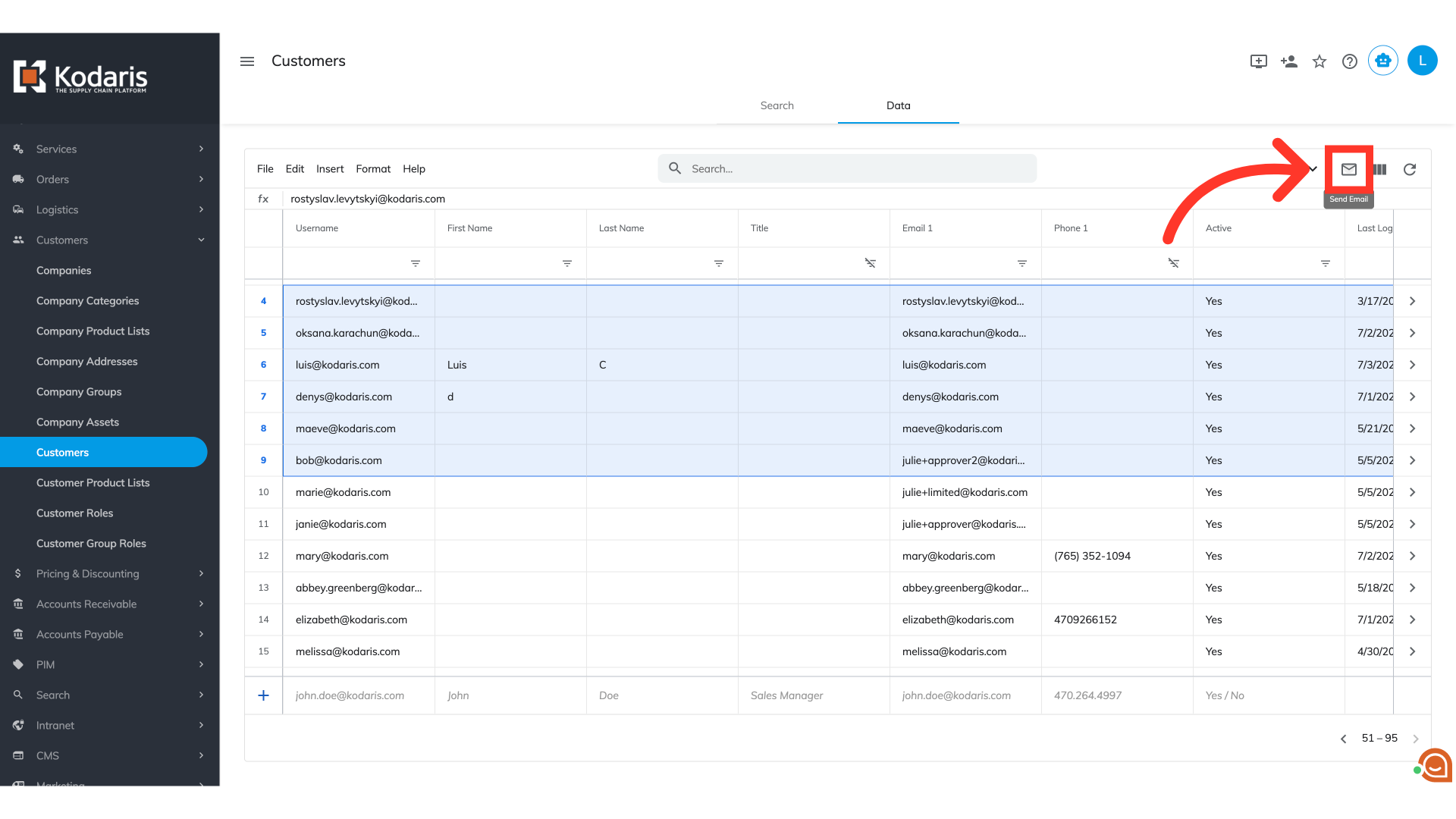
Click "Send Email" icon
Once customers are selected, click the "Send Email" icon.
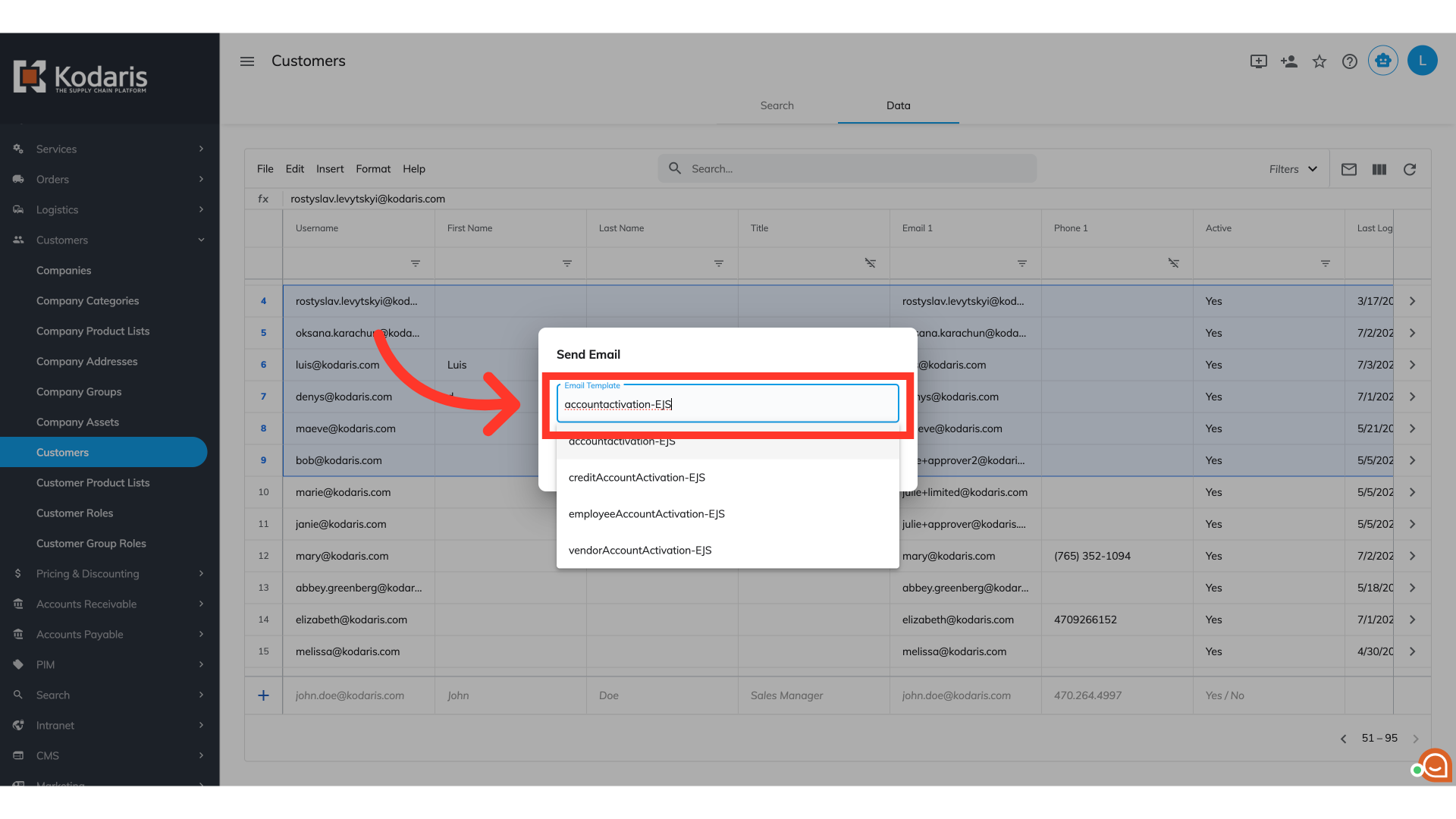
Search for "accountactivation-EJS"
Search for the account activation email template. For this example, we are using the "accountactivation-EJS" template.
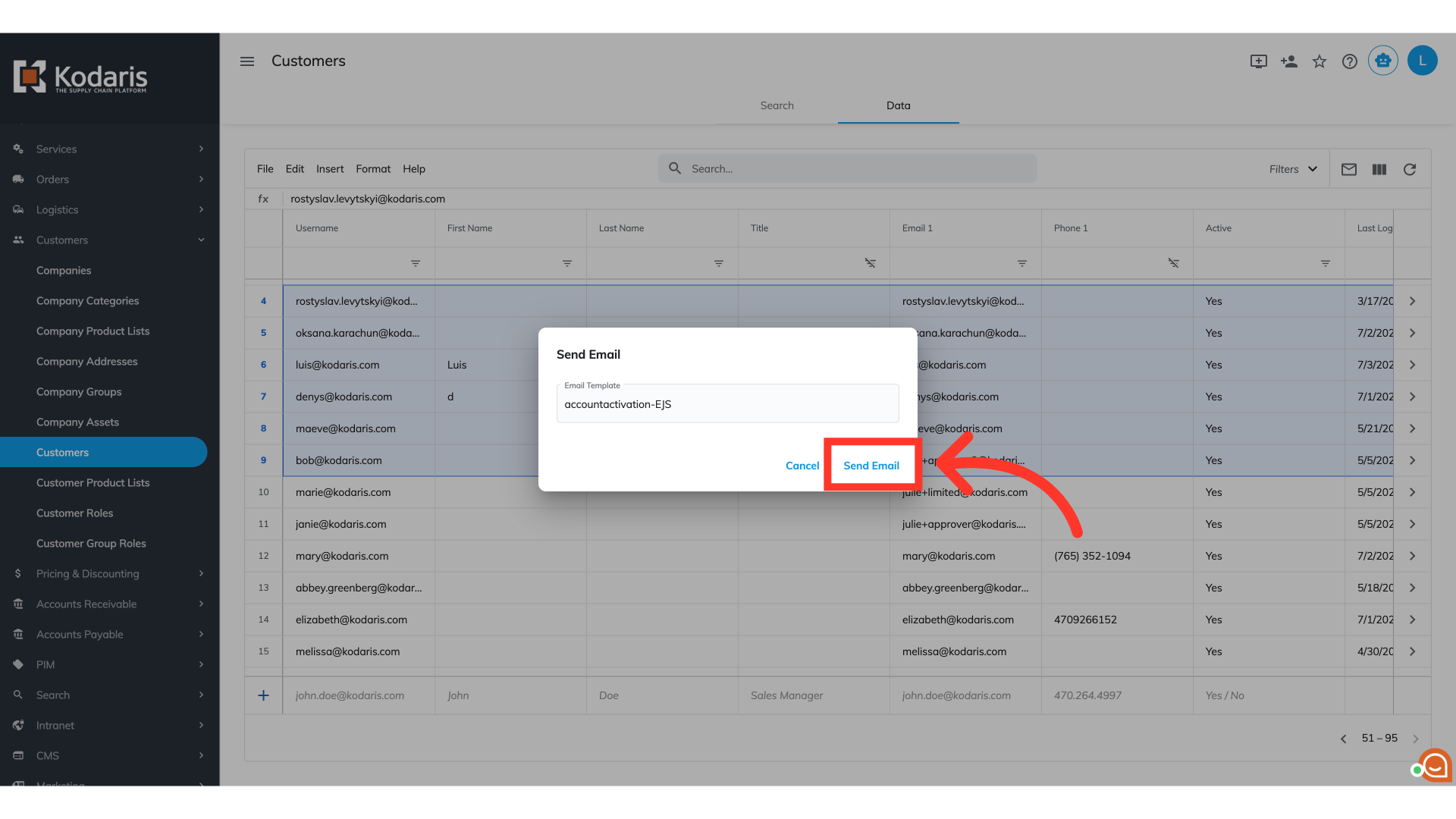
Click the "Send Email" button
Click the "Send Email" button to send the emails.
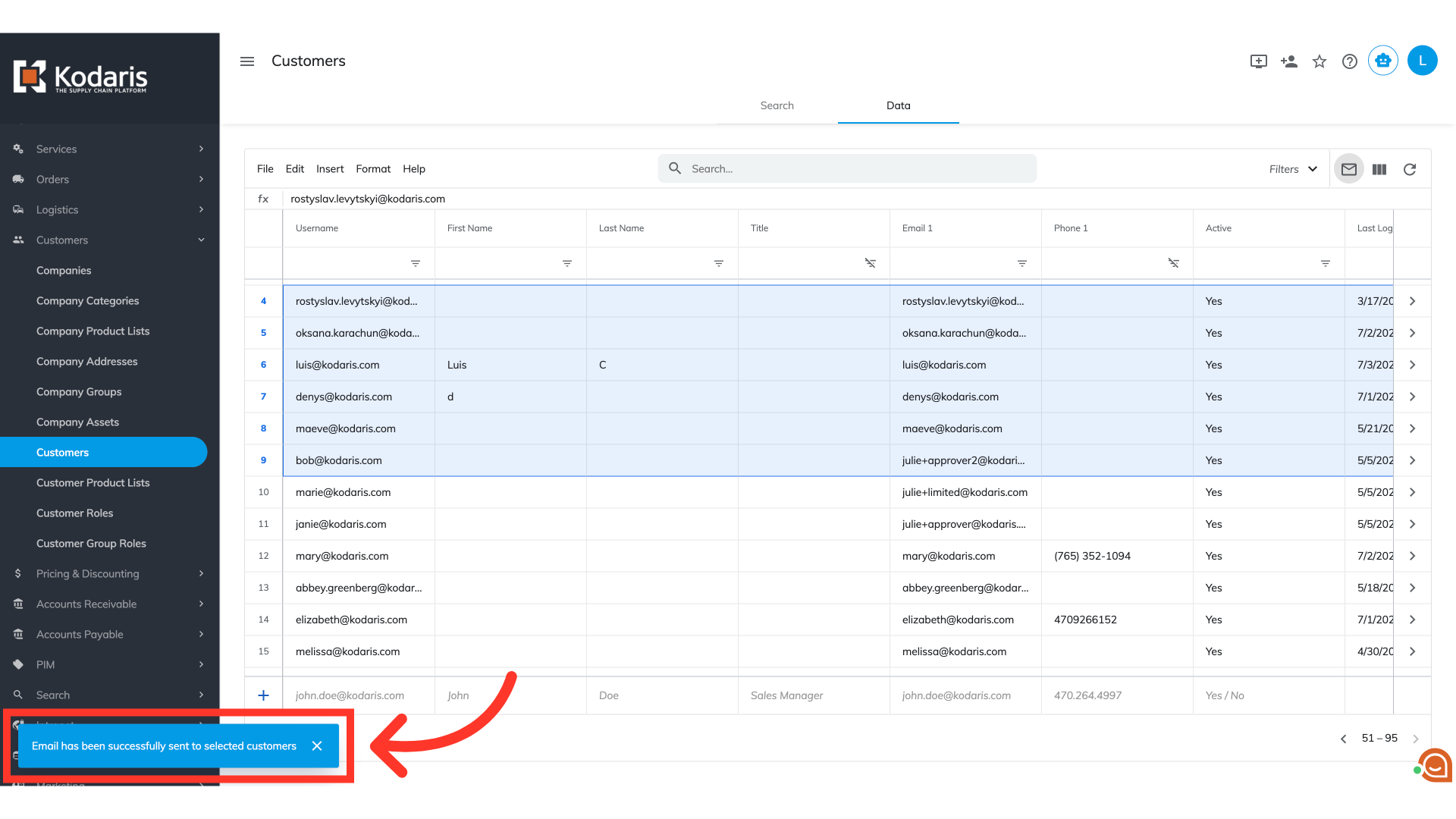
Email has been sent confirmation
A confirmation message will appear on the bottom left corner of the screen, confirming that the emails have been sent successfully to the selected customers.
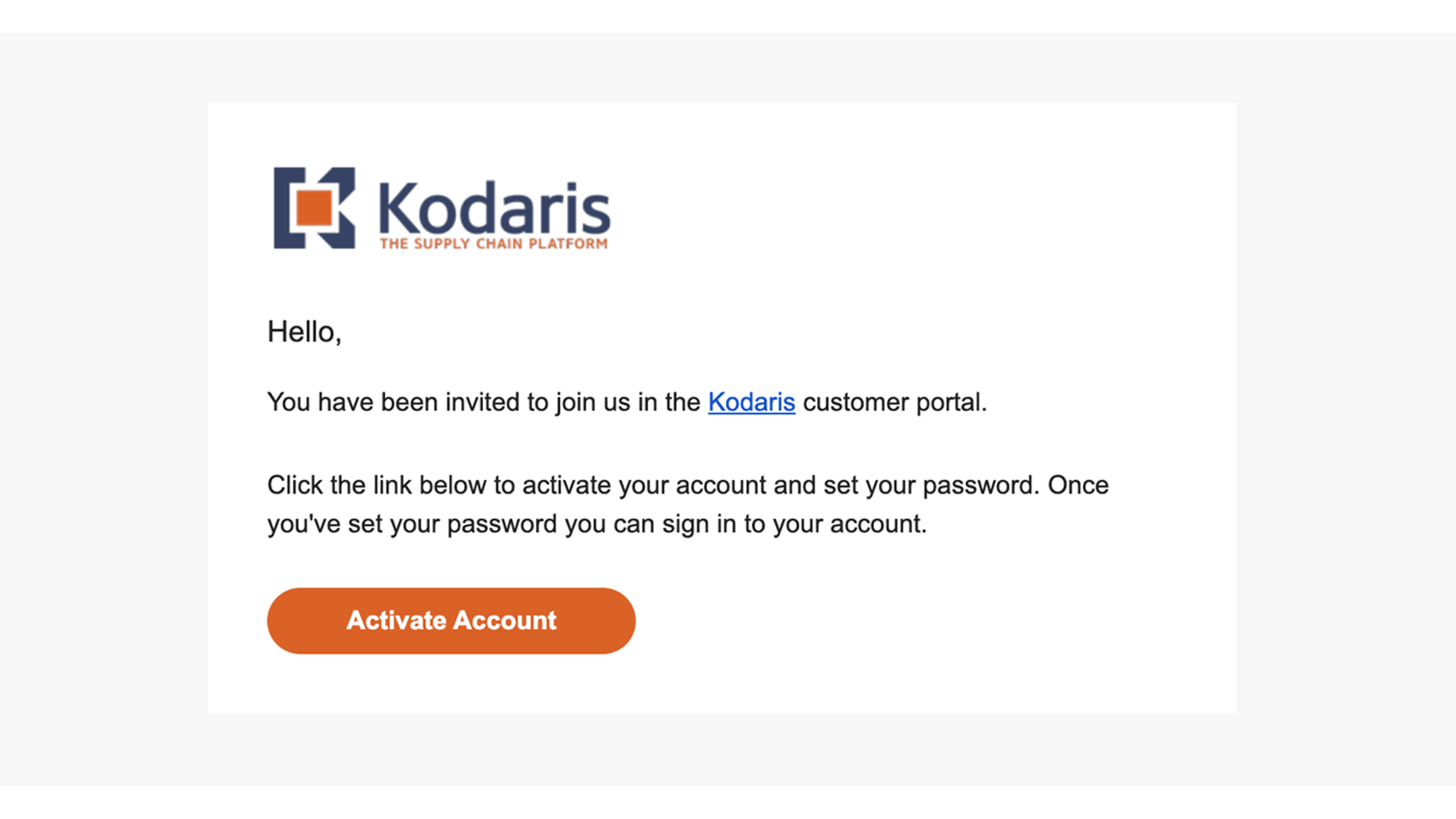
Activation Email sample
This is an example of an activation email. Customers can activate their account by following the instructions in the email.