Operations Portal - Configure Your Store Email Name
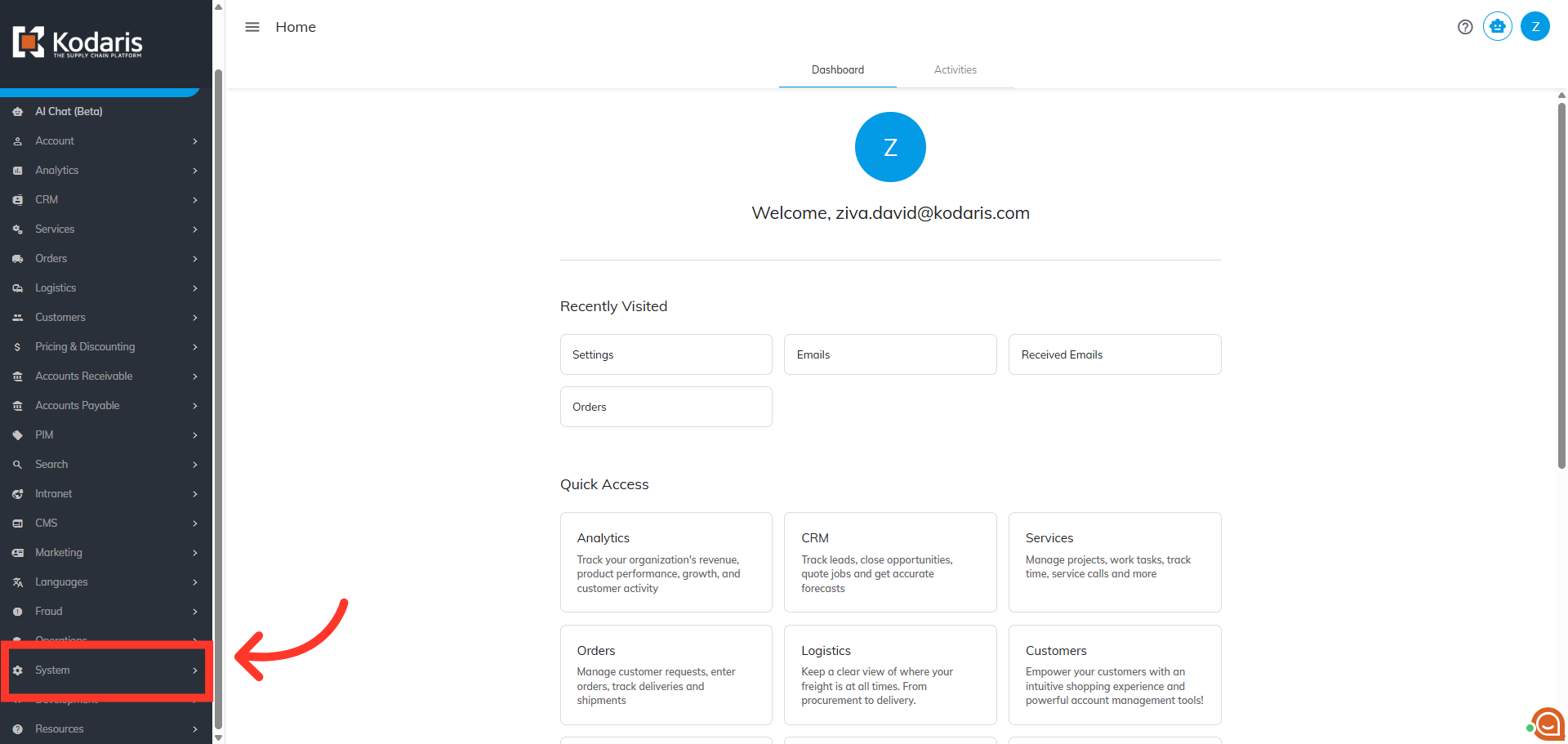
Navigate to "System"
In order to configure your store name so that it appears in the recipient's Inbox when an email is received, navigate to the "System" section in the Operations Portal.
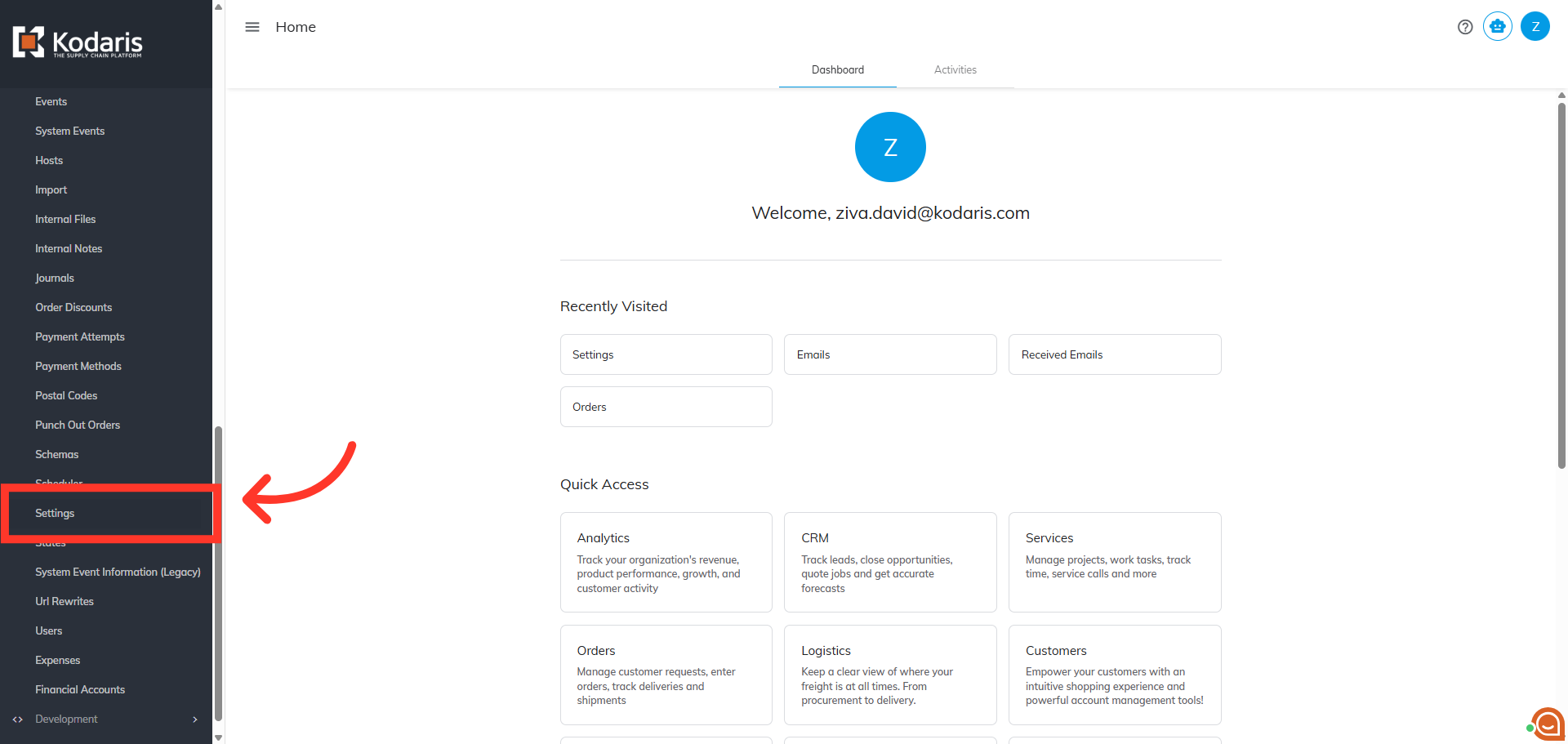
Click "Settings"
Then, click "Settings". In order to access and edit settings, you will need to be set up either as an “administrator” or a "superuser", or have the following roles: "settingEdit" and "settingView".
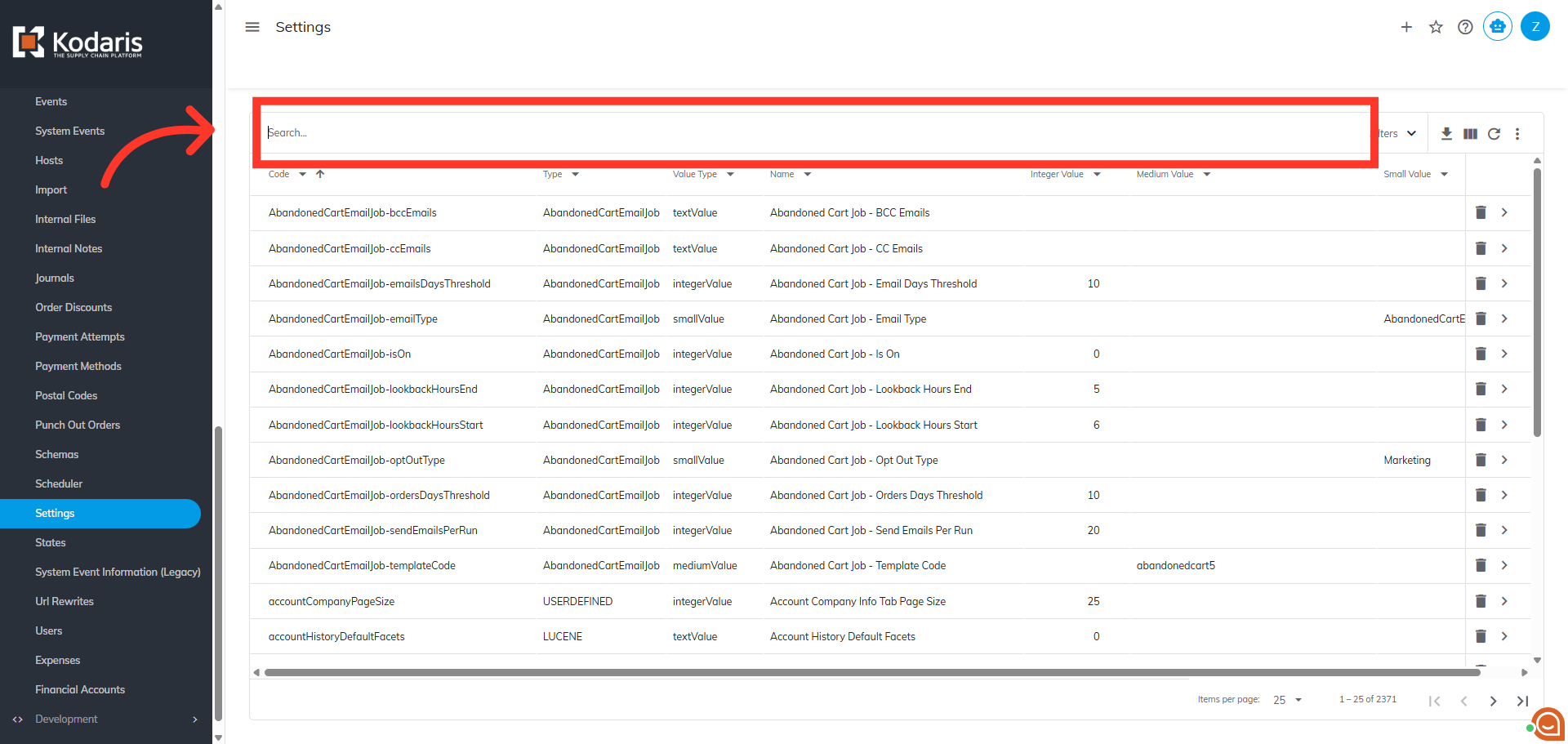
Search for "storeEmailFromName" setting
Next, search for the "storeEmailFromName" setting.
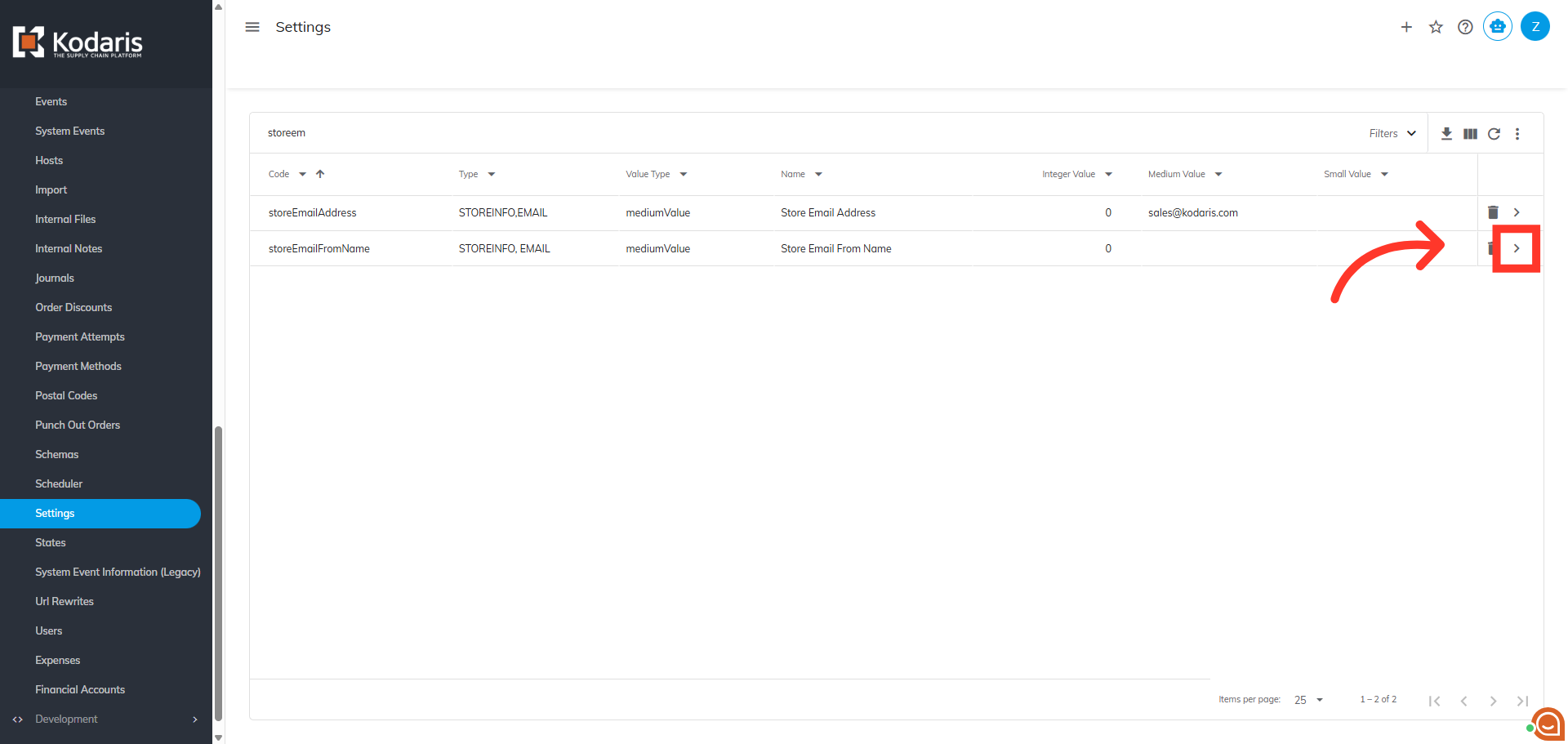
Click on the more details icon
Locate the setting and click the more details icon to view the setting details.
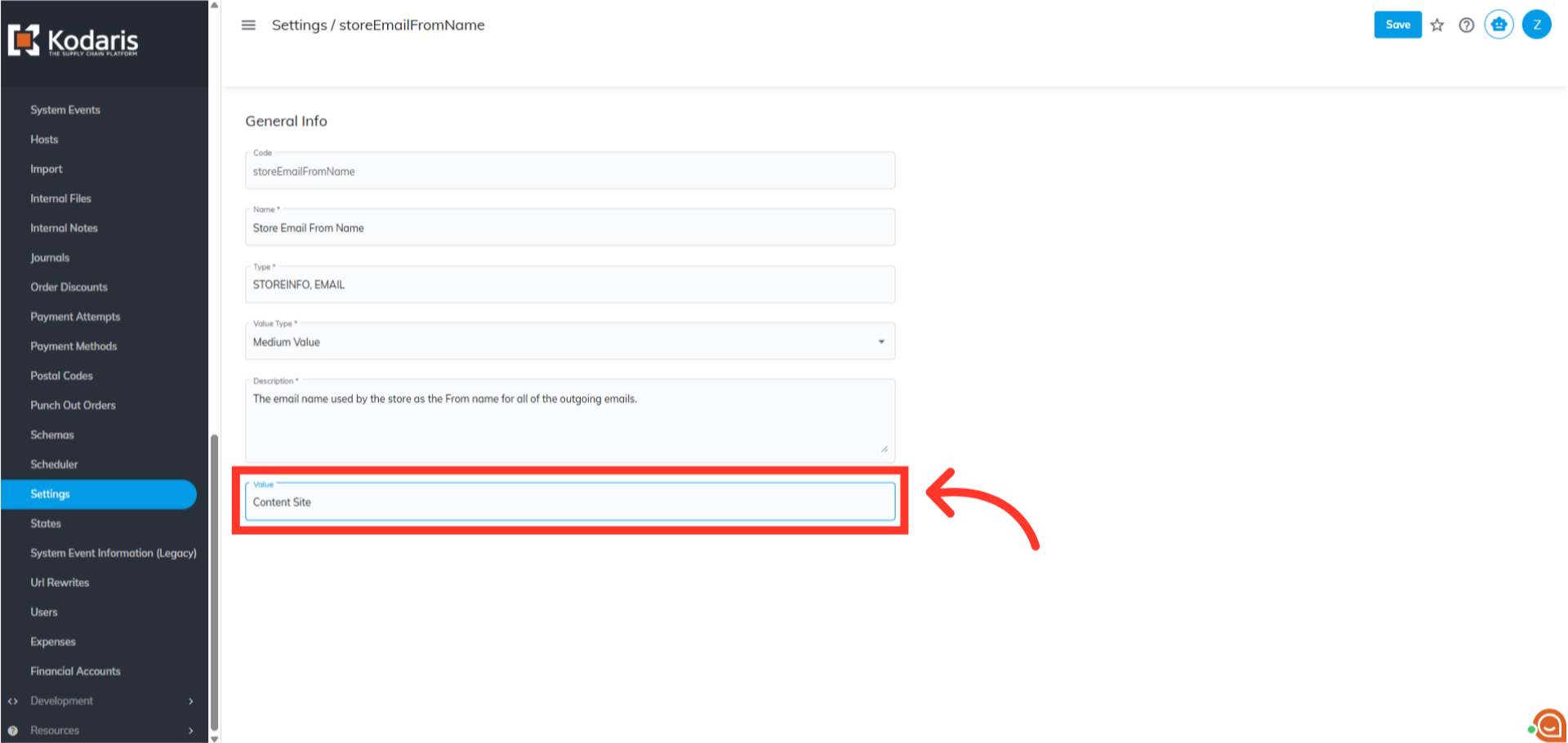
Enter the "From name" in the "Value" field
Enter the "From name" in the "Value" field.
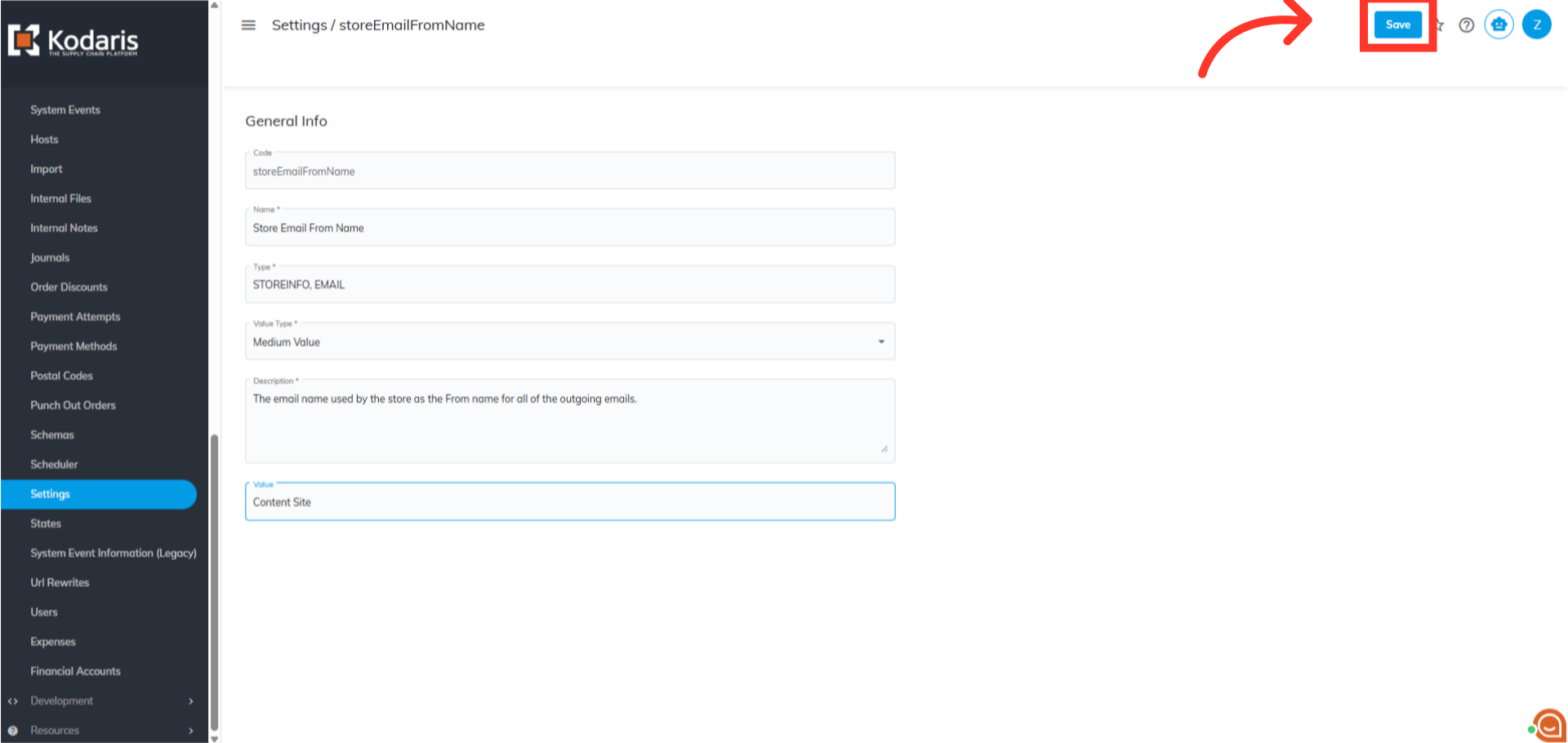
Click "Save"
Then, click "Save".
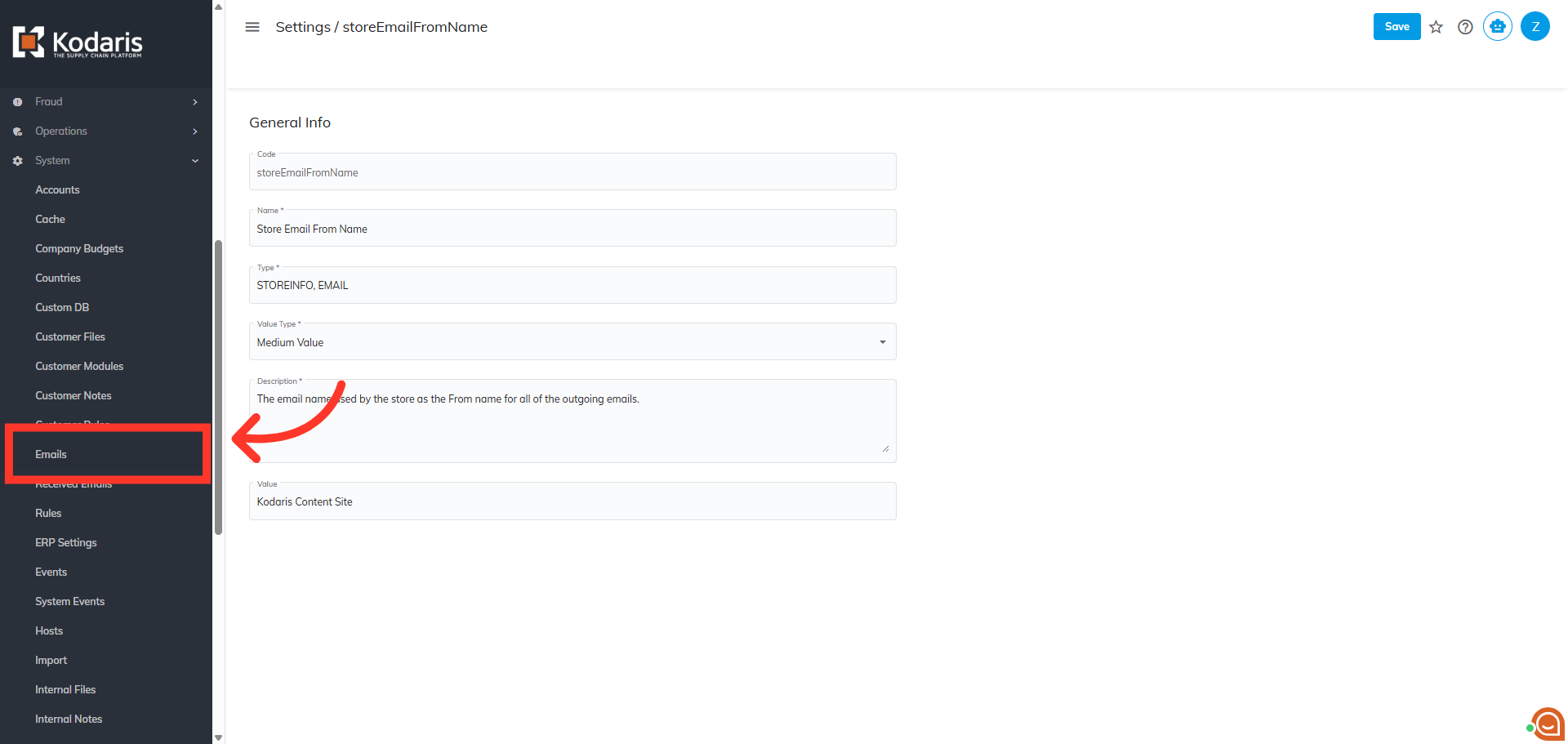
Navigate to "Emails"
To check if the store email name has been updated, you can send a test email. Navigate to "Emails".
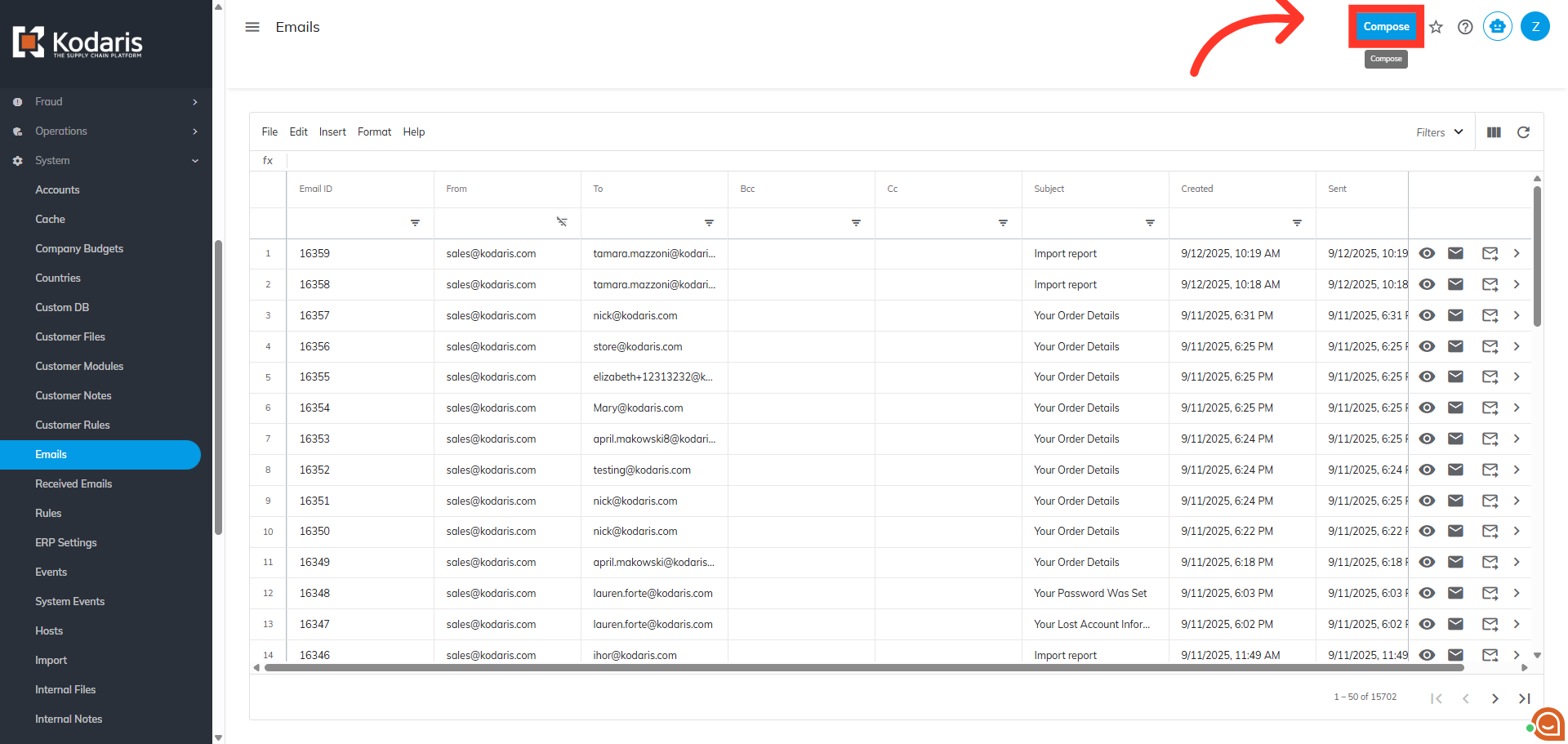
Click "Compose"
Now, click "Compose".
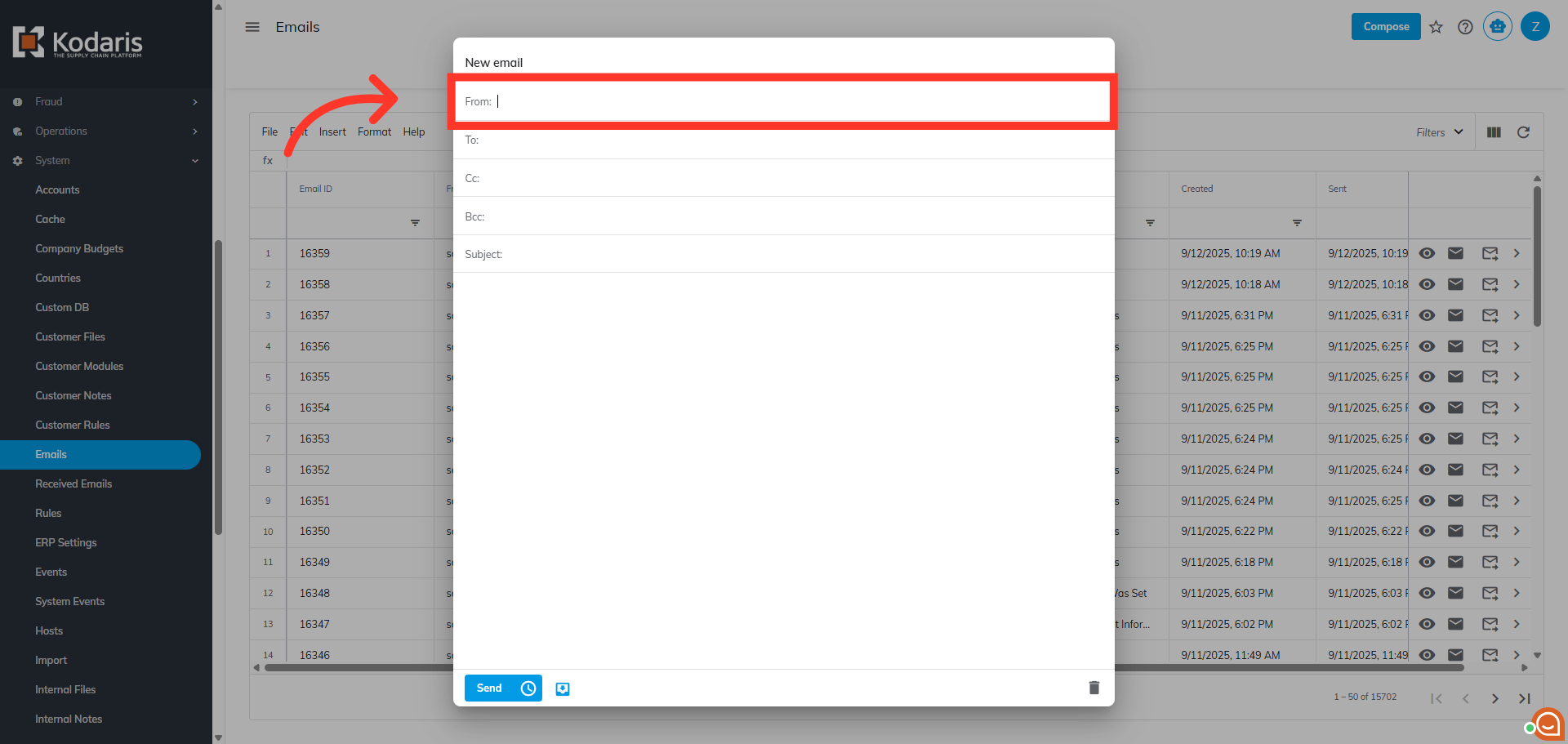
Clear the "From" field
Clear the pre-populated name in the "From" email field.
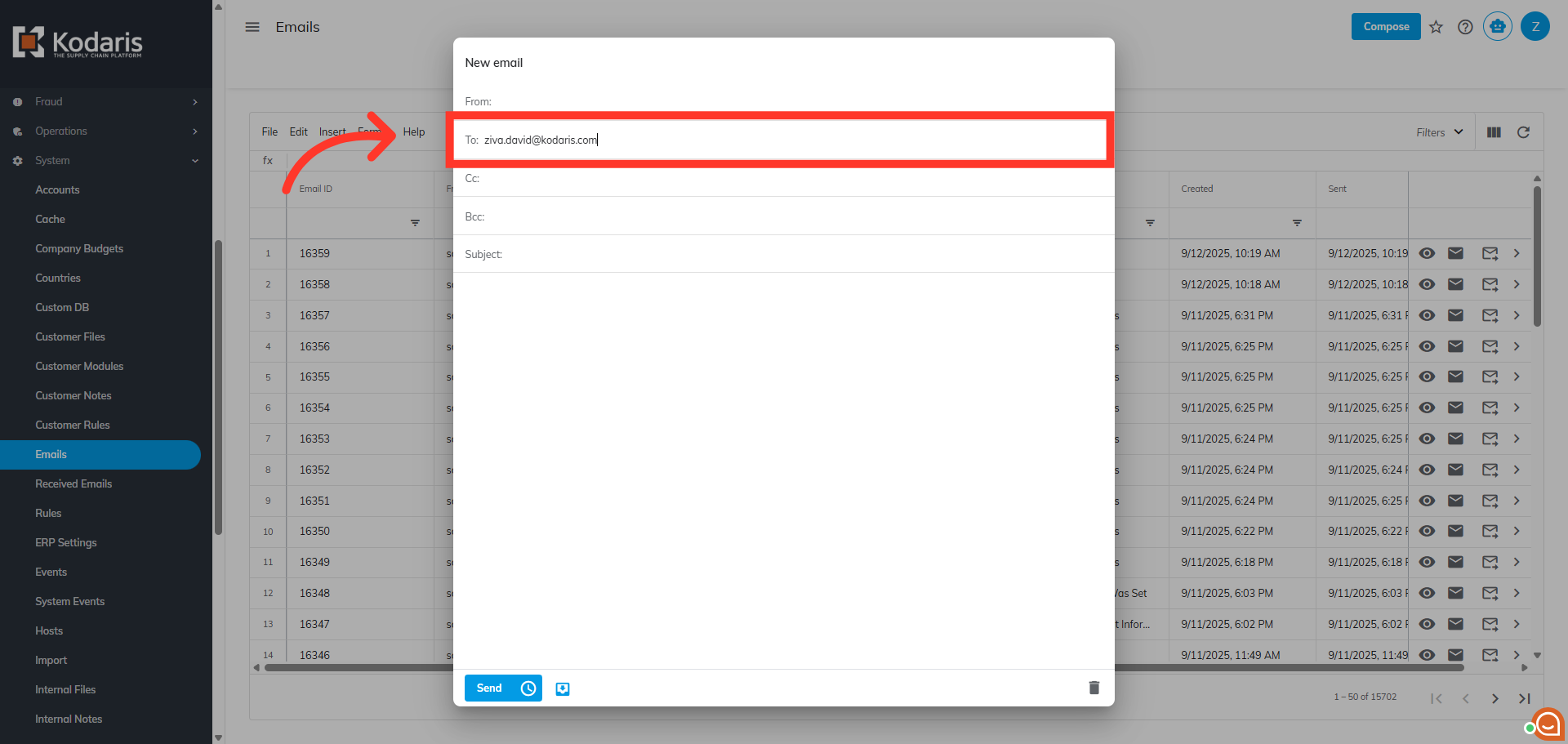
Populate the "To" field
Populate the "To" field with the email address to send the test message.
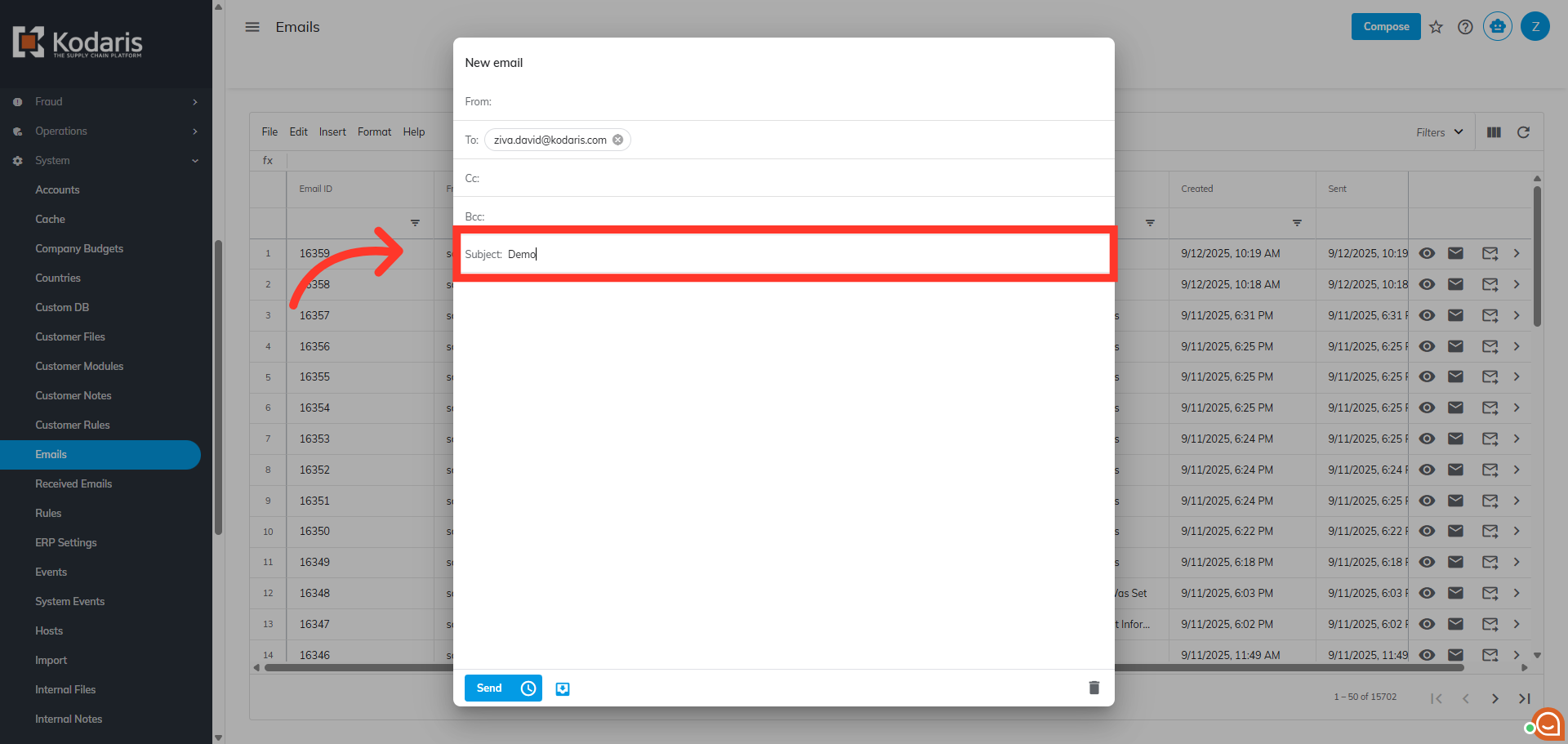
Populate the "Subject" field
Populate the "Subject" field as this is a required field to send email.
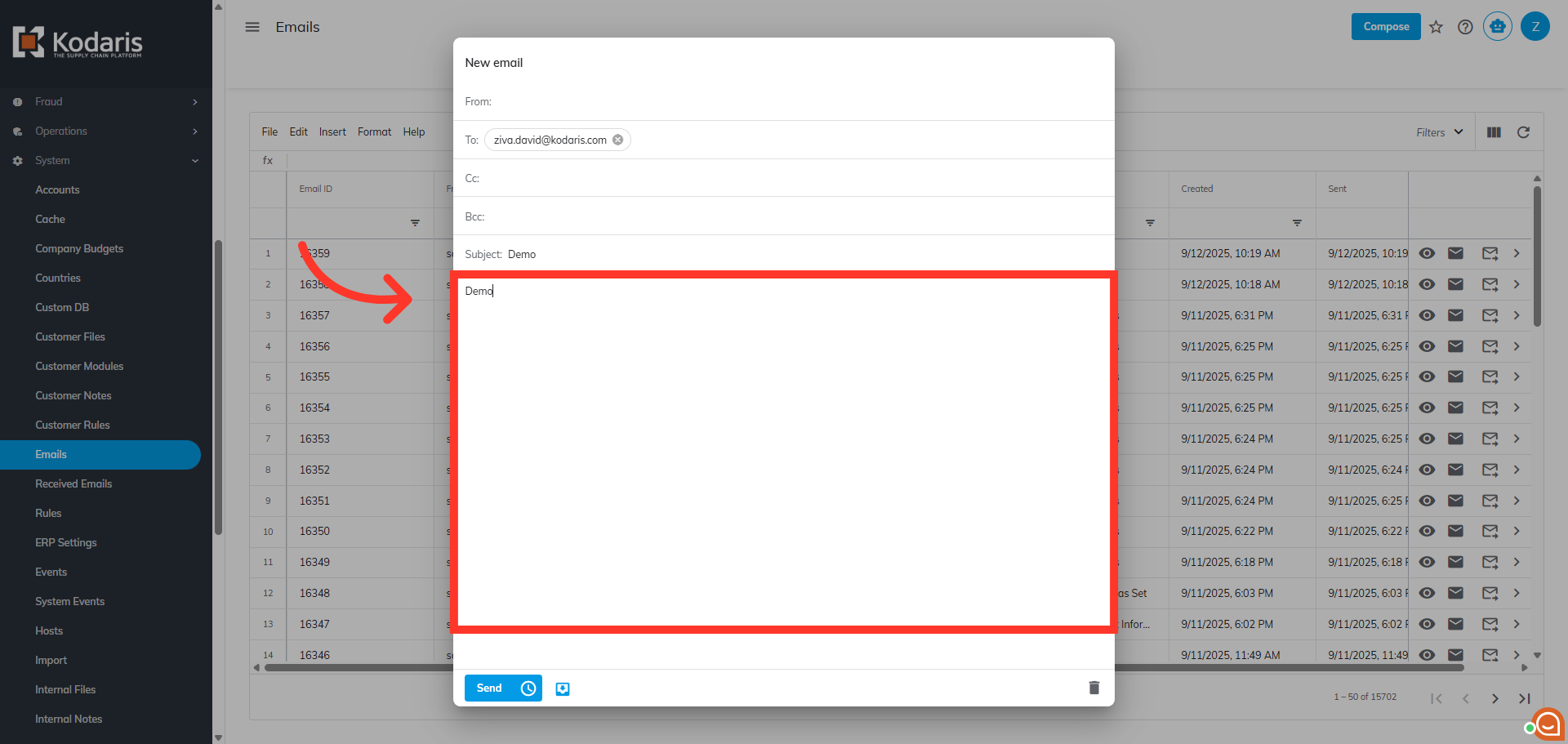
Populate the "Body" field
Populate the "Body" field as this is also a required field to send email.
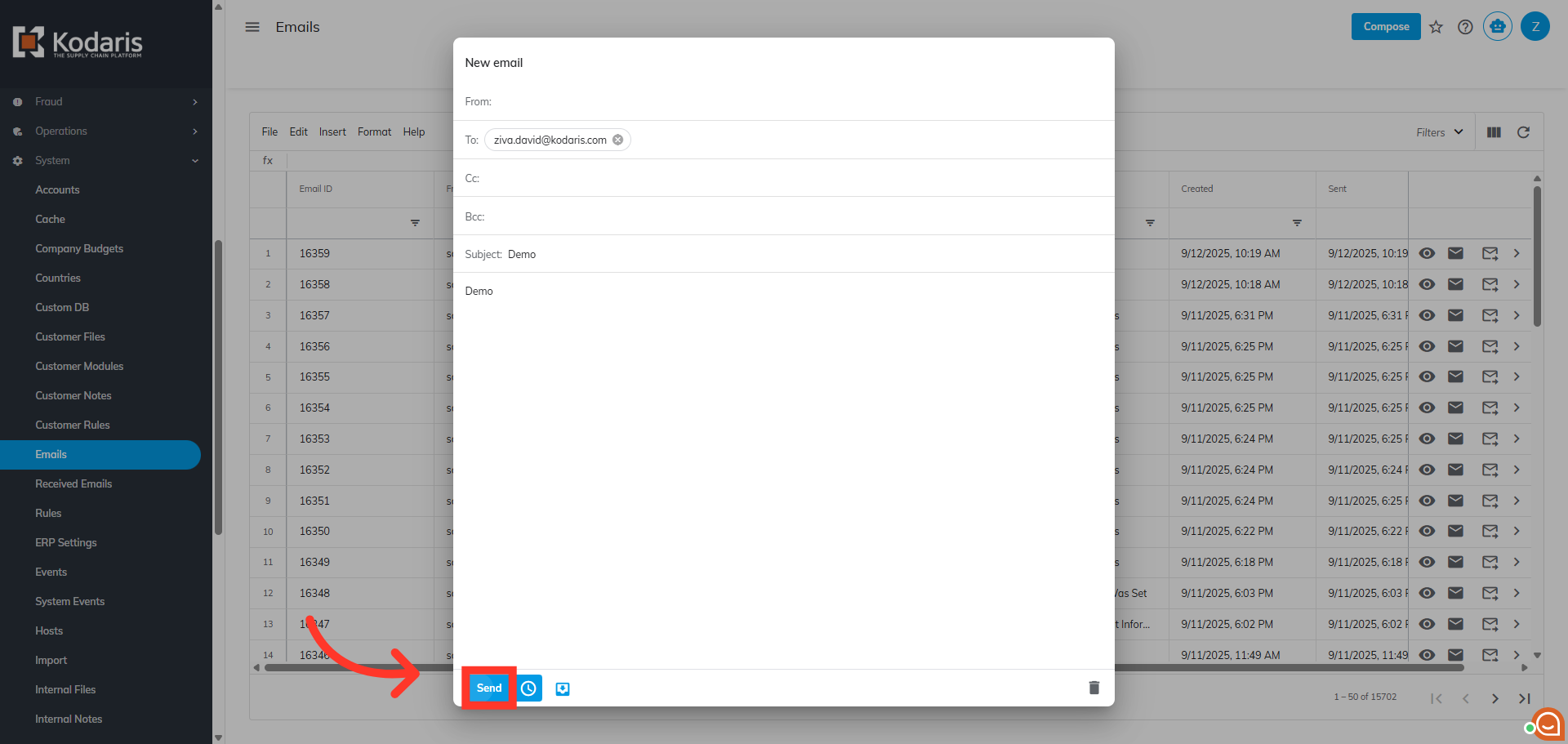
Click "Send"
Finally, click "Send" to deliver the test email.
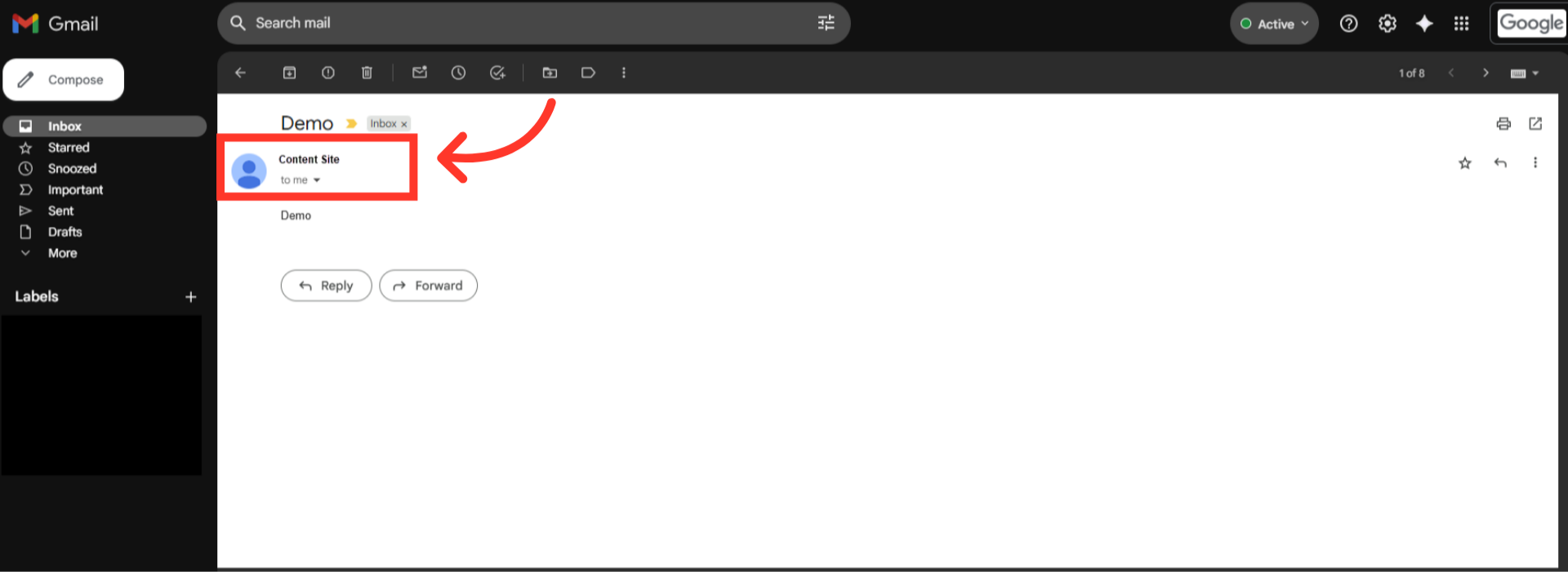
Check the email "From name"
Open received email and check the email "From name."