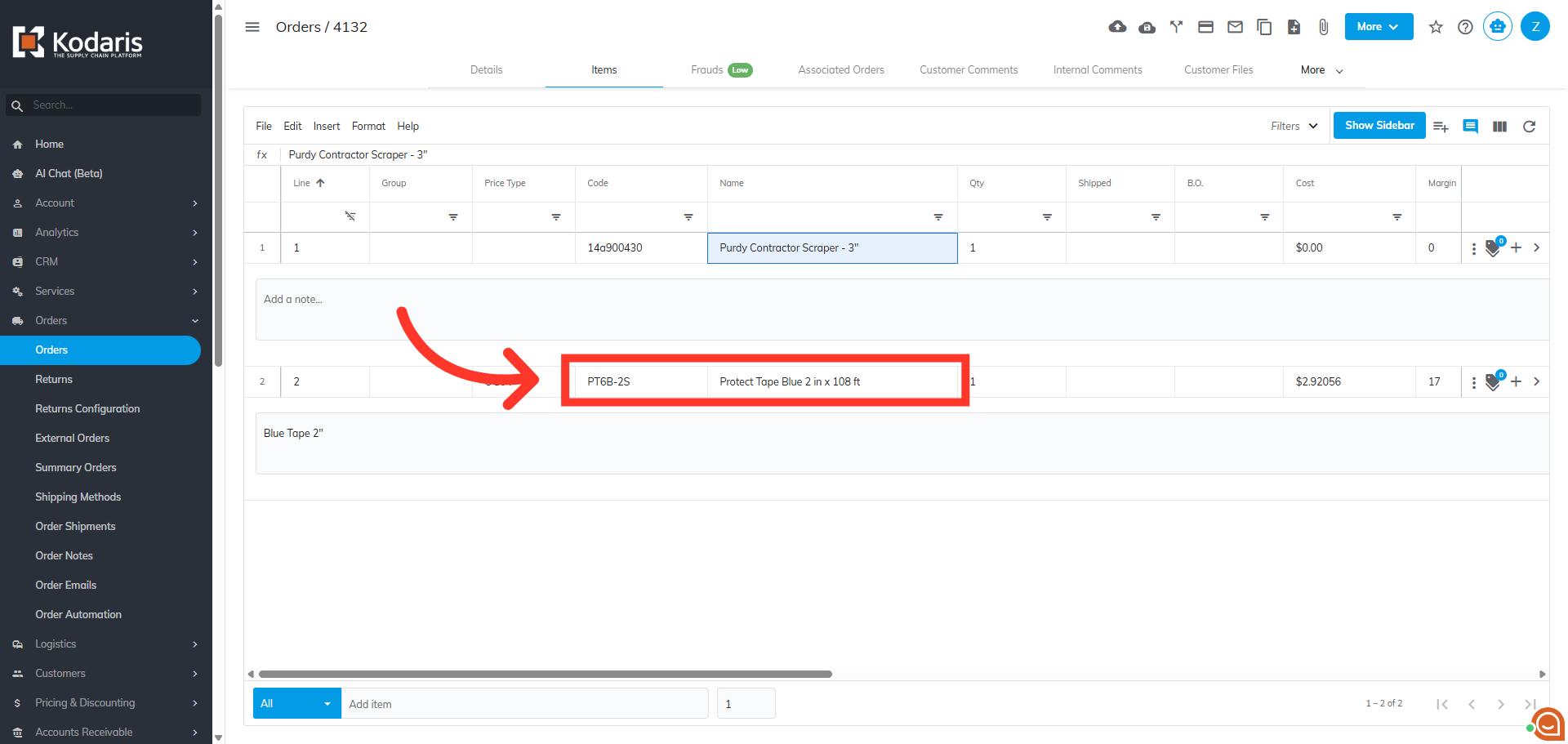
Operations Order Management - View and Update the "Nonstock" Line Item on an Order
Navigate to "Orders"
To view and update the "NONSTOCK" line item on an order, navigate to the "Orders" section in the Operations Portal.
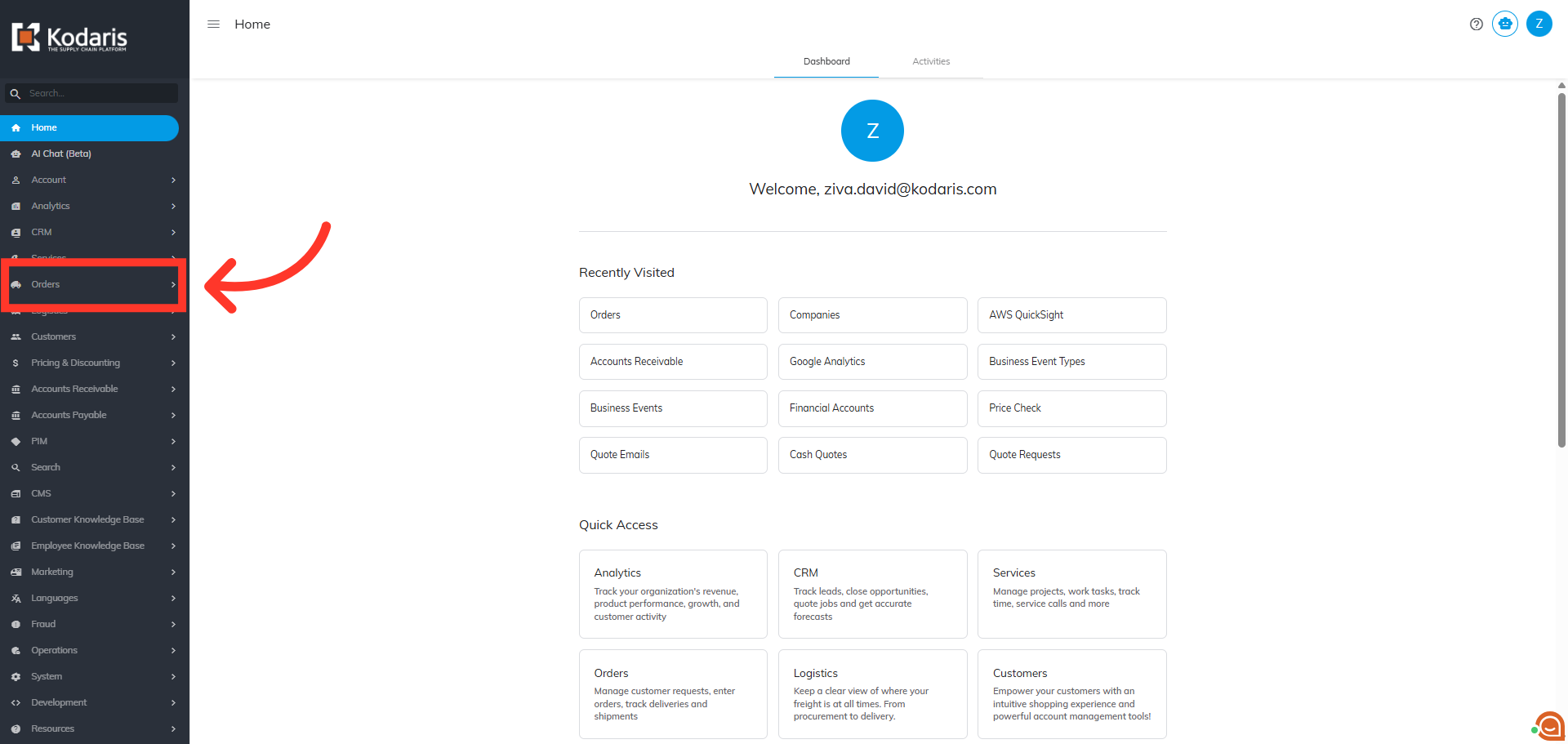
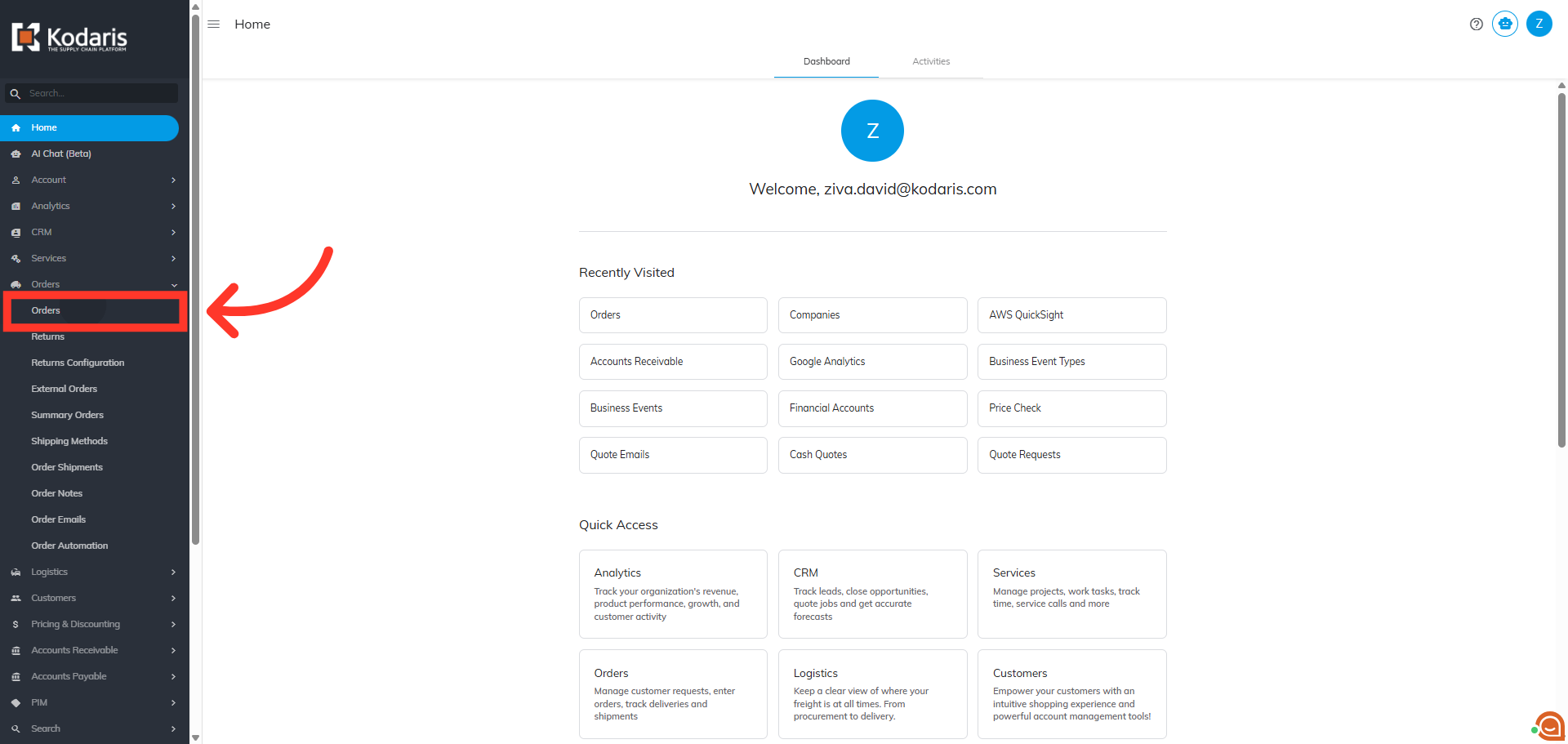
Click "Orders"
Then, click "Orders". In order to access and update "Orders", you will need to be set up either as an "administrator" or a "superuser", or have the following roles: "dispatch", "orderEdit", and "crmCompanyOrderEdit". Just a reminder, "crmCompanyOrderEdit" access only allows employees to view company orders that are assigned to them.
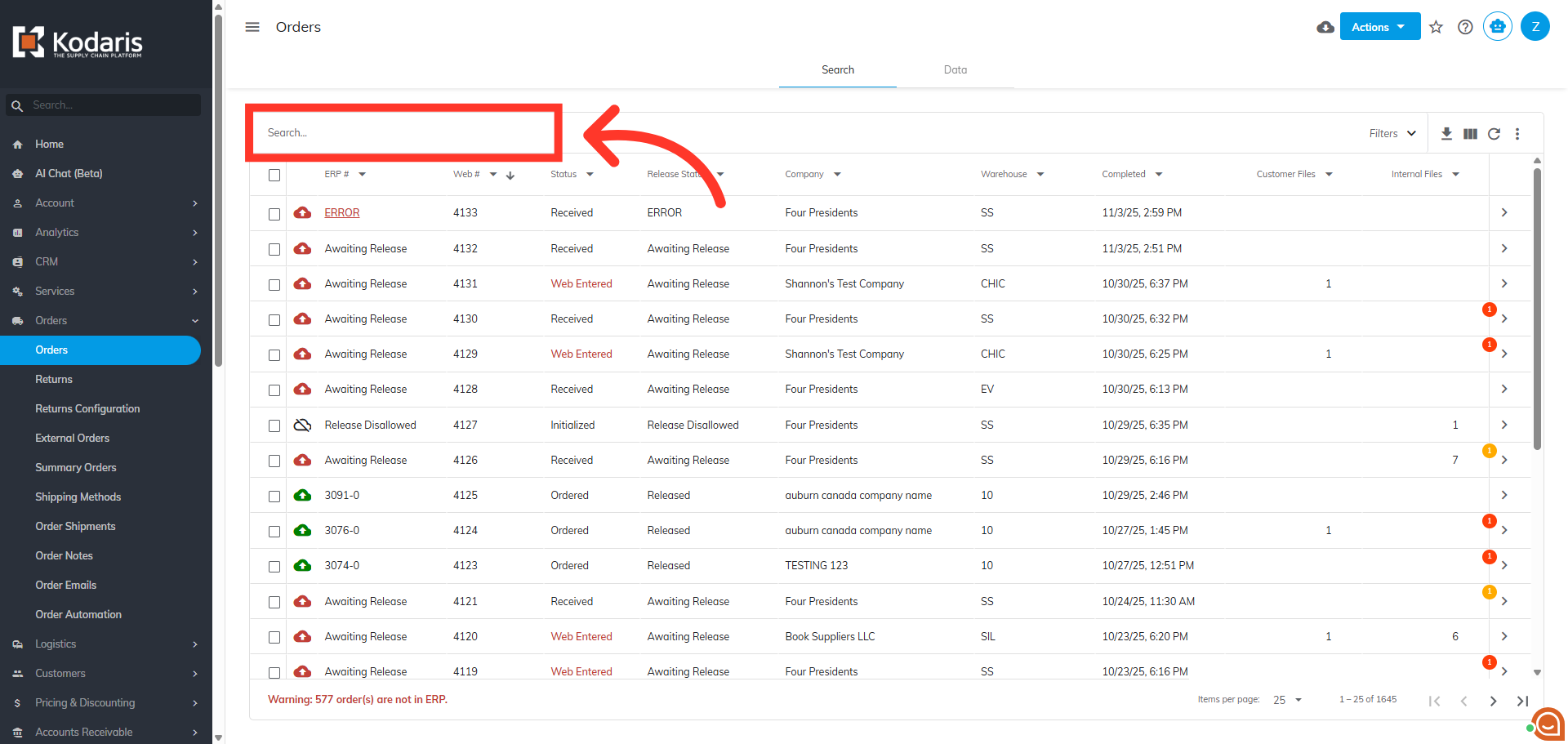
Search for the order
Here, you need to search for the order that contains the nonstock item(s). You can enter the order number in the "Search..." field.
Click on the more details icon
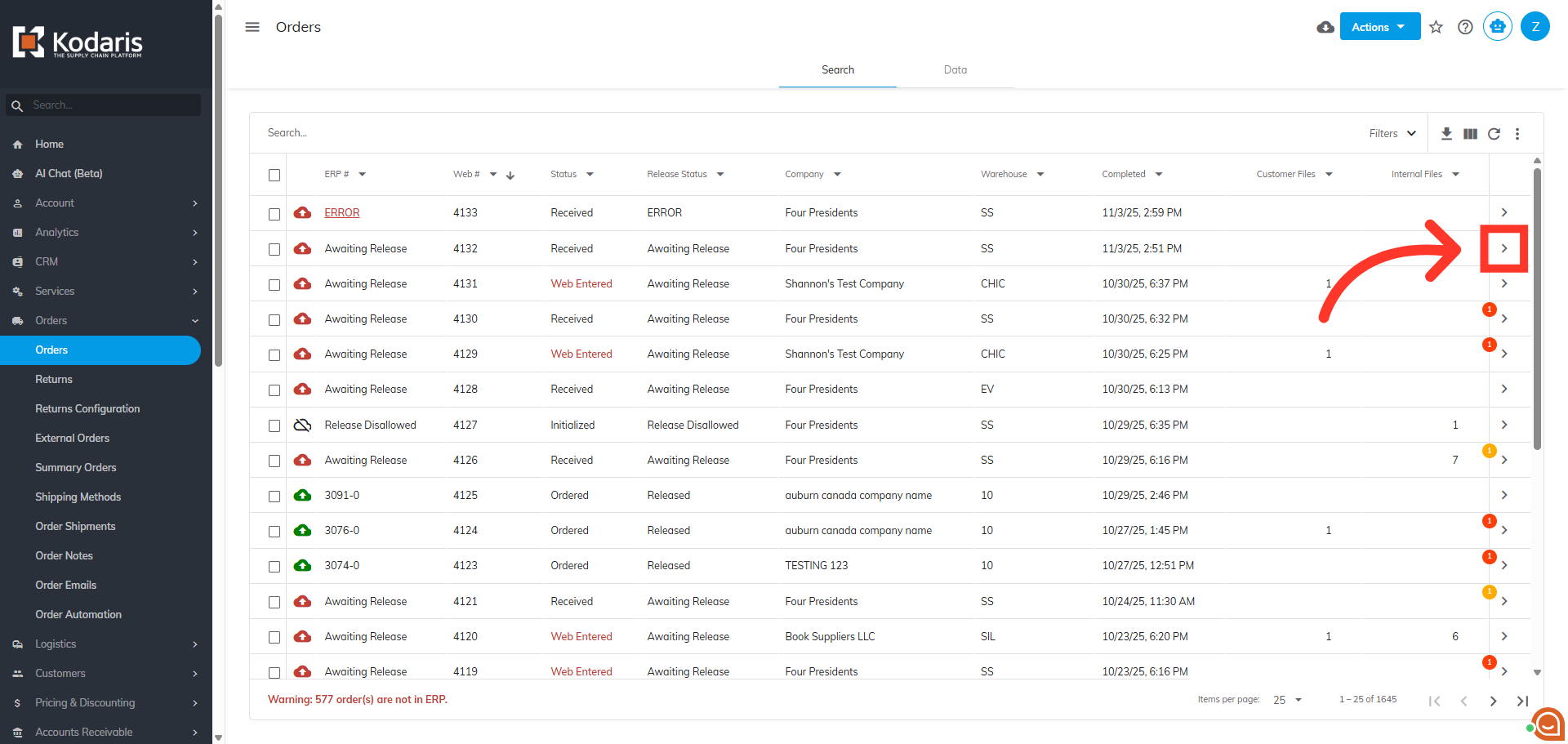
Next, click on the more details icon to view order details.
Go to the "Items" tab
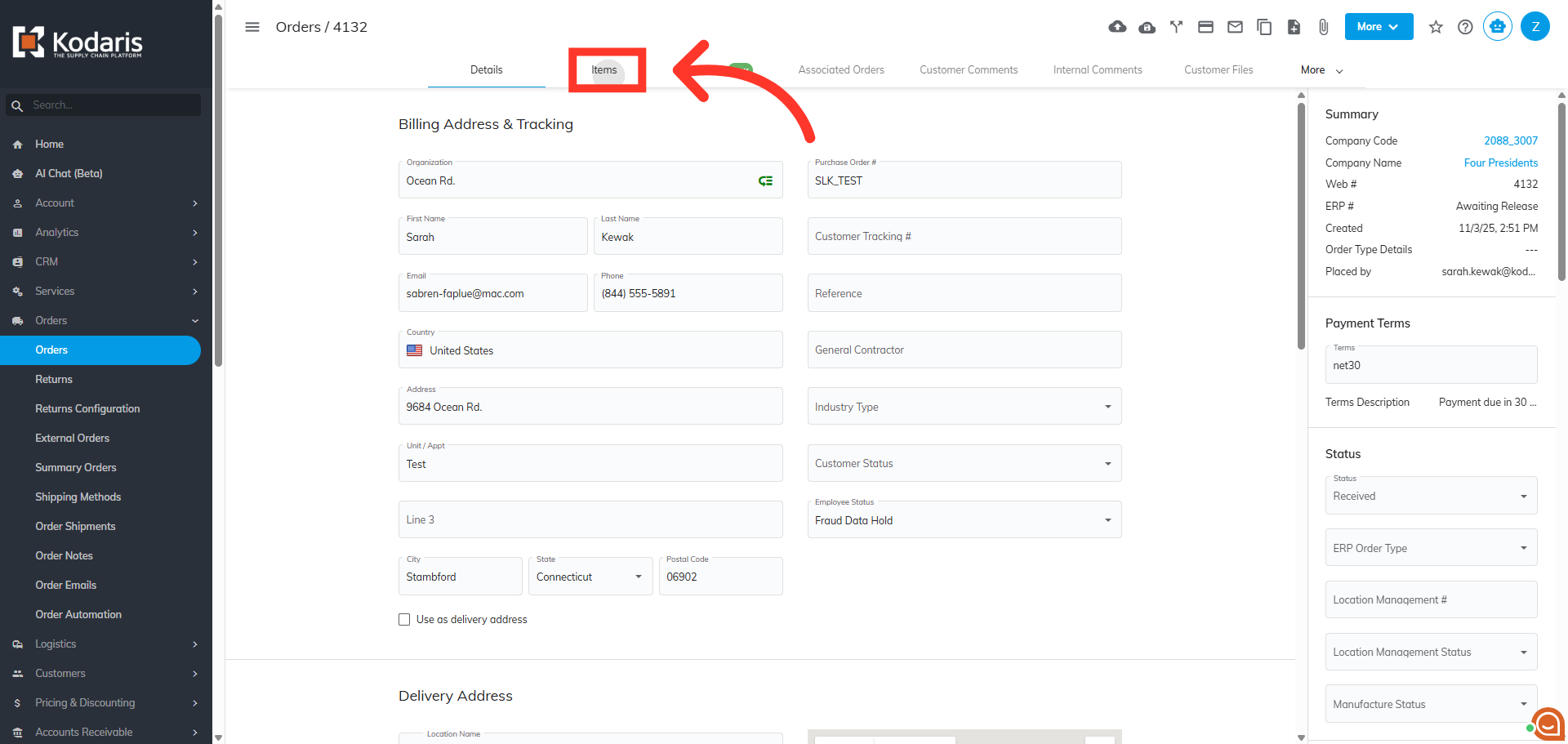
Go to the "Items" tab to review the items in the order.
Click "Toggle notes"
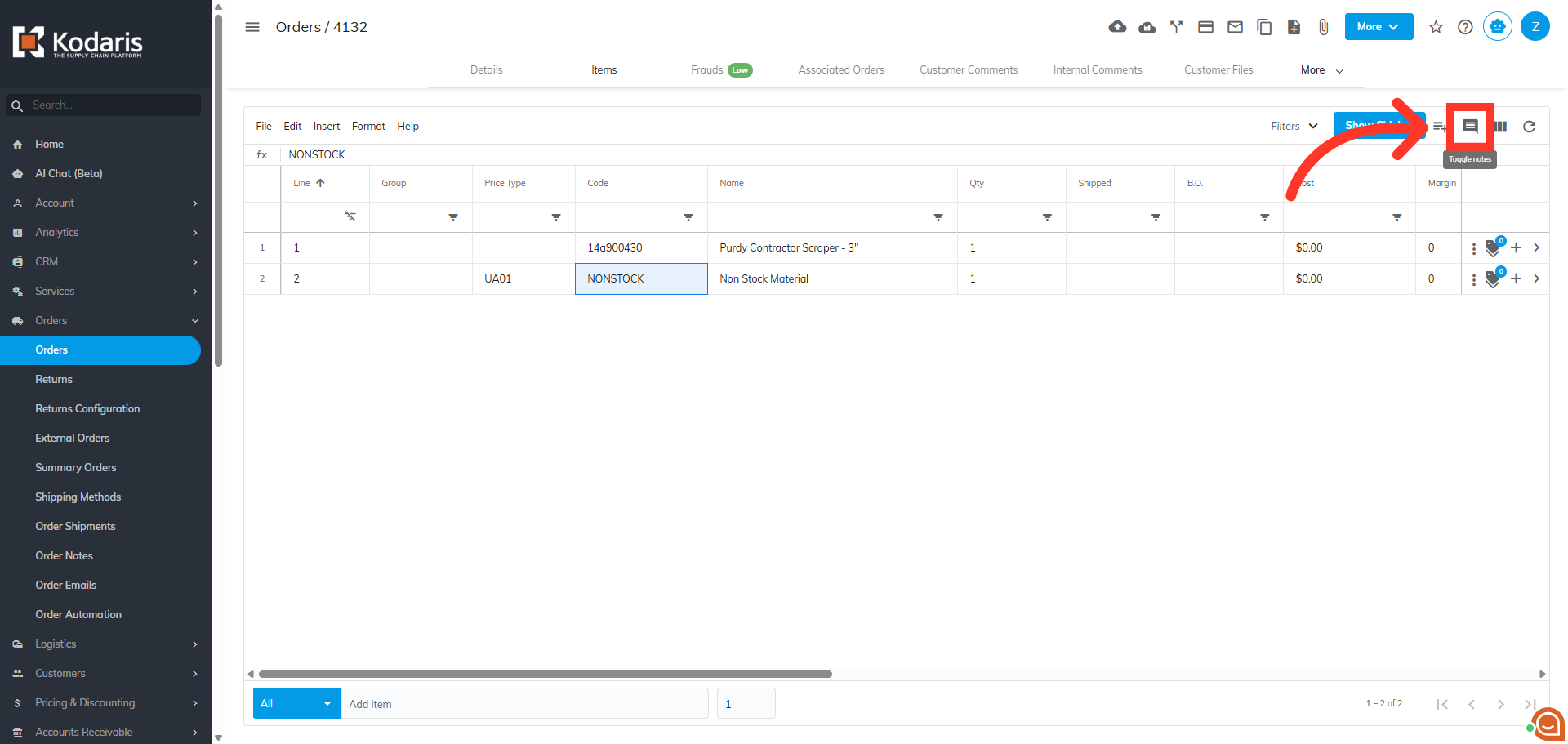
Click on the "Toggle notes" icon to expand the line item comments.
View customer note
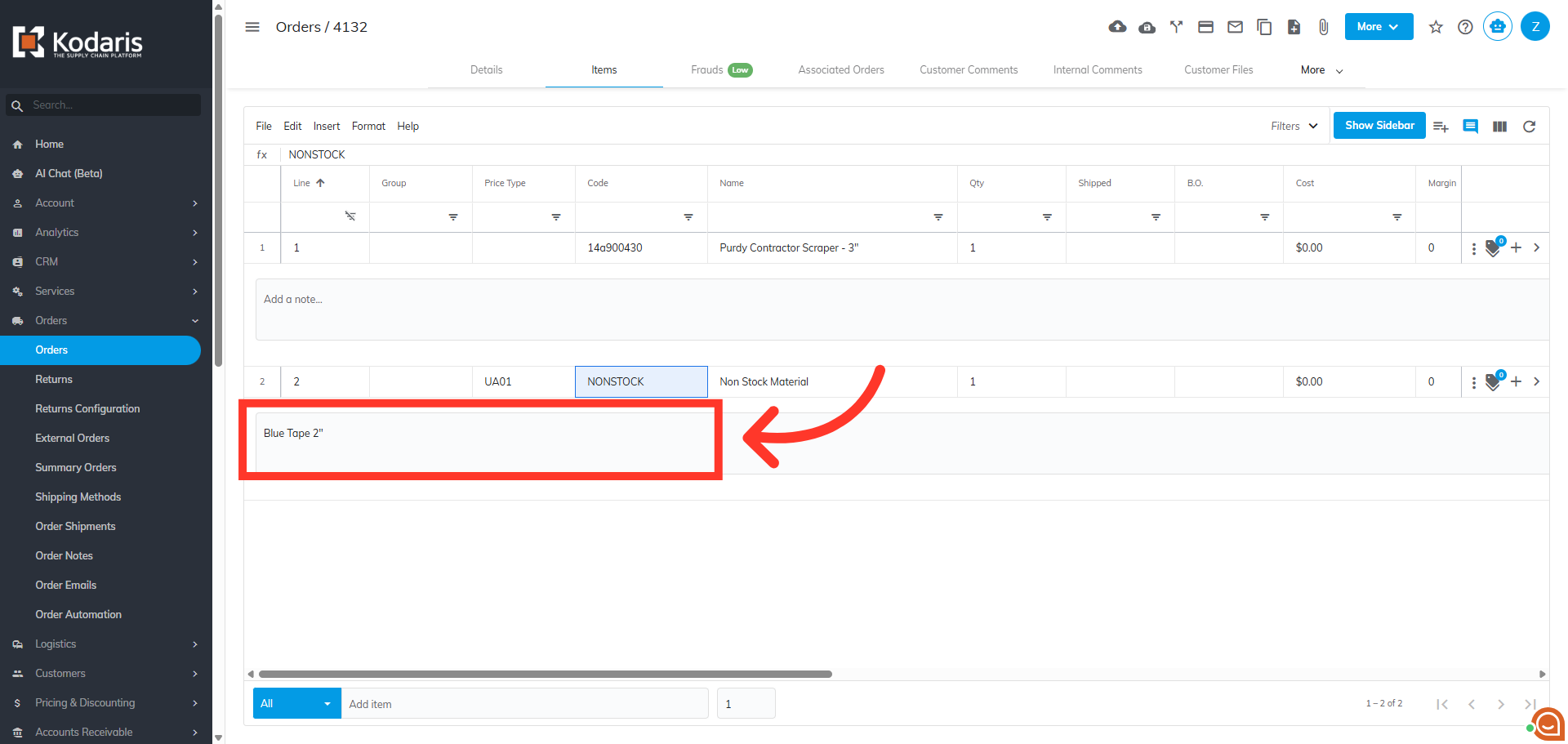
You can view the customer note, which can contain helpful information about the "nonstock" item.
Click "Code"
Click in the "Code" field to edit the item.
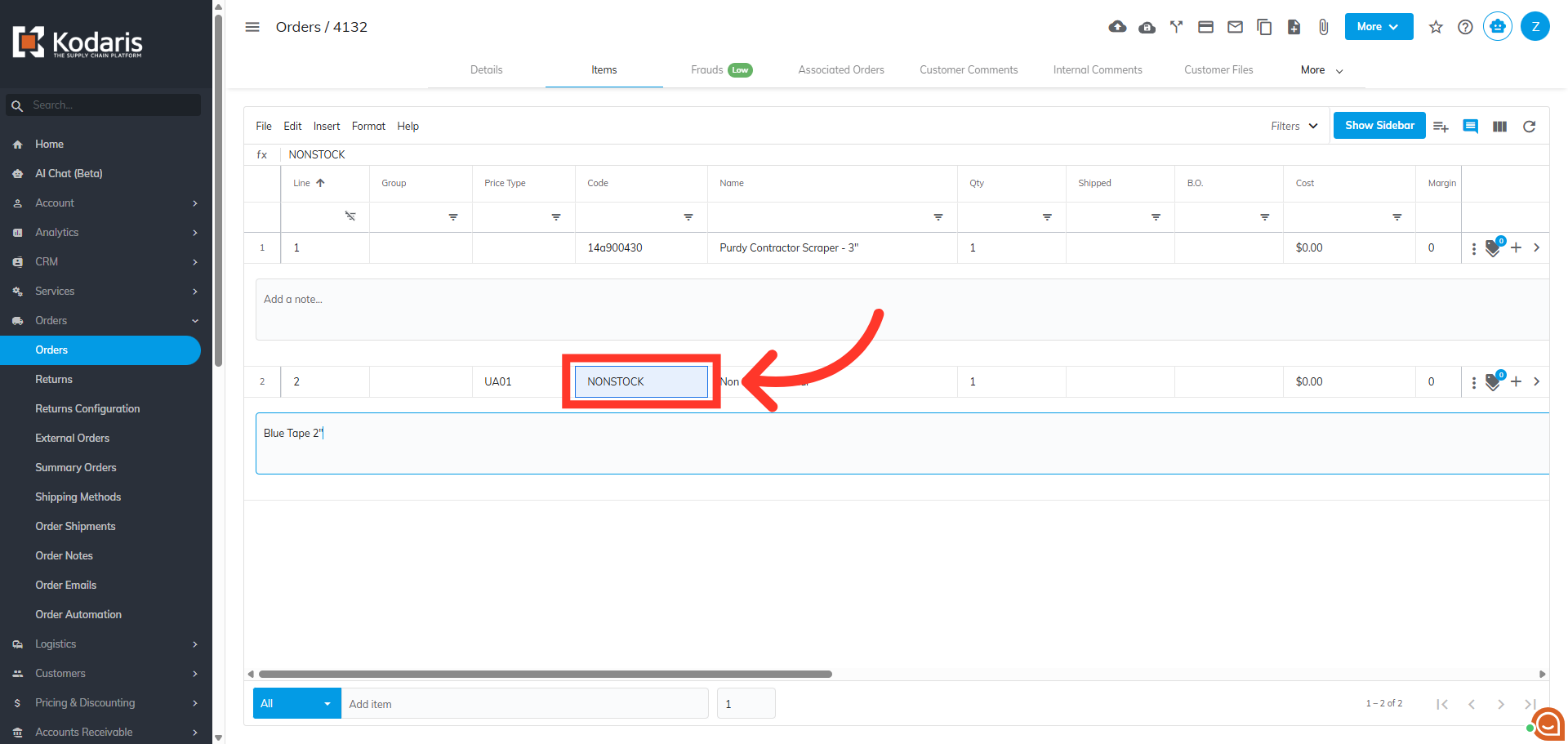
Type to search for the replacement product
Start typing to access a menu of available items. You can enter the product code or name.
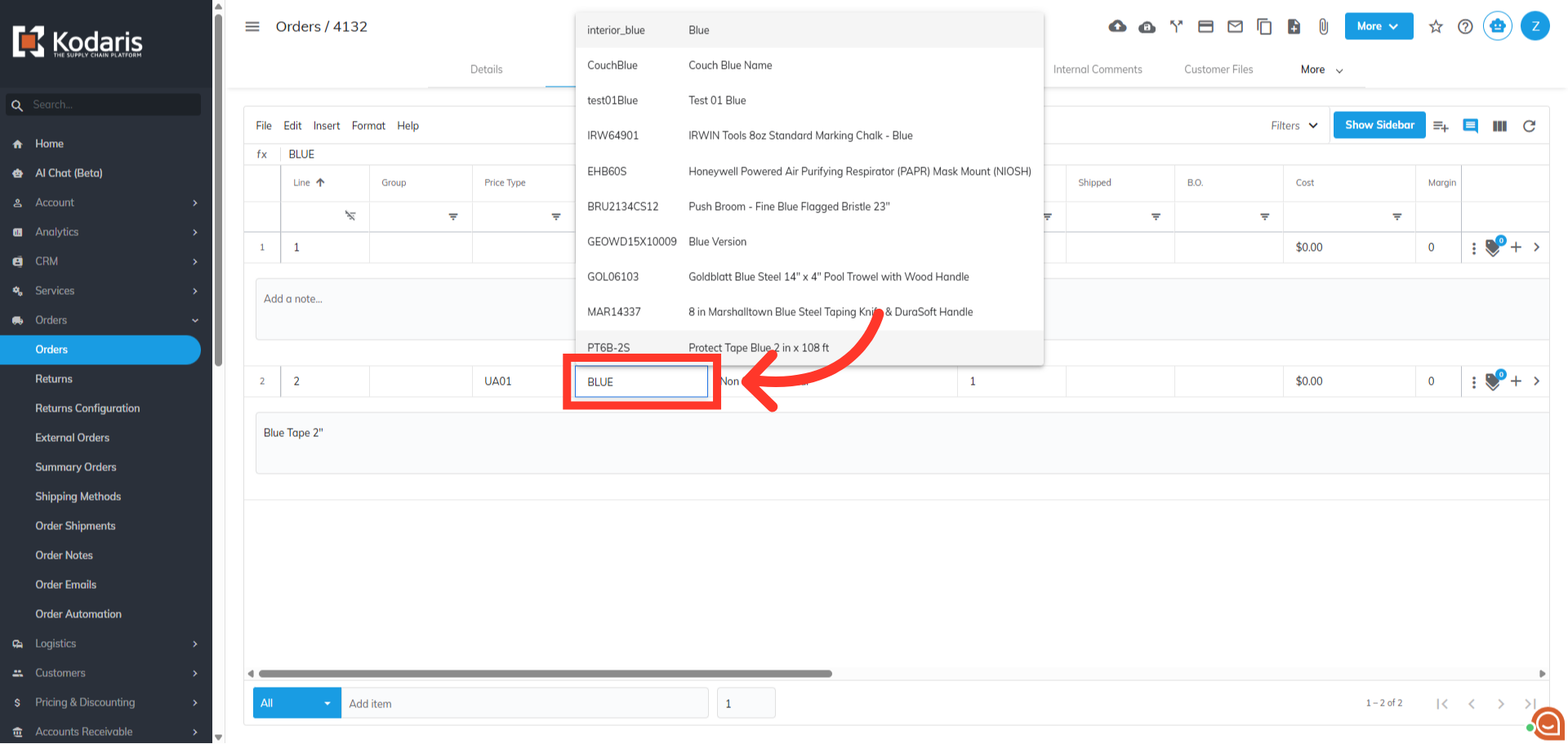
Choose the product
Then, choose the appropriate product for the custom item.
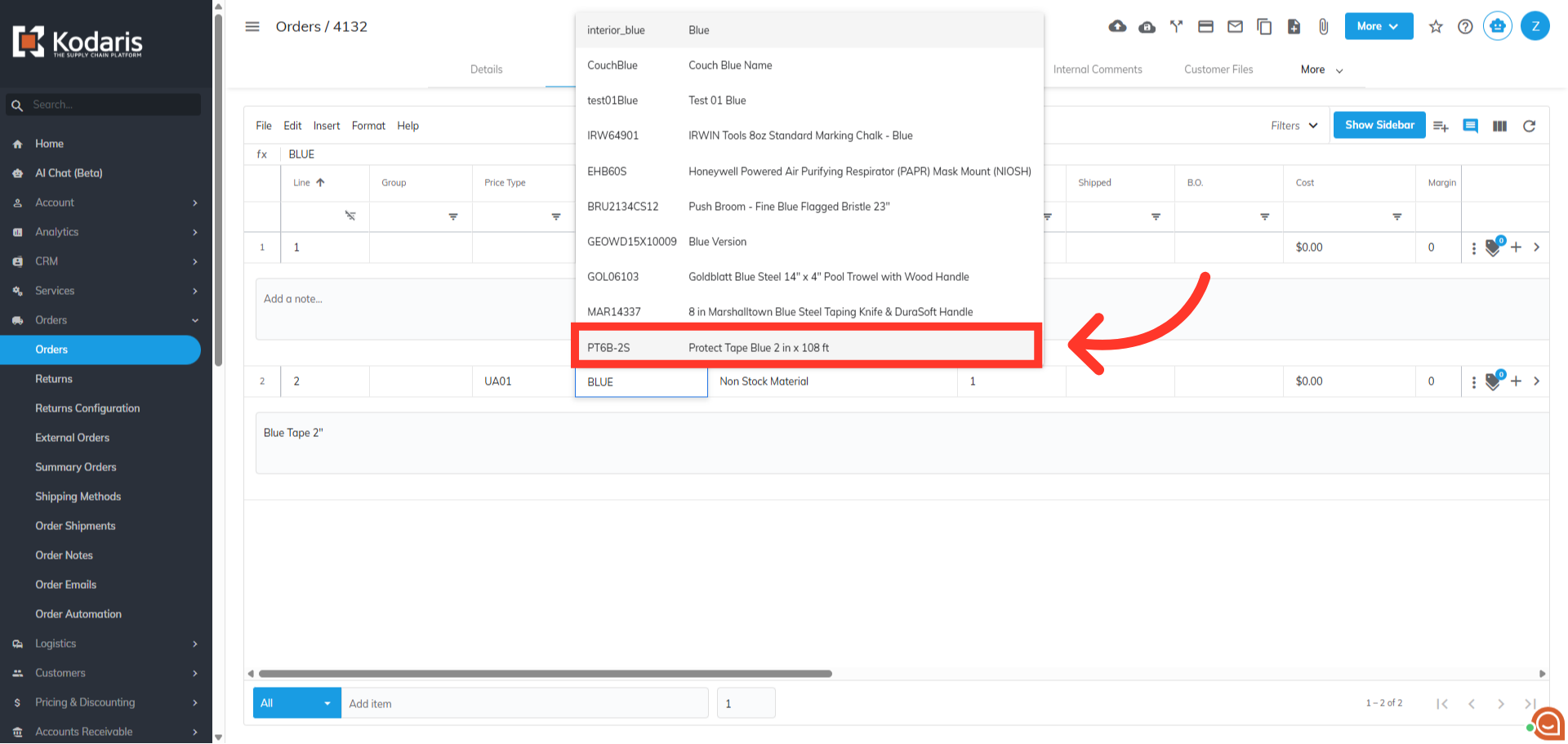
Verify the product
Once the correct item has been added, the order can be processed.