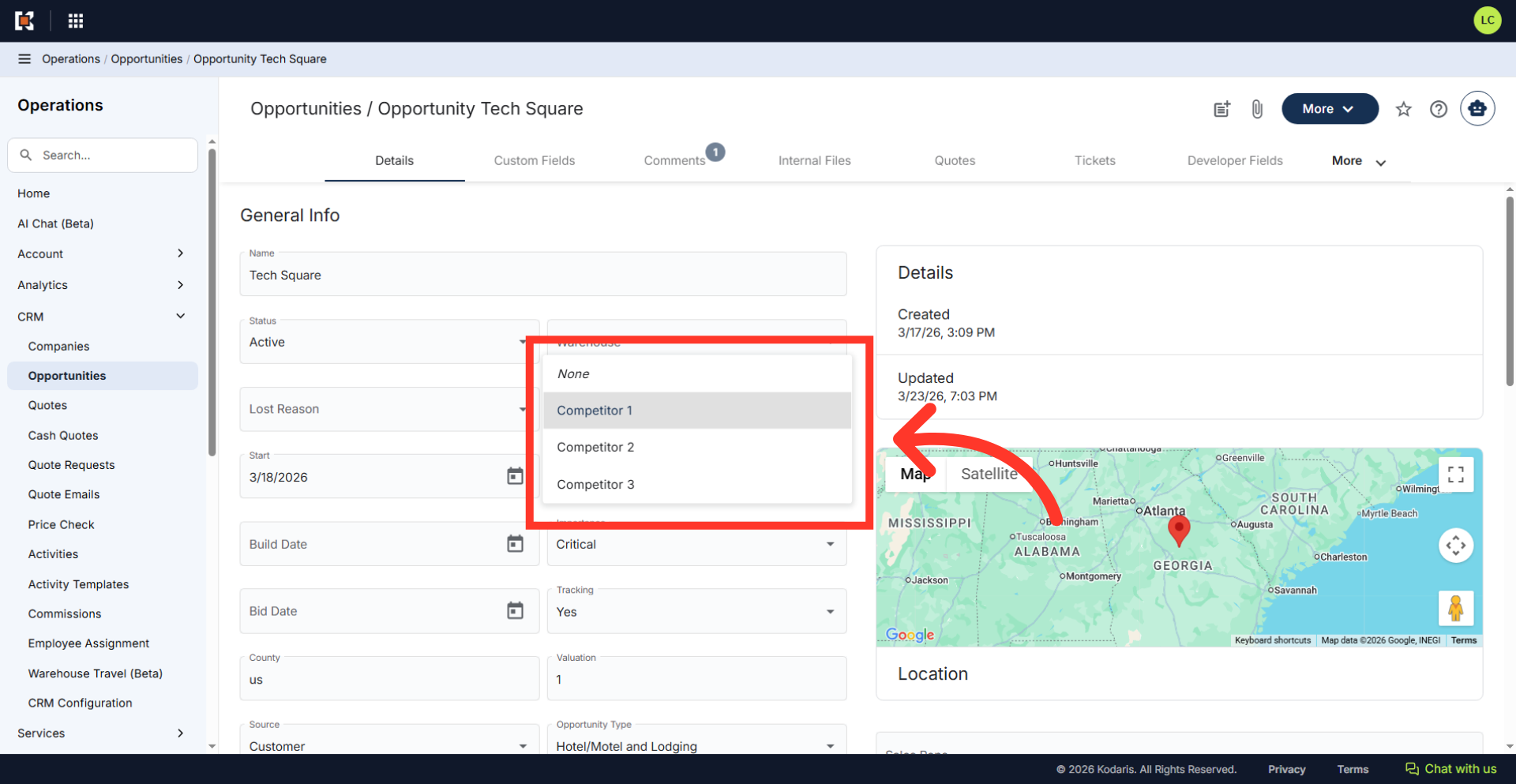
Operations System - Customize Opportunities "Lost To" Dropdown
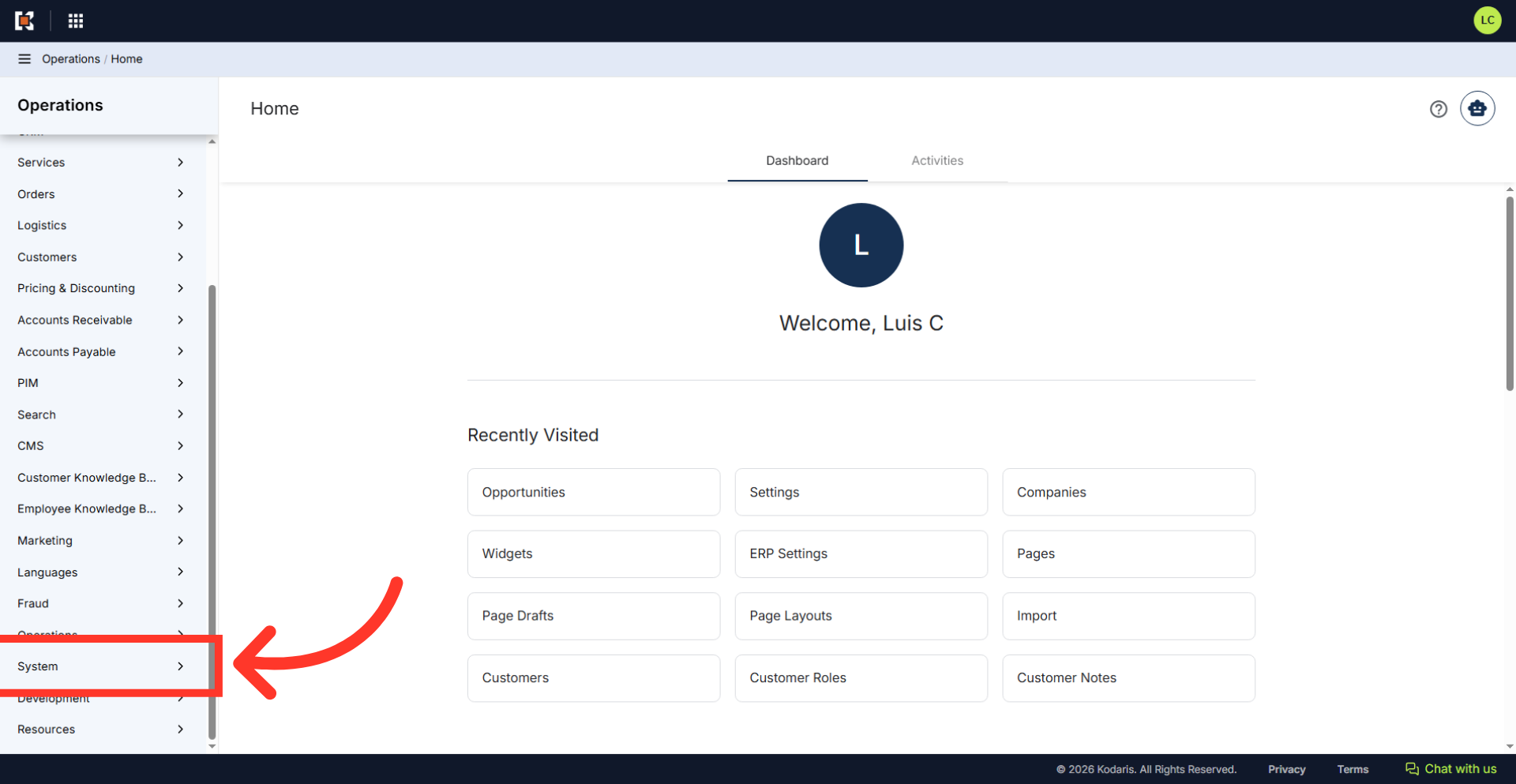
Navigate to "System"
You can customize the Opportunities "Lost To" dropdown to include selections relevant to your workflow for Opportunities. To begin, navigate to the "System" section in the Operations Portal.
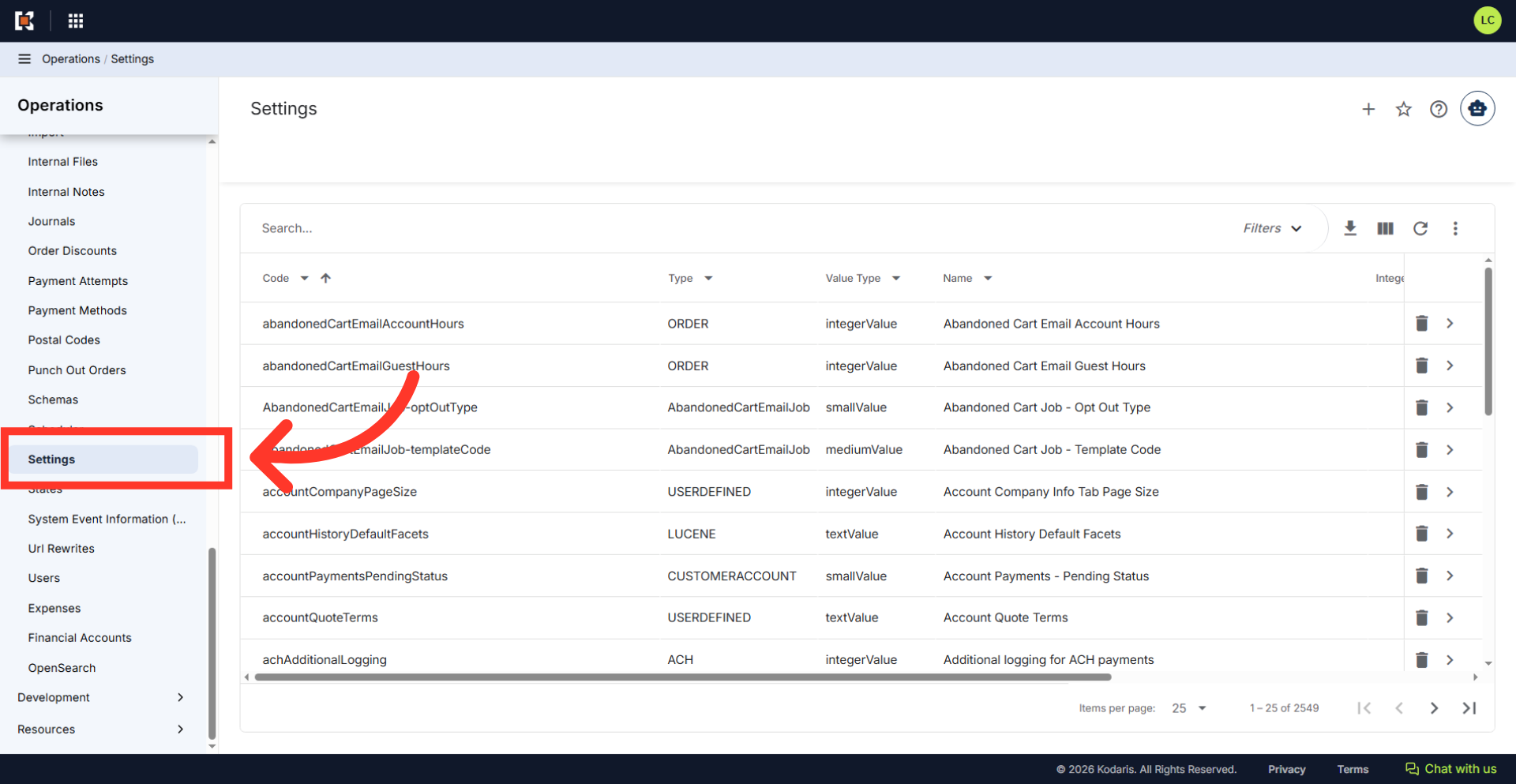
Click "Settings"
Then, click "Settings" to access the configuration list screen. In order to access and update "Settings" the account will need to be set up either as an "administrator or a "superuser", or have the role of: "settingEdit".
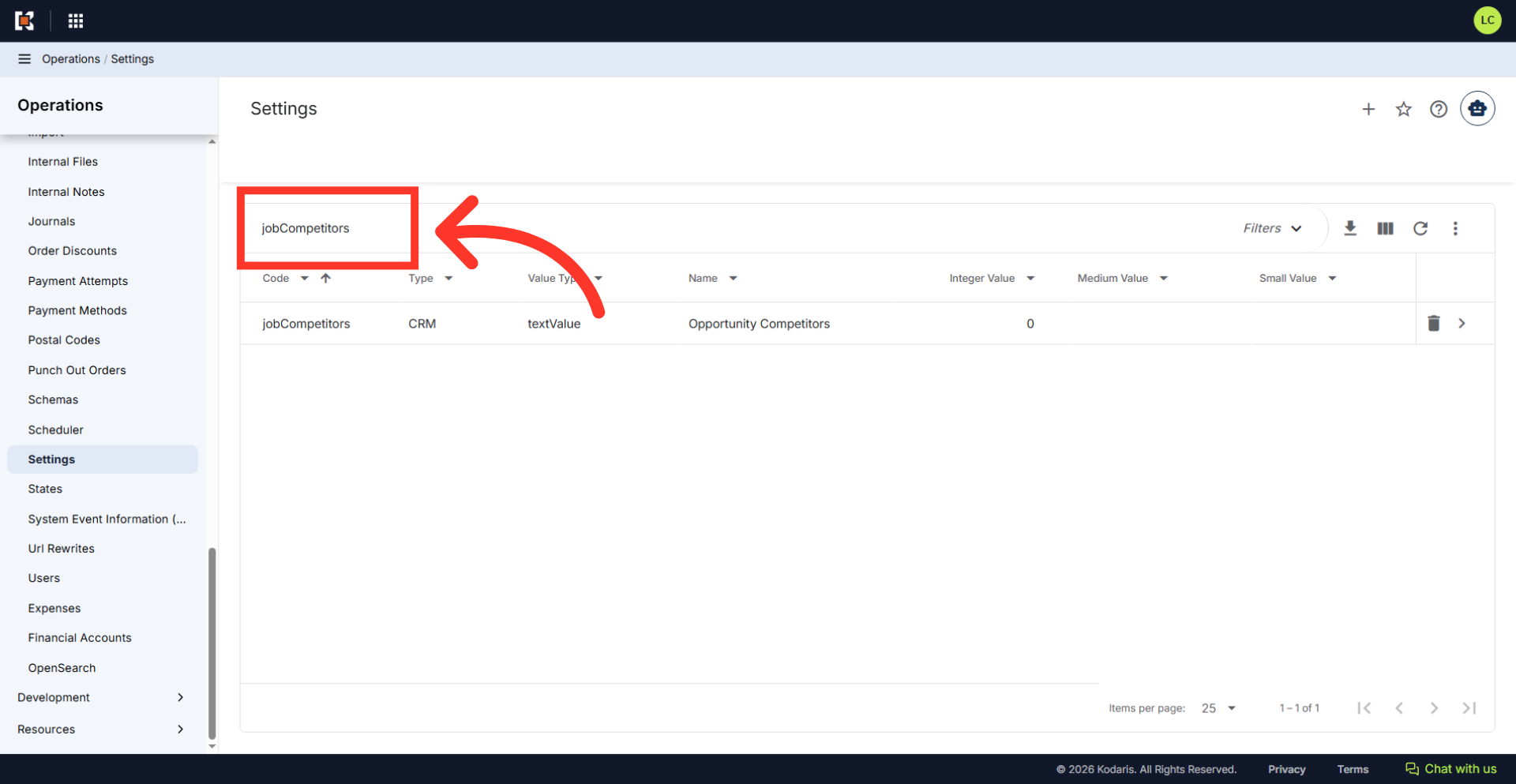
Type in "jobCompetitors" to search
Type in "jobCompetitors" into the search bar to find the specific setting for managing competitor names.
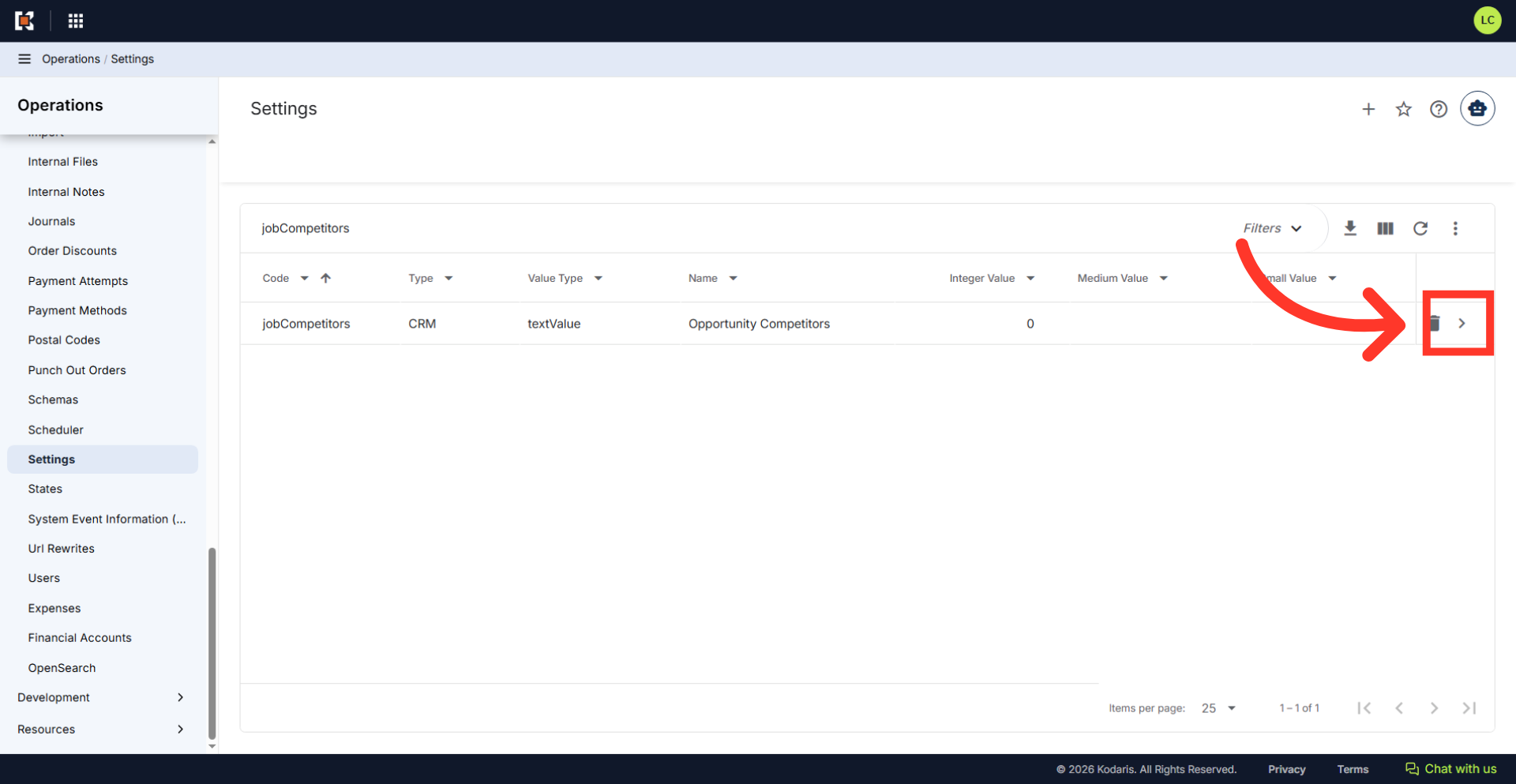
Click the more details icon
Click the more details icon.
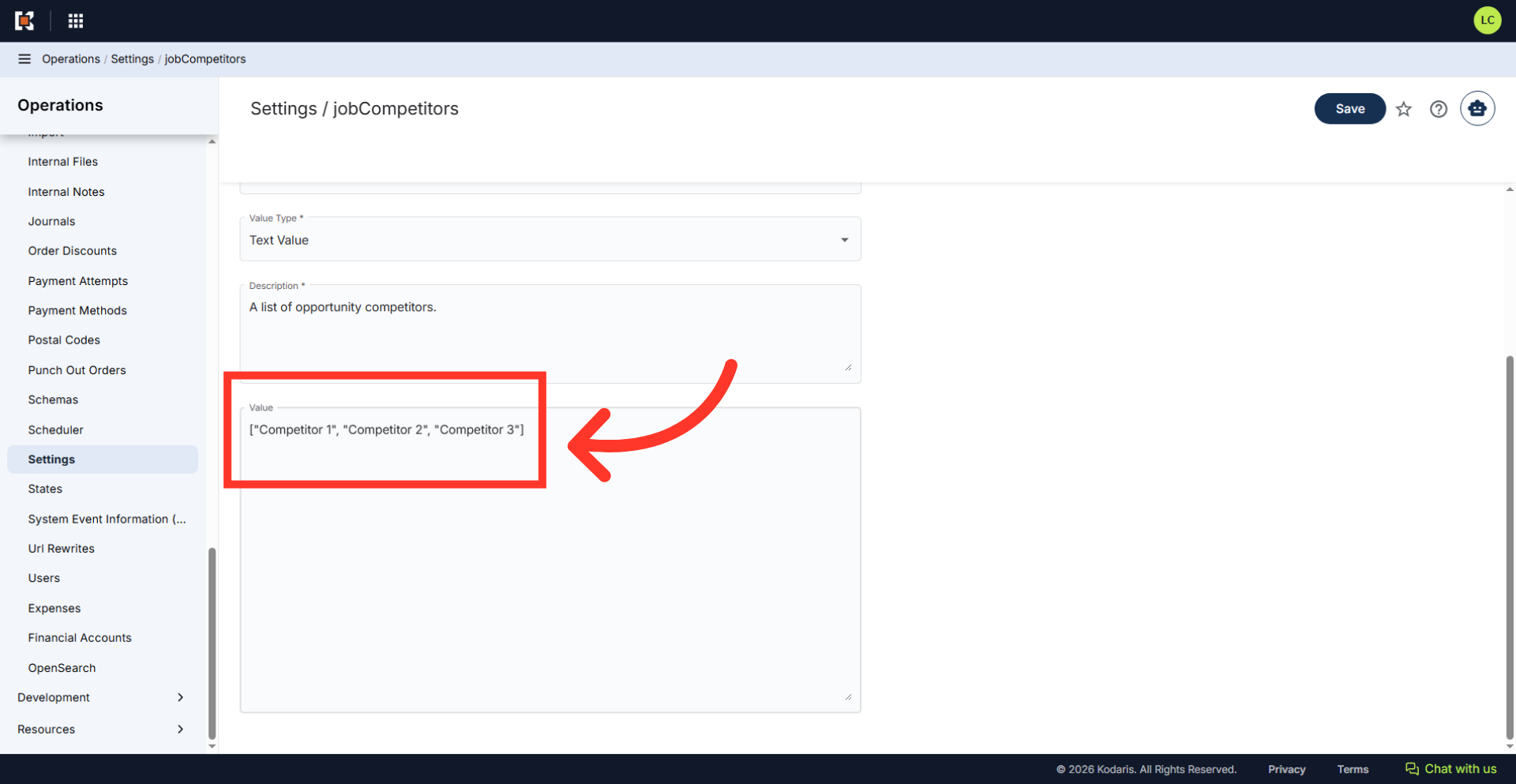
Input the competitor names
Scroll down to the "Values" field tab where the dropdown options are stored. In the "Value" field, enter the list of "Lost To" values you want to add to the dropdown menu, ensuring the values are separated by commas and each enclosed with quotations.
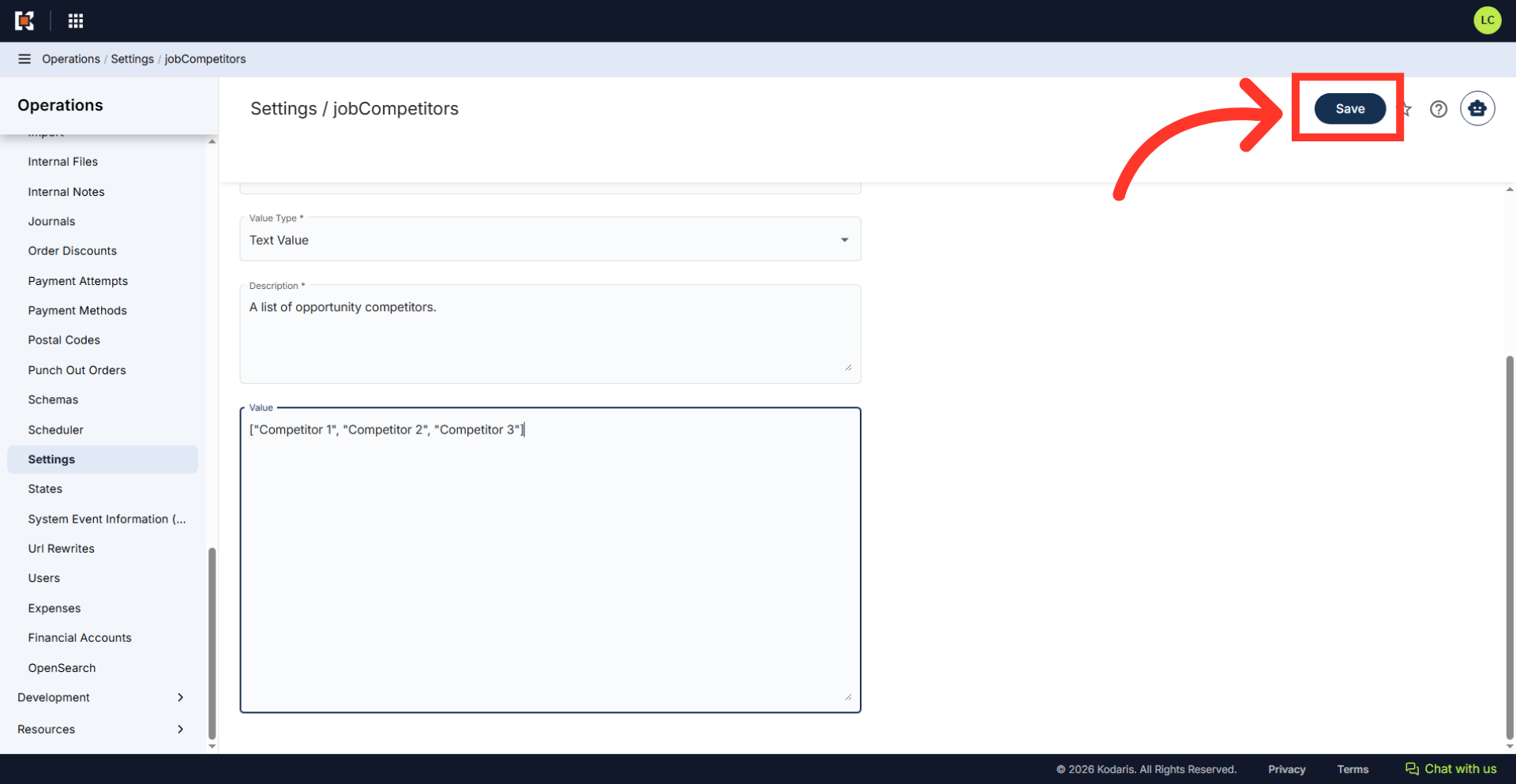
Click the "Save" button
Select the "Save" button to make the updated changes.
"Lost To" dropdown
To verify the configured options, go to an opportunity and select the "Lost To" dropdown
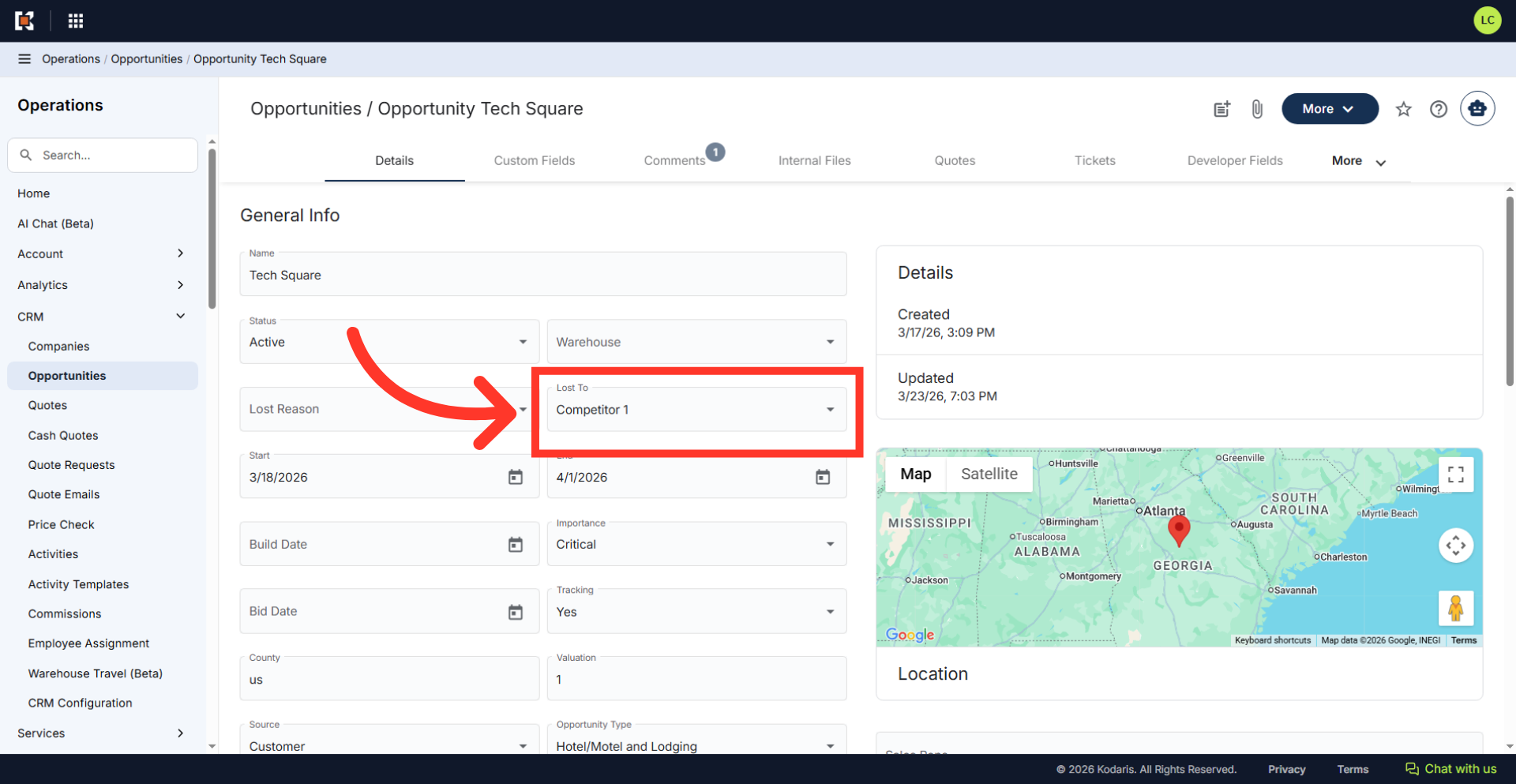
Verify the new competitors
Confirm the new selections are available