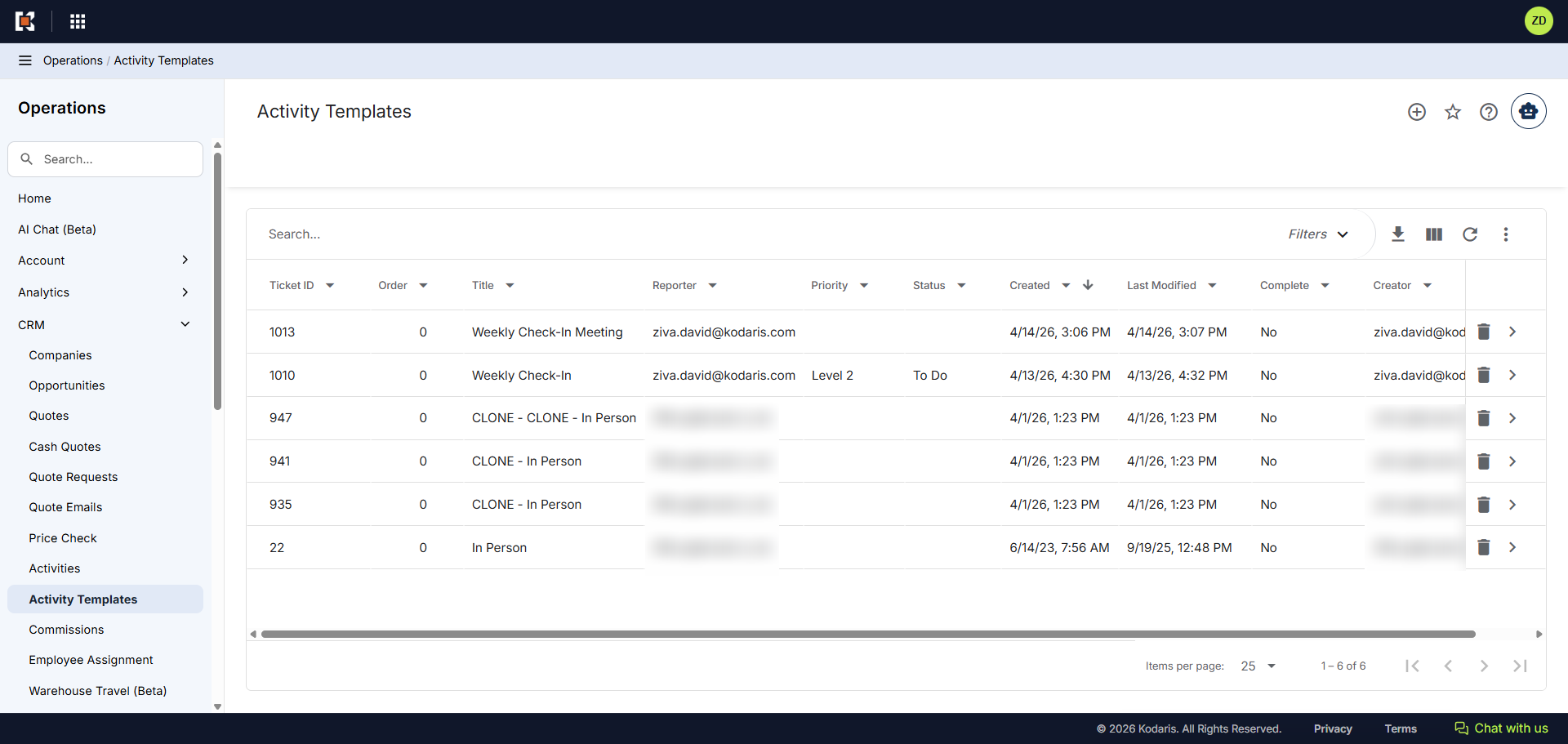
Operations CRM - Create an Activity Template
Navigate to "CRM"
You can create and save templates for Activity Templates that can be re-used in the future. Once an activity template is created, activities can be created from existing templates. This feature can be useful if you enter similar activities often. With templates, you can pre-fill fields so that you no longer have to re-enter the same information per activity, saving you time and manual effort. To create a template, navigate to "CRM" section in the Operations Portal.
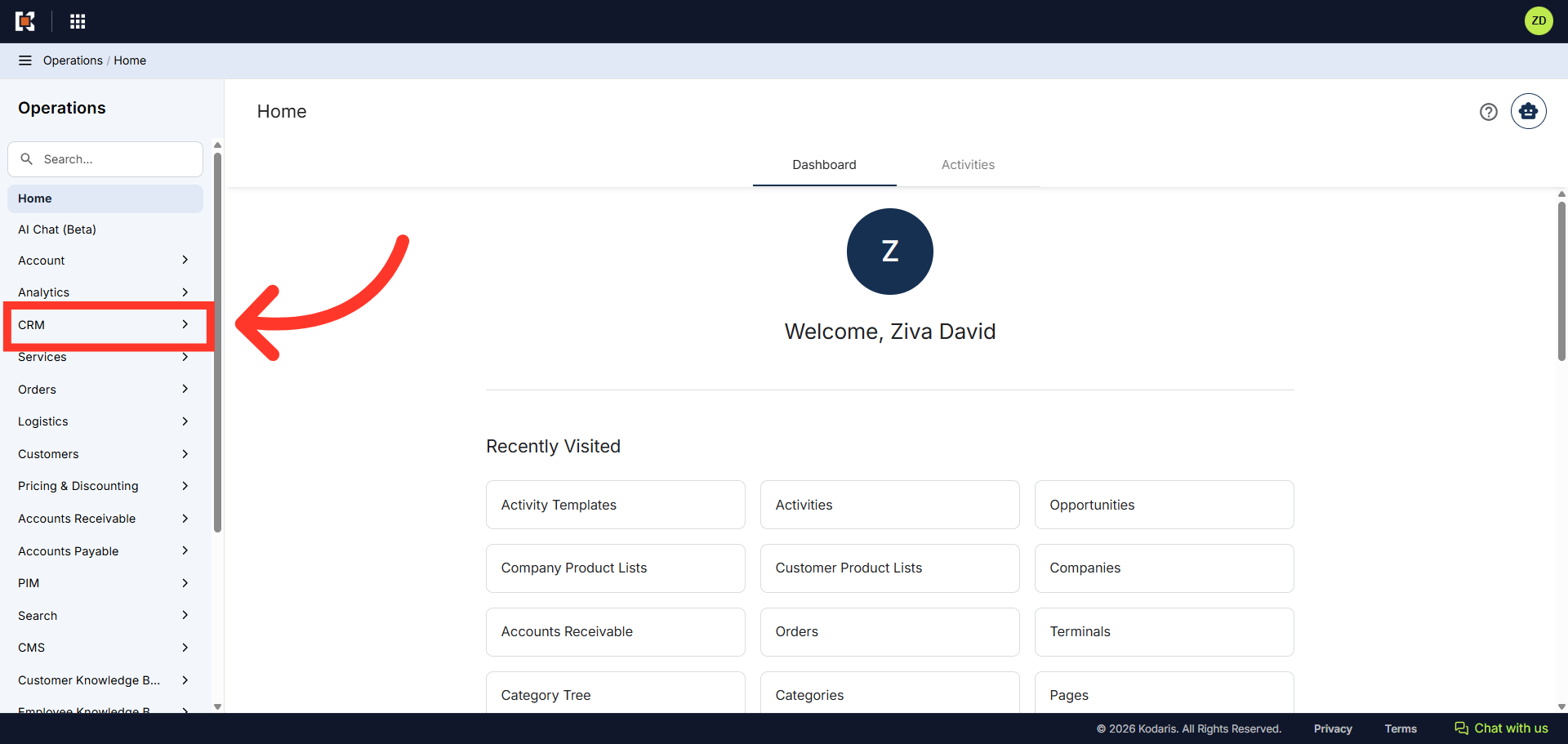
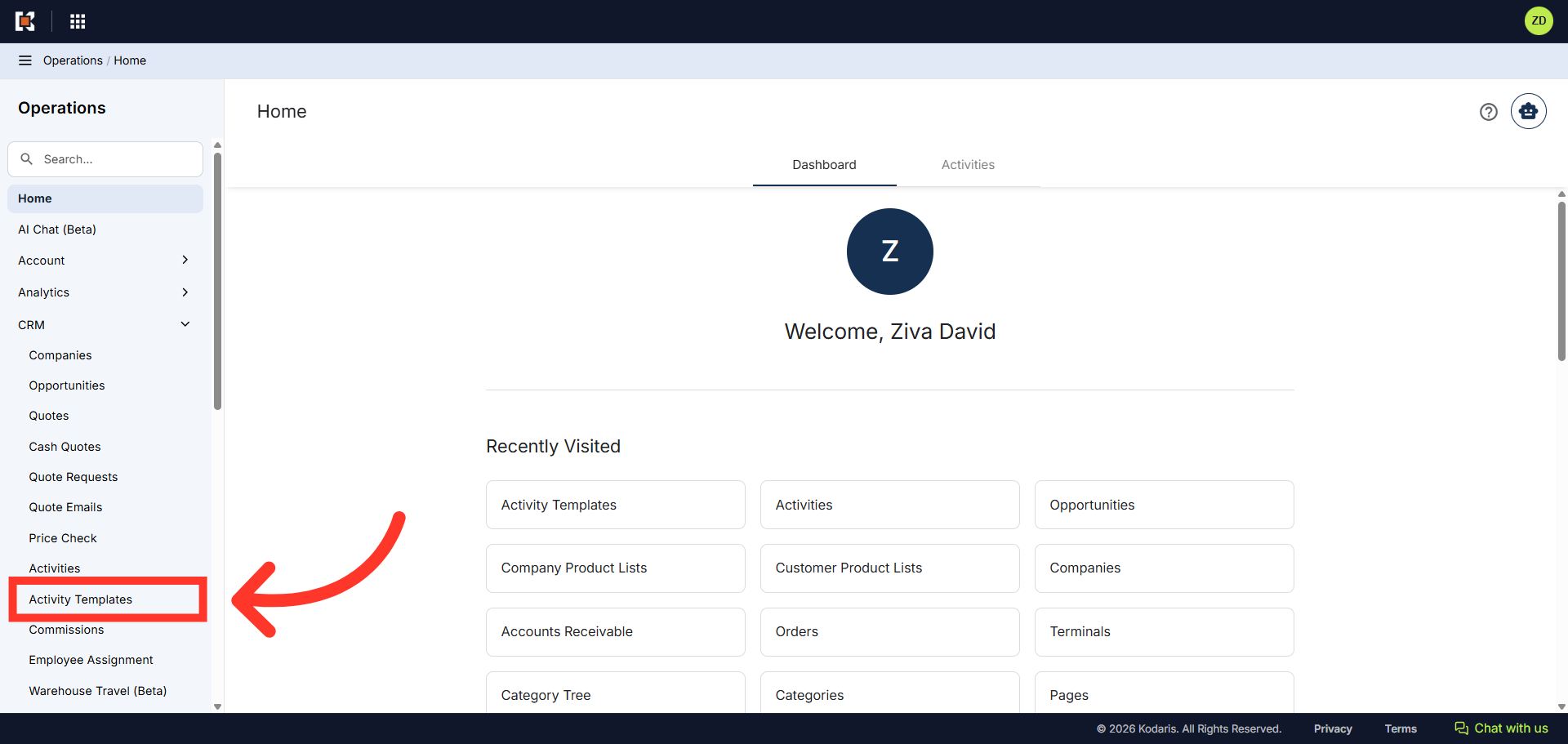
Click "Activities Template"
Then, click "Activities Template". In order to access "Activities Template" you will need to be set up either as an "administrator" or a "superuser", or have the appropriate role: "ticketEdit".
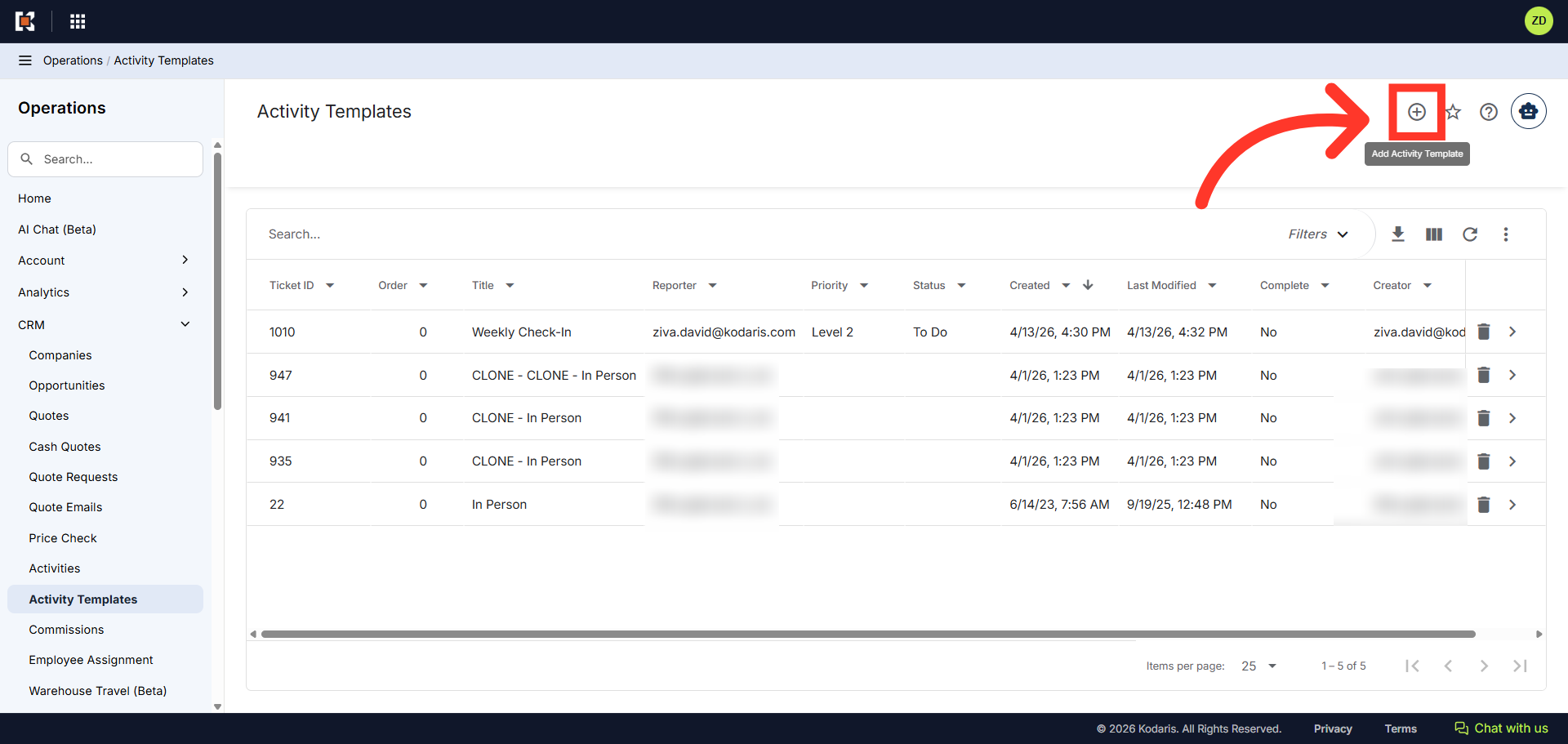
Click "Add Activity Template"
Next, click the "Add Activity Template" icon to create a new activity template.
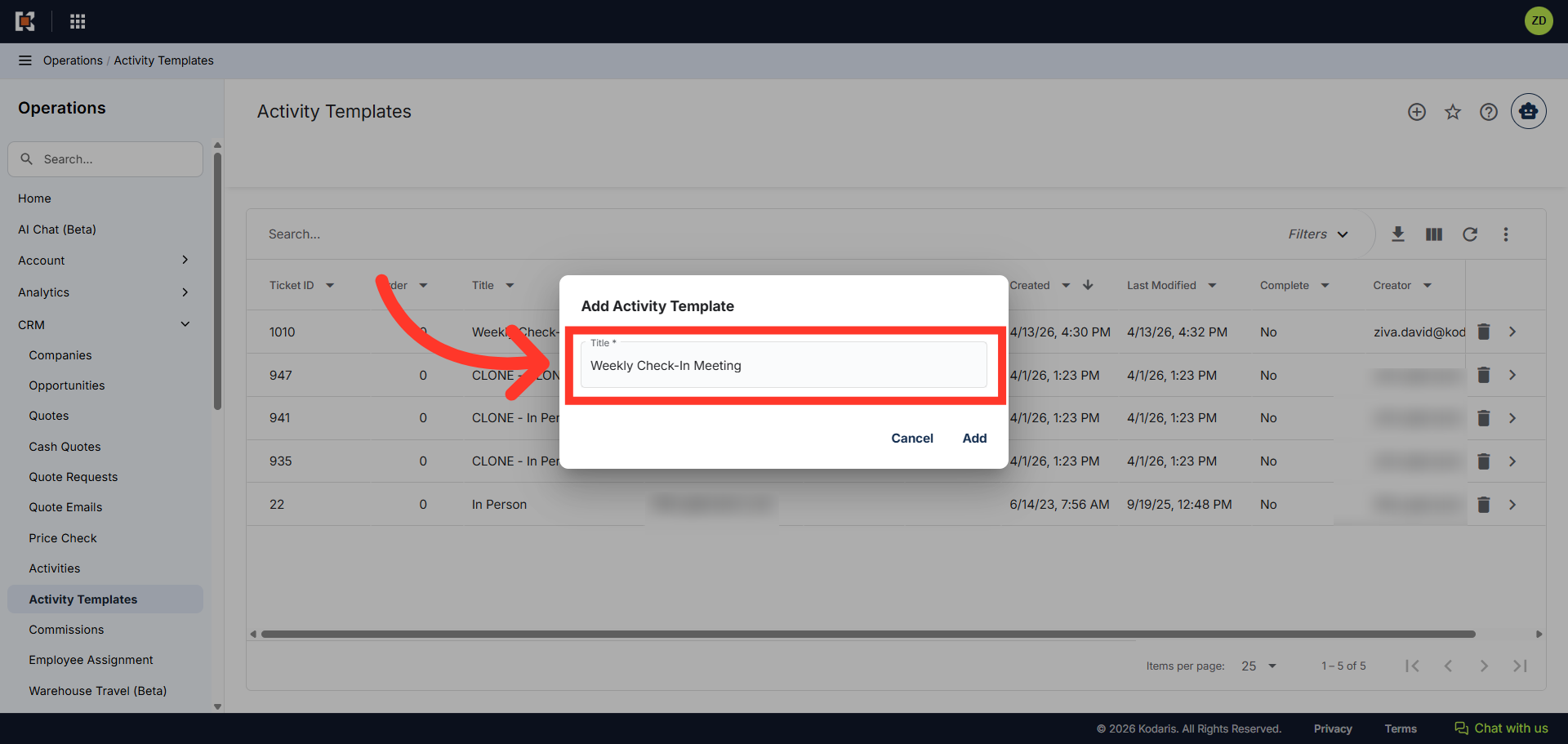
Add a title
Type in your desired template title.
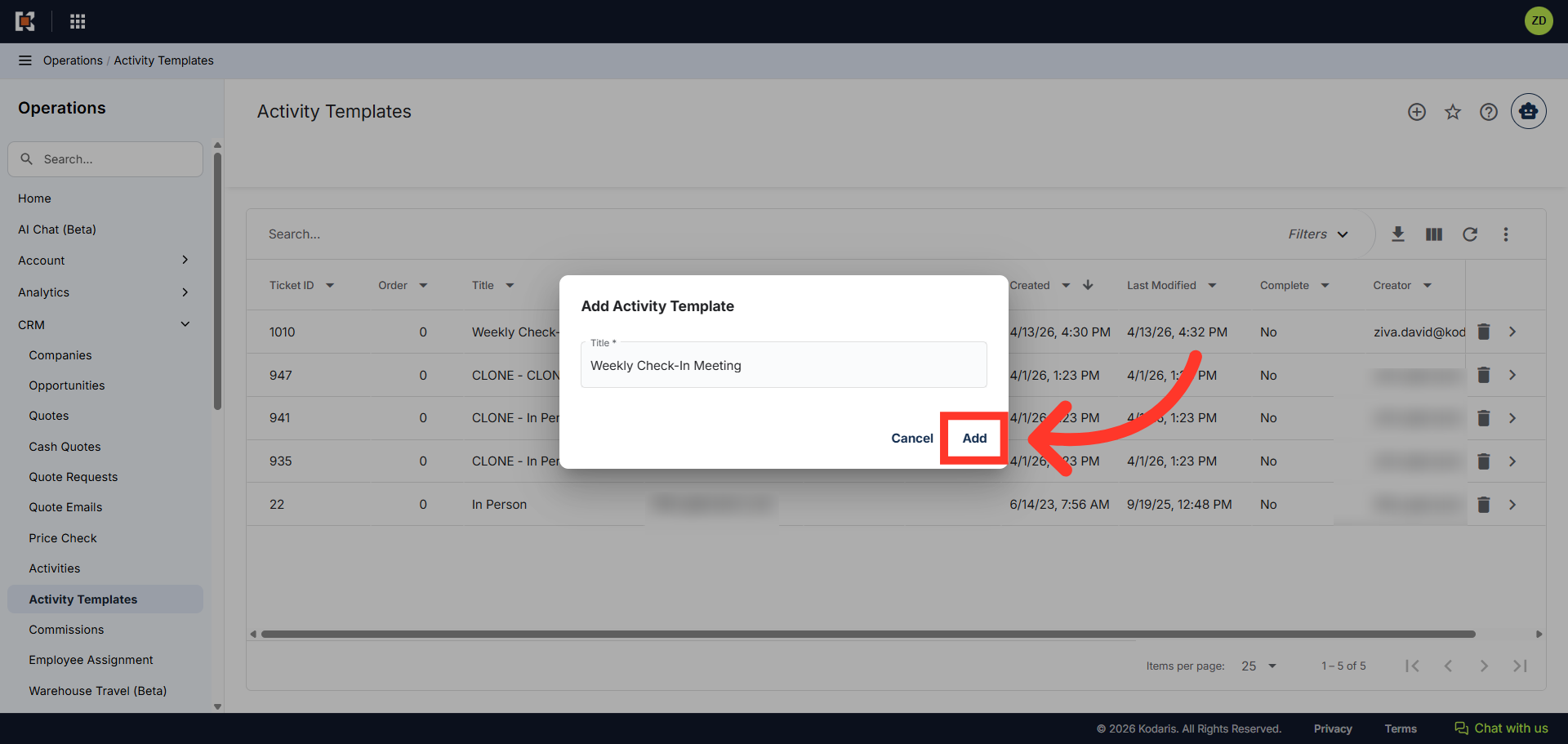
Click "Add"
Click the "Add" button to create the new activity template.
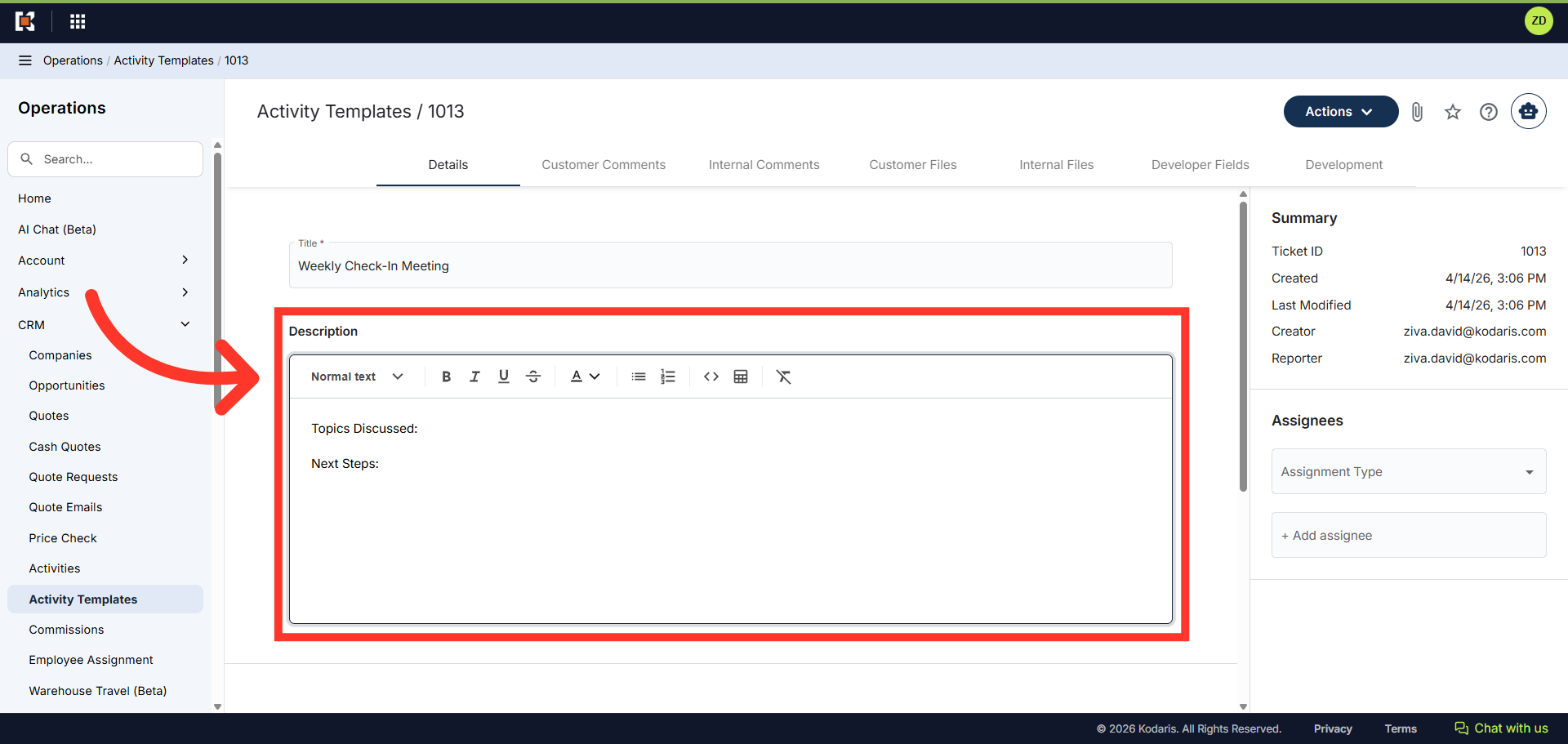
Add a description
Once added, you will be redirected to the template's details page and will be able to update the activity with any needed information. Some fields that you may want to update are: Description, Status, Priority, Assignee, and Due Date.
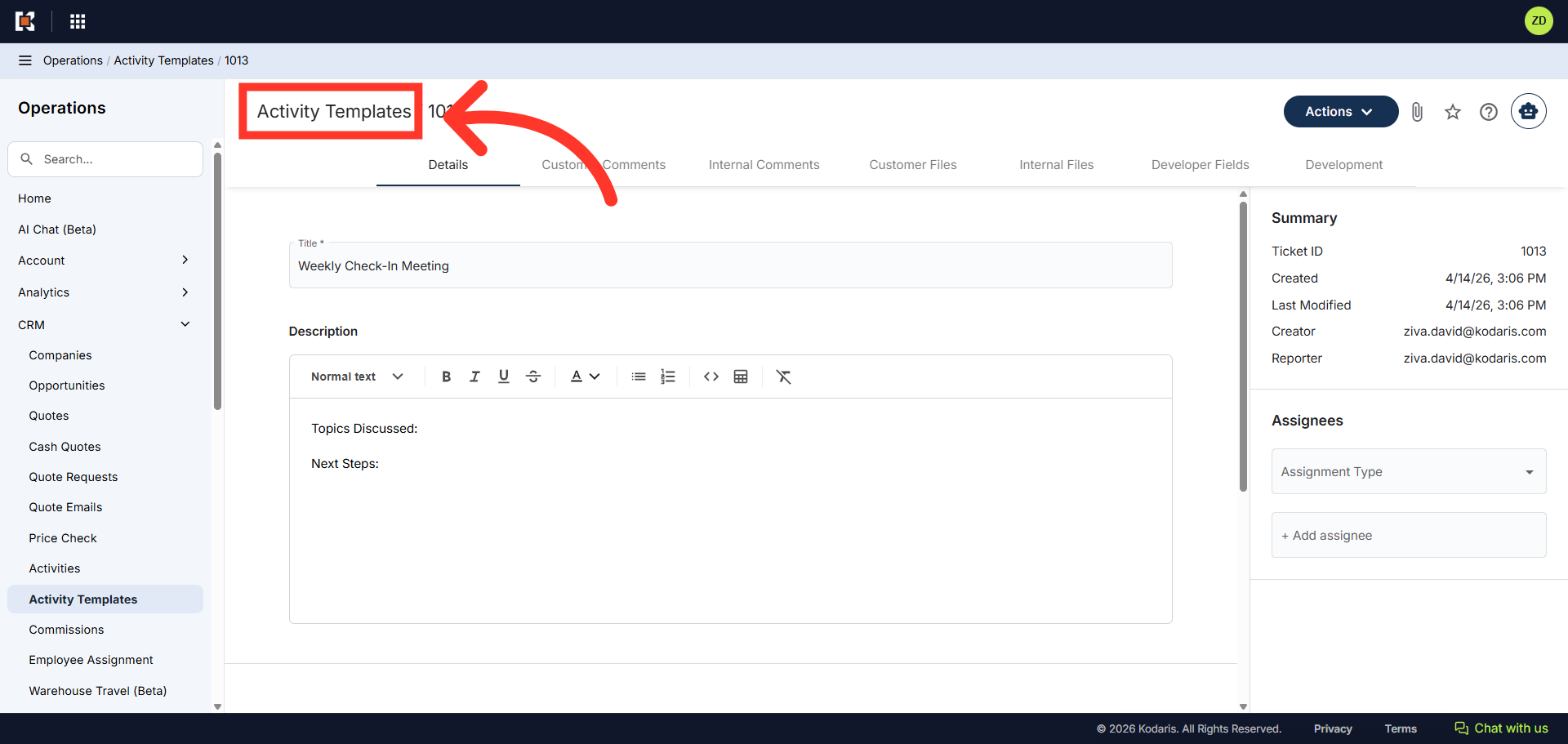
Click "Activity Templates"
Once you have entered the details on the Activity Template, click "Activity Templates" in the breadcrumbs to return to the Activity Template grid view.
Access Activity Template Tools
The Activity Template has been created and can now be used.