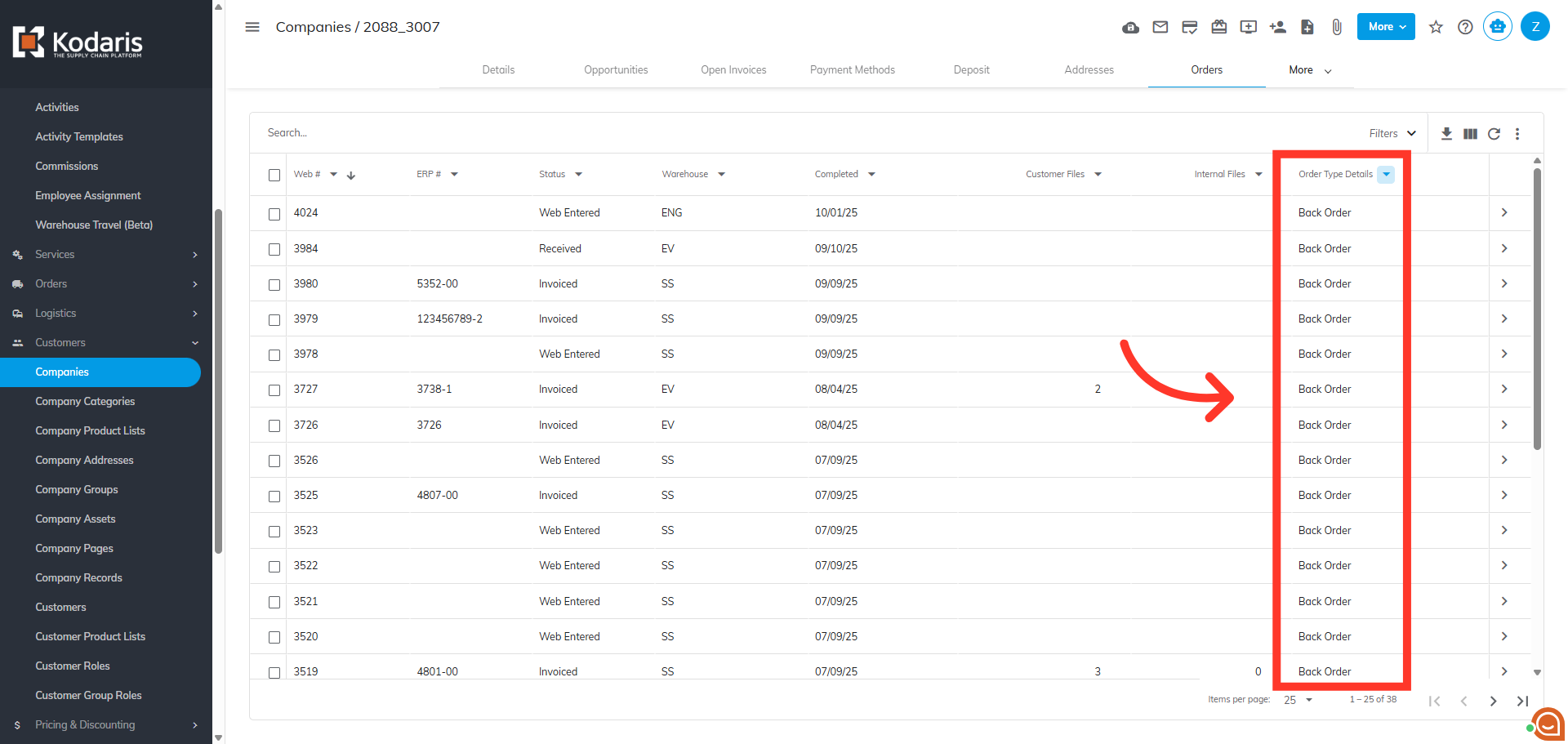
Operations Customers - View Back Orders in the Order Hierarchy Pane
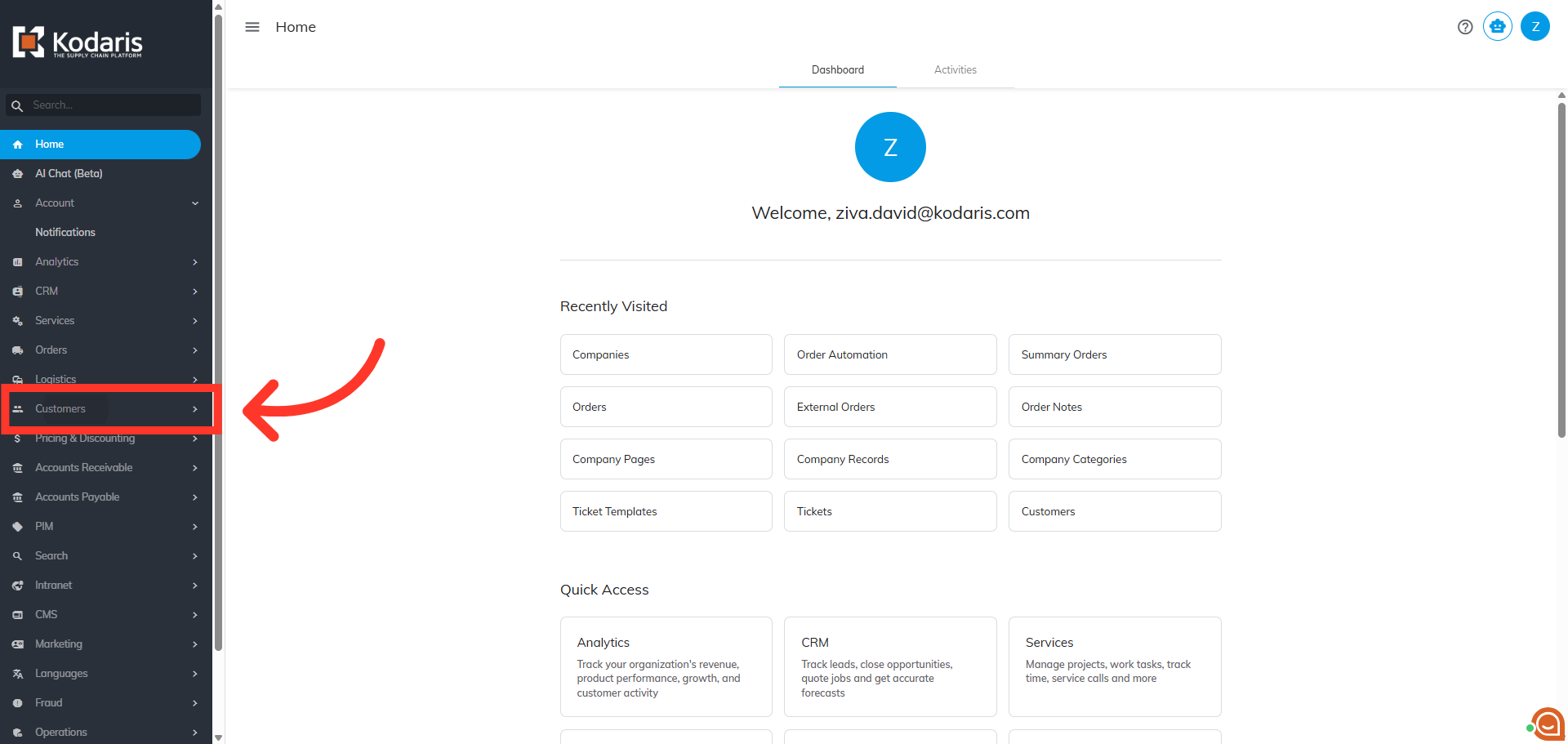
Navigate to "Customers" section
The Order Hierarchy Pane allows you to view back orders that are created in the ERP system and linked to their parent orders, providing a complete view of your order relationships. In order to view back orders on a customer account you will first need to navigate to "Customers" in the Operation Portal.
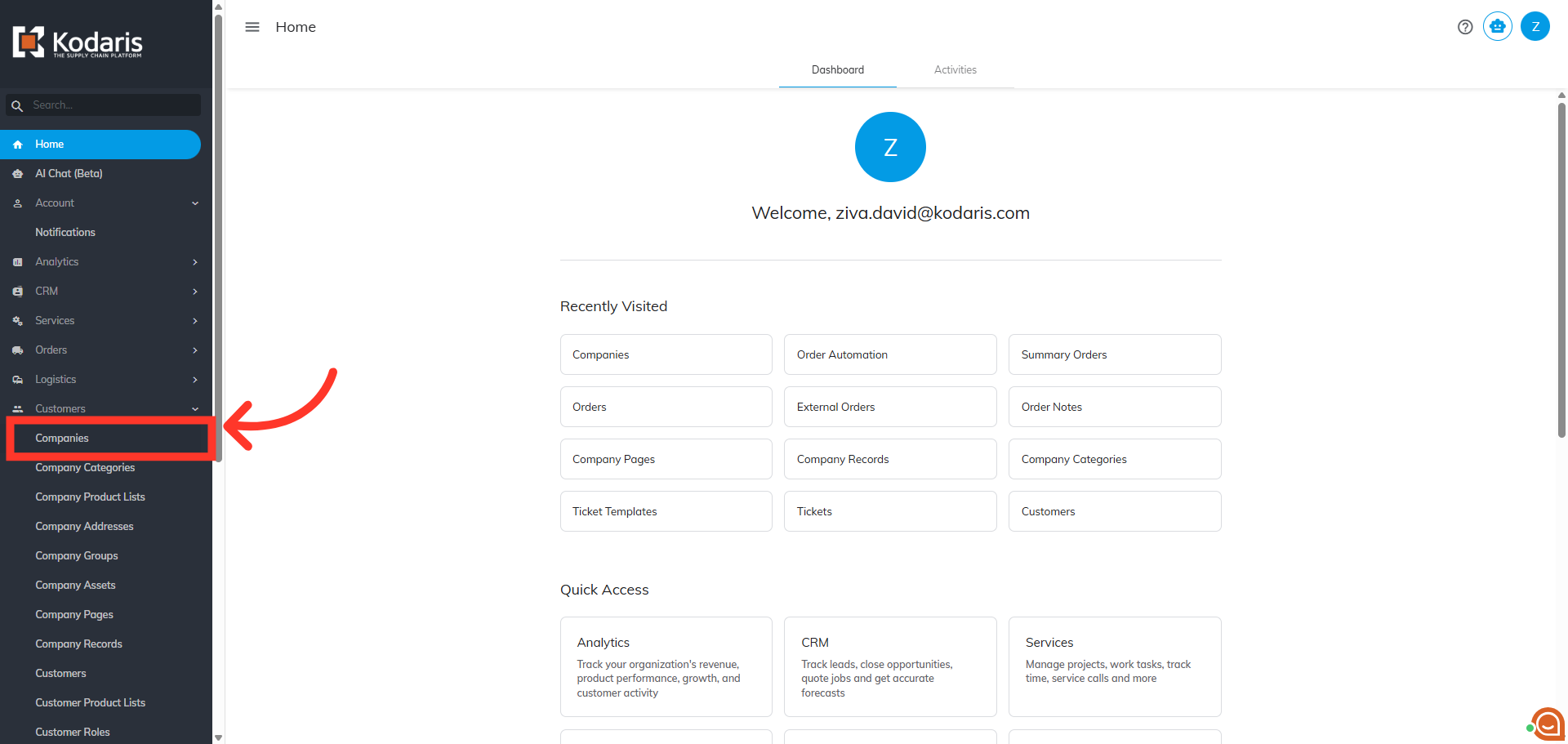
Click "Companies"
Then, click "Companies". In order to access "Companies" you will need to be set up either as an "administrator" or a "superuser", or have the appropriate roles: "companyView and companyEdit", or "crmCompanyView and crmCompanyEdit". Just a reminder, "crmCompanyView and crmCompanyEdit" access only allows employees to view companies that are assigned to them.
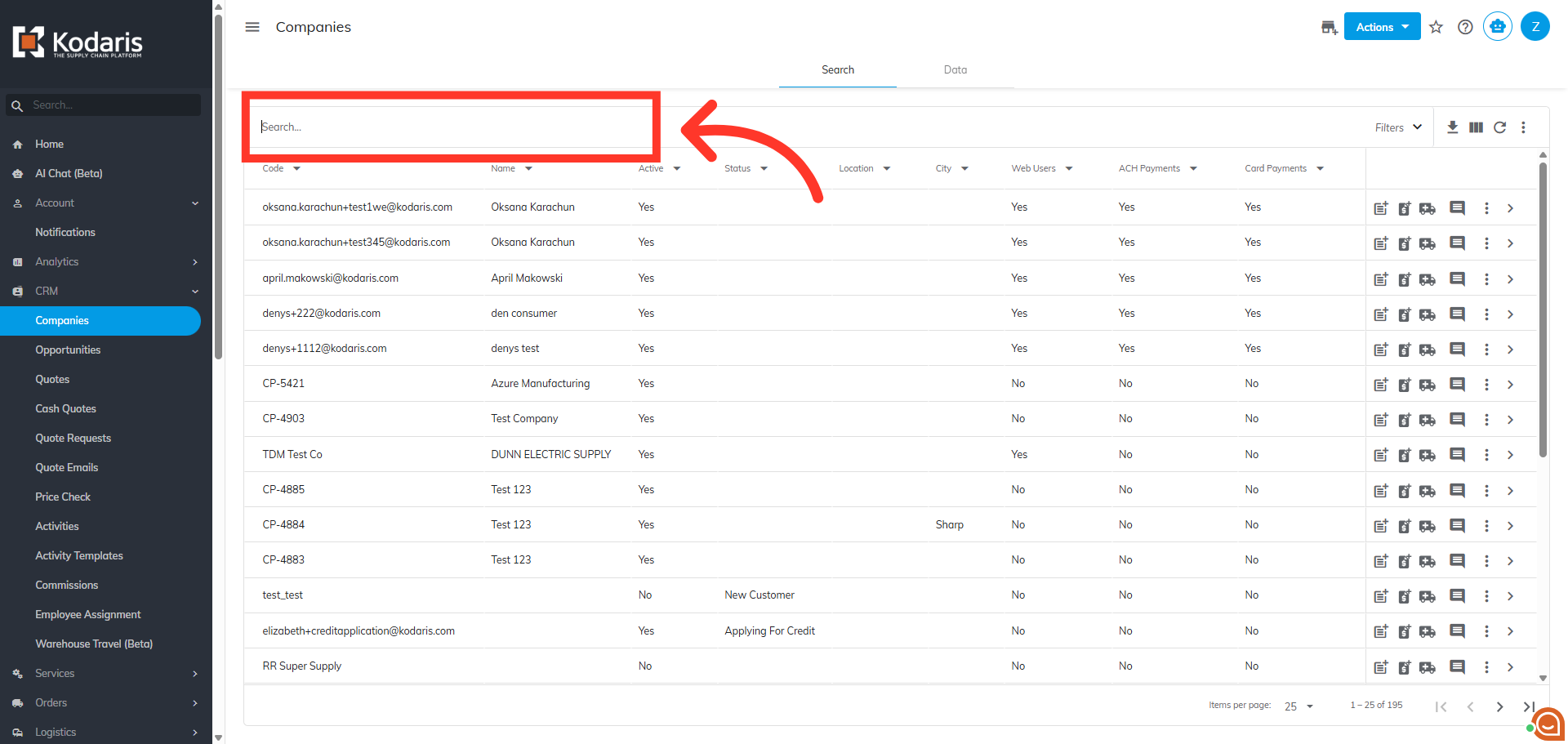
Search for the company
Search for the company with back order by typing in a keyword in the "Search..." field.
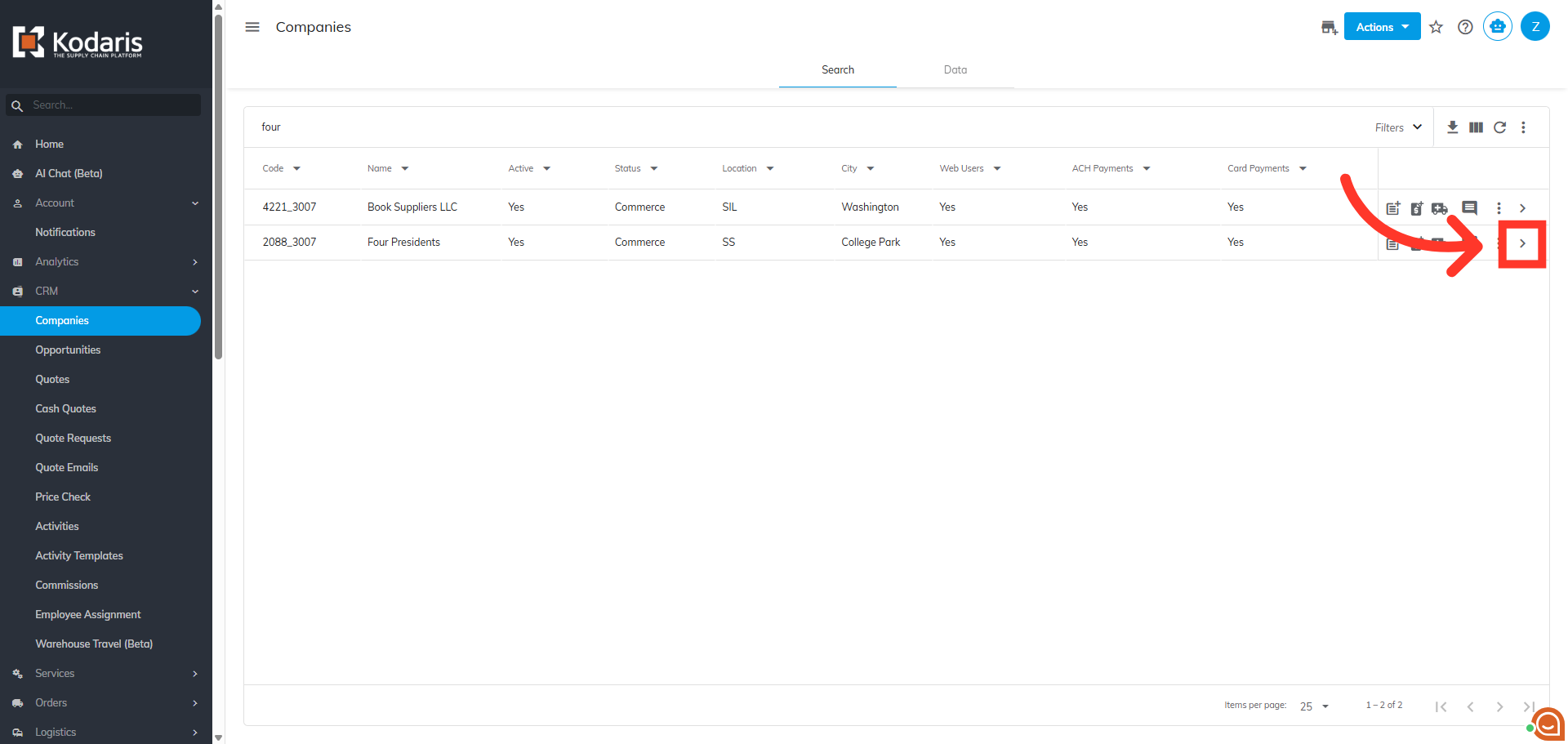
Click the more details icon
Then, click the more details icon to go to the details screen.
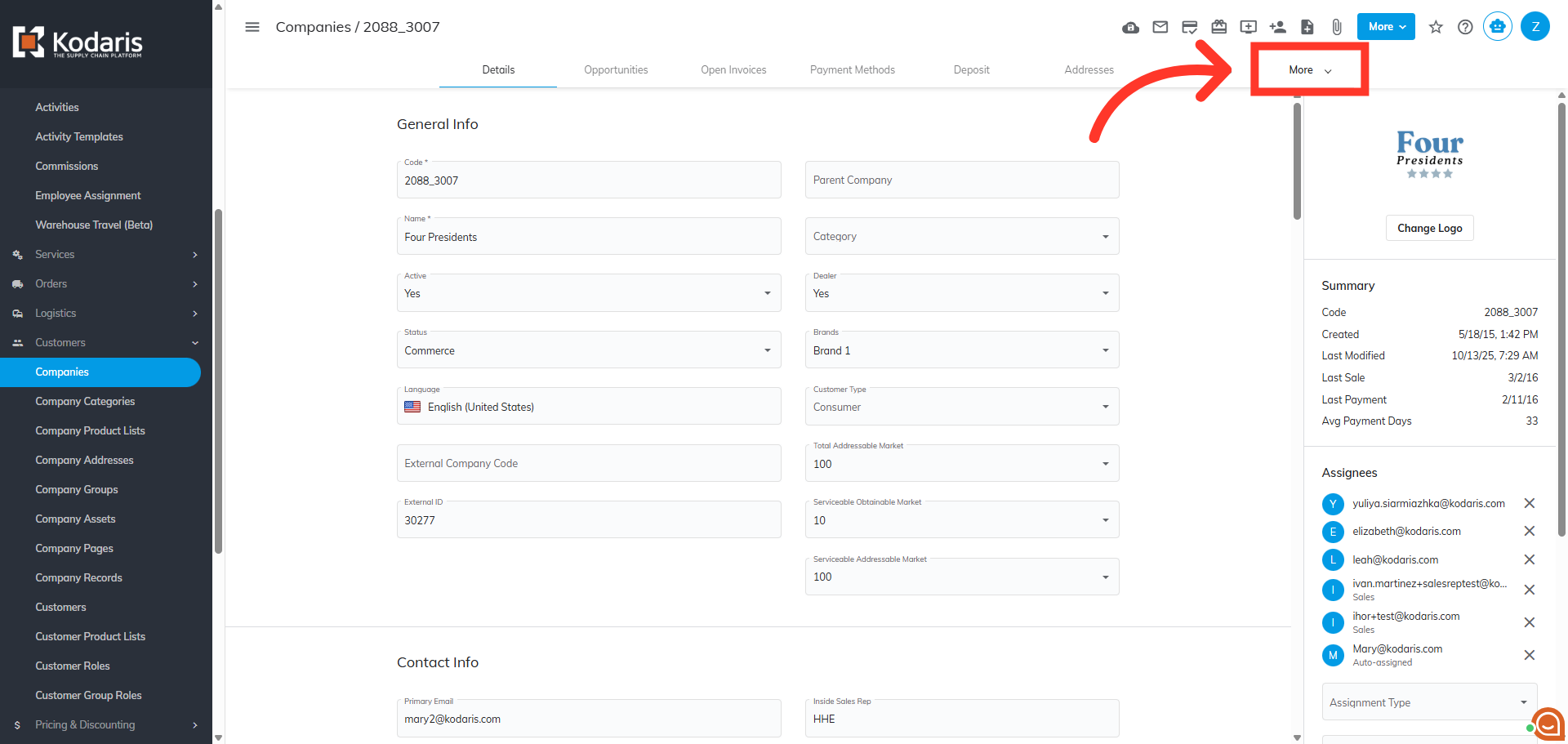
Click the "More" dropdown
Next, click the "More" dropdown to view additional menu options.
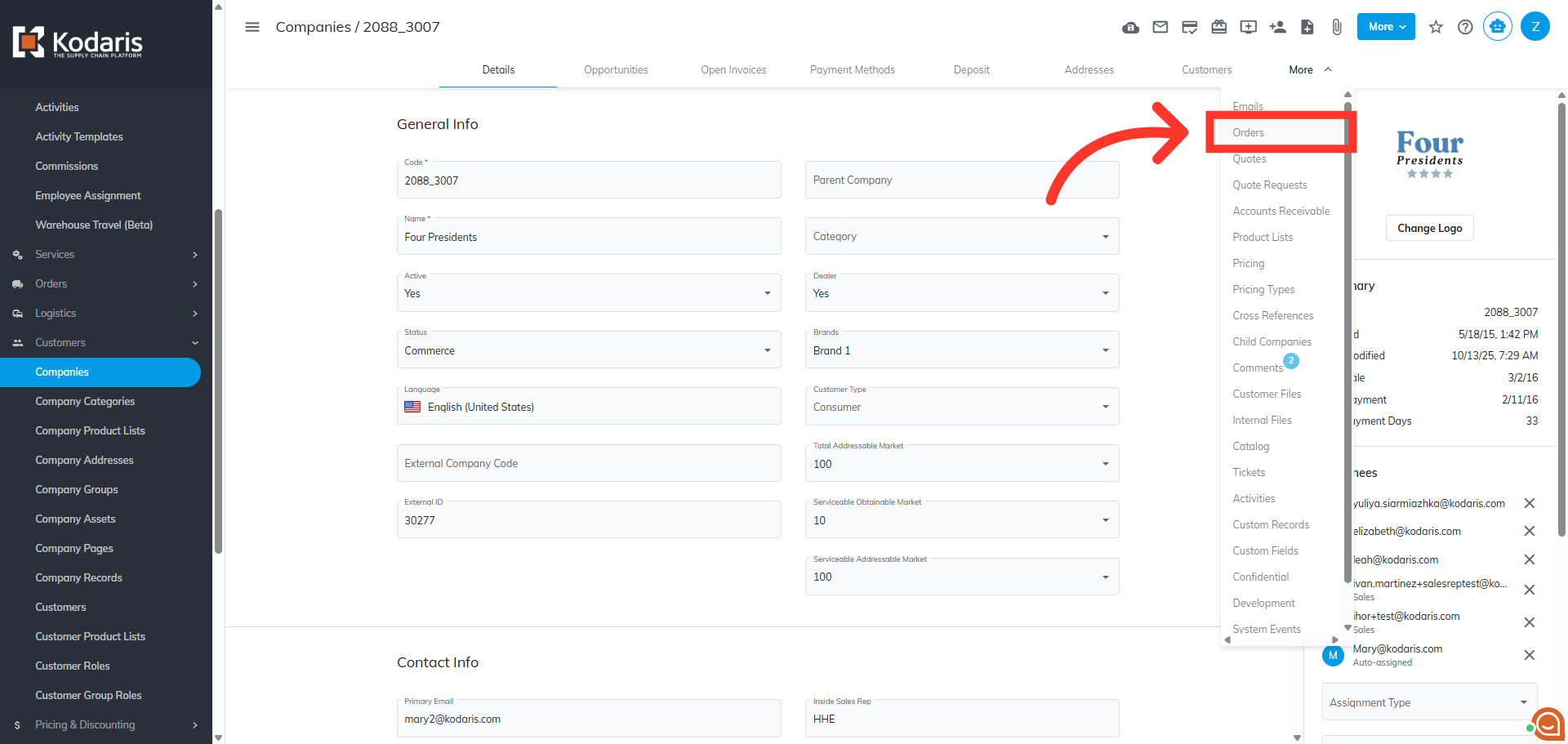
Click "Orders"
Then, click "Orders" to access orders on the account.
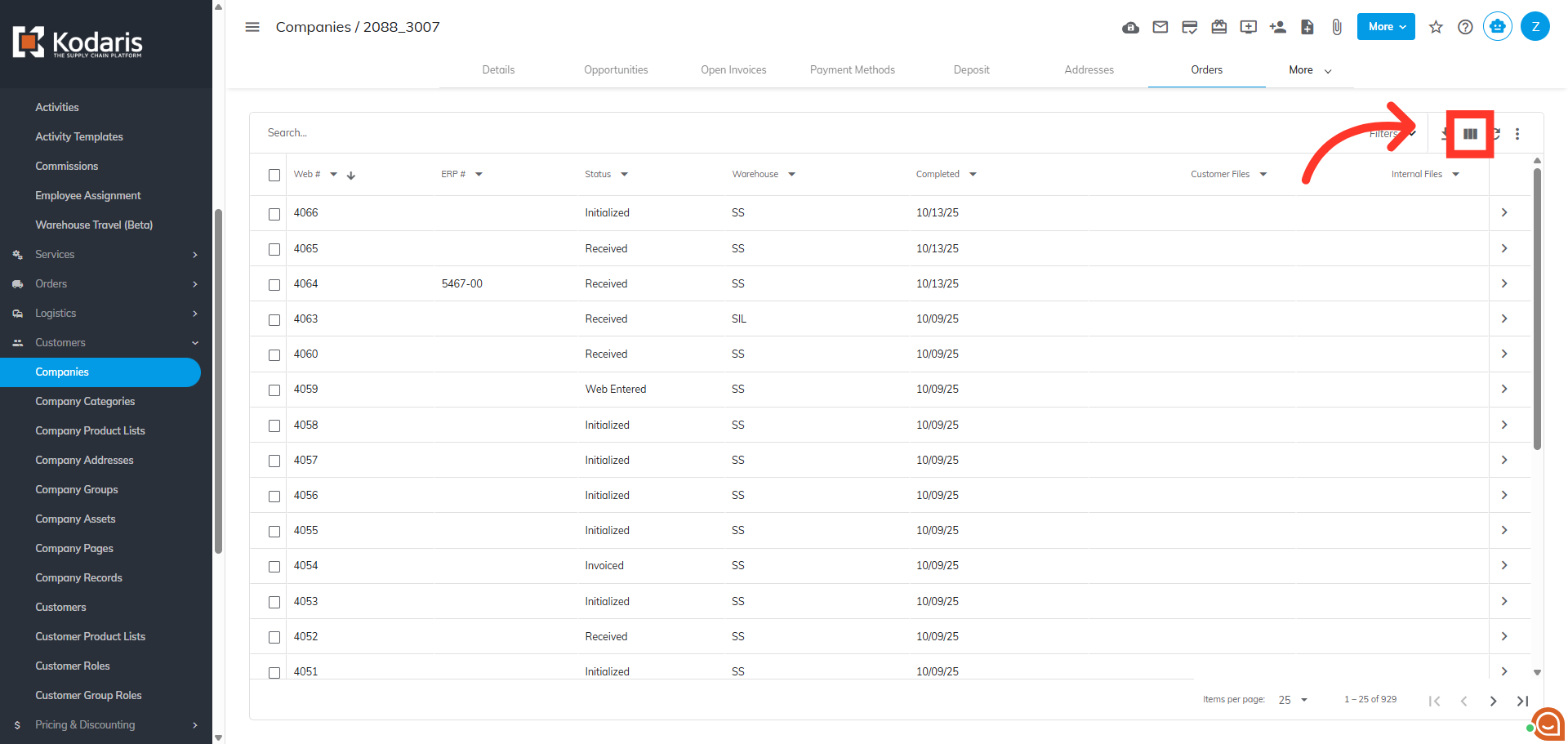
Click "Show/Hide" icon
Click on the "Show/Hide" icon to view additional column headers to view in the display grid.
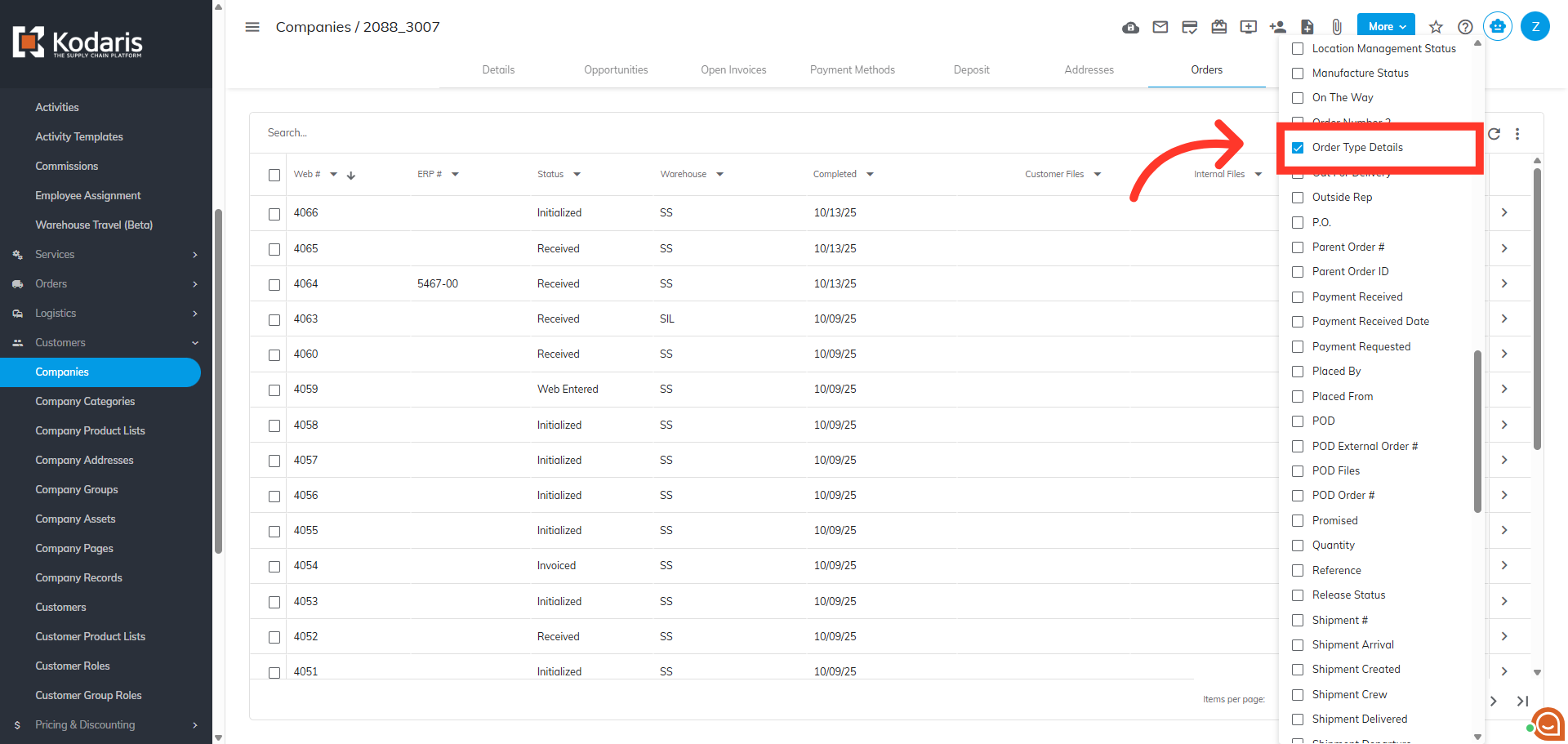
Choose "Order Type Details"
Choose, "Order Type Details" to add the column header to the order detail grid.
Filter by Order Type
Then, click the dropdown arrow and select "Back Order" from the order types to filter the orders and specifically view orders that are pending fulfillment.
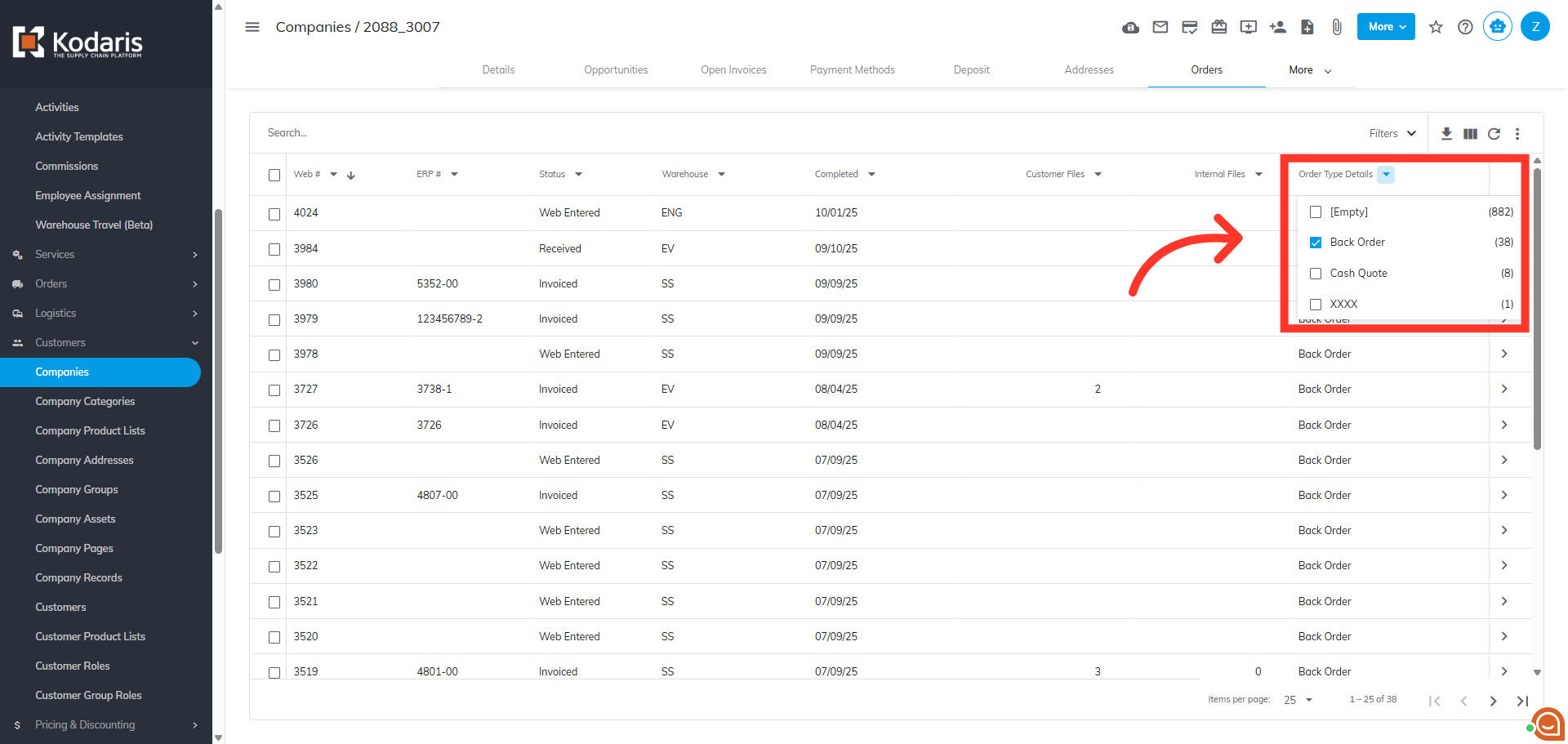
Back Orders are displayed in the grid
All back orders for the company are now displayed in the grid. You can access order details such as the parent order number and items on the back order, by clicking on the more details icon for the specific back order.