Operations Customers - Display or Hide Shiptos on the Commerce Site via Import
Navigate to "Customers"
To display or hide ship-to's on the commerce site by import, navigate to the "Customers" section in the Operations Portal.
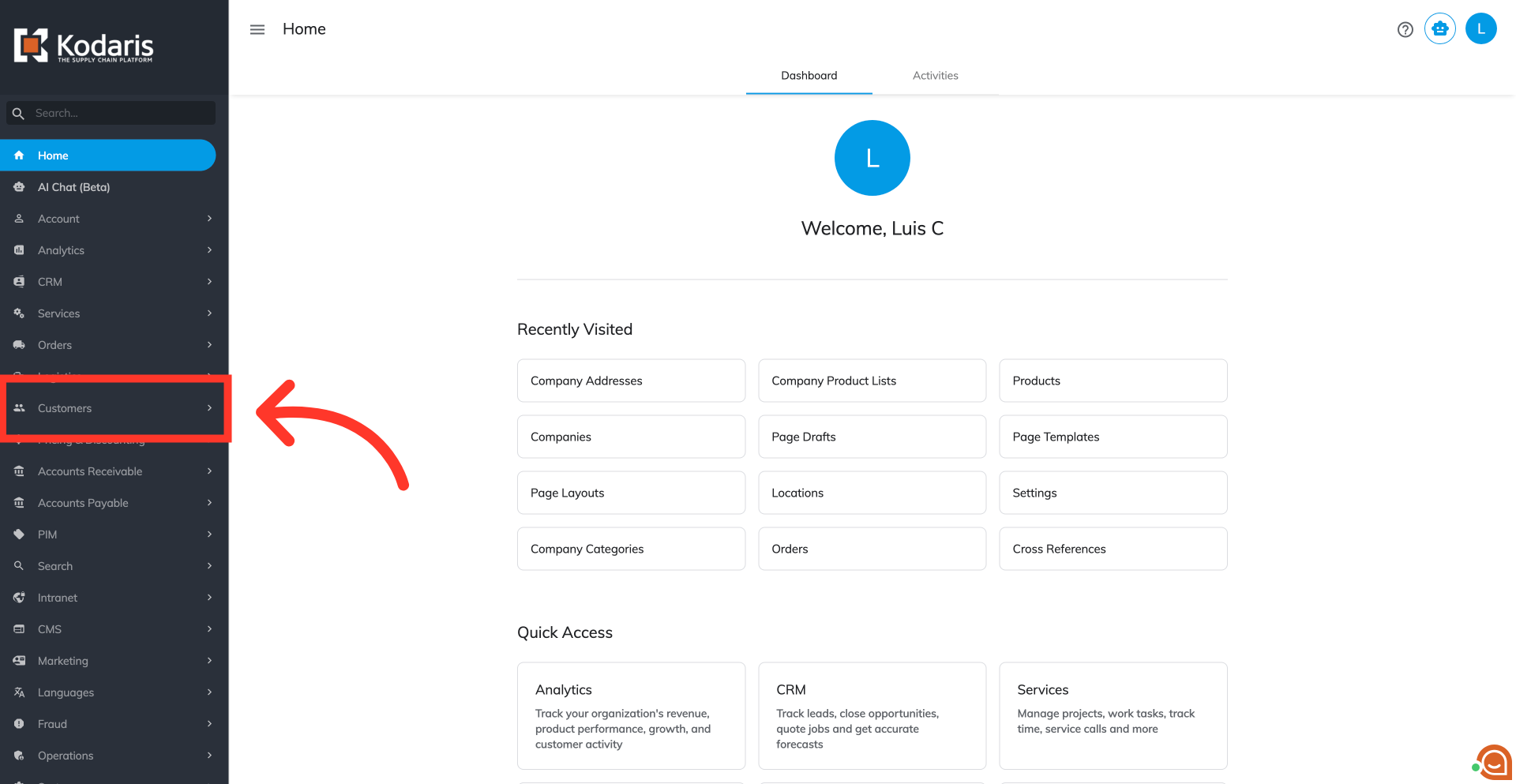
Click "Company Addresses"
Click "Company Addresses". In order to access and update "Company Addresses",the account must be set up either as an "administrator" or a "superuser", or have the roles of "companyAddressEdit" and "companyAddressView", along with "importEdit" and "importView". These last two roles are needed for importing.
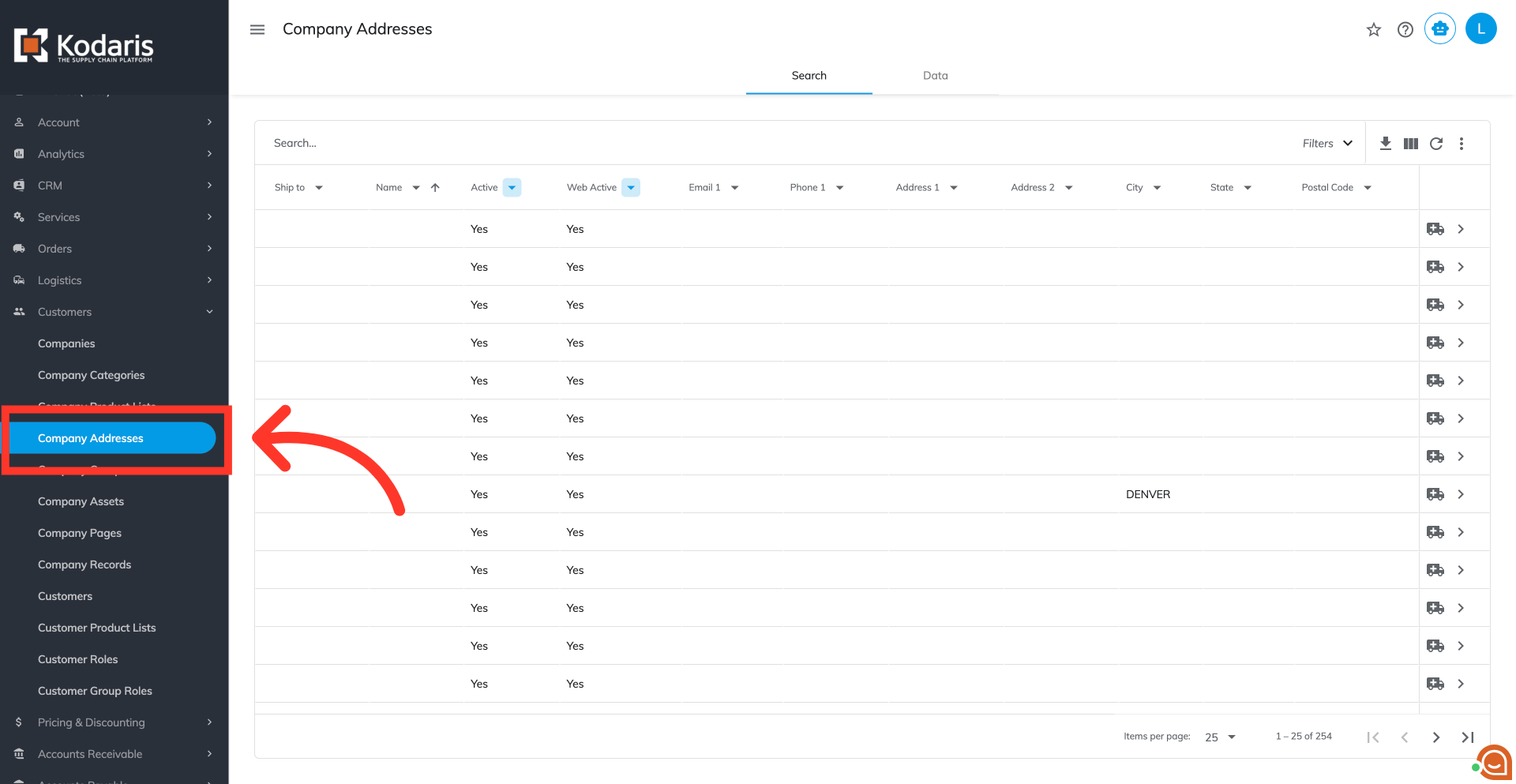
Go to the "Data" tab
You can create a new import file or use exported data to create your import file. To export, go to the "Data" tab.
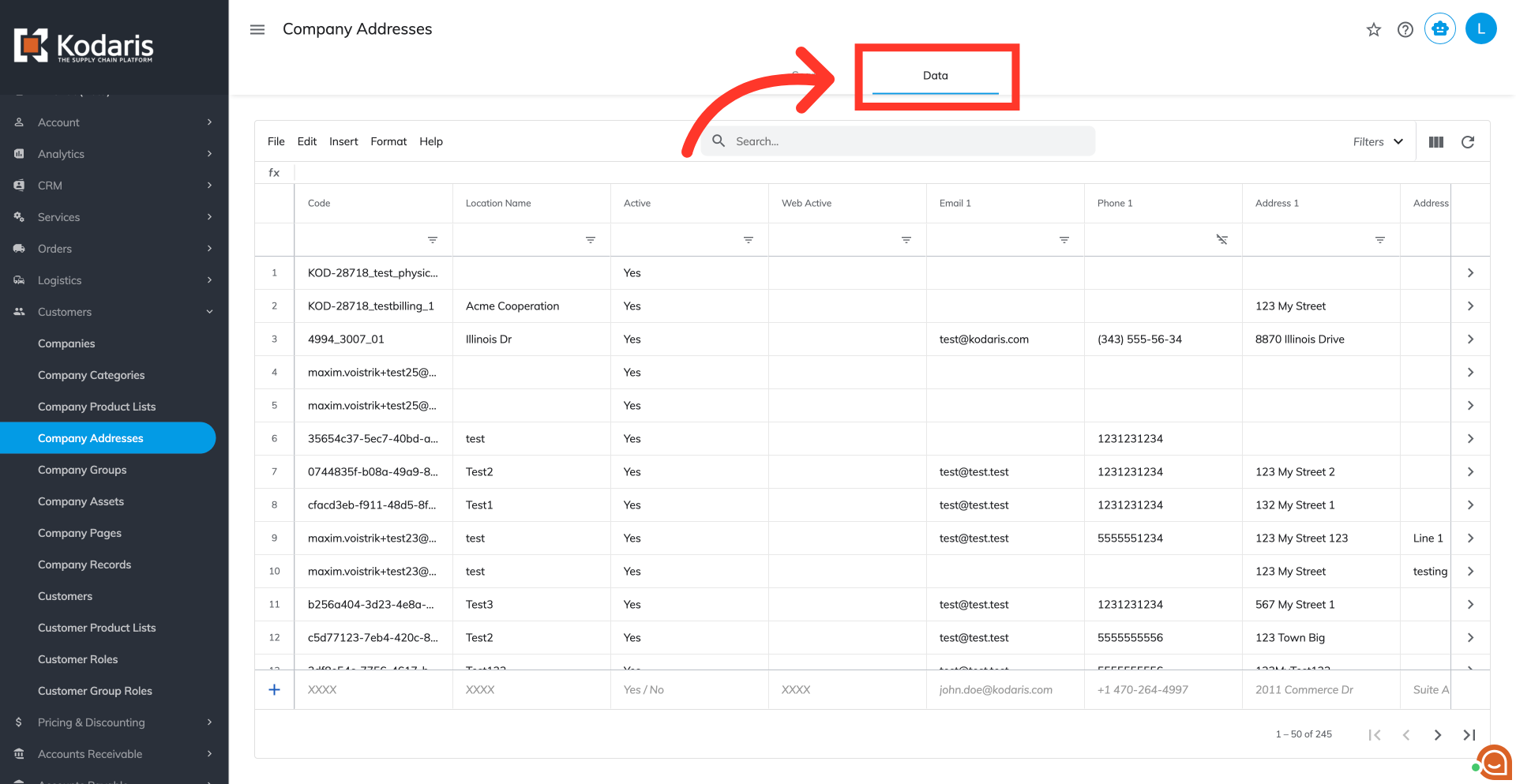
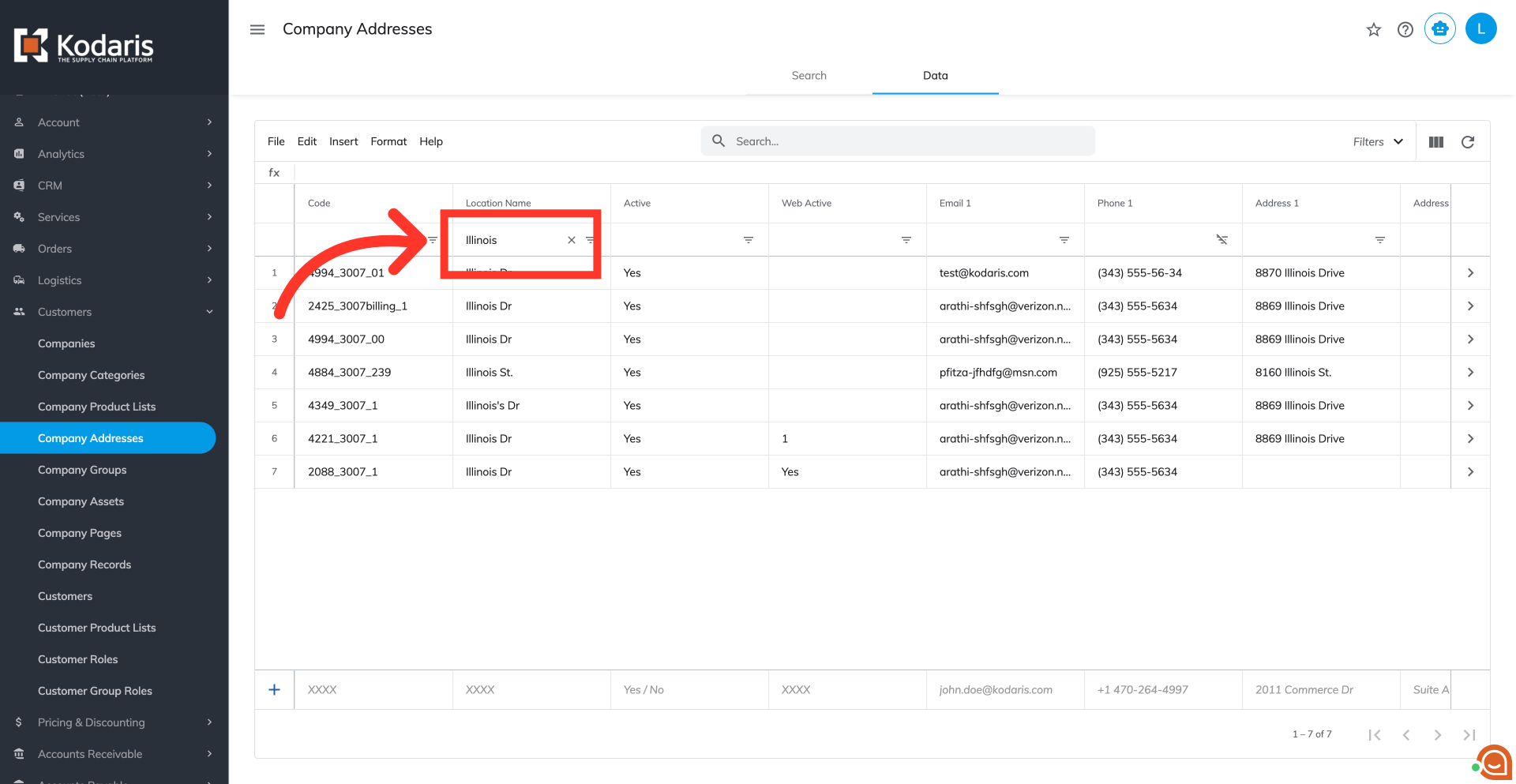
Filter locations
You can narrow down the data on your screen by using the column filters.
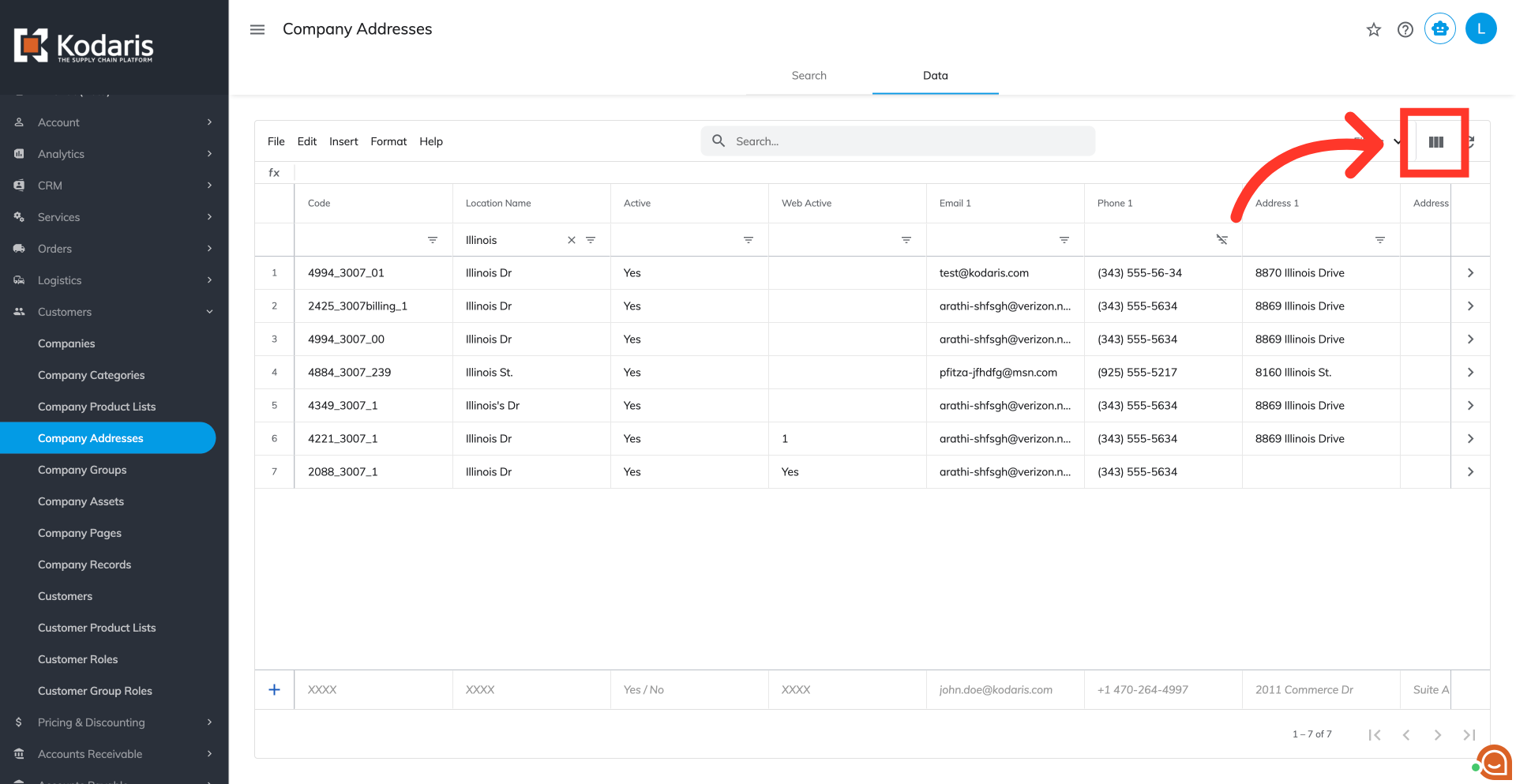
Click "Show/Hide Columns" icon
Click the "Show/Hide Columns" icon.
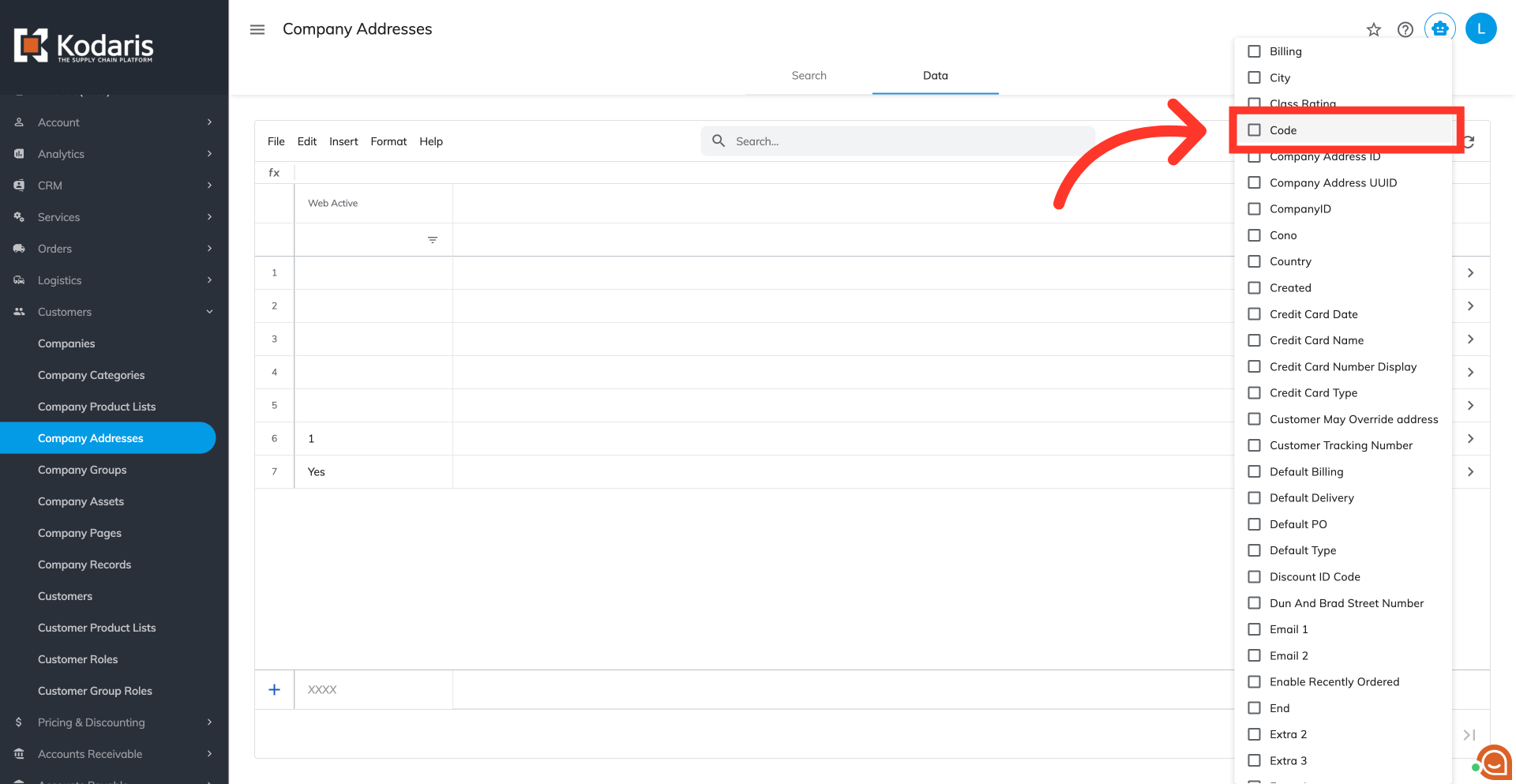
Select the needed columns
Be sure that the "Code" and "Web Active" columns are selected. These two fields are required for importing. To simplify the export data, you can uncheck any columns that do not need to be updated by import.
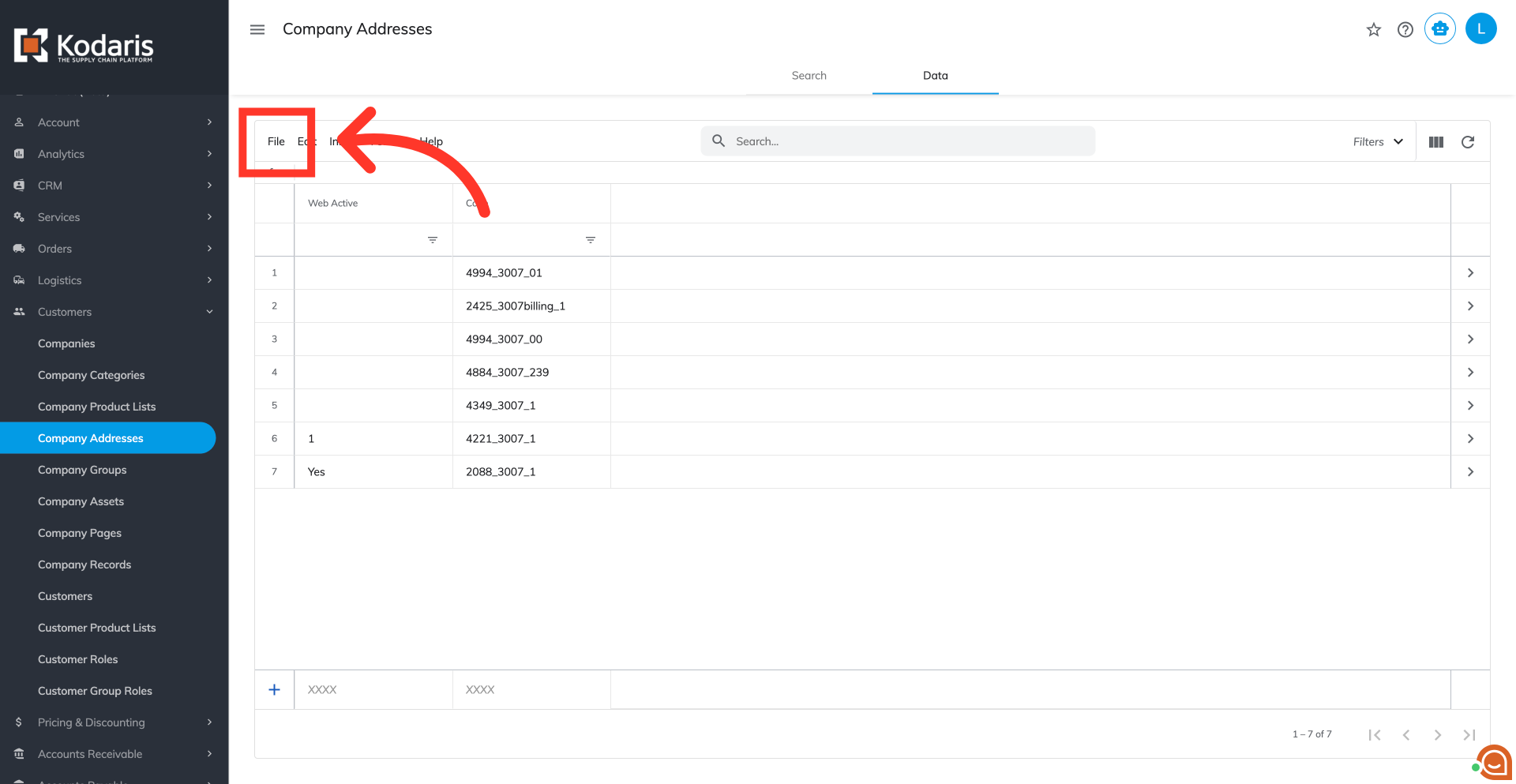
Click "File"
Click on the "File" menu.
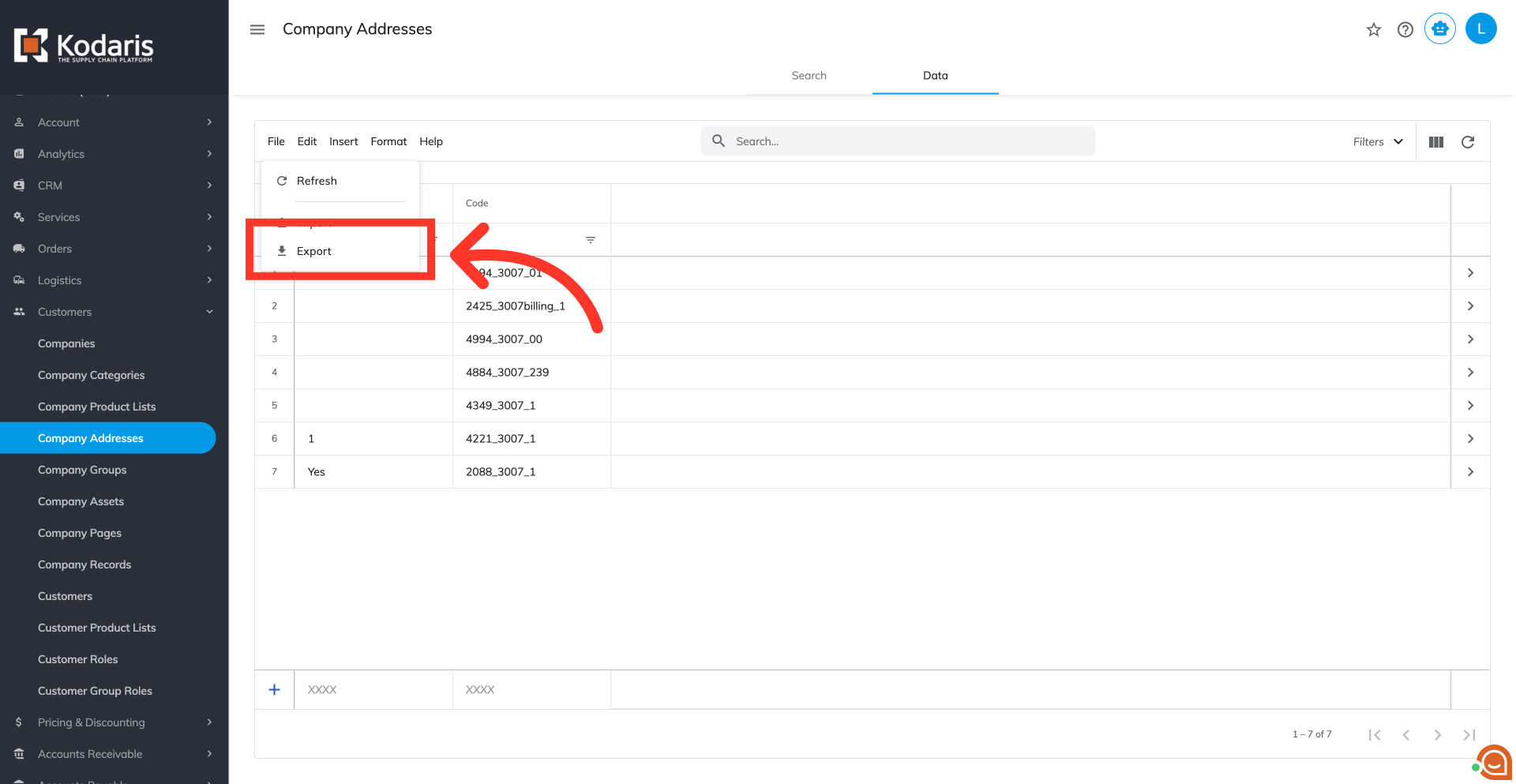
Click "Export"
Then, select "Export." This exported file will serve as a template for your import as it has the necessary column headers.
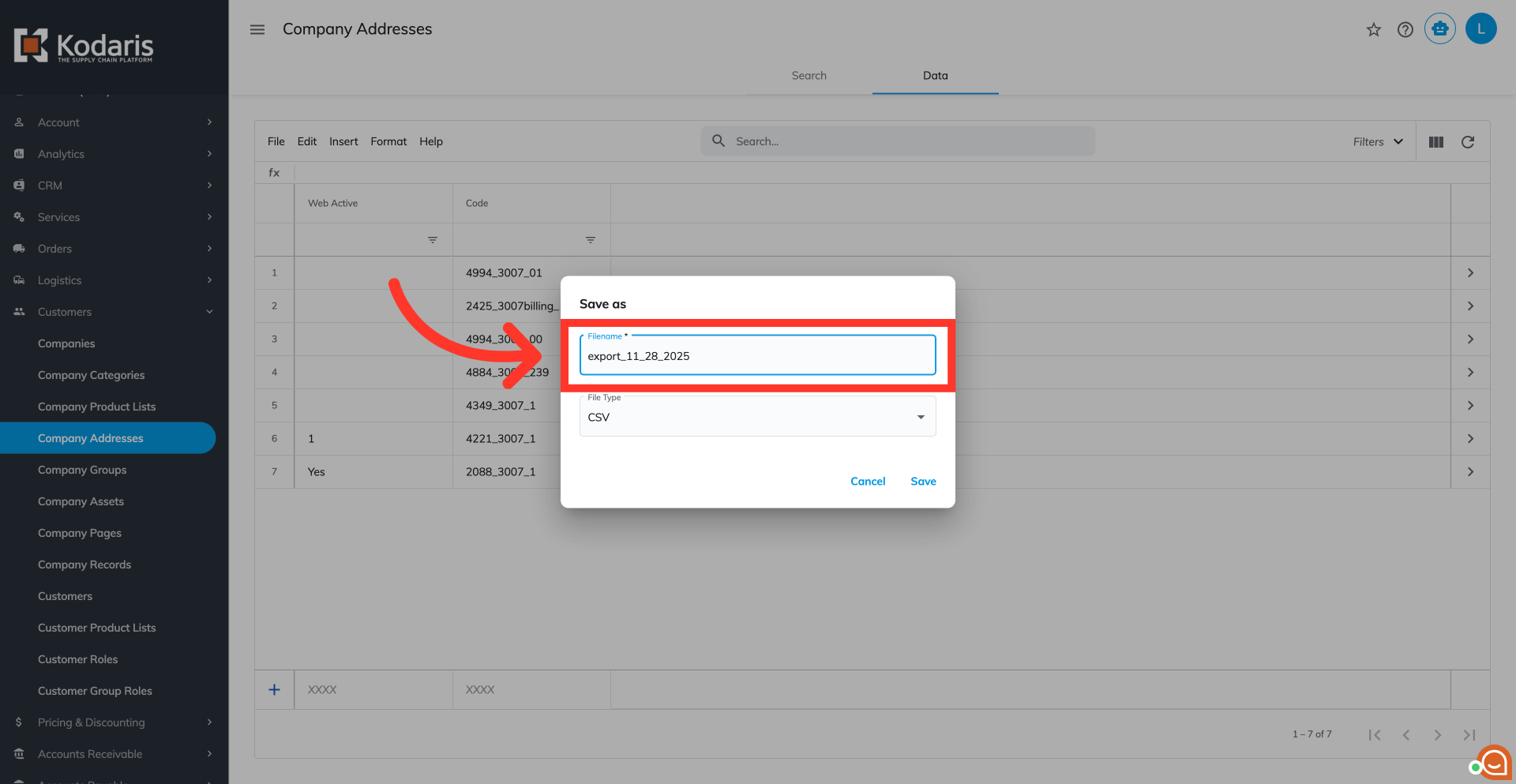
Rename the file, if needed
Rename the file, if needed.
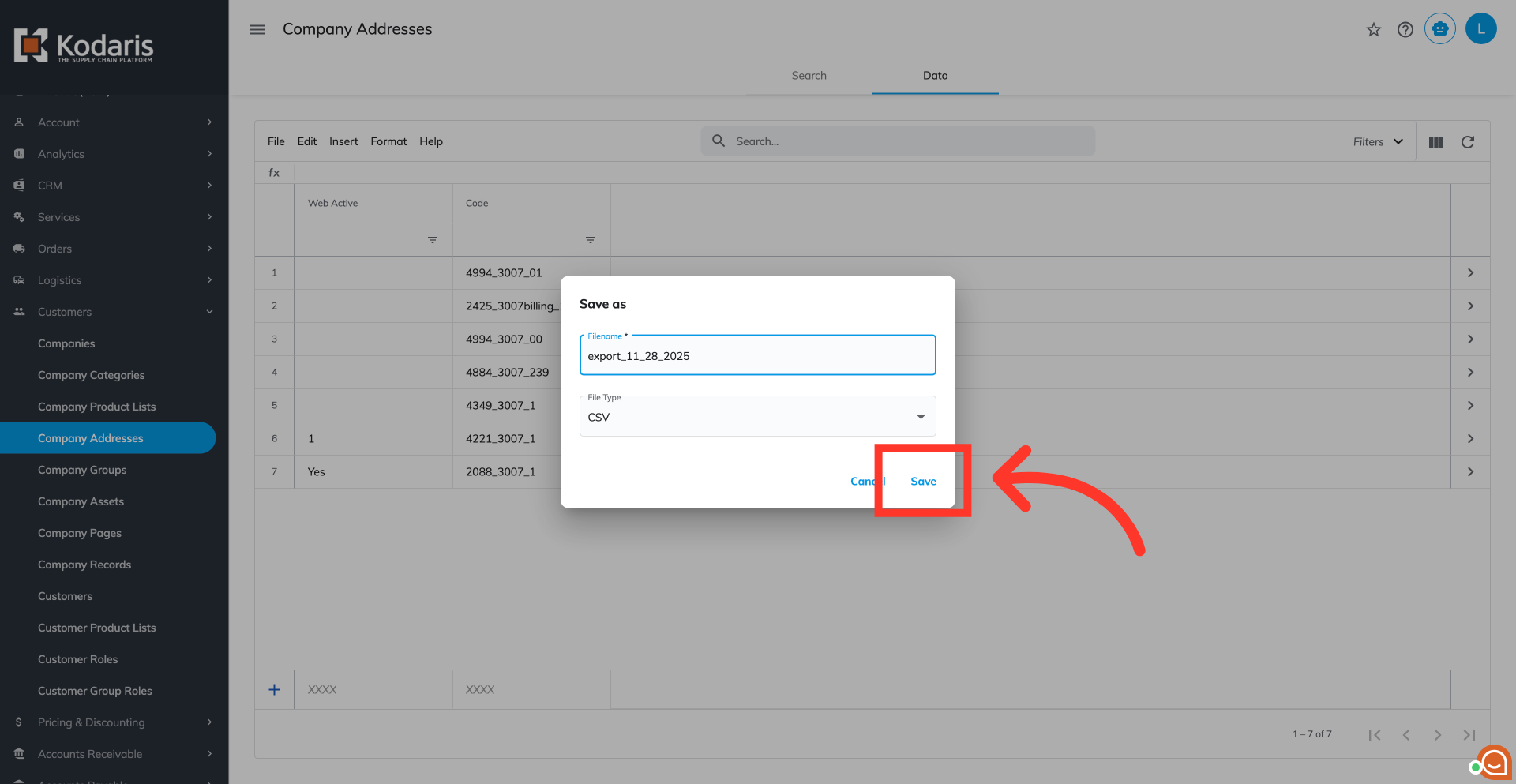
Click "Save"
Then, click "Save."
Exported CSV
This export will include the "companyCode" column by default. This can be removed as it is not required for the import. Prepare the spreadsheet with the required column headers and data for the import.
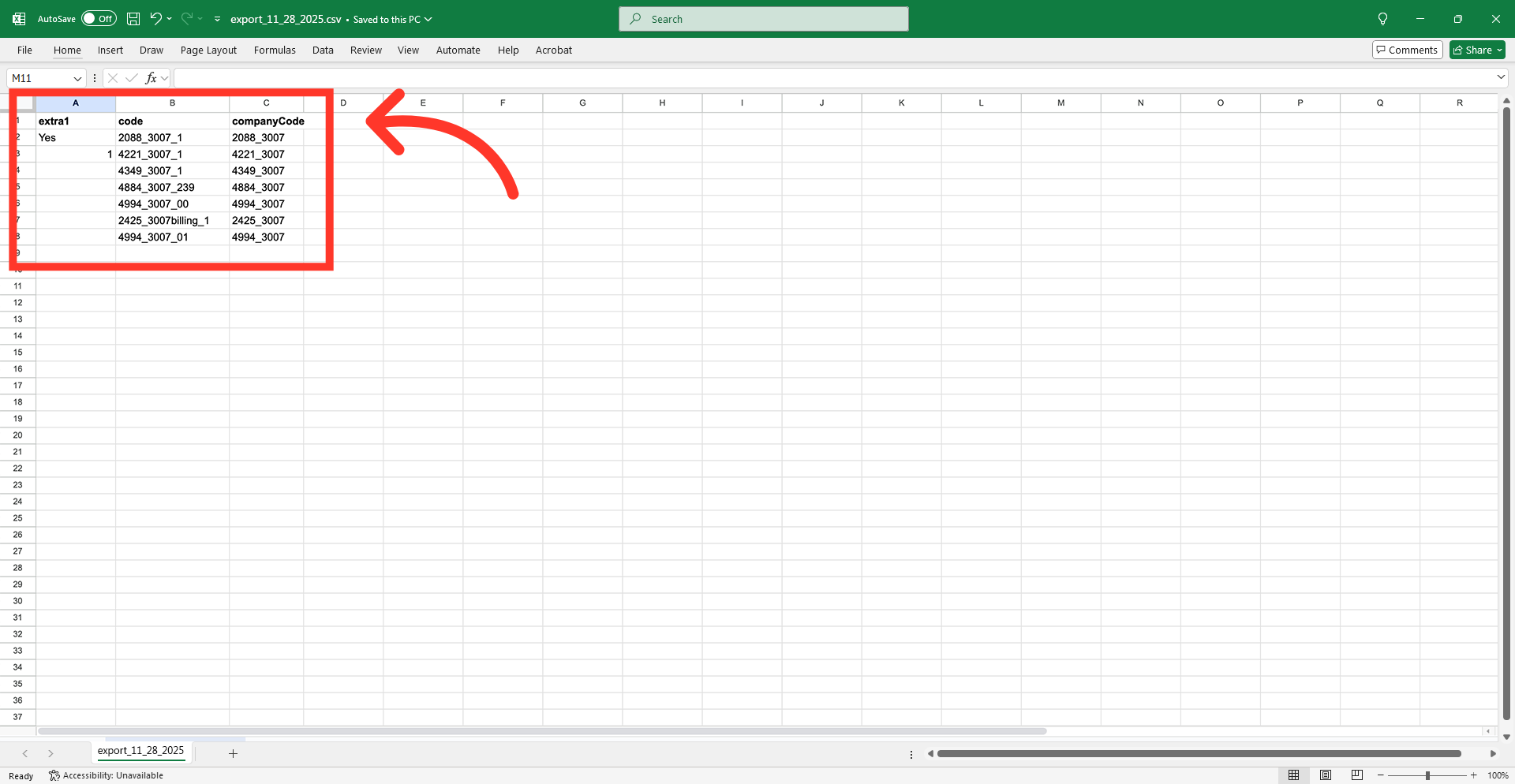
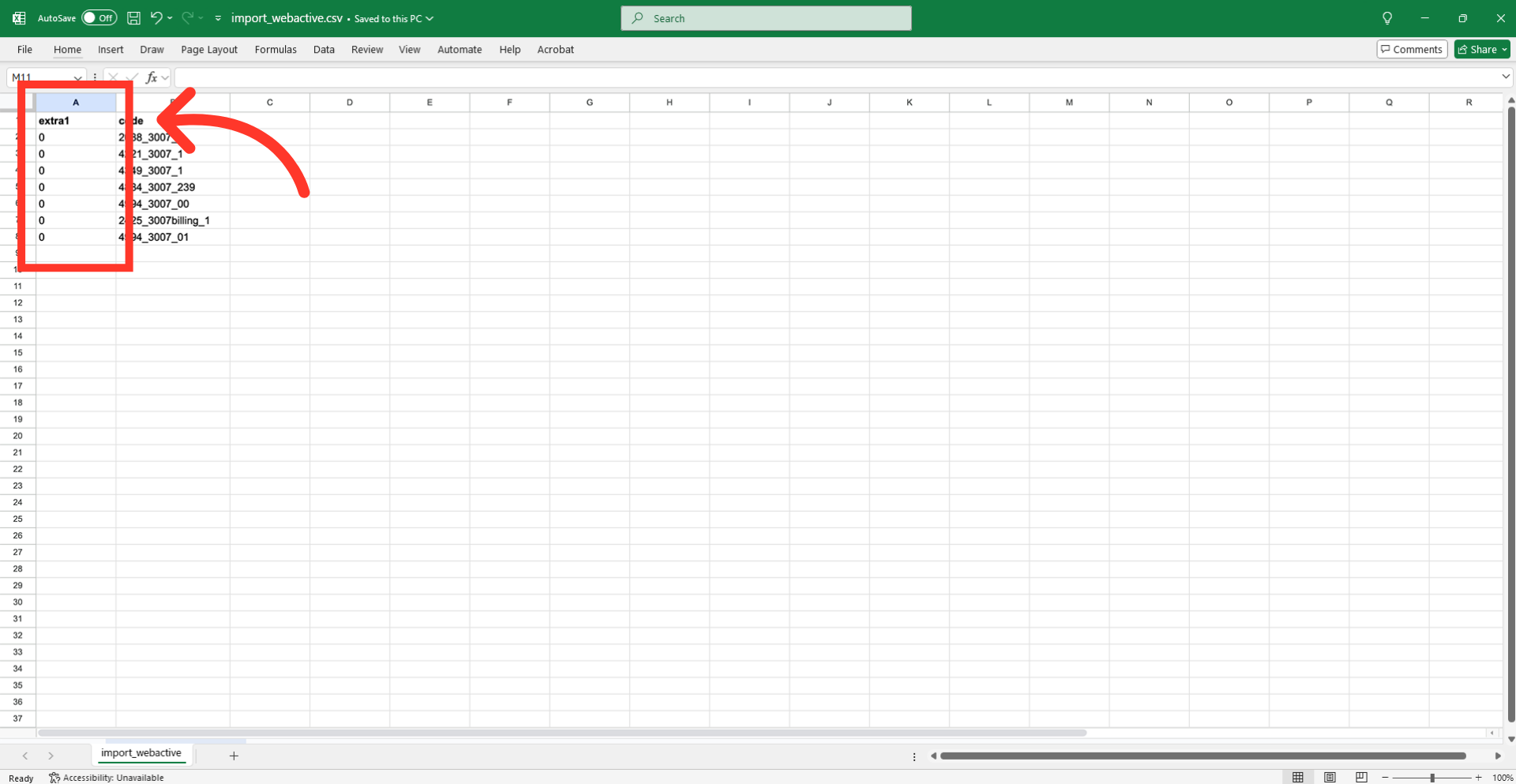
"extra1" = Web Active
The "extra1" field controls the Web Active status. To HIDE shiptos from the commerce website, set the extra1 value to 1. To DISPLAY shiptos on the commerce website, set the extra1 value to 0.
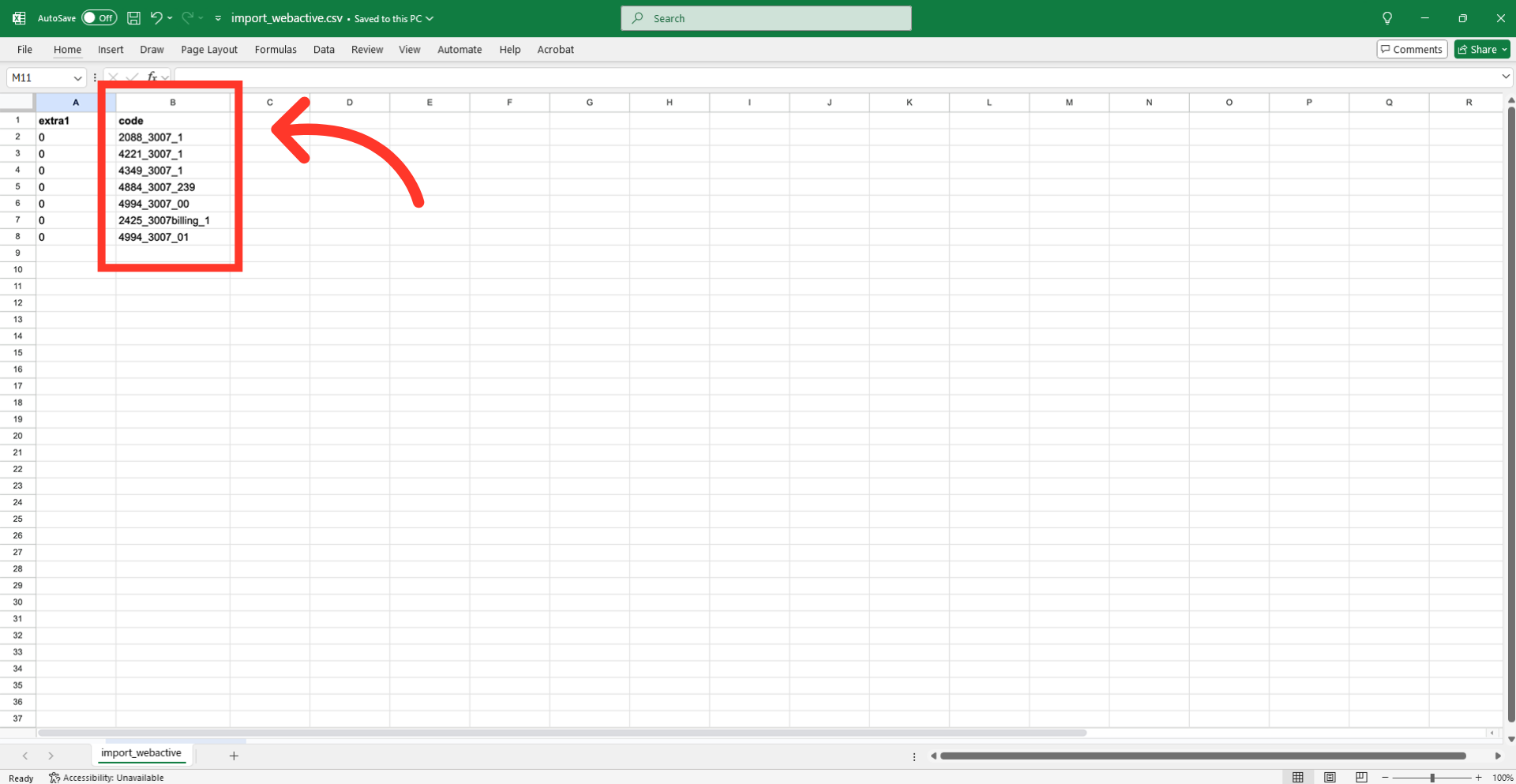
"code" = Company address code
The "code" value from the exported file must remain unchanged. These values serve as identifiers for the system to correctly recognize which shipto location requires updating.
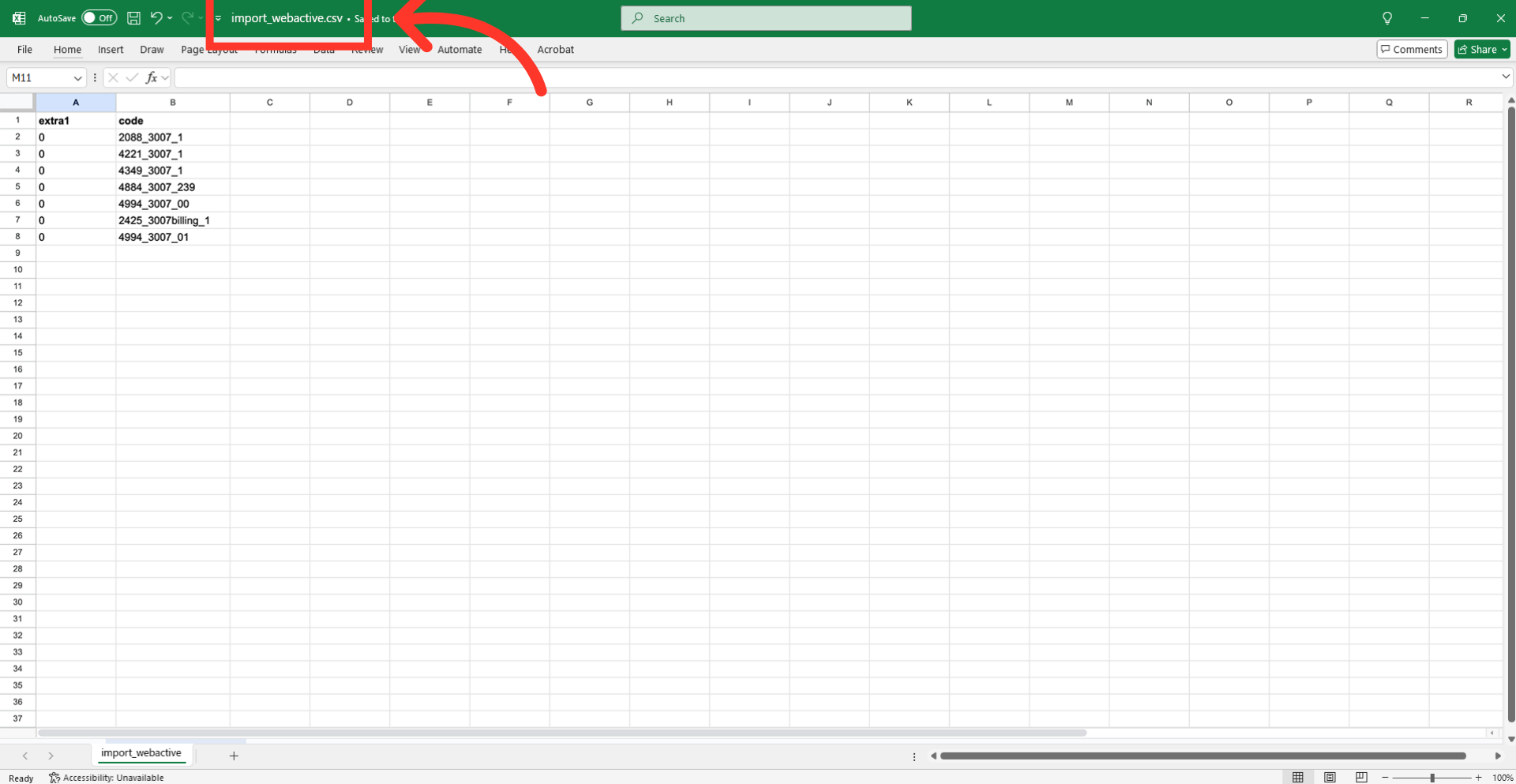
Save your CSV for import
After completing the necessary changes, save the spreadsheet as a "CSV" file for import. Ensure the spreadsheet contains only the data you intend to update.
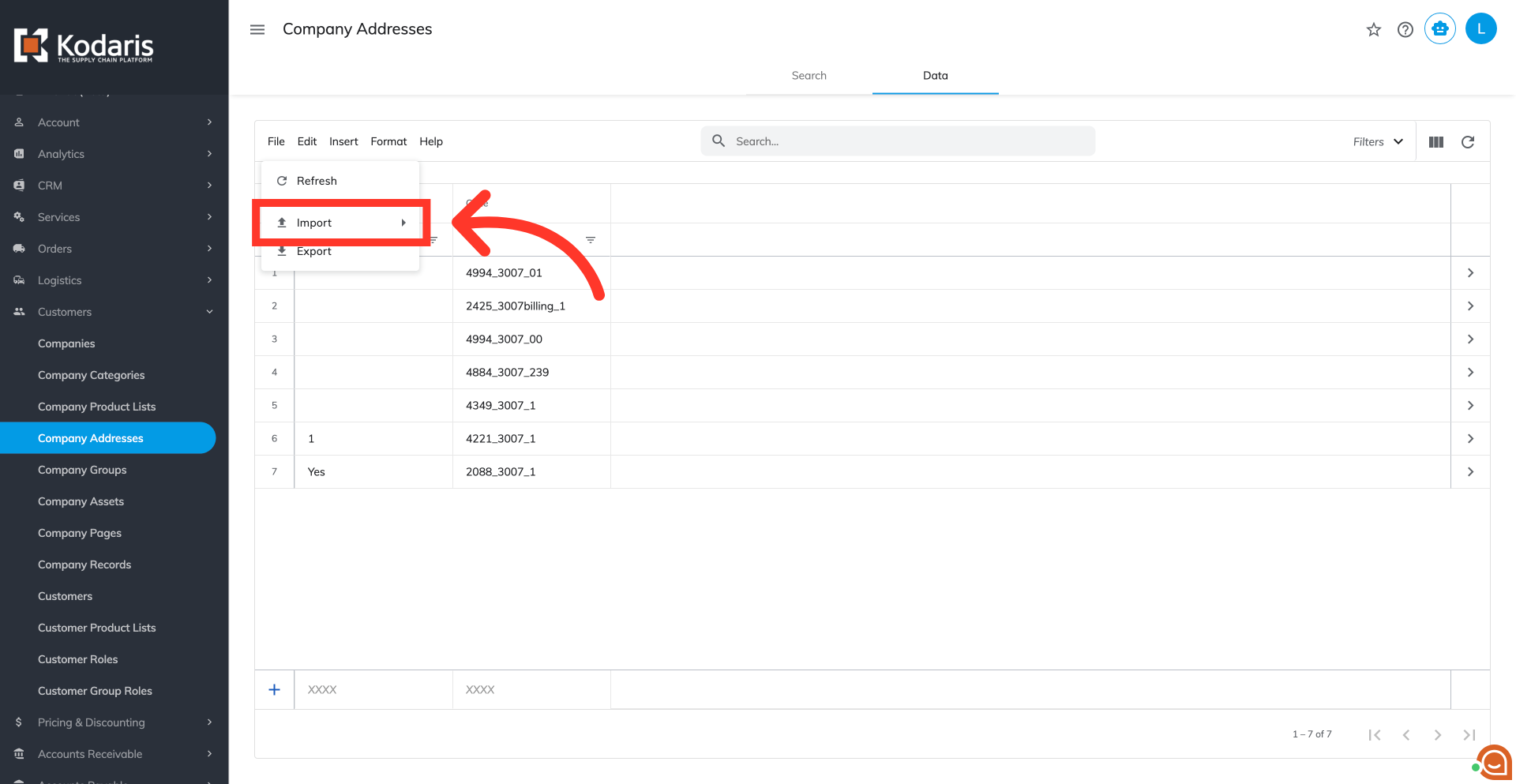
Click "Import"
Now, you're ready for the import process. Go back to the "File" menu, and click "Import" to open the import options.
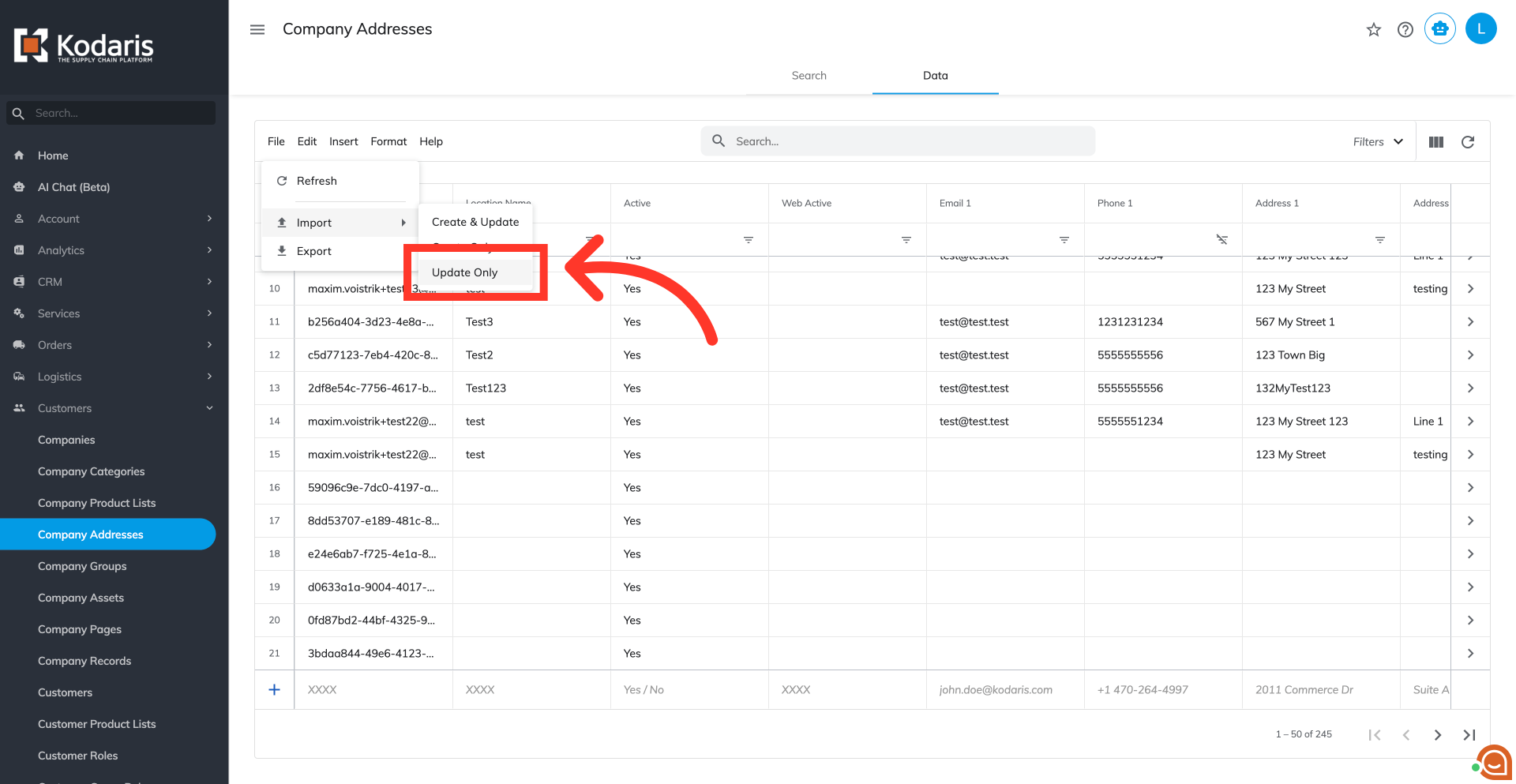
Select the "Update Only" option
Select the "Update Only" option as we only need to update existing data.
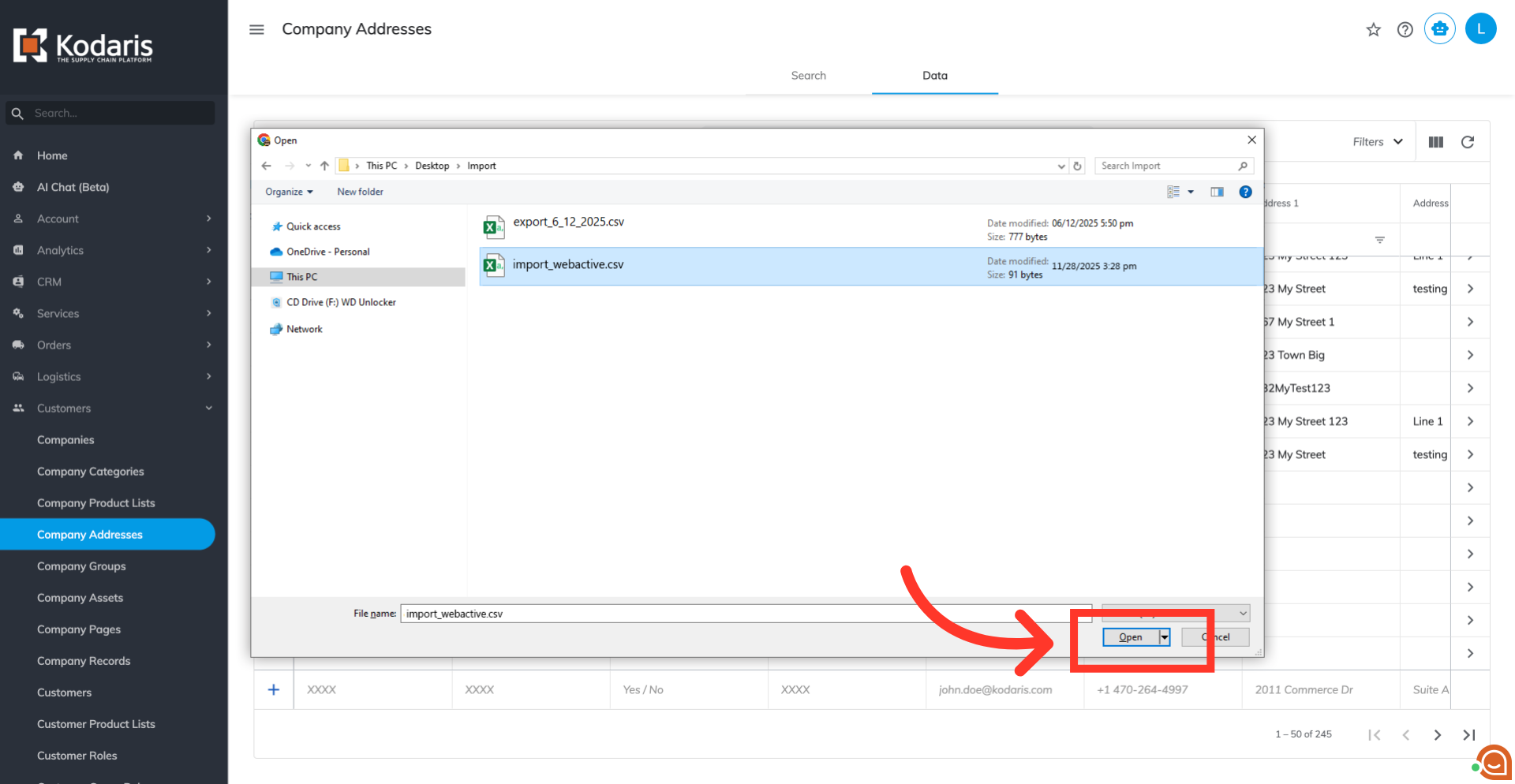
Select the file and click "Open"
You will be asked to upload a CSV file from your computer. Select the import file that you prepared and click "Open". Please be sure that you select the correct file, as there are no rollbacks for imports. If you are importing large amount of data, it may take a short amount of time to complete. The import will continue to run in the background.
Import Report
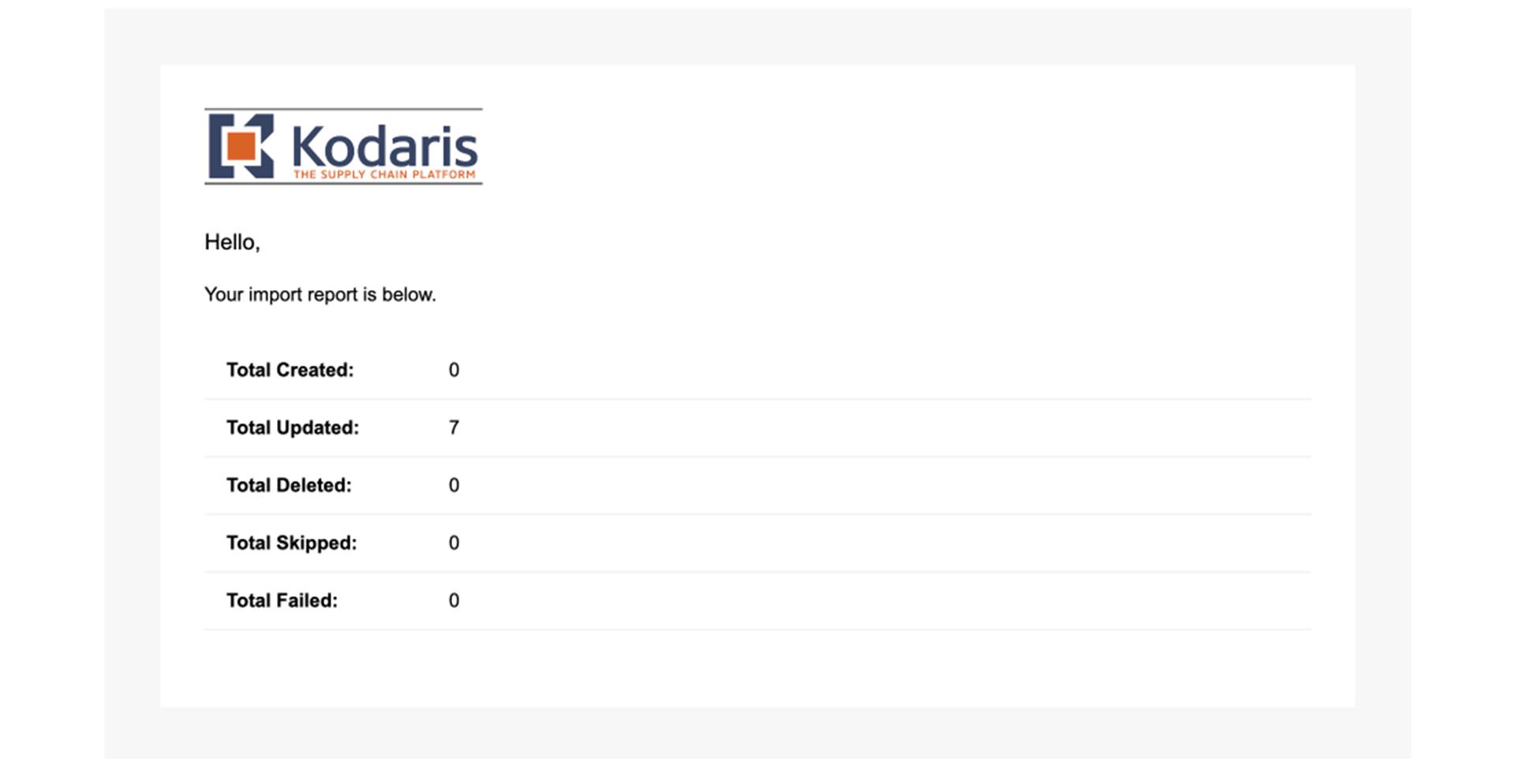
Once the import is complete, you should receive an import report in your email.