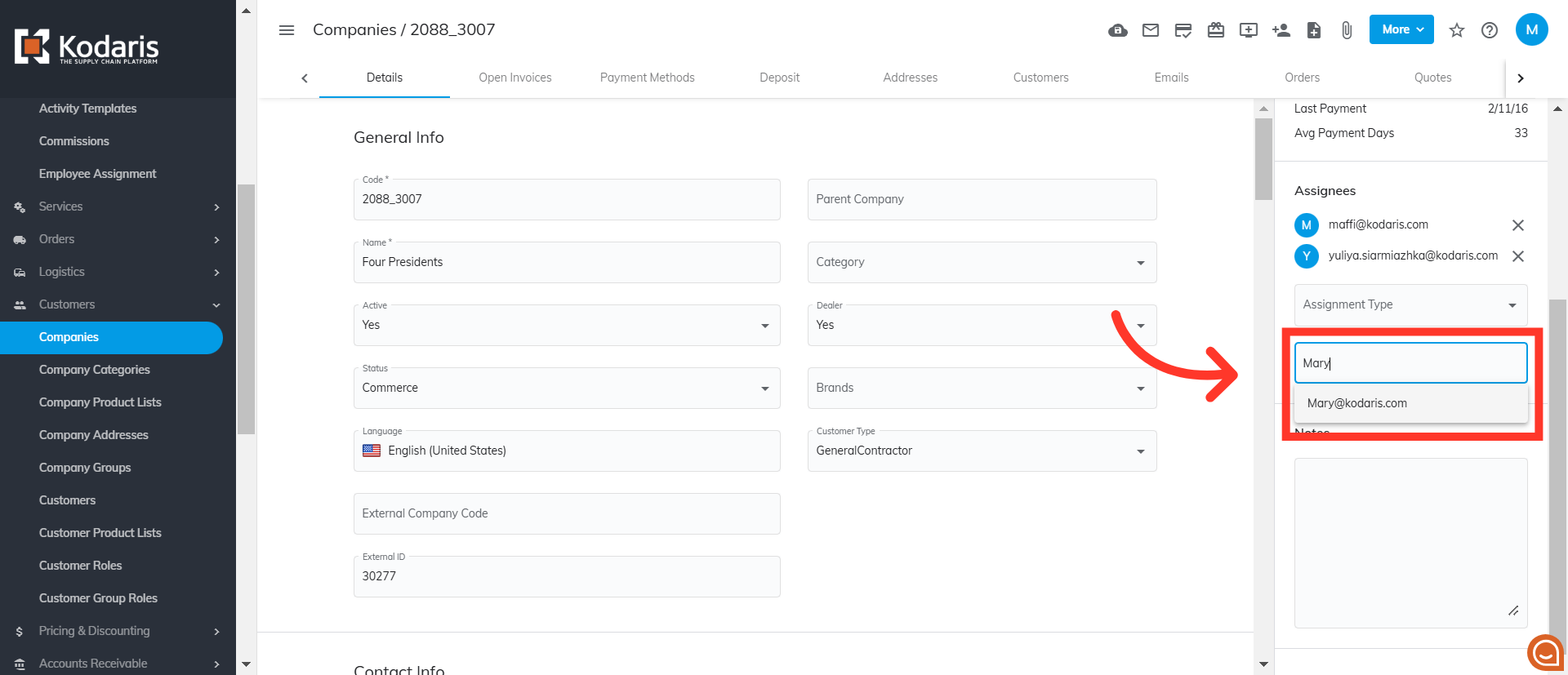
Operations Companies - Assign Restricted Employees to a Company
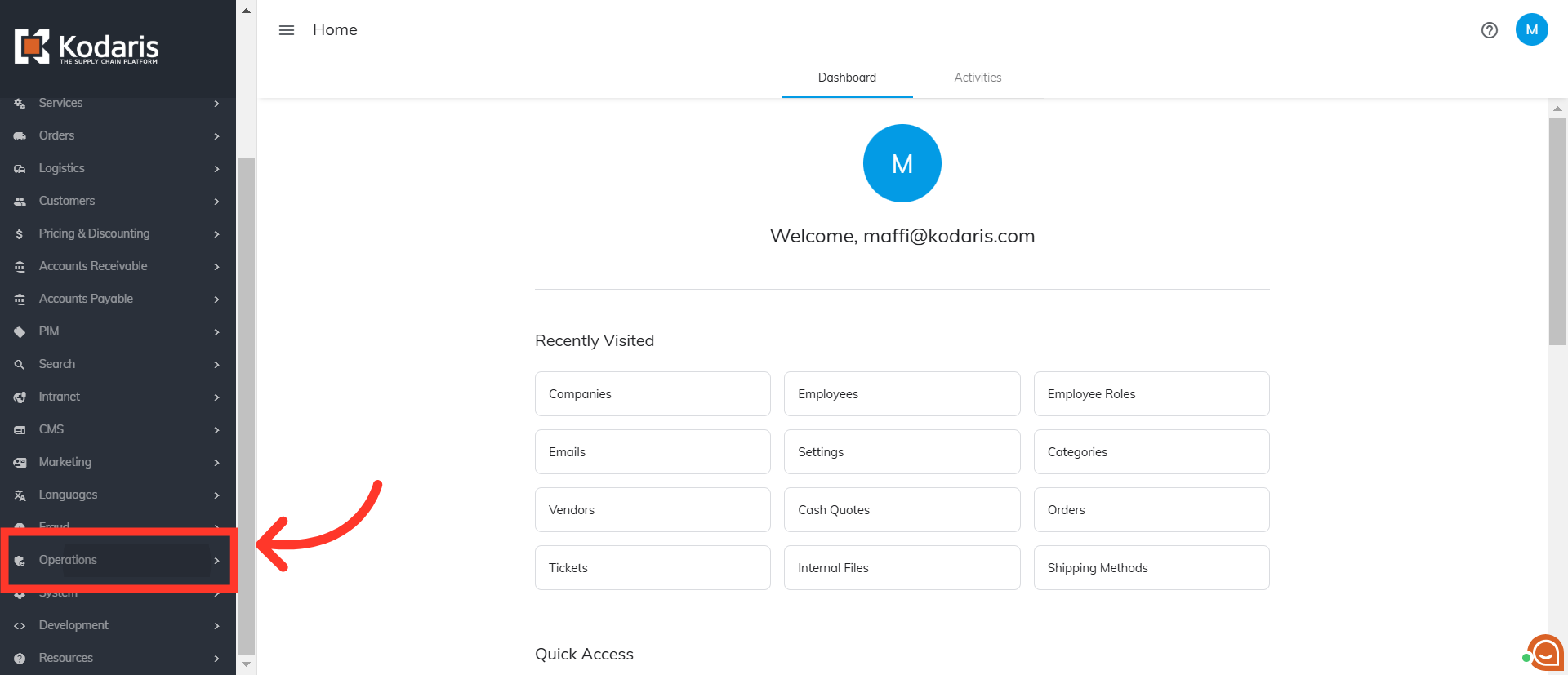
Navigate to "Operations"
To assign a restricted employee to a company, navigate to the "Operations" section in the Operations Portal.
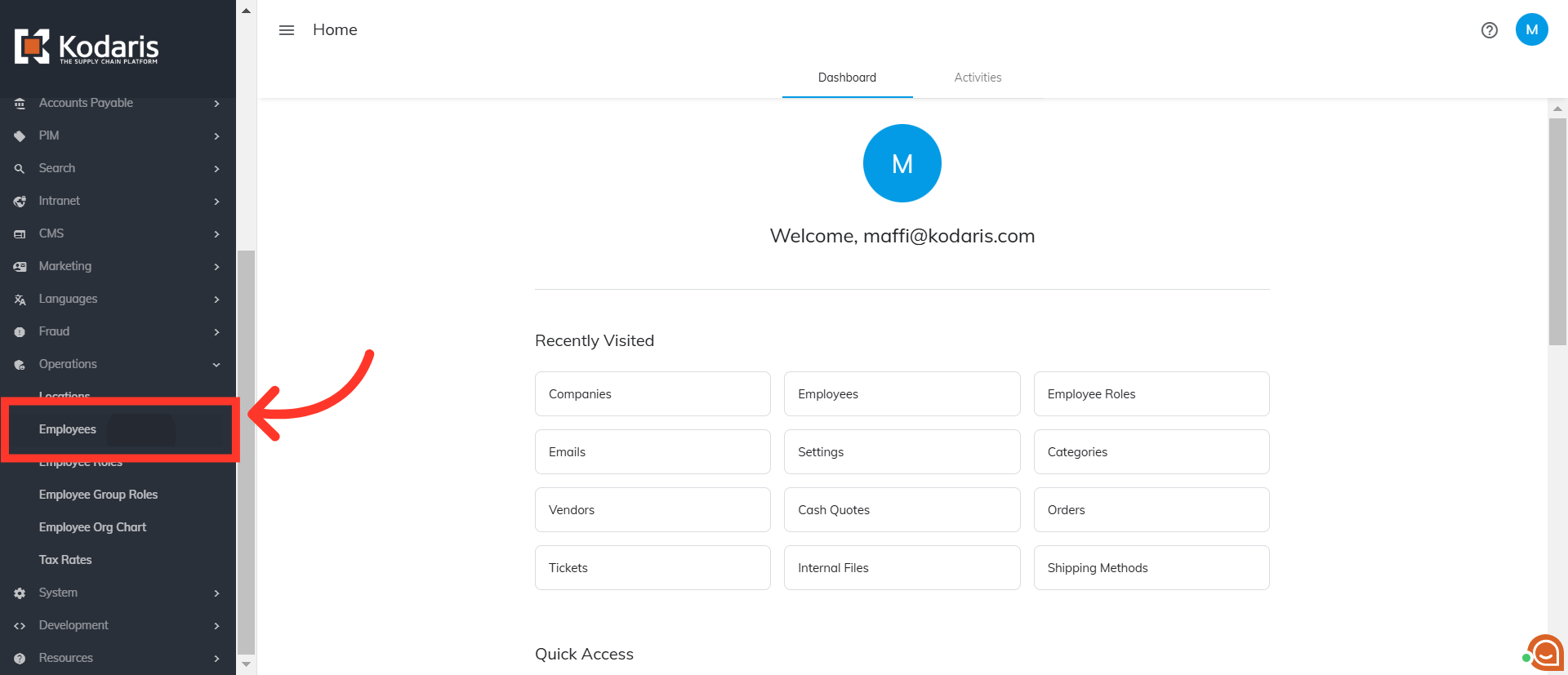
Click "Employees"
Then, click "Employees". In order to access and update "Employees" as well as "Roles", you will need to be set up as a "superuser" or have the roles of: "administratorEdit", "administratorView", "roleView", and "roleEdit".
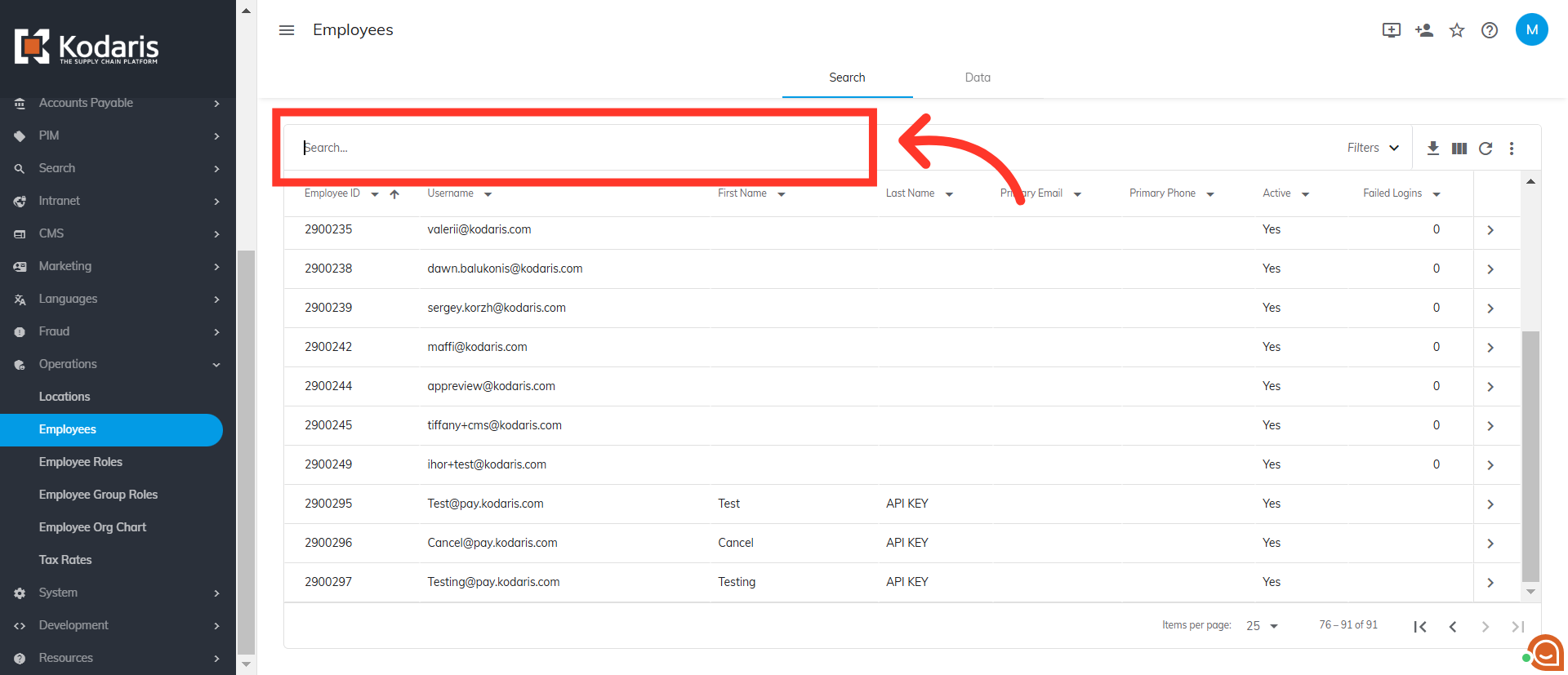
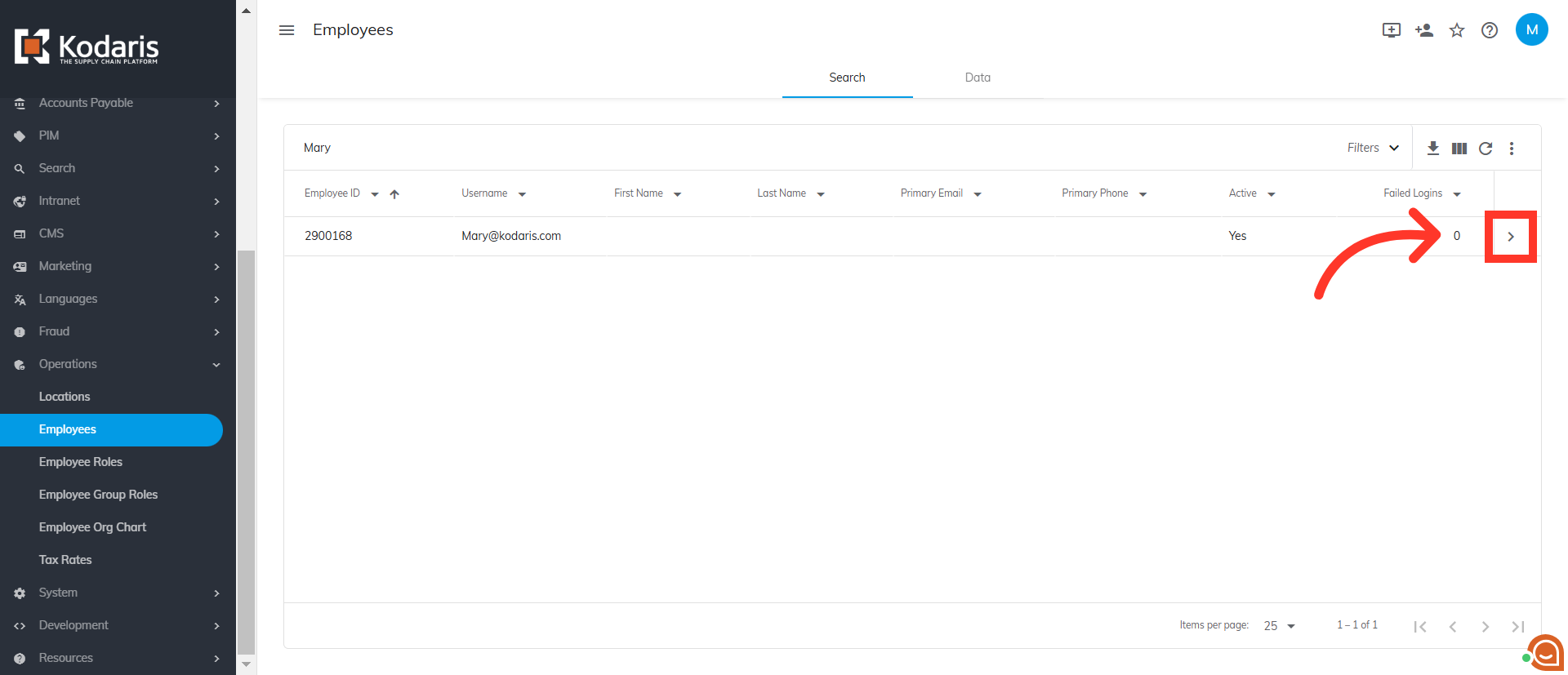
Search for the employee
You can type to search for the employee in the "Search" field.
Go to the employee details page
Click the more details icon to to go to the employee details page.
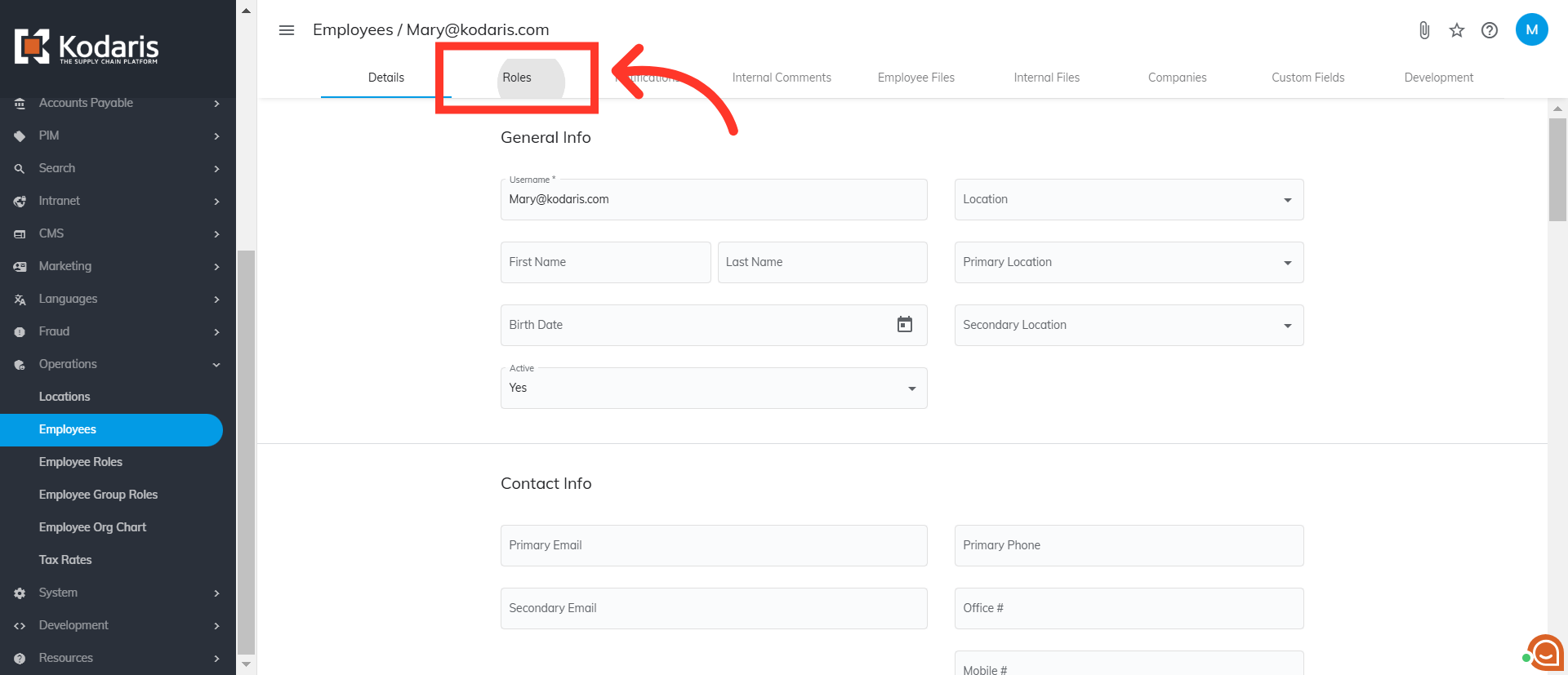
Go to the "Roles" tab
Now, go to the "Roles" tab.
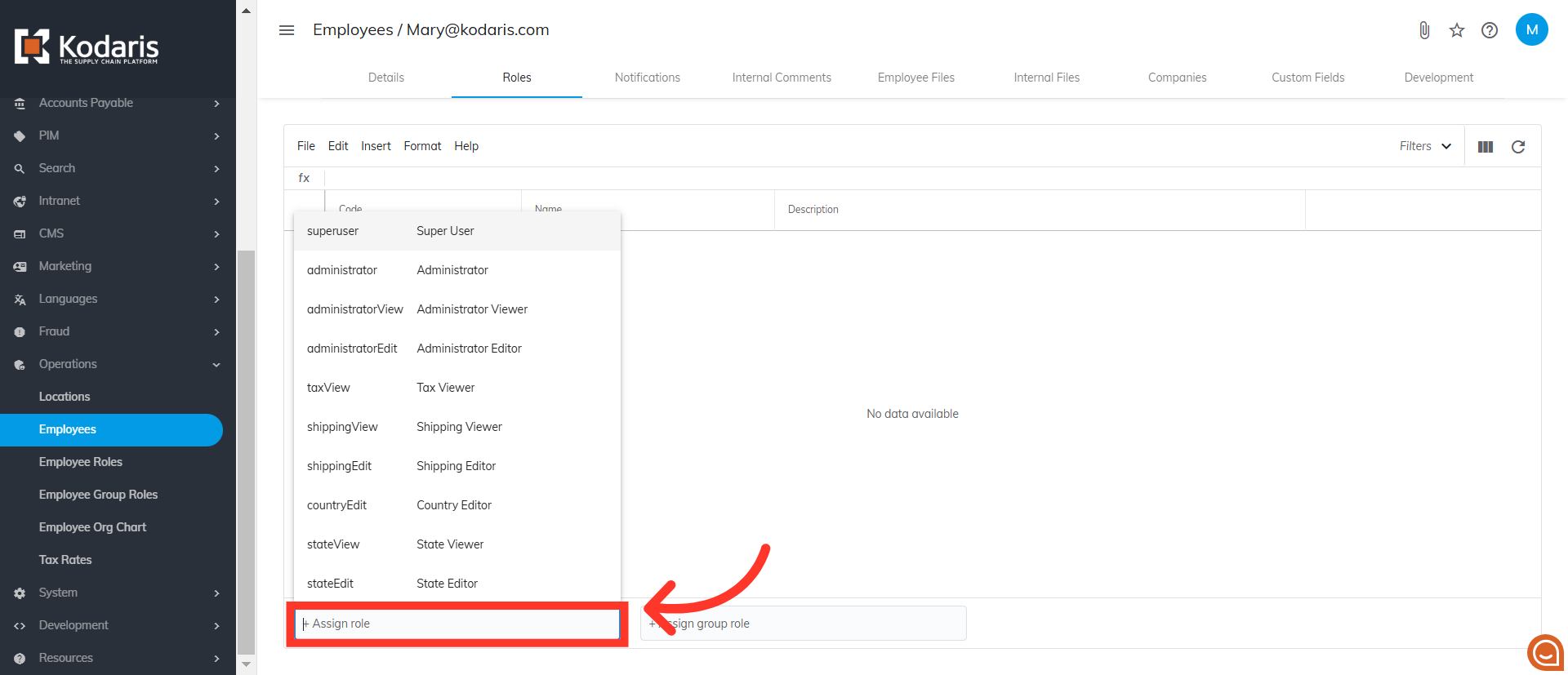
Click "+ Assign role"
Click "+Assign role" field.
Type in "crmCompany"
There are couple of roles you need to add to the employee. First, type in "crmCompany".
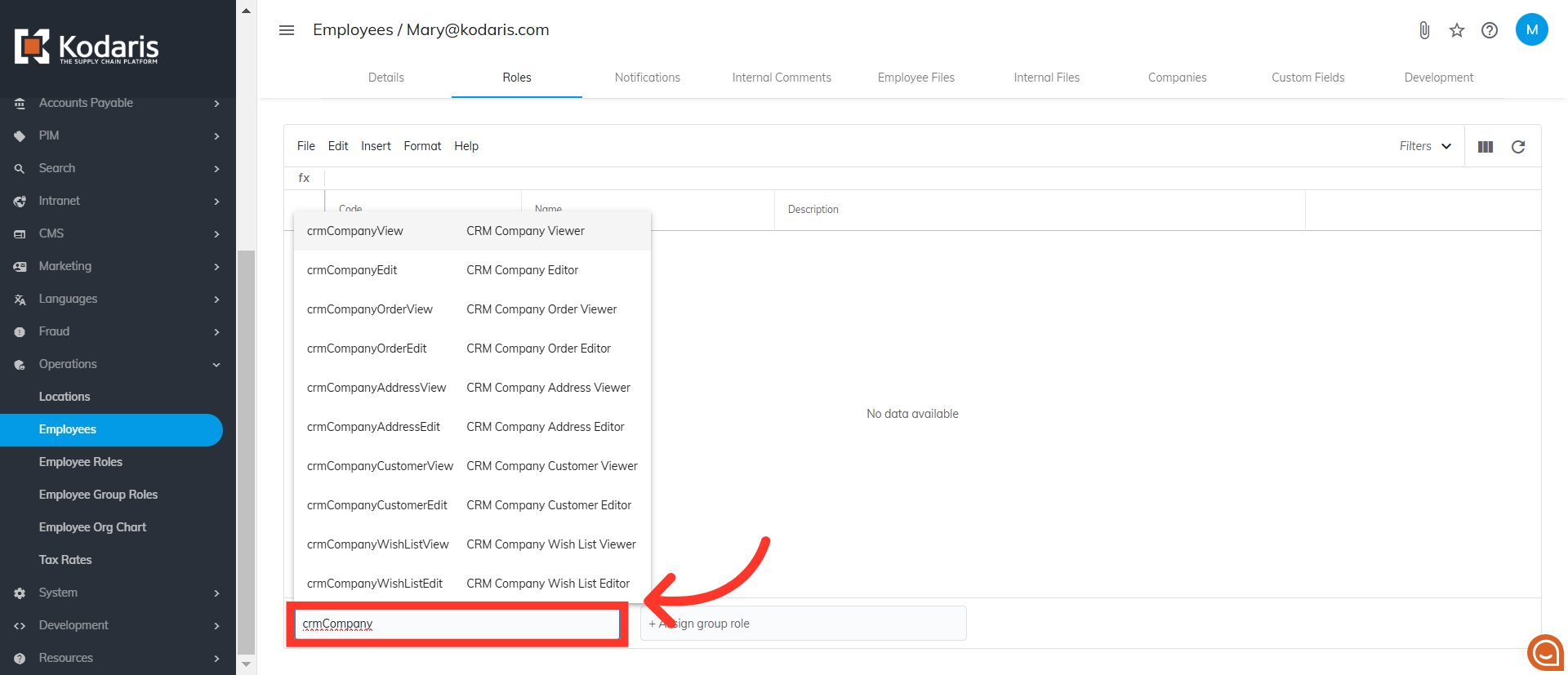
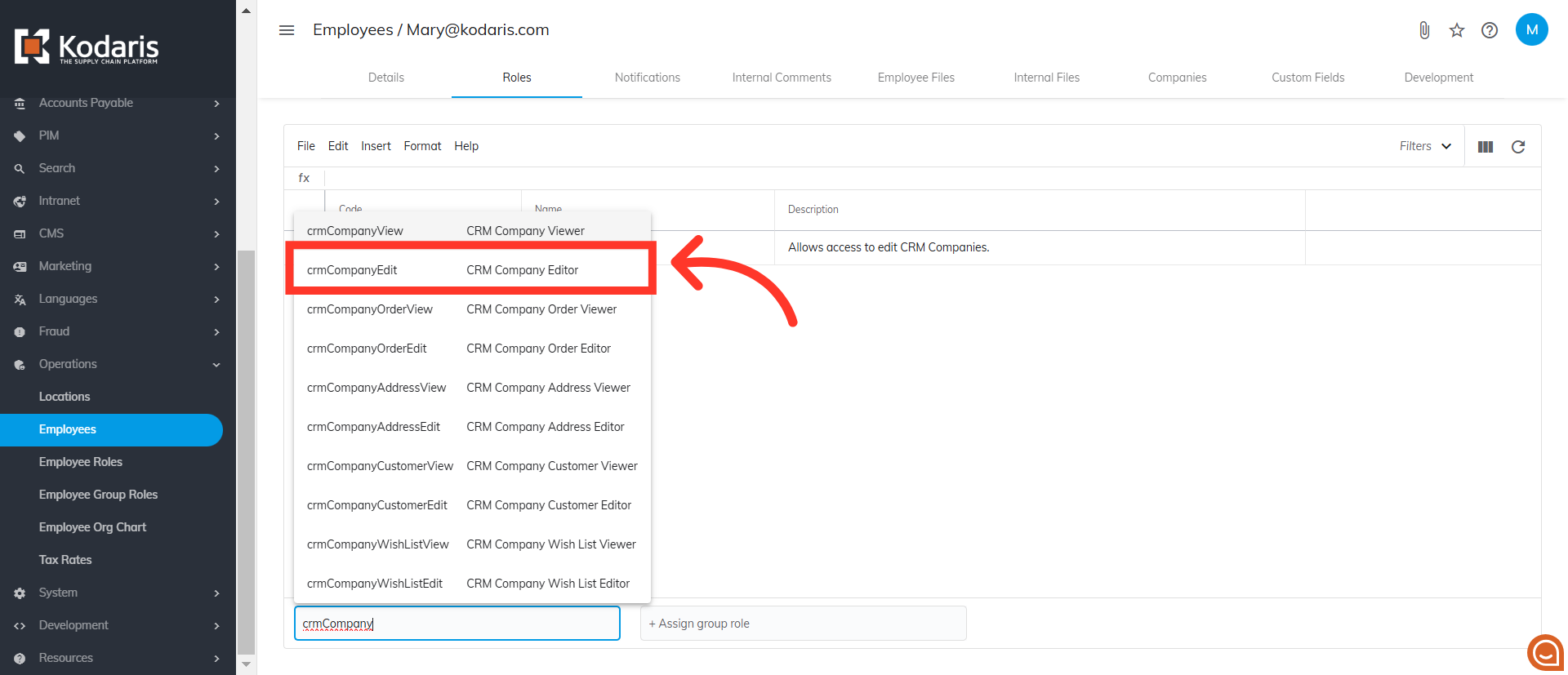
Select "crmCompanyEdit"
The first role to assign is "crmCompanyEdit". This role allows the employee to edit the customer accounts they are assigned to.
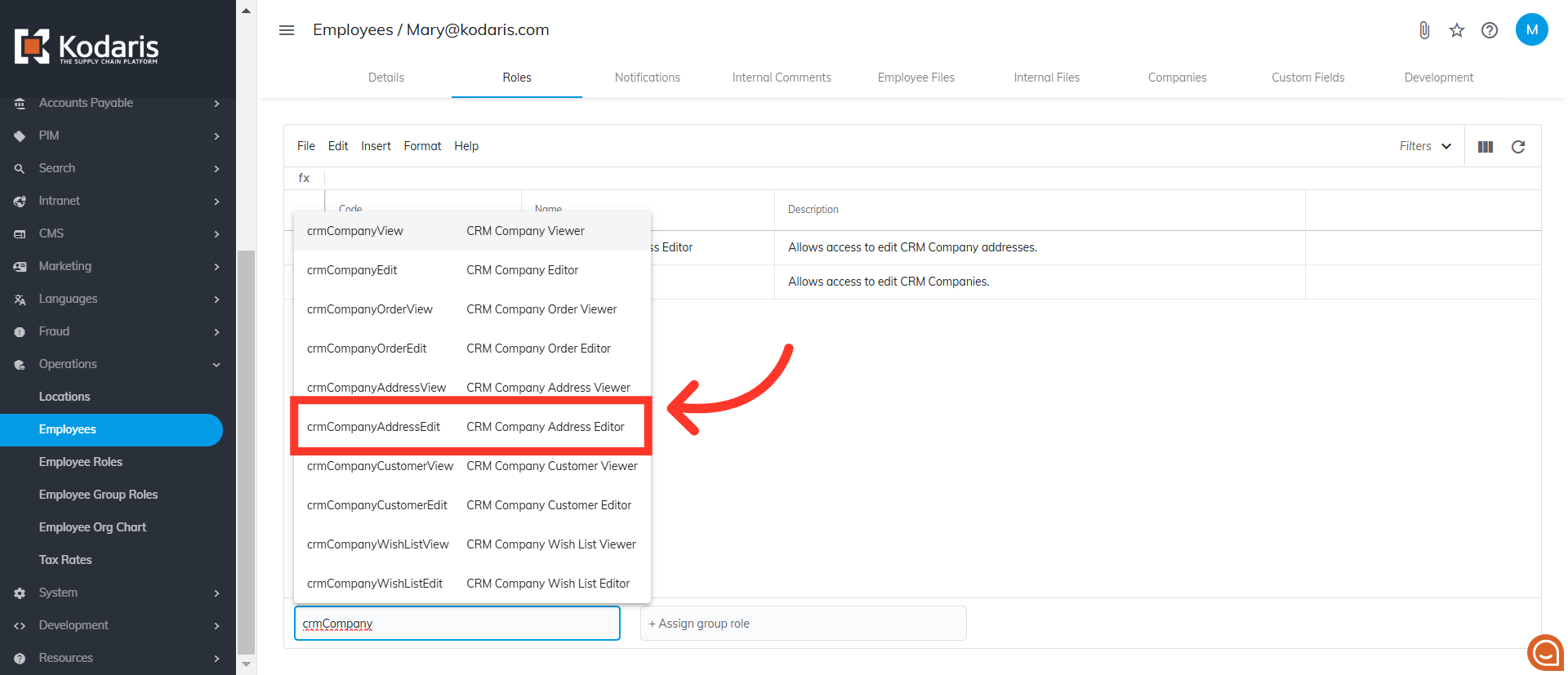
Select "crmCompanyAddressEdit"
Next, type to search and select "crmCompanyAddressEdit" role. This will allow the employee to edit any shiptos or company addresses on their assigned customer accounts.
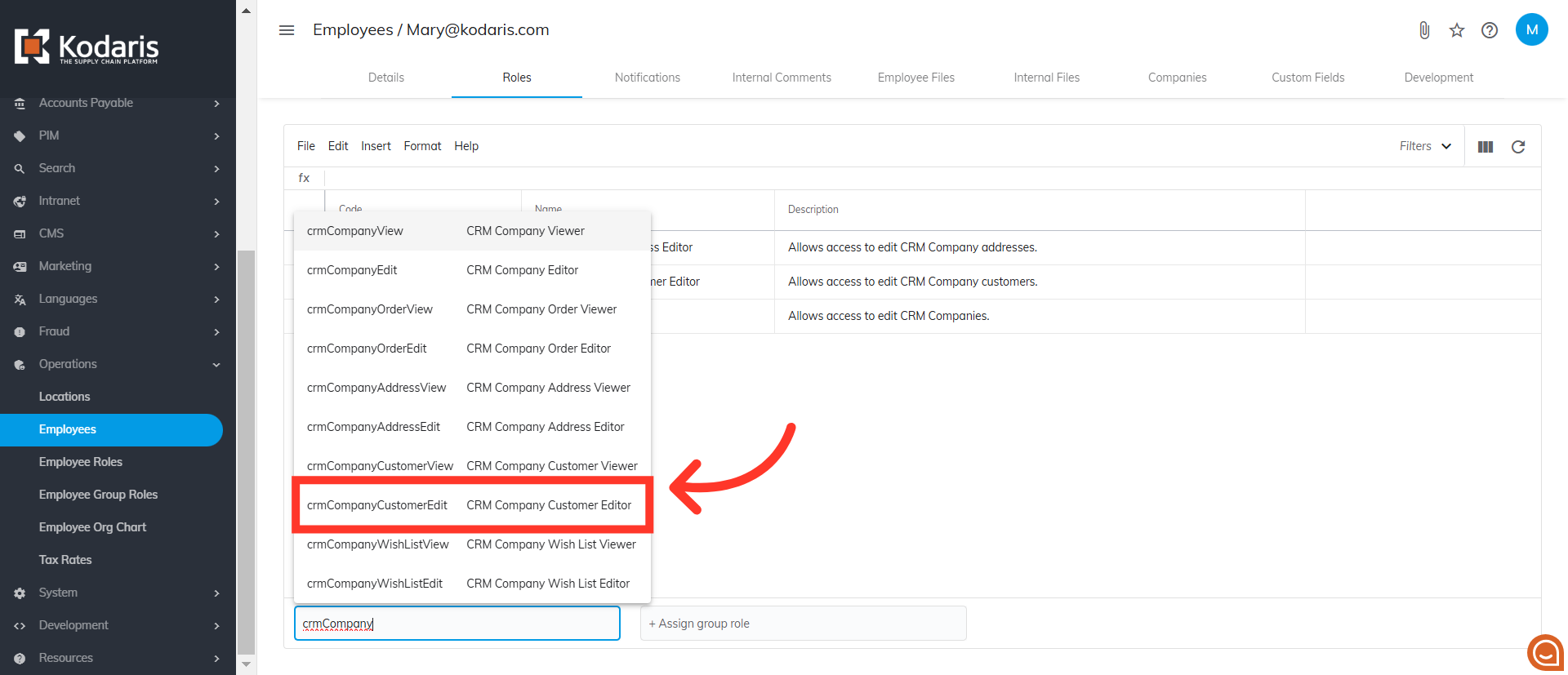
Select "crmCompanyCustomerEdit"
Next, assign the "crmCompanyCustomerEdit" role. This role will allow the employee to edit the customers on their assigned companies.
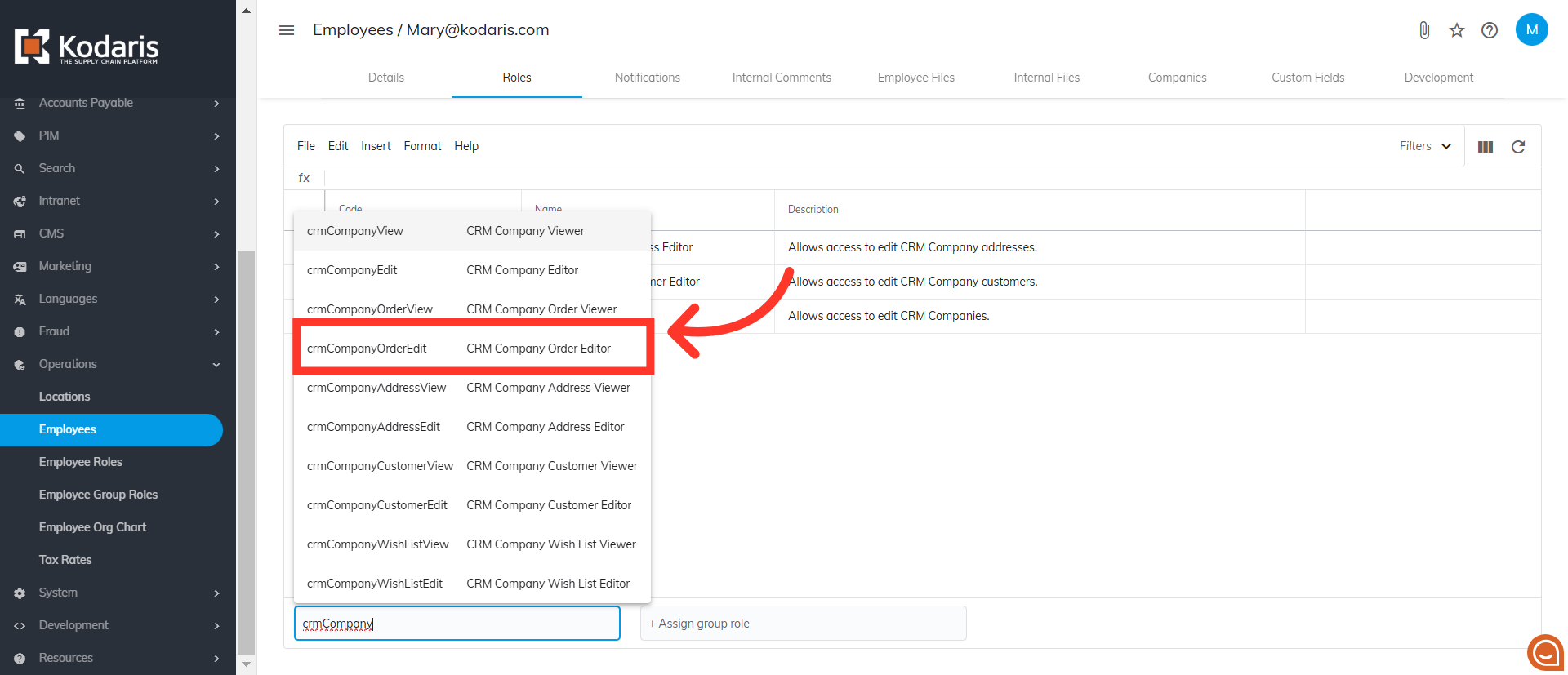
Select "crmCompanyOrderEdit"
Also assign the "crmCompanyOrderEdit" role. This will allow the employee to edit and place orders on their assigned companies. With these roles assigned, employees will be able to manage their restricted companies.
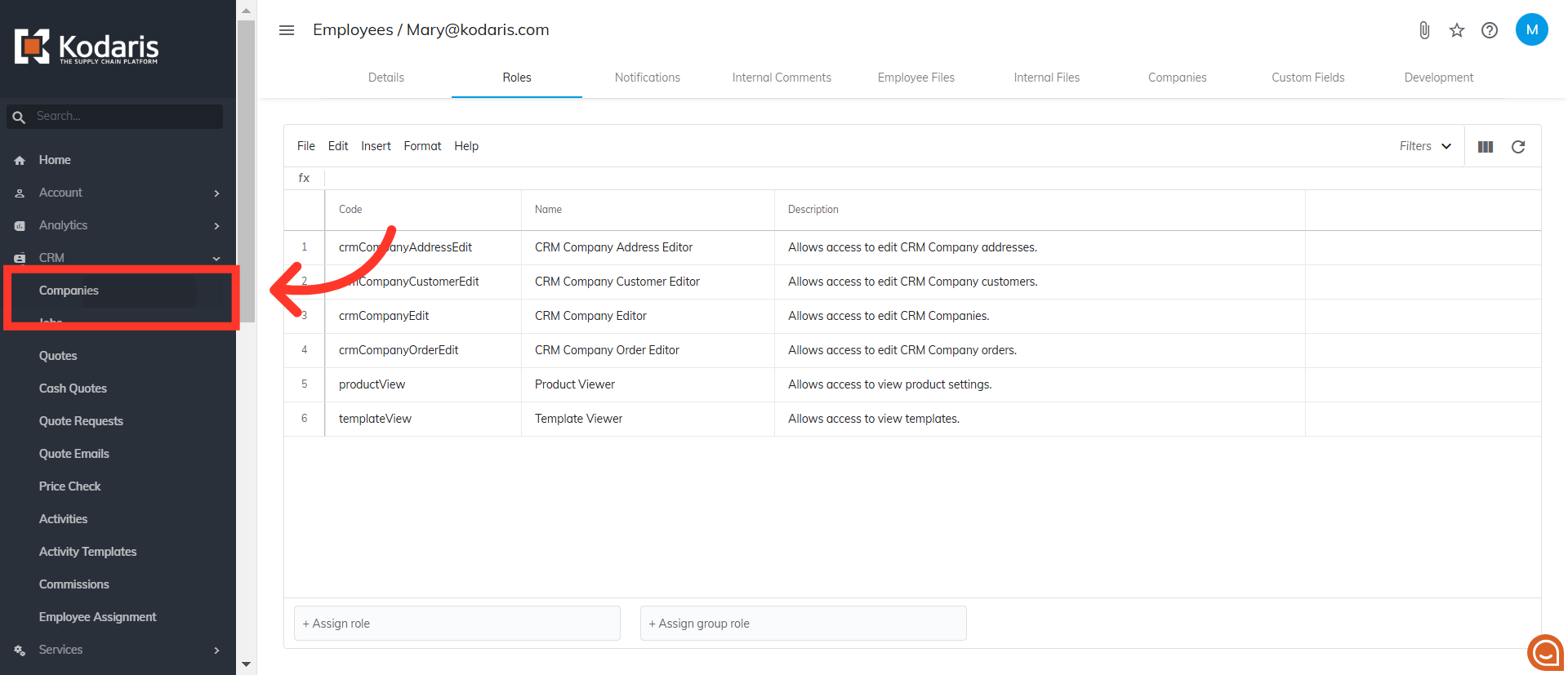
Go back to "Companies"
Once needed roles are assigned to the employee, you can assign the employee to a company. Navigate back to "Companies". In order to access "Companies" you will need to be set up either as an "administrator" or a "superuser", or have the appropriate roles: "companyView and companyEdit", or "crmCompanyView and crmCompanyEdit".
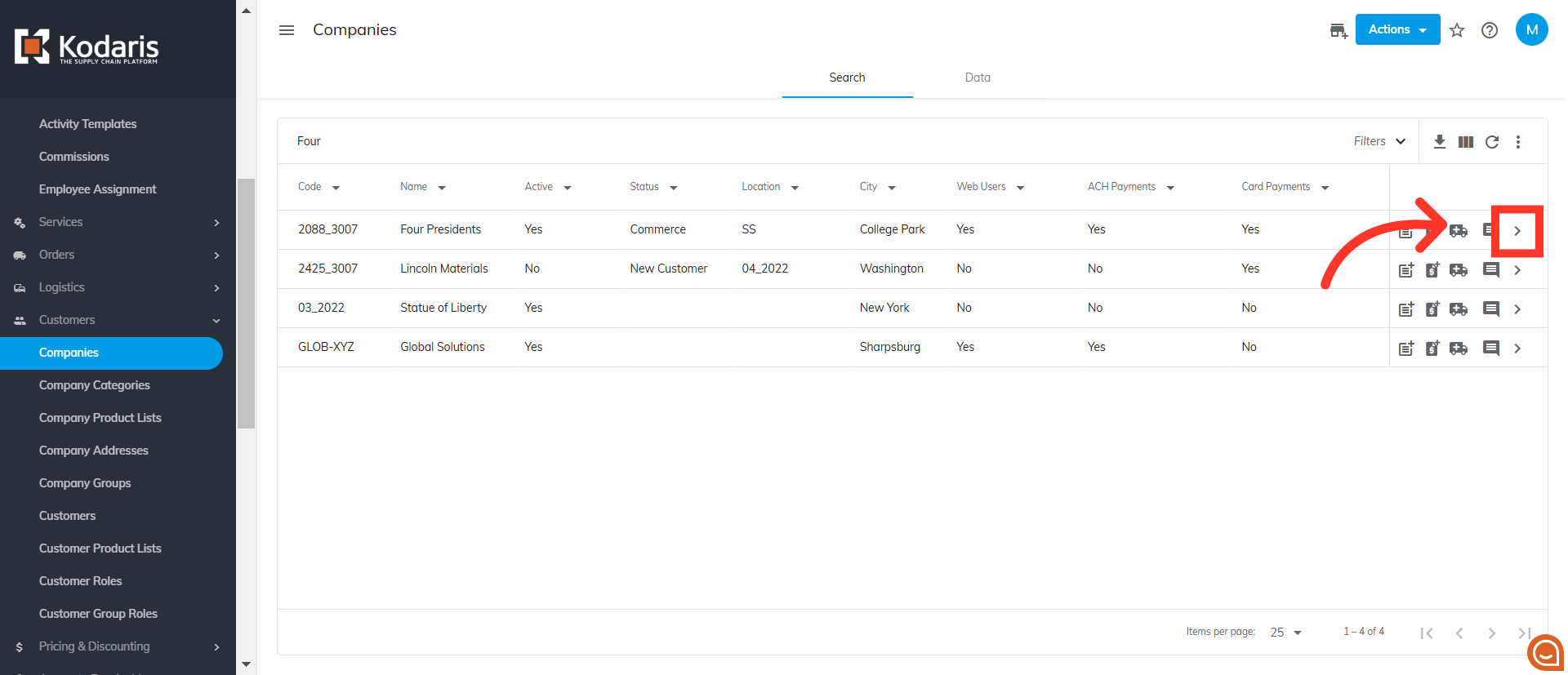
Go to company details page
Click the more details icon to go to the company details page.
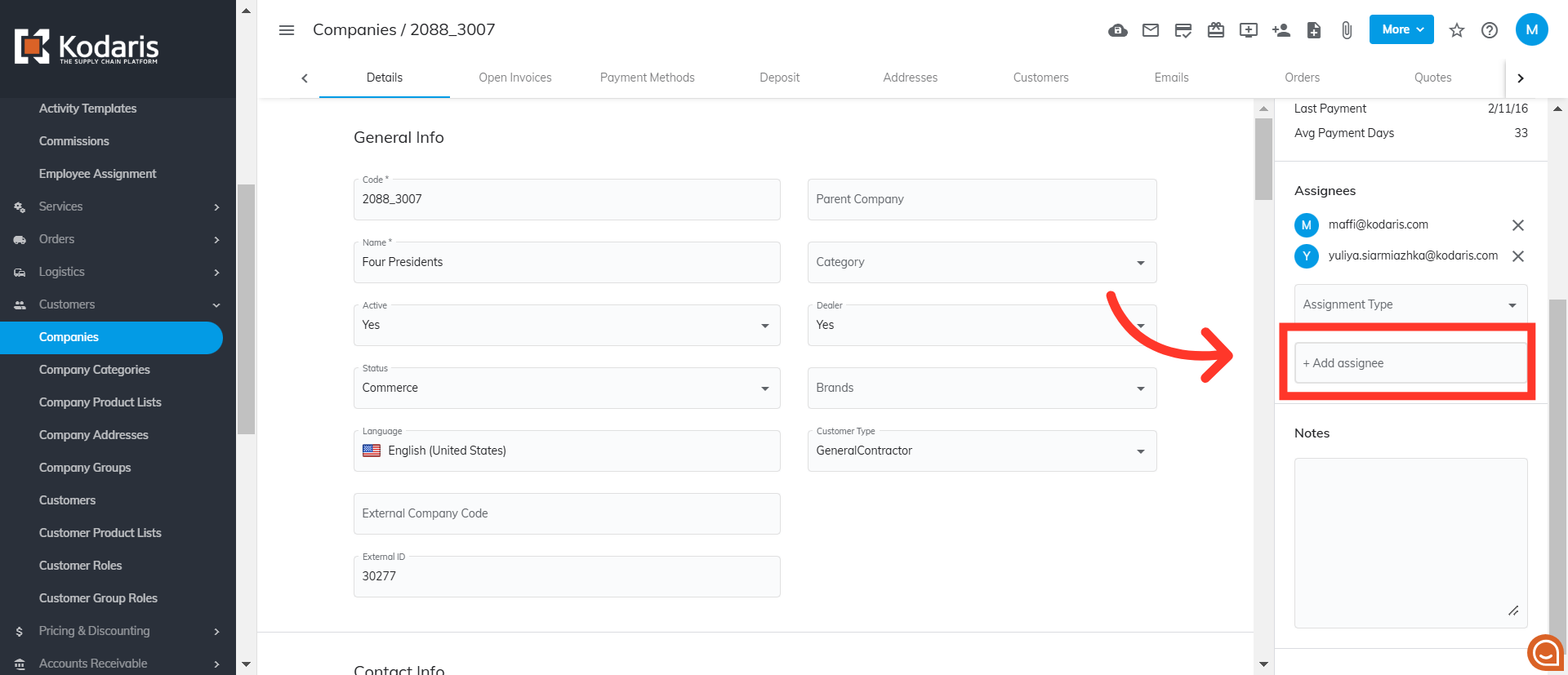
Click the "+Add assignee" field
Click the "+Add assignee" field.
Select an employee
Type to search for the employee to be assigned to the company and select from the list.