Operations Customers - Assign and Delete Customer Group Role from a Customer
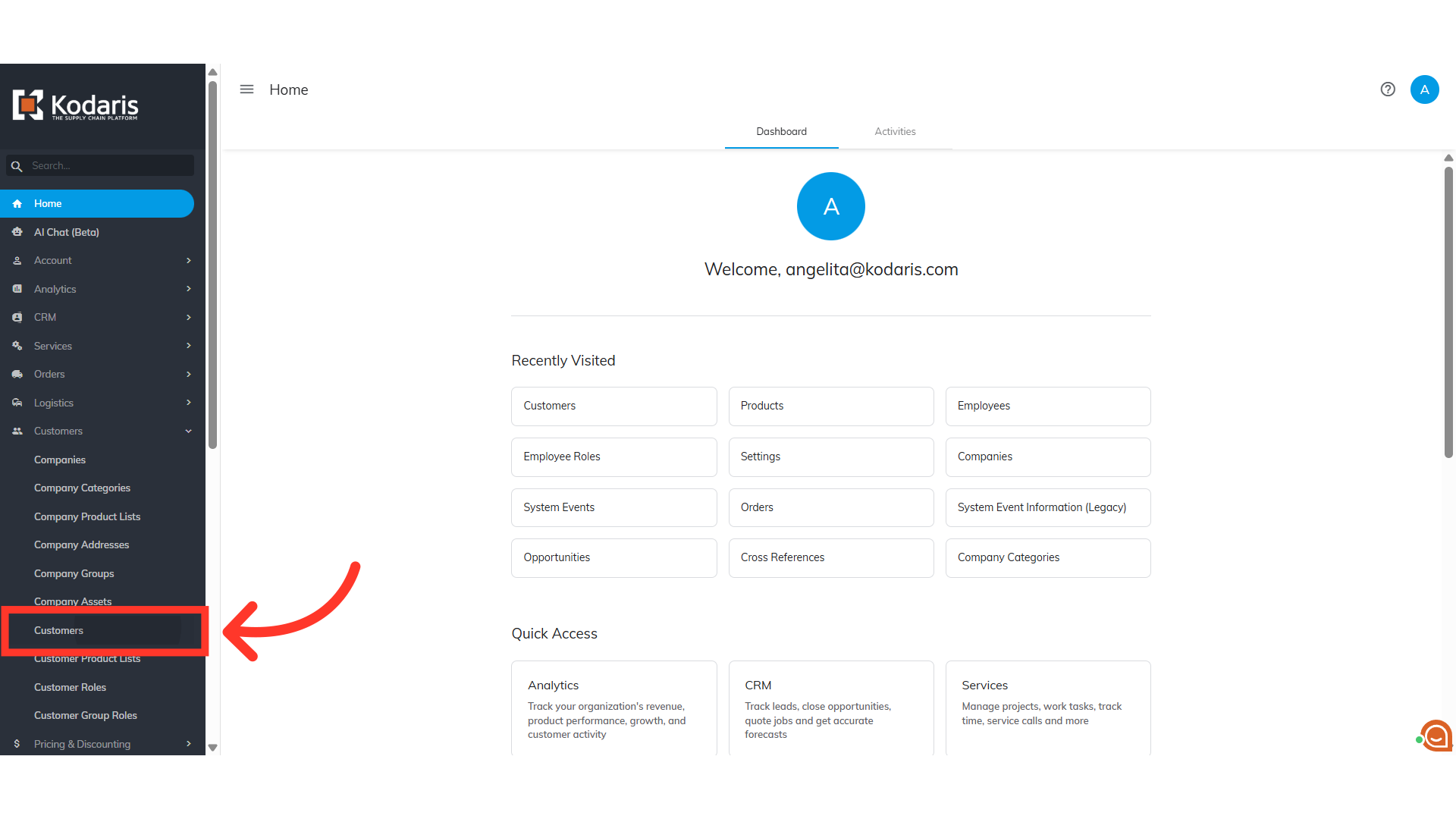
Navigate to "Customers"
To assign and delete customer group roles, navigate to "Customers" section in the Operations Portal.
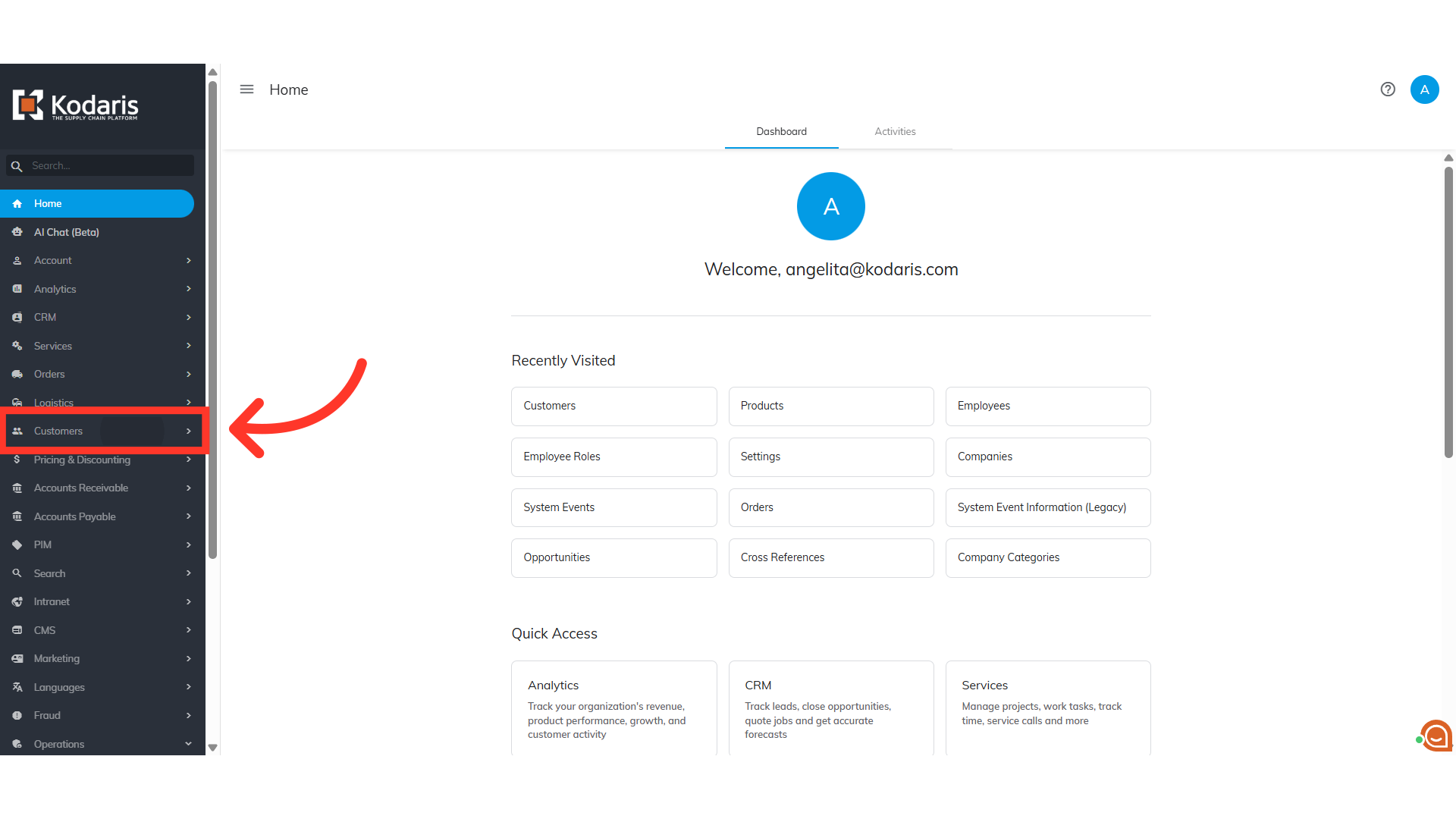
Click "Customers"
Then, click on "Customers". In order to access "Customers" you will need to be set up either as an "administrator" or a "superuser", or have the appropriate roles: "customerView", and "customerEdit".
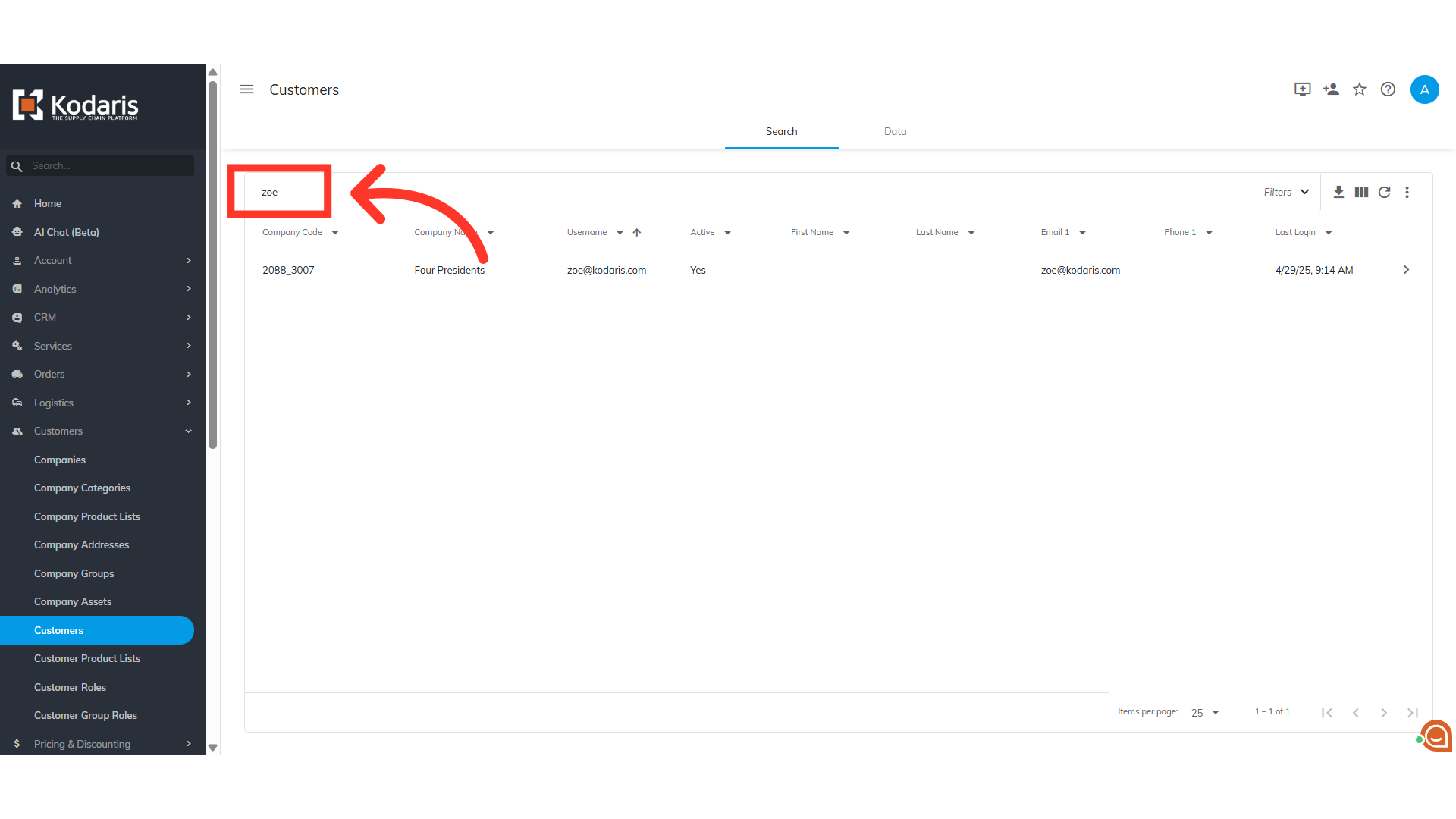
Search for the customer's name or email address
Search for the customer's name or email address.
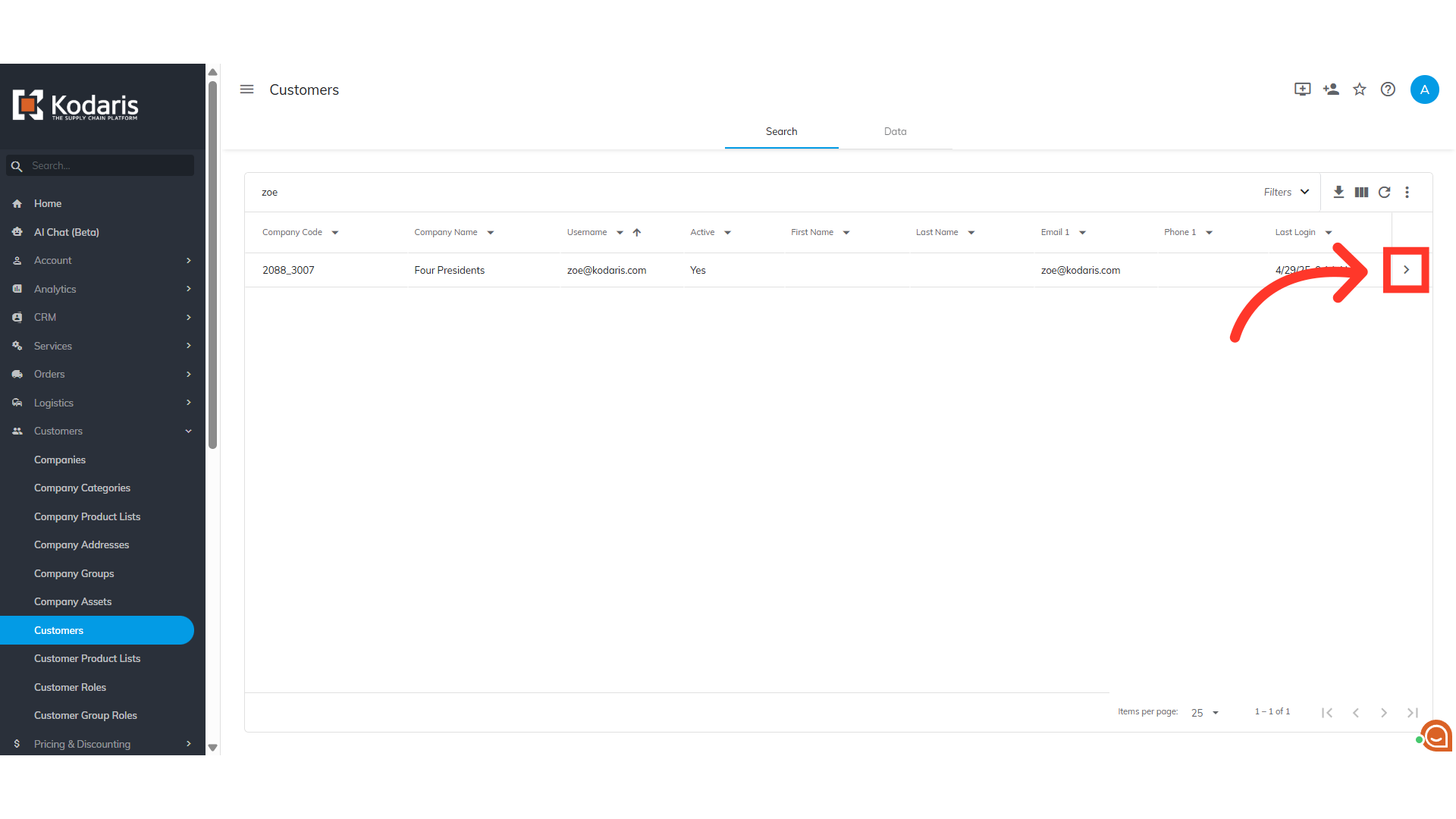
Click on the more details icon
Click on the more details icon to view the customer details page.
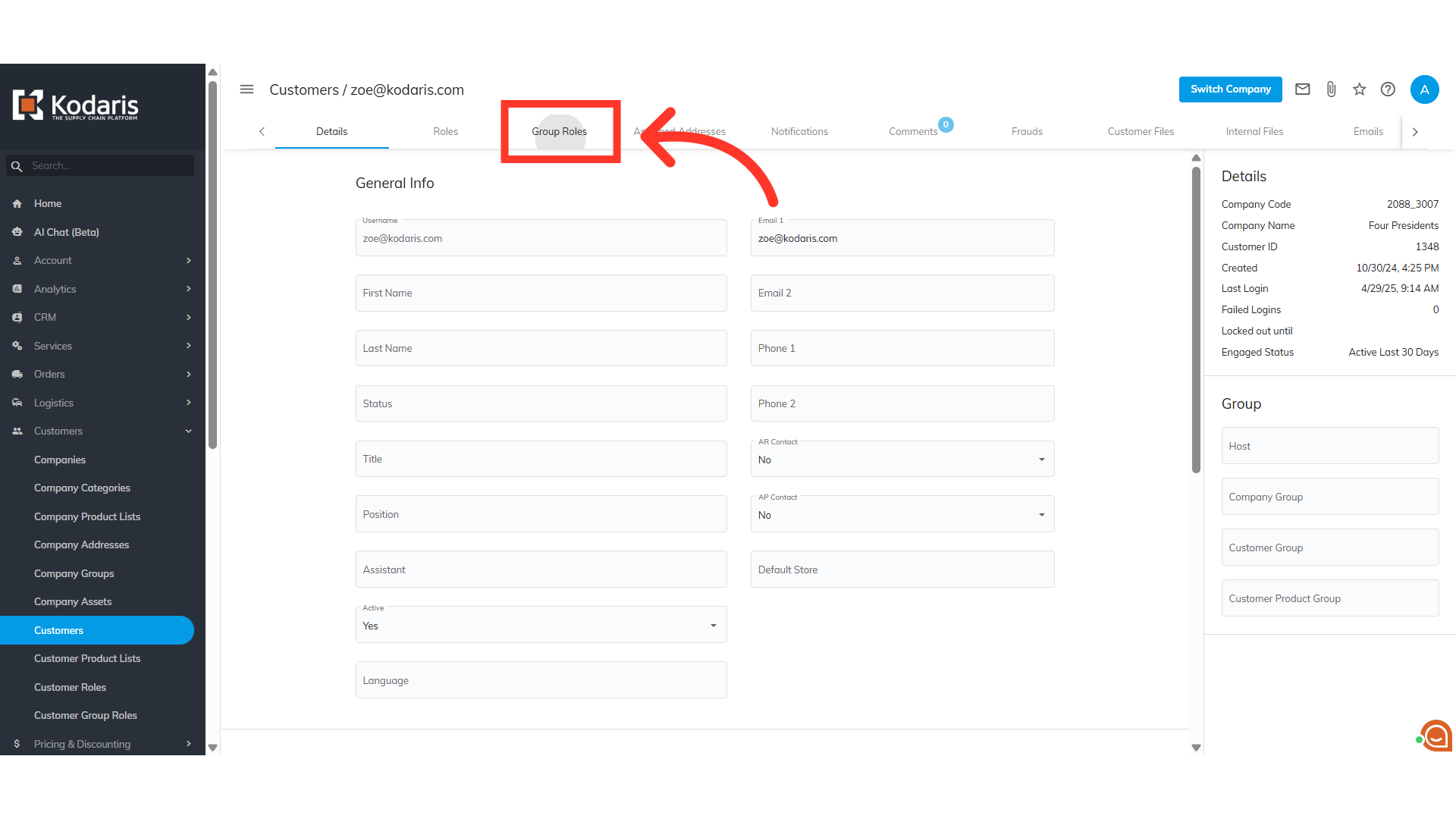
Click "Group Roles"
Then, click on the "Group Roles" tab.
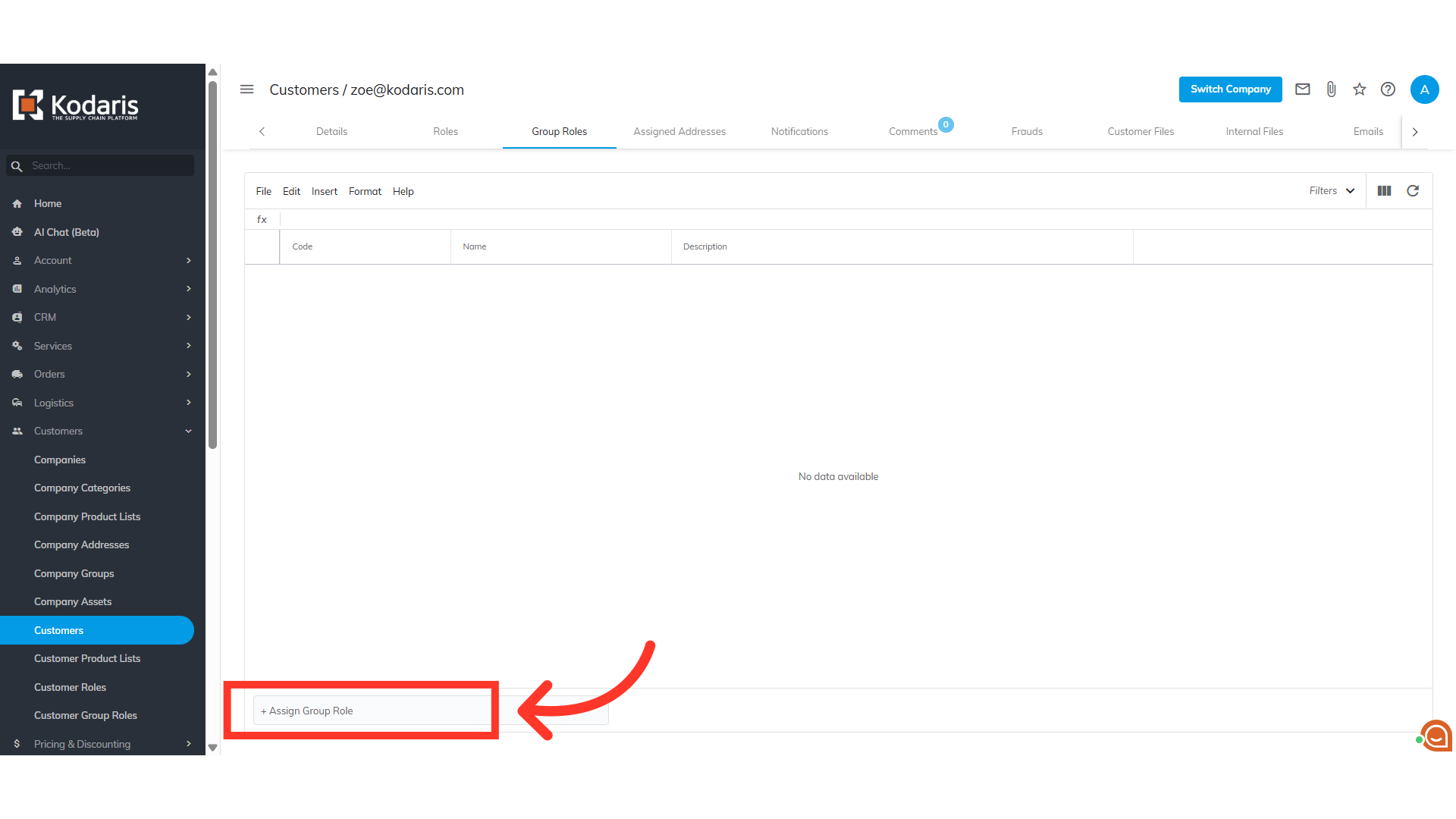
Click "+Assign Group Role"
Click on the "+Assign Group Role" field to display available group roles.
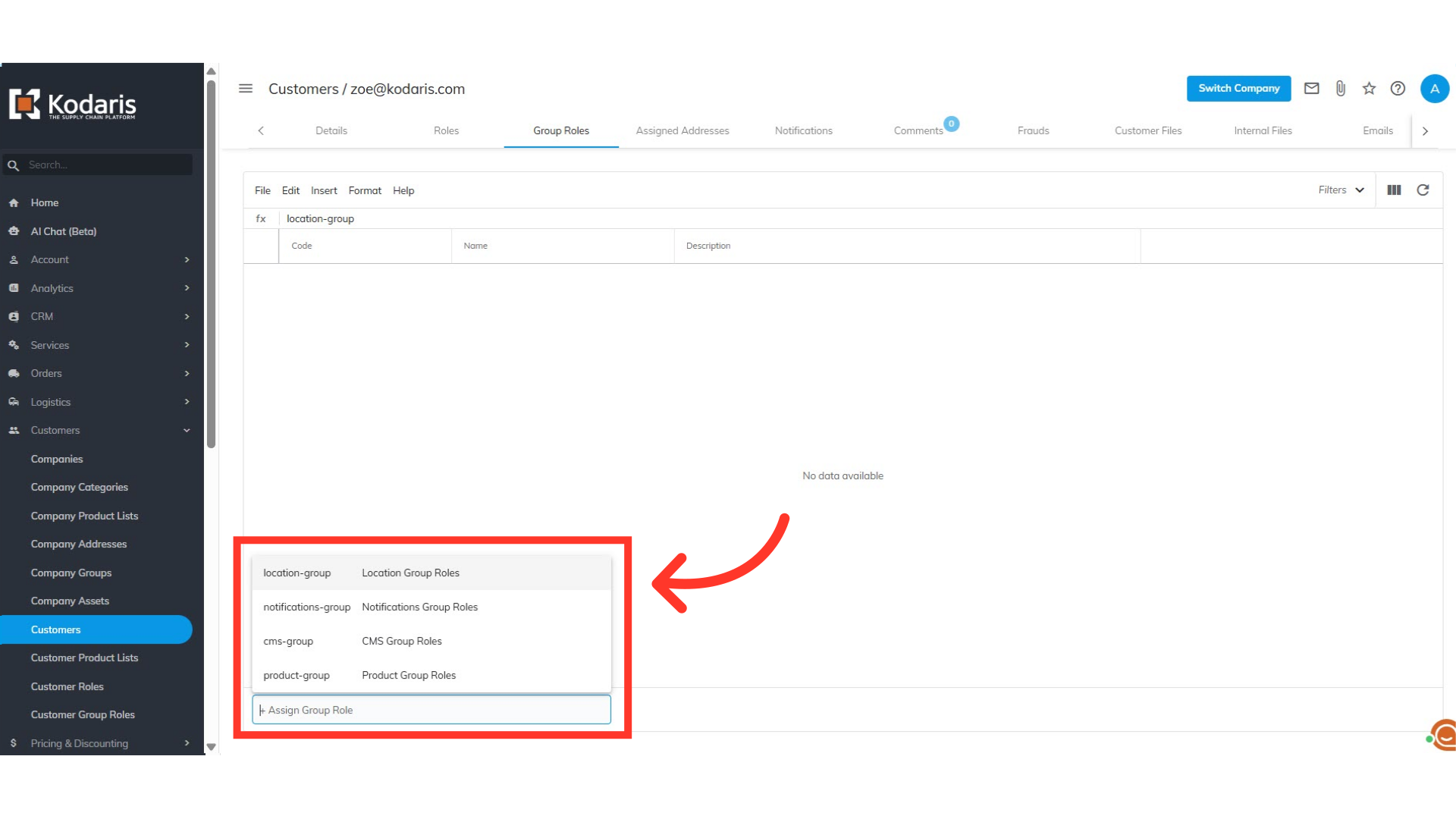
Select the group role
Select the group role you would like the customer to have.
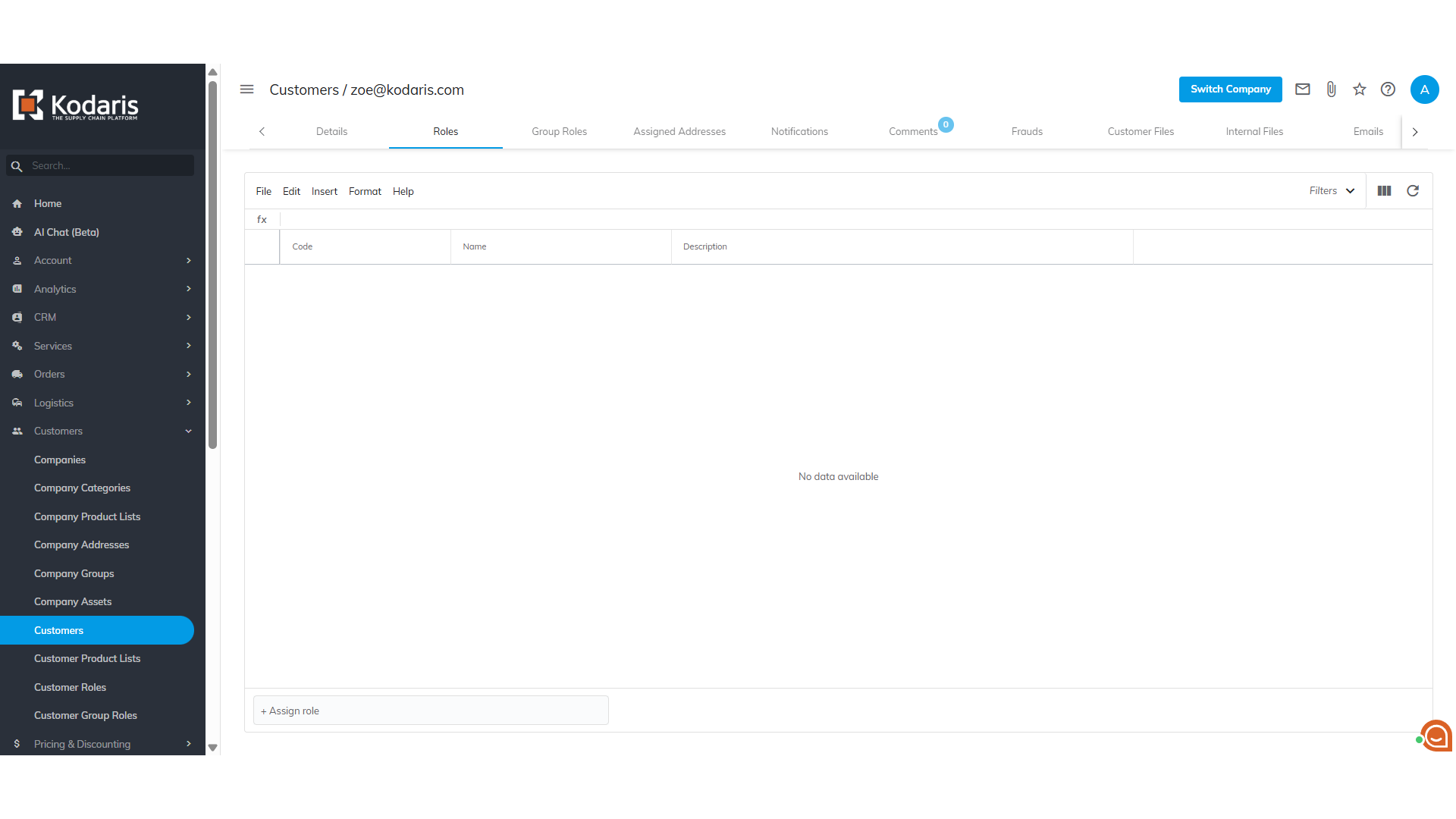
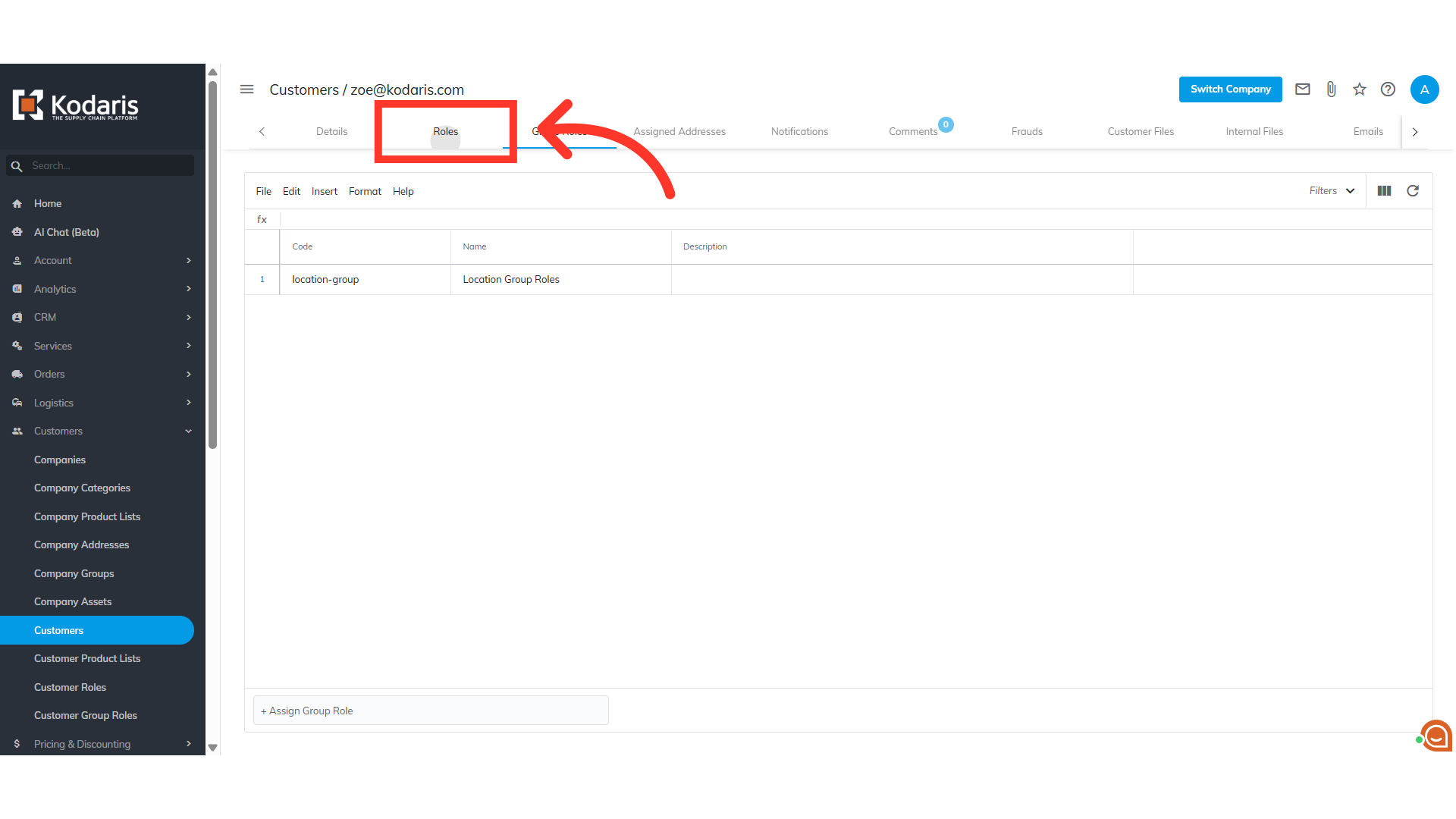
Go to "Roles" tab
To check the roles given to the customer, go to the "Roles" tab.
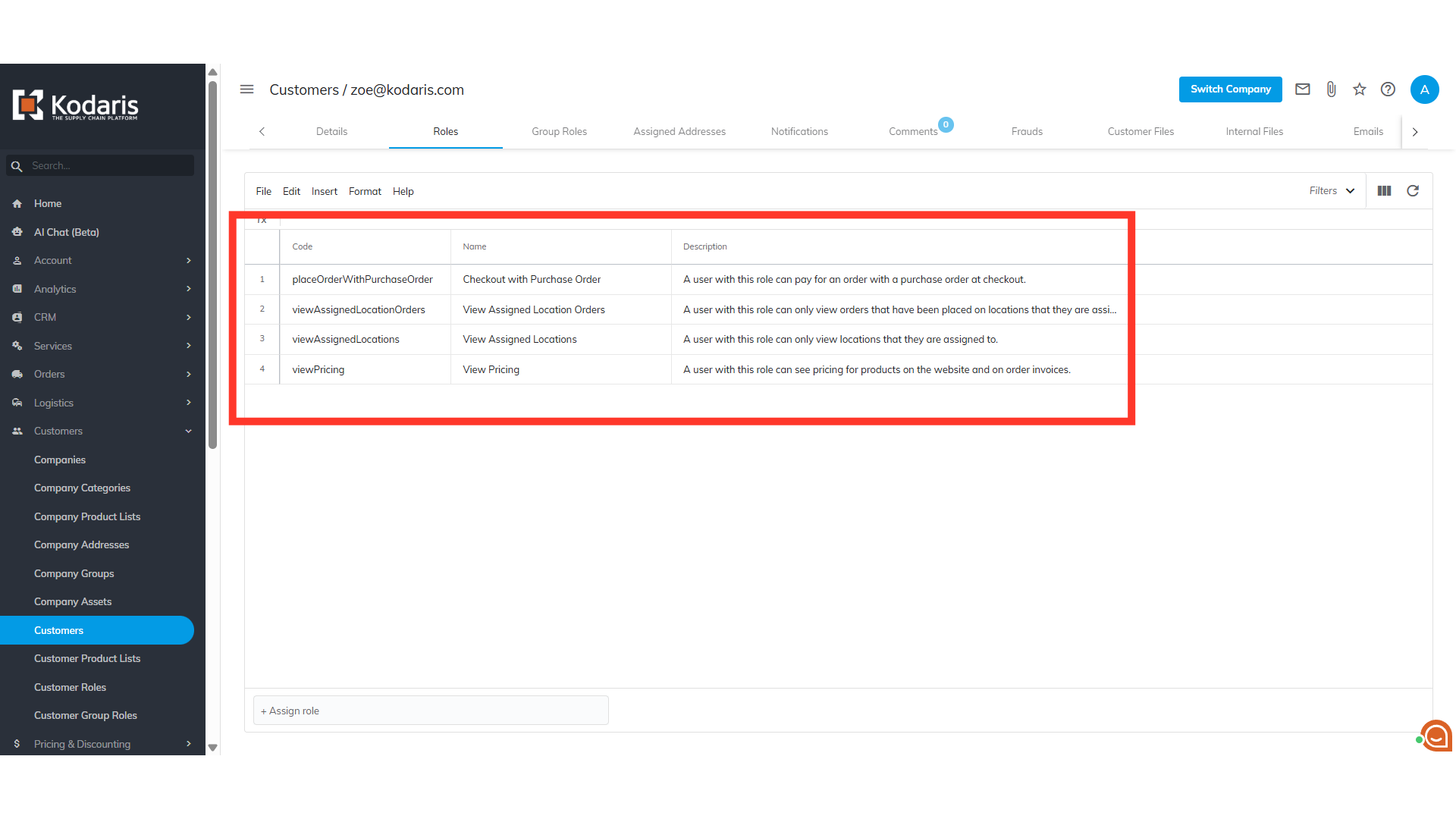
Assigned Roles
Here you can see the roles that have been assigned as a group to the customer.
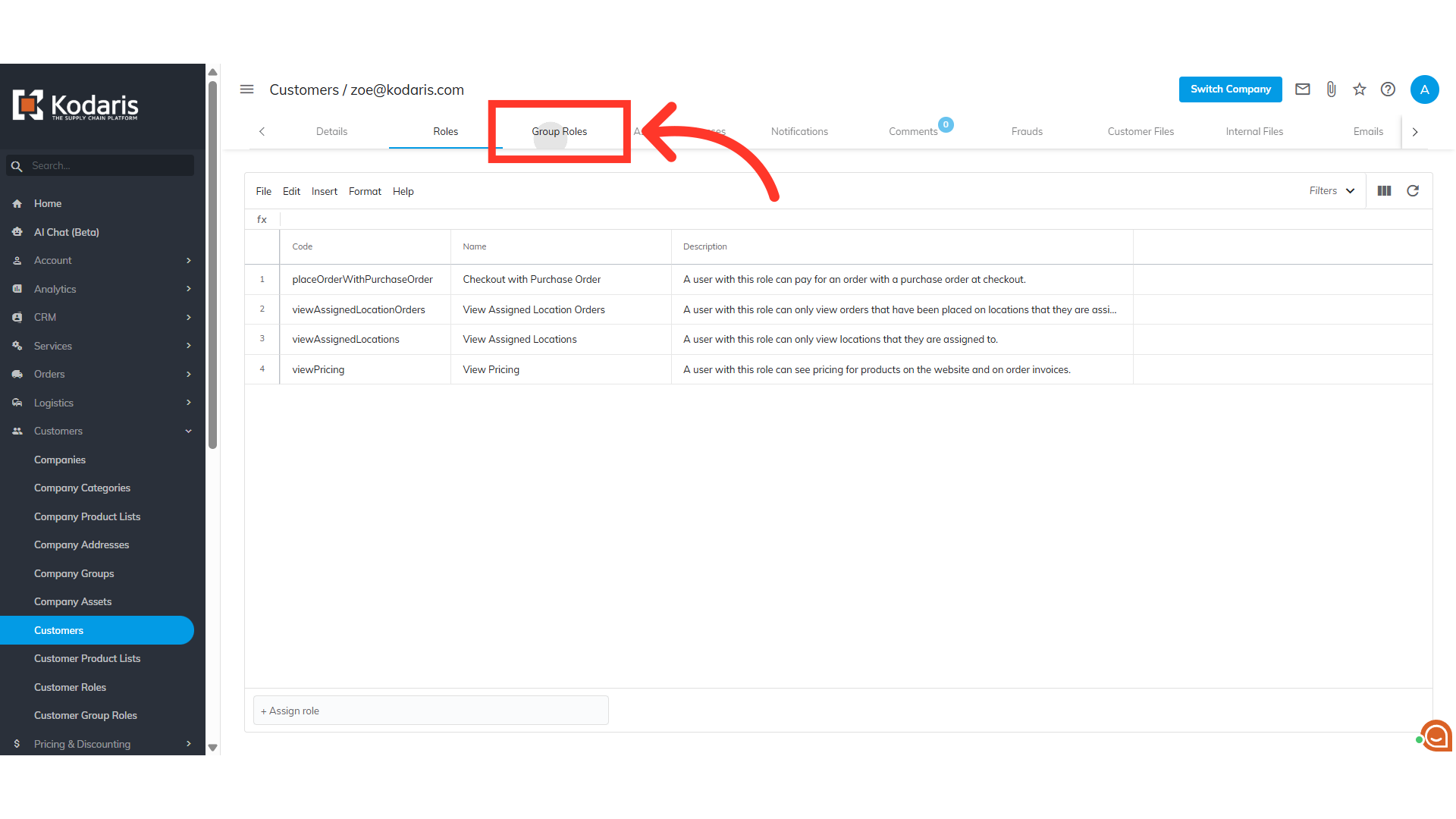
Click "Group Roles"
To delete group roles, click the "Group Roles" tab.
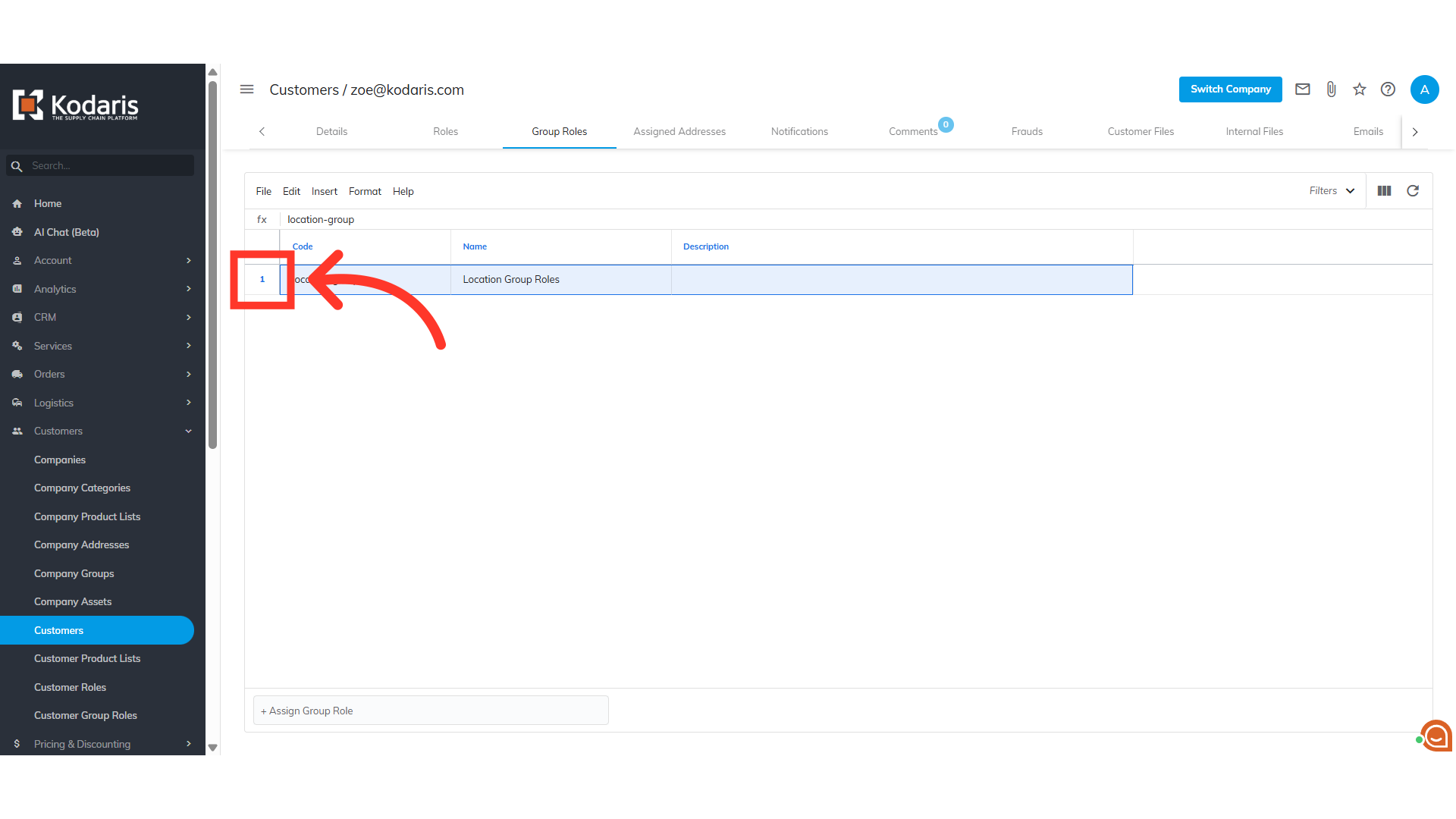
Click the row number to highlight the row
Click the row number to highlight the row.
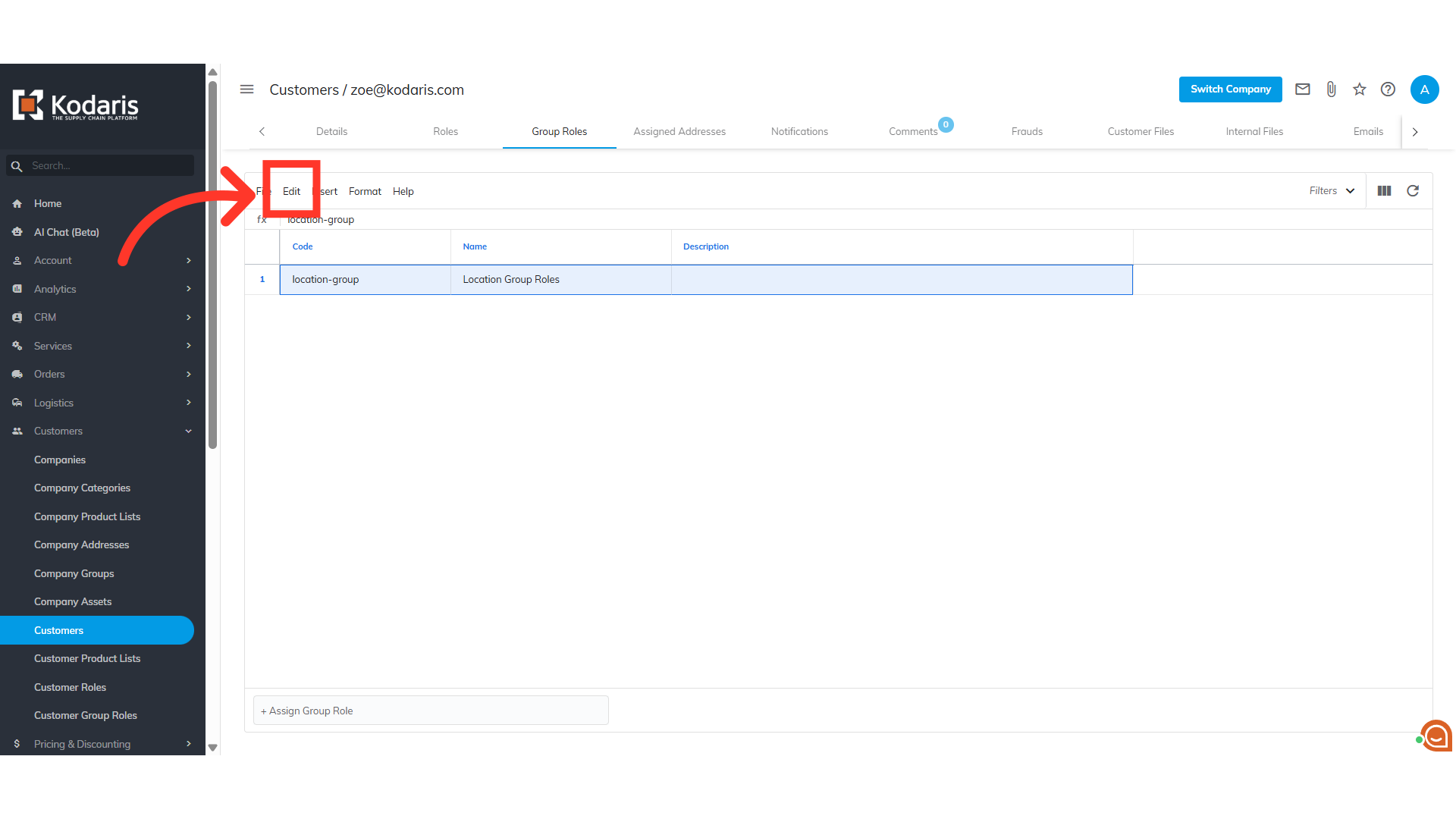
Click "Edit"
Click the "Edit" menu.
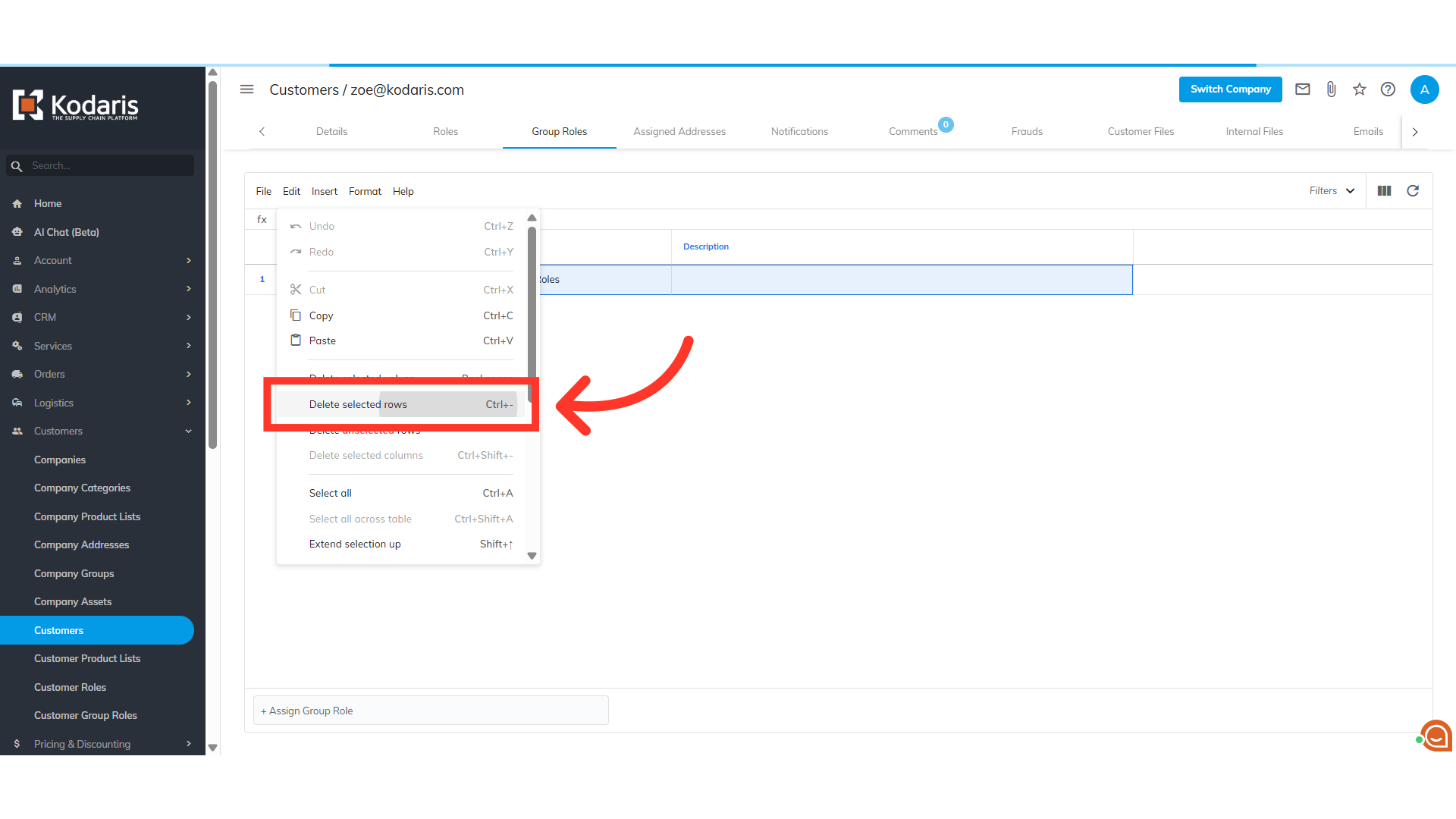
Select "Delete selected rows"
Select "Delete selected rows".
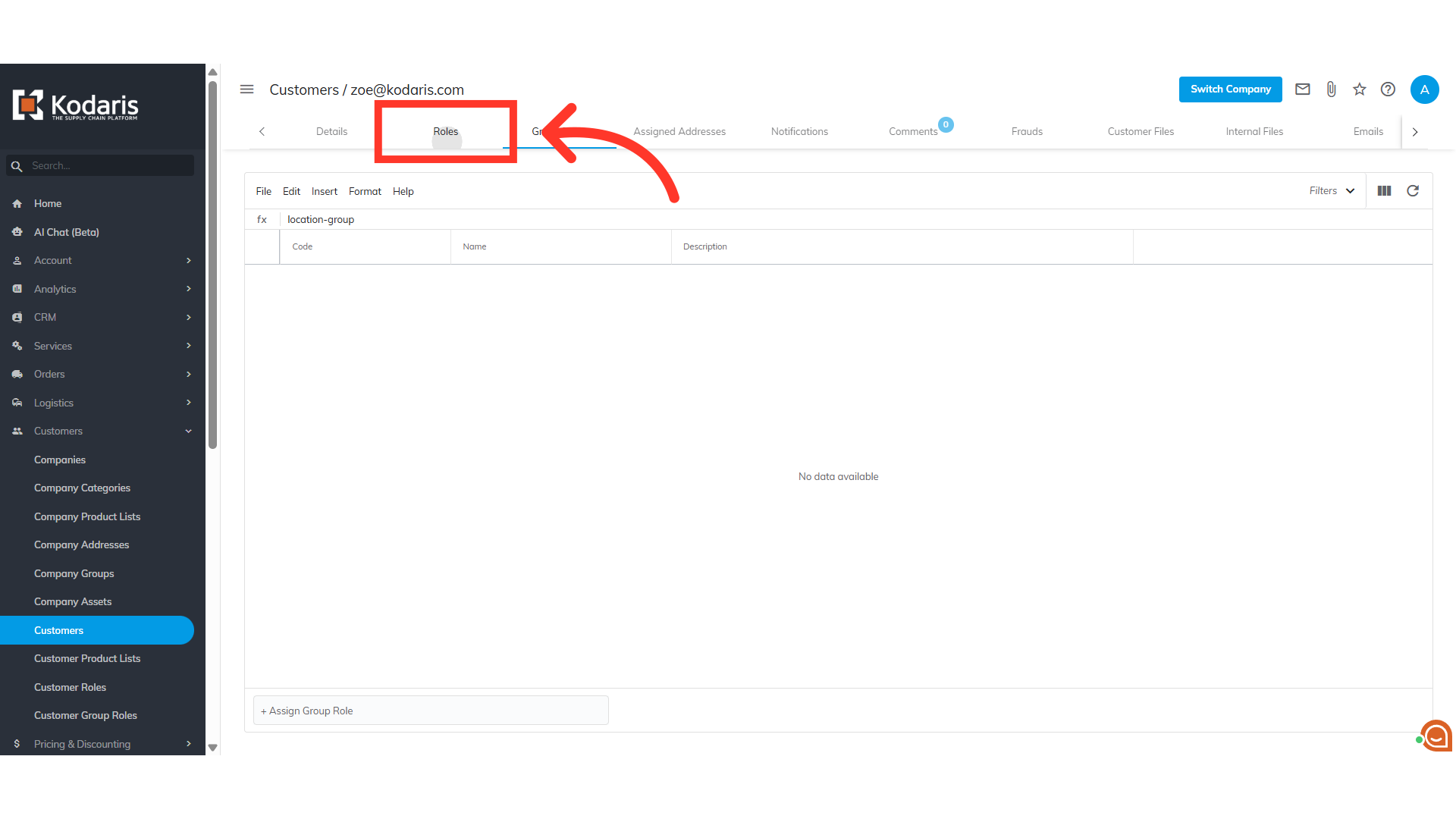
Go to "Roles" tab
To check if the roles have been deleted, go back to the "Roles" tab.
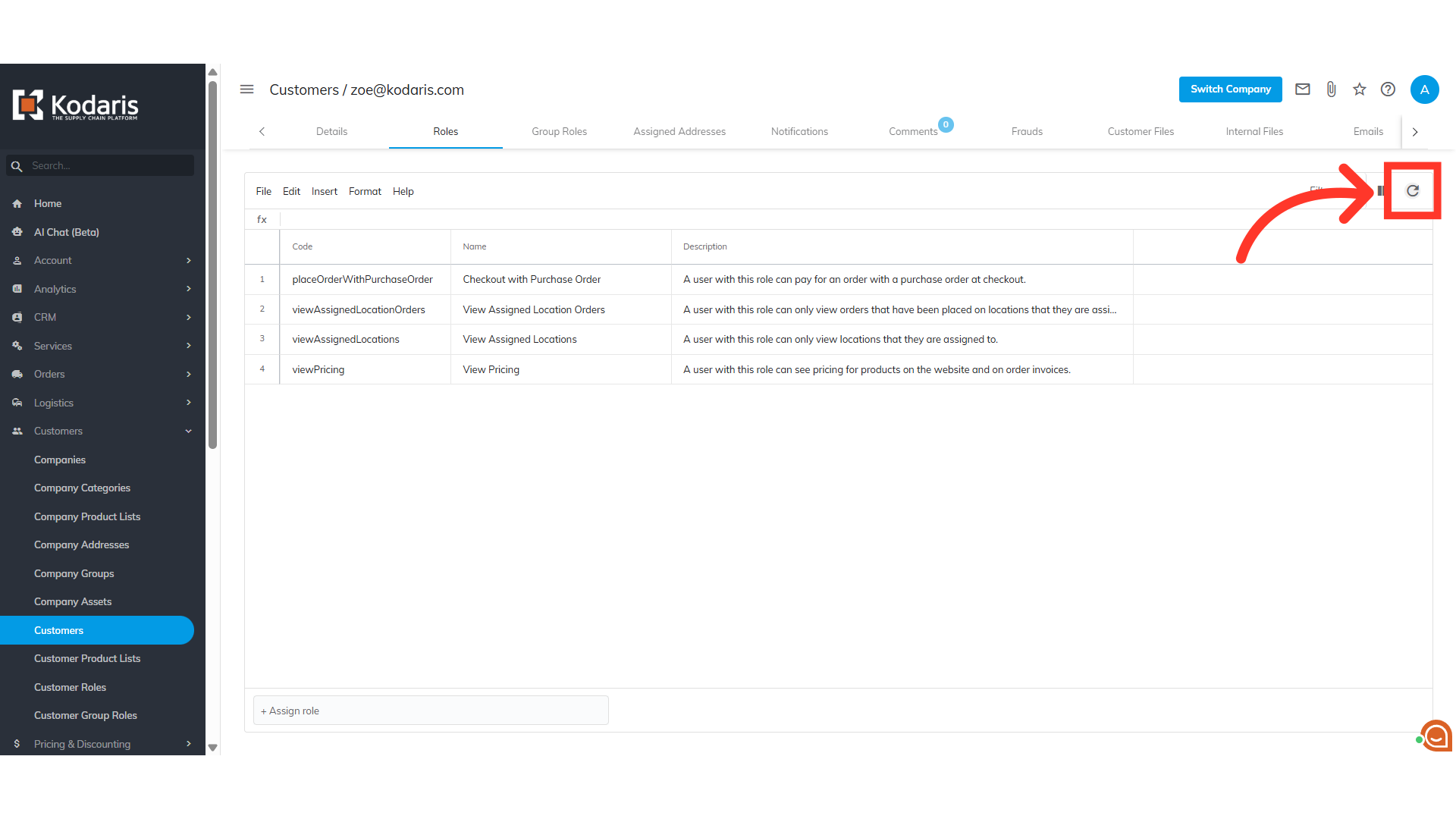
Click the "Reload" icon
Click the "Reload" icon to refresh the grid and see the update.
The roles have been deleted from the customer's account
The roles have been deleted from the customer's account.