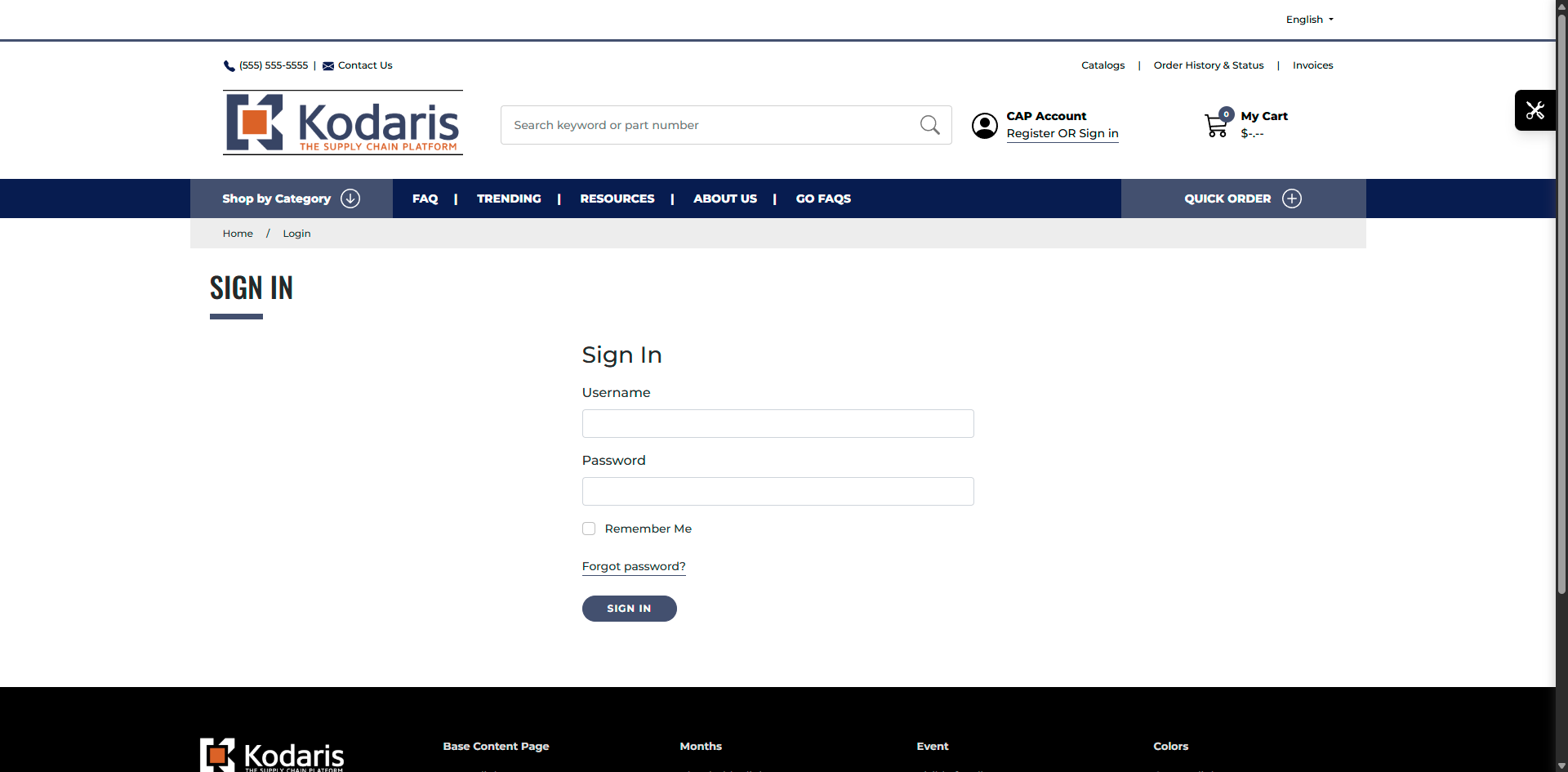
Operations Customers - Register New Users Under a Customer Account in the Operations Portal
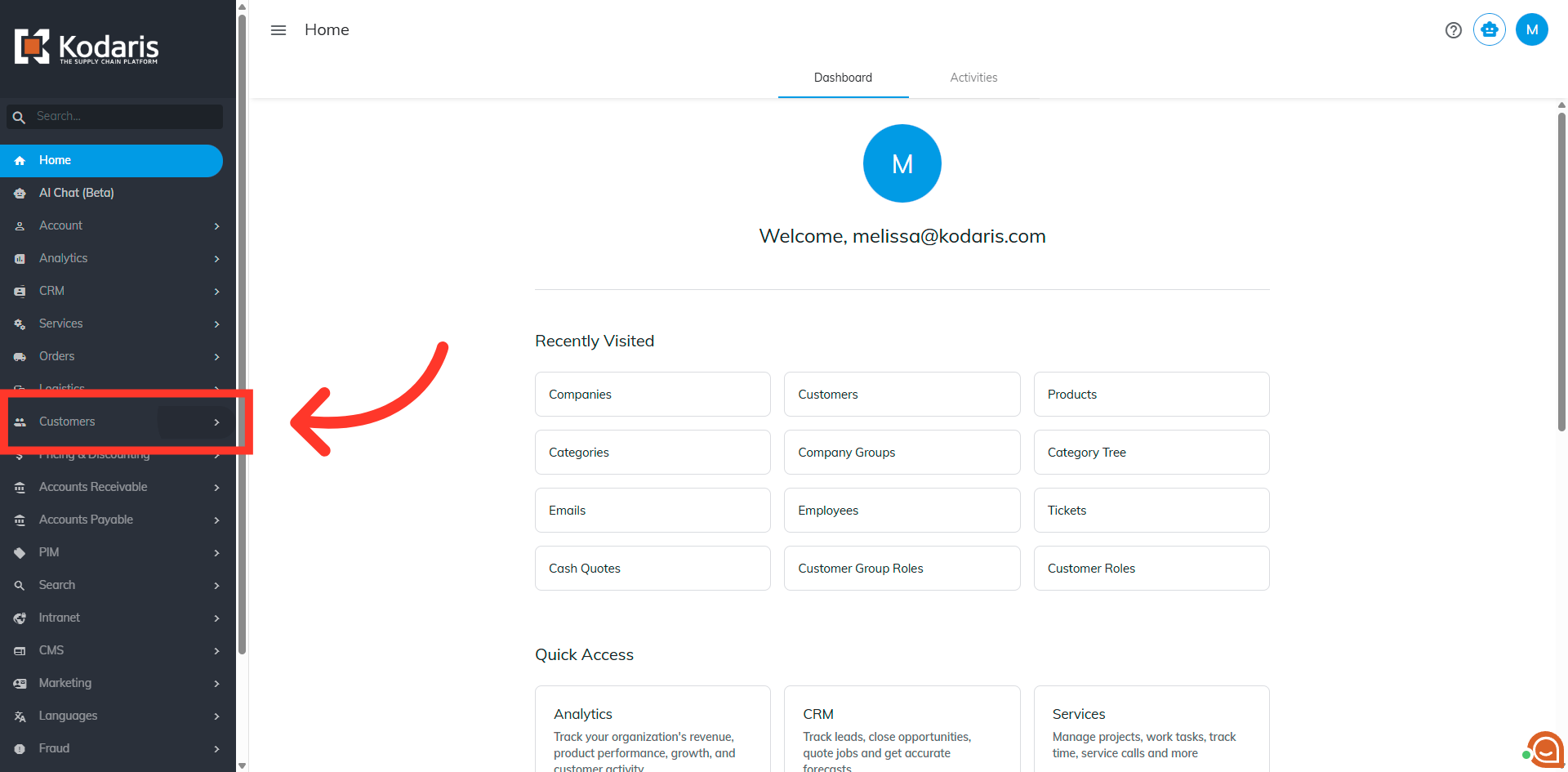
Navigate to Customers
In order to add new users to company accounts through the operations portal, navigate to the "Customers" section.
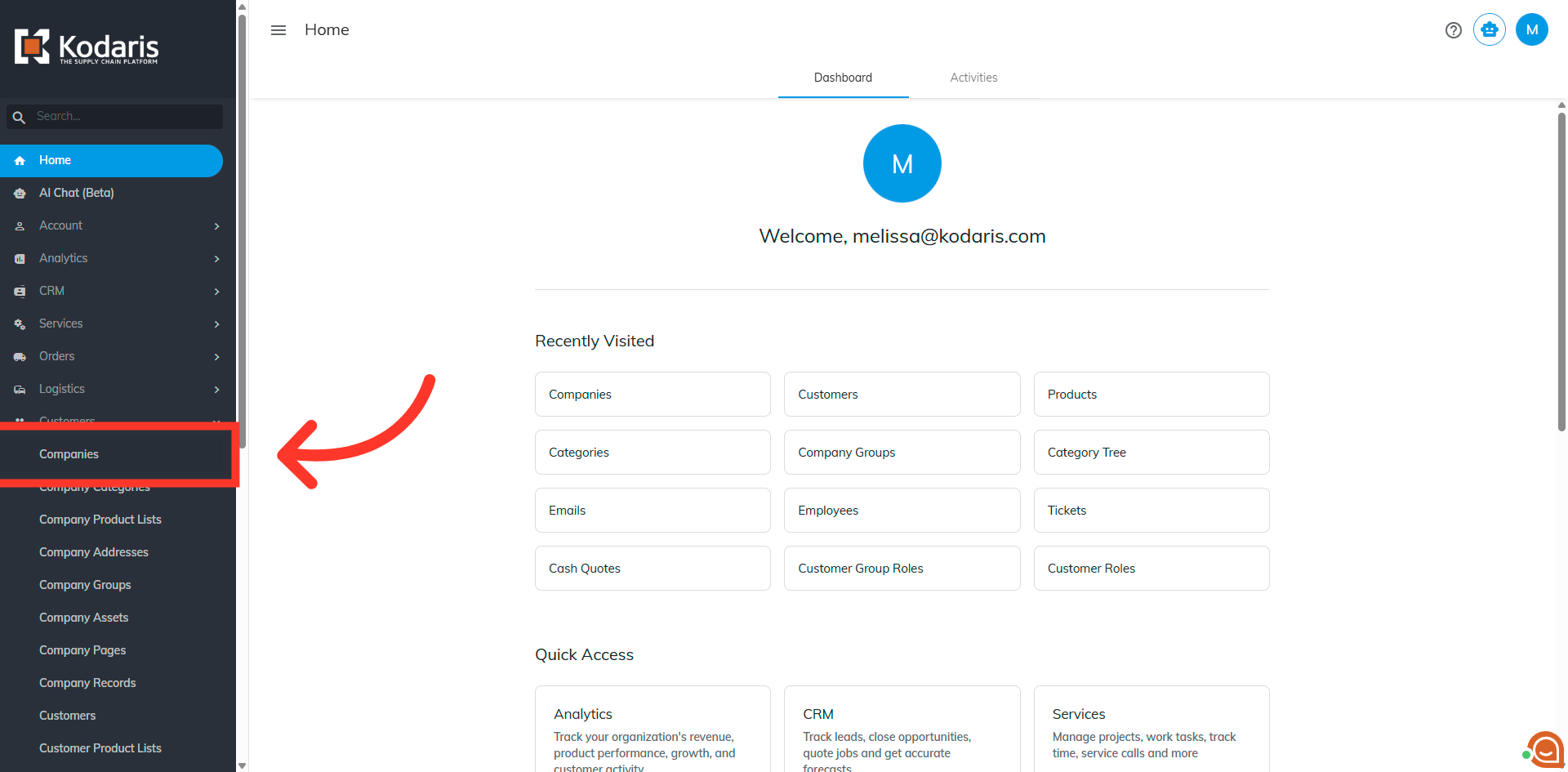
Select "Companies"
Click "Companies" to view the list of companies available in the Operations Portal.
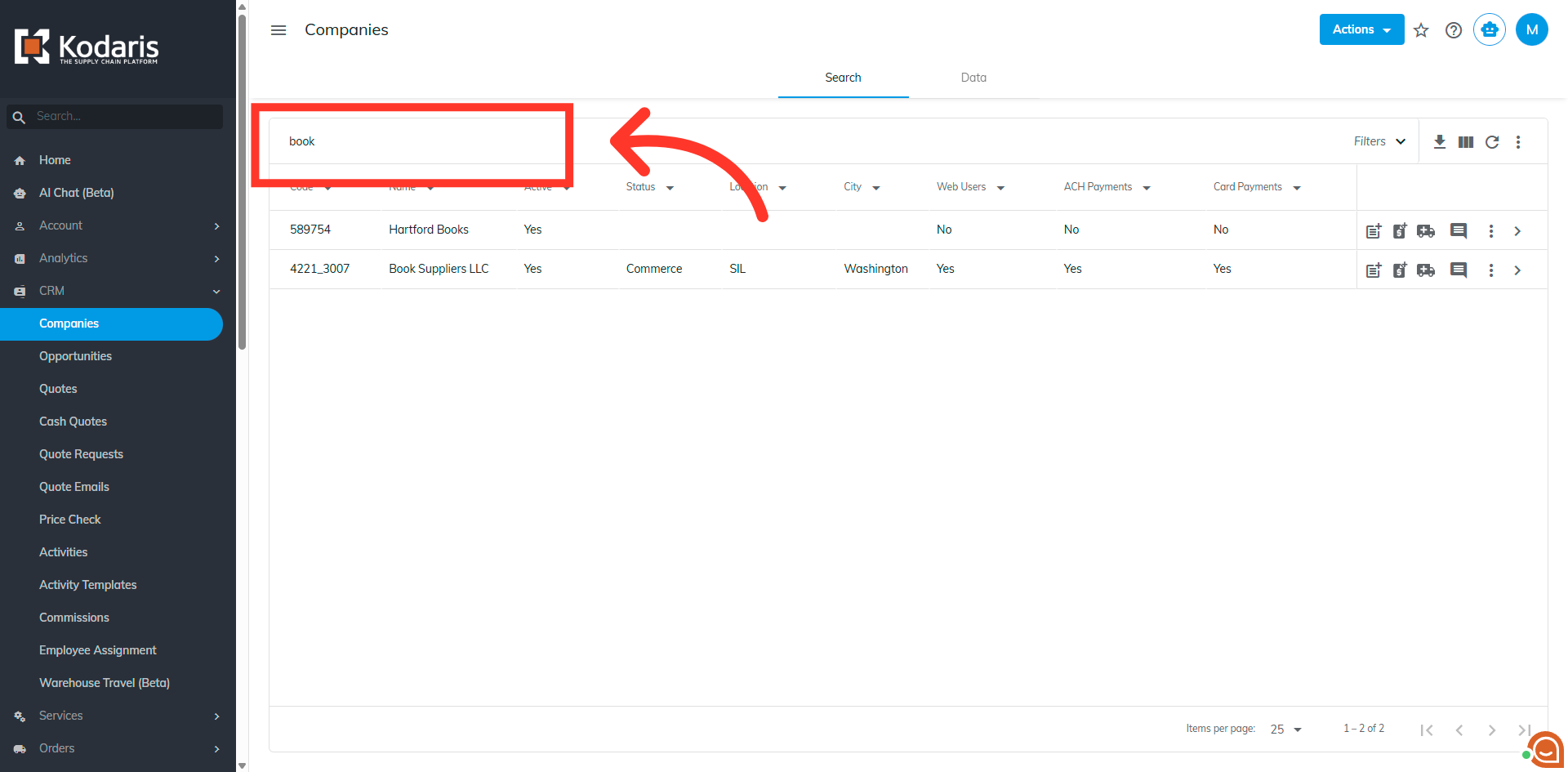
Search for the company
Search for the company.
Open company details
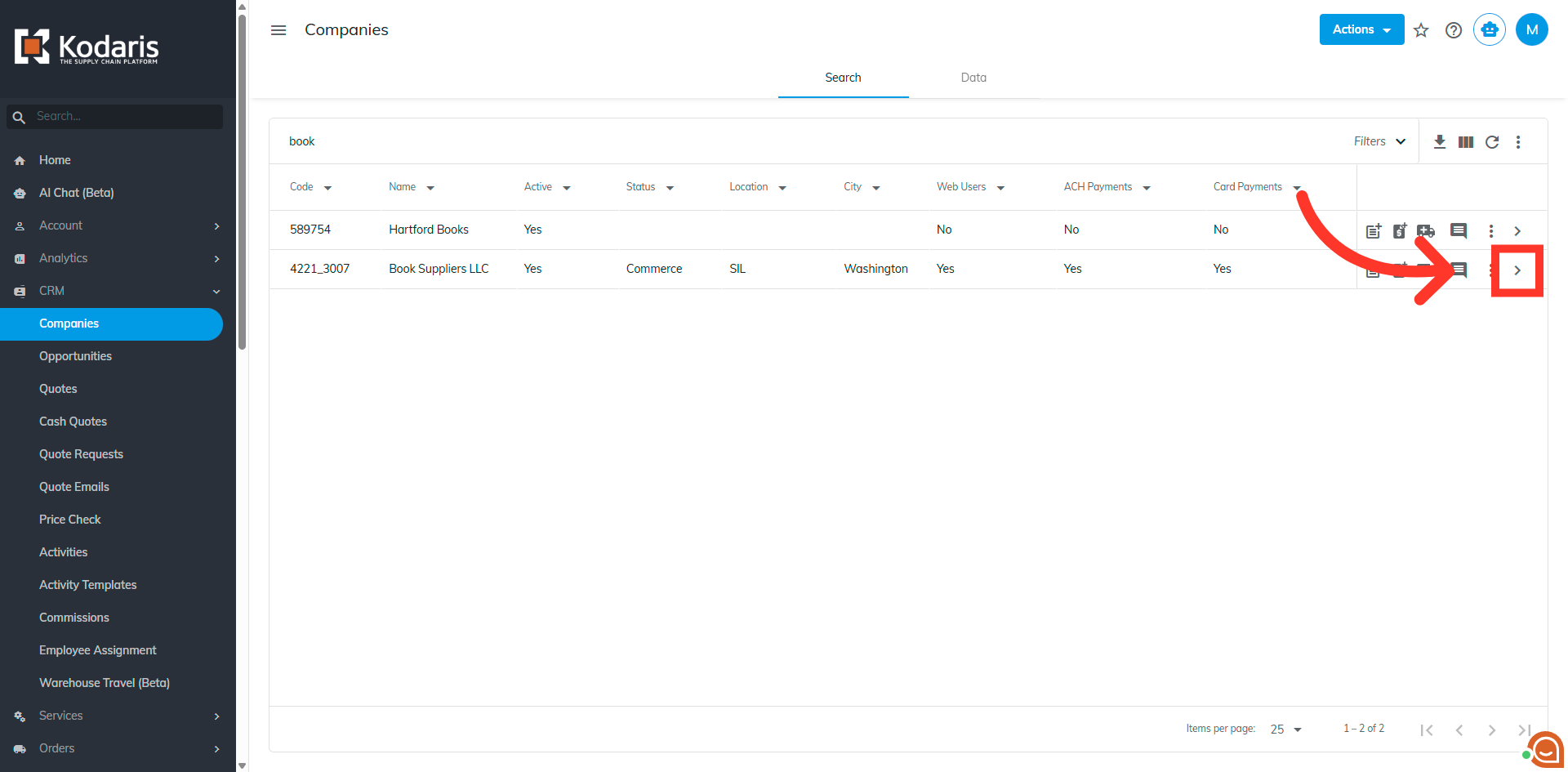
Click "more details" to open detailed information for the selected company.
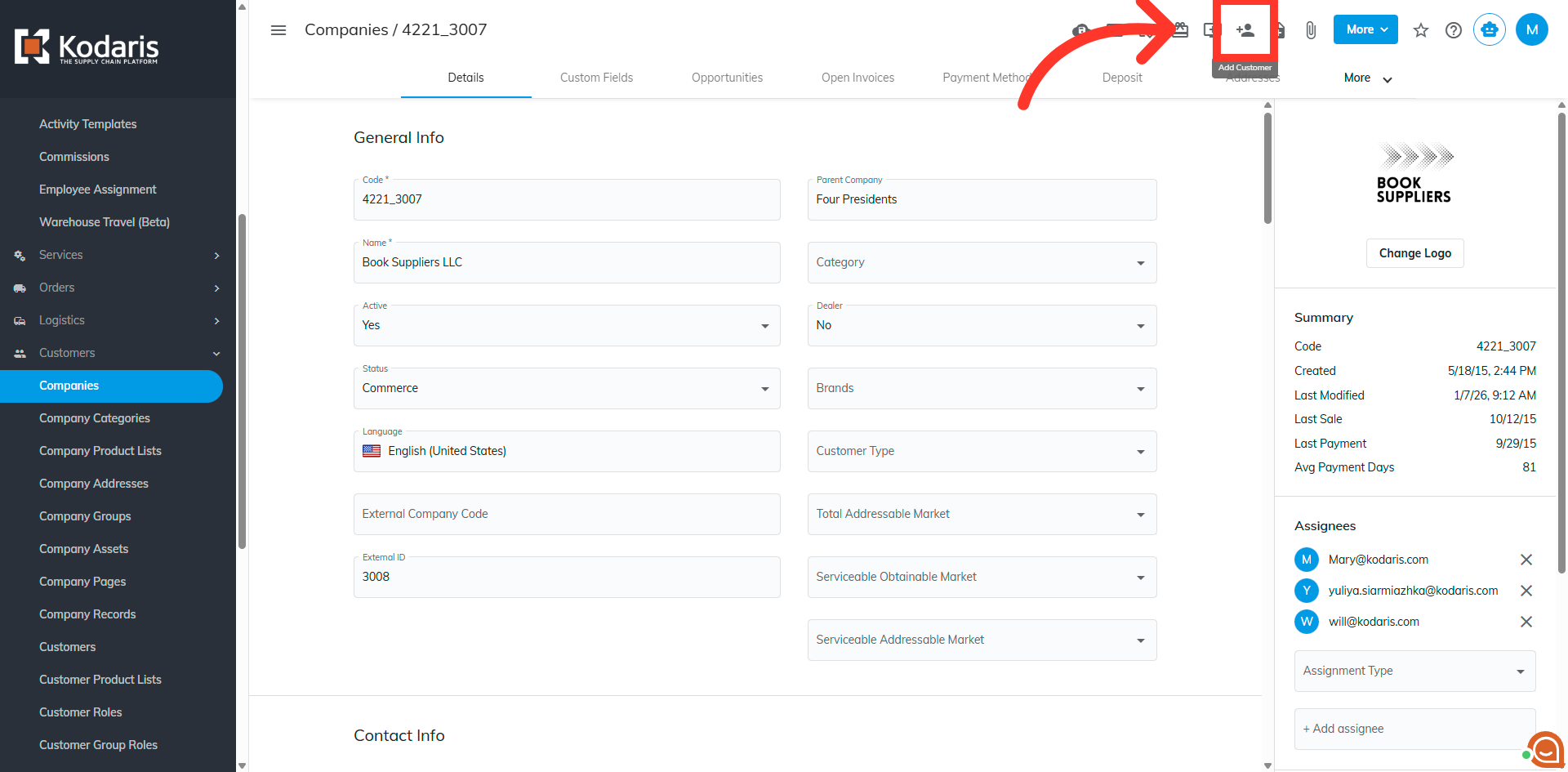
To add a customer
Click the "Add customer" icon to start adding a new user to the company.
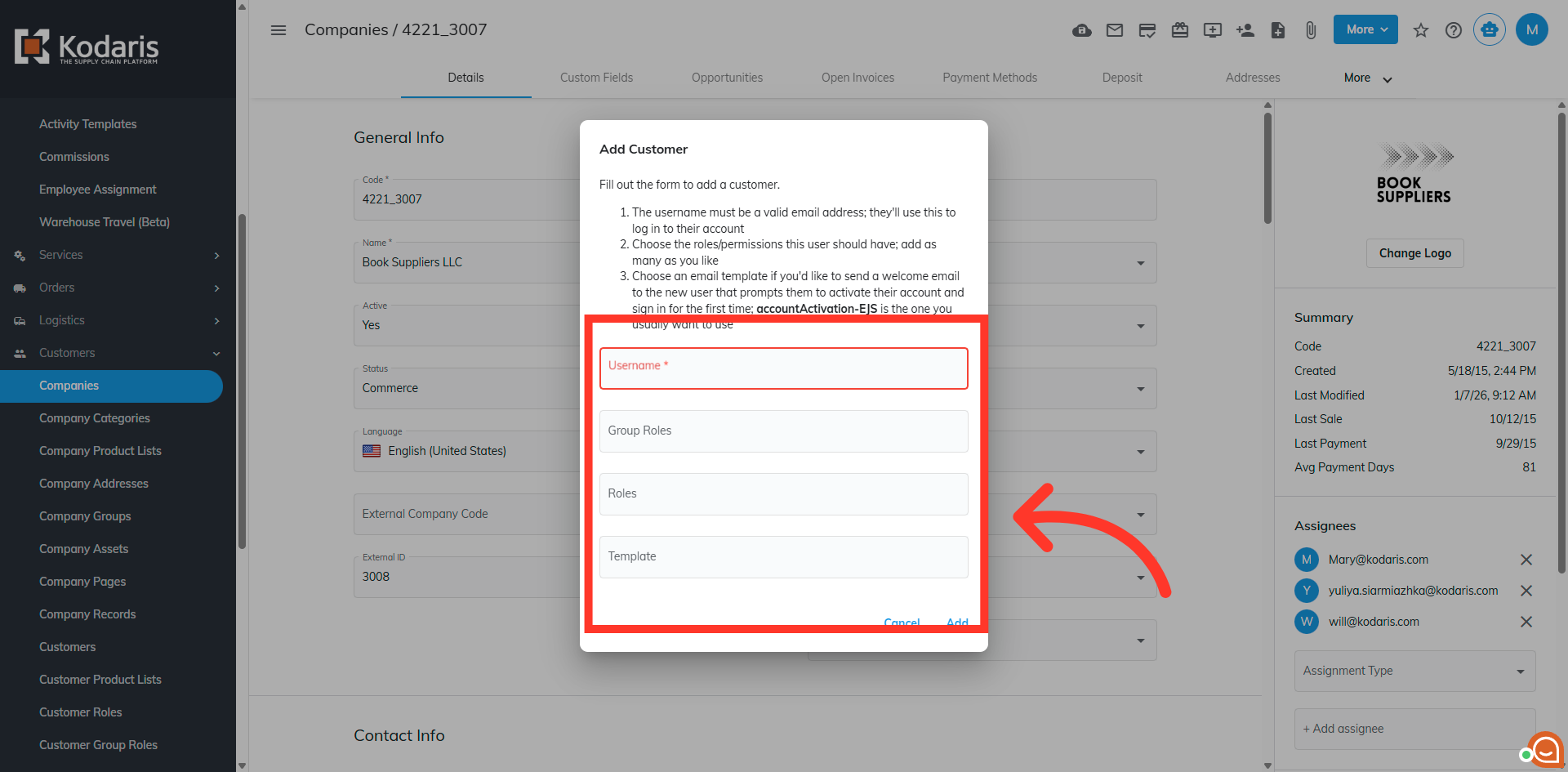
Update customer form
Fill in the customer's information for the fields of "Username" (email), "Roles", and if you would like to send a welcome email, select the email template "accountActivation-EJS" from the template dropdown
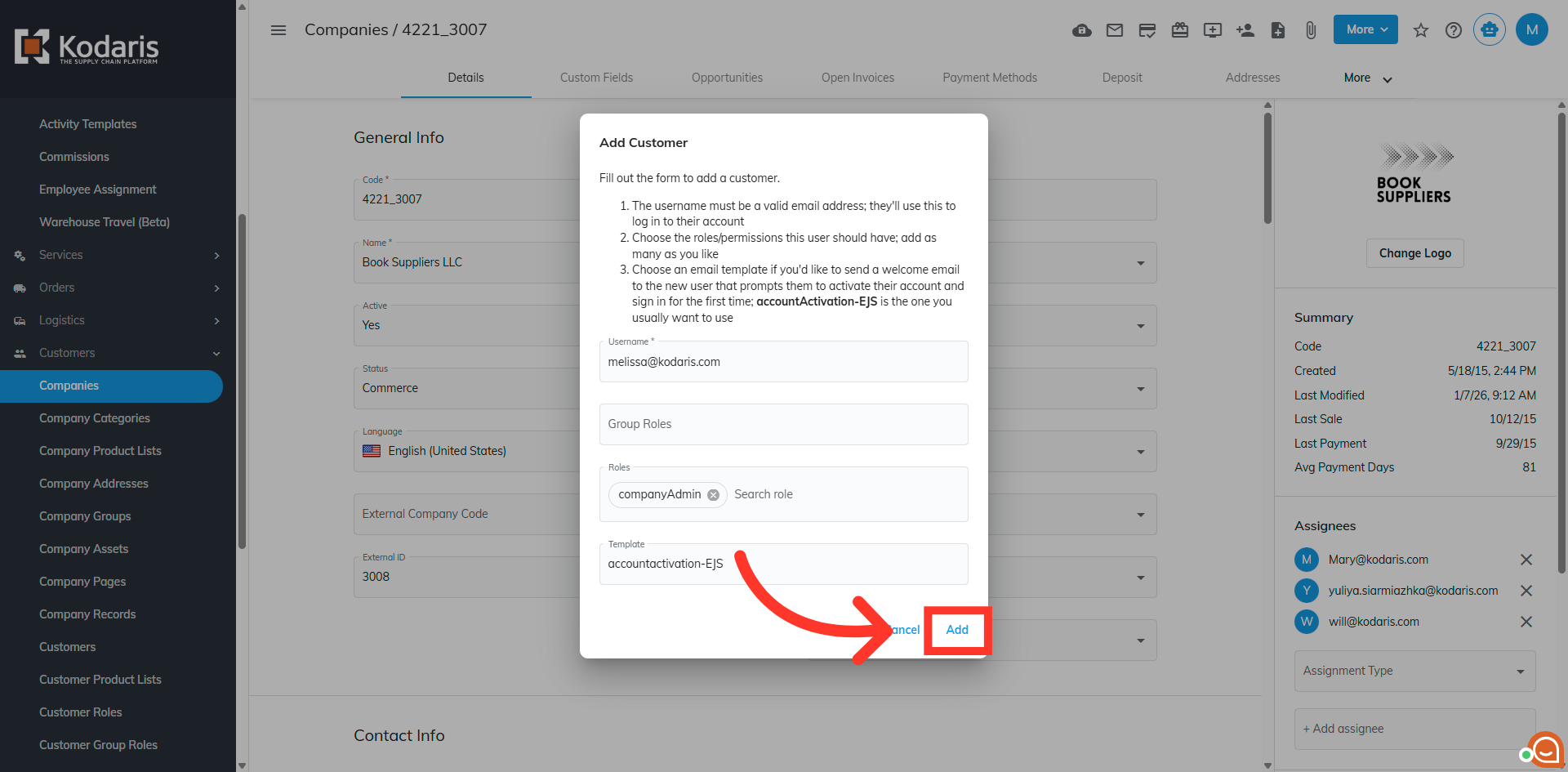
Click "Add" button
Click the "Add" button to complete new customer user registration.
Add any additional information
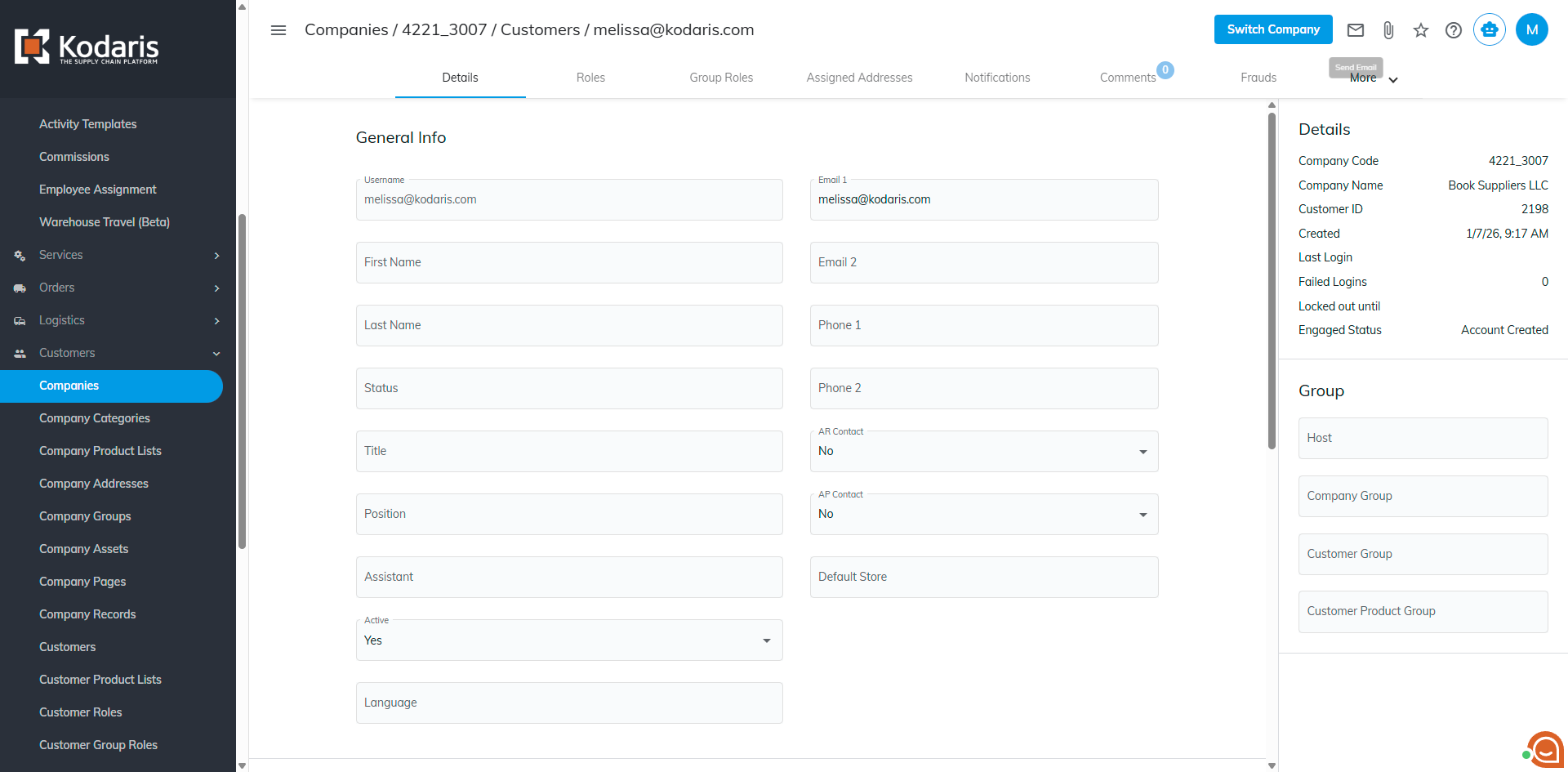
You will be sent to the main detail page for the newly added customer. Here you can update any additional customer user information that is needed.
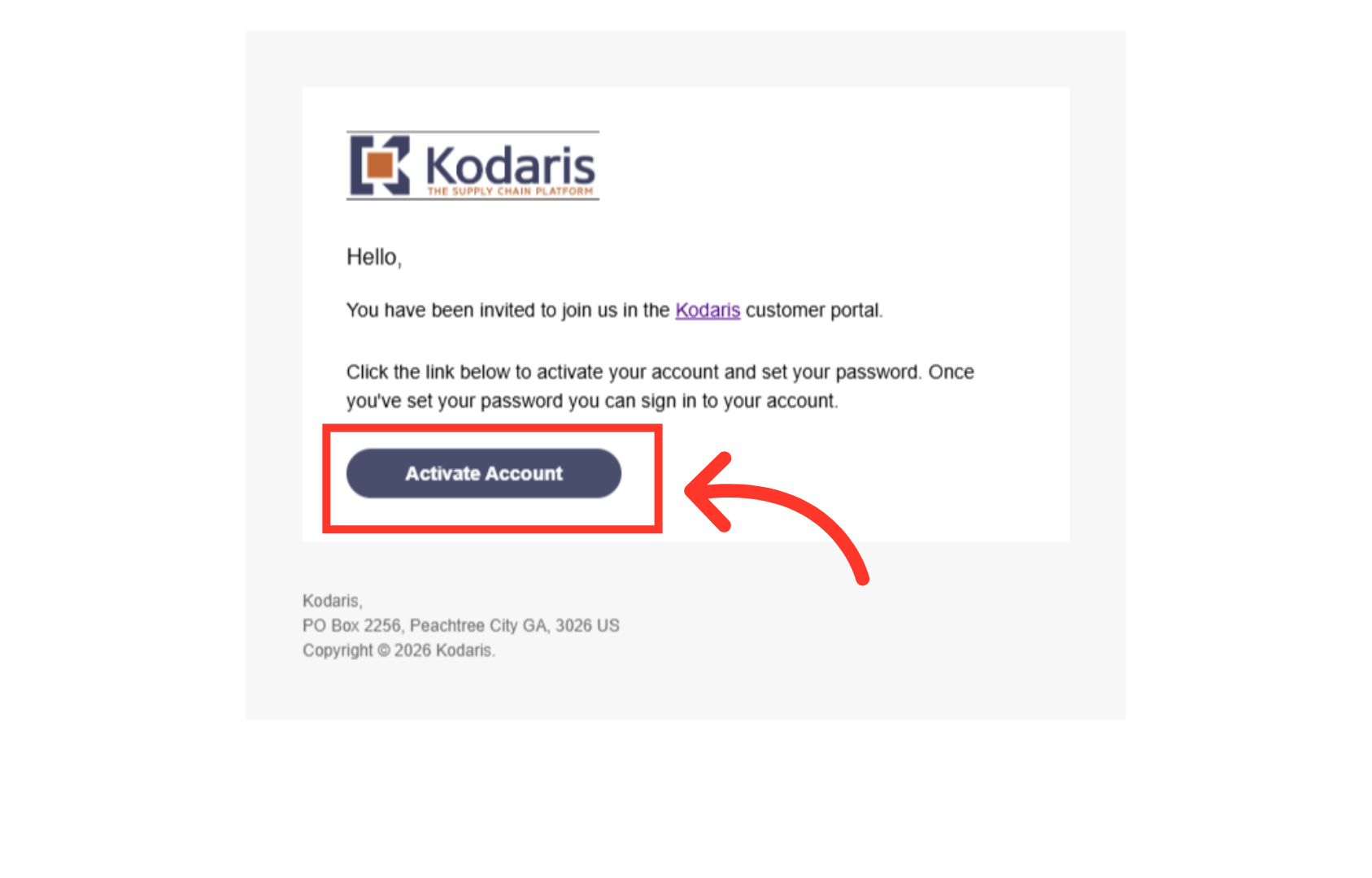
Customer activates account
If you chose to send the activation email during setup, the customer will receive the email and they will need to click on the "Activate Account" button.
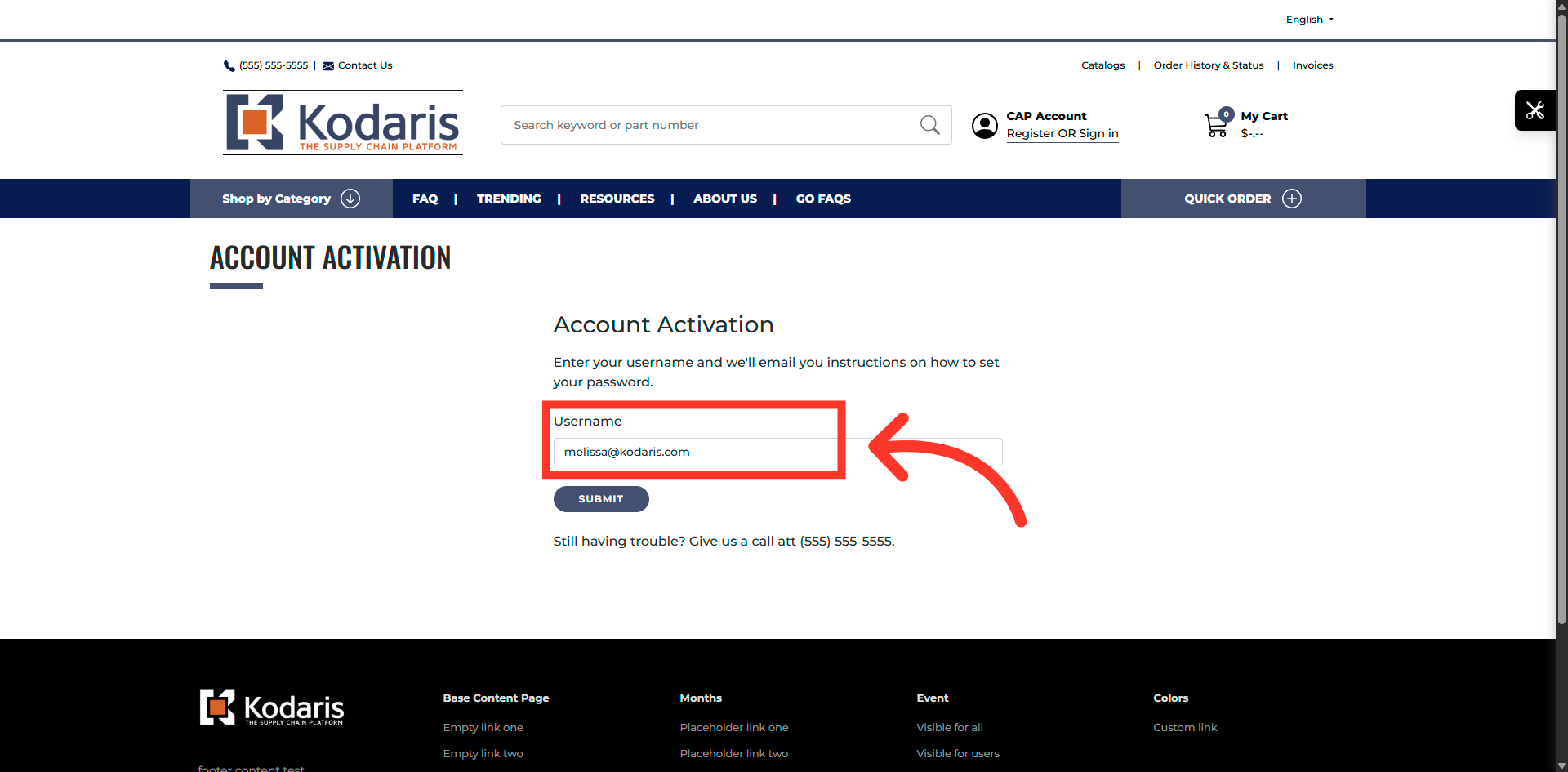
Enter username
They will enter in their username (email address).
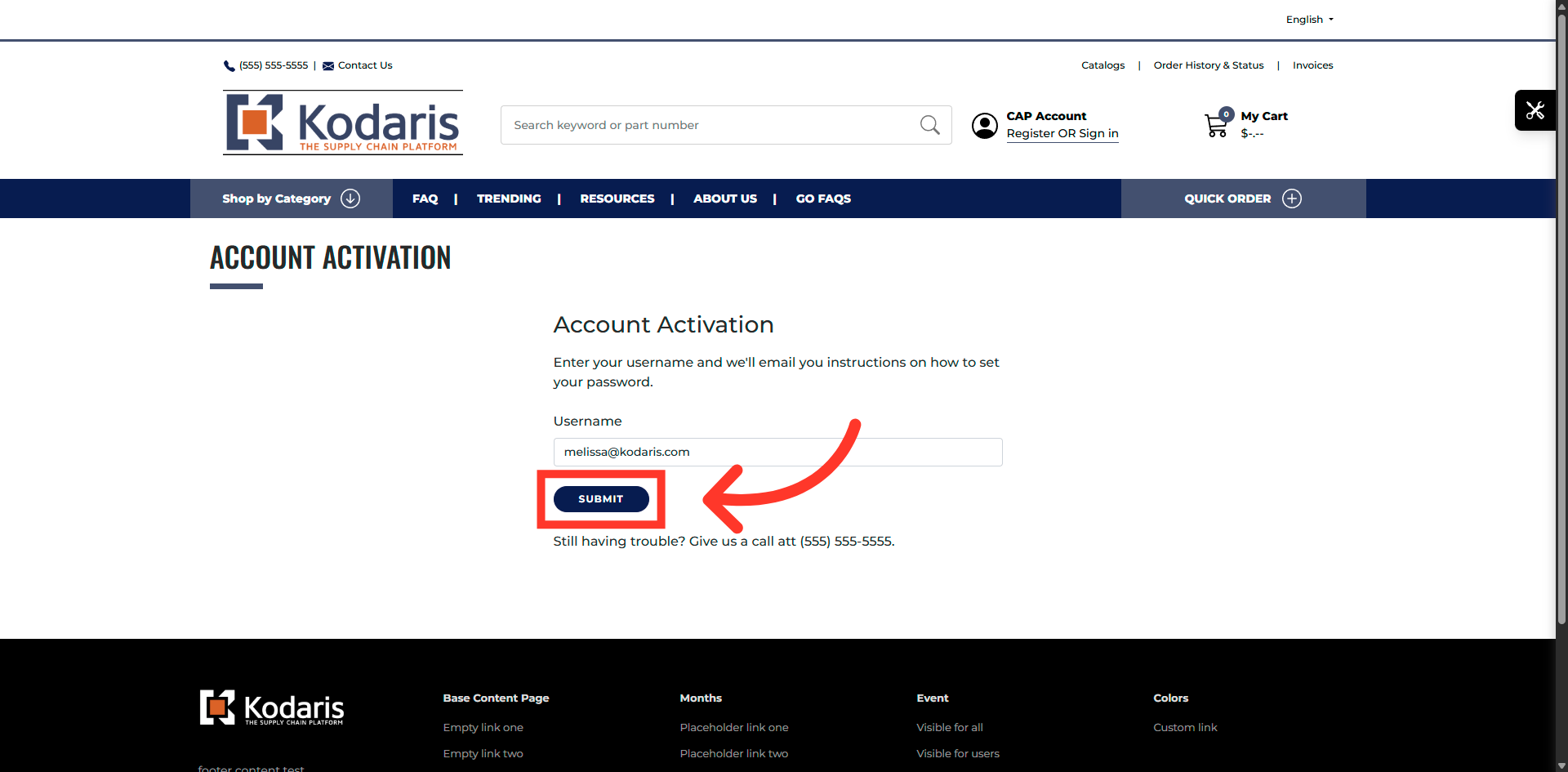
Submit activation request
Click the "Submit" button to receive an email with password setup instructions.
Customer resets password
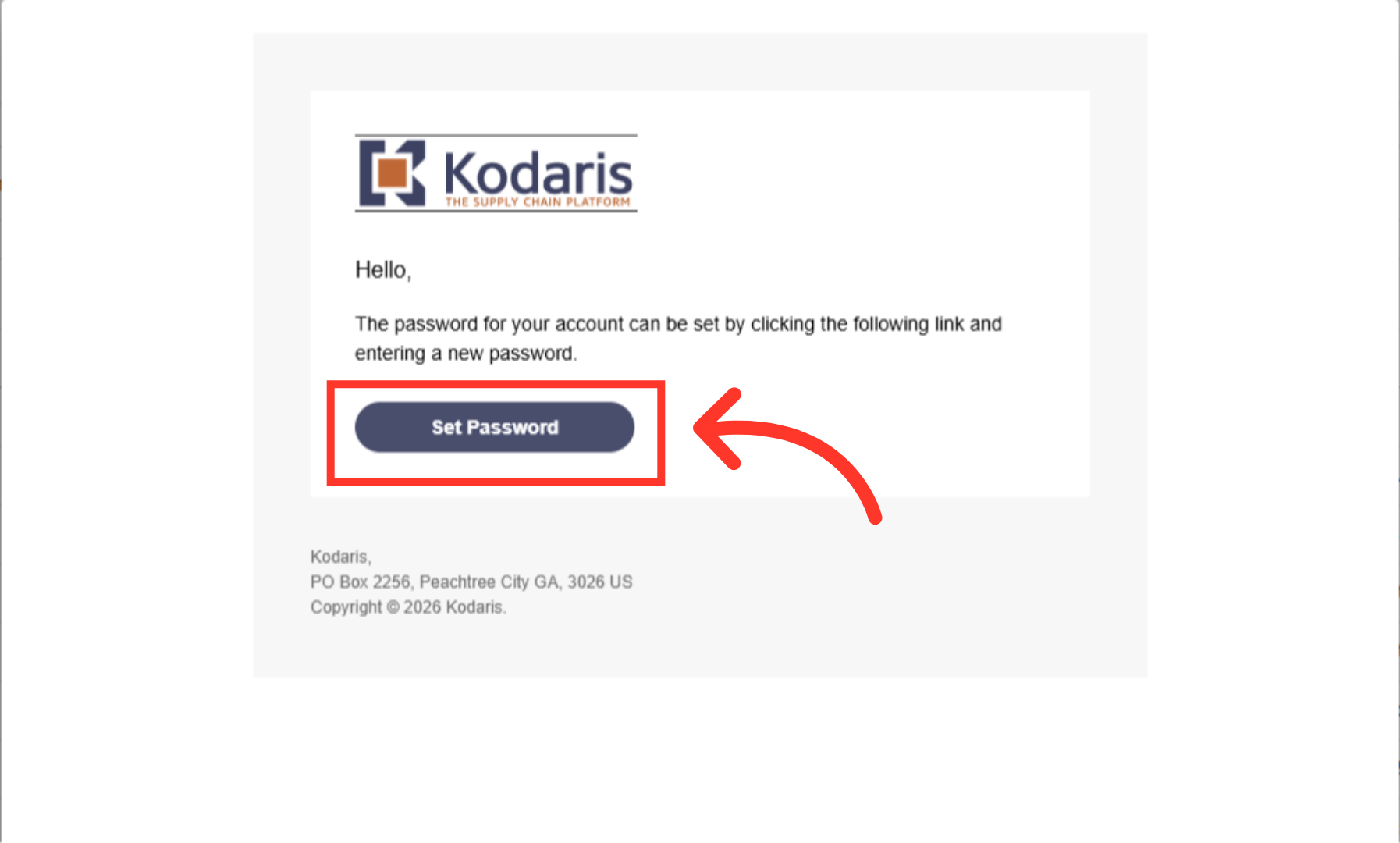
Customers will receive an email to set their password. They will need to click on the set password button.
Enter new password
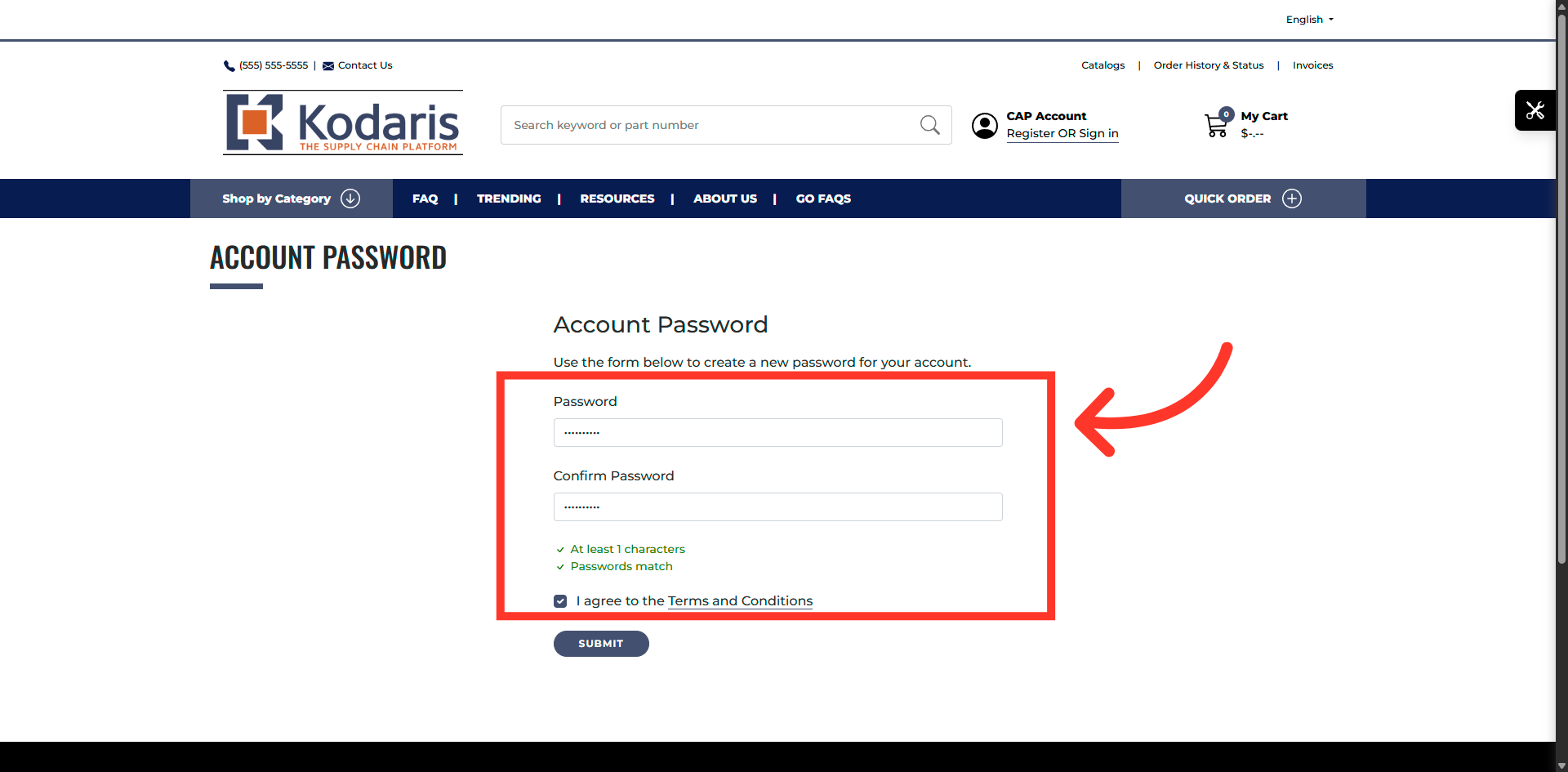
Customers will then need to enter a new password and check the box to agree with the "Terms and Conditions".
Submit password
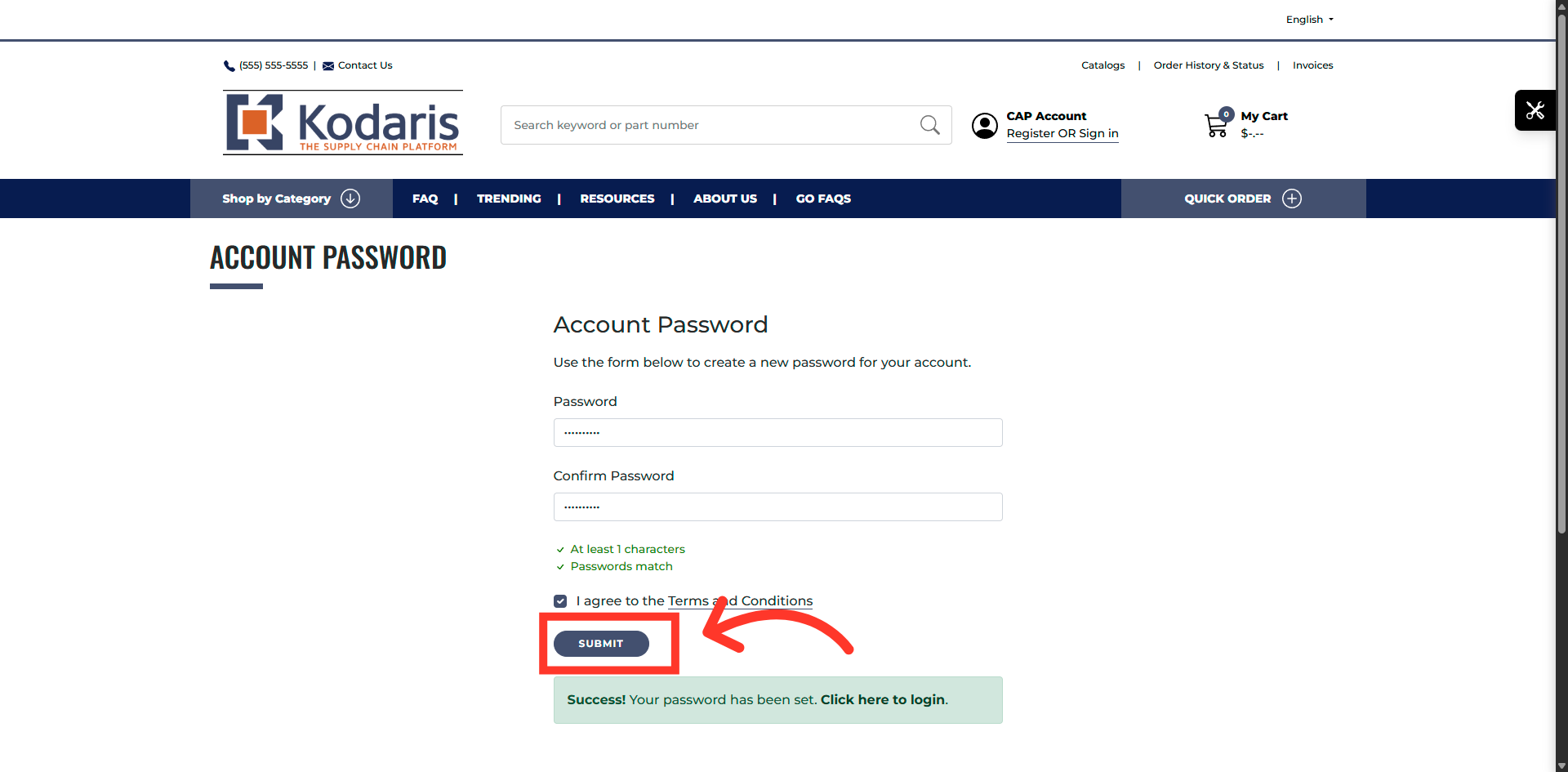
Click the "Submit" button to save the password.
Click to login
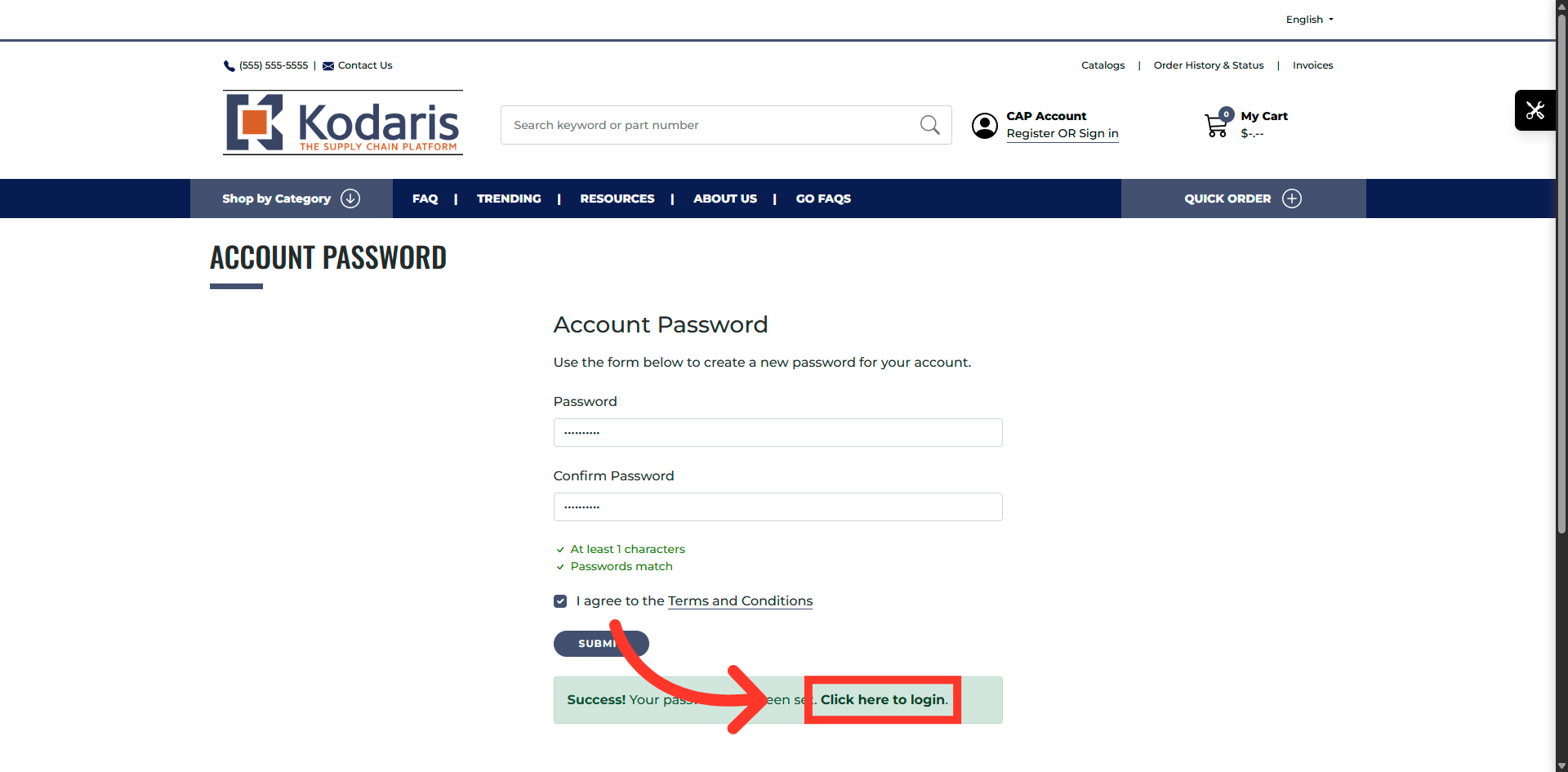
Click the "Click here to login" link to proceed to the login page after setting the password.
Customer signs in
The customer is now ready to sign into their customer portal.