Operations Customers - Update Customer Roles to View All Locations
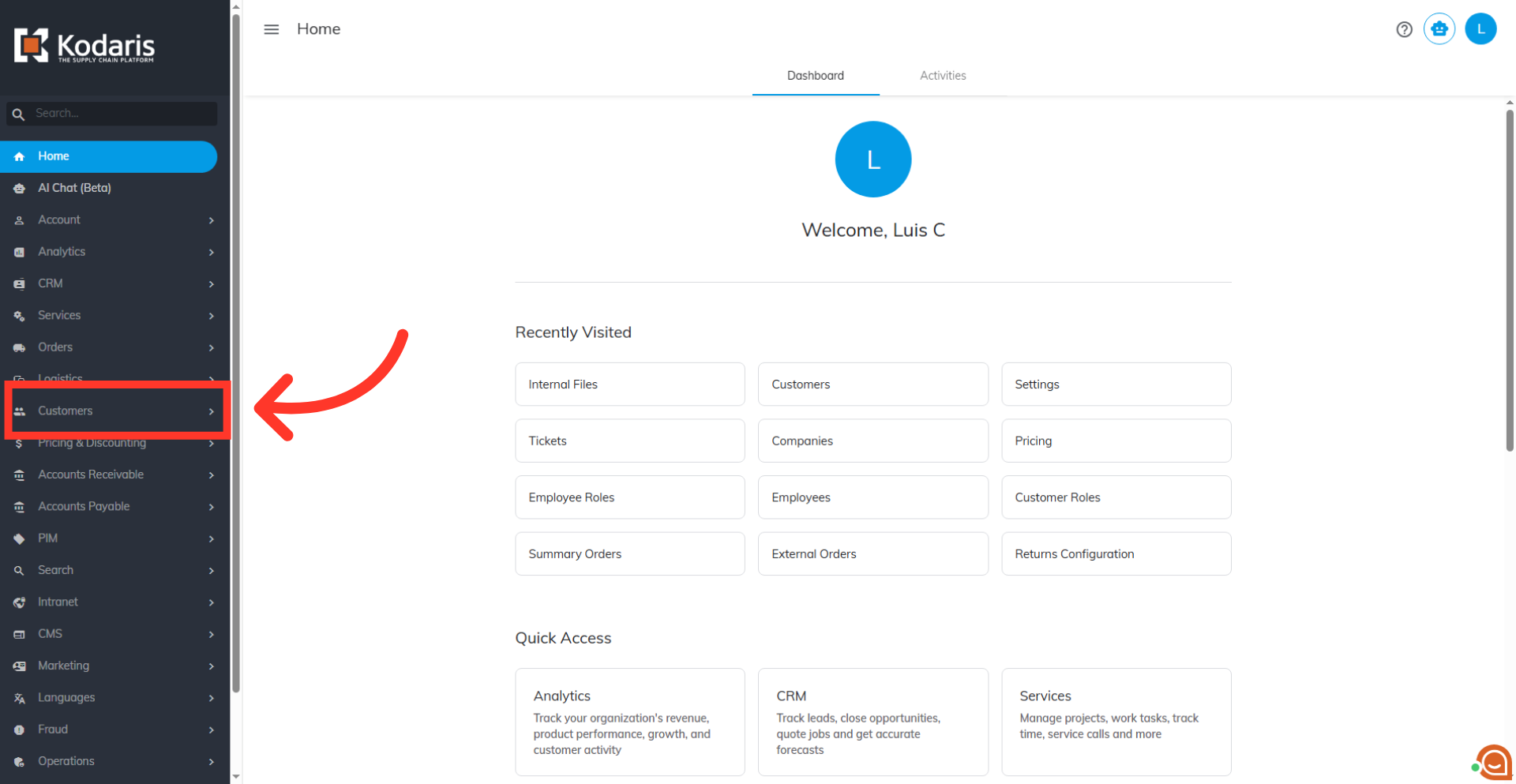
Navigate to your "CRM" or "Customers" sections
In order for a customer to view all locations, they will need to be assigned "viewAllLocations". To assign the role to a customer, avigate to your "CRM" or "Customers" sections in the Operations Portal.
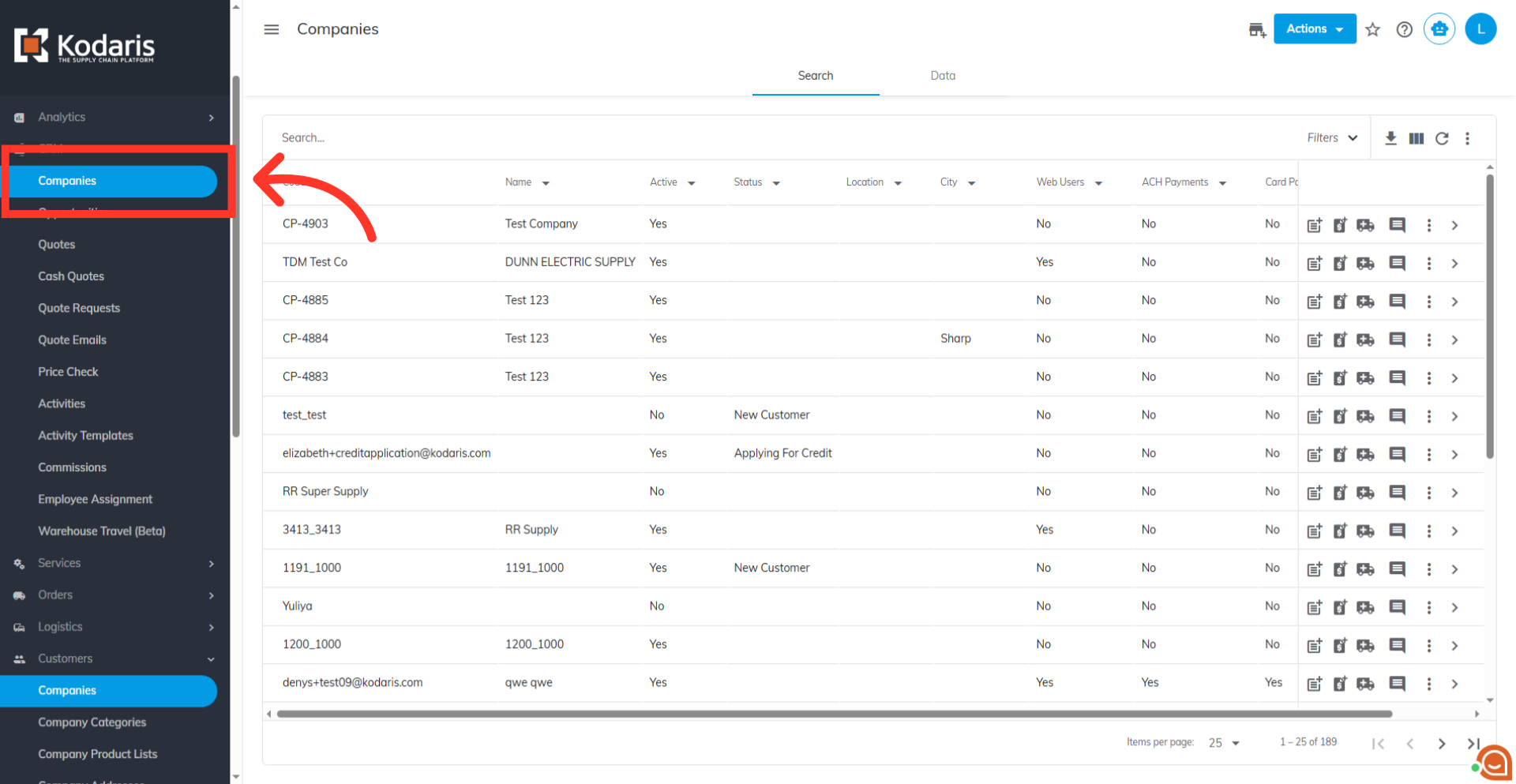
Click "Companies"
Then, click "Companies". In order to access "Companies" you will need to be set up either as an "administrator" or a "superuser", or have the appropriate roles: “companyView," "crmCompanyView," "companyEdit," crmCompanyEdit," and "dispatch."
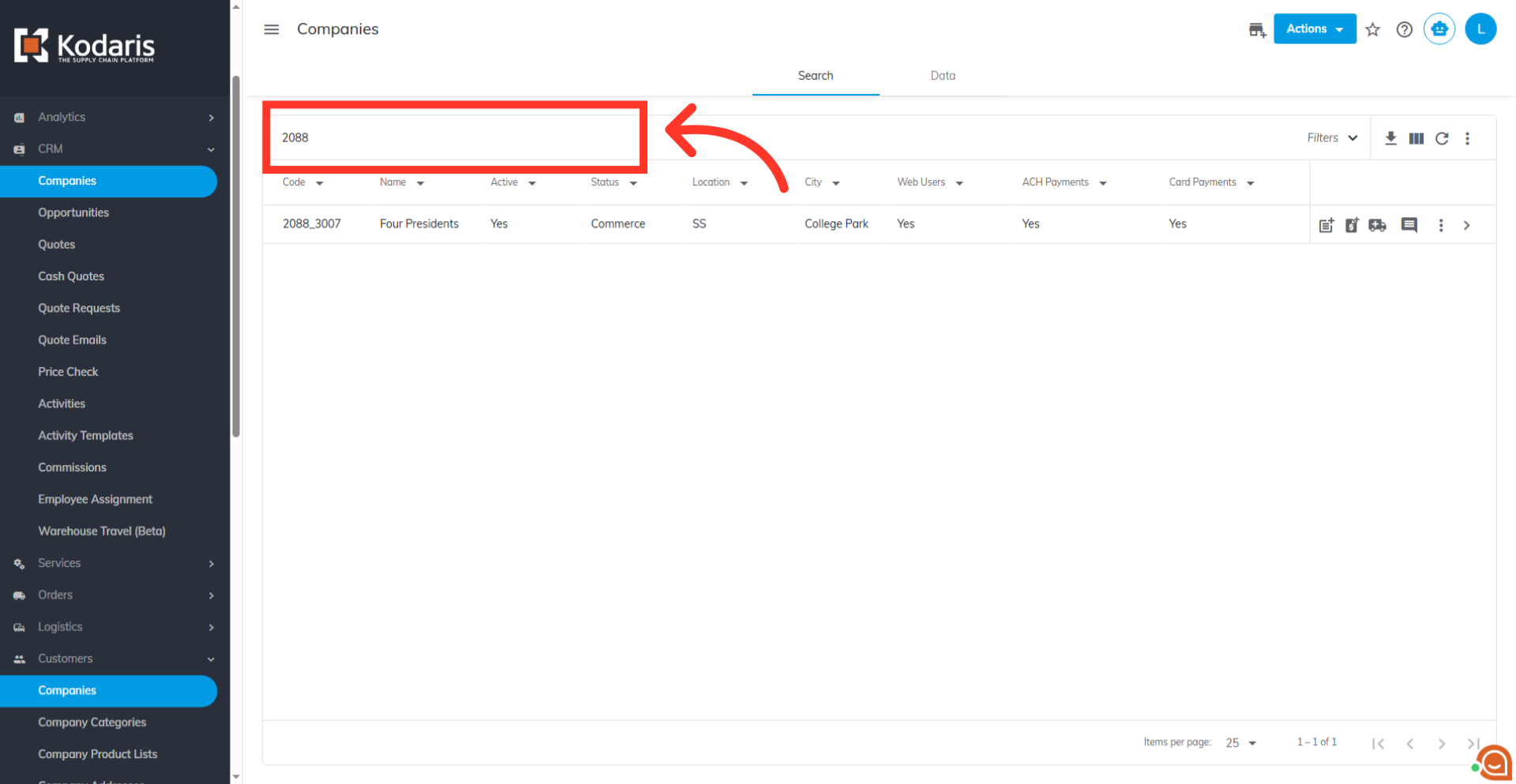
Search for the company
On the "Search" tab, use the search bar or the column filters to narrow down your list and locate the company your customer is a part of. Fill the search bar with your company name or a keyword to identify your company during search.
Go to the details page of the company
Then, click the more details icon to access company details.
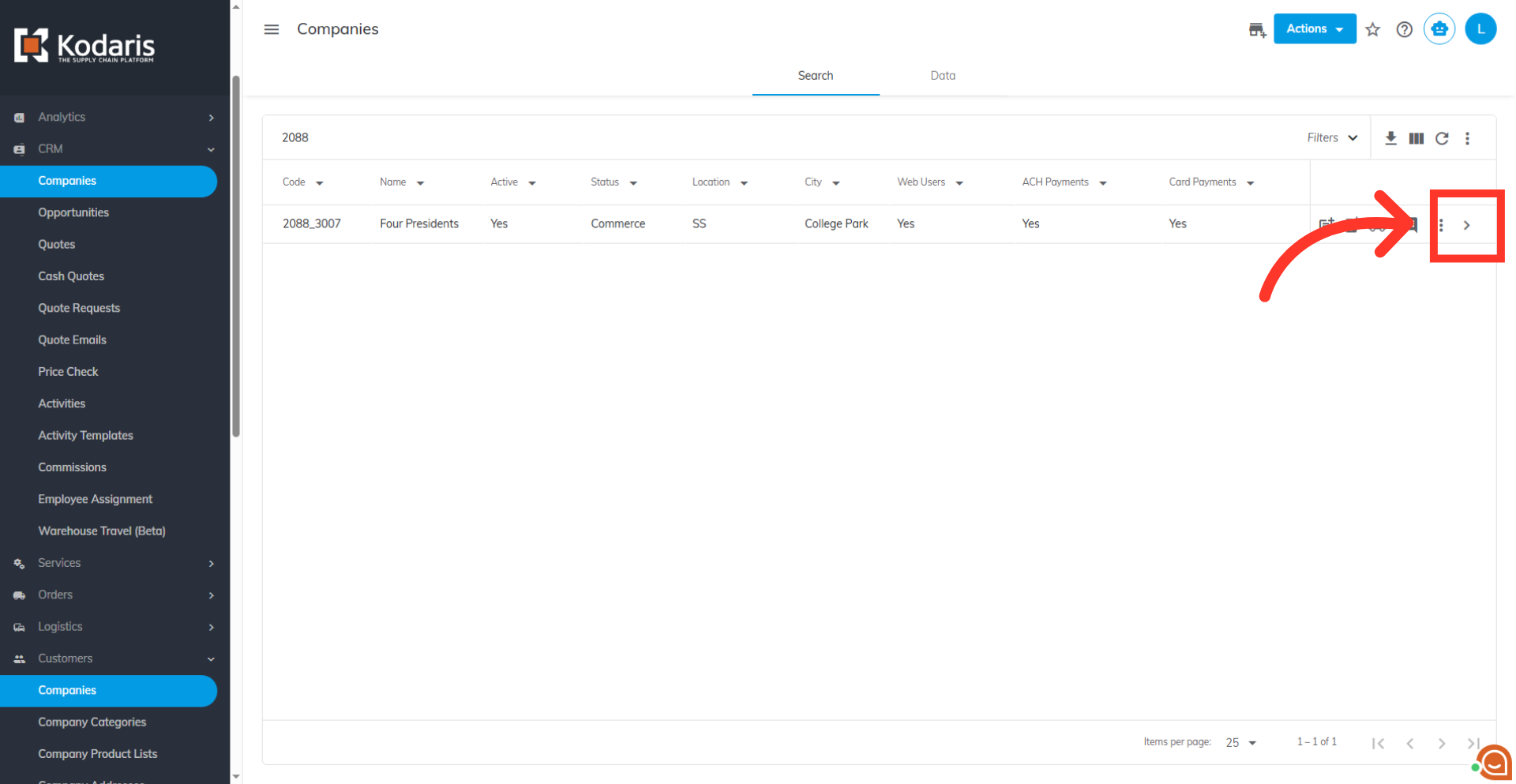
Click "More"
Click "More"
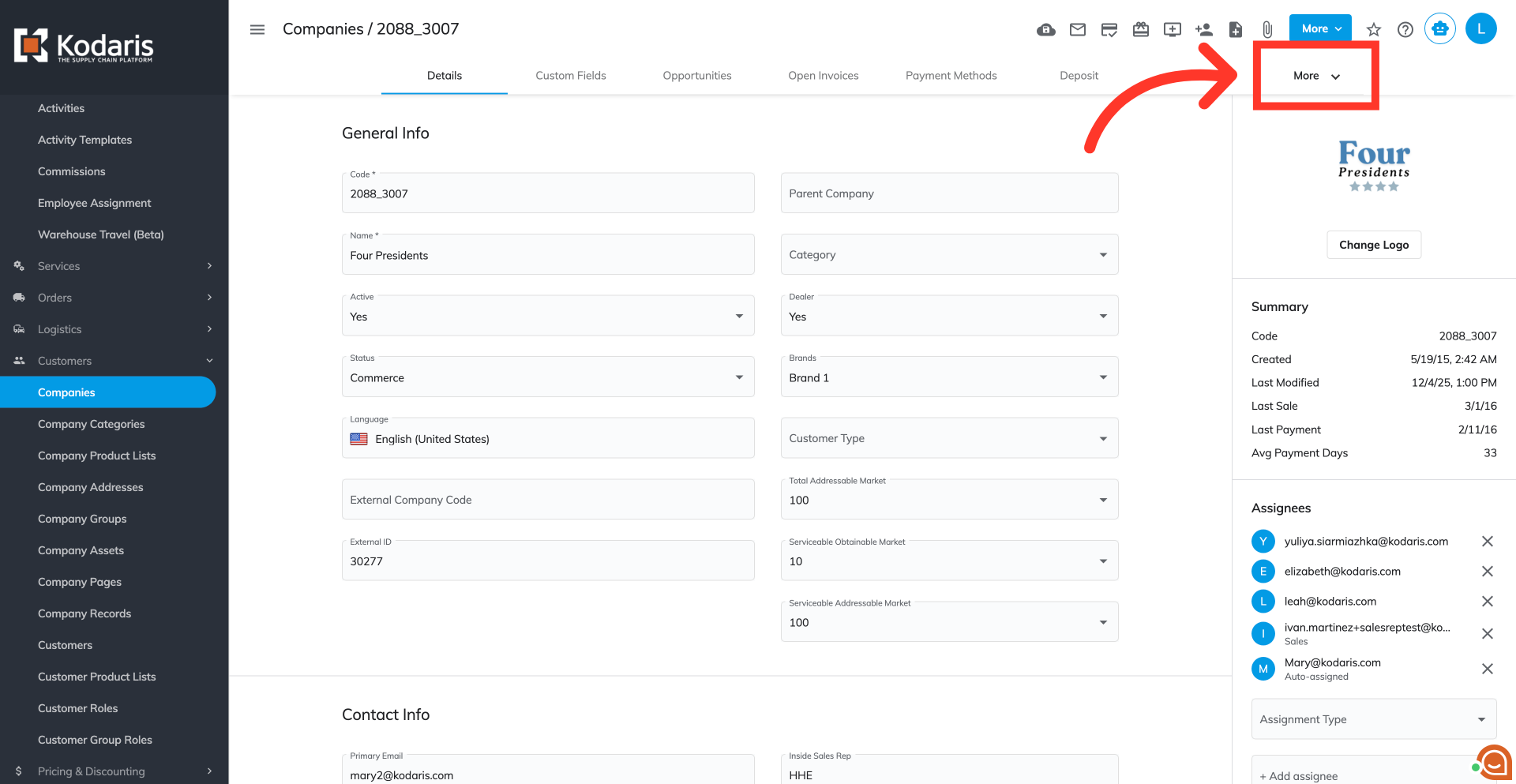
Go to "Customers" tab
Go to "Customers" tab
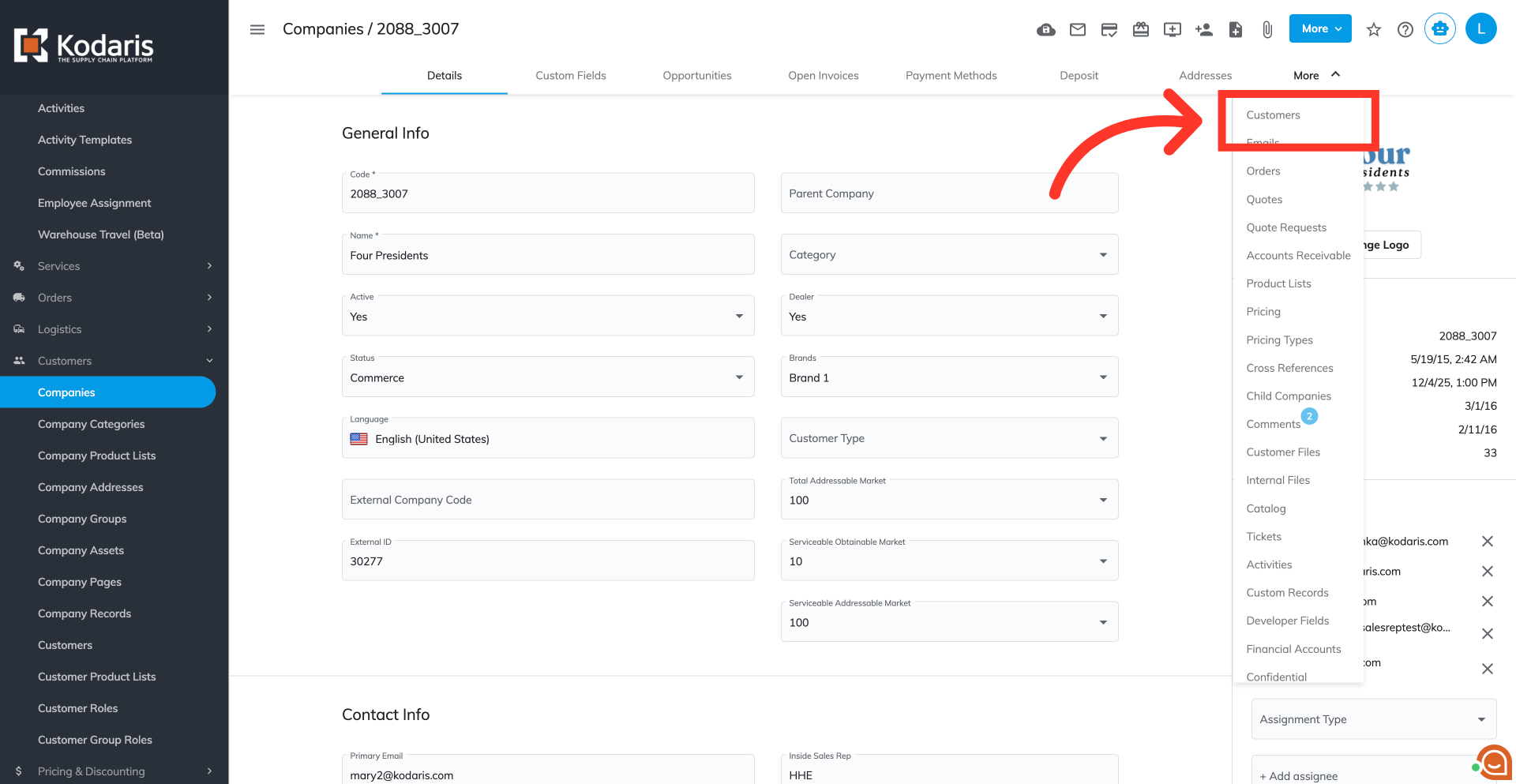
Search for the customer
Use the search bar to narrow down your list and locate your customer.
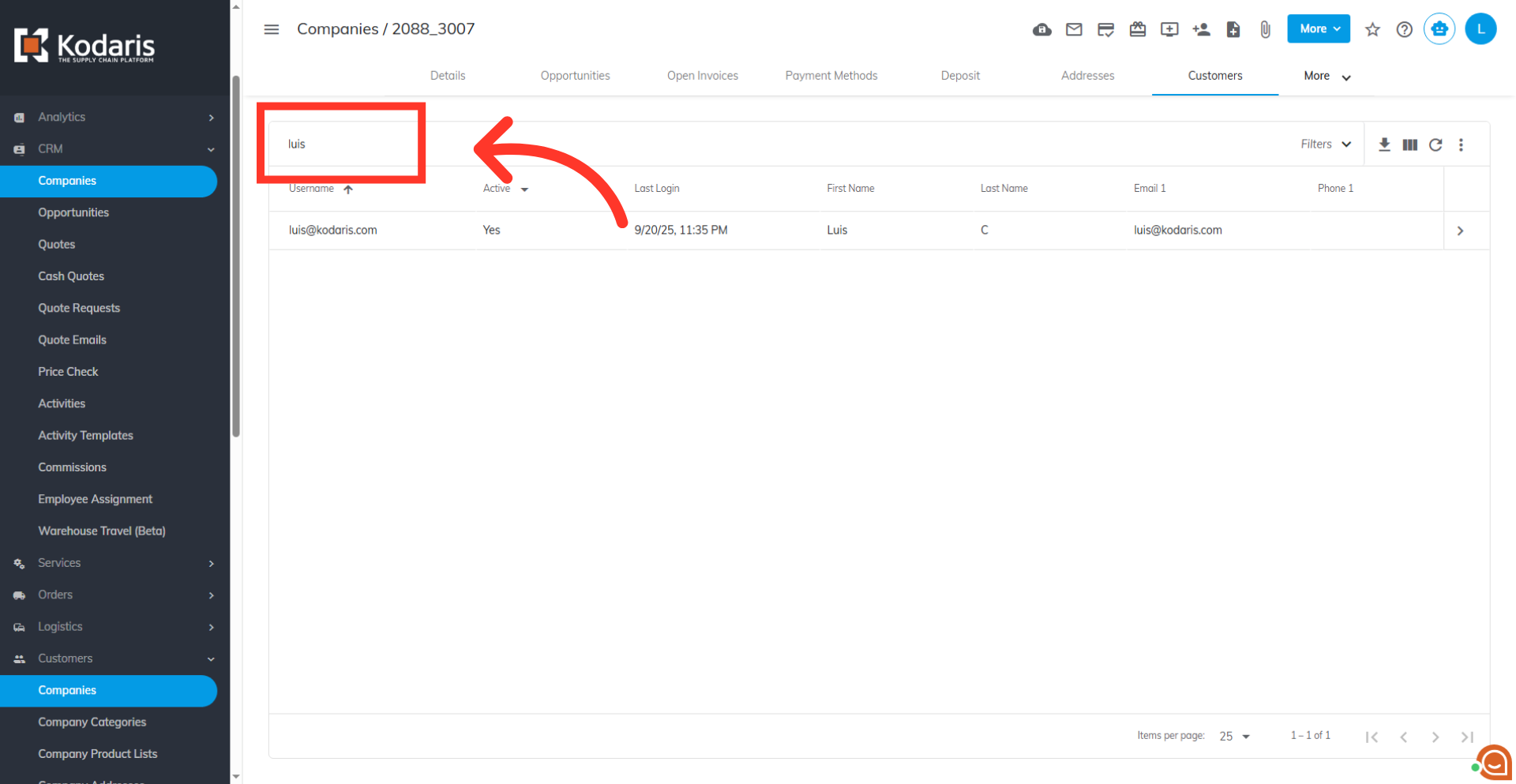
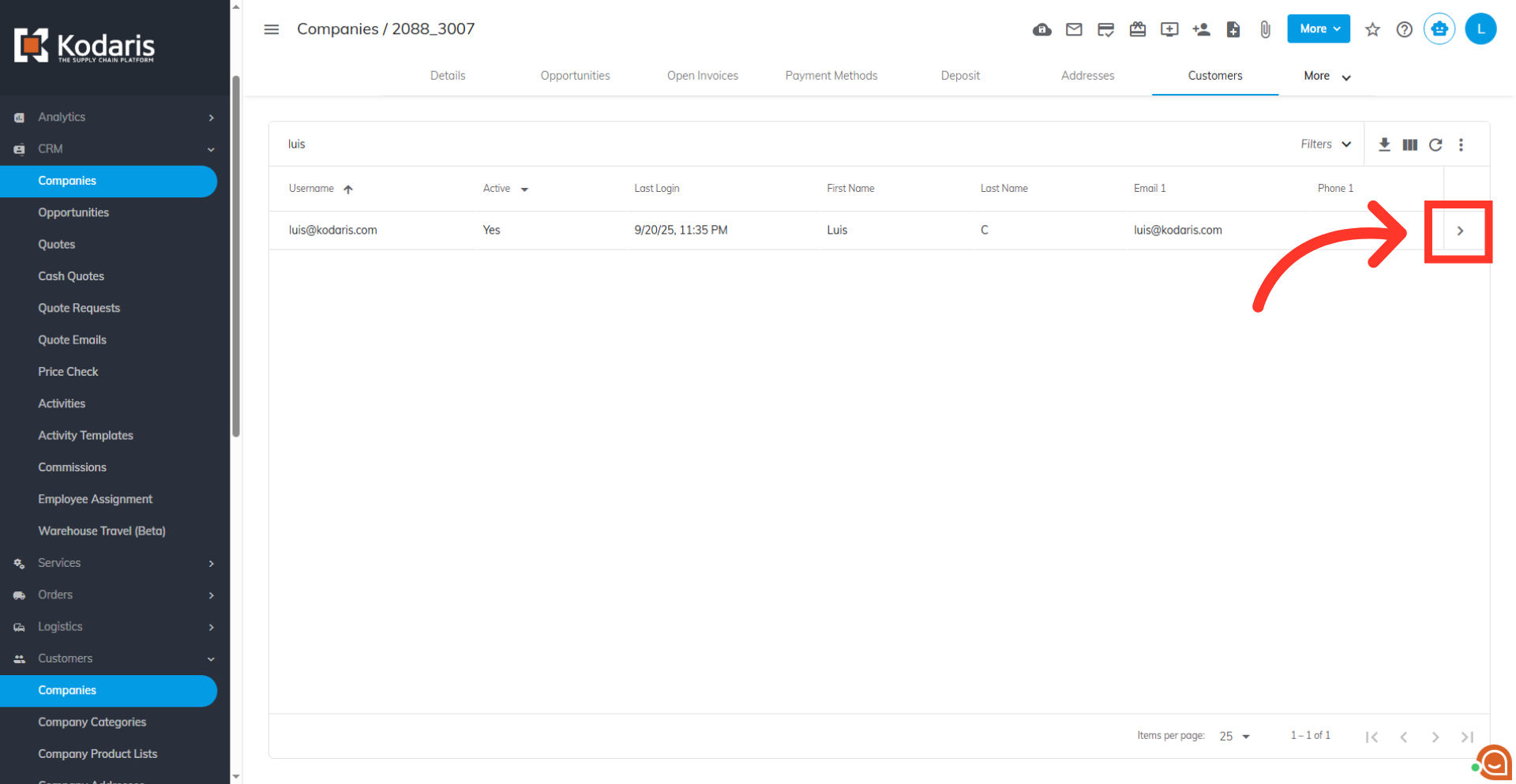
Click the more details icon
Click the more details icon to access customer details.
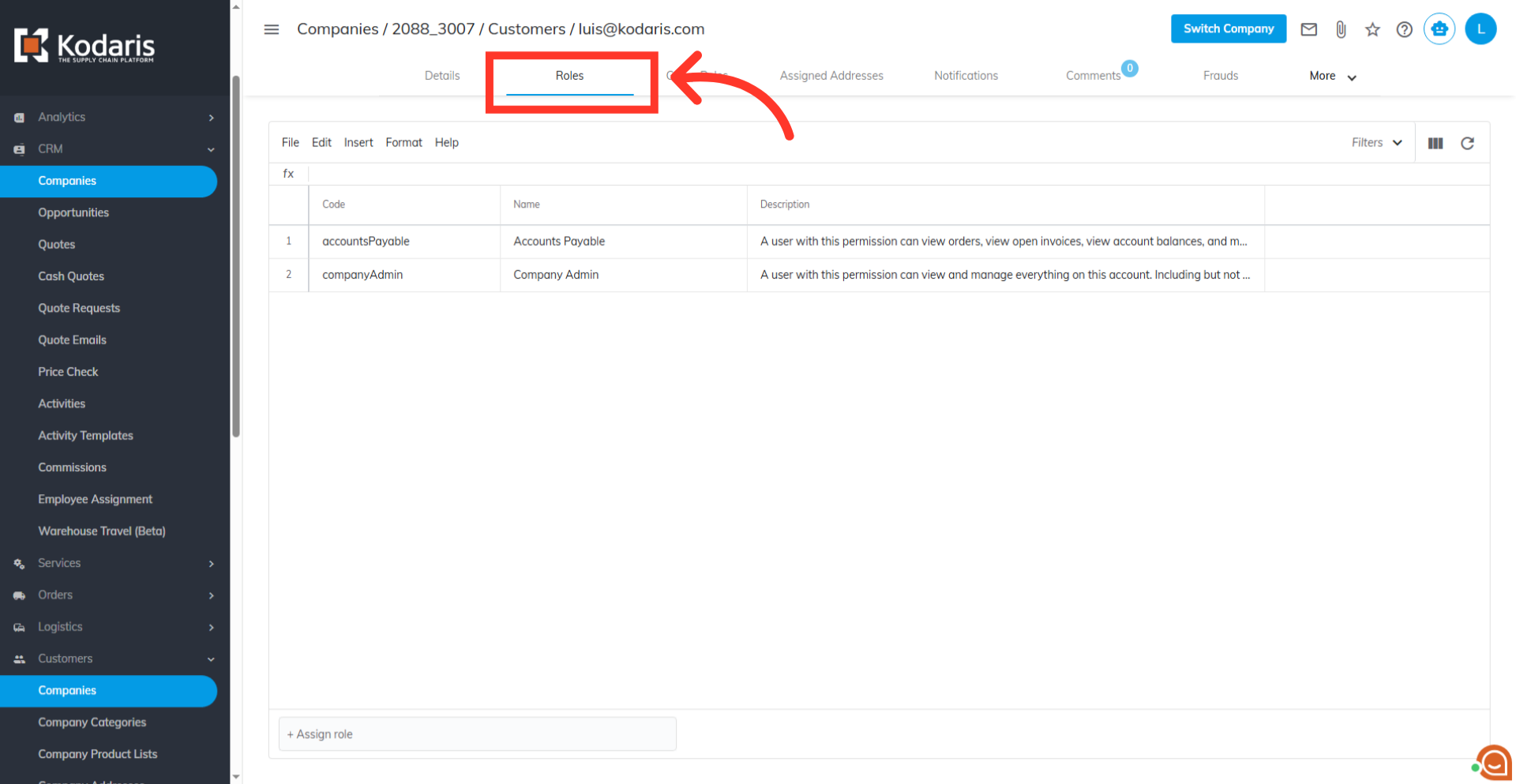
Go to the "Roles" tab
Go to the "Roles" tab.
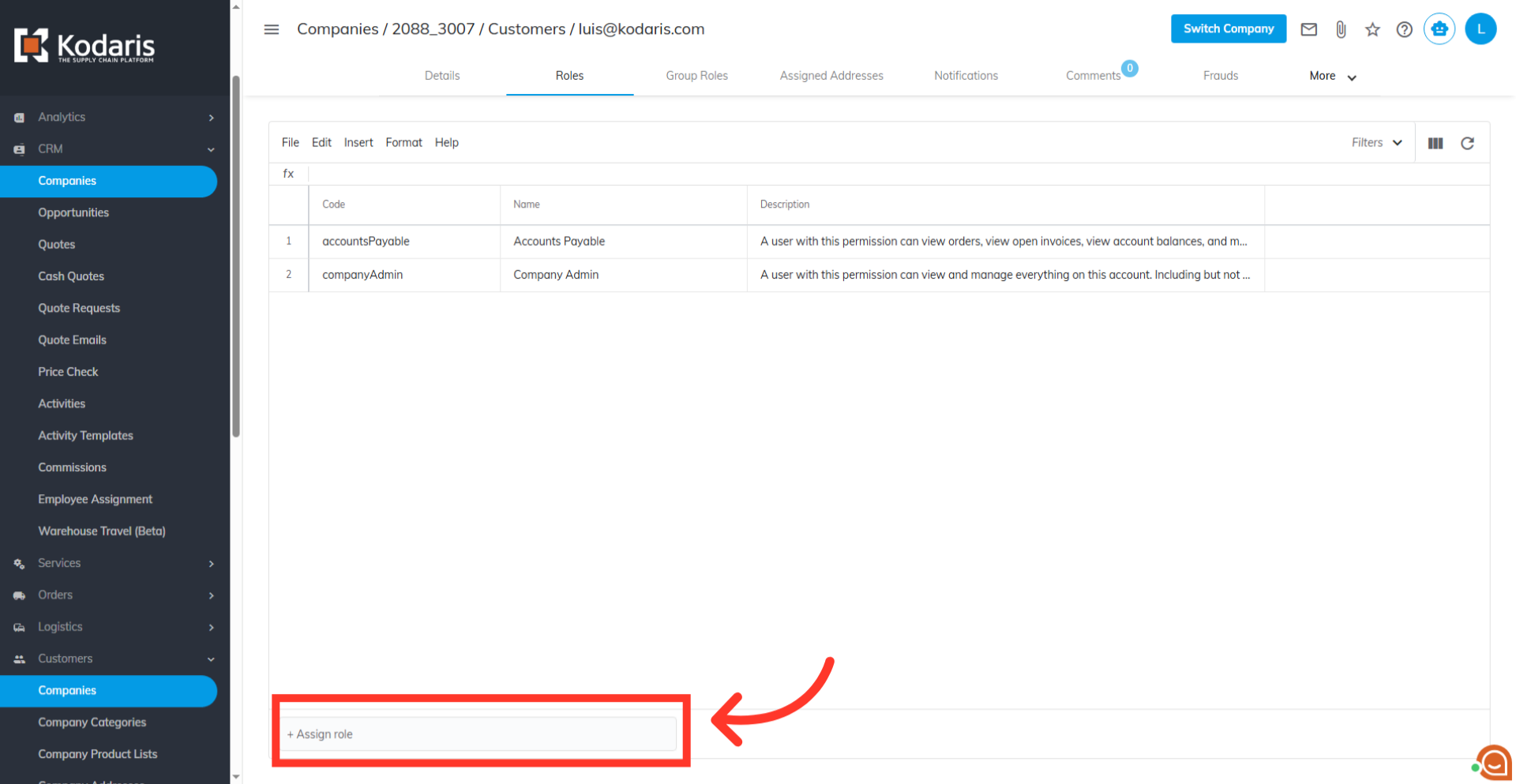
Click "+Assign role"
Click the "+Assign role" field.
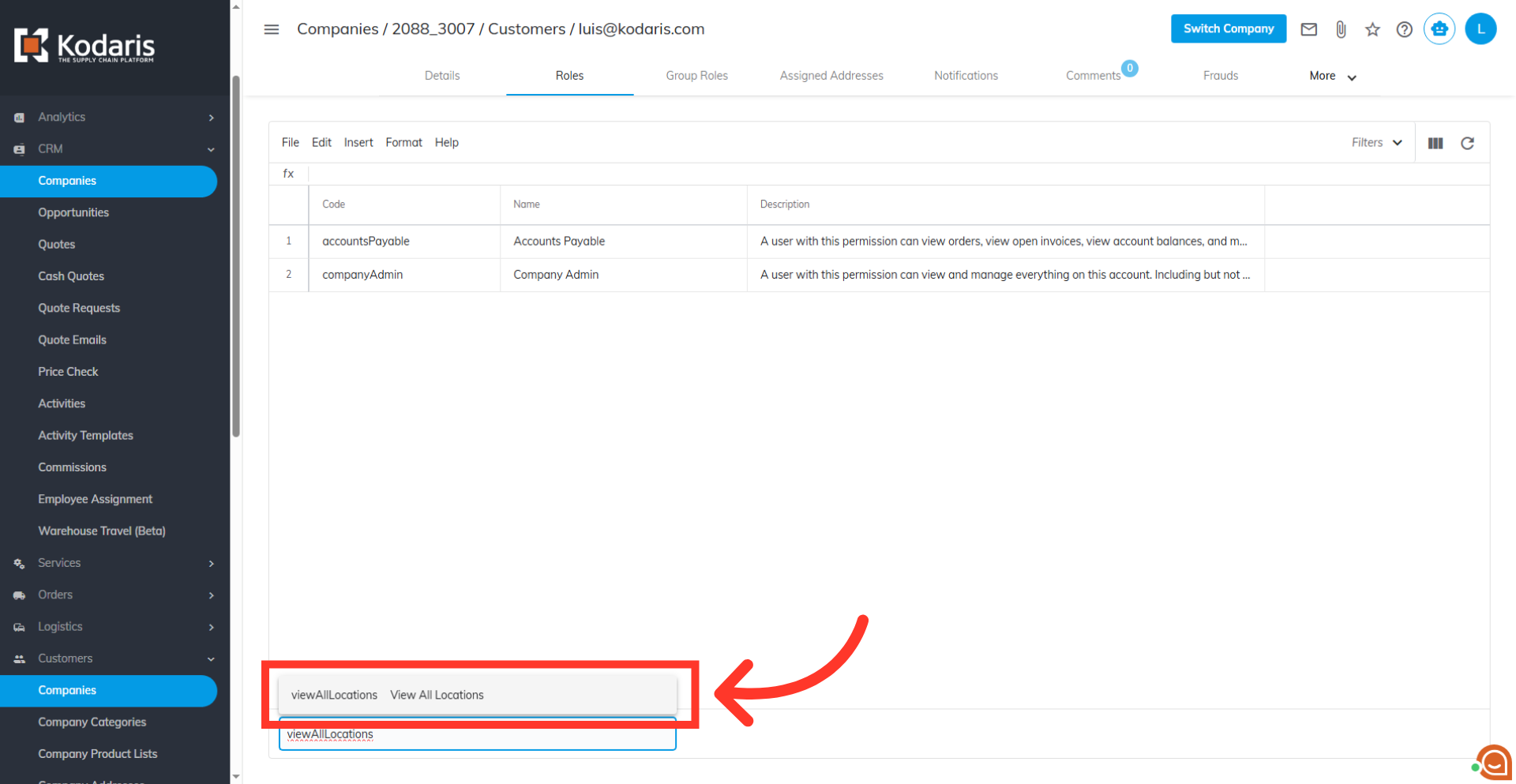
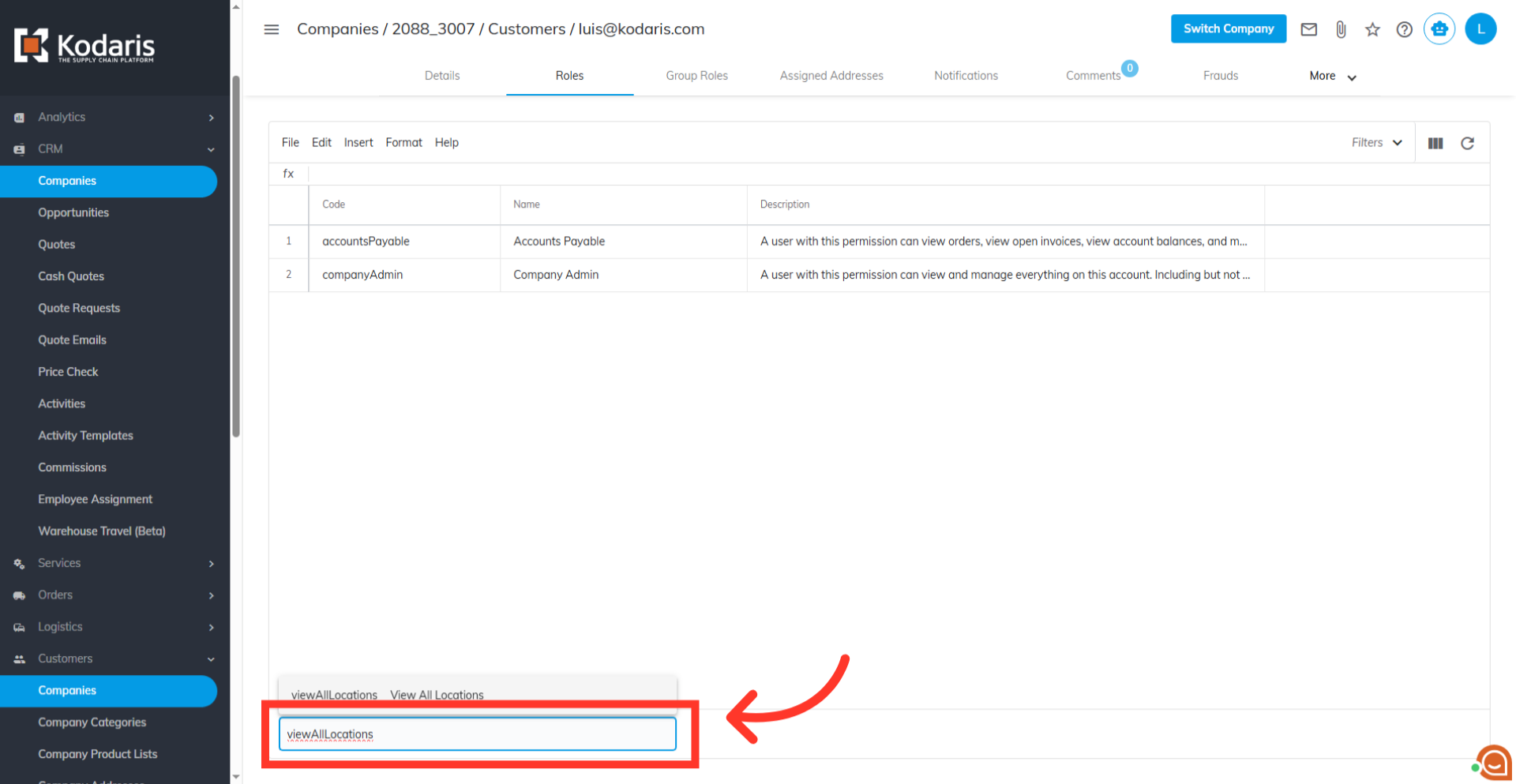
Type to search for "viewAllLocations"
Then, type "viewAllLocations" to search for the role.
Select "viewAllLocations"
Select "viewAllLocations" from the list to assign the role to the customer. This grants the customer the ability to see all associated ship to addresses.