Operations CRM - Set Up or Remove Linked Accounts
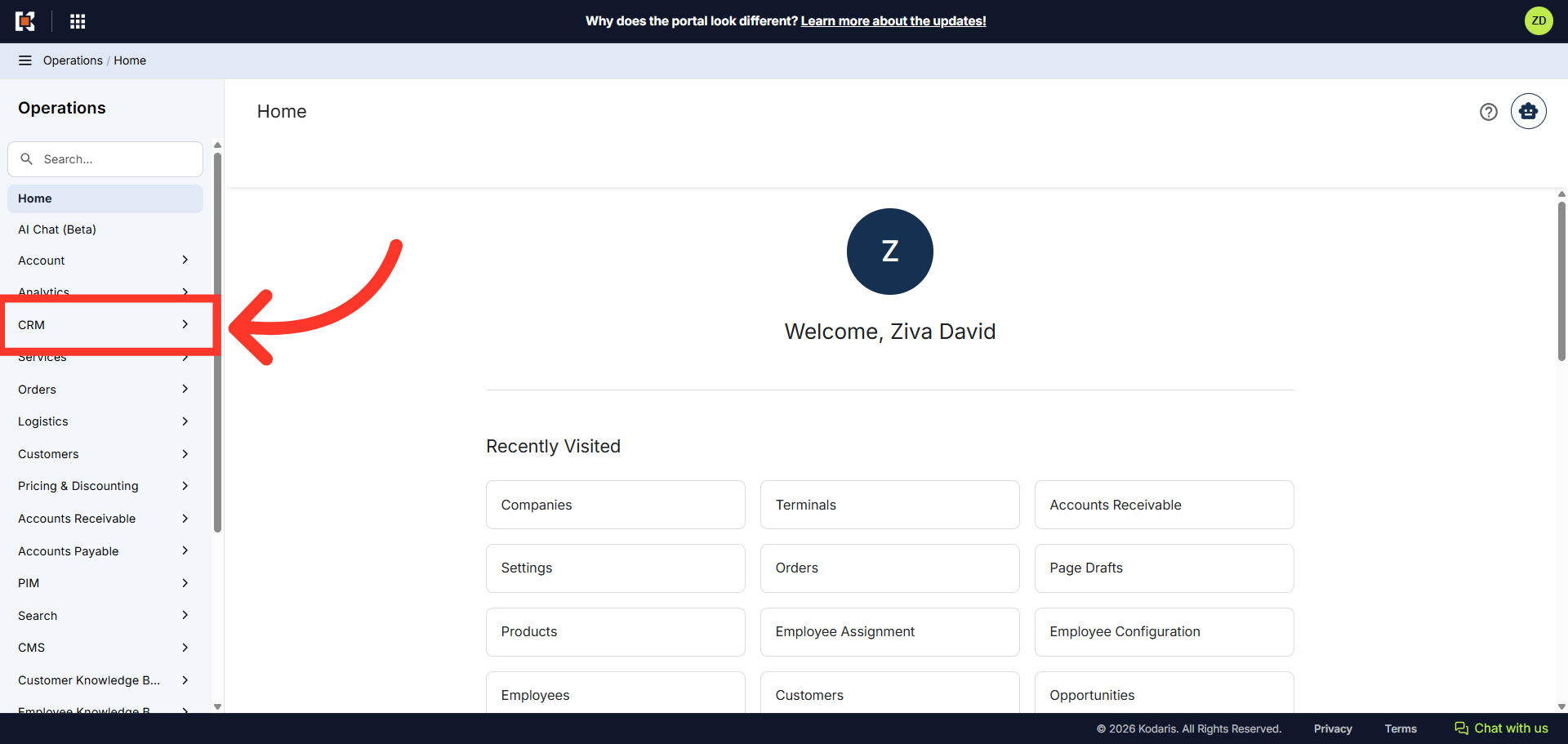
Navigate to "CRM"
To set up or remove linked accounts, navigate to the "CRM" section in the Operations Portal.
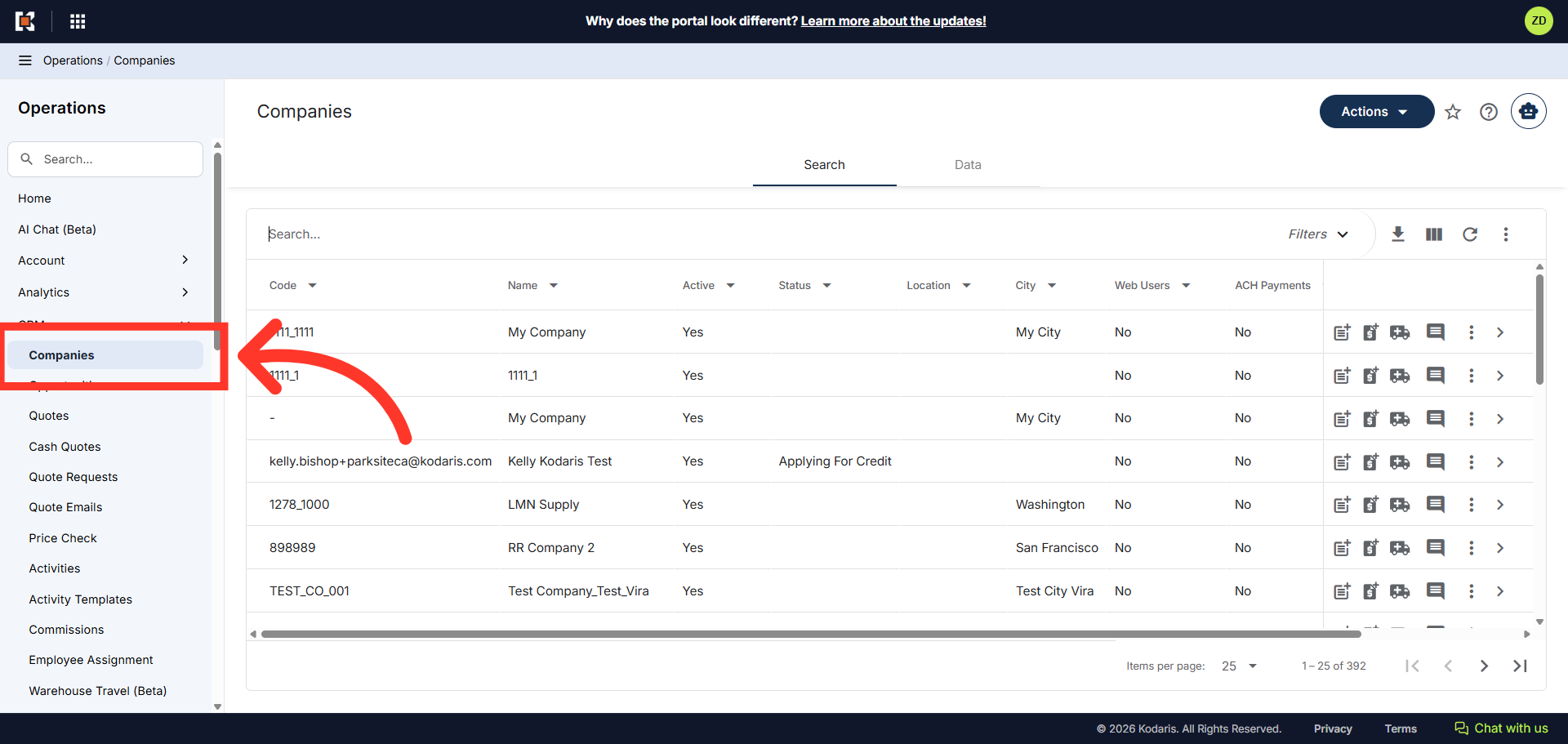
Click "Companies"
Click "Companies". In order to access "Companies" you will need to be set up either as an "administrator" or a "superuser", or have the appropriate roles: "companyEdit", or "crmCompanyEdit". Just a reminder, "crmCompanyEdit" access only allows employees to access companies that are assigned to them.
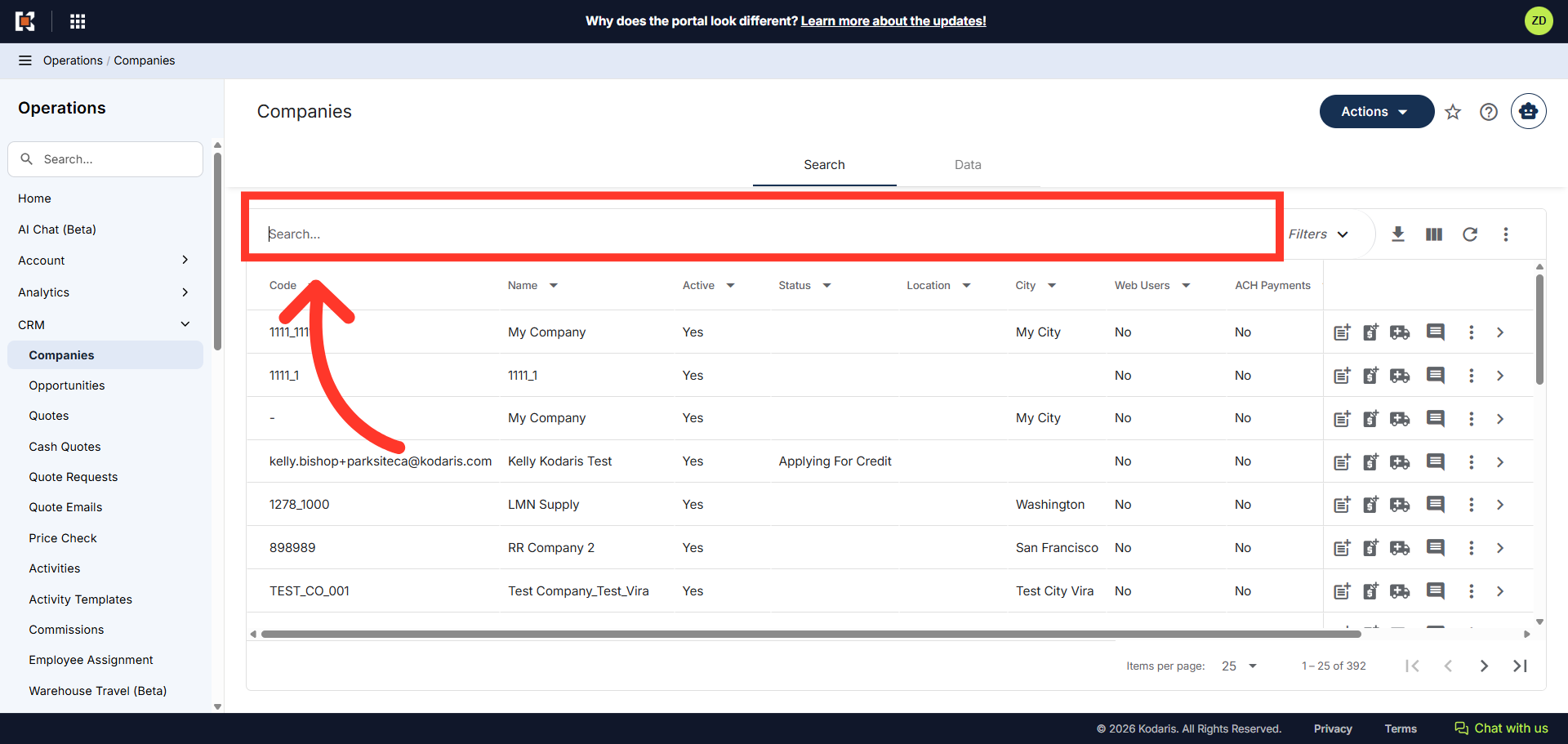
Search for the company using the "Search..." field
On the "Companies" screen, you can browse the list of companies or search for the company using the "Search" field.
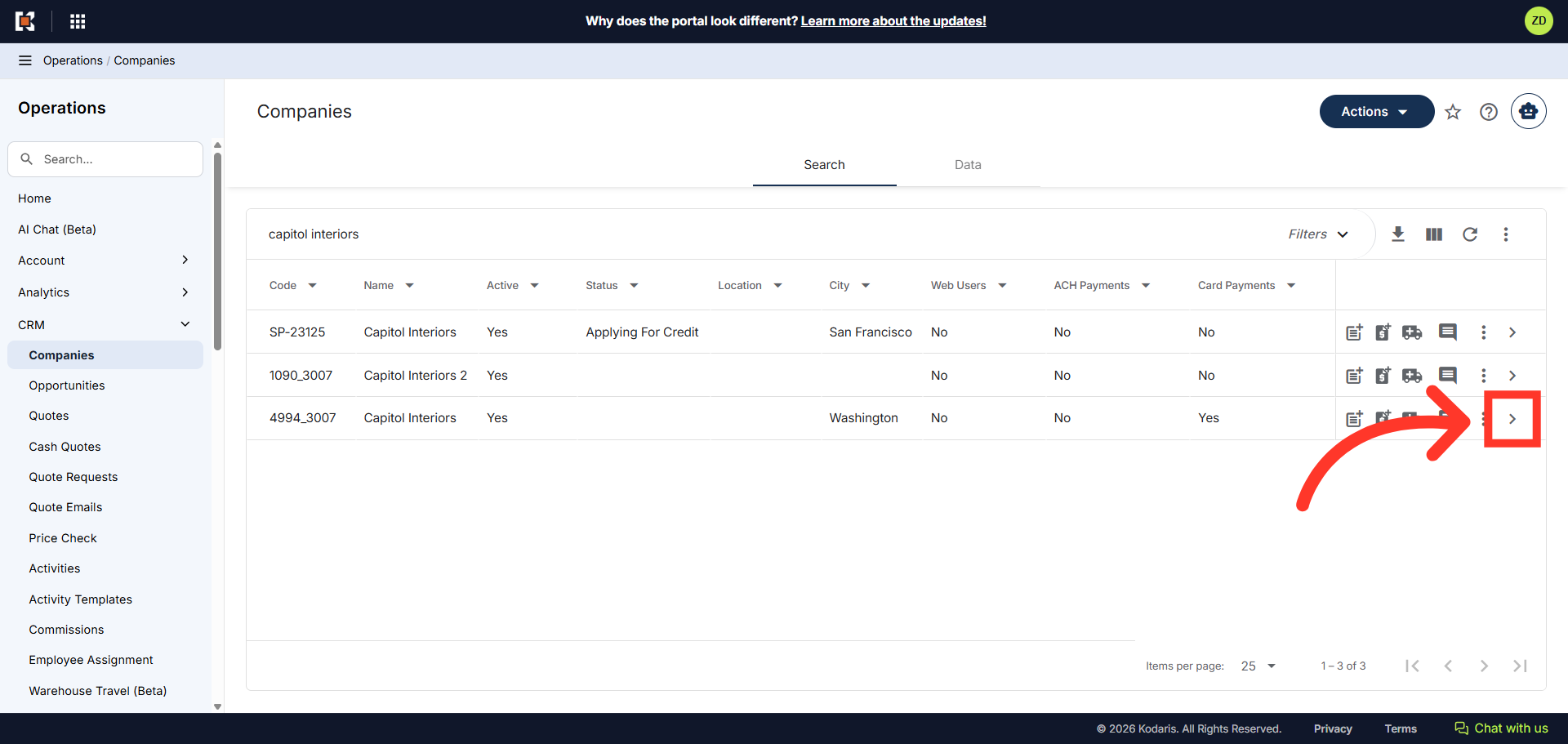
Click on the more details icon
Click on the more details icon to go to the company details screen.
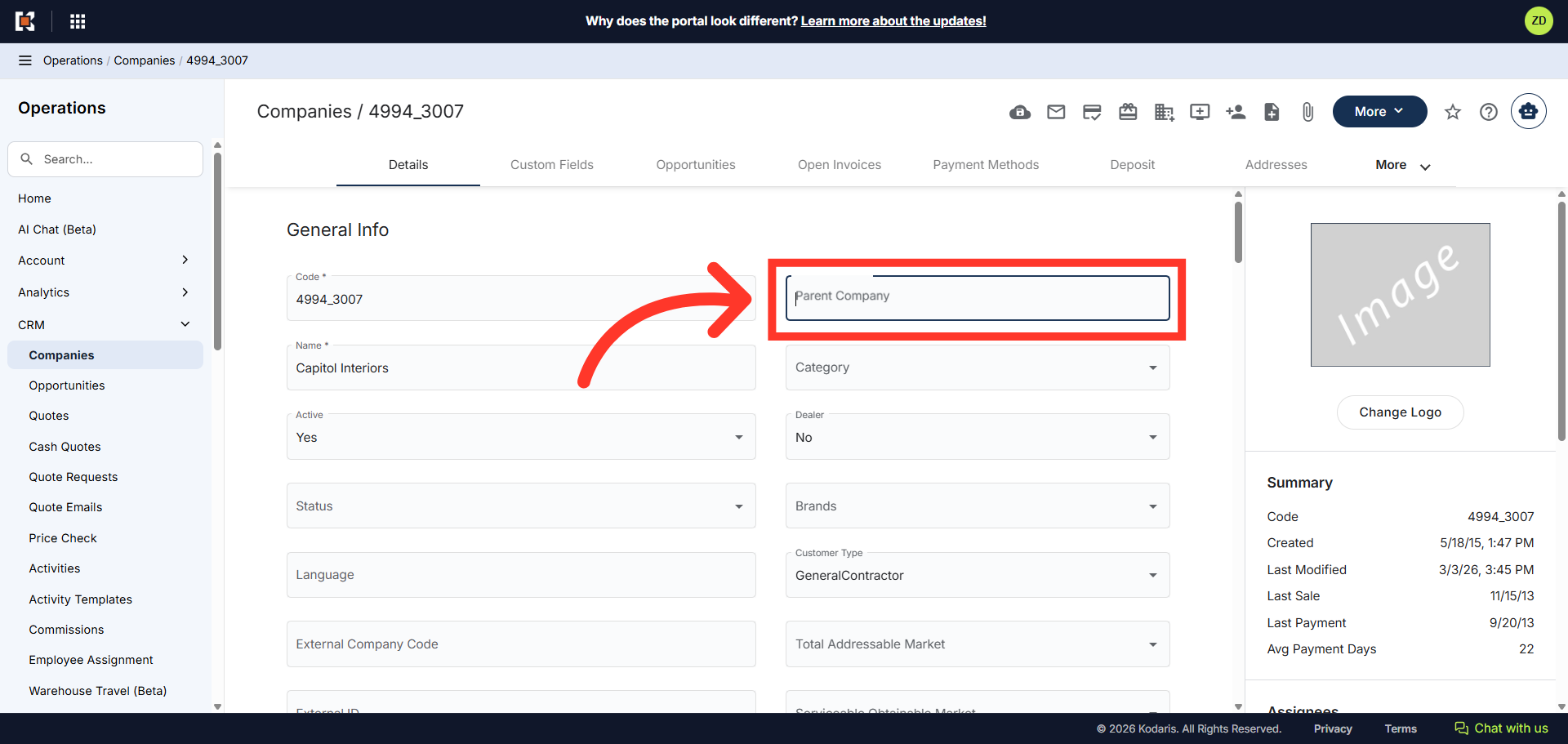
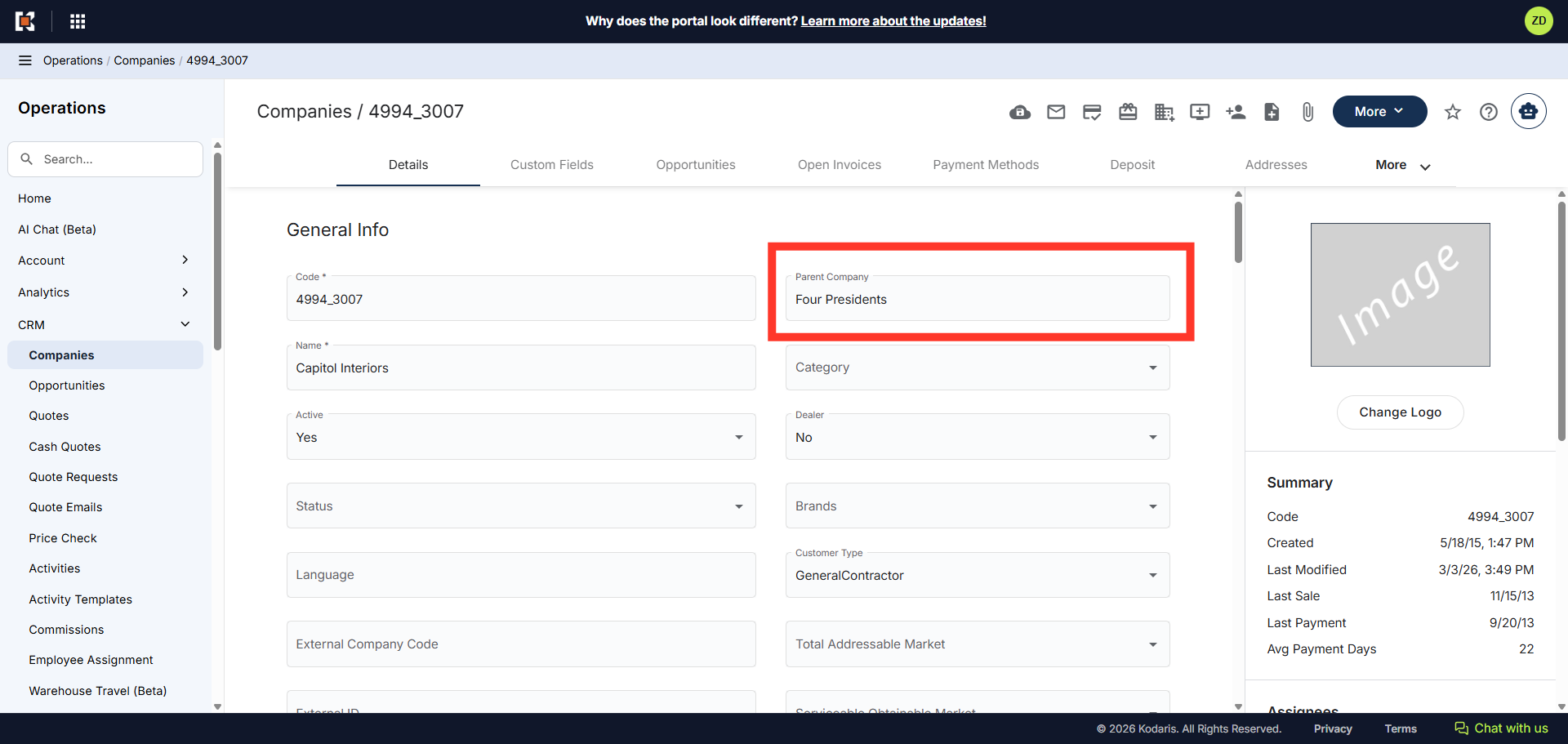
Click "Parent Company" field
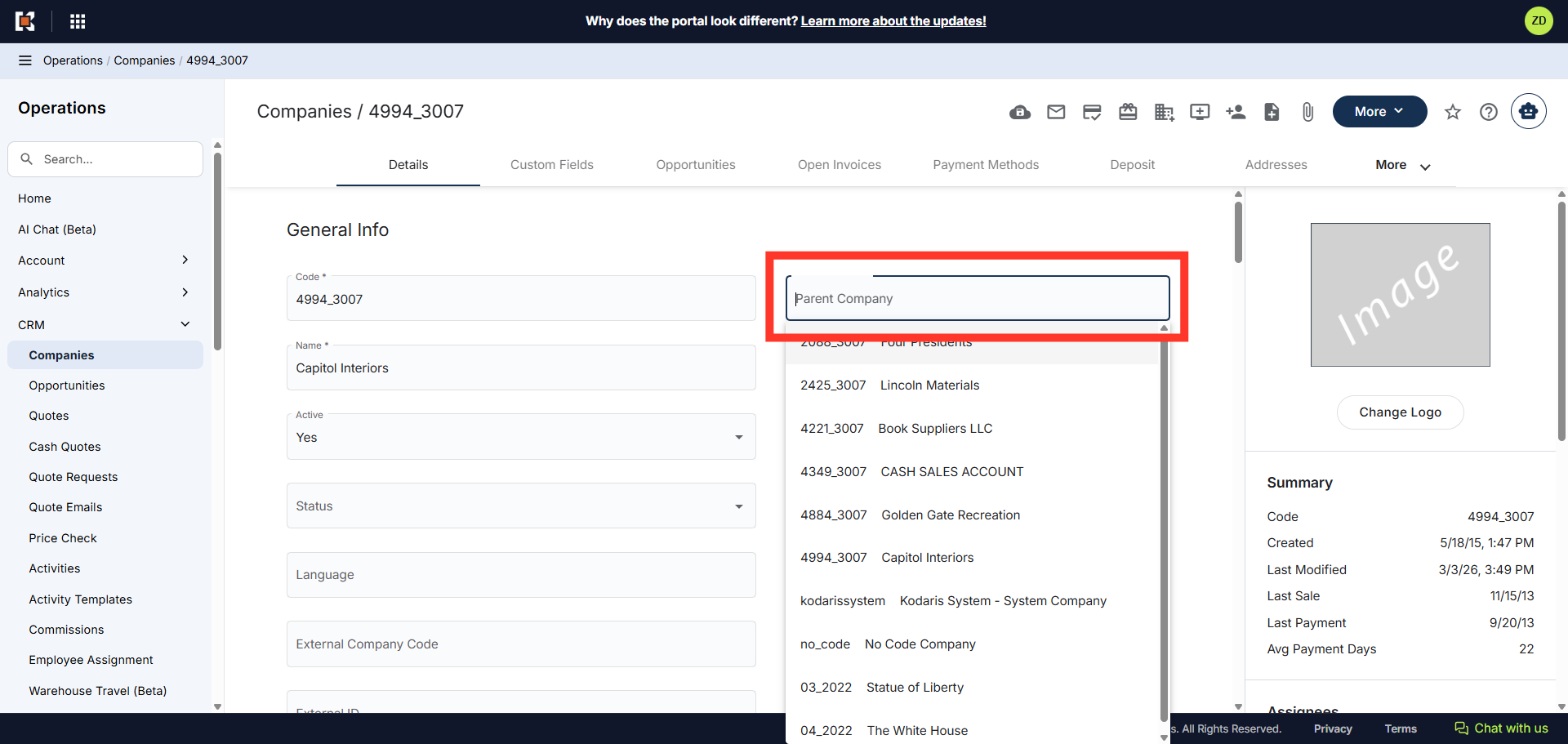
On the company's details screen, click on the "Parent Company" field.
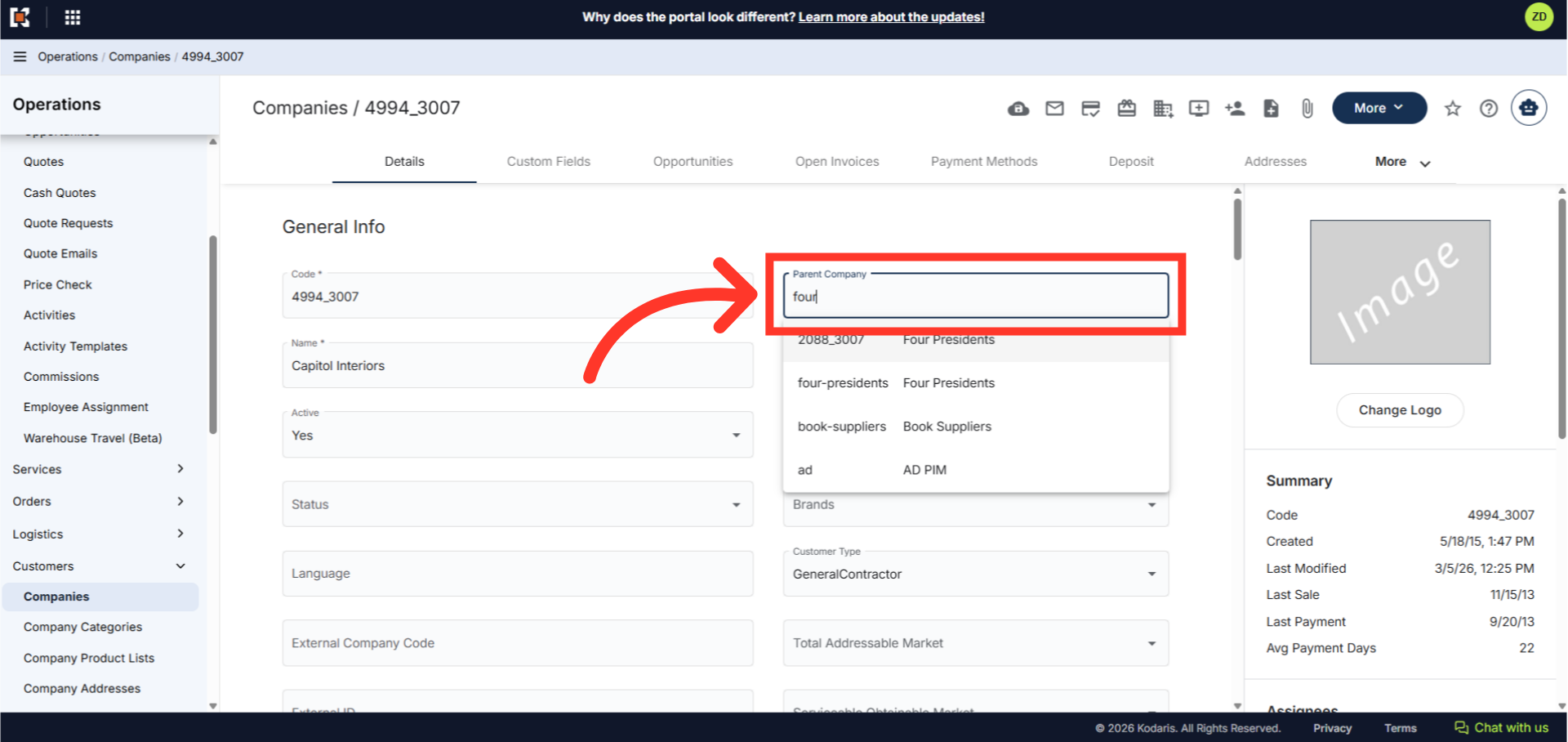
Type to search for the company code or name
Type to search the company code or the name of the company you would like to link the account to.
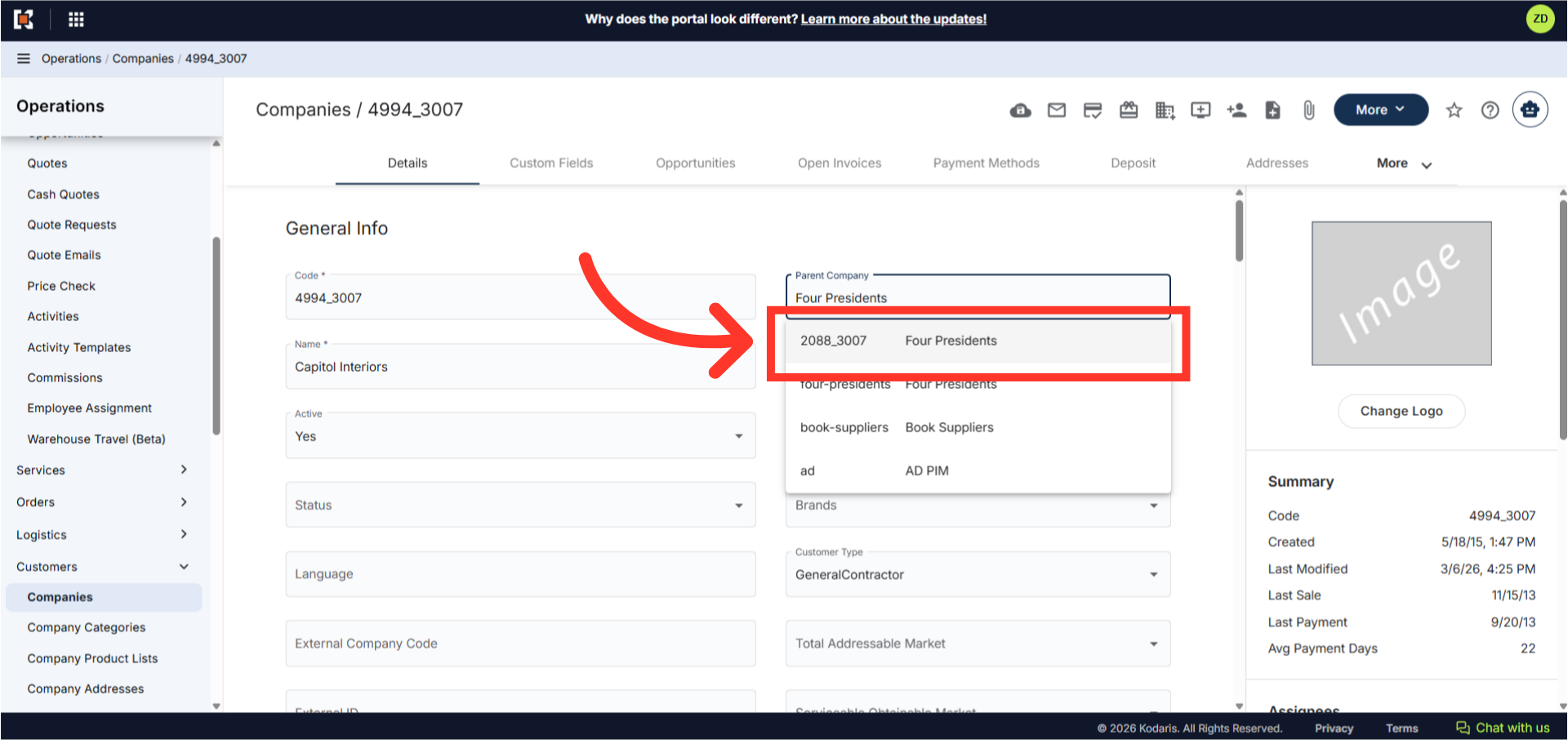
Select Company
Select the company.
Parent Company linked
Now that the company is linked, the customer will have the option to switch between the linked accounts using the same email login on the Customer Portal if they have the appropriate access.
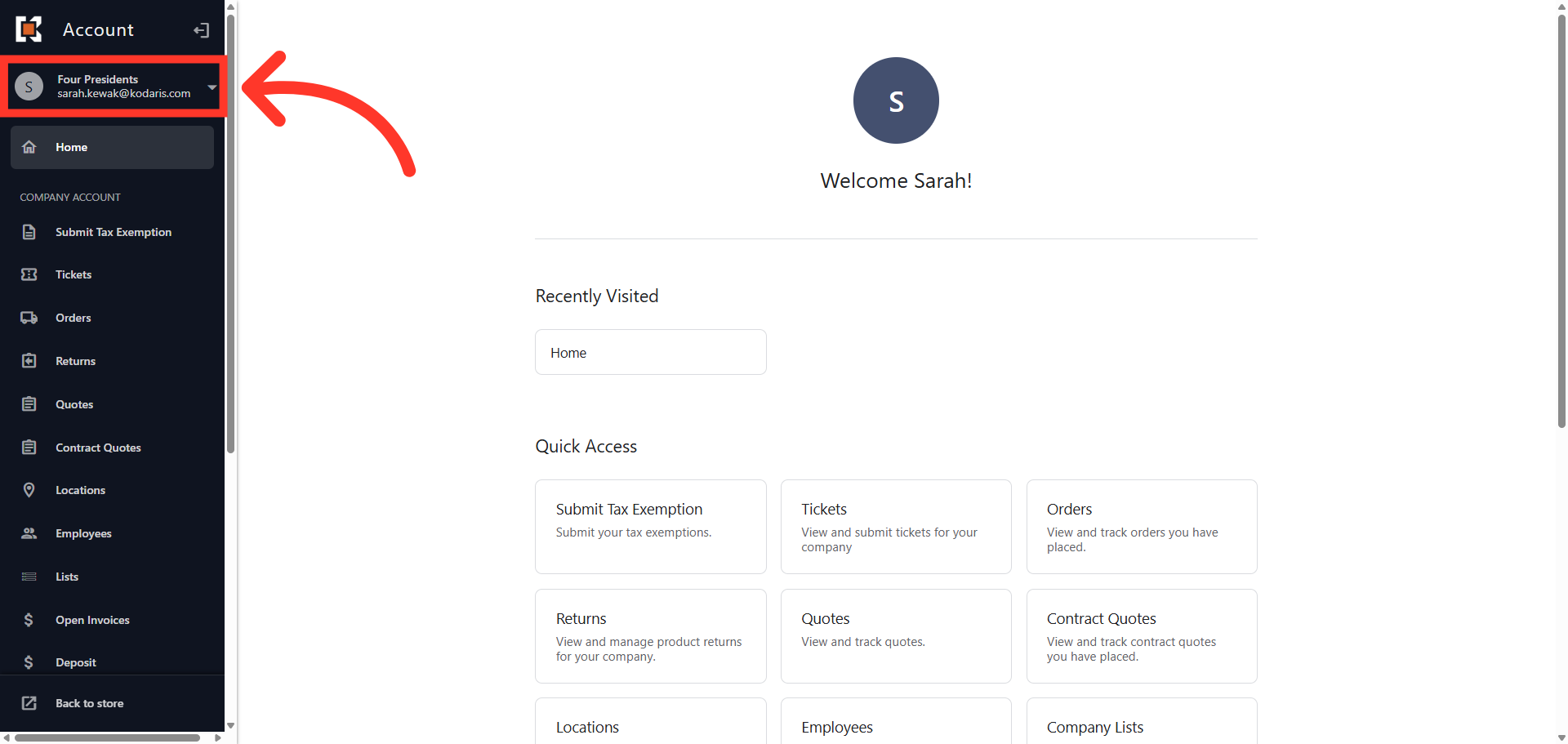
In the Customer Portal, click the account dropdown
To check, log into the Customer Portal, click the account dropdown.
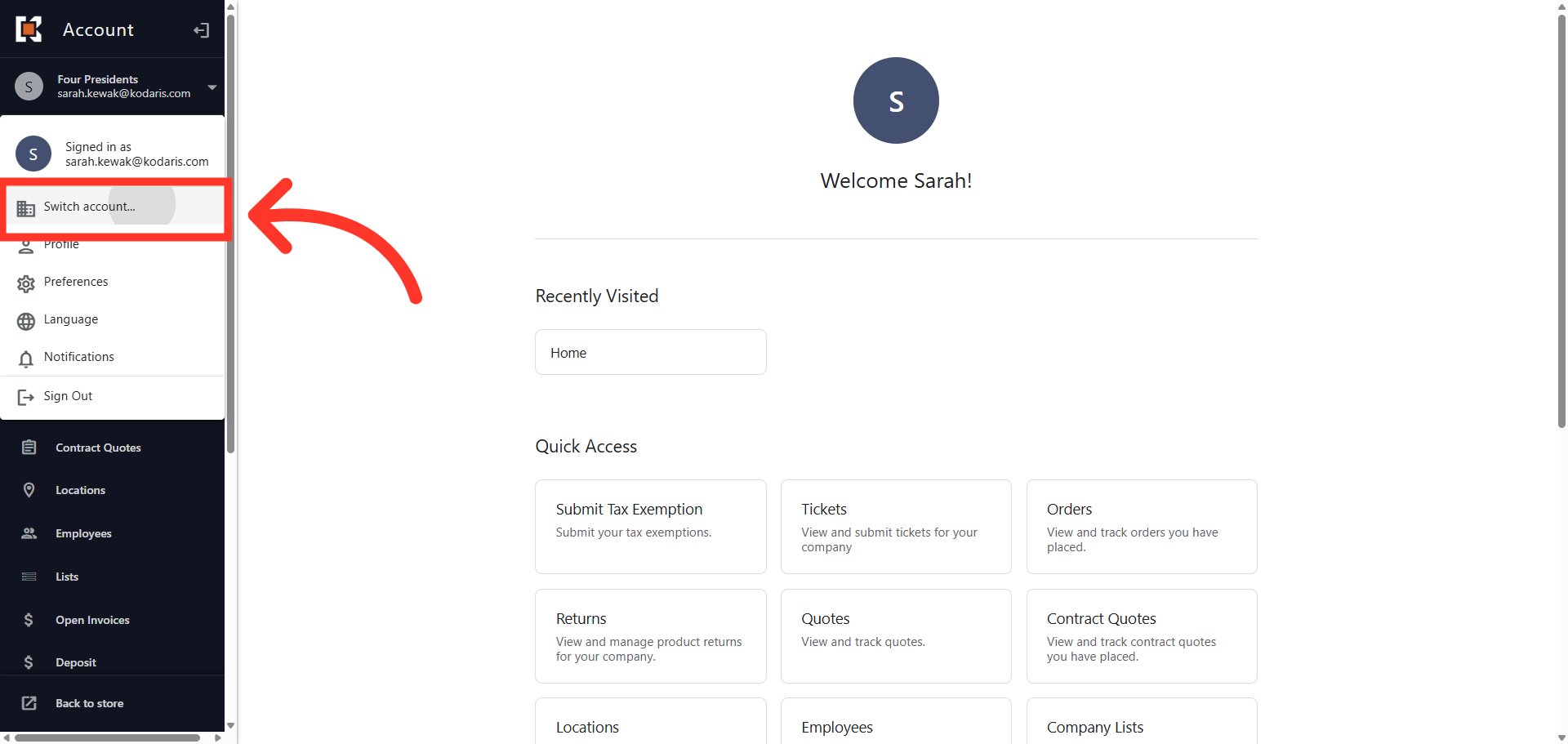
Click "Switch account"
Then, click "Switch account".
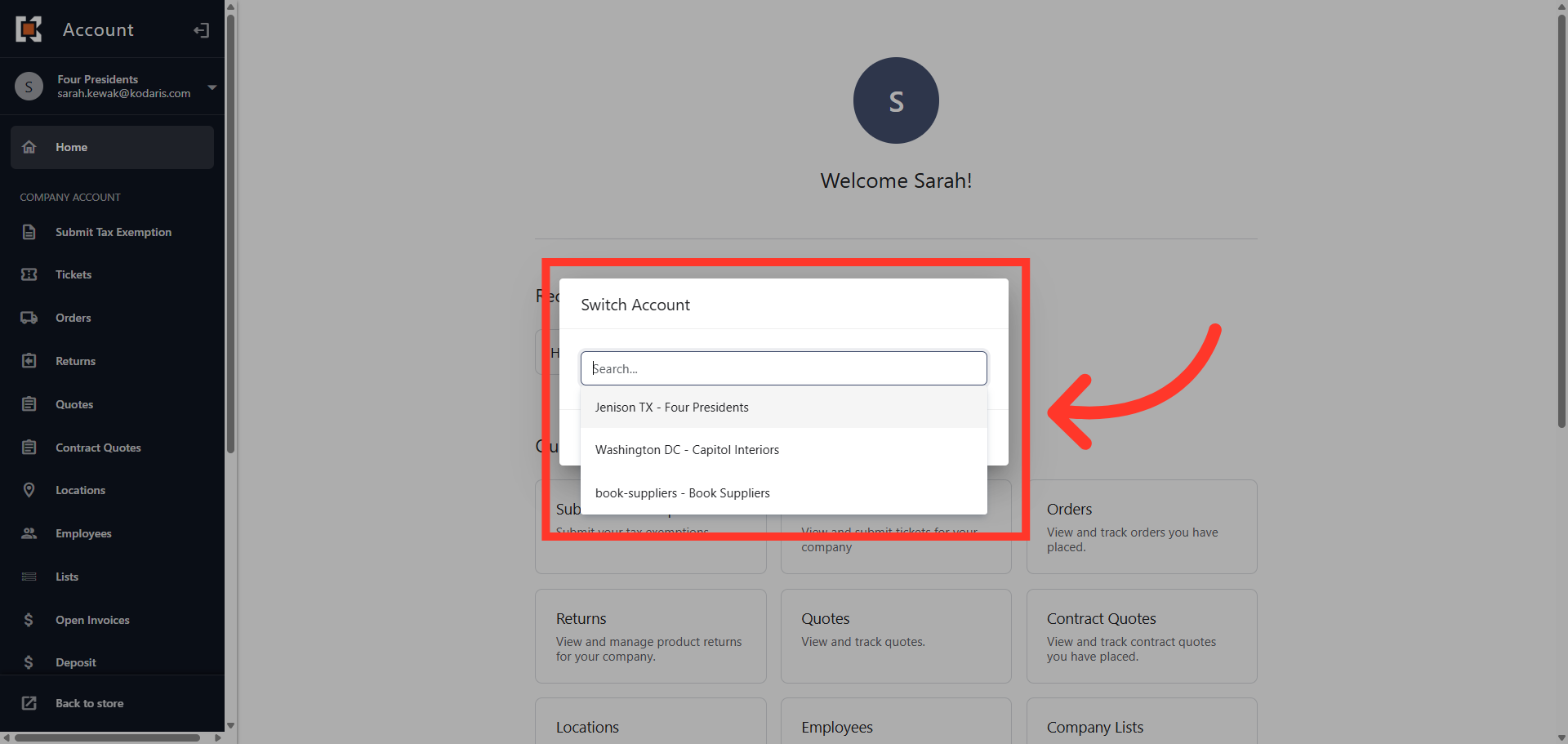
Select an account
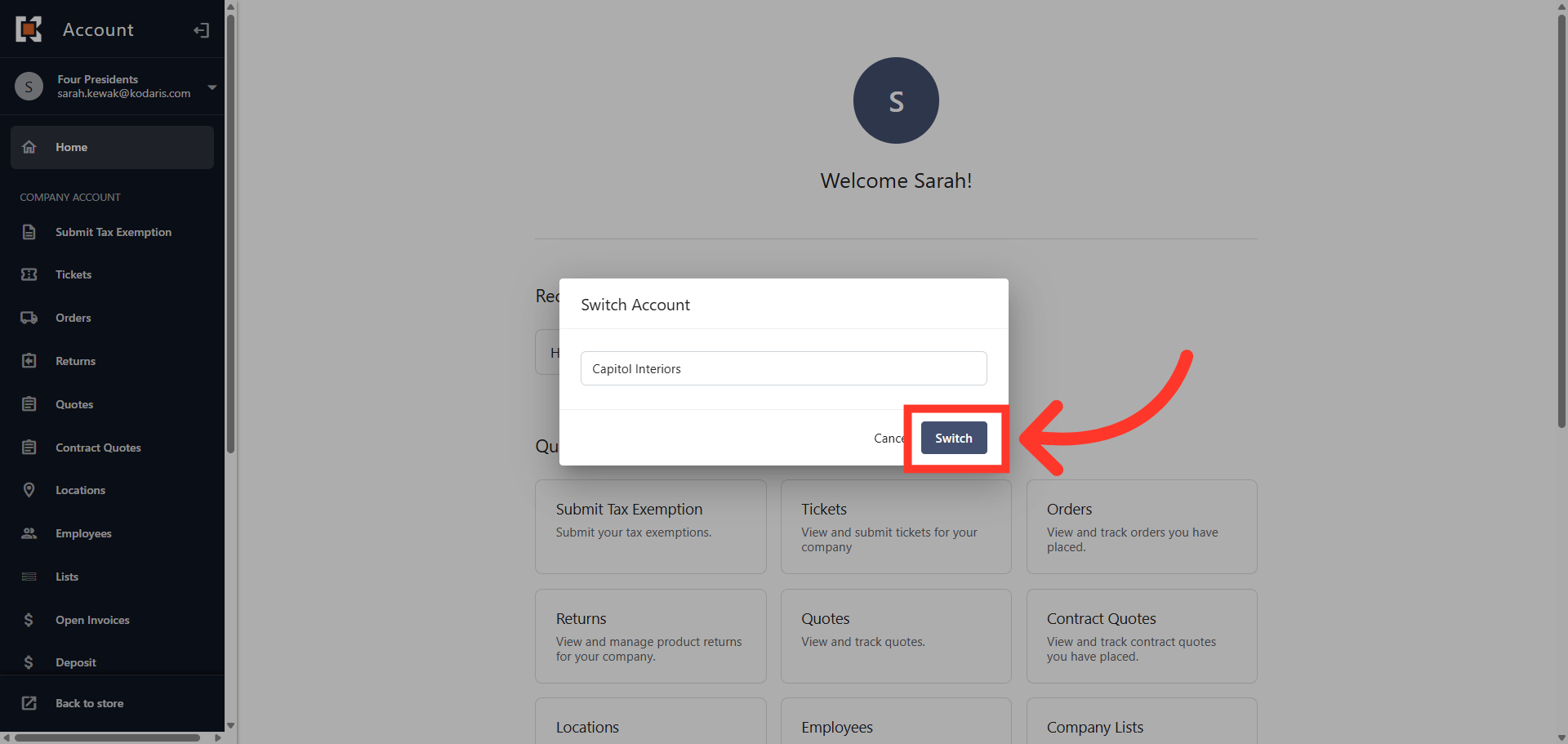
"Switch Account" dialog box should appear. Select the account you would like to view.
Click "Switch" button
Then, click the "Switch" button.
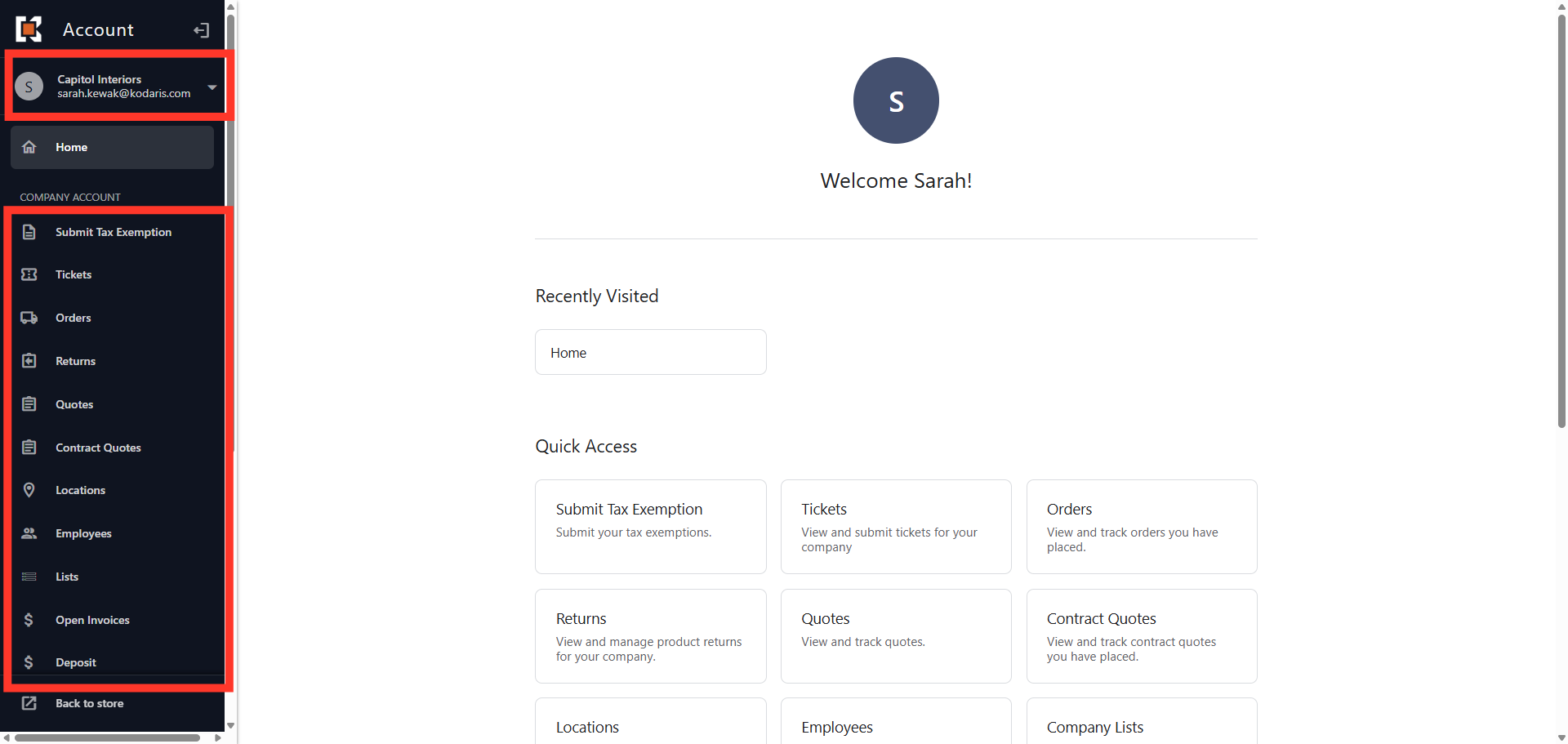
Account was switched
You will see that the account has been switched and you can view the company details.
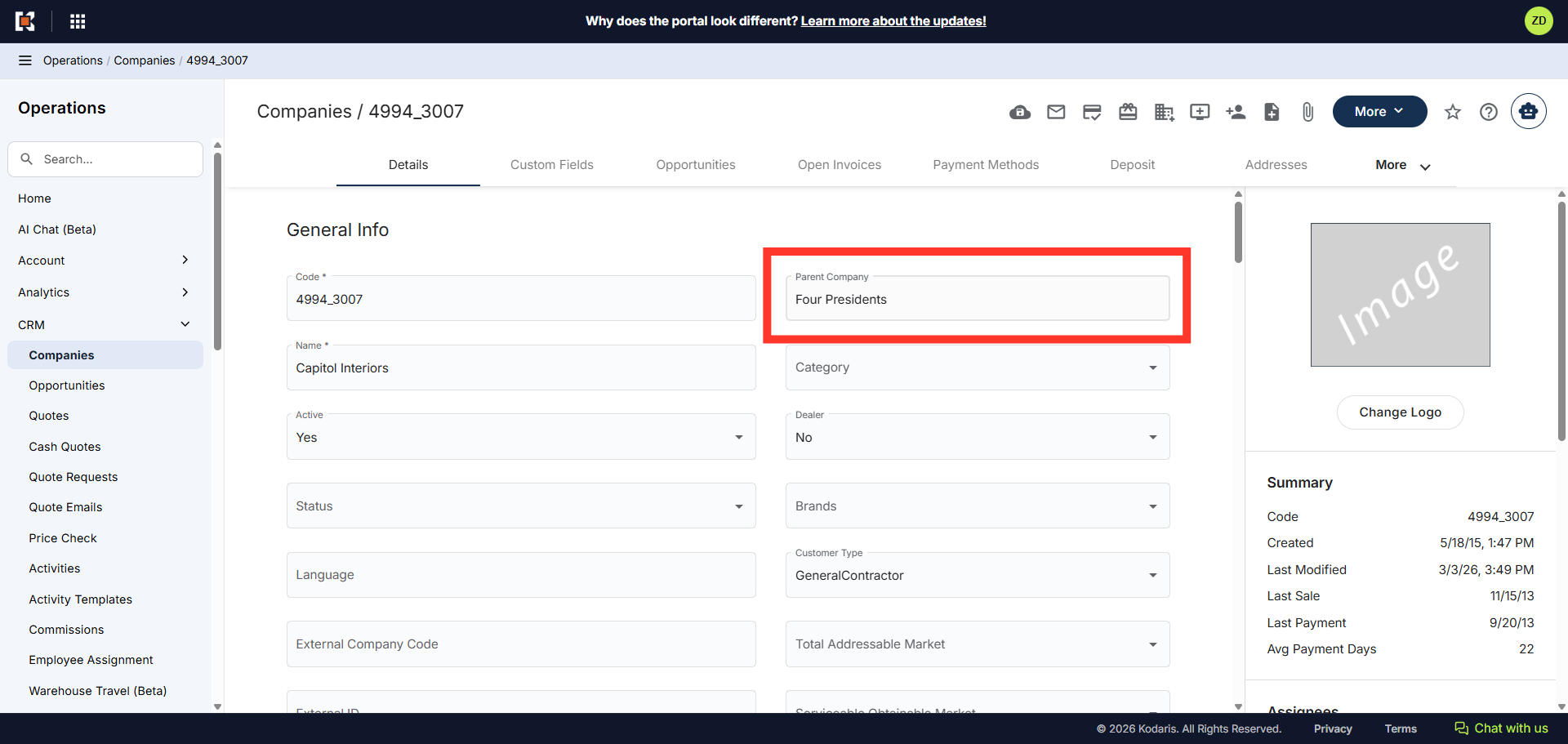
Unlink Accounts
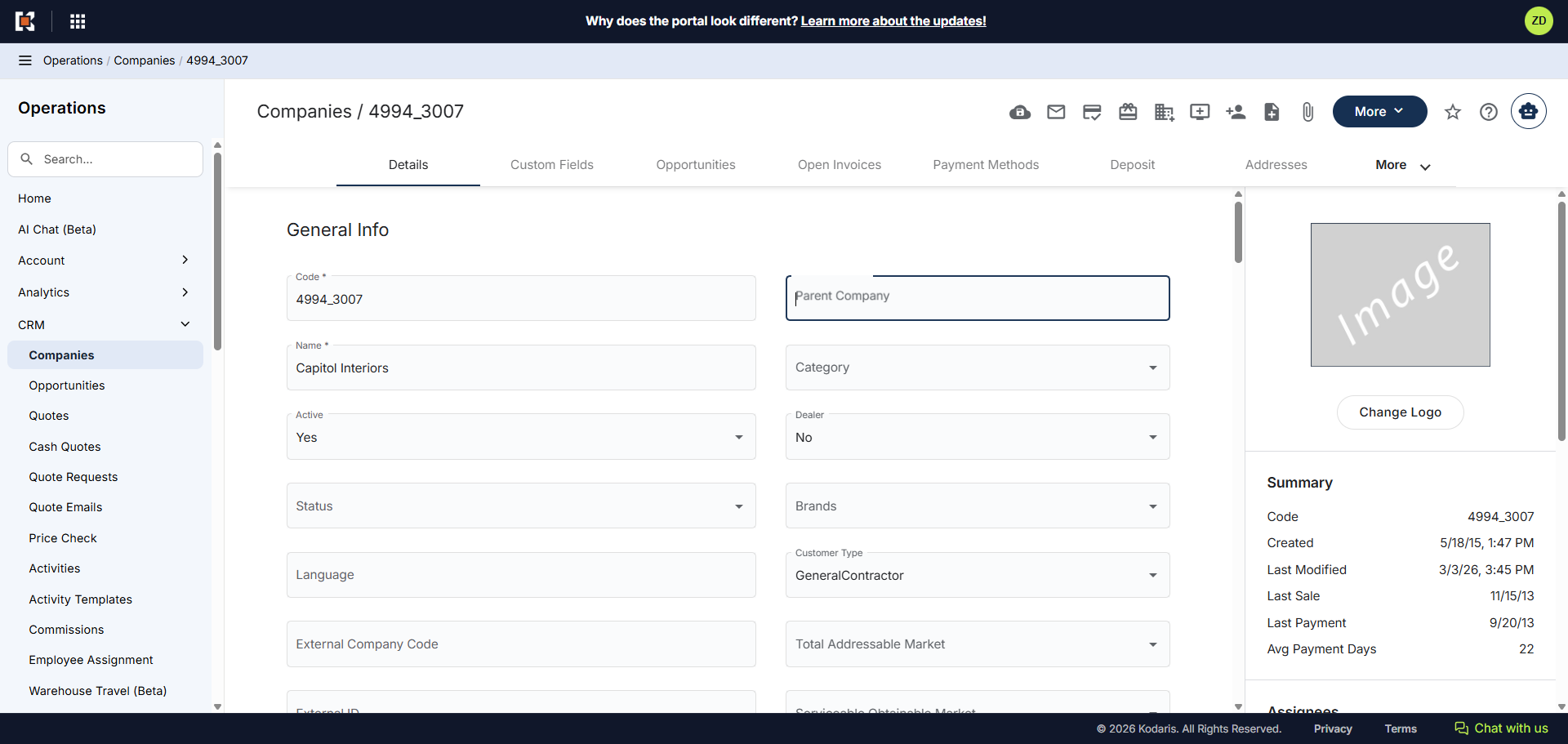
To removed linked accounts, first, click on the "Parent Company" field.
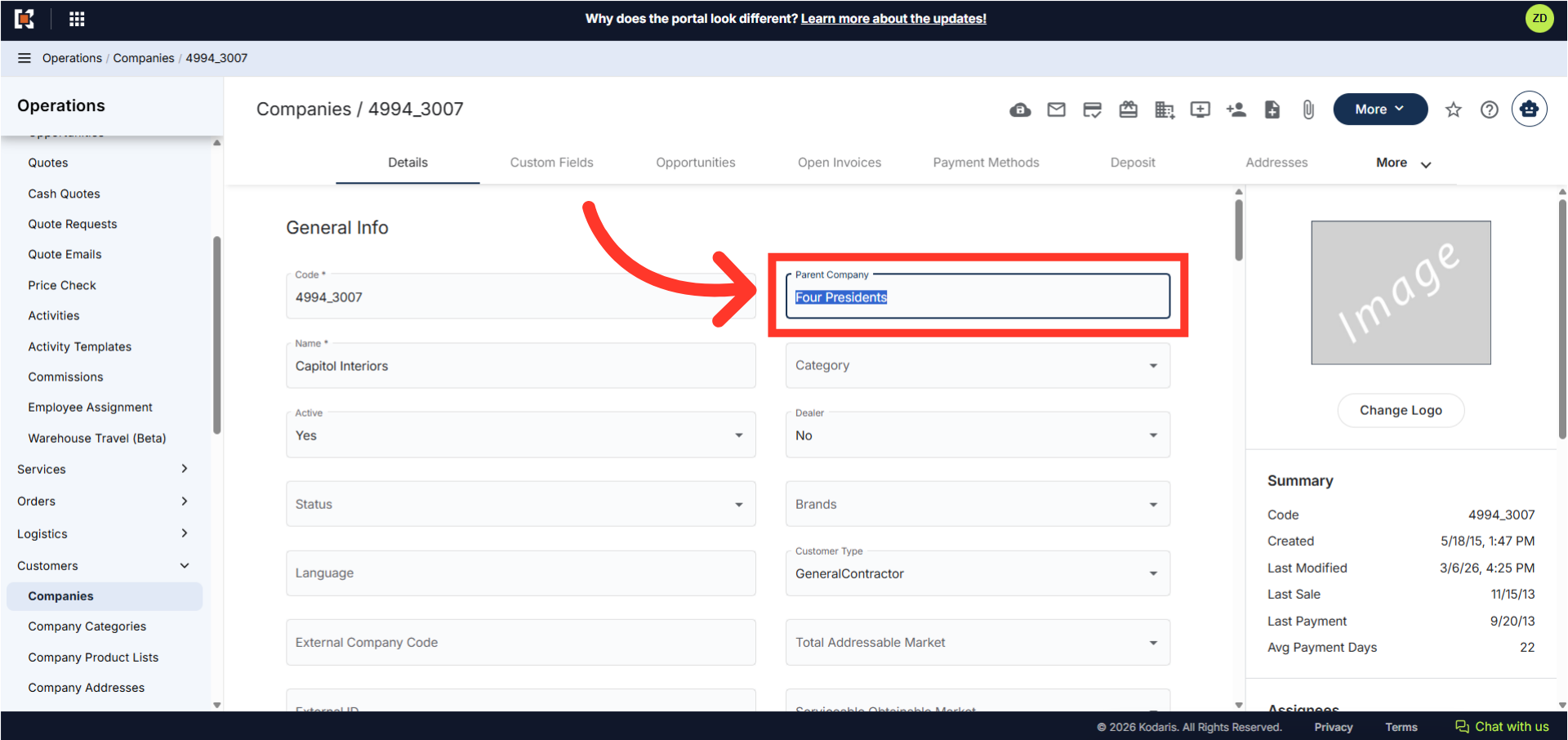
Select the text
Select the text inside the field.
Press the "Del" key or "Backspace"
You can press the "Delete" key or "Backspace" on your keyboard to remove the company name.
Click anywhere on the screen to save the update
Click anywhere on the screen to save the update. The company has now been unlinked from the other account.
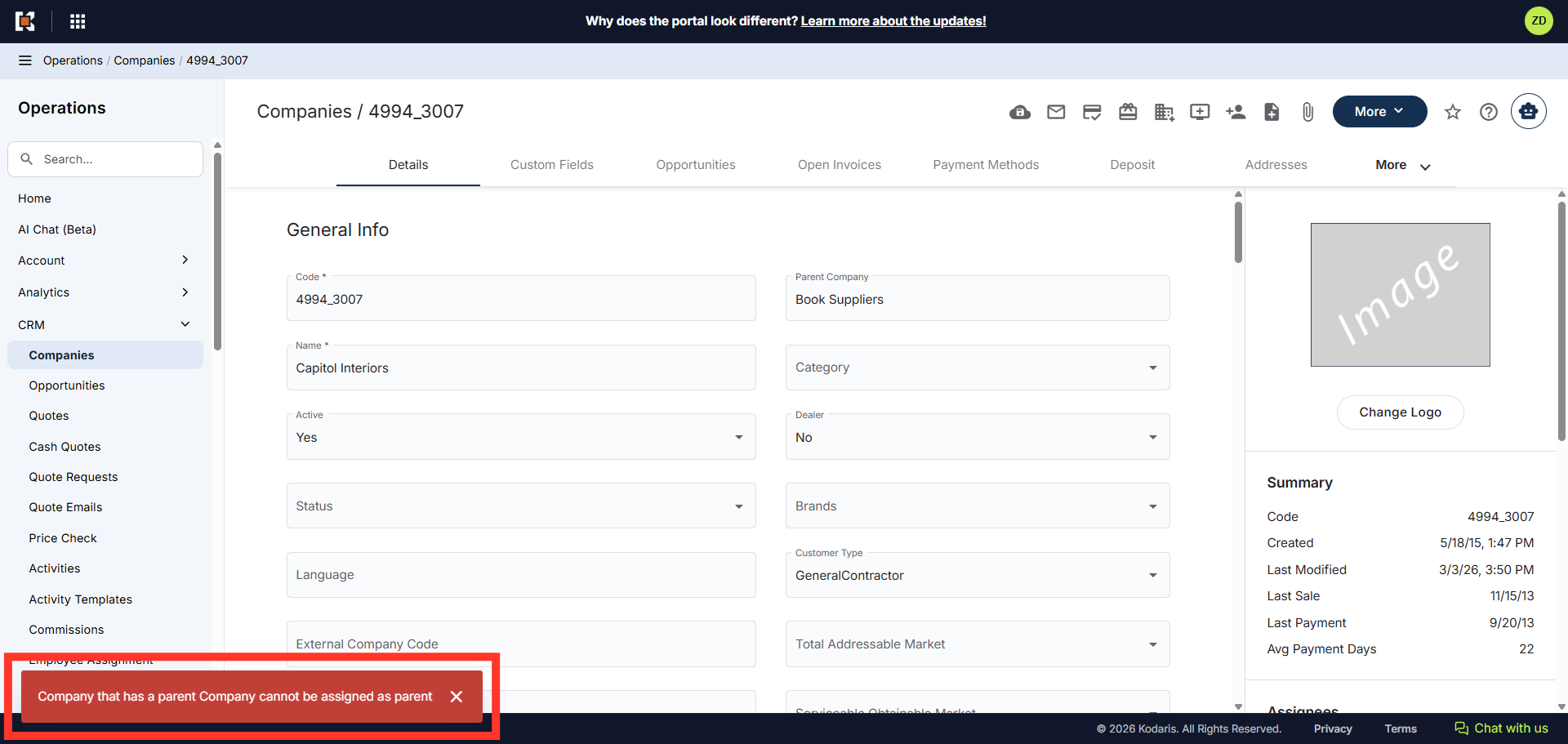
A company that already has a parent company cannot be assigned as parent
Remember, child company as a parent companies cannot be assigned to parent companies. An error will appear if you try assign one.