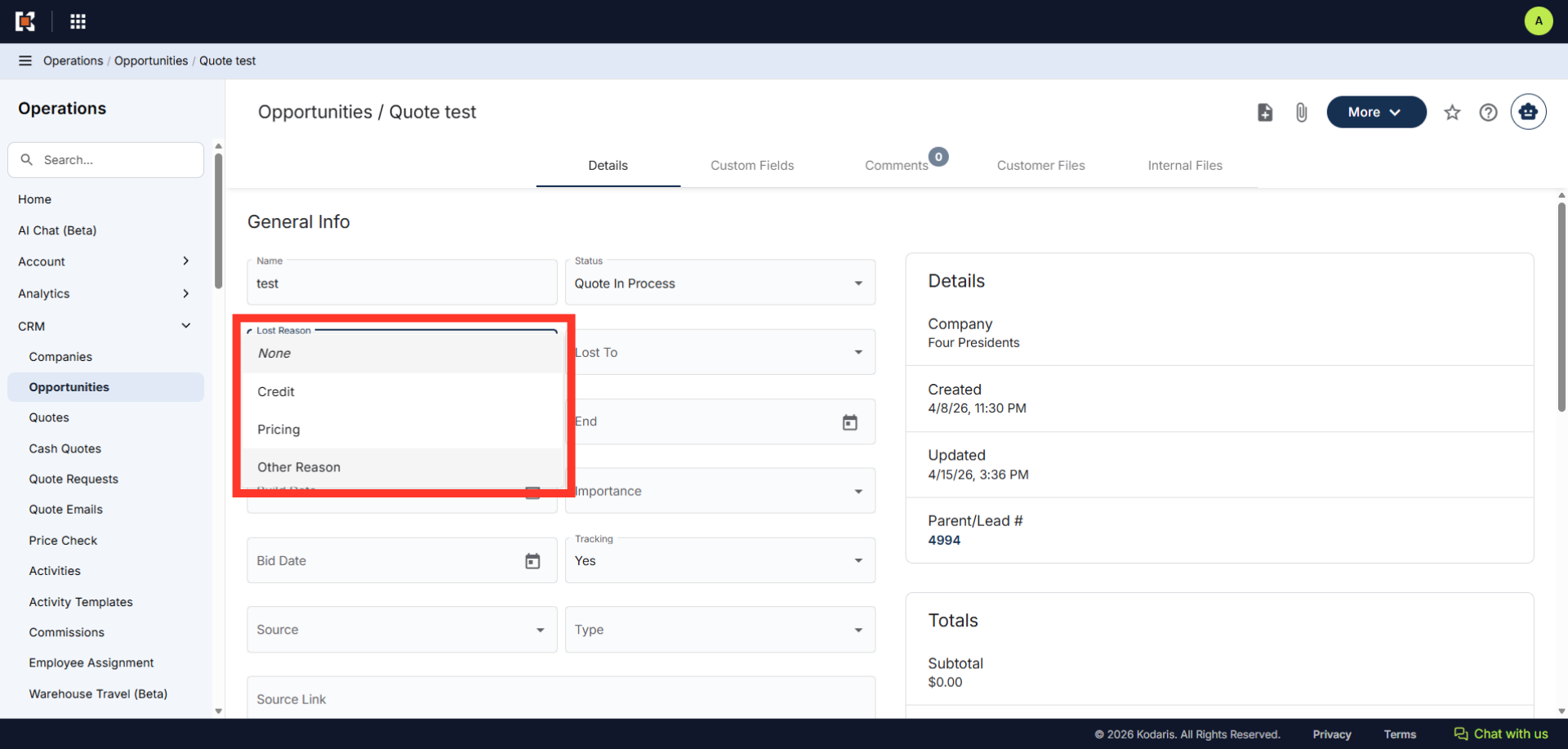
Operations System - Customize Opportunities "Lost Reason" Dropdown
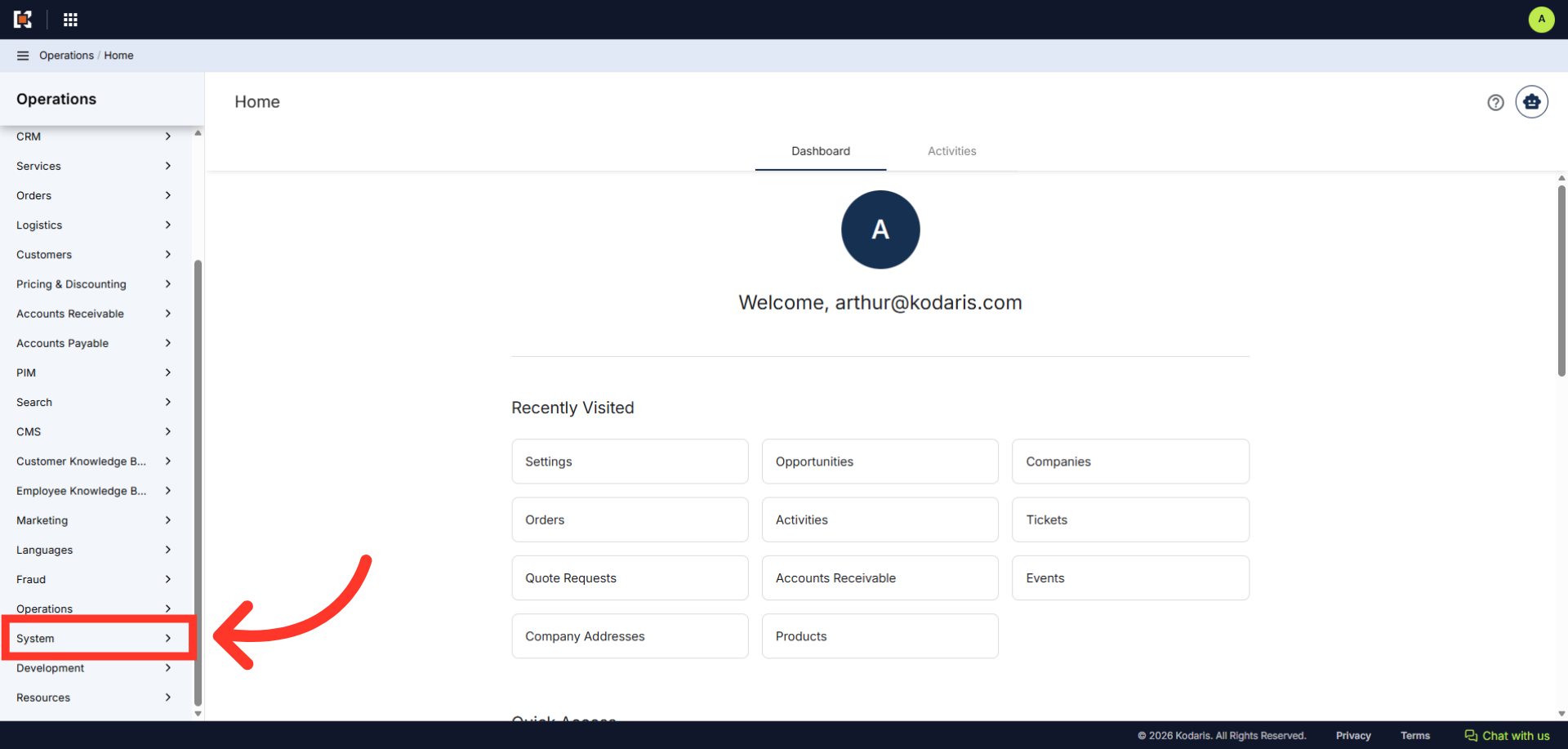
Navigate to "System"
You can customize the "Lost Reason" dropdown to include selections relevant to your workflow for Opportunities. To begin, navigate to the "System" section in the Operations Portal.
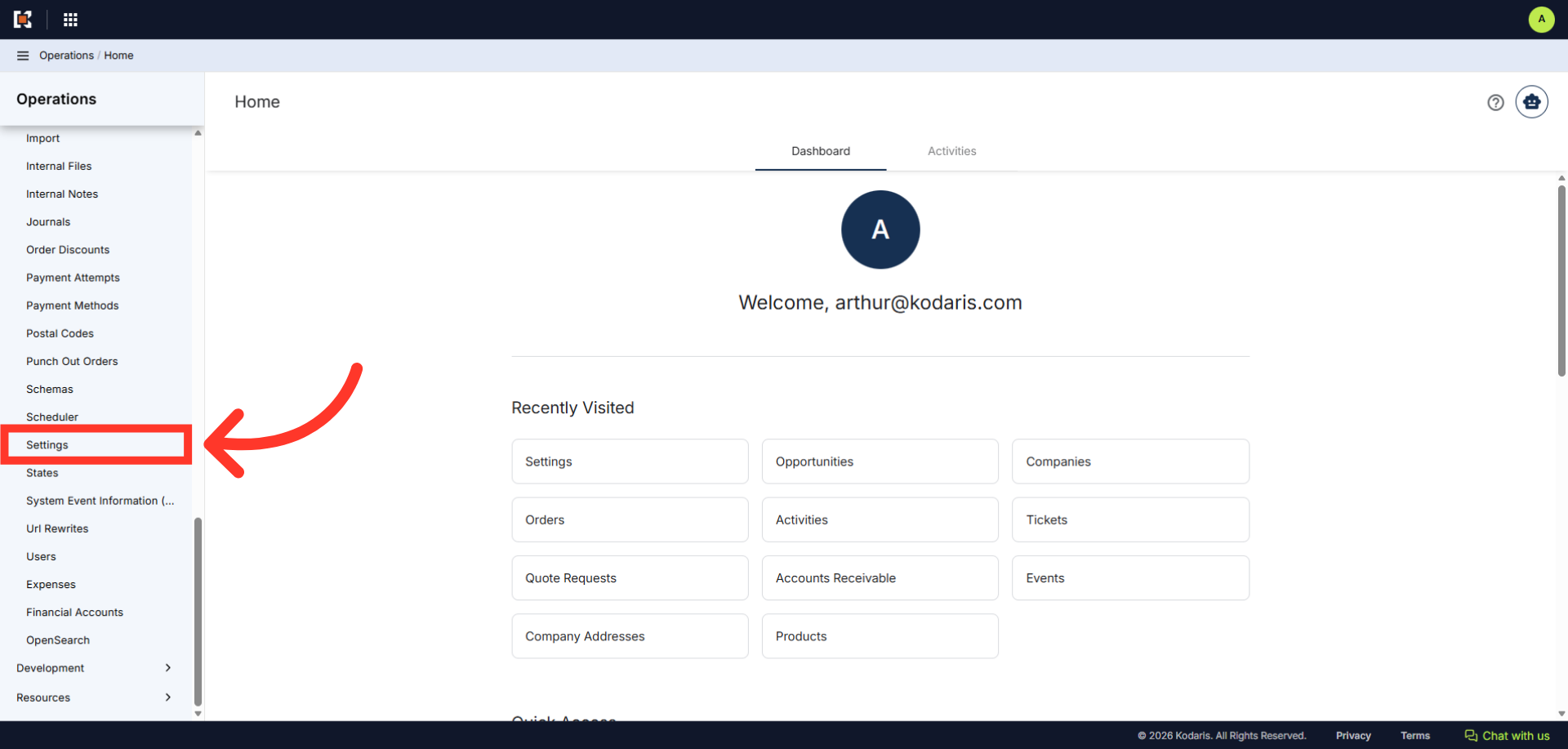
Click "Settings"
Then, click on "Settings". In order to access and edit settings, you will need to be set up either as an "administrator" or a "superuser", or have the following role: "settingEdit".
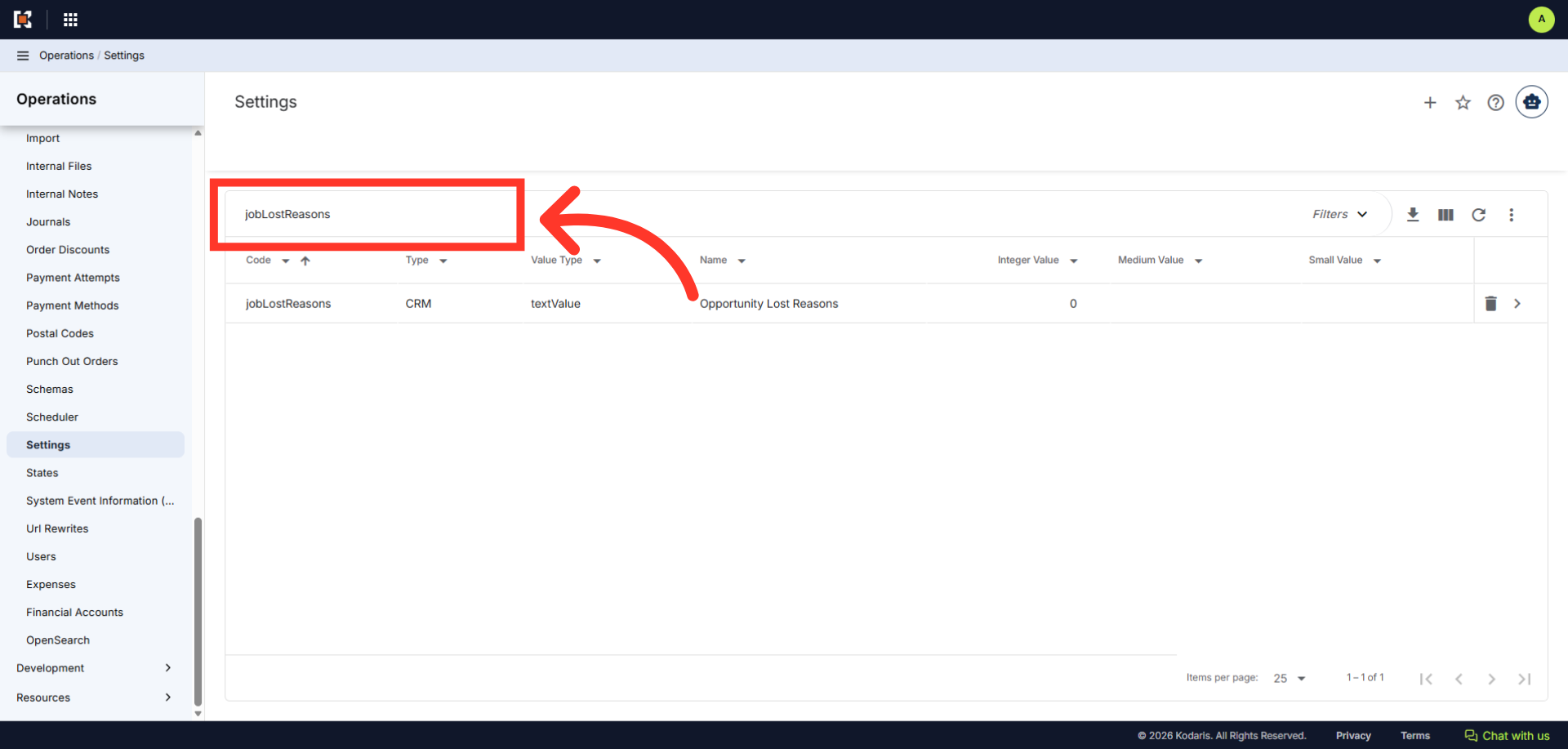
Search for "jobLostReasons"
In the "Search..." field, enter "jobLostReasons" to search for the setting.
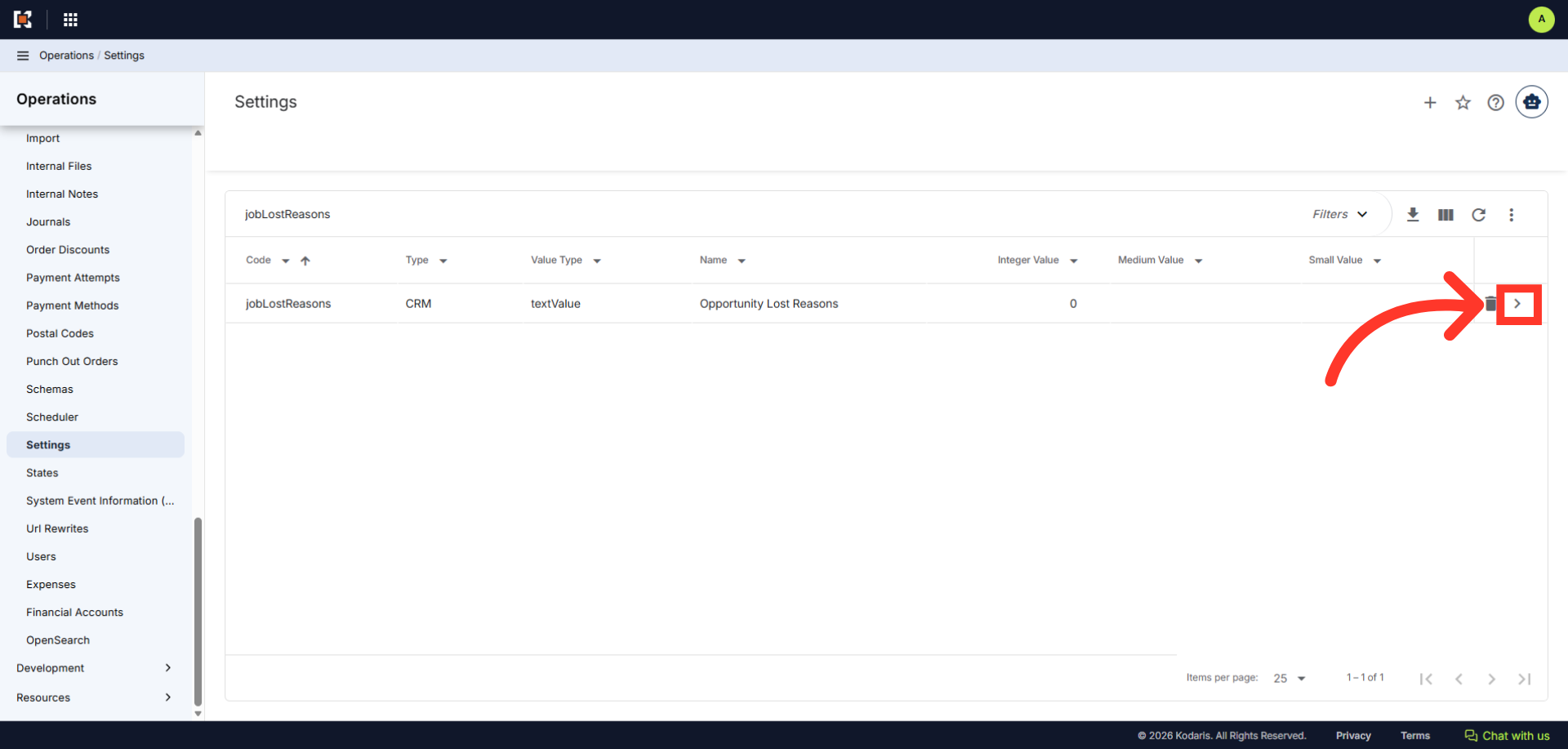
Click on the more details icon
Then, click on the more details icon to view its details.
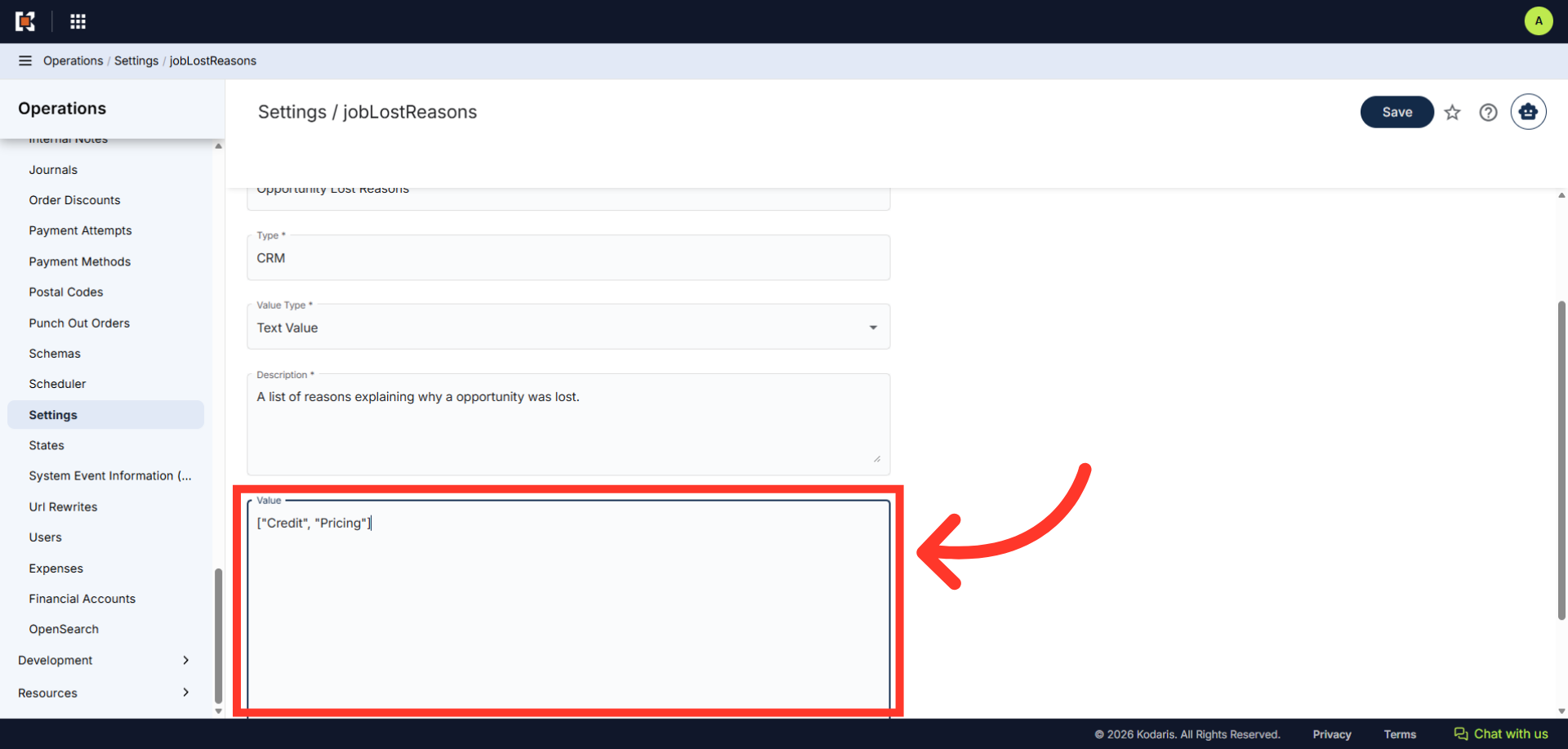
Click "Value" Field
Click the "Value" field to customize the job lost reasons.
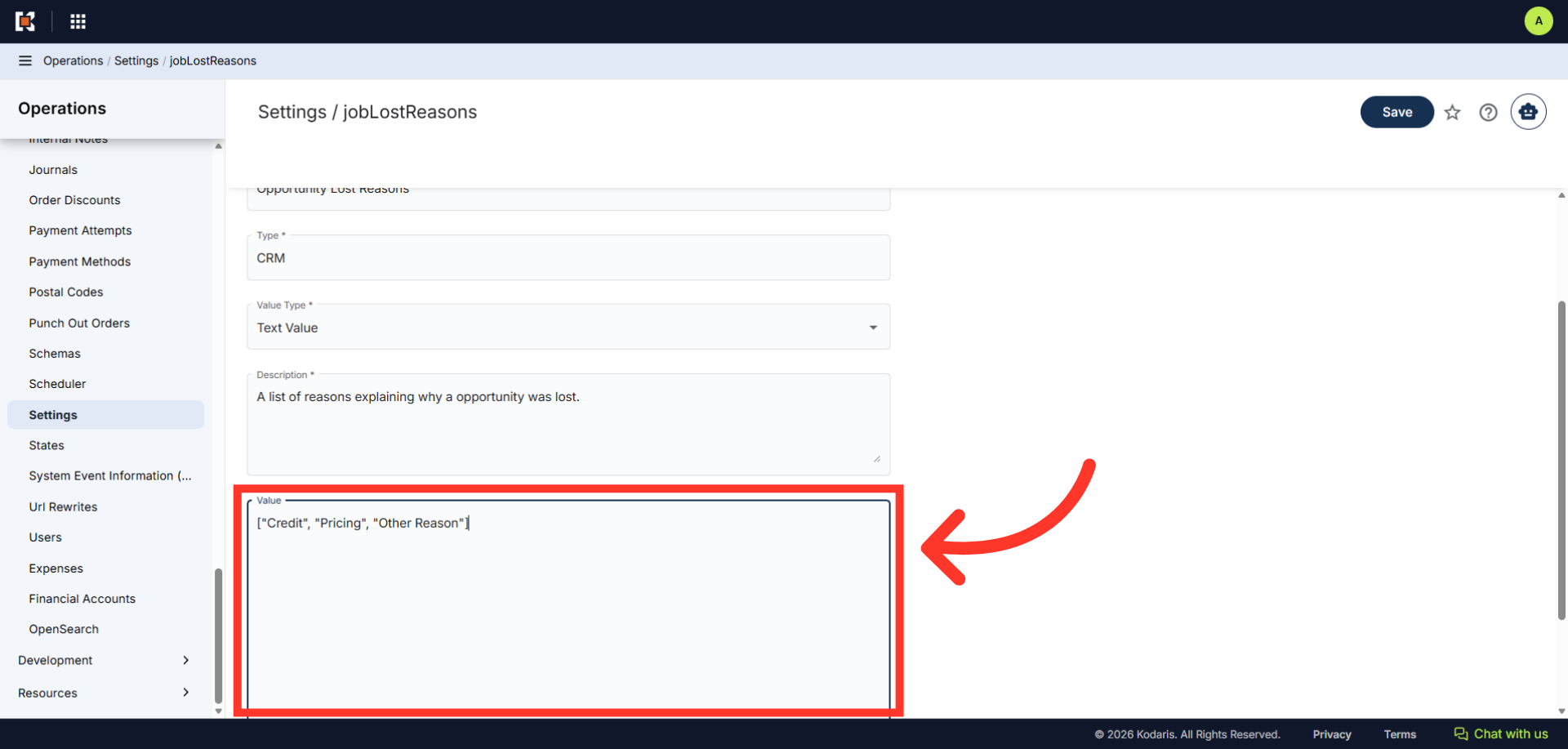
Update the list of job lost reasons
Enter the options you would like displayed in the drop-down menu. Use a comma without spaces to separate each value, and also place the value in quotation marks.
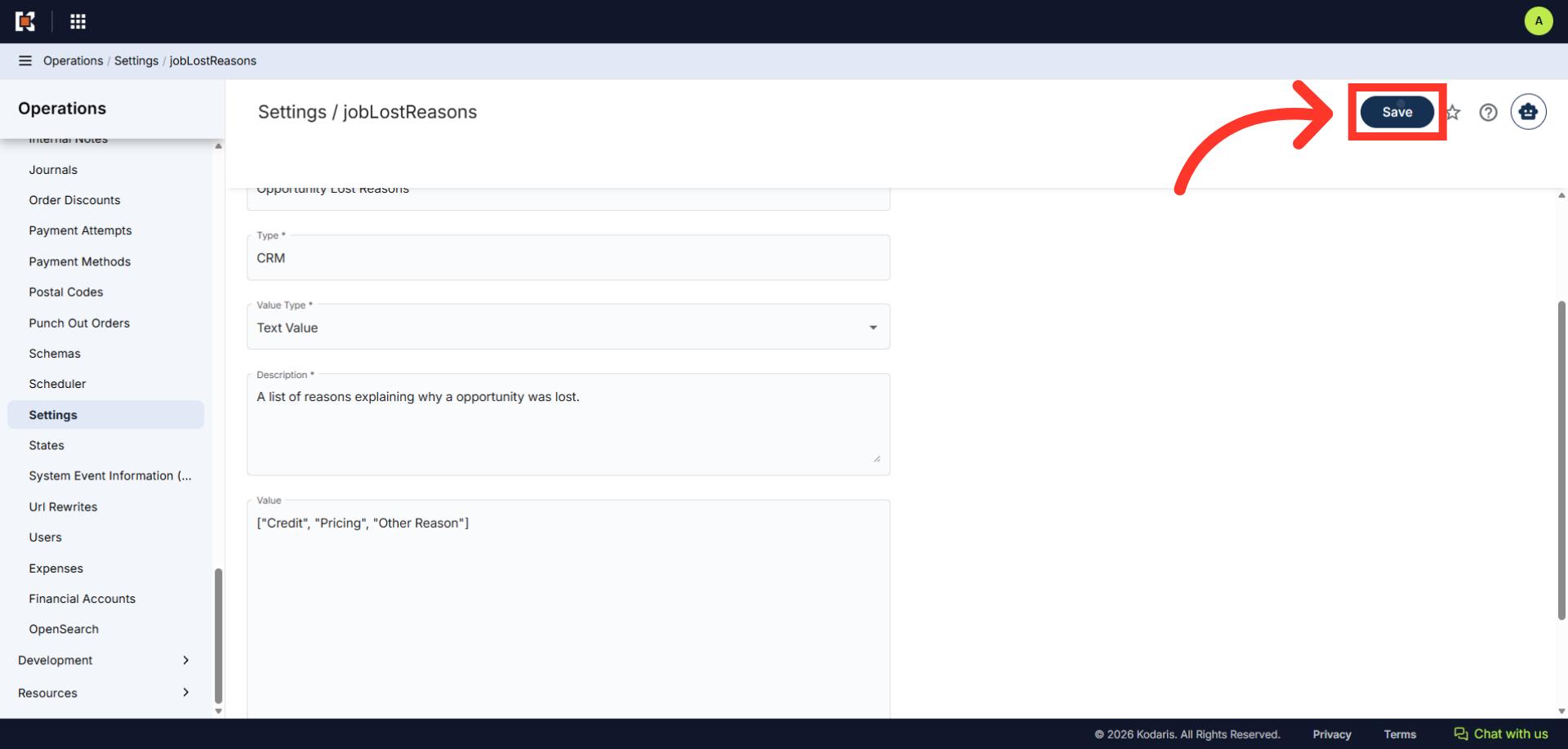
Click "Save"
Then, click the "Save button" to save the changes.
Go to an opportunity and click "Lost Reason"
To verify the updates, go to the details of an opportunity and click "Lost Reason" to expand the dropdown menu.
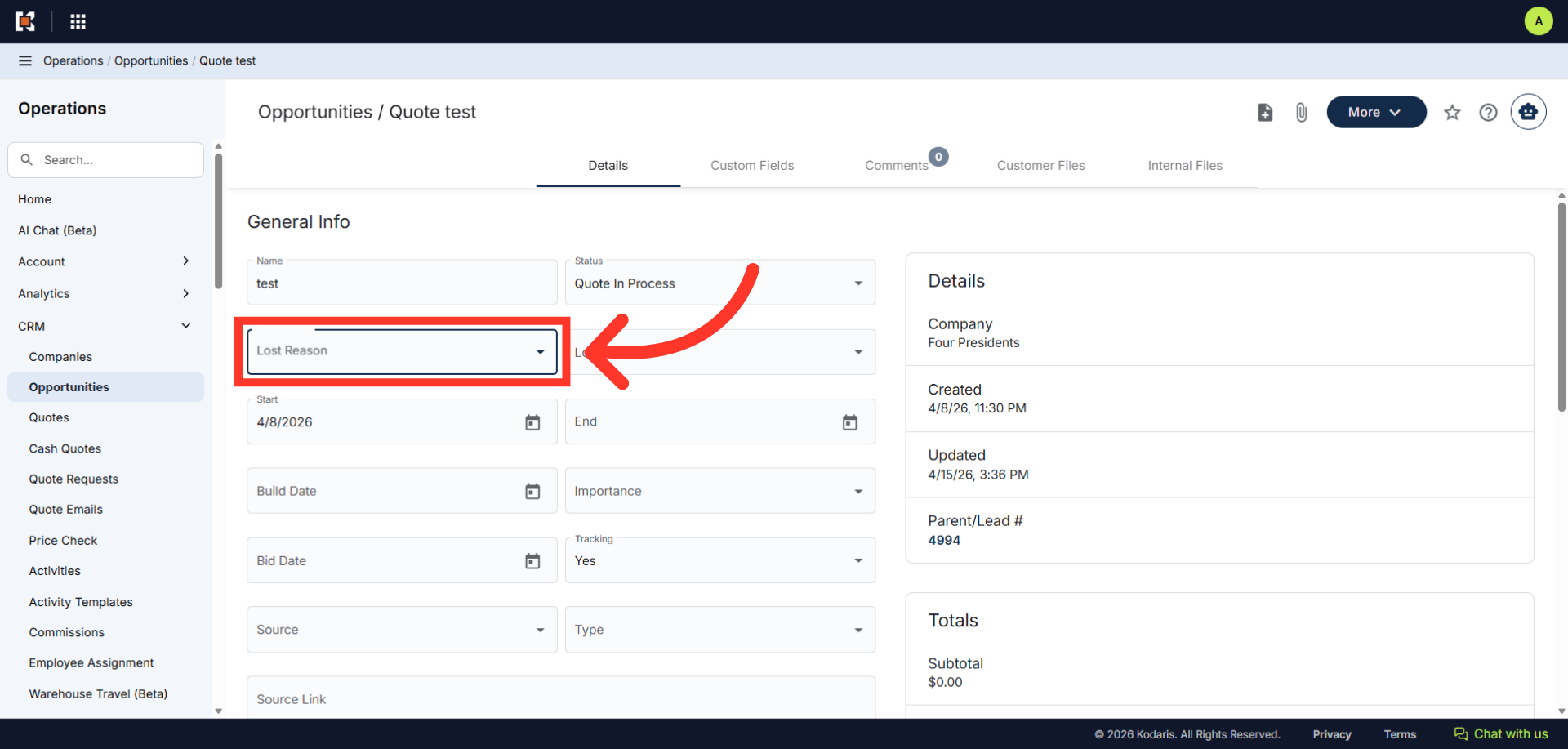
Verify the updated reasons
Verify the updated selections.