Operations CRM - Create and View Opportunities for a Company
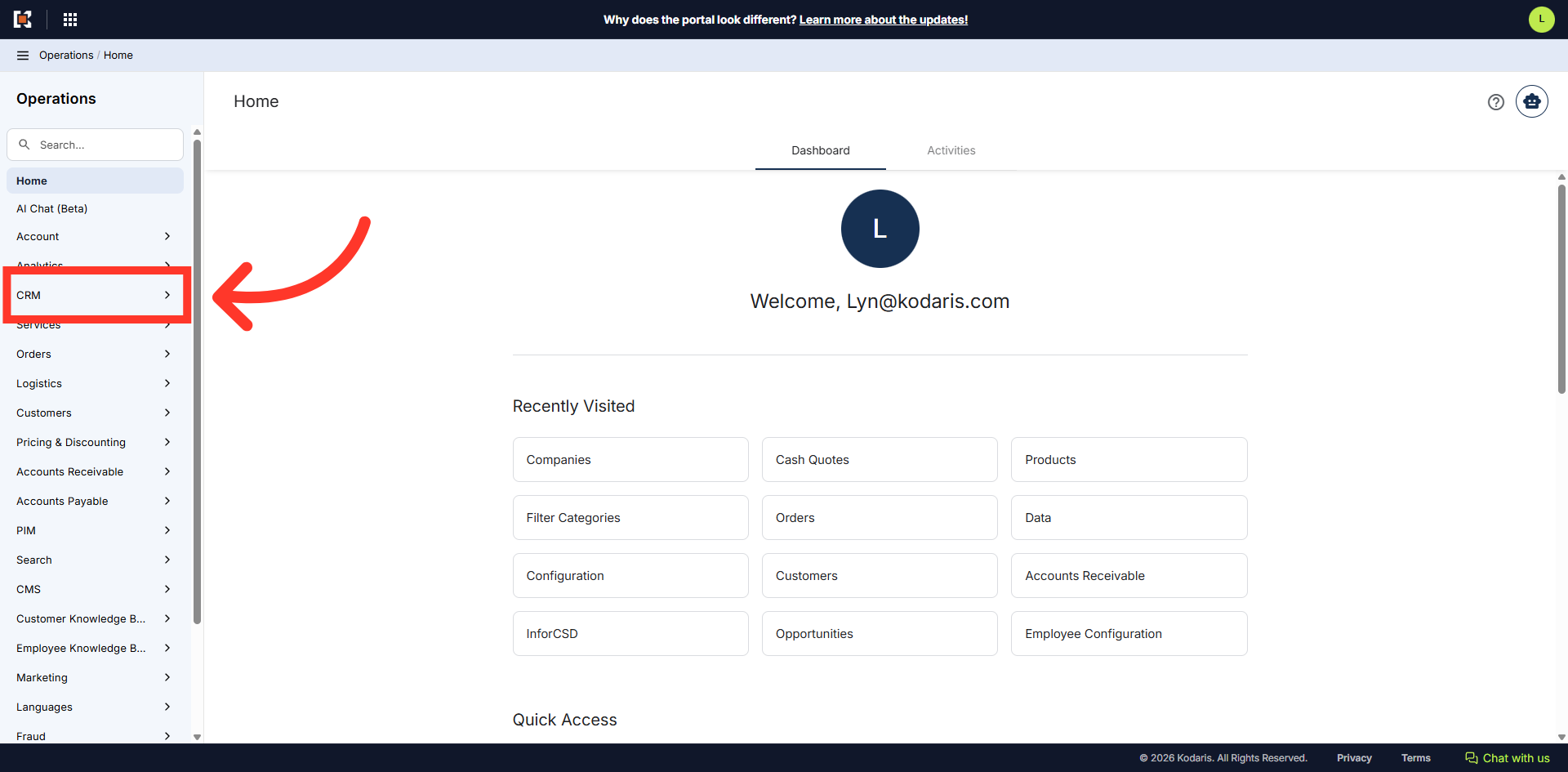
Navigate to "CRM"
In order to create and view opportunities for a company, navigate to the "CRM" section in the Operations Portal.
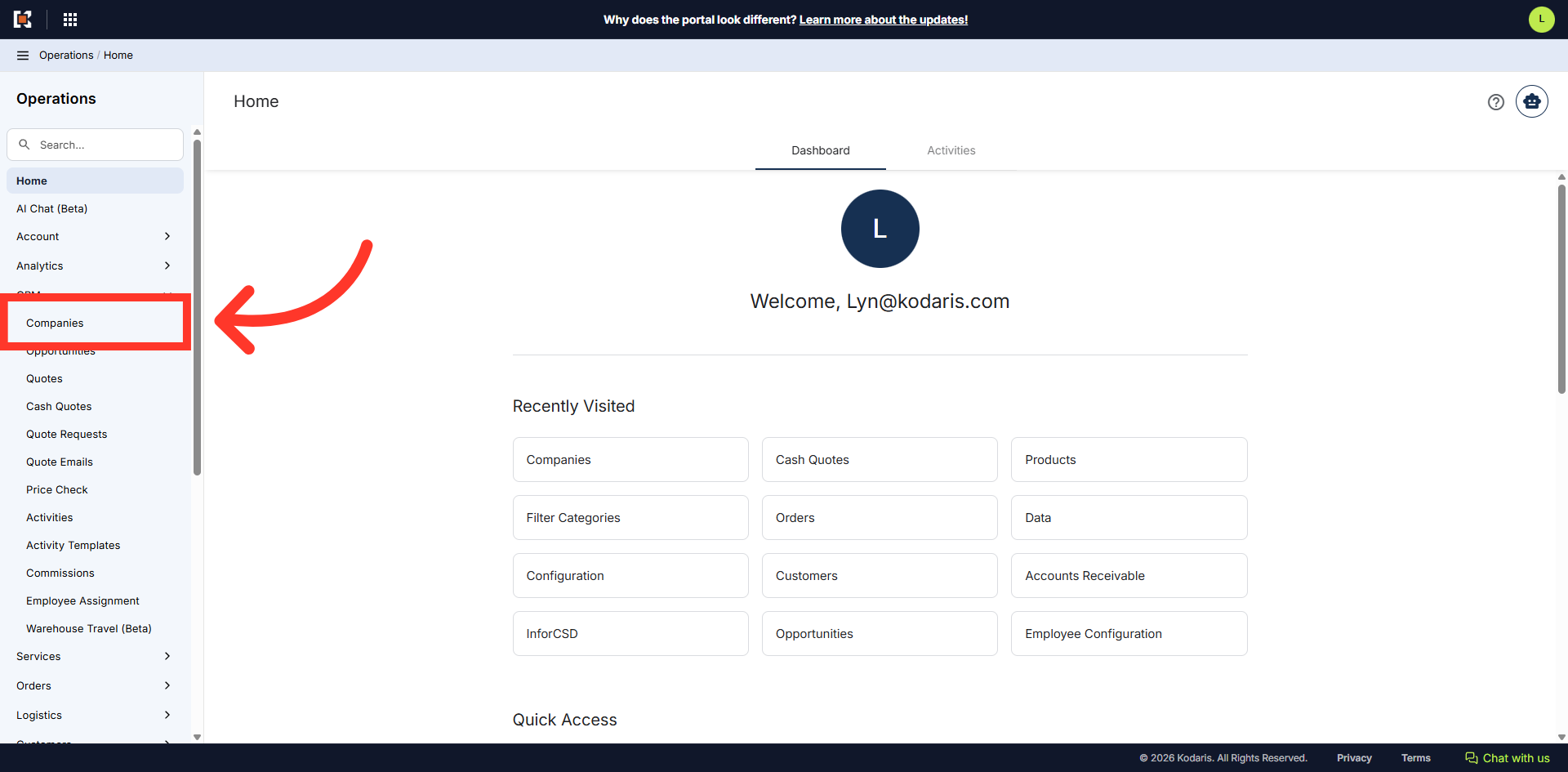
Click "Companies"
Then, click "Companies". In order to access "Companies", you will need to be set up either as an "administrator" or a "superuser", or have the appropriate roles: "companyEdit", or "crmCompanyEdit". Just a reminder, "crmCompanyEdit" access only allows employees to access companies that are assigned to them.
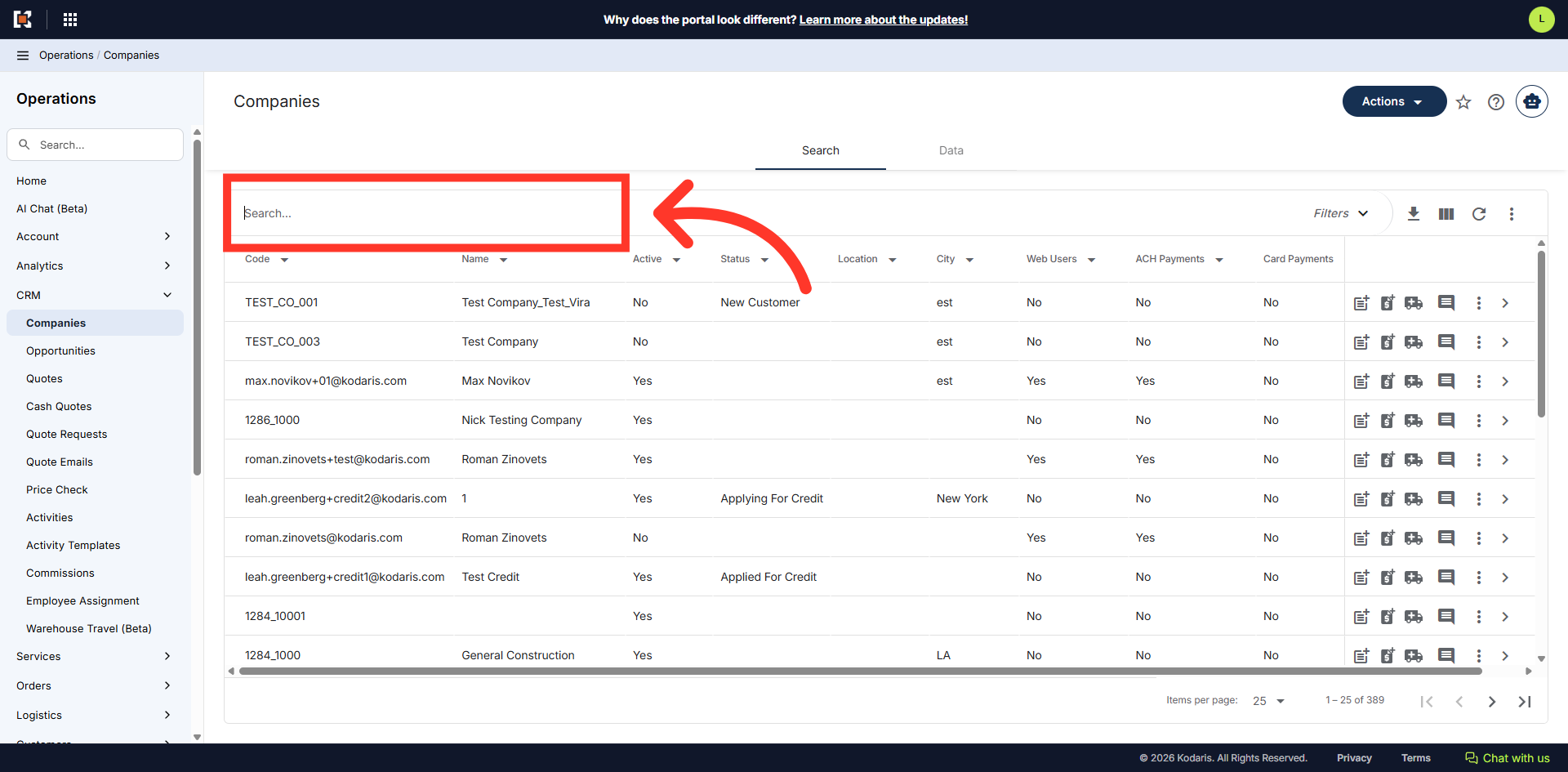
Search for the company
Search for the company that you would like to update by typing the code or keyword in the "Search..." field.
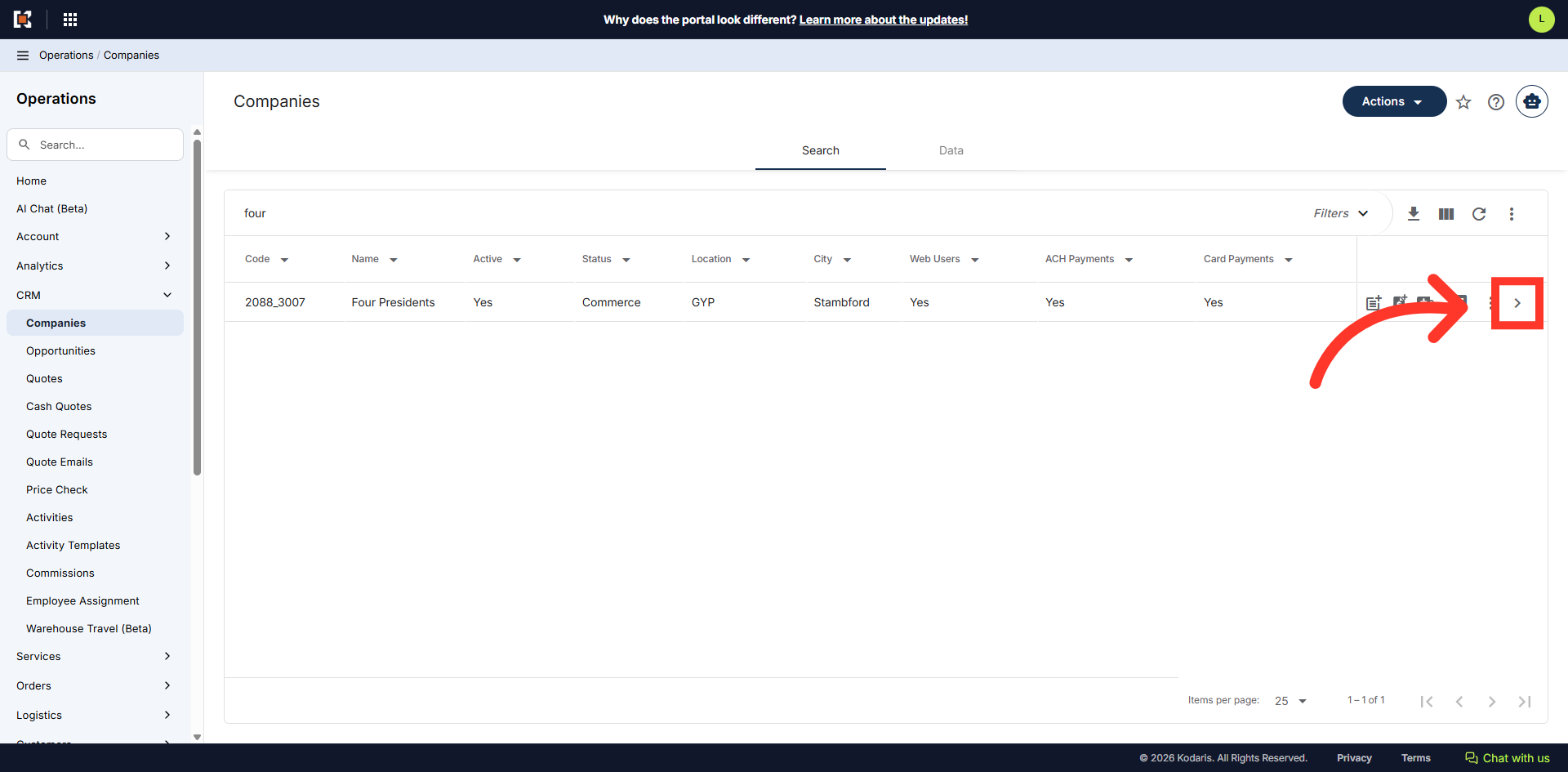
Click on the more details icon
Click on the more details icon.
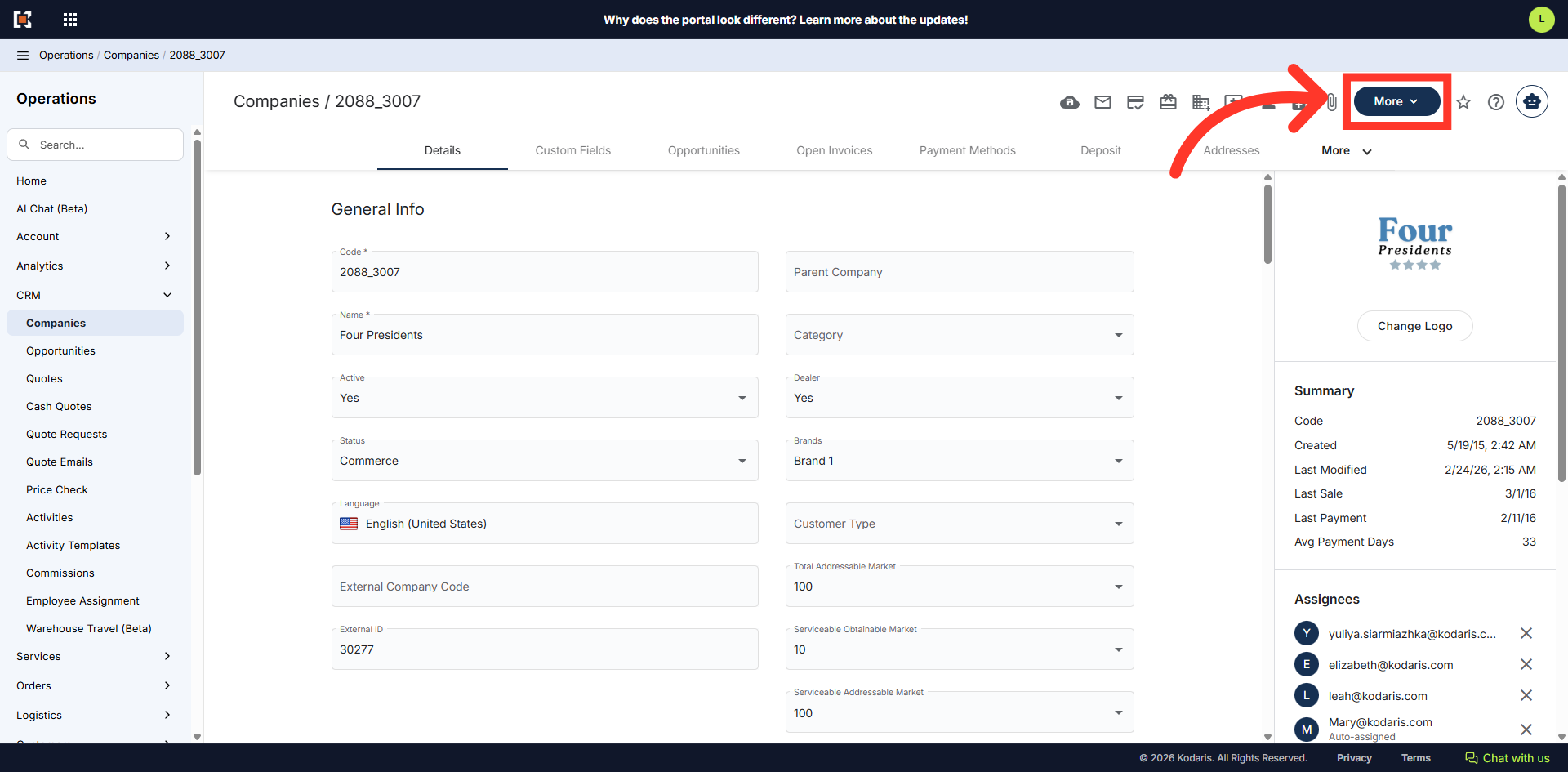
Click "More"
To add an opportunity, click "More".
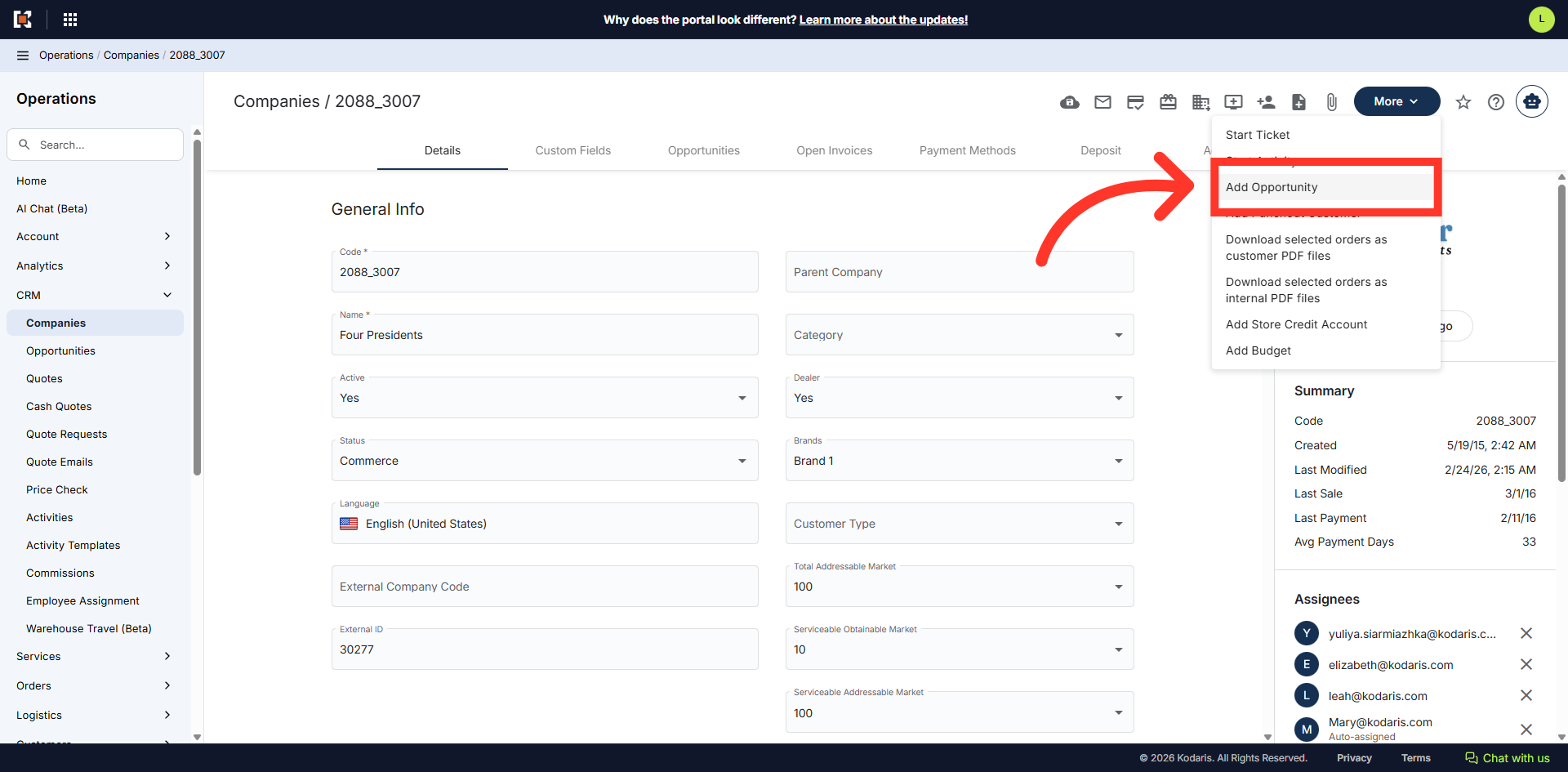
Click "Add Opportunity"
Then, click "Add Opportunity".
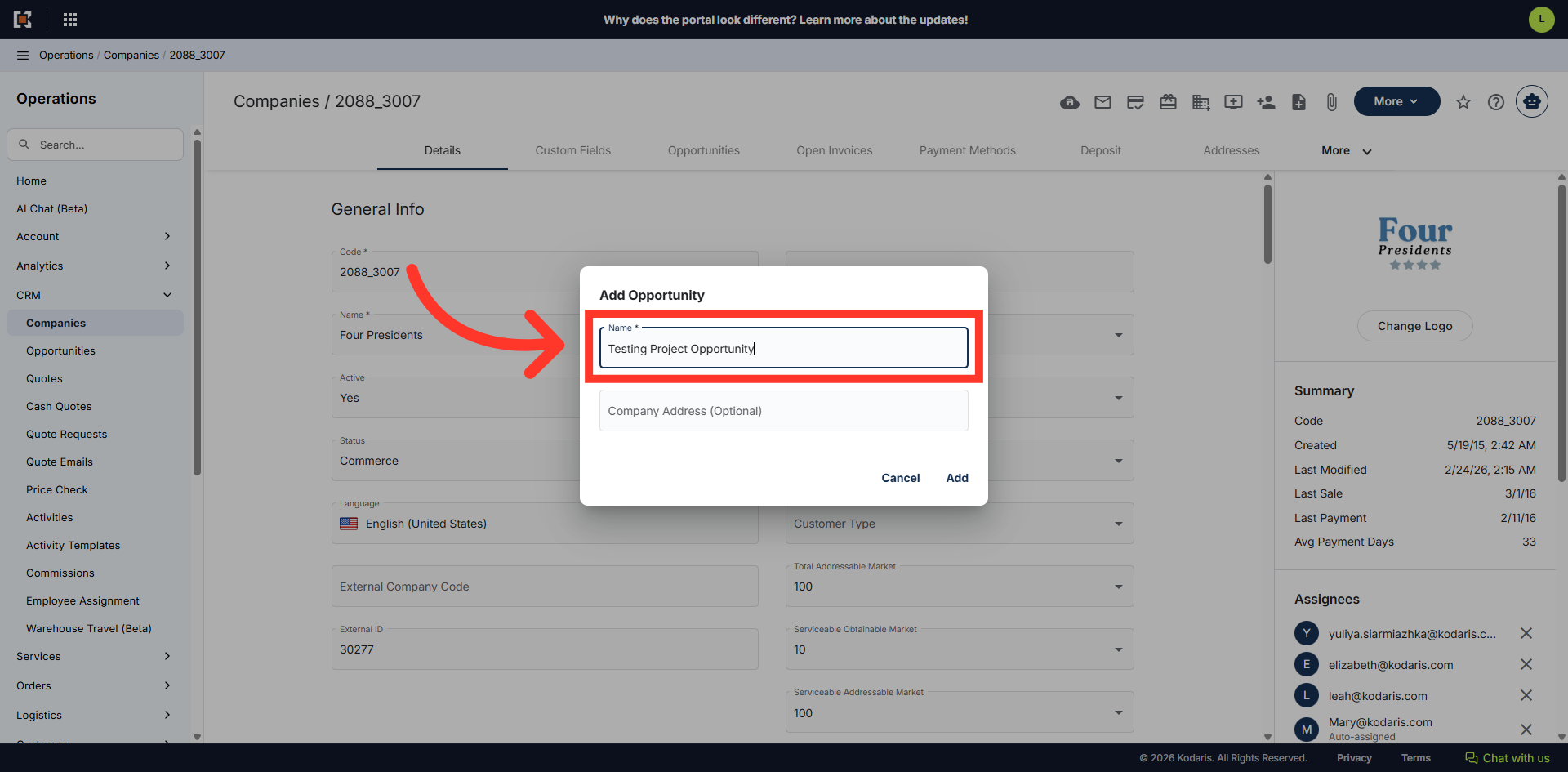
Name the opportunity
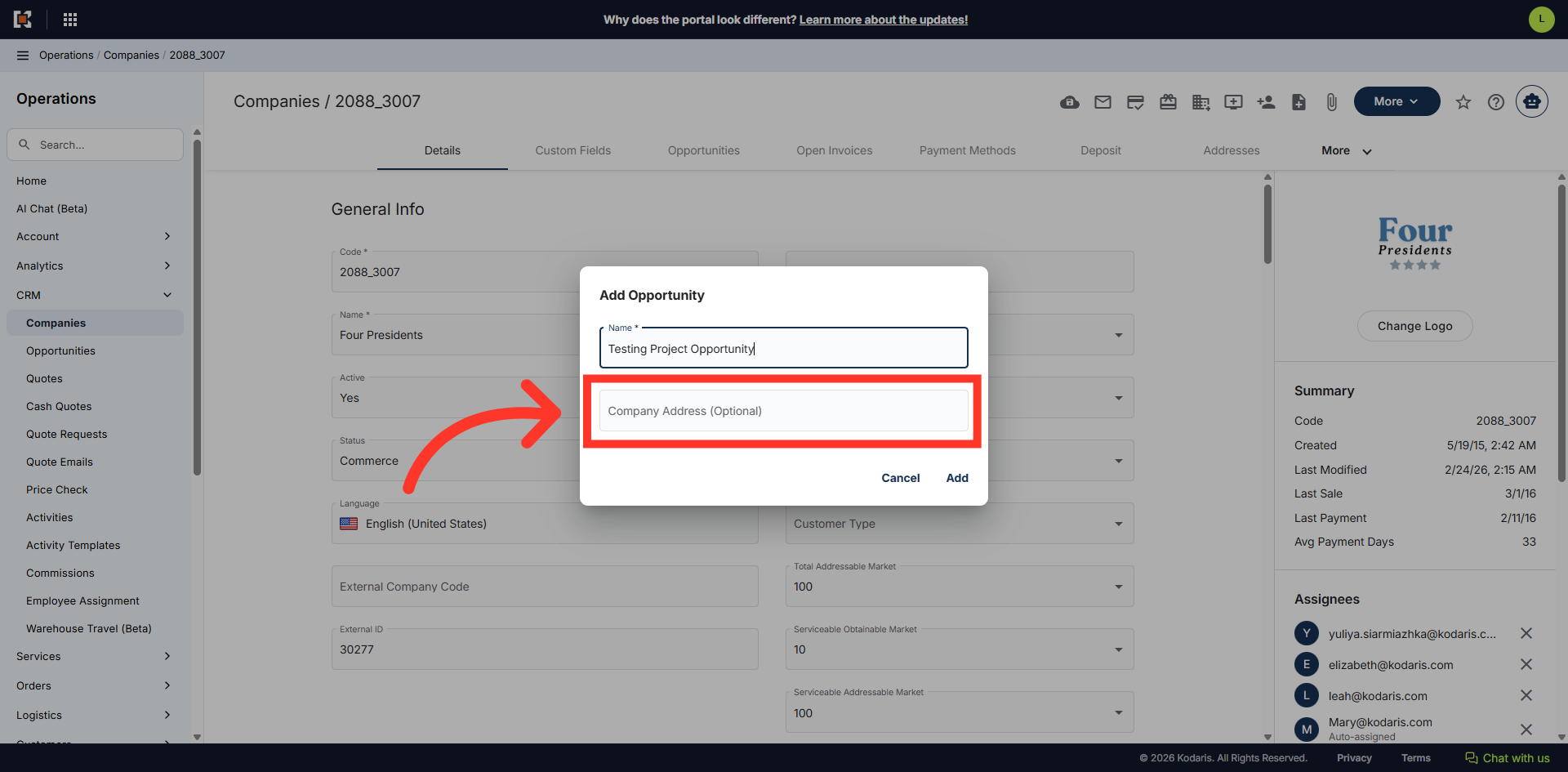
Update the name of the opportunity.
Select a company address, if preferred
Select the "Company Address" field if you want to add a specific address or ship-to.
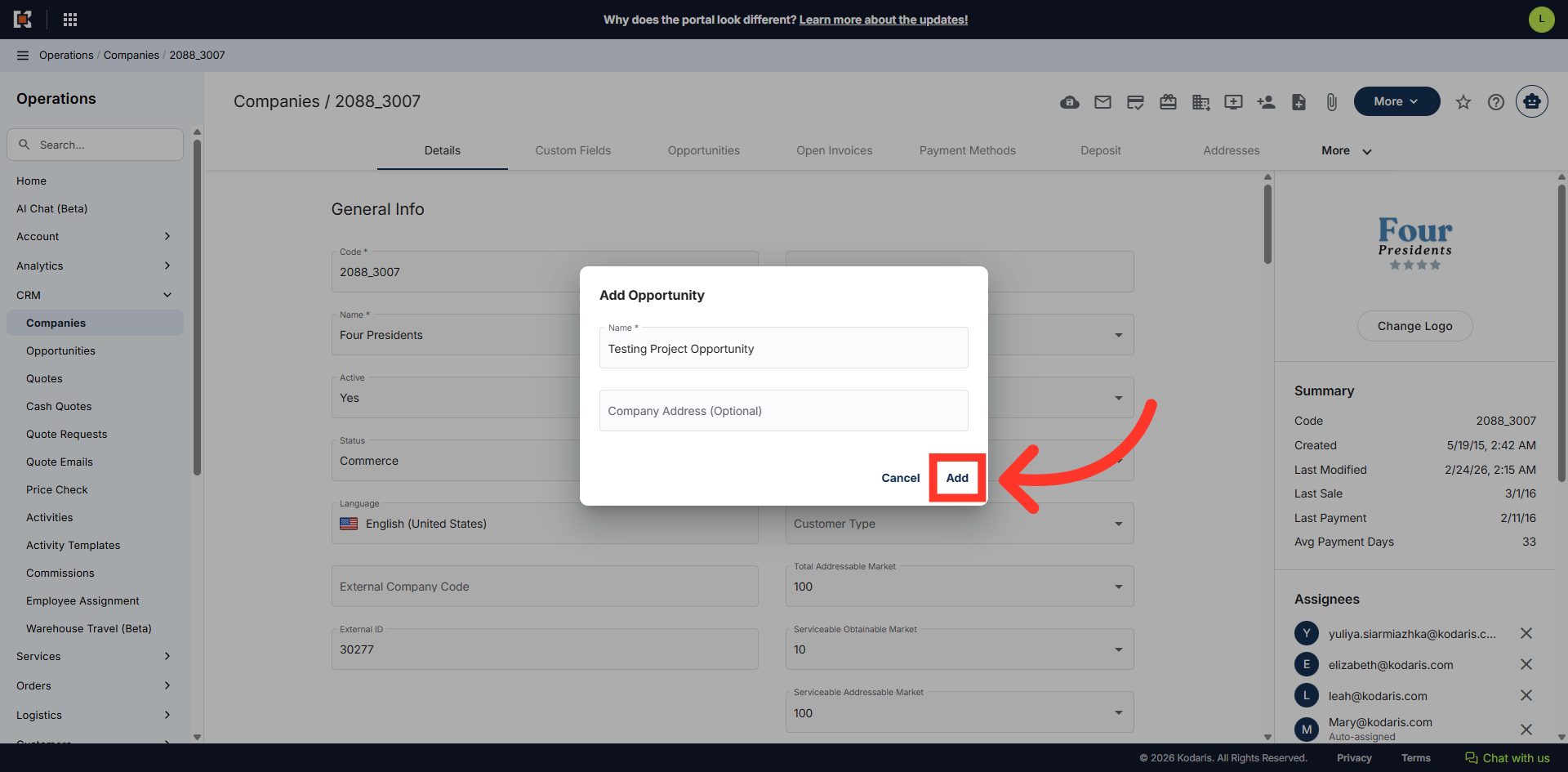
Click "Add"
Then, click "Add".
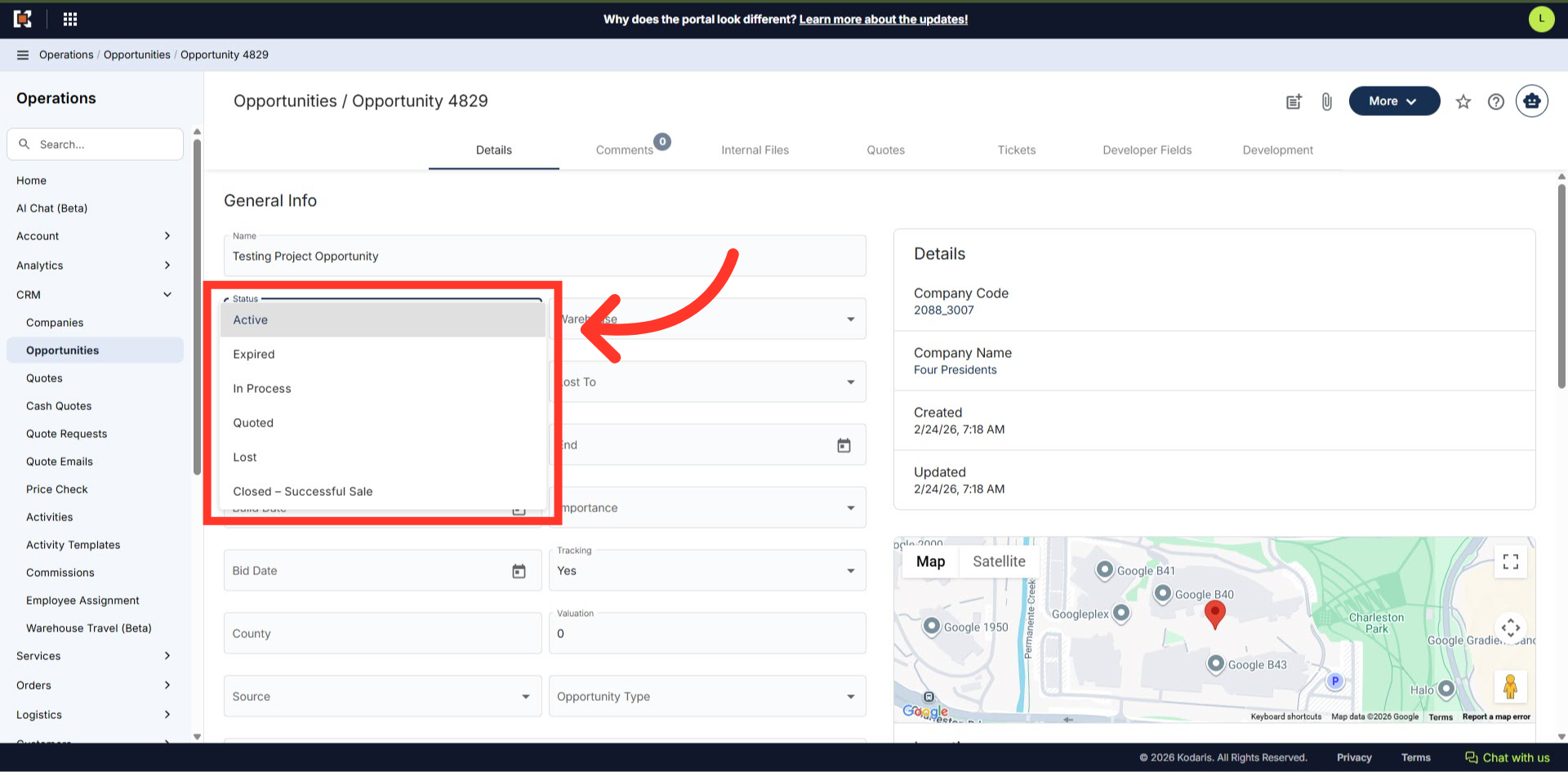
"Status"
Once an opportunity is created, you will automatically be directed to the details screen. Update any details of your opportunity.
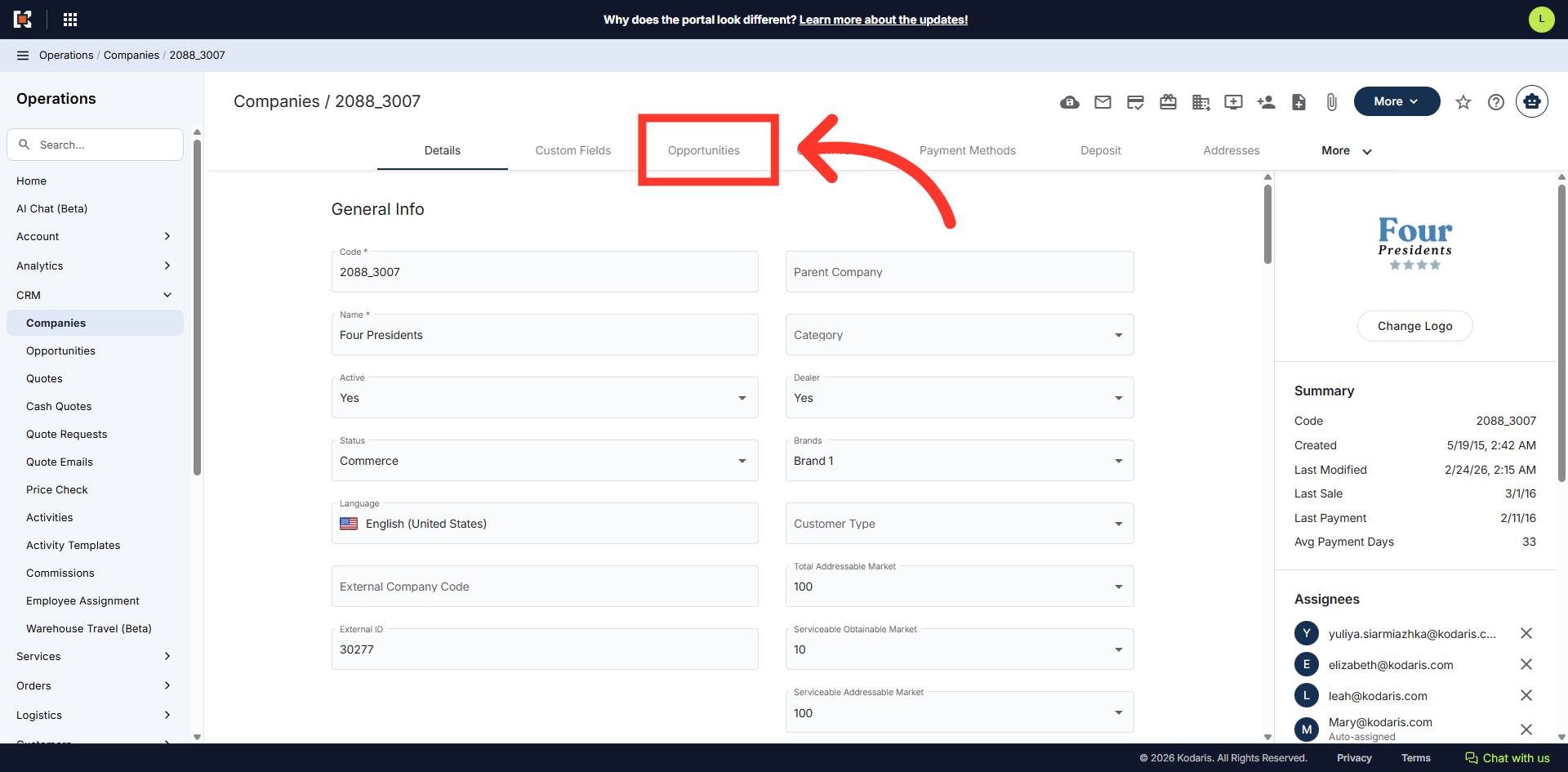
Go to "Opportunities"
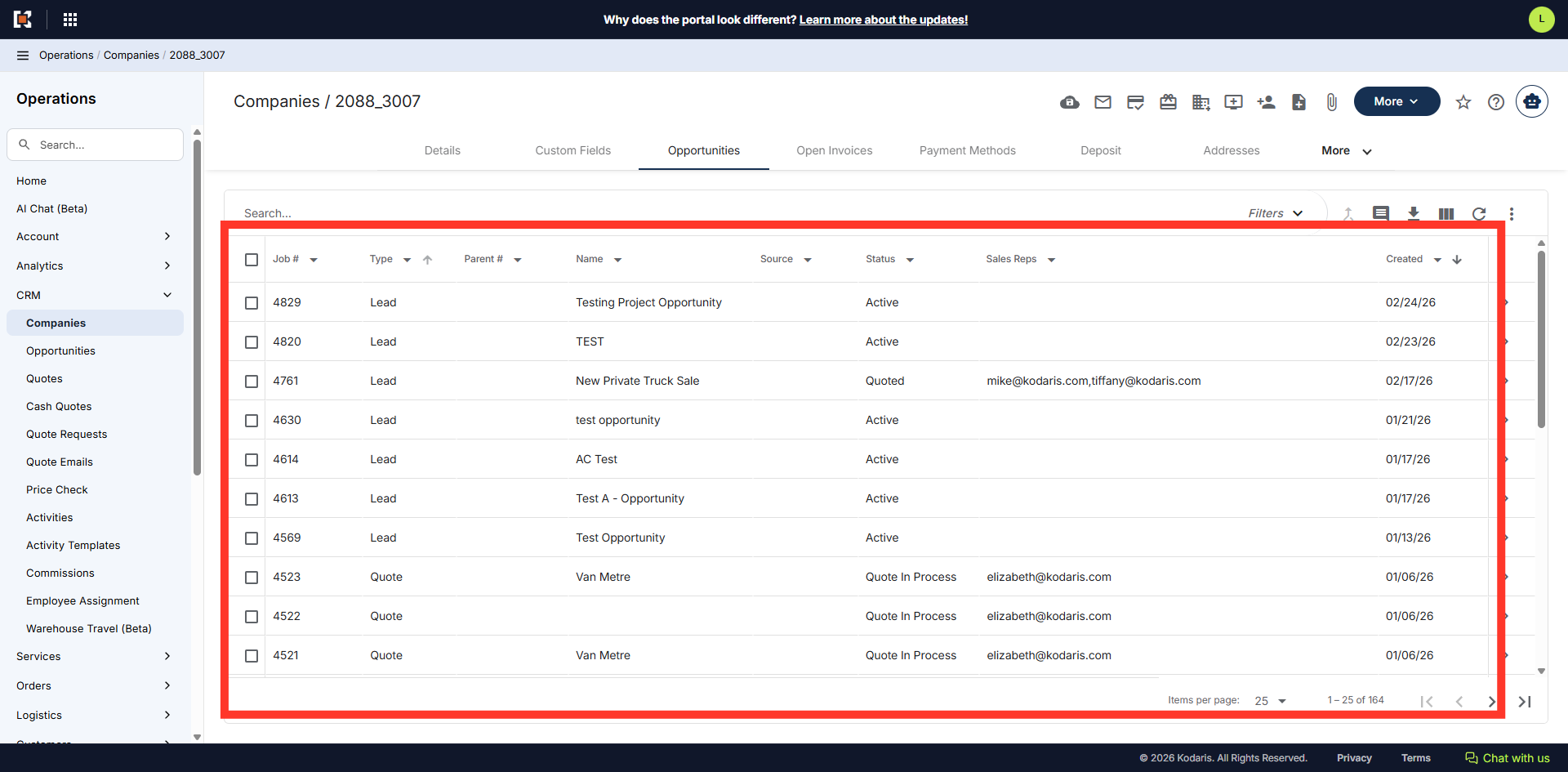
To view all opportunities under a company, go to the "Opportunities" tab in the companies details screen.
Company "Opportunities"
All the opportunities listed under the company can be seen on this screen as well as the newly created opportunity.