Operations Employees - Export Employees
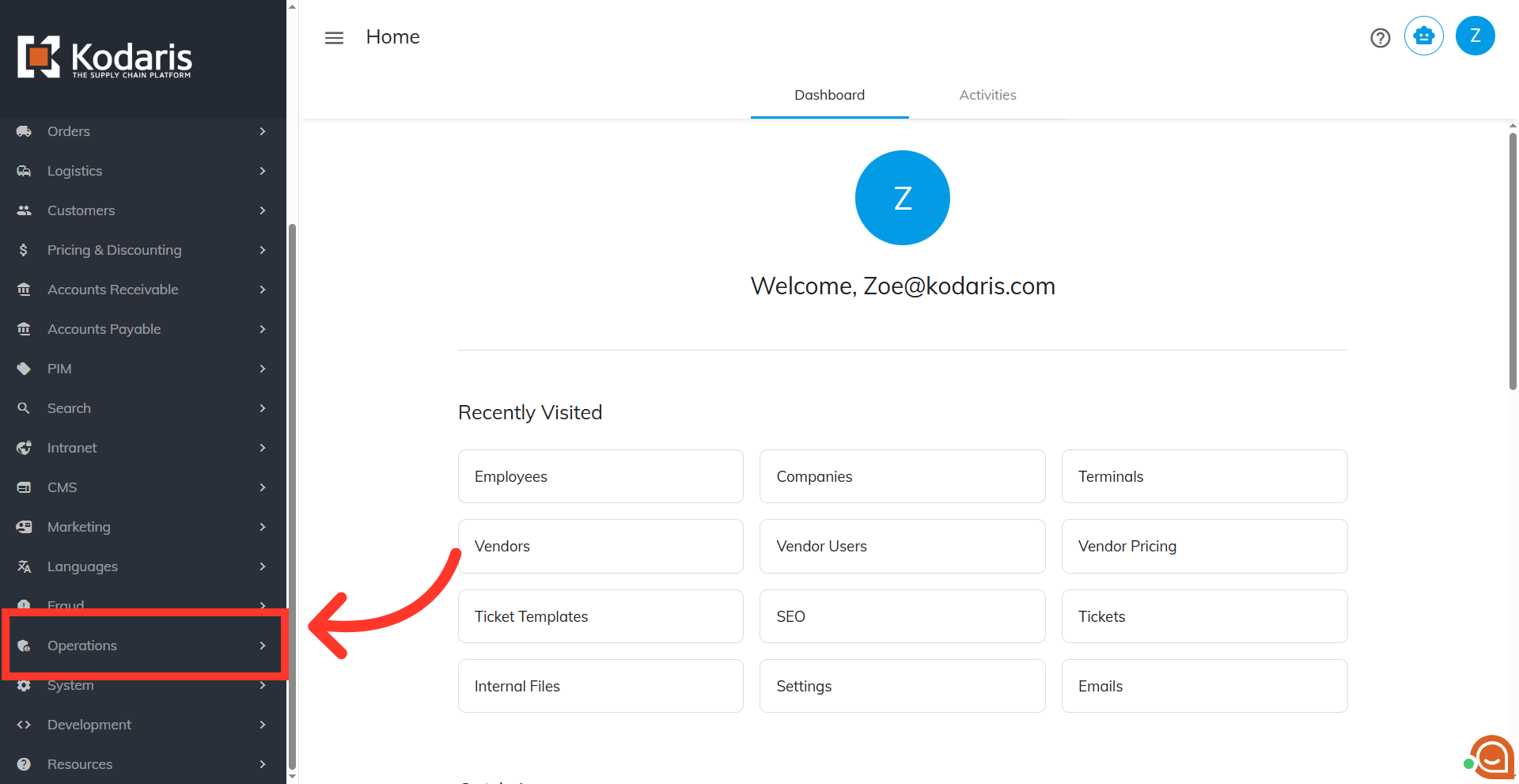
Navigate to "Operations"
To export employee data, navigate to the "Operations" section in the Operations Portal.
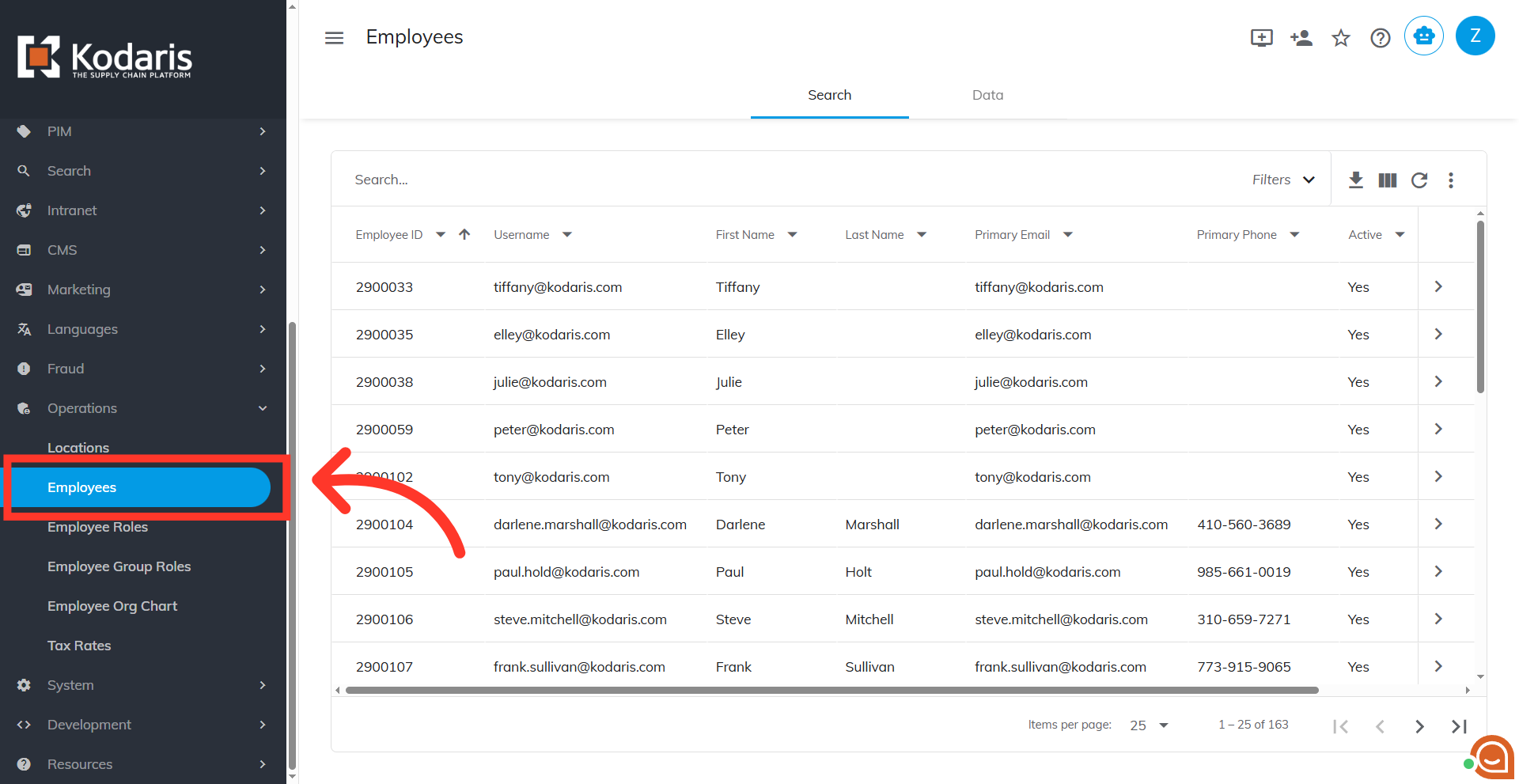
Click "Employees"
Then, click "Employees". In order to access and update "Employees" you will need to be set up as a "superuser" or have the roles of: "administratorEdit" and "administratorView".
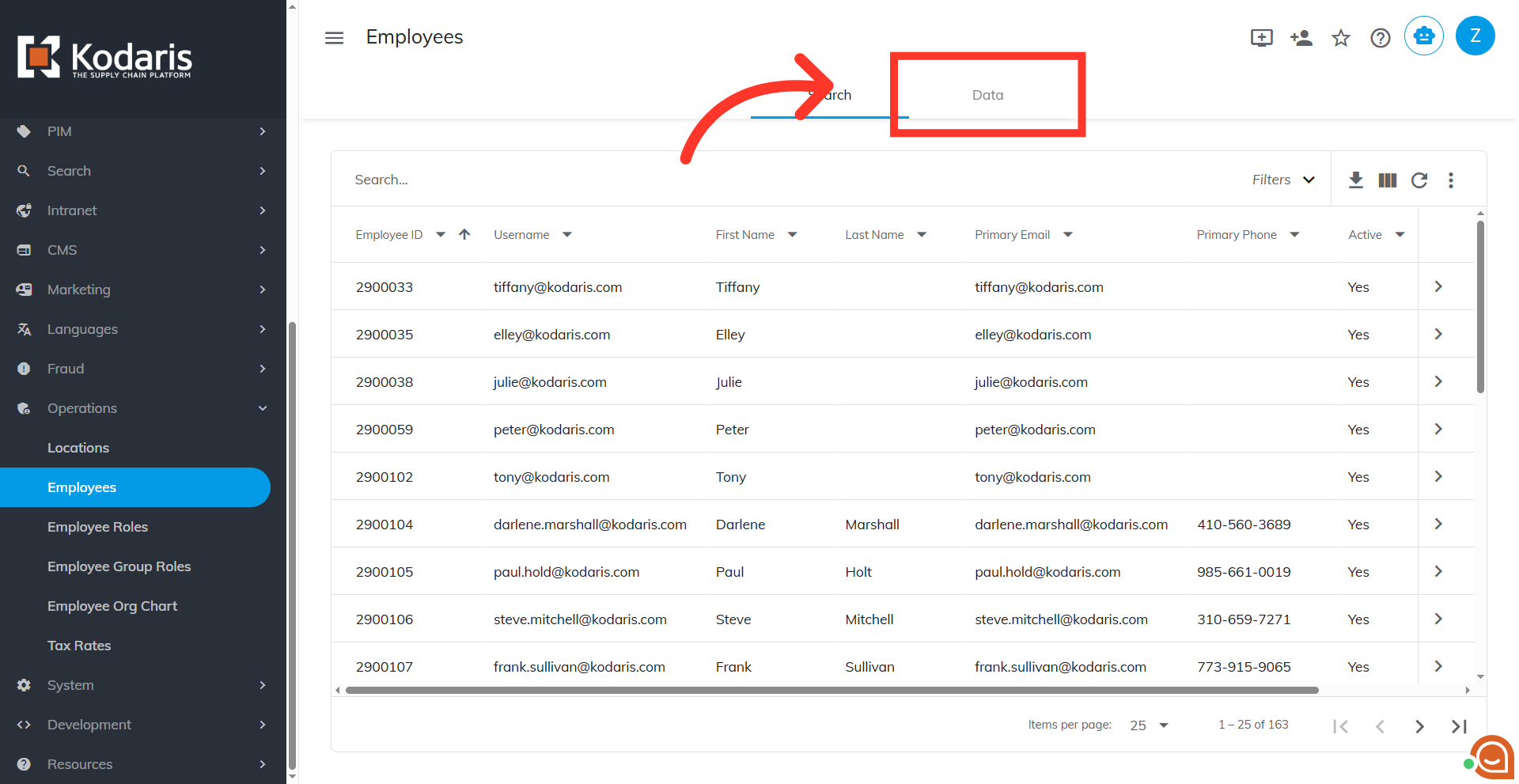
Go to the "Data" tab
Go to the "Data" tab.
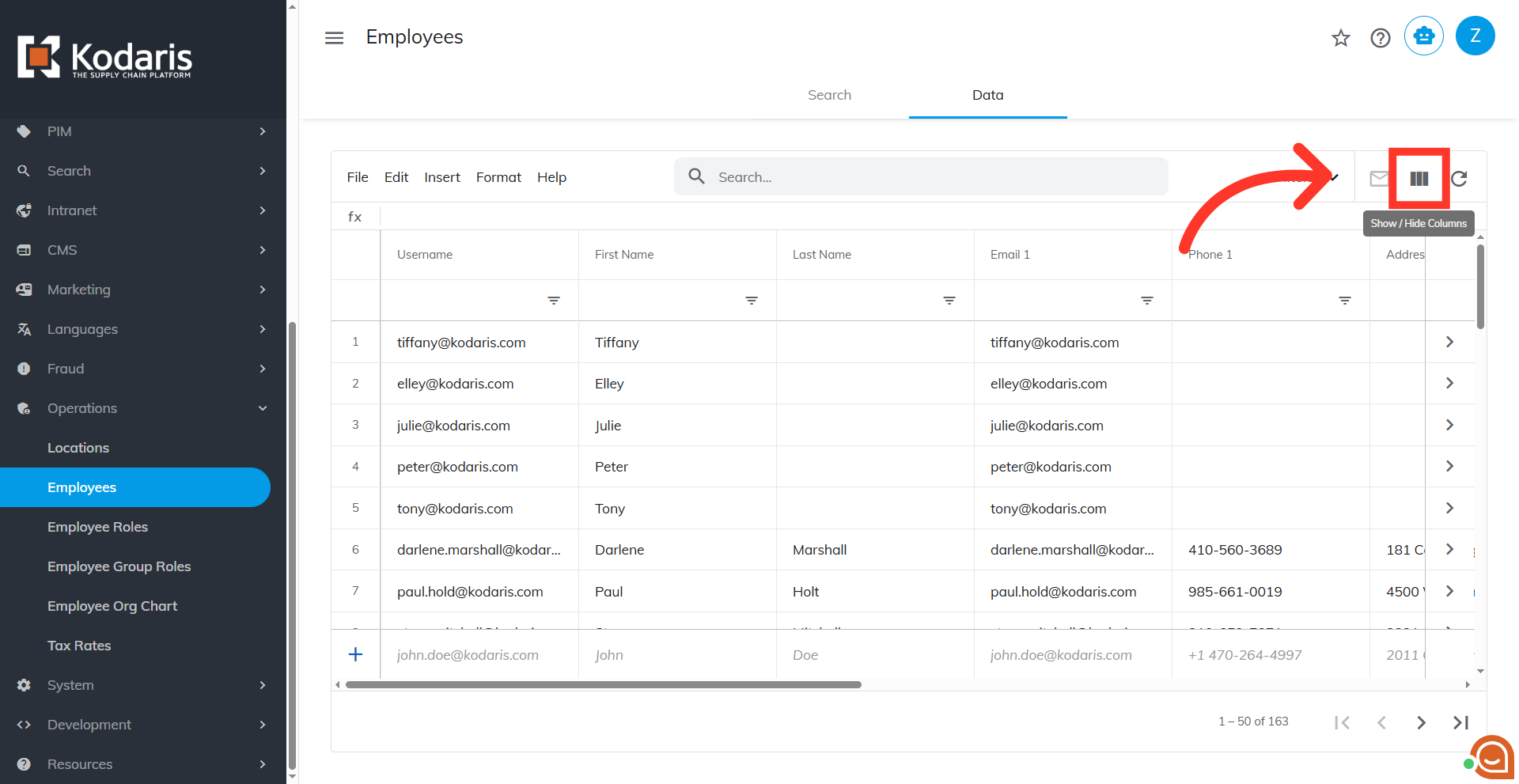
Click "Show/Hide Columns" icon
Click the "Show/Hide Column" icon.
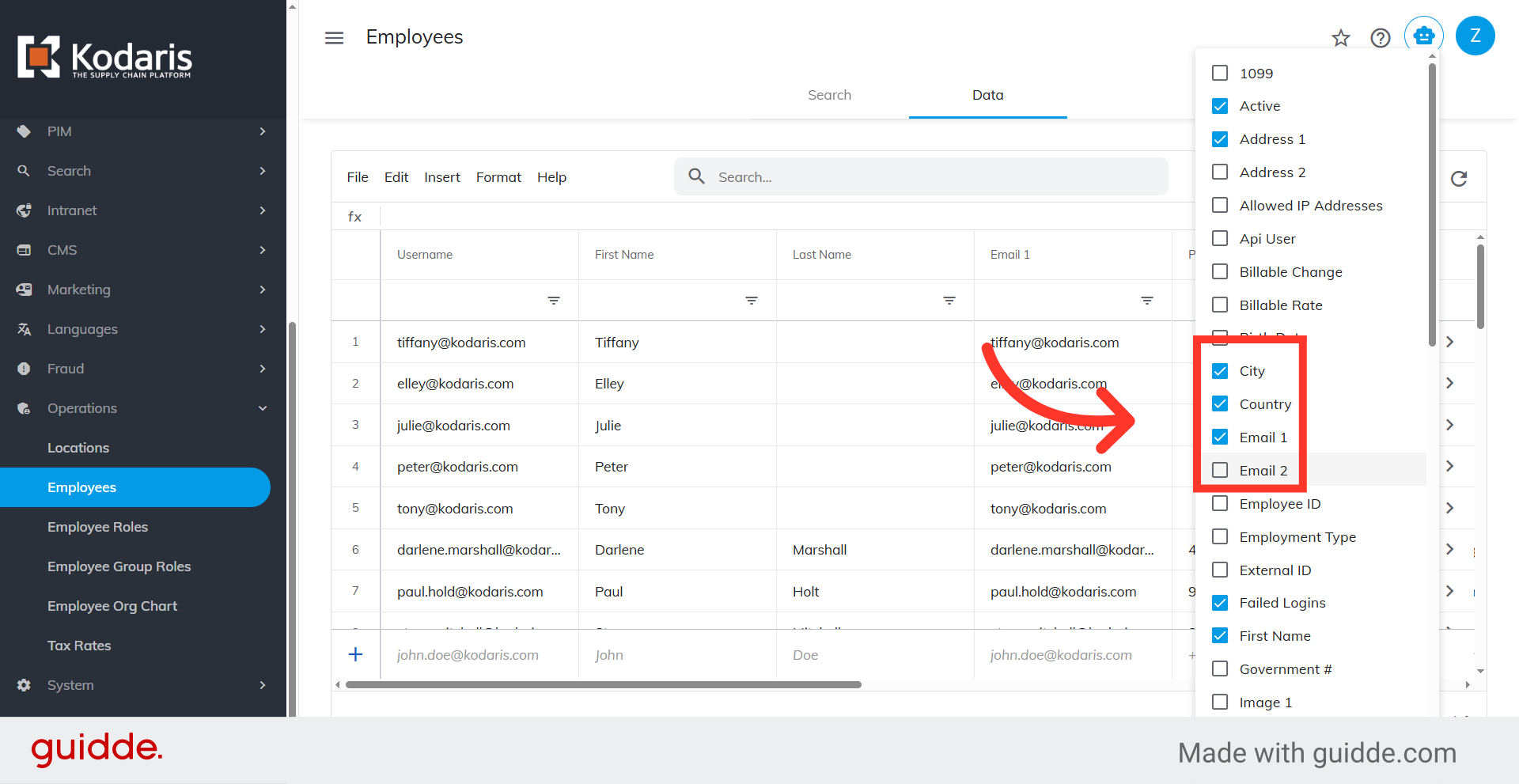
Select columns
Select columns you would lik to include in the export. If you'll be using this file to bulk create/update by import, make sure to select "Username" as it is the identifying factor for matching information.
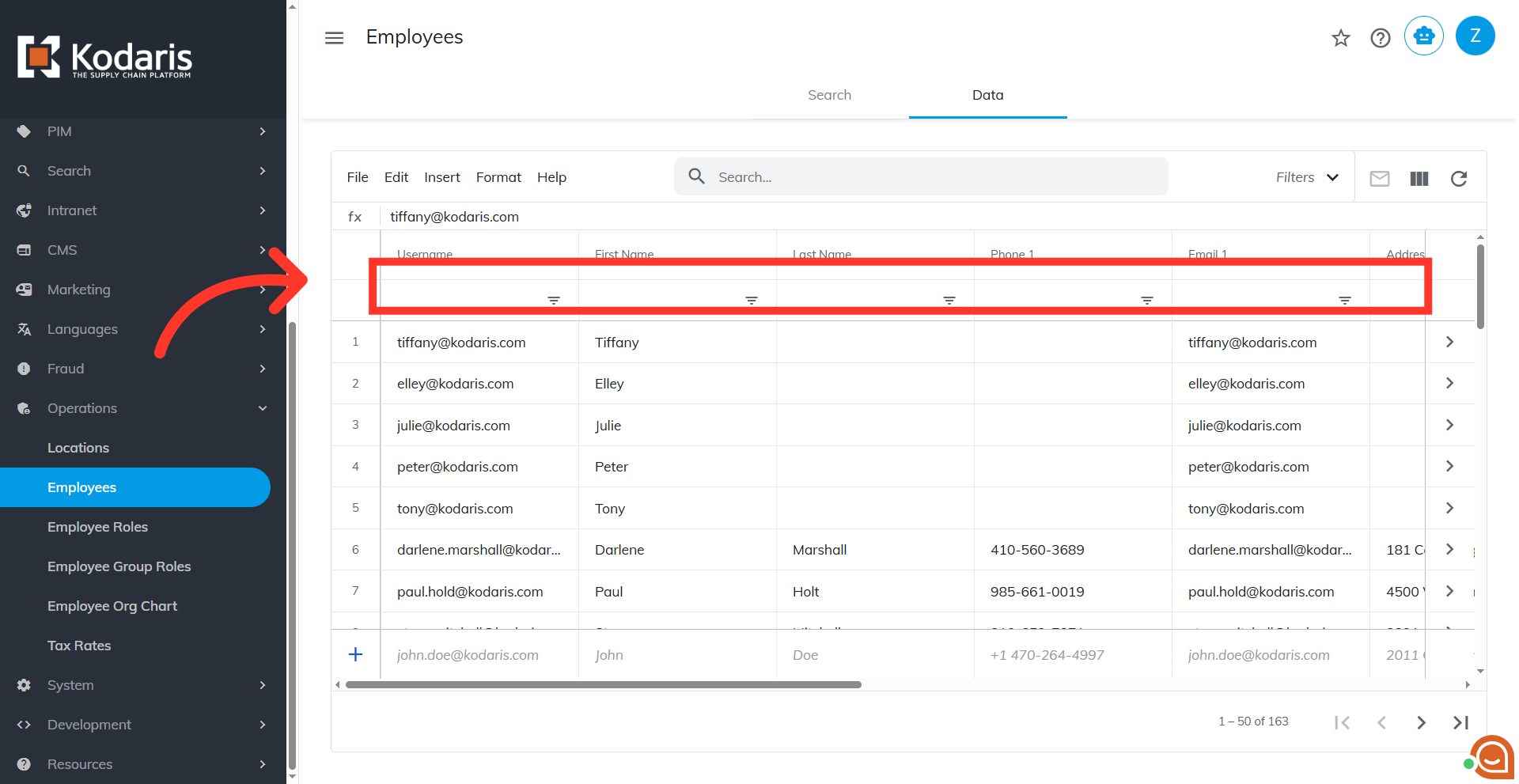
Utilize column filters
You can also utilize column filters to narrow down the data.
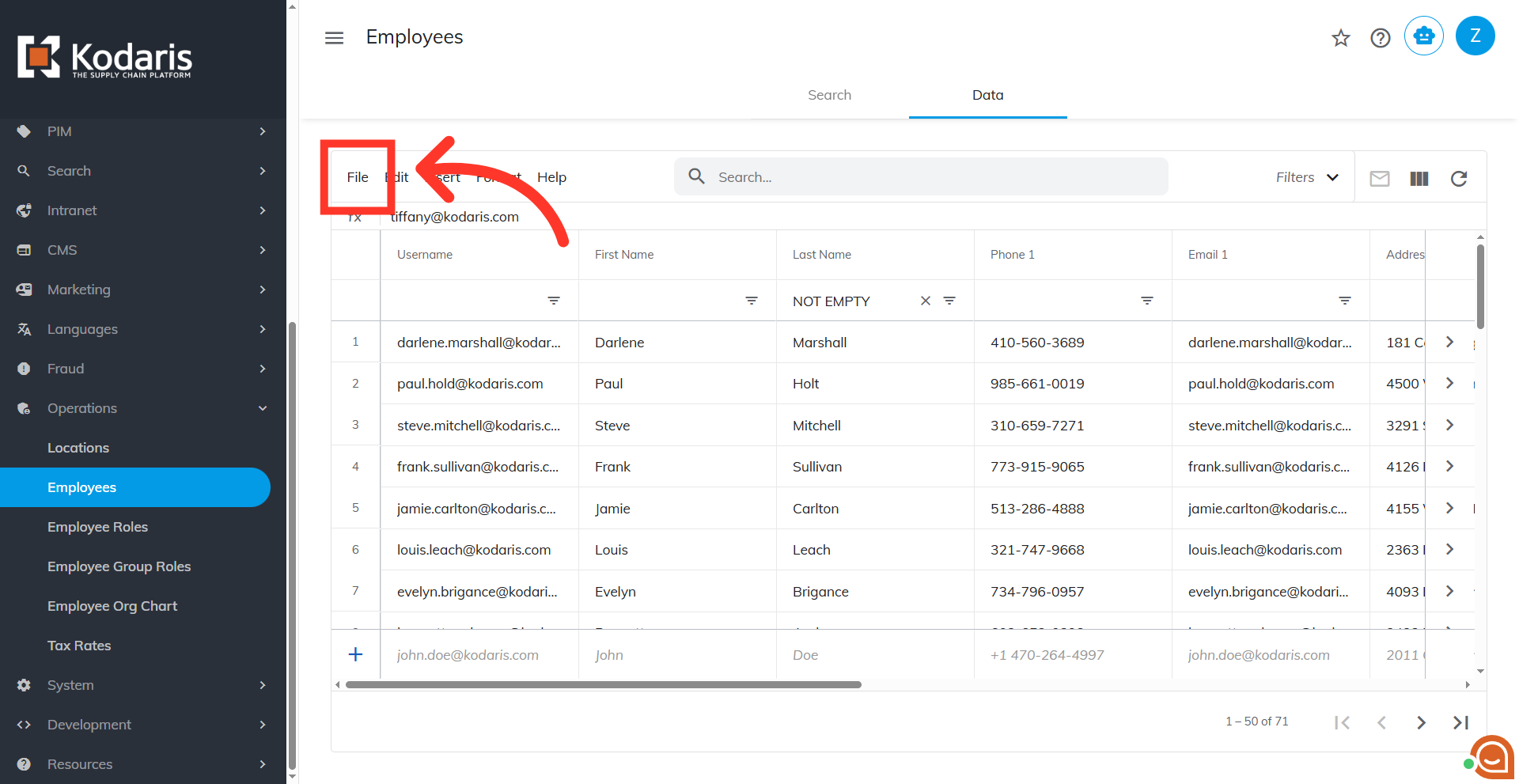
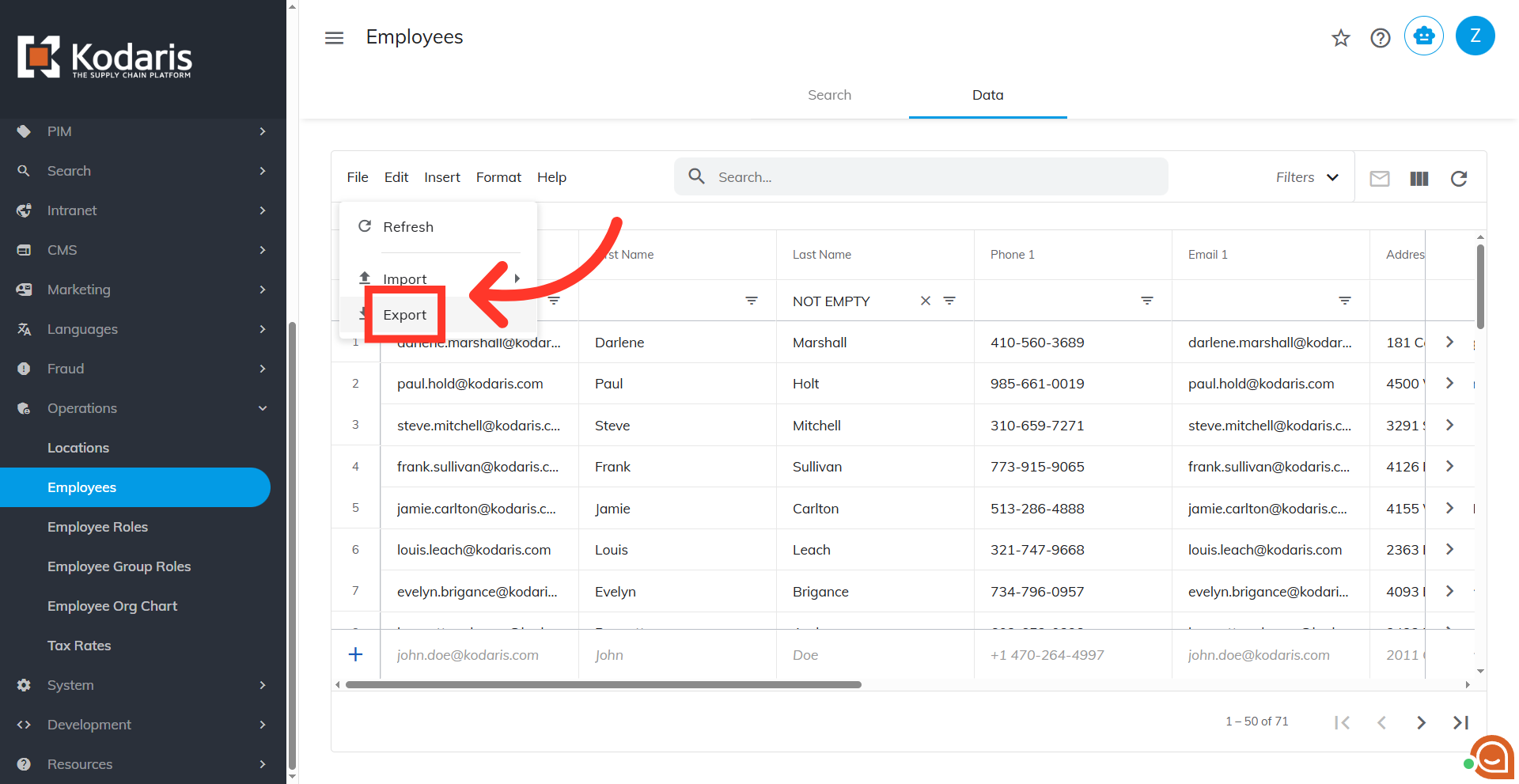
Click "File"
Click the "File" menu.
Select "Export"
Select "Export" option.
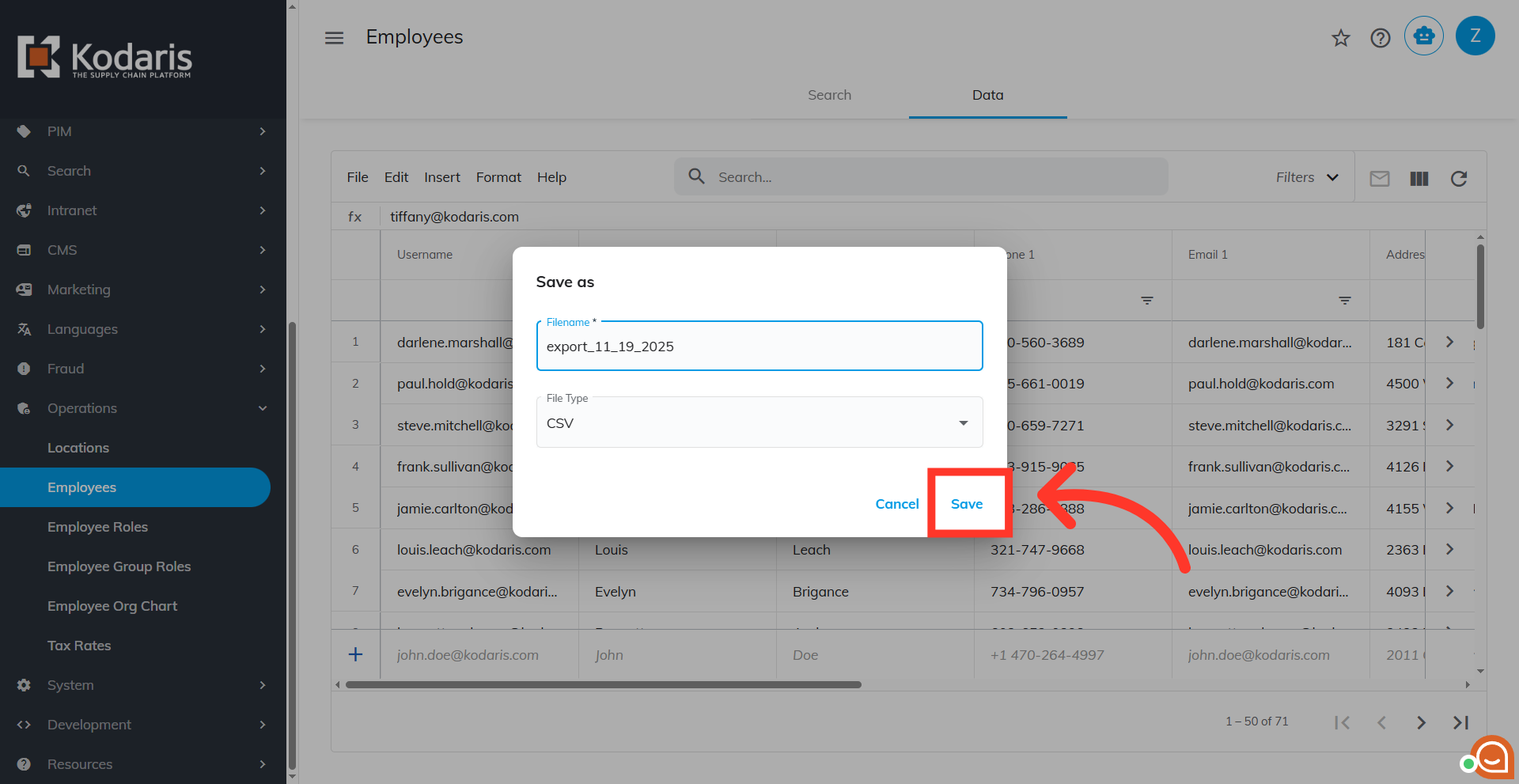
Rename the file, if needed
Rename the file, if needed.
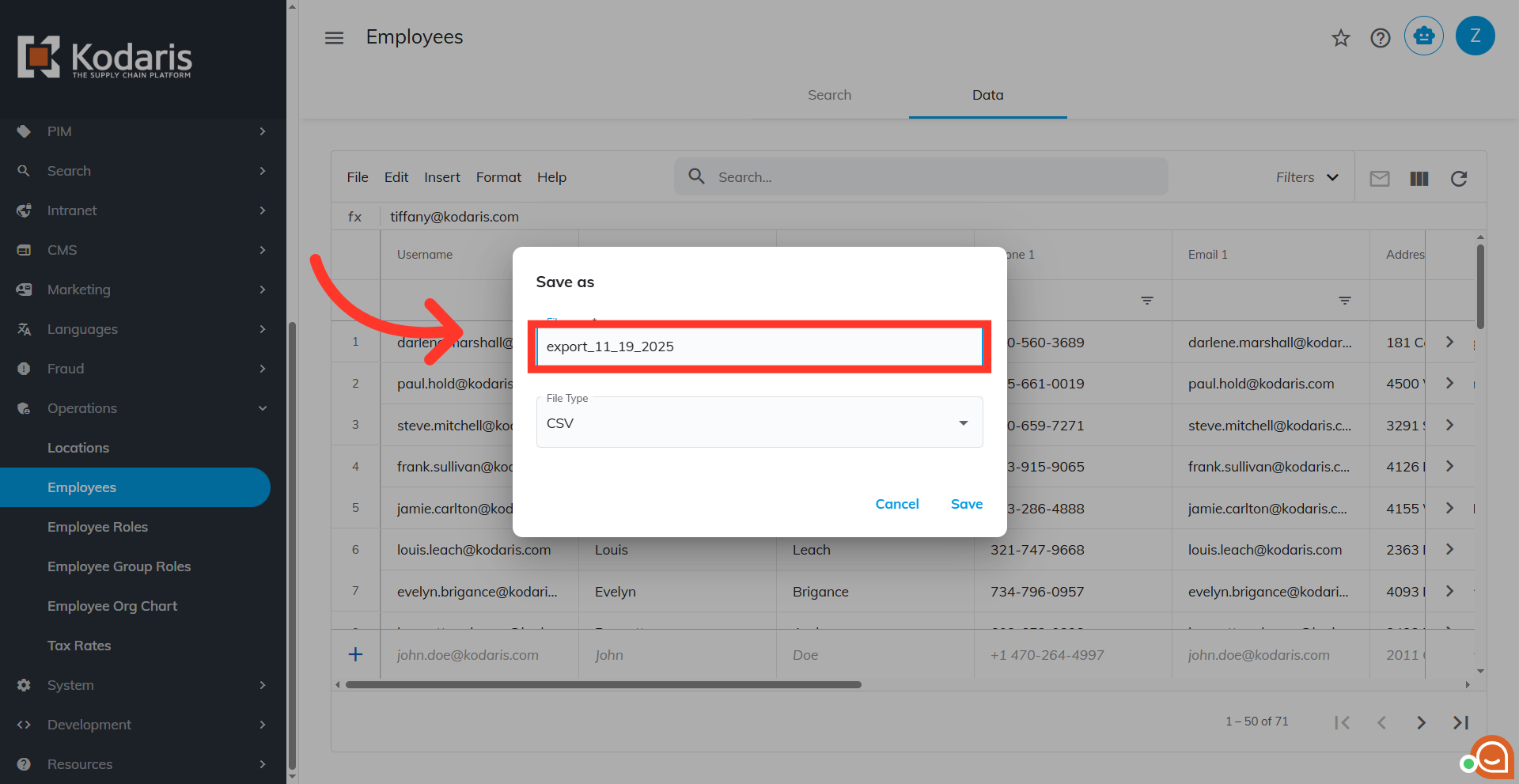
Click "Save"
Click "Save" to start the export process. If you are exporting a large amount of data, it may take a small amount of time to complete the export.