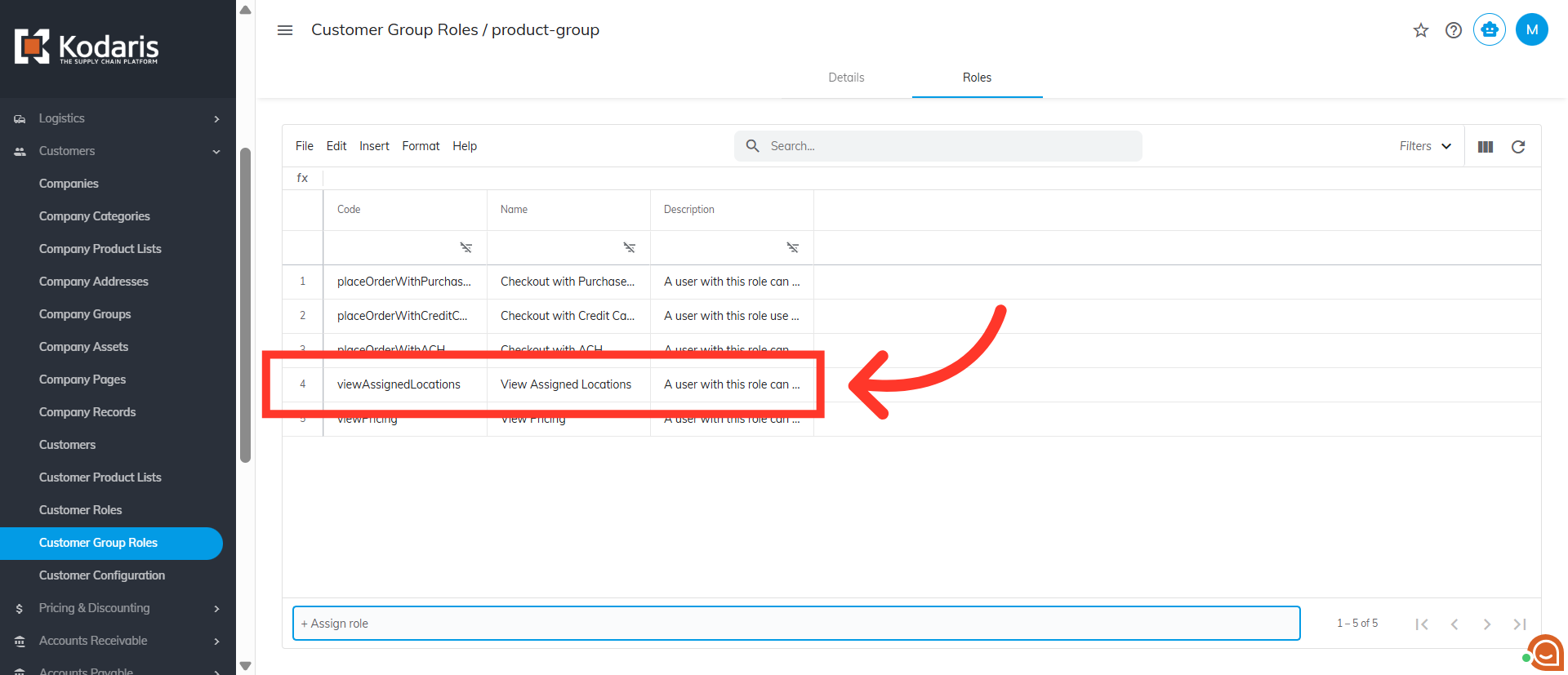
Operations Customers - Update or Remove Customer Group Roles
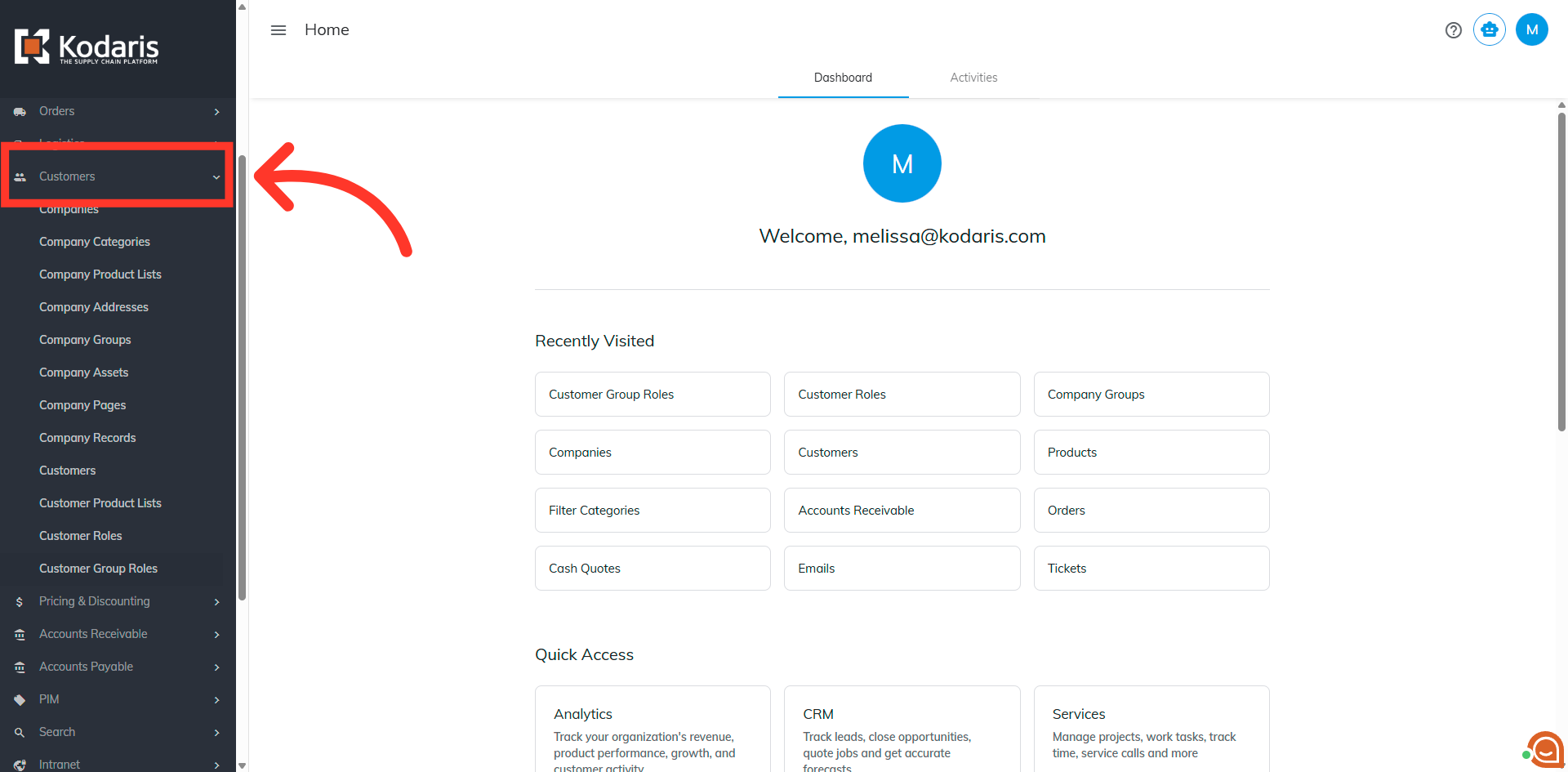
Navigate to "Customers"
To update or remove customer group roles, start by navigating to the "Customers" section in the Operations Portal.
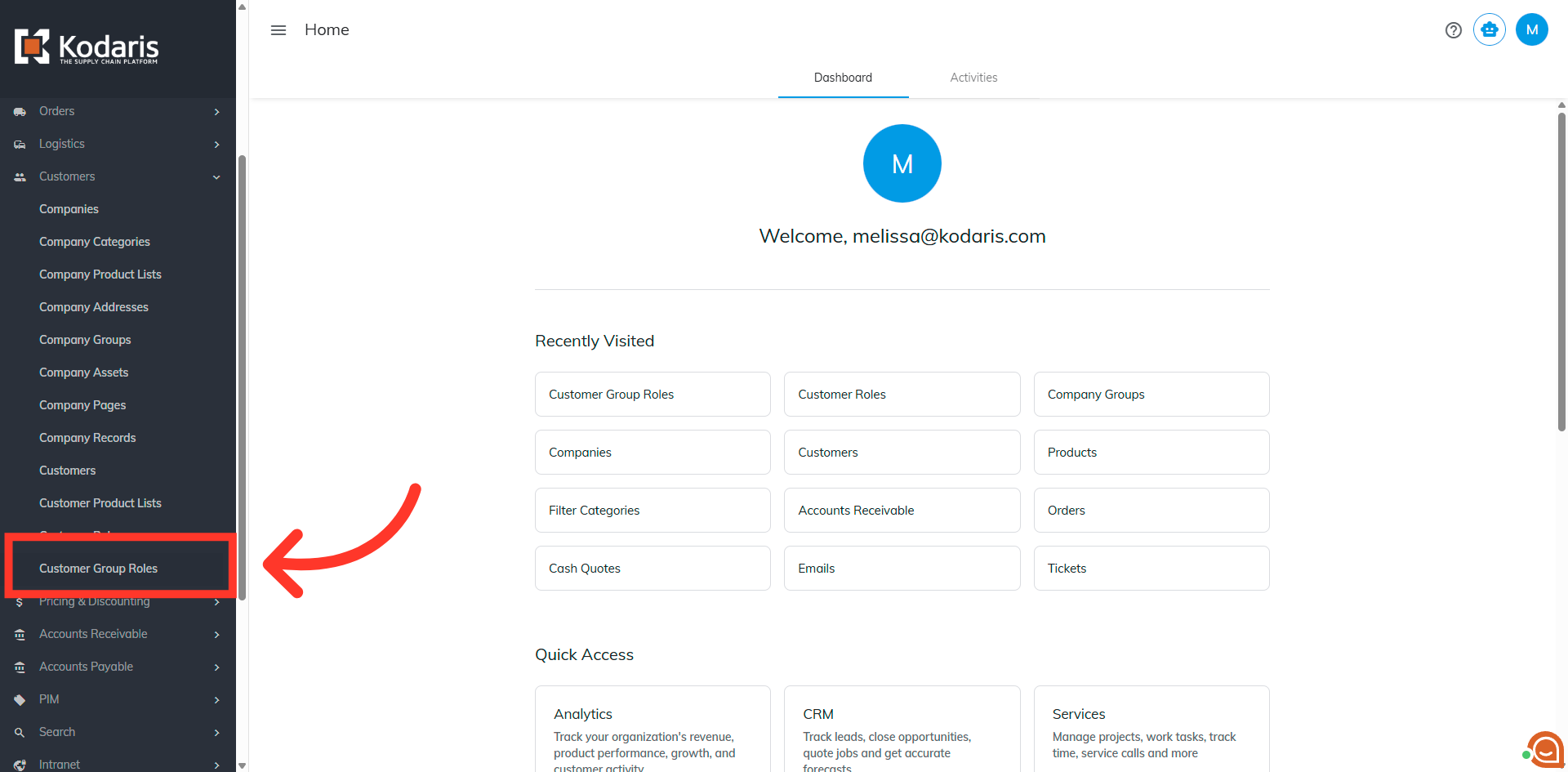
Click on "Customer Group Roles"
Then, click "Customer Group Roles". In order to access and update "Customer Group Roles" you will need to be set up either as an "administrator" or a "superuser", or have the roles of: "customerPermissionGroupView", "customerPermissionGroupEdit", "roleView" and "RoleEdit".
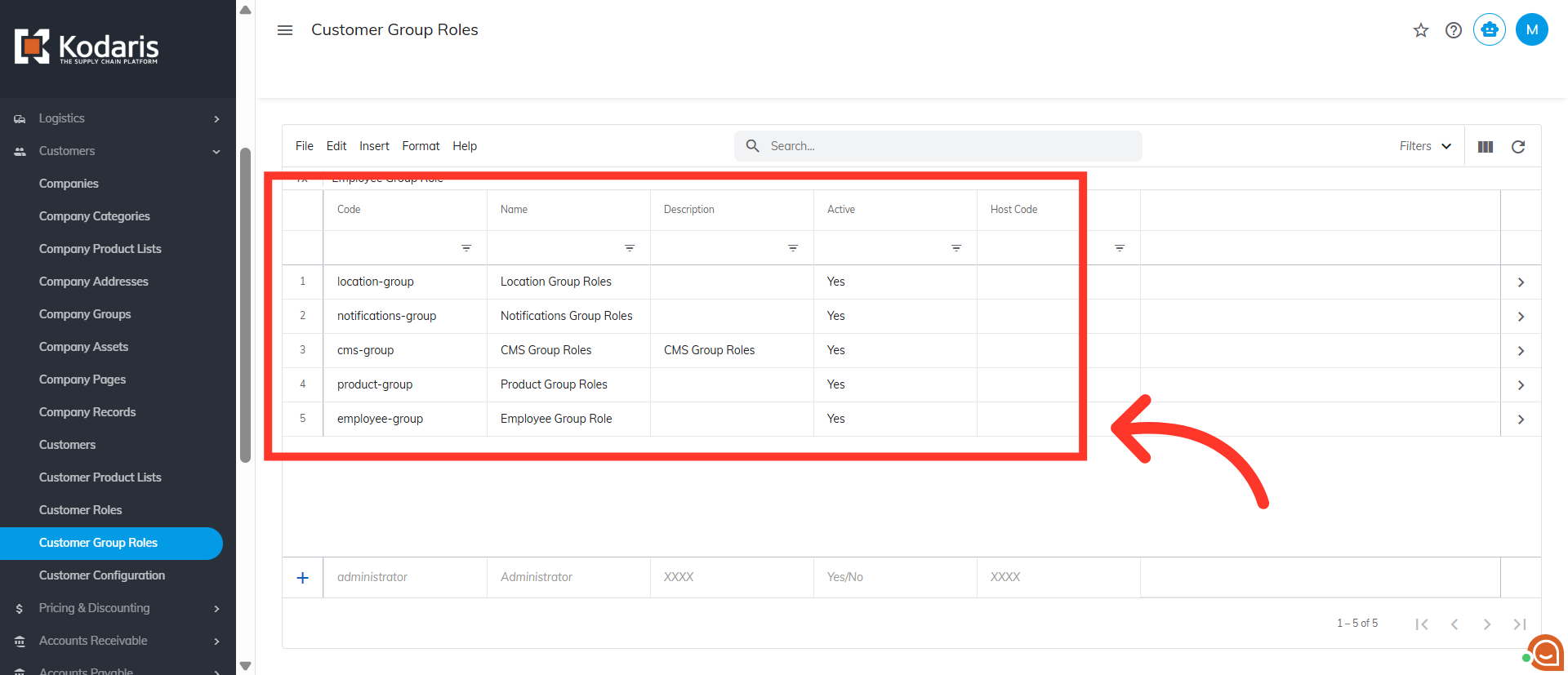
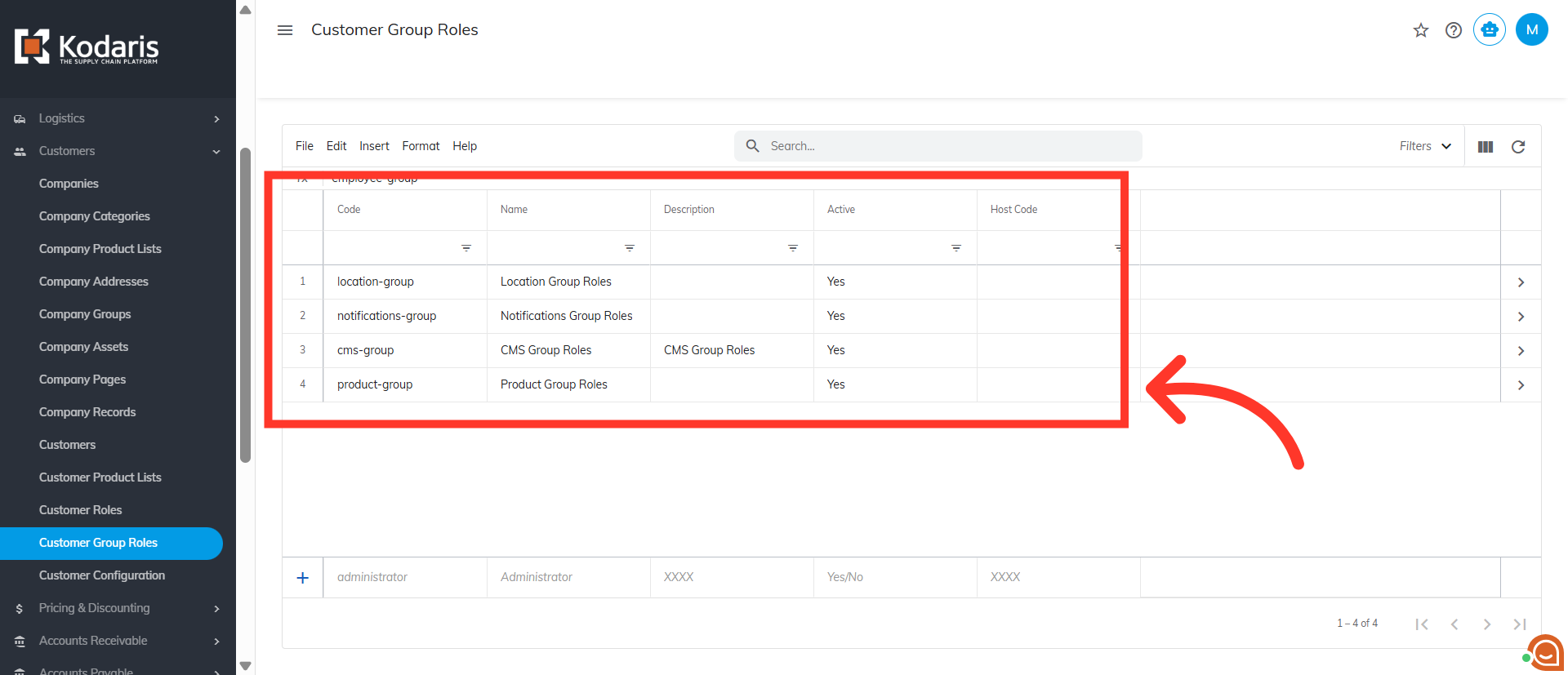
Current Customer Group Roles
Each group is made up of individual roles. When the groups are modified in any way the access for customers assigned to that group of roles will change as well. If individual roles are added to or removed from the group roles, the customers access will also change.
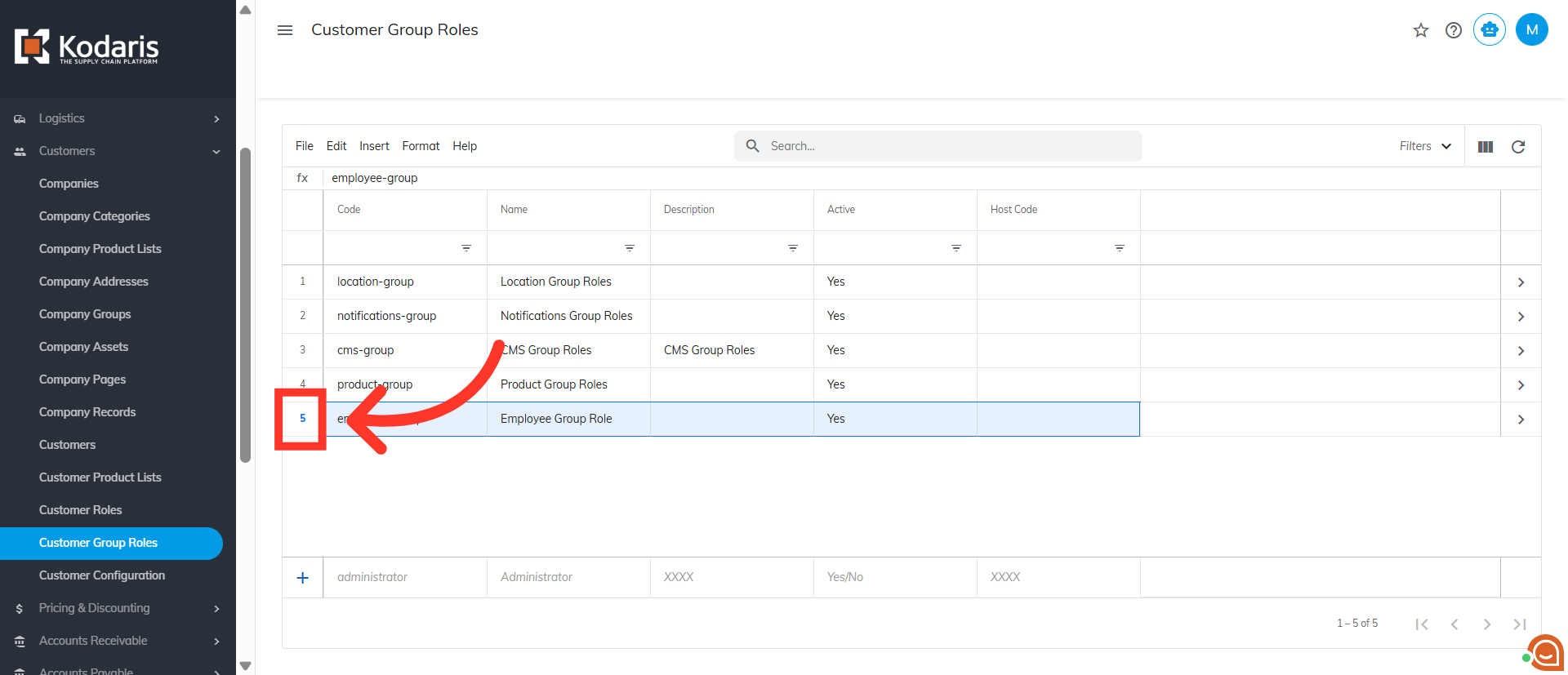
Click the group row number
If you wish to remove a customer group role, click its row number.
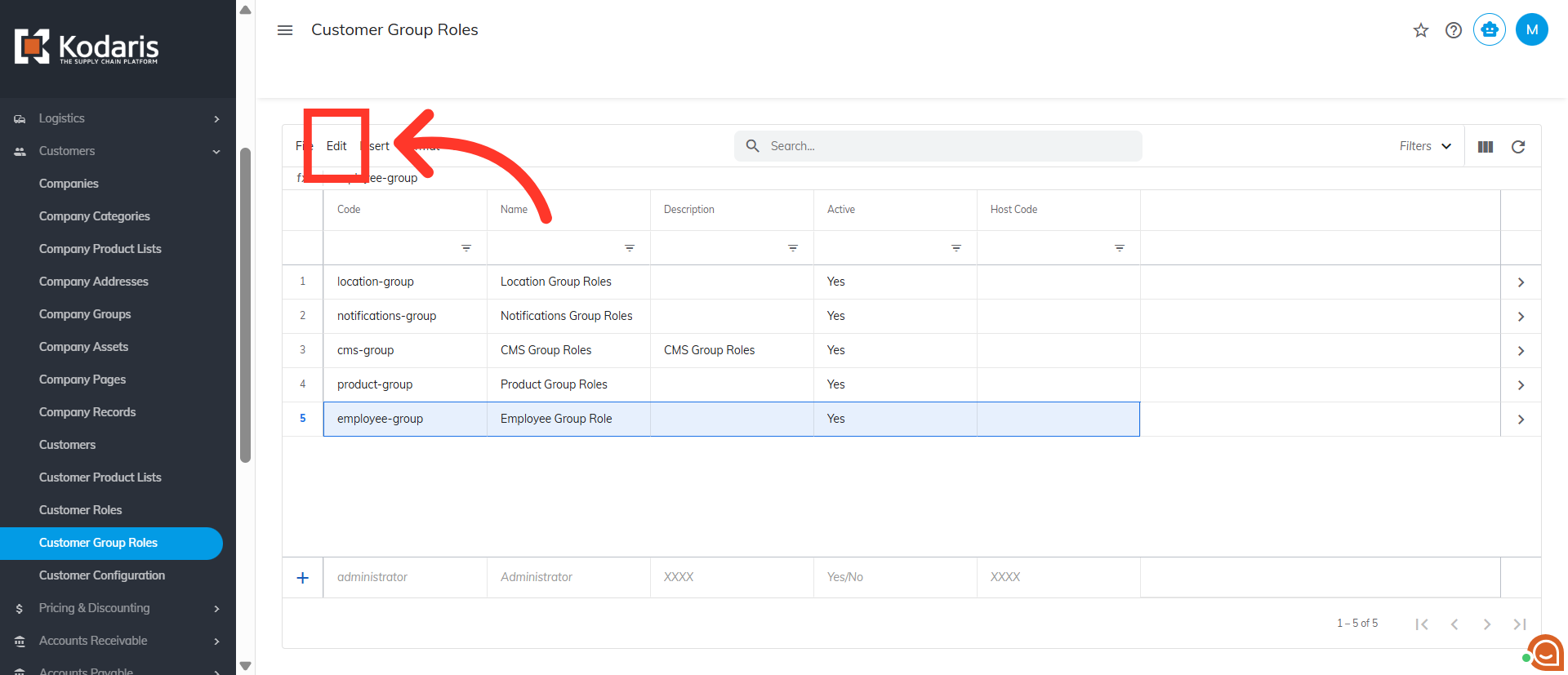
Click "Edit"
Click "Edit".
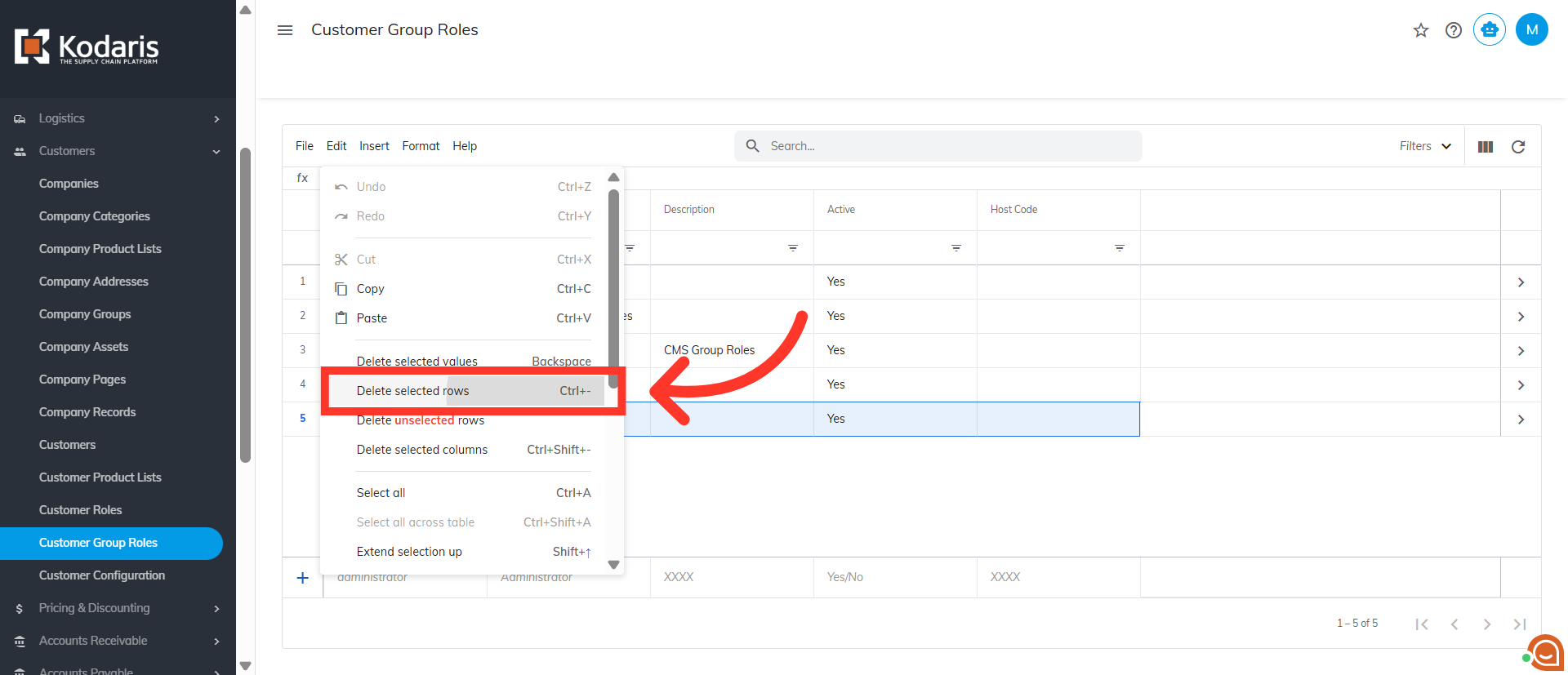
Click "Delete selected rows"
Then, select "Delete selected rows".
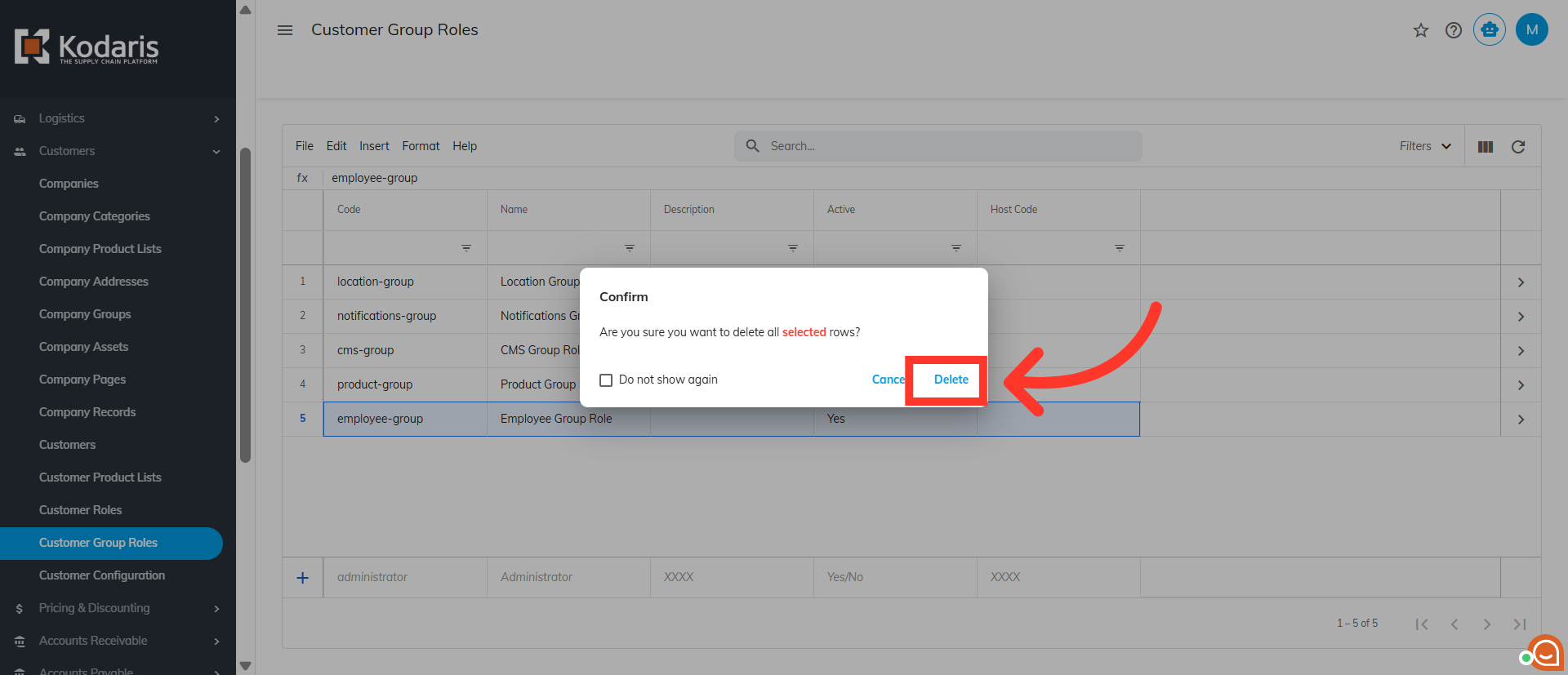
Click "Delete"
A Confirm box appears. Click "Delete" to remove the customer group role.
Customer group role has been removed
Here, you will see that the customer group role you selected has been removed from the grid. Since it has been removed, customers that were assigned to this group role no longer have access.
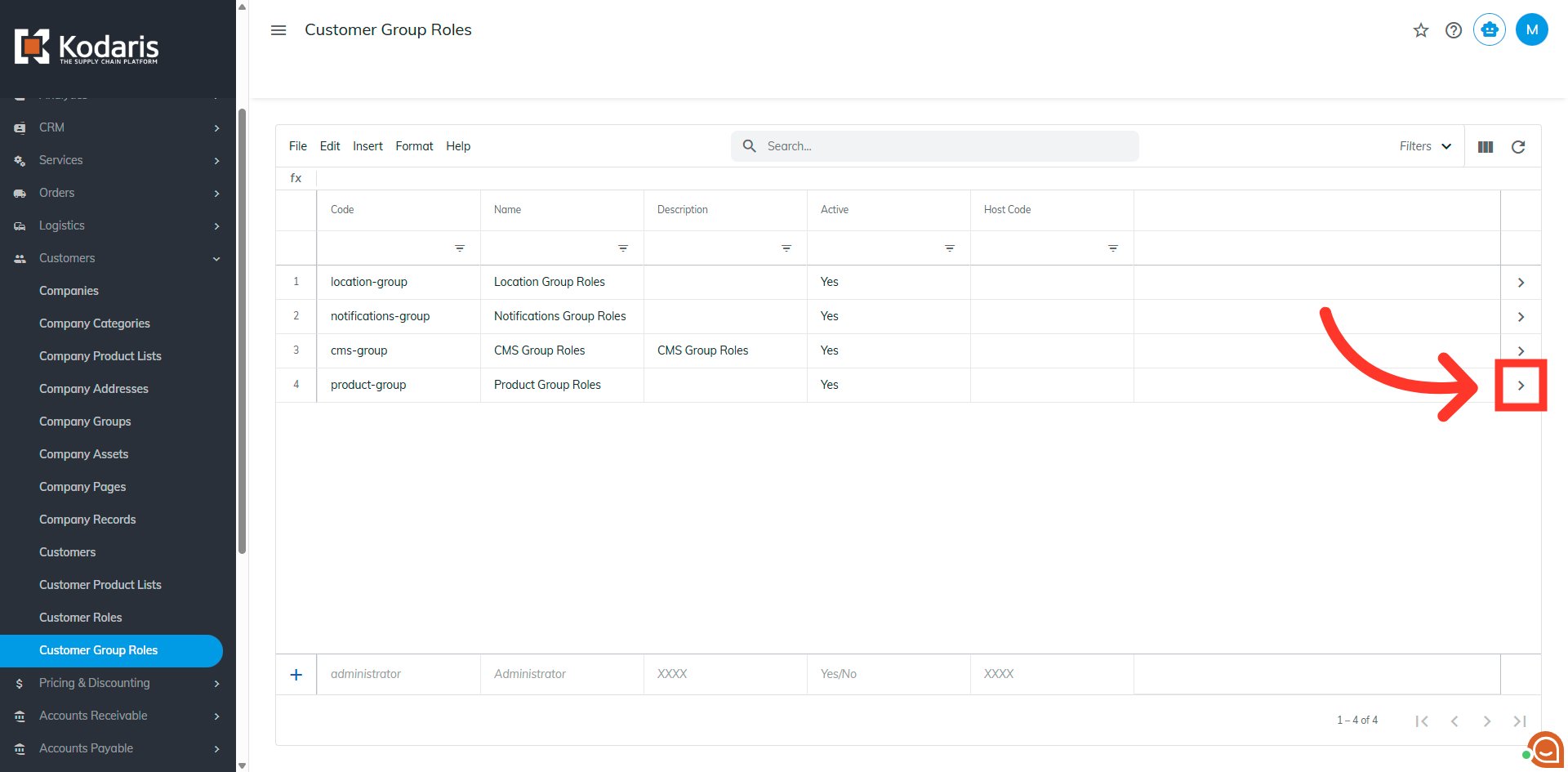
Edit Group Roles
If you wish to update a customer group role and its current individual roles, click the more details icon to access the details page.
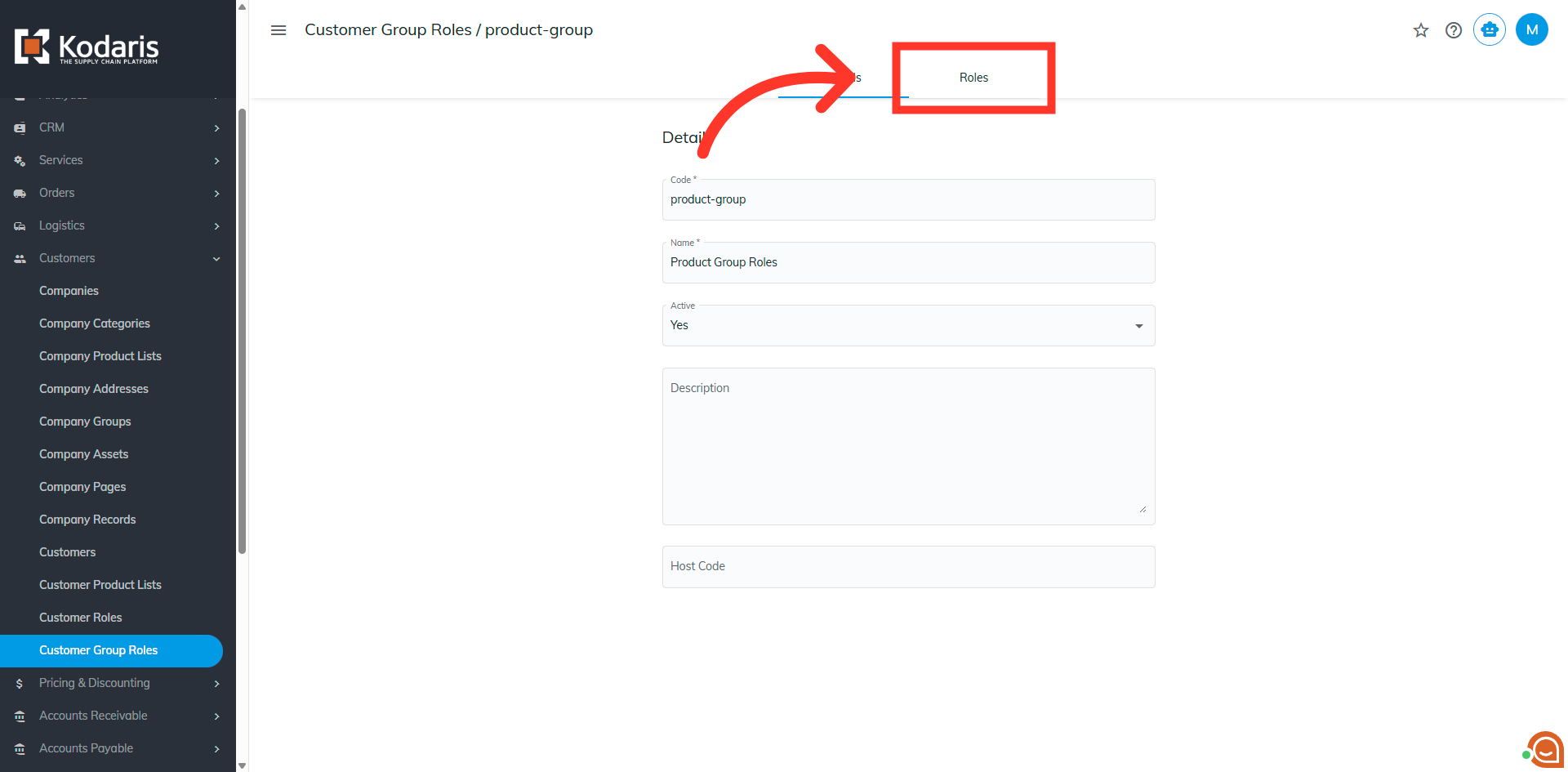
Go to the "Roles" tab
Then, go to the "Roles" tab.
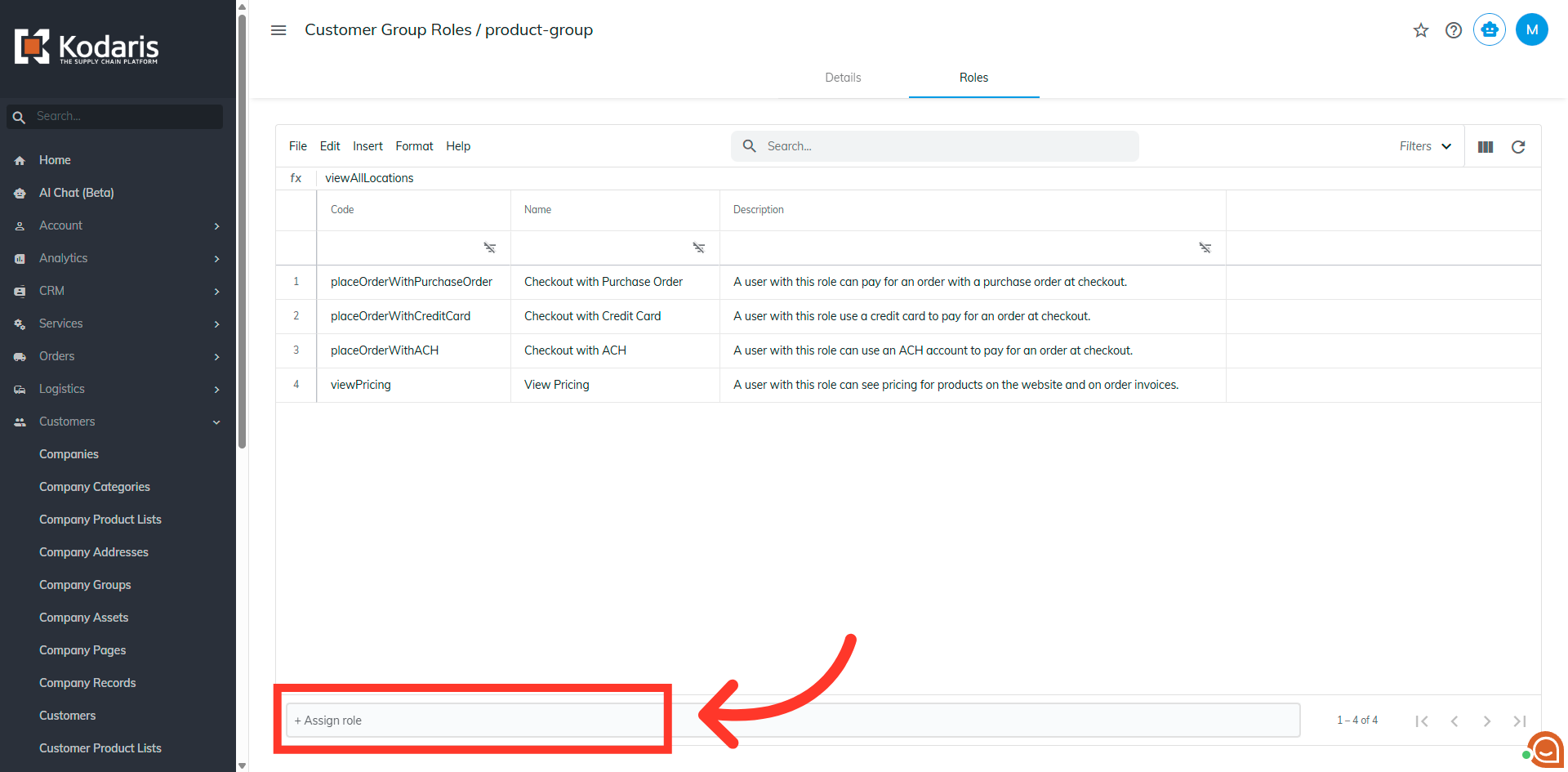
Click the "Assign role" field
If you wish to update and add additional individual role(s) to the group role, you can click the "Assign role" field.
Type to search for the additional role
Type to search for the additional role.
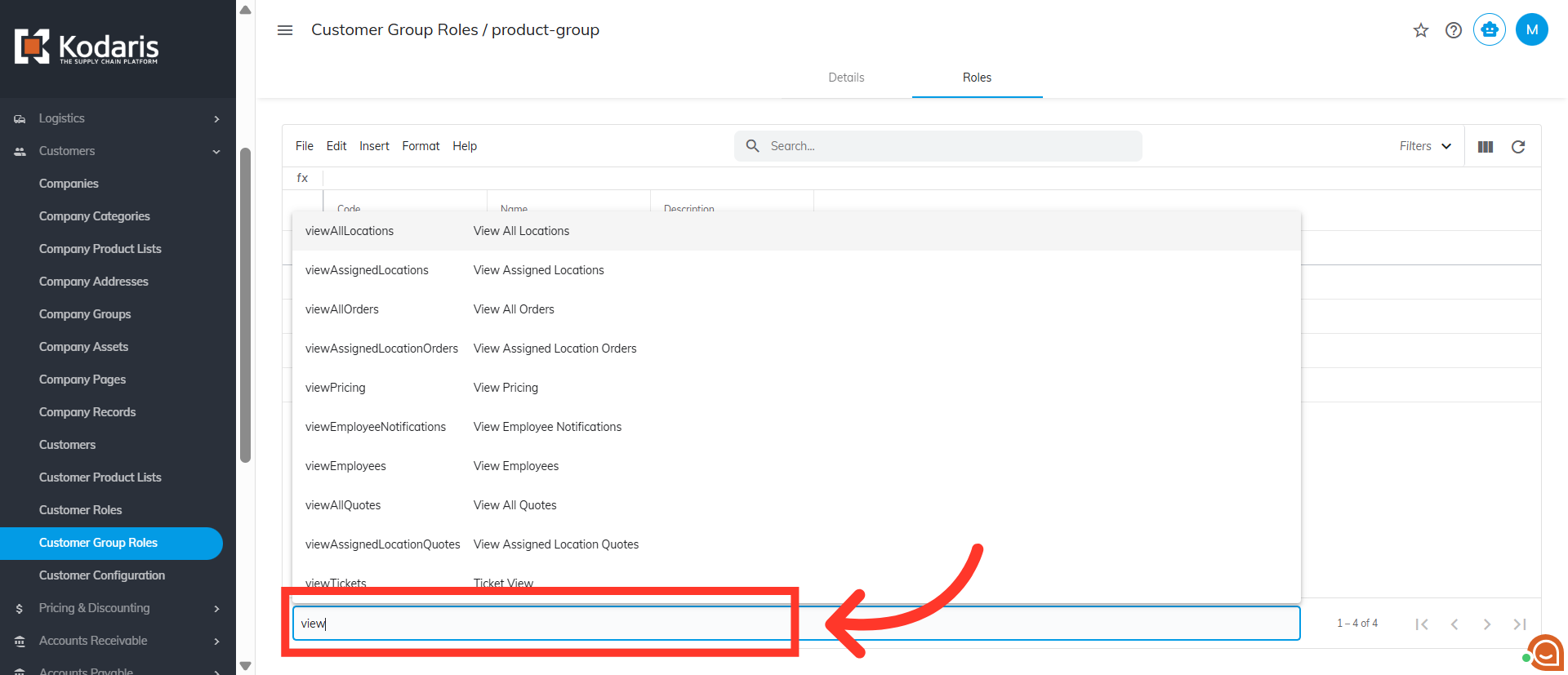
Select role from the list
Then, select role from the list.
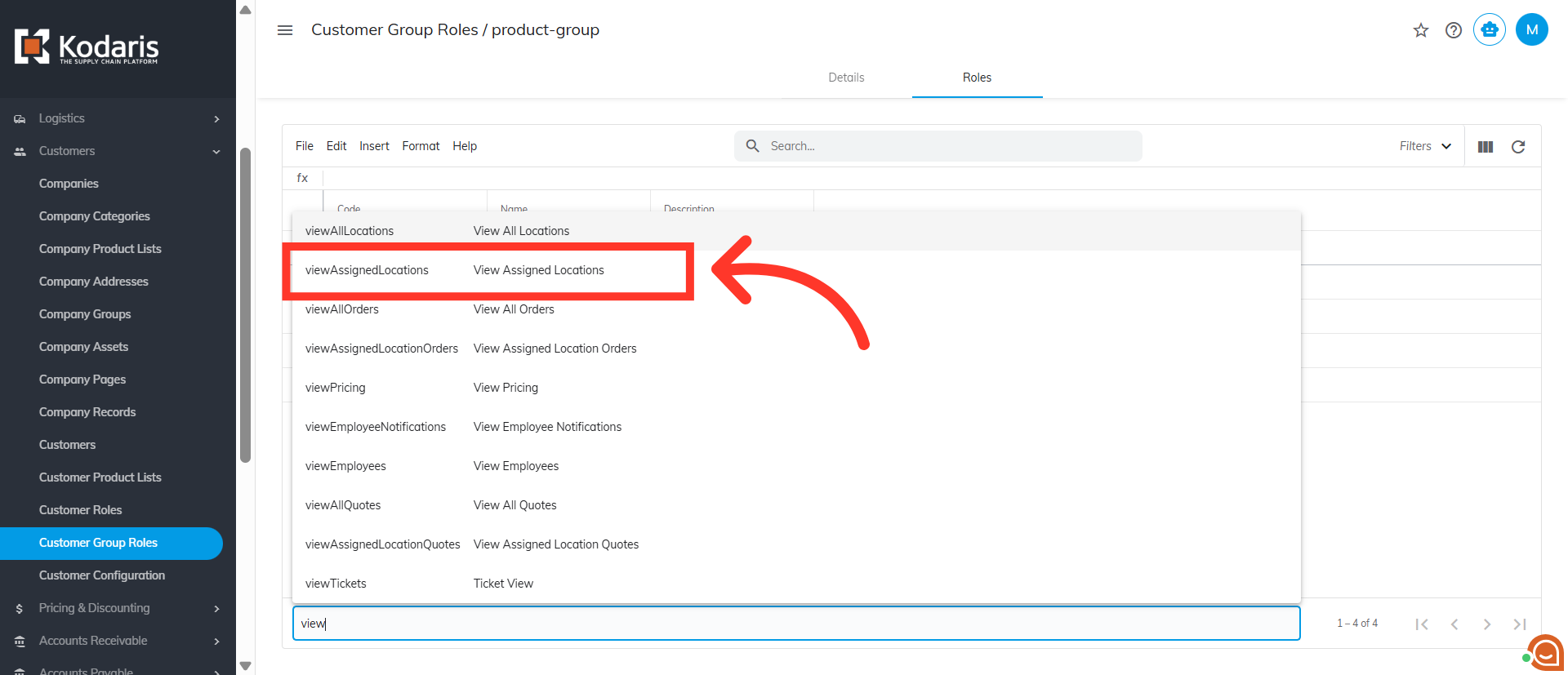
Additional role has been added to the group role
Additional role has been added to the group role. The customers assigned to this group role now have additional access. If you want to remove a role(s) from a group role, follow the same steps as removing a group role.