Operations Companies - Enable Company Restricted Employees
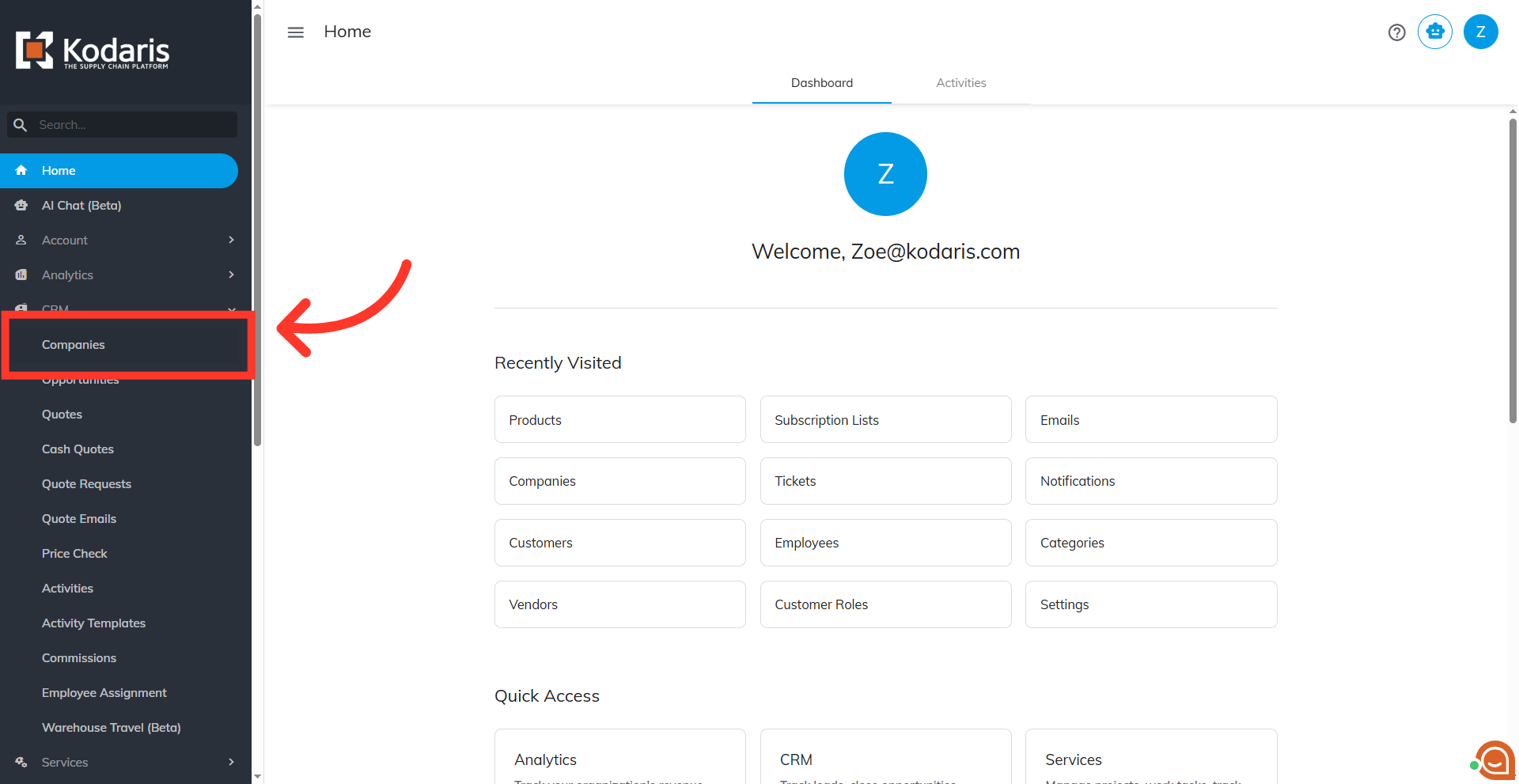
Navigate to "Companies"
You can restrict the access of assigned employees so that only companies they are assigned to are available and accessible by them. To start, navigate to "Companies" in the Operations Portal. In order to access "Companies" you will need to be set up either as an "administrator" or a "superuser", or have the appropriate roles: "companyView and companyEdit", or "crmCompanyView and crmCompanyEdit". Just a reminder, "crmCompanyView and crmCompanyEdit" access only allows employees to view companies that are assigned to them.
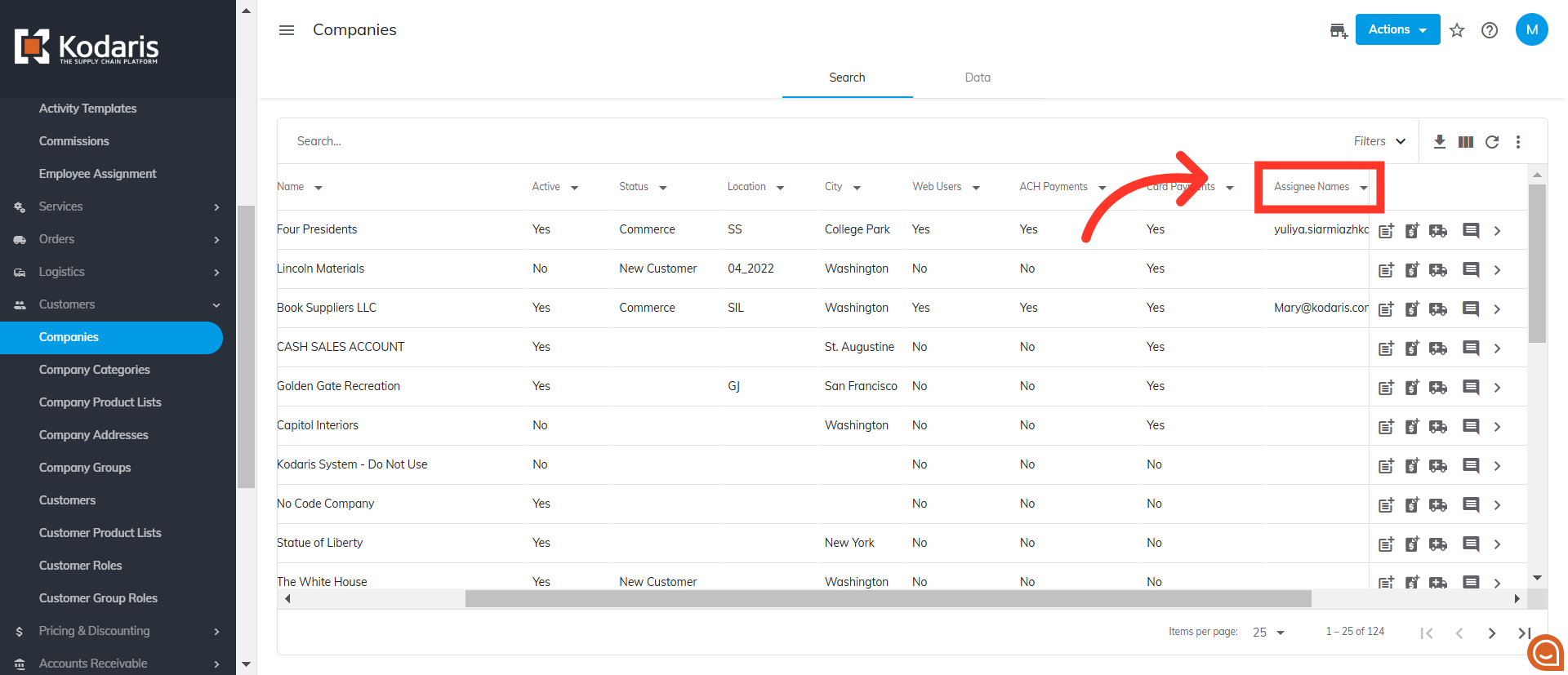
Click "Assignee Names" column filter
Once this feature is enabled, to view assignees you can click the "Assignee Names" column filter.
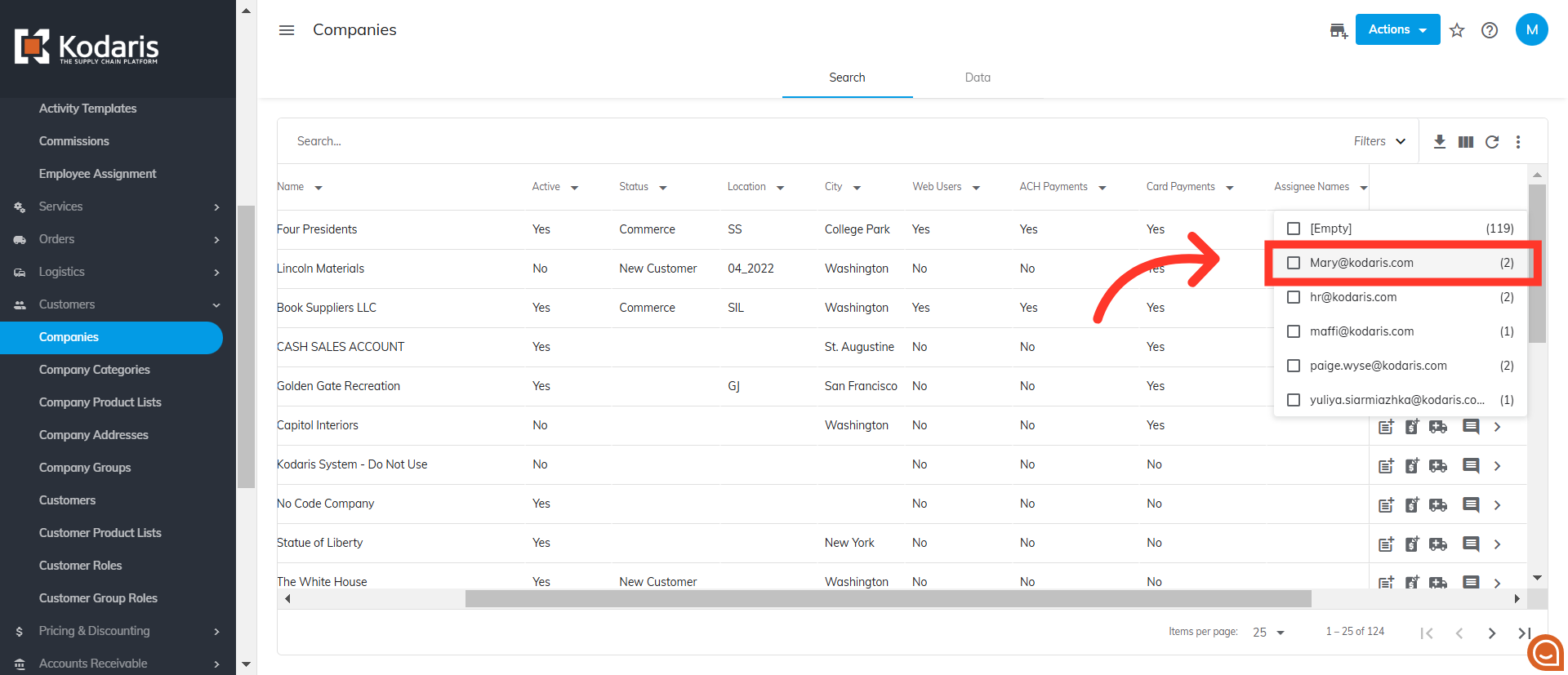
Select the employee
Select the employee from the list. You can select more than one employee.
Companies where employee is assigned to are shown
Once selected, the results will show the companies with the employee assignments.
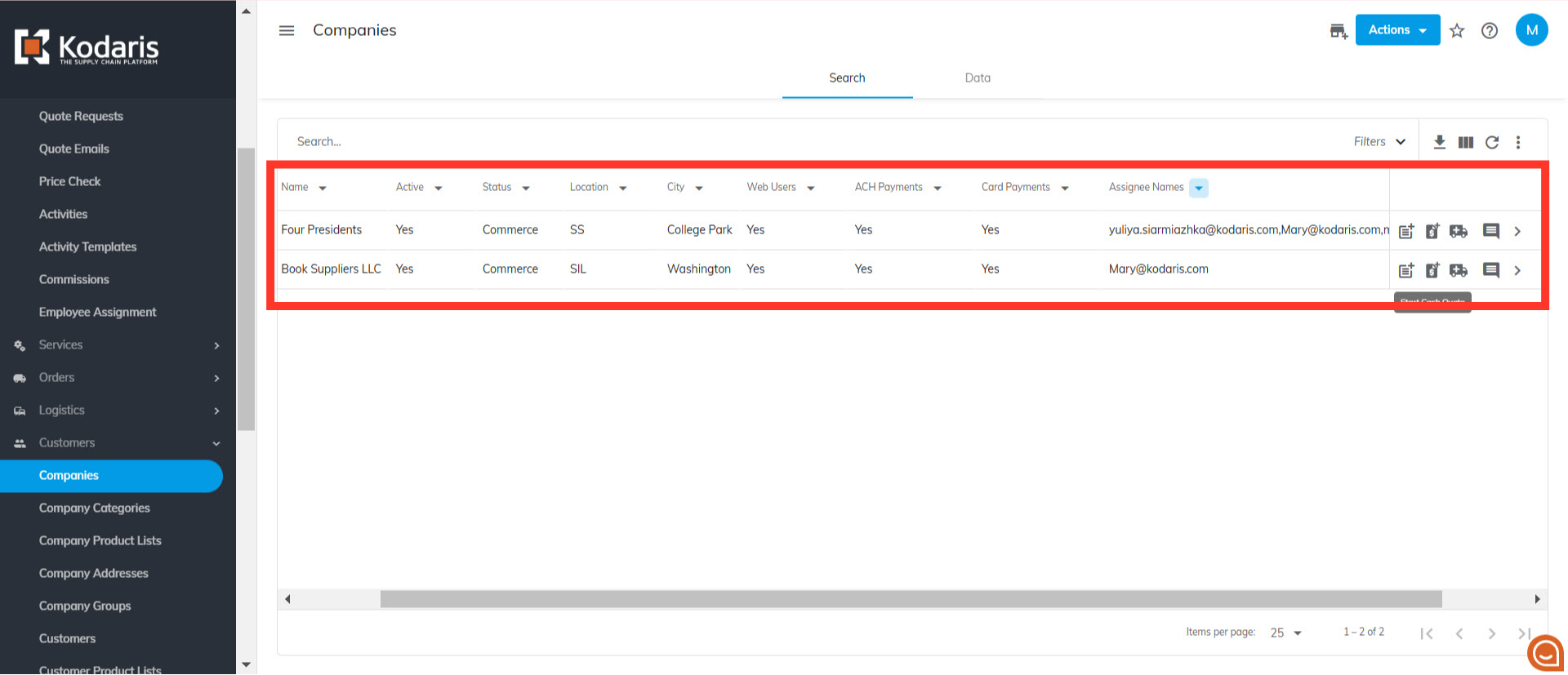
Navigate to "System"
To enable this setting, navigate to the "System" section.
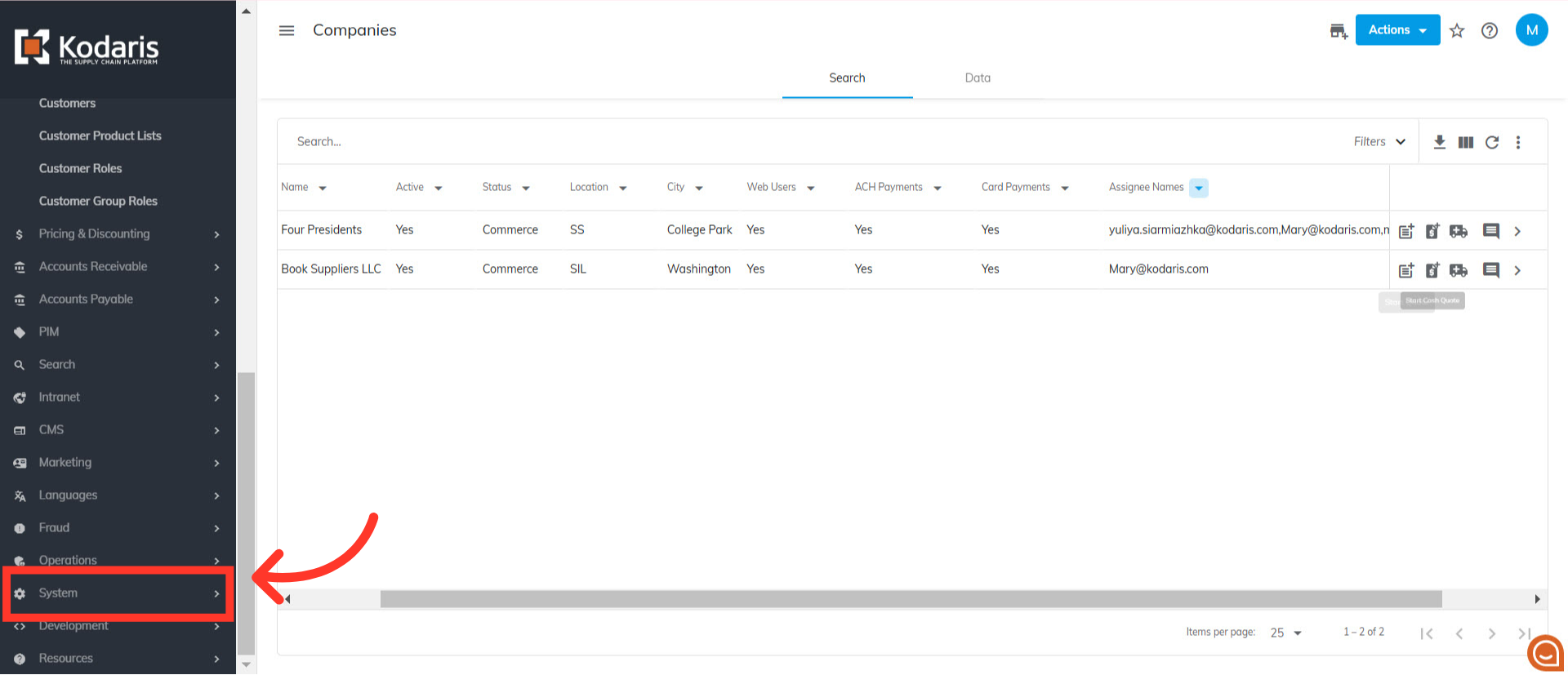
Click "Settings"
Then, click "Settings". In order to access and edit settings, you will need to be set up either as an “administrator” or a "superuser", or have the following roles: "settingEdit" and "settingView".
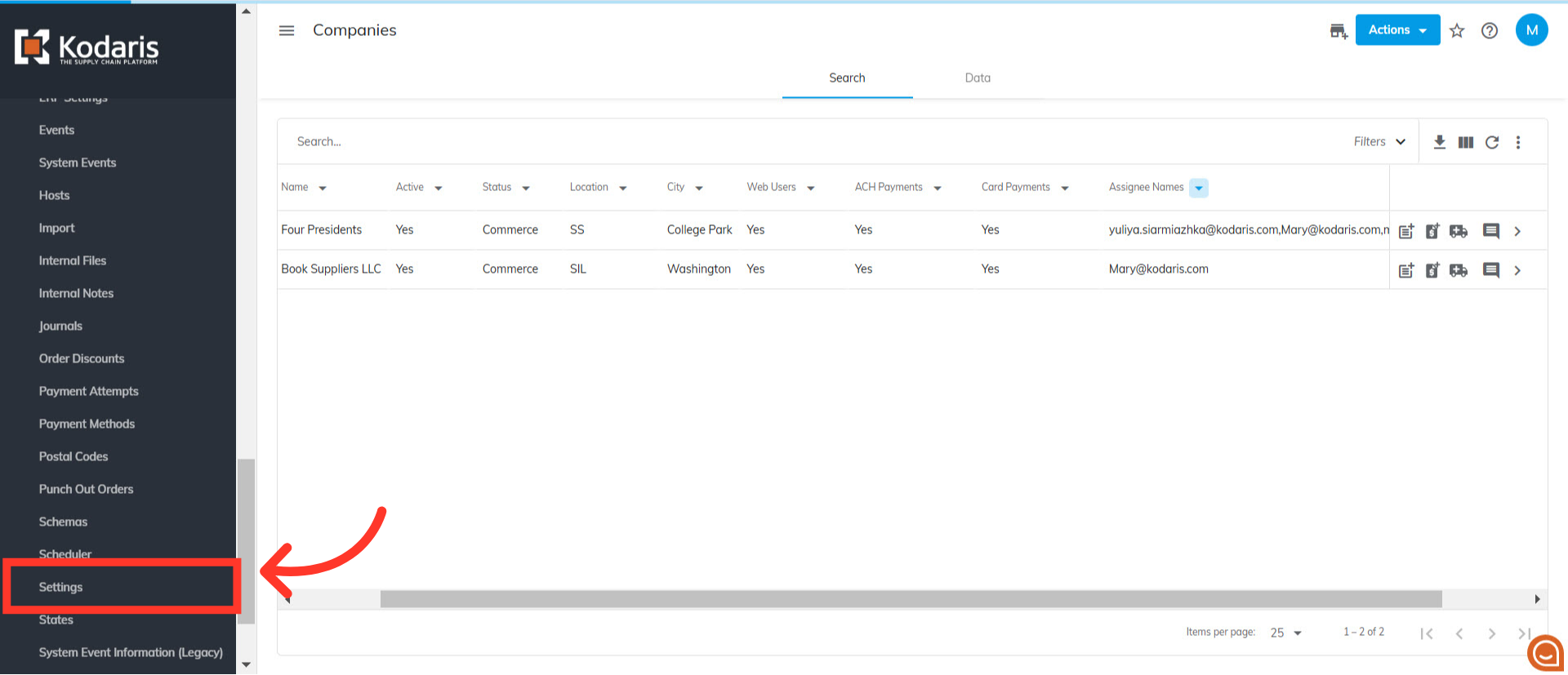
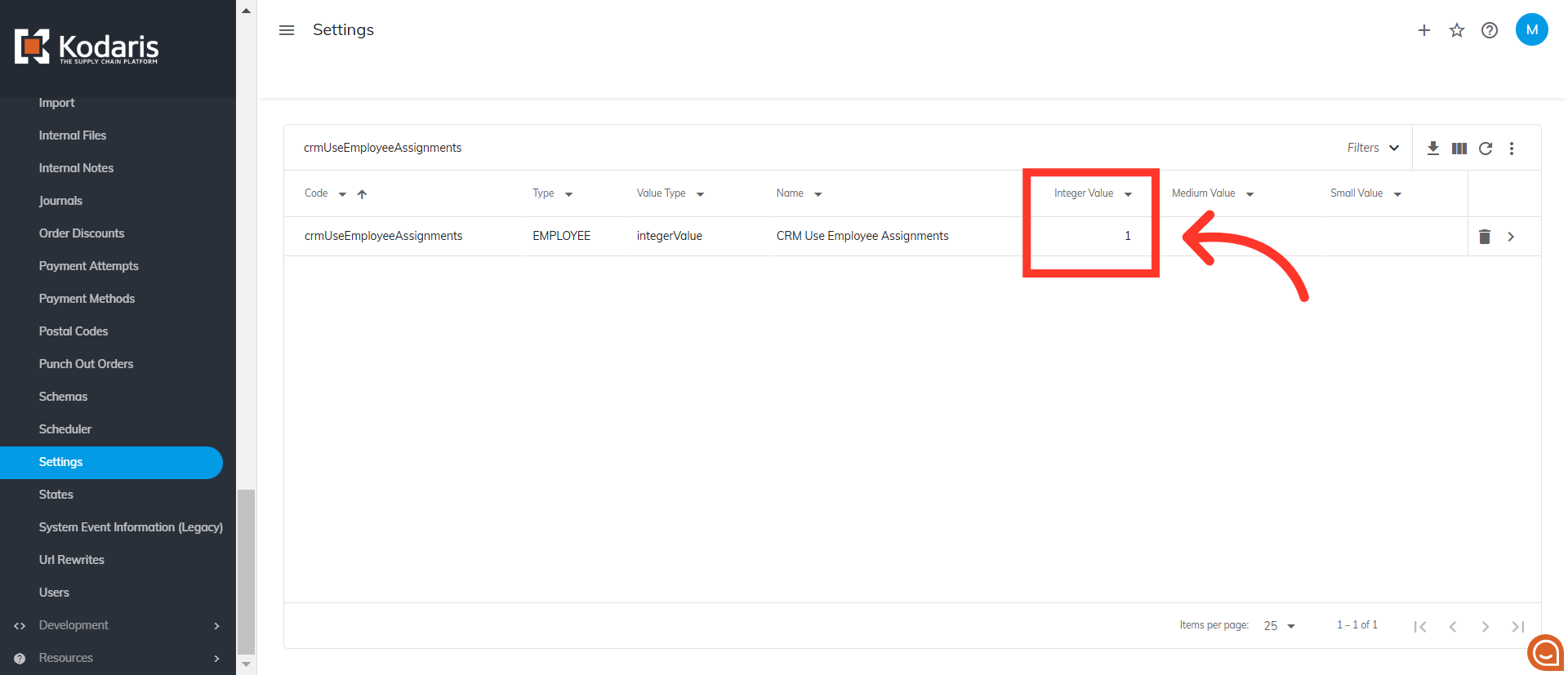
Search for "crmUseEmployeeAssignments"
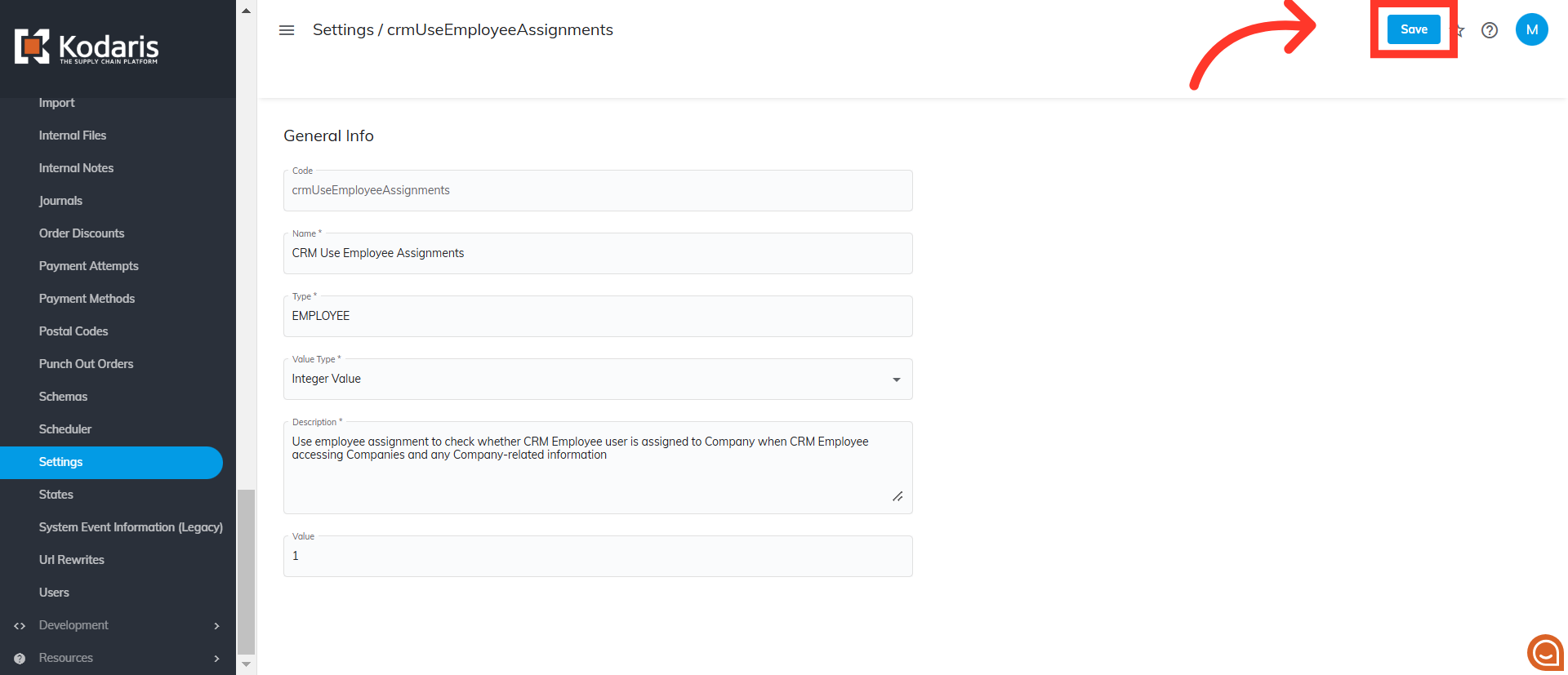
Search for the "crmUseEmployeeAssignments" setting.
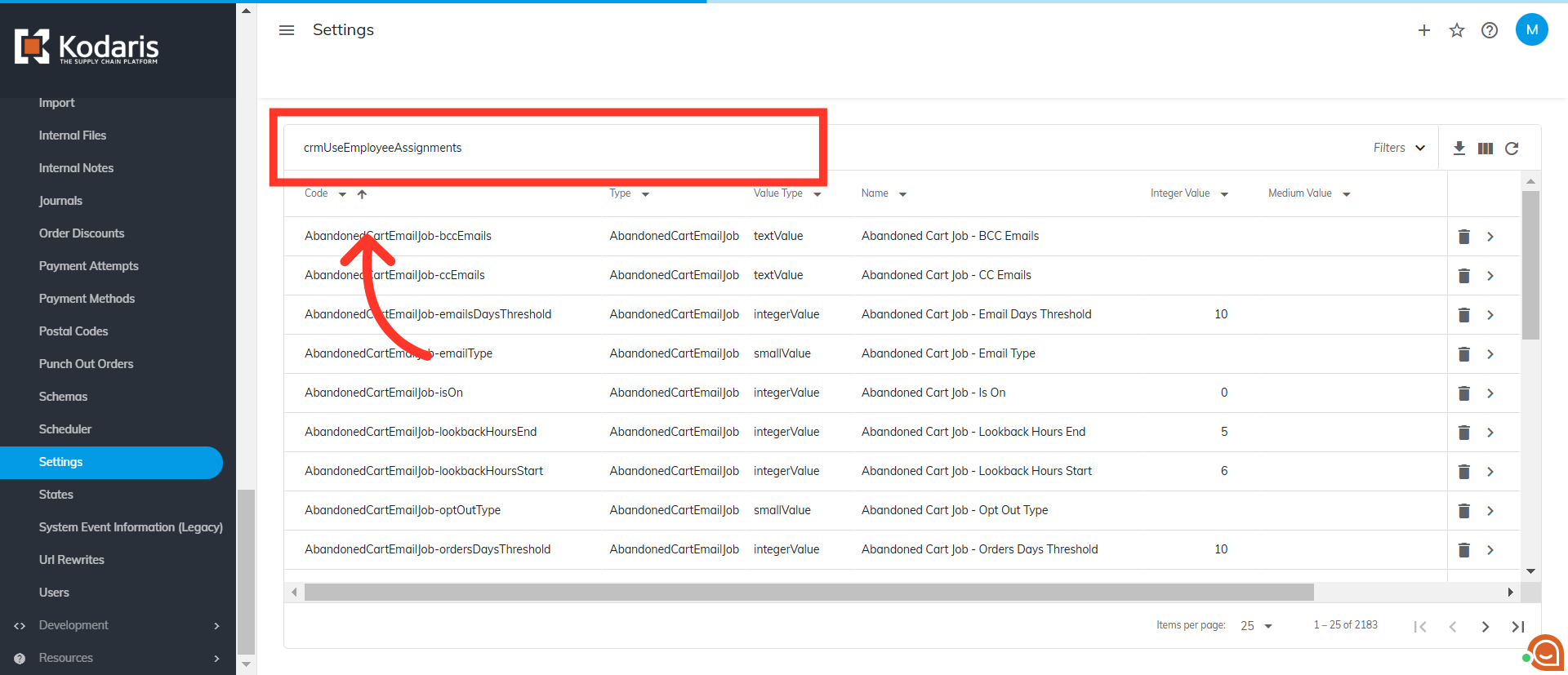
Check if "Integer Value" is set to "1"
You need to check if the value is set to "1".
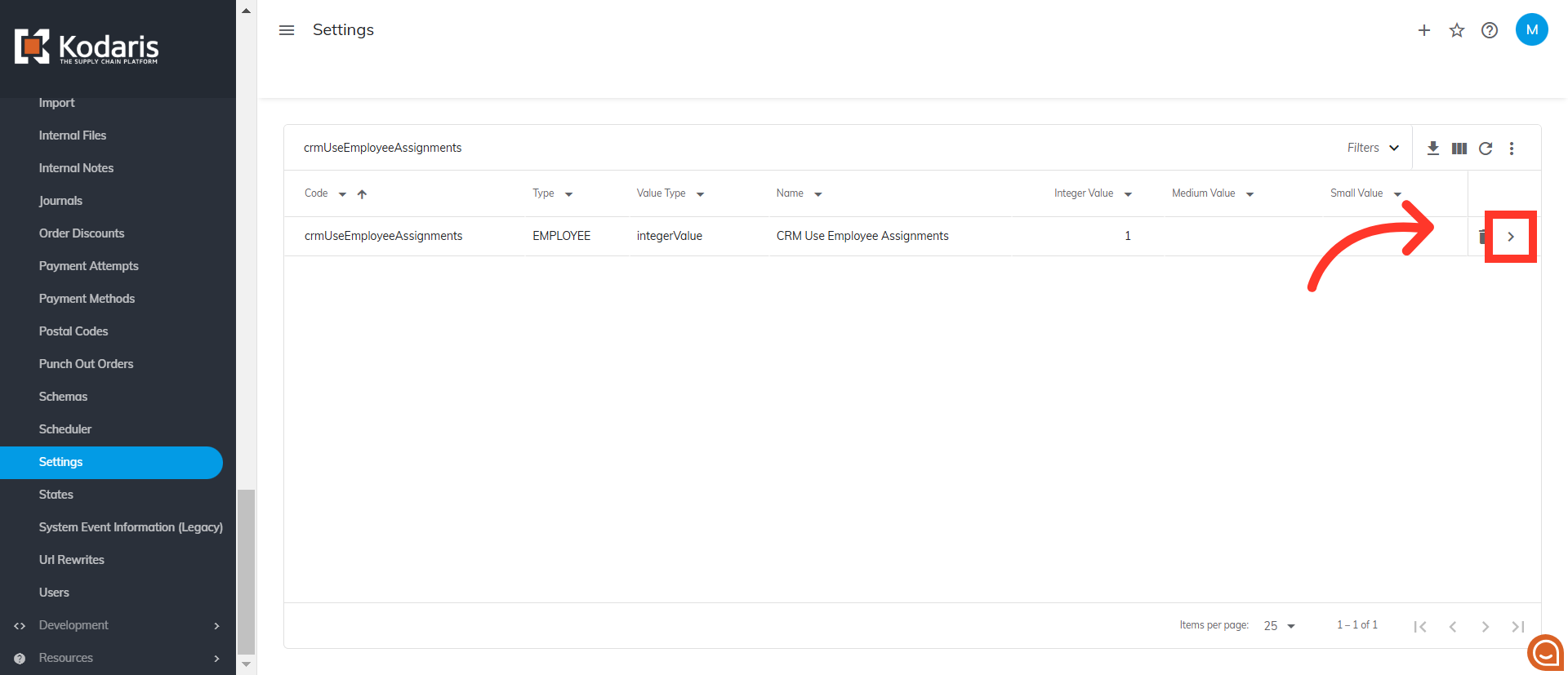
Click the more details icon
If not, click the more details icon to go to the details page.
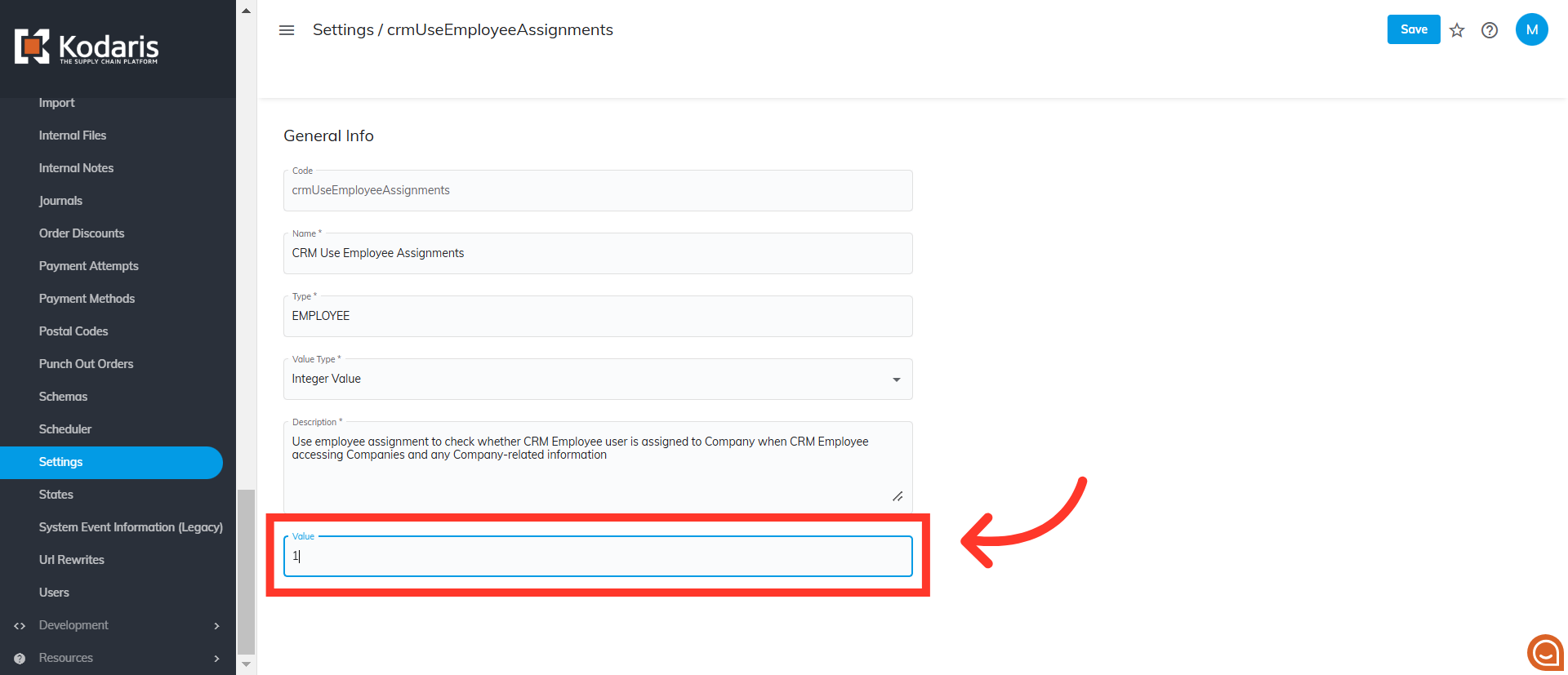
Update the value to "1"
Update the value to "1".
Click "Save"
Then, click the "Save" button to update the changes.