Operations CRM - Create Saved Filters for Opportunities
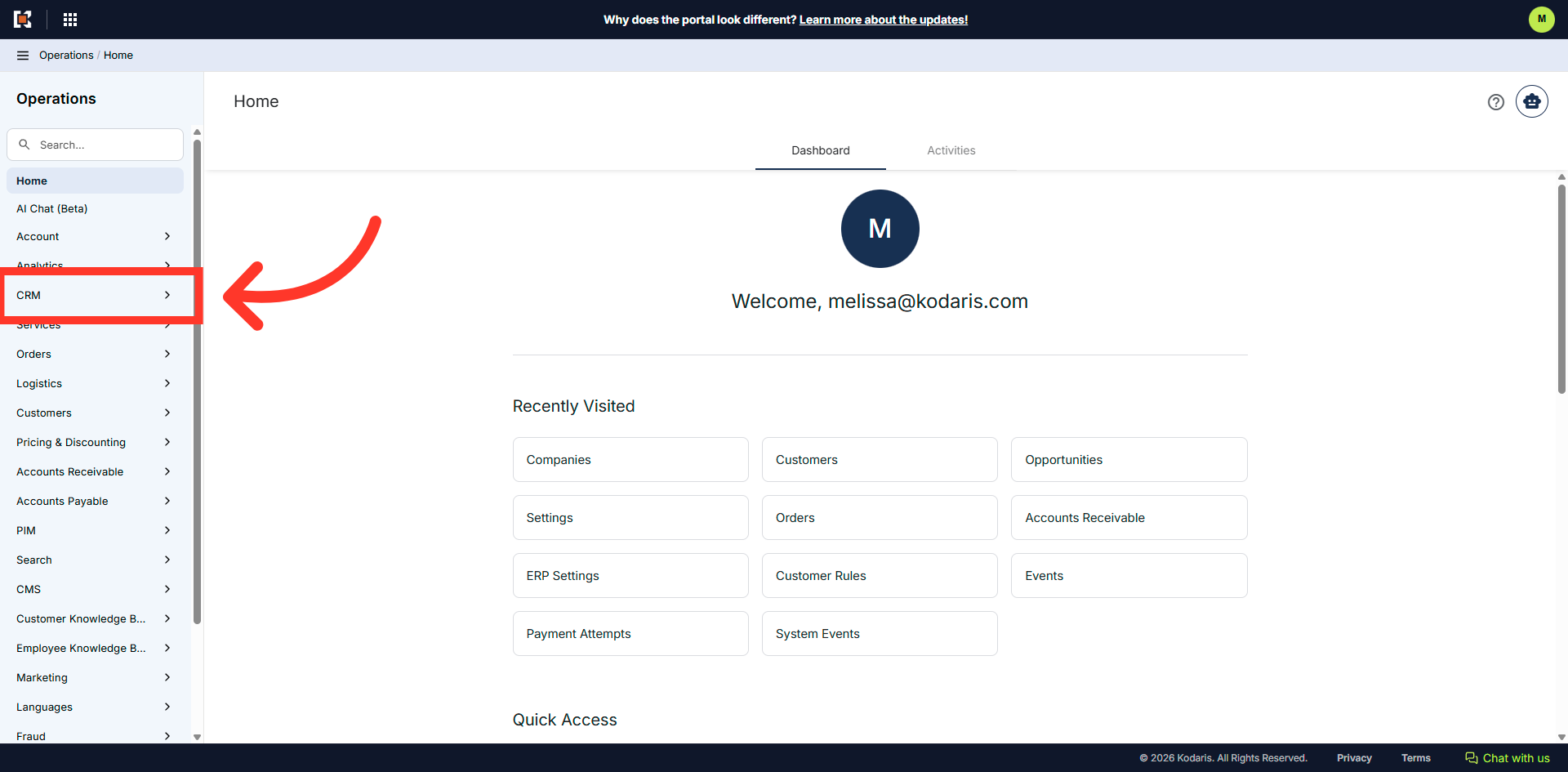
Navigate to the "CRM" section
To create a saved sticky filter for the "Opportunities" search screen, navigate to the "CRM" section in the operations portal.
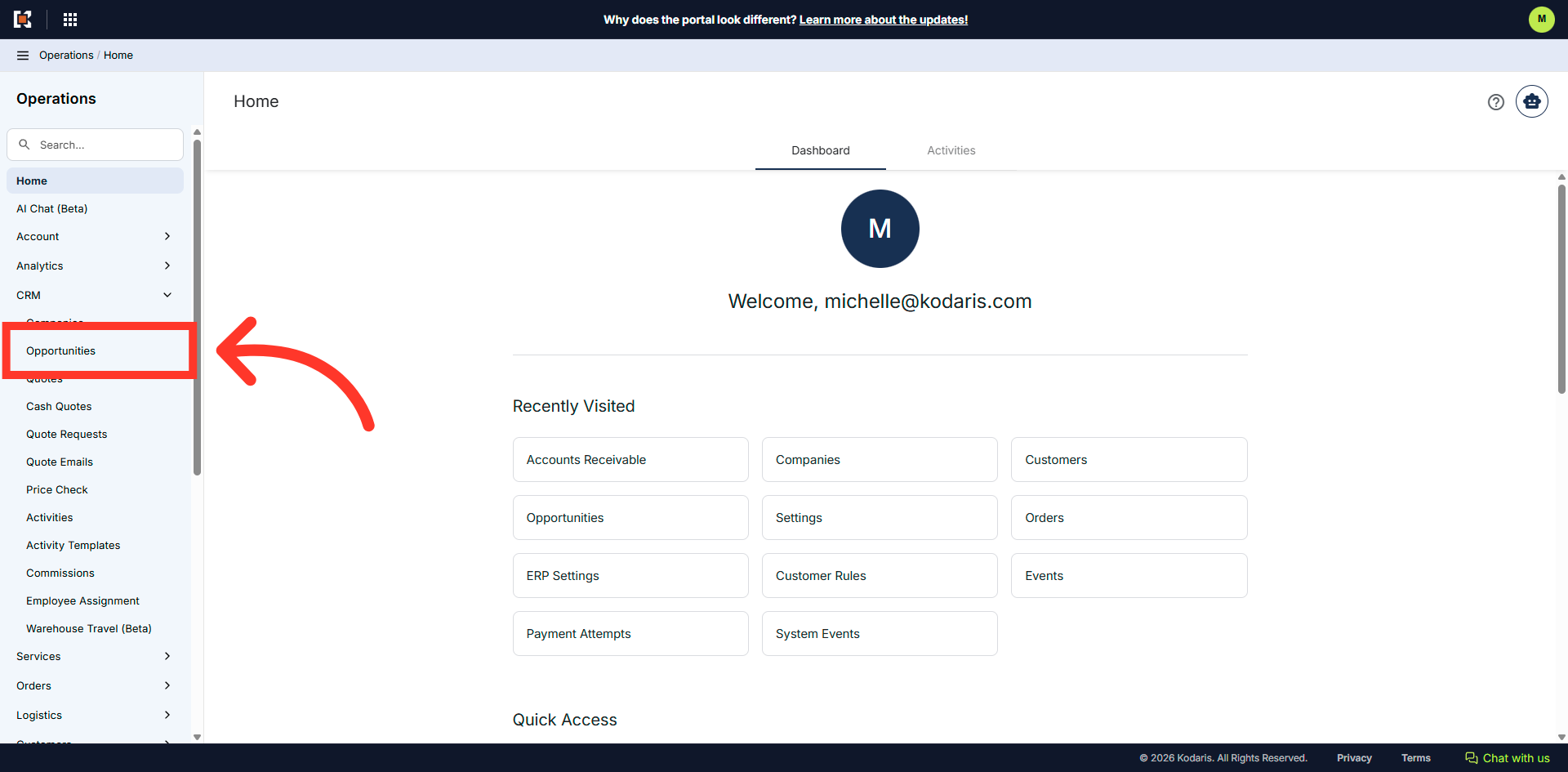
Click "Opportunities"
Click "Opportunities". In order to access and update "Opportunities" you will need to be set up either as an "administrator" or a "superuser", or have the roles of: "accountQuoting" and "dashboardSearch".
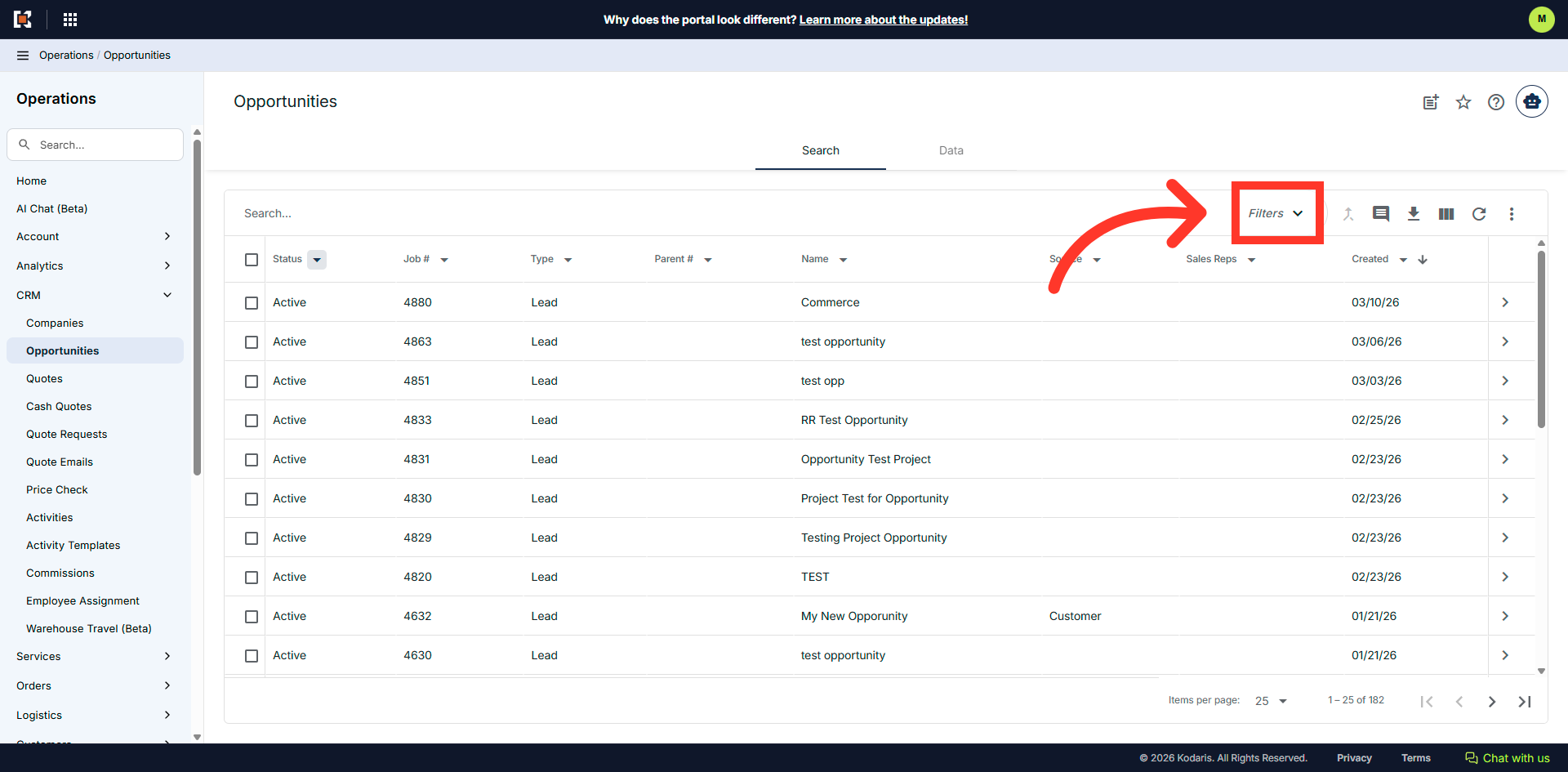
Click "Filters"
Once you’ve adjusted your screen to include any needed columns and updated any column filters, you can create a sticky filter to easily return to your view. To do this, click “Filters.”
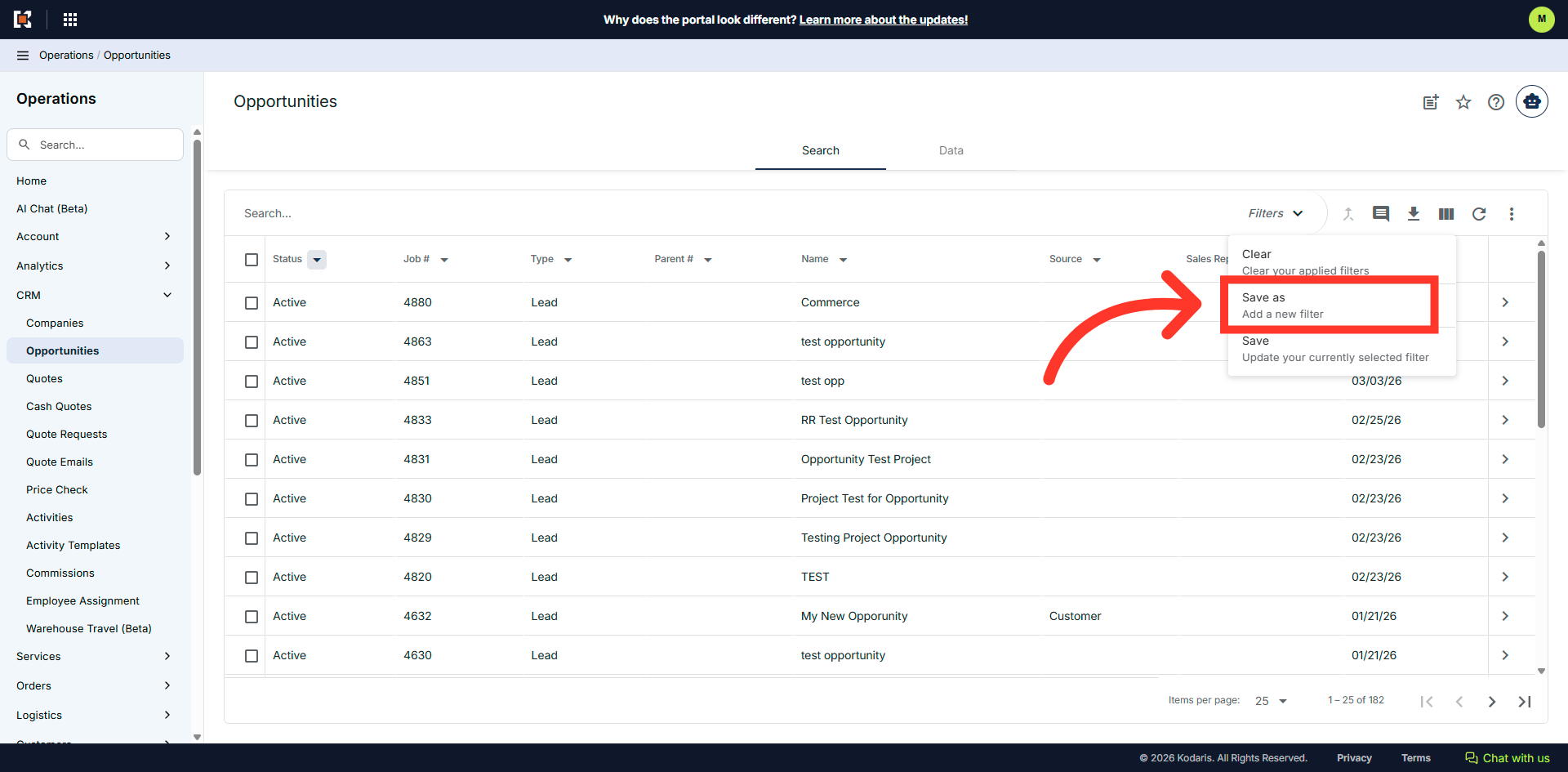
Click "Save As"
Click "Save As" to create a new sticky filter.
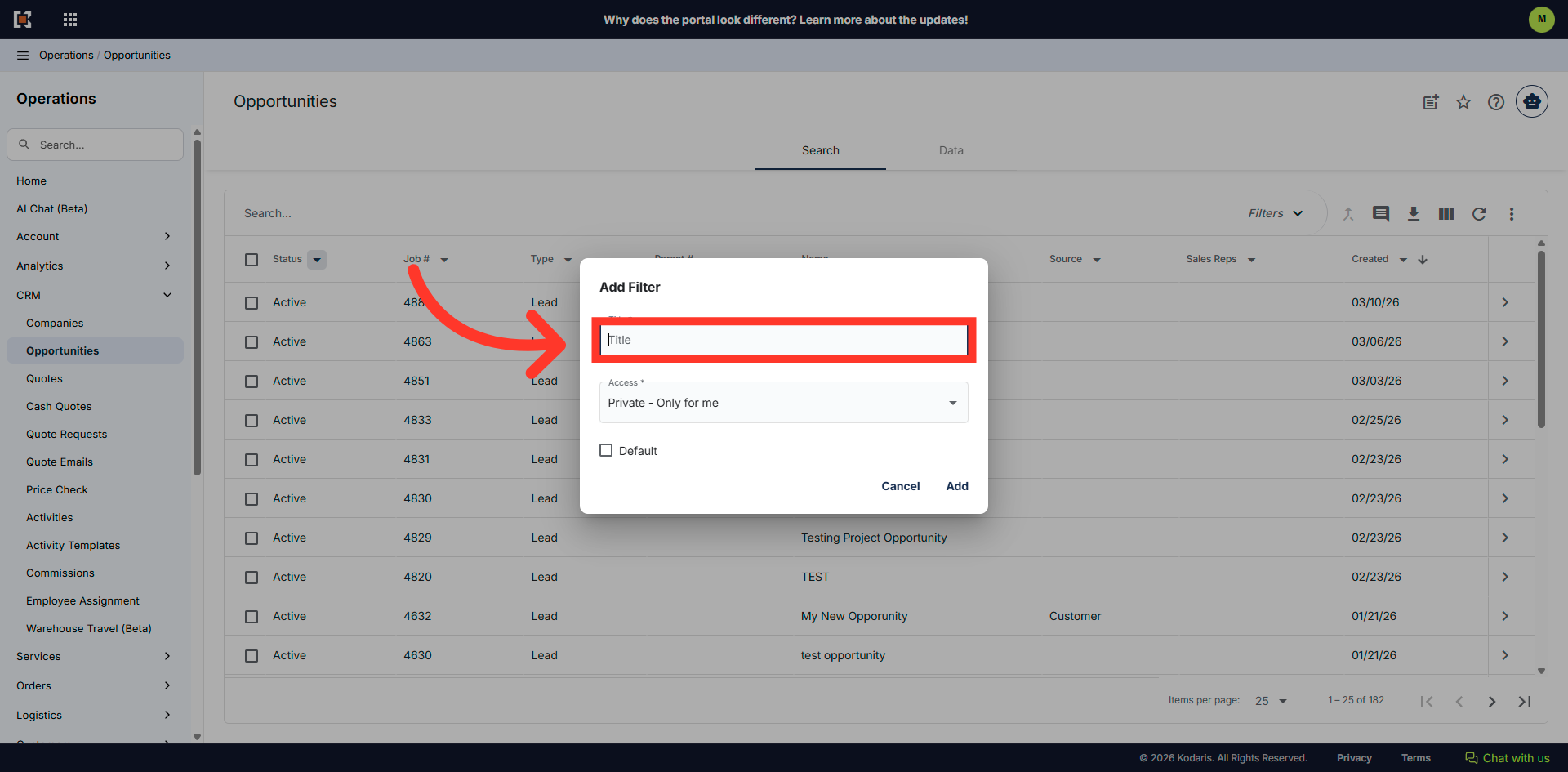
Enter name in the "Title" field
Enter a name for the filter in the "Title" field.
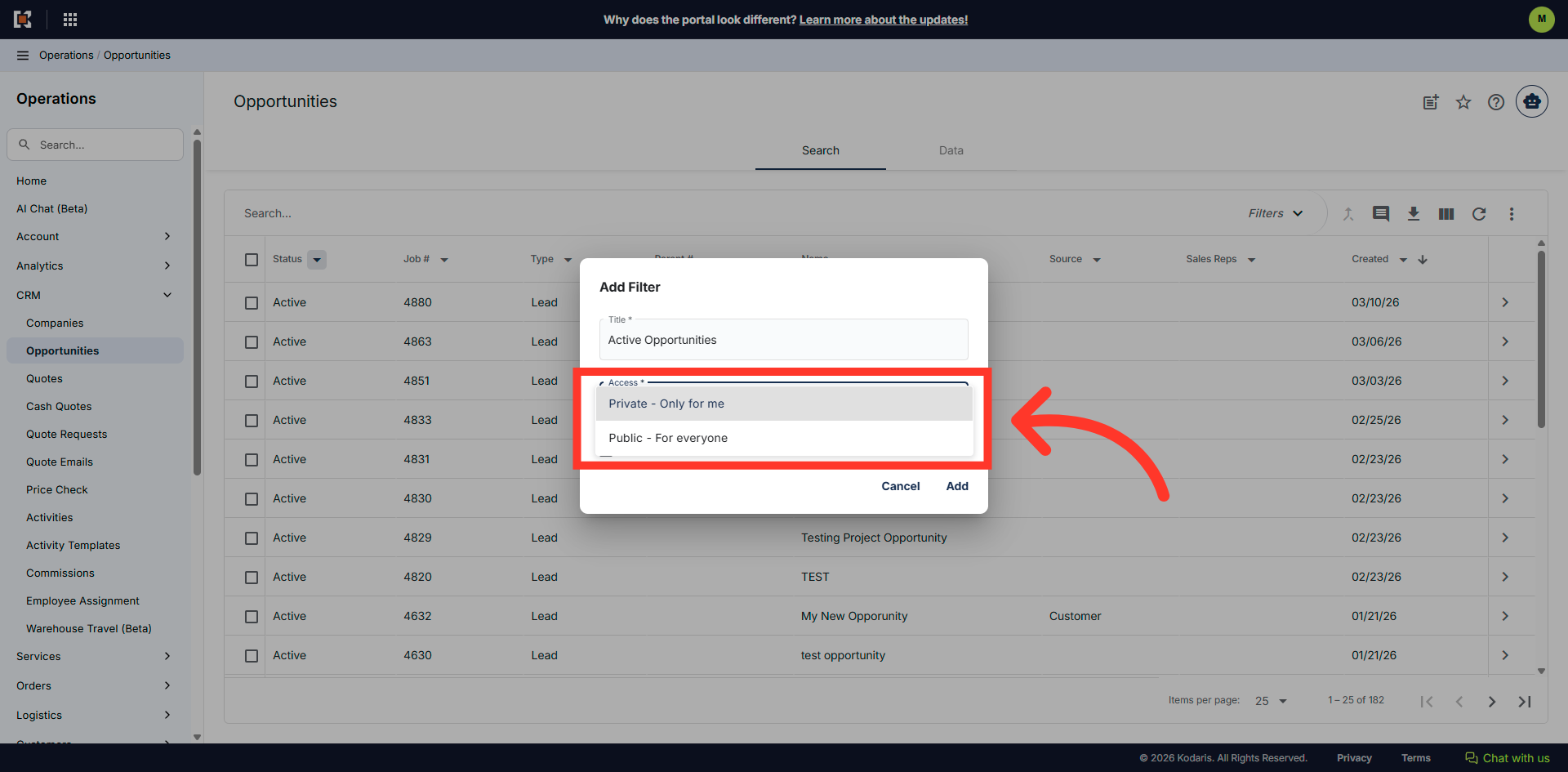
Select "Access" option
You can set the filter to Private or Public. "Private - Only for me" means the filter will only be visible to you. "Public - for everyone" means the filter will be available for all users that have access to this page.
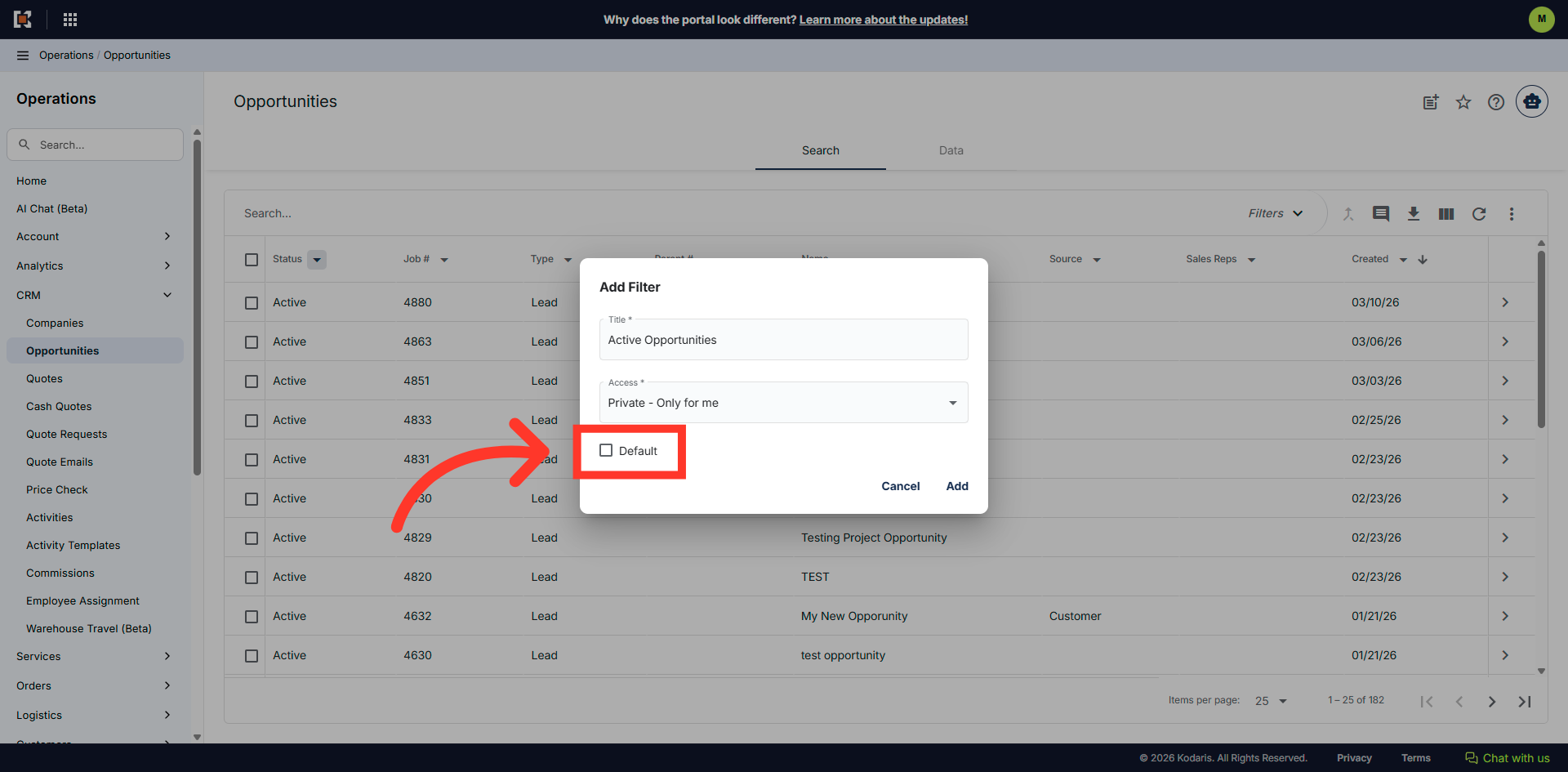
Set as "Default" if preferred
You can also set this sticky filter to be the default view when accessing this page by clicking the "Default" checkbox. Leave this unchecked if you do not want to set this filter as a default.
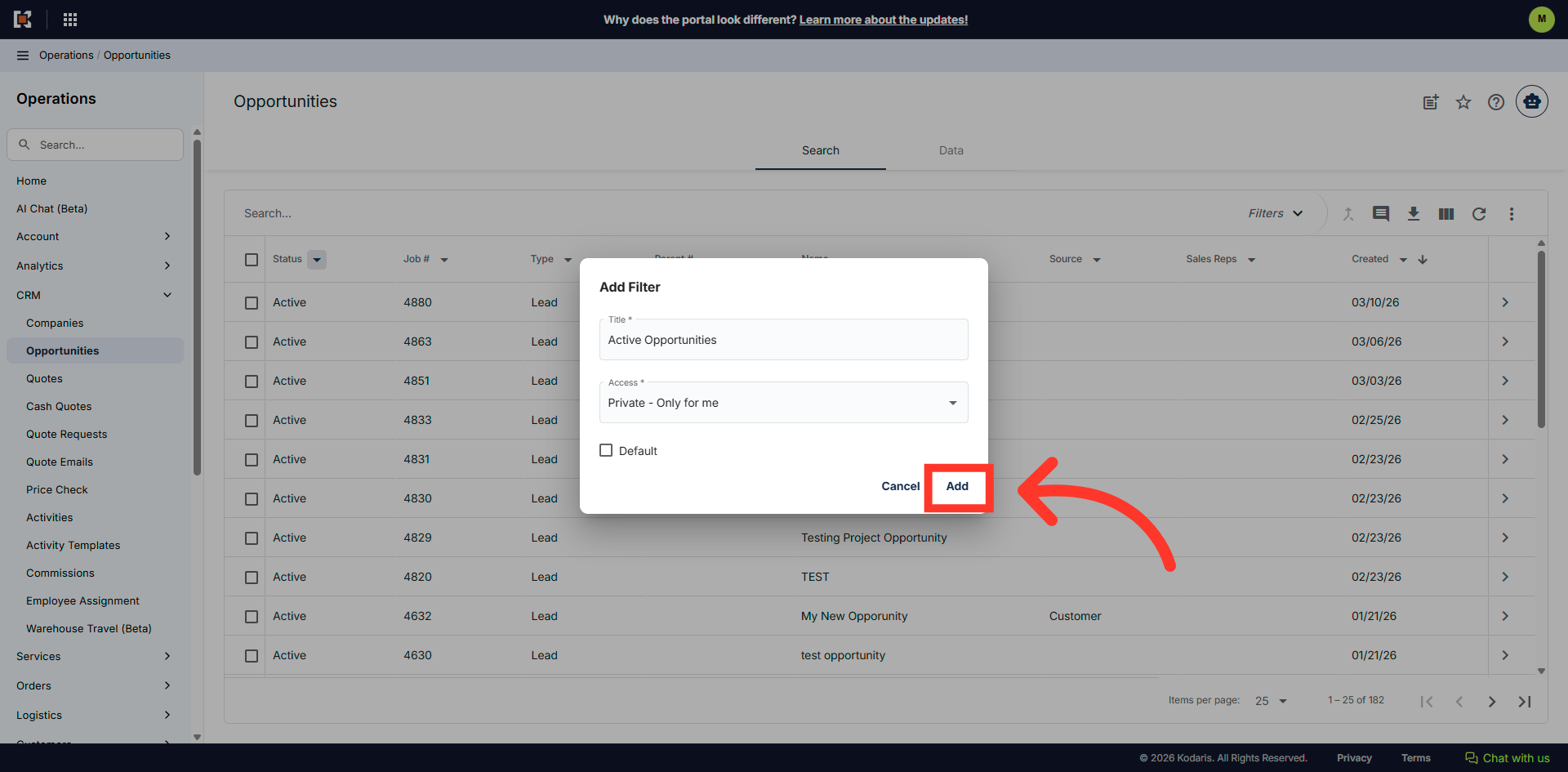
Click "Add"
Click "Add" to save the filter.
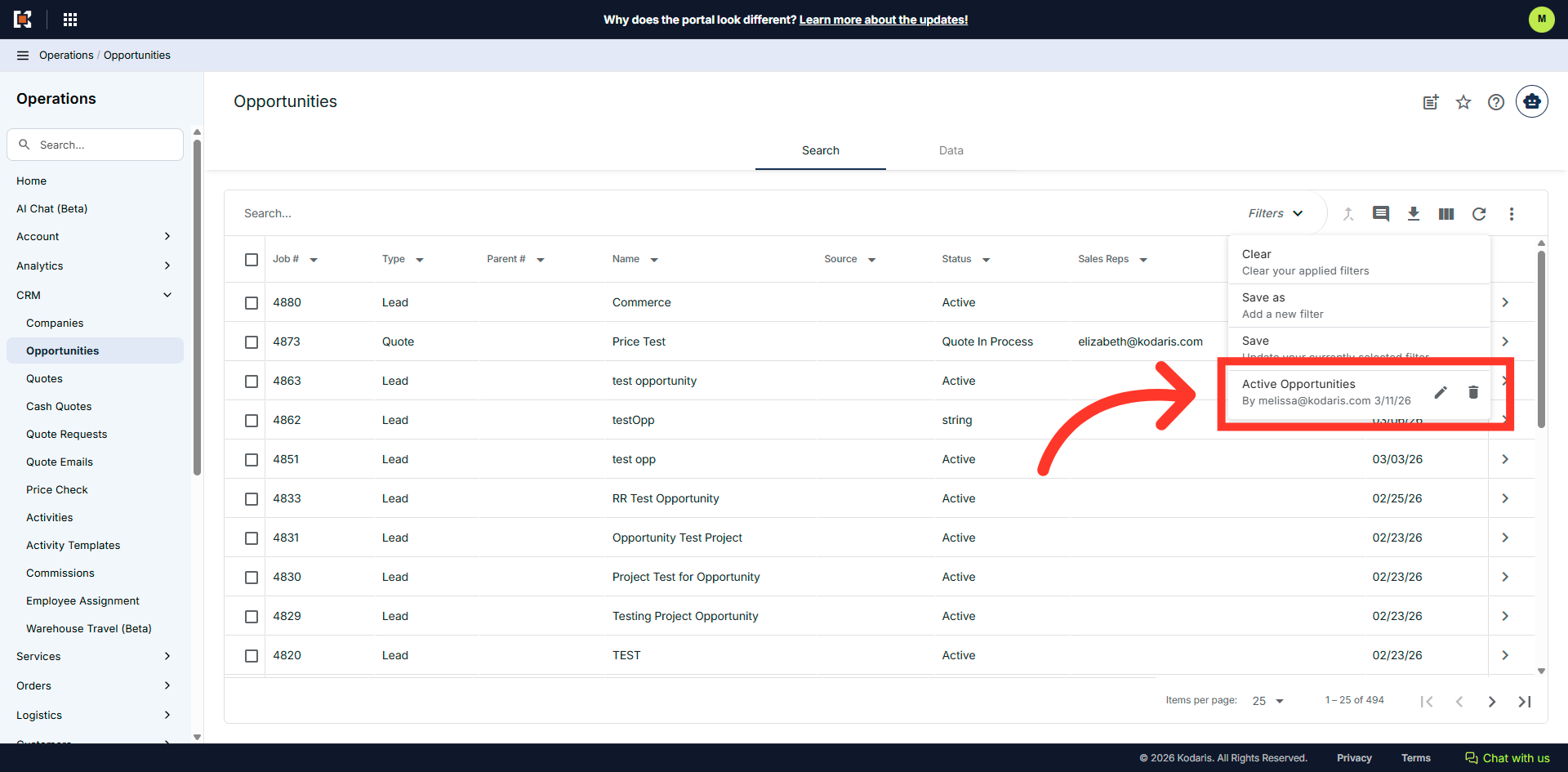
Added to Saved Filters
If you click the "Filters" dropdown, your saved filter will be listed as an option. You can create as many filters as needed, and also update filters at any time.