Operations CRM - Enable a Customer Account to Place Order with Purchase Order
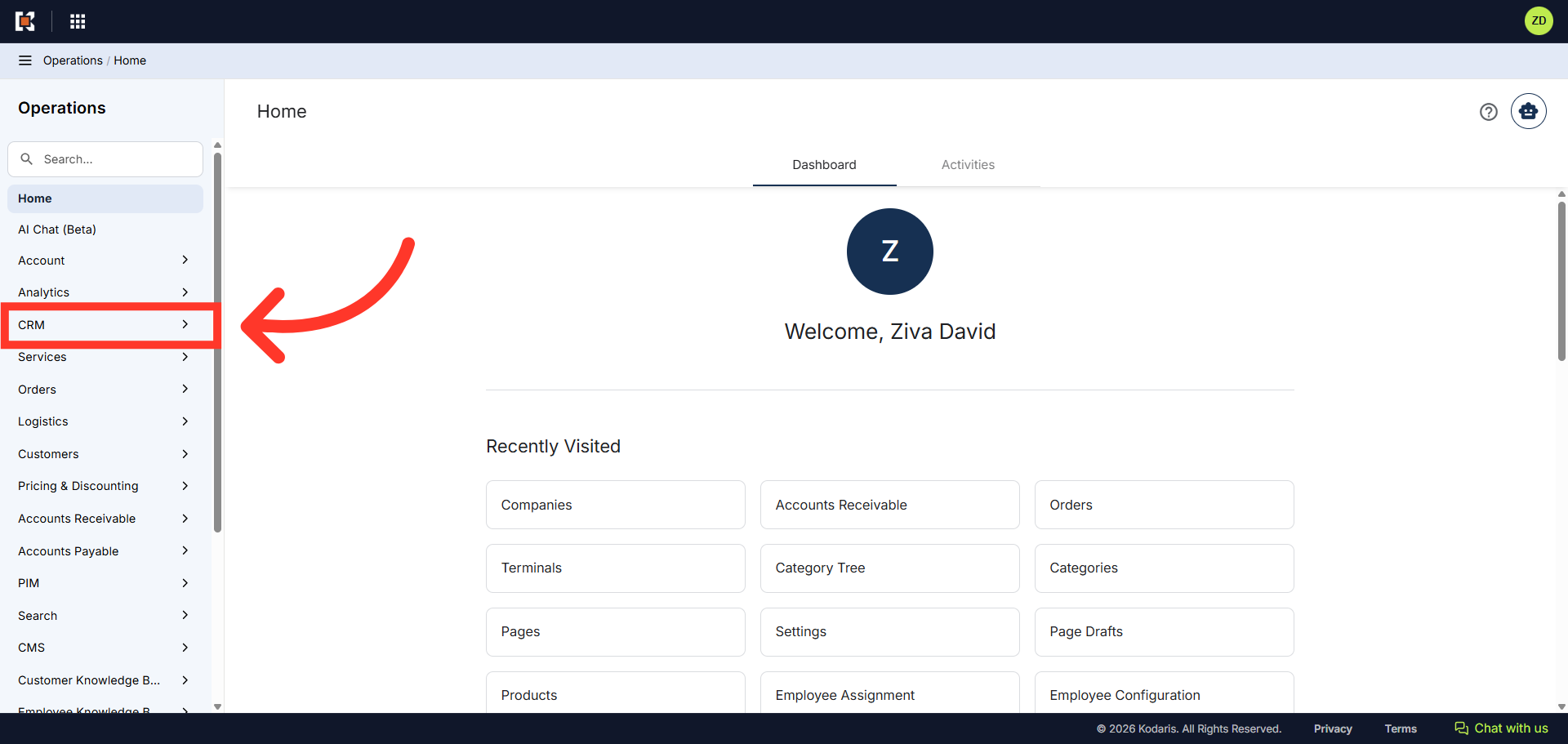
Navigate to "CRM"
To enable a company account to place an order with a purchase order, navigate to the "CRM" section in the Operations Portal.
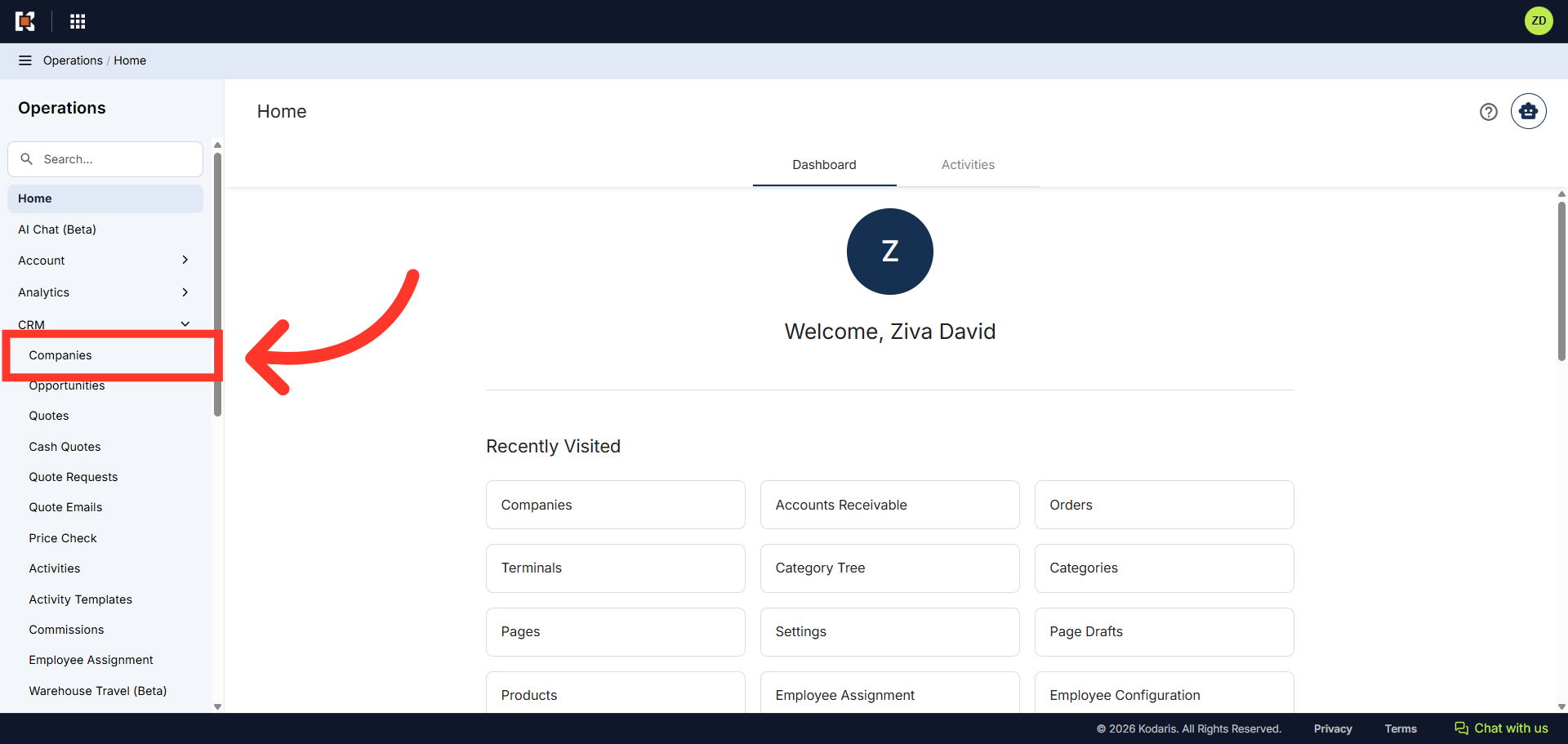
Click "Companies"
Then, click "Companies". In order to access "Companies" you will need to be set up either as an "administrator" or a "superuser", or have the appropriate roles: "companyEdit", or "crmCompanyEdit". Just a reminder, "crmCompanyEdit" access only allows employees to access companies that are assigned to them.
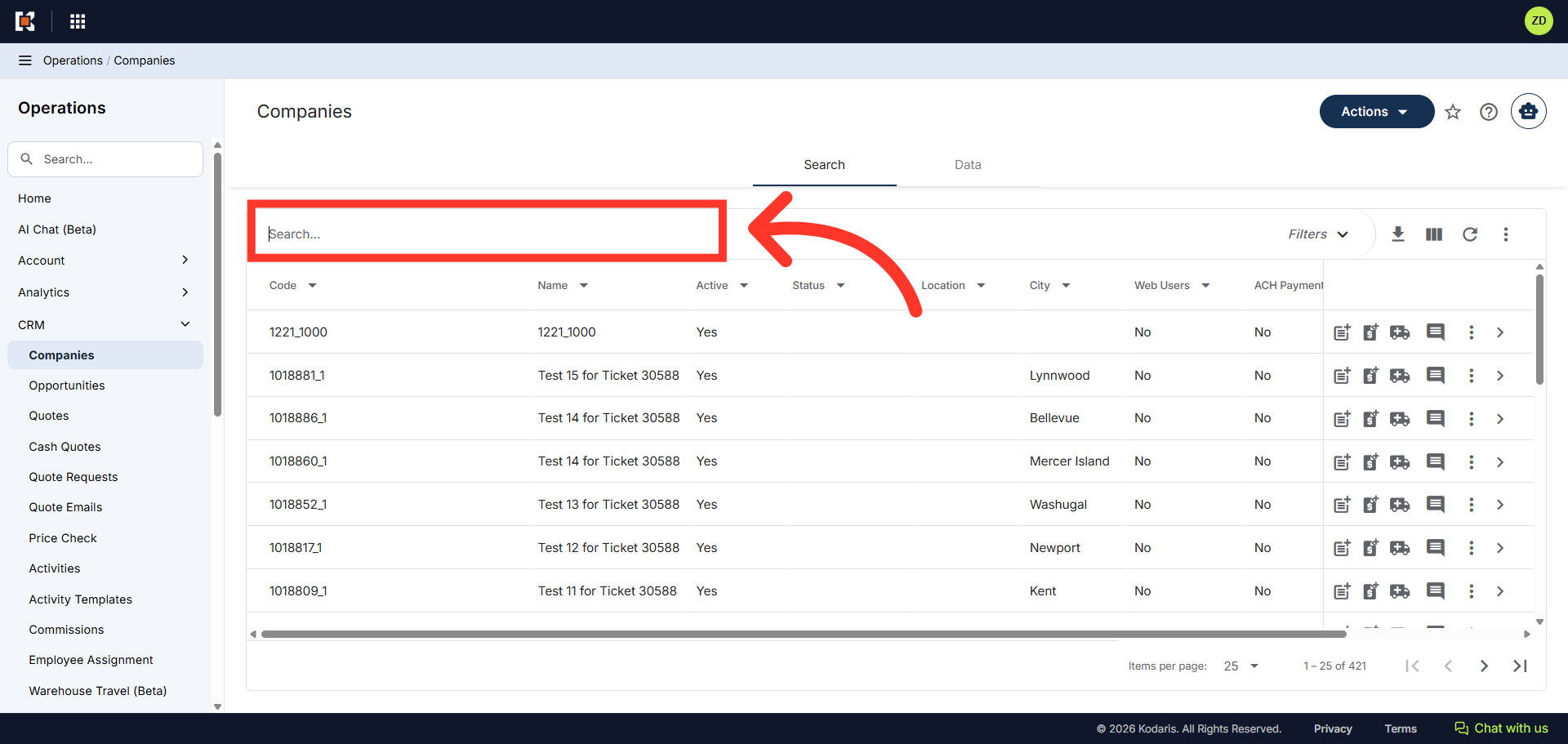
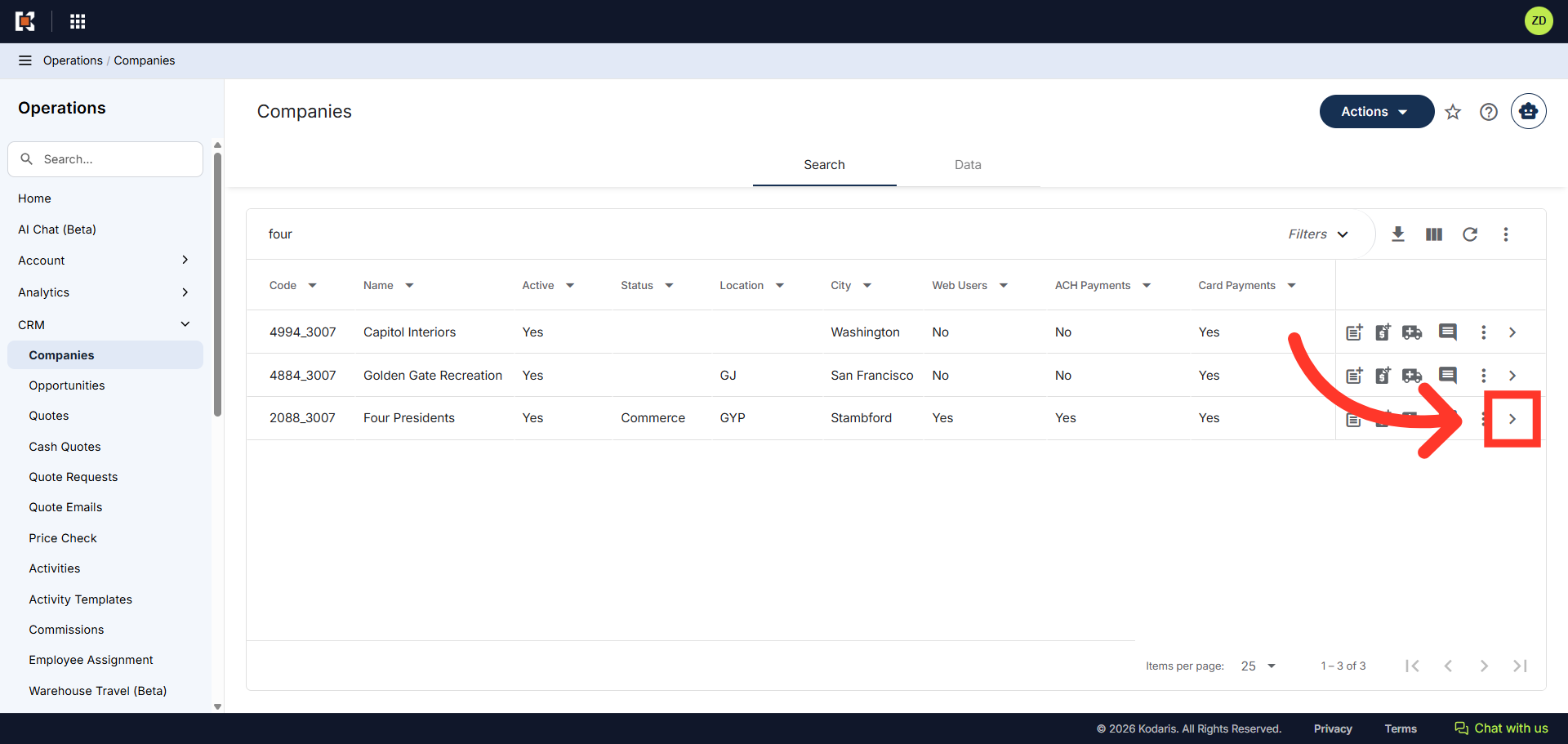
Search for a Company
To quickly find the company you want to view, enter the company name or code in the "Search" field.
Click on the more details icon
Once the company is located, click on the more details icon to view the company details.
Scroll down to "Payment" section
Next, scroll down to the "Payment" section on the "Details" tab.
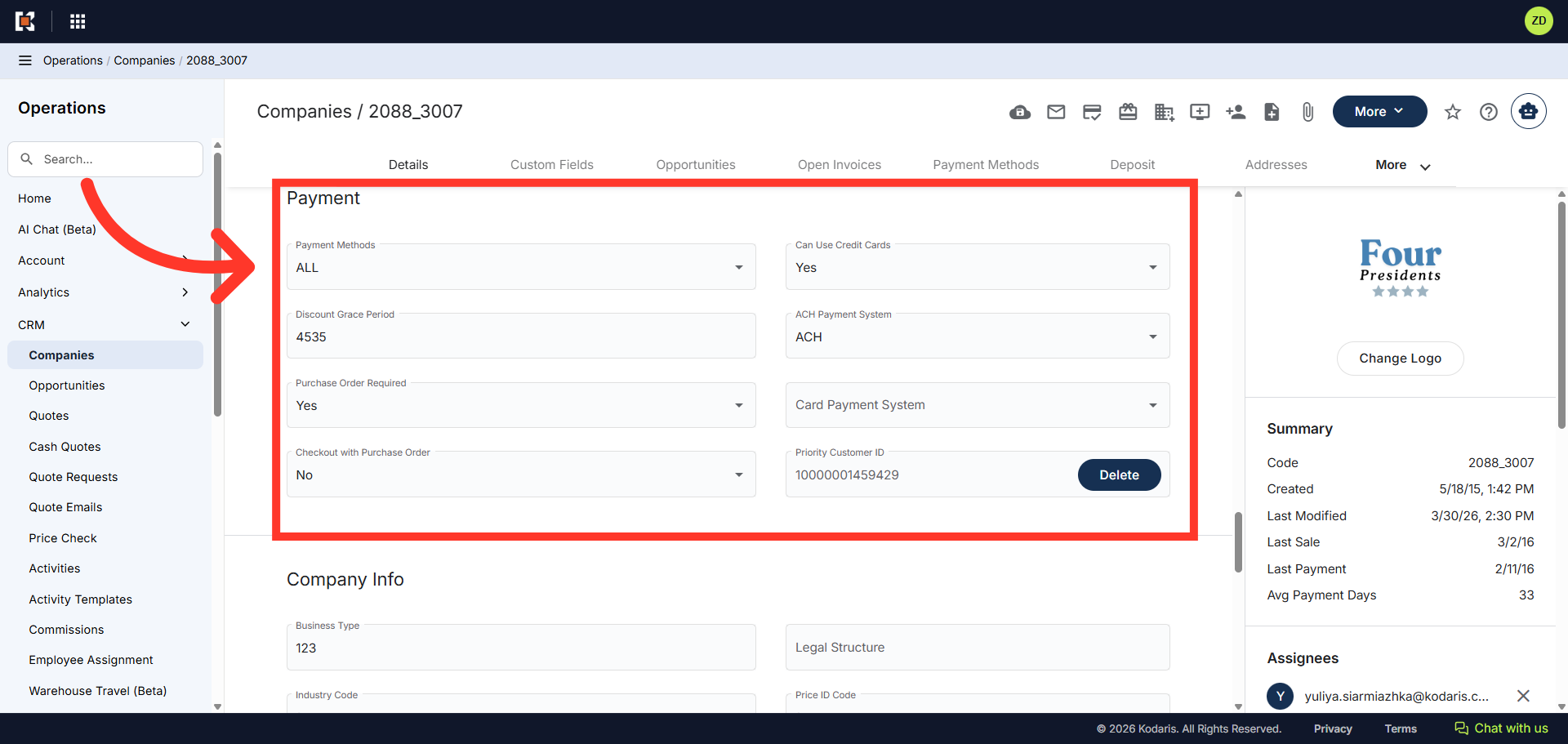
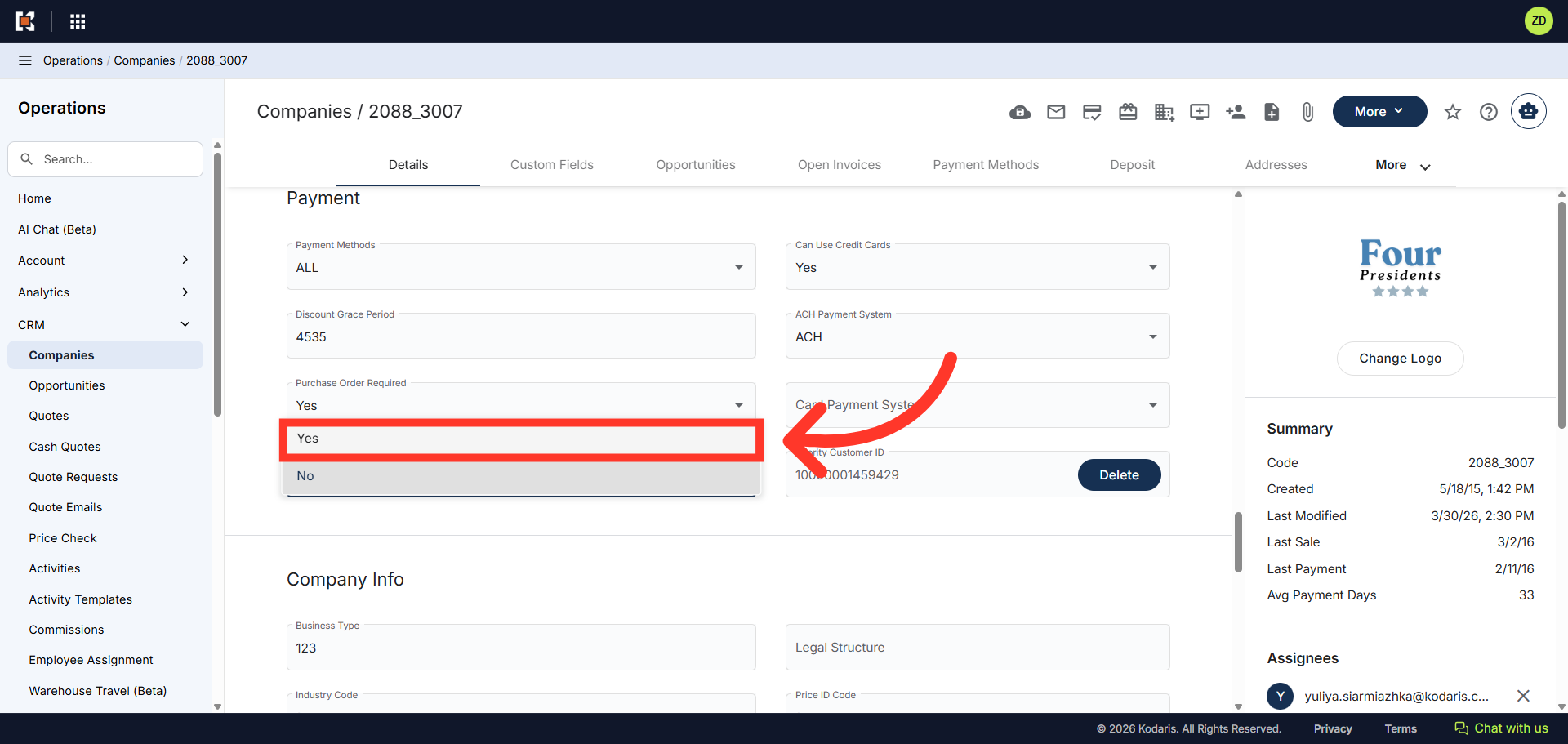
Checkout with Purchase Order = "Yes"
In the "Checkout with Purchase Order" field, you can select either "Yes" or "No" from the dropdown menu to determine whether the account is allowed to place an order using a purchase order. In this example, we select "Yes." The account is now configured to complete checkout with a purchase order.