Operations CRM - View all Emails Sent to Customer Accounts
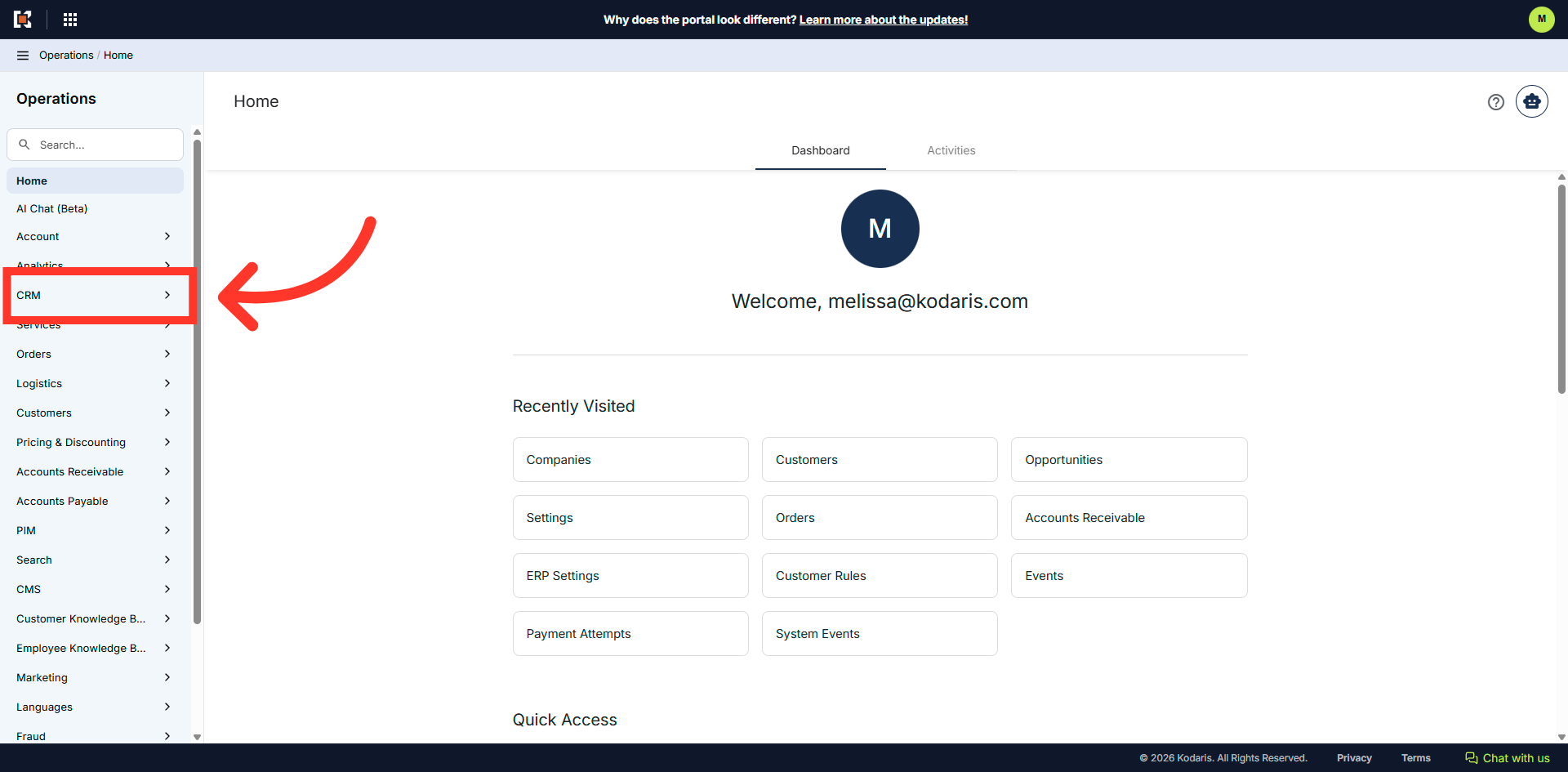
Navigate to the "CRM" section
To view emails that have been sent to customer assigned to a company, navigate to the "CRM" section in the Operations Portal.
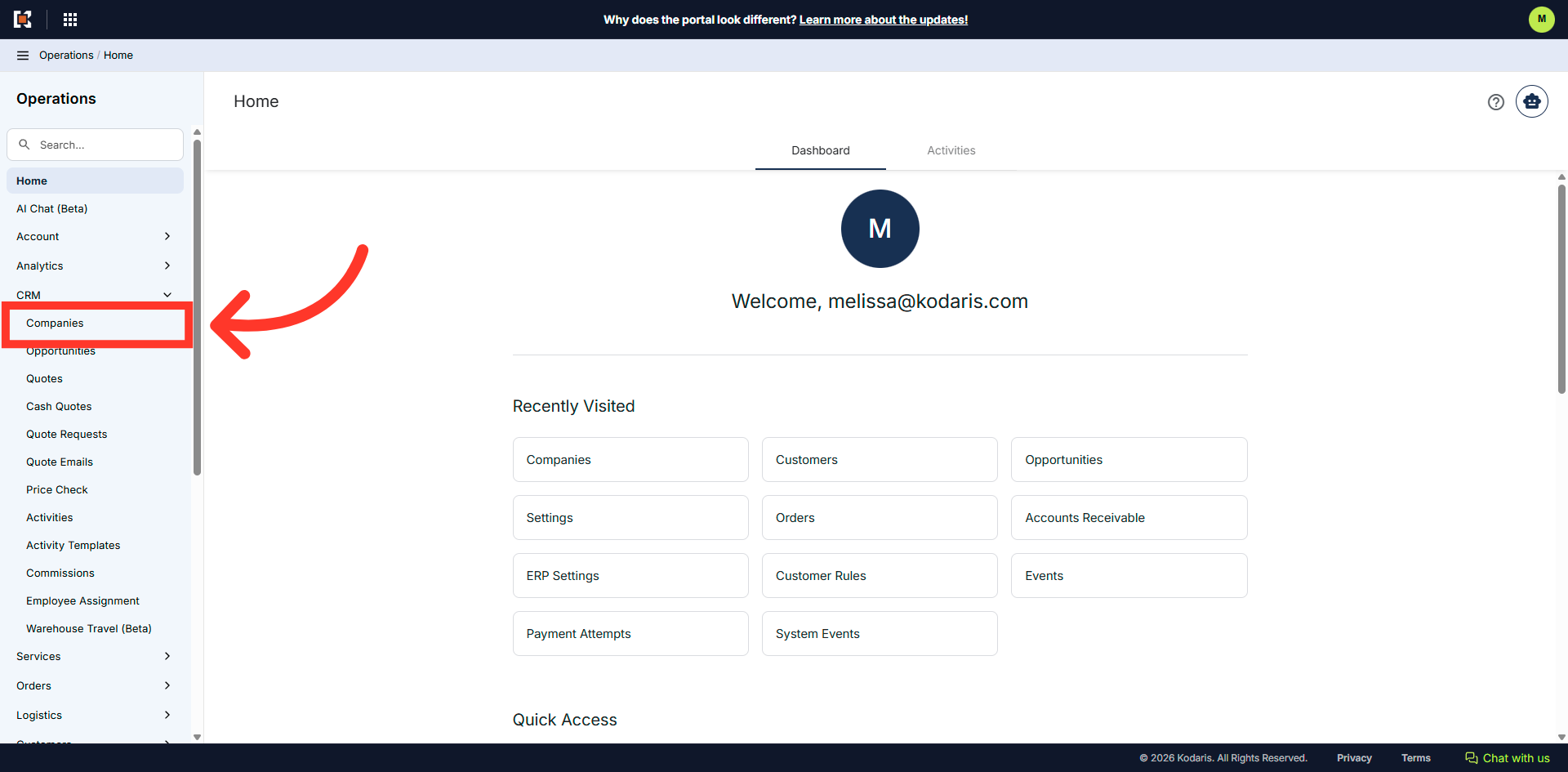
Click "Companies"
Then, click Companies. In order to access "Companies" you will need to be set up either as an "administrator" or a "superuser", or have the appropriate roles: "companyEdit", or "crmCompanyEdit". Just a reminder, "crmCompanyEdit" access only allows employees to access companies that are assigned to them.
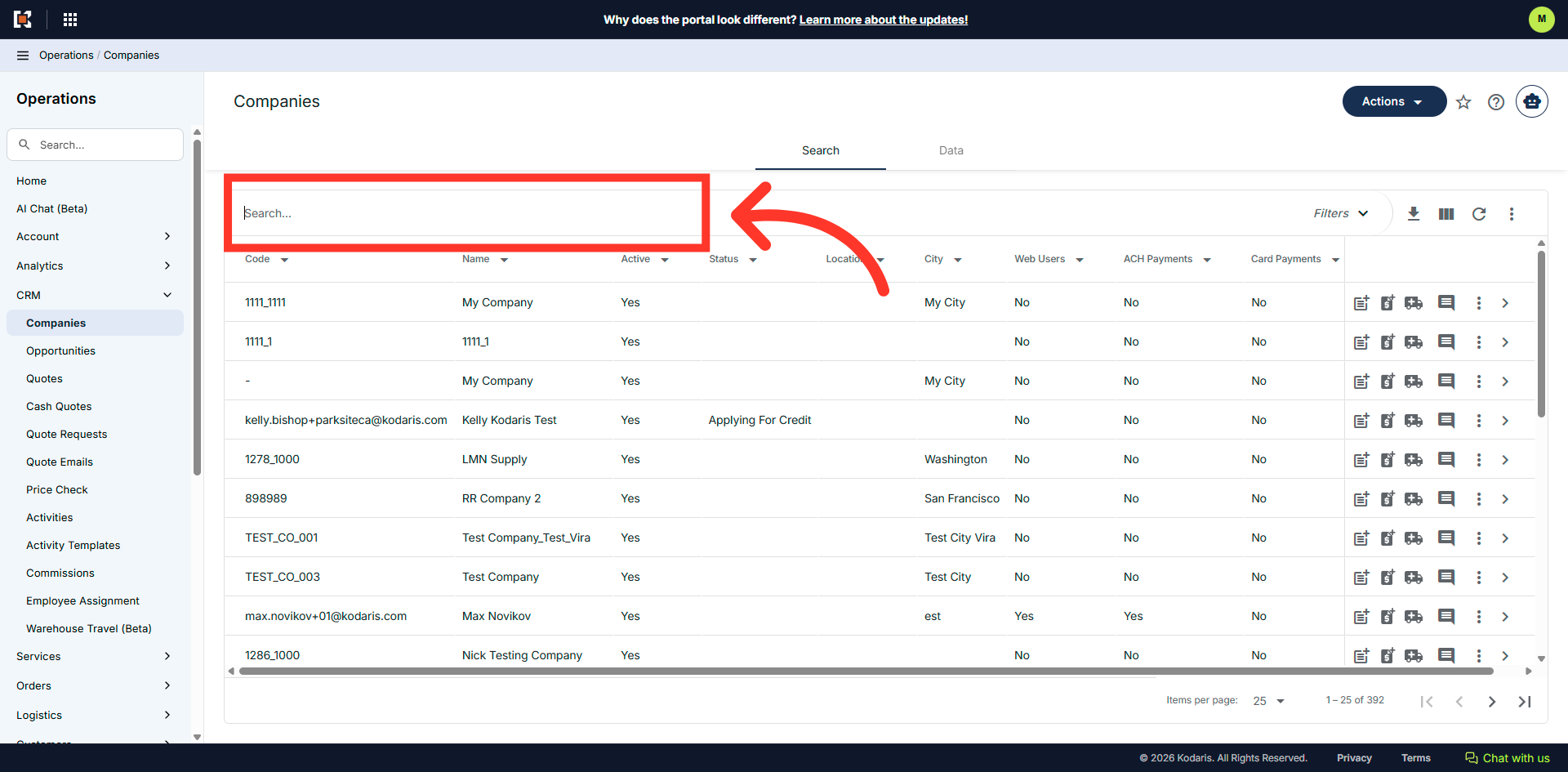
Search for a company
Search for a company. You can enter the company name or code in the "Search..." field to search.
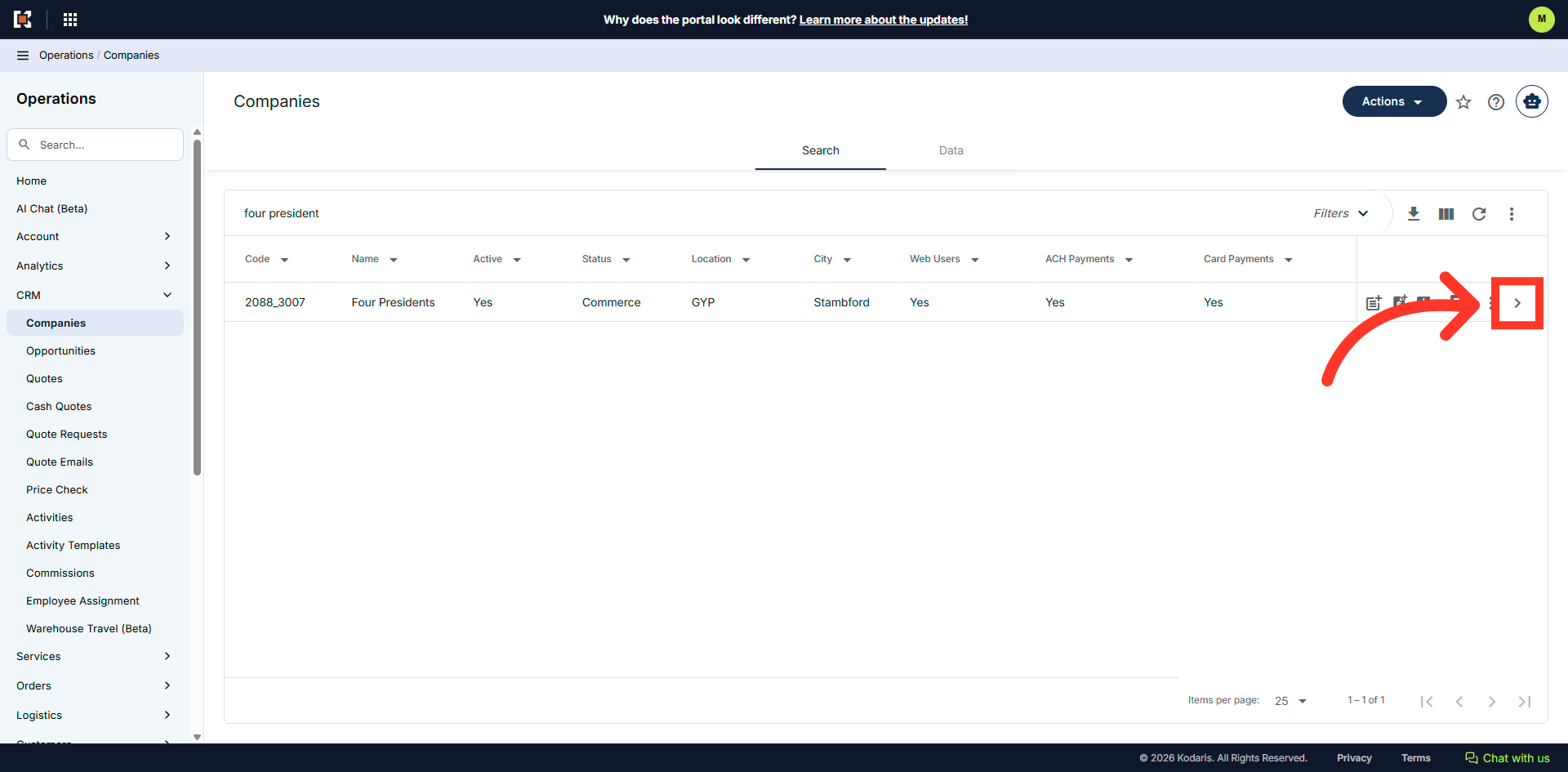
Click on the more details icon
Click on the more details icon to view company details.
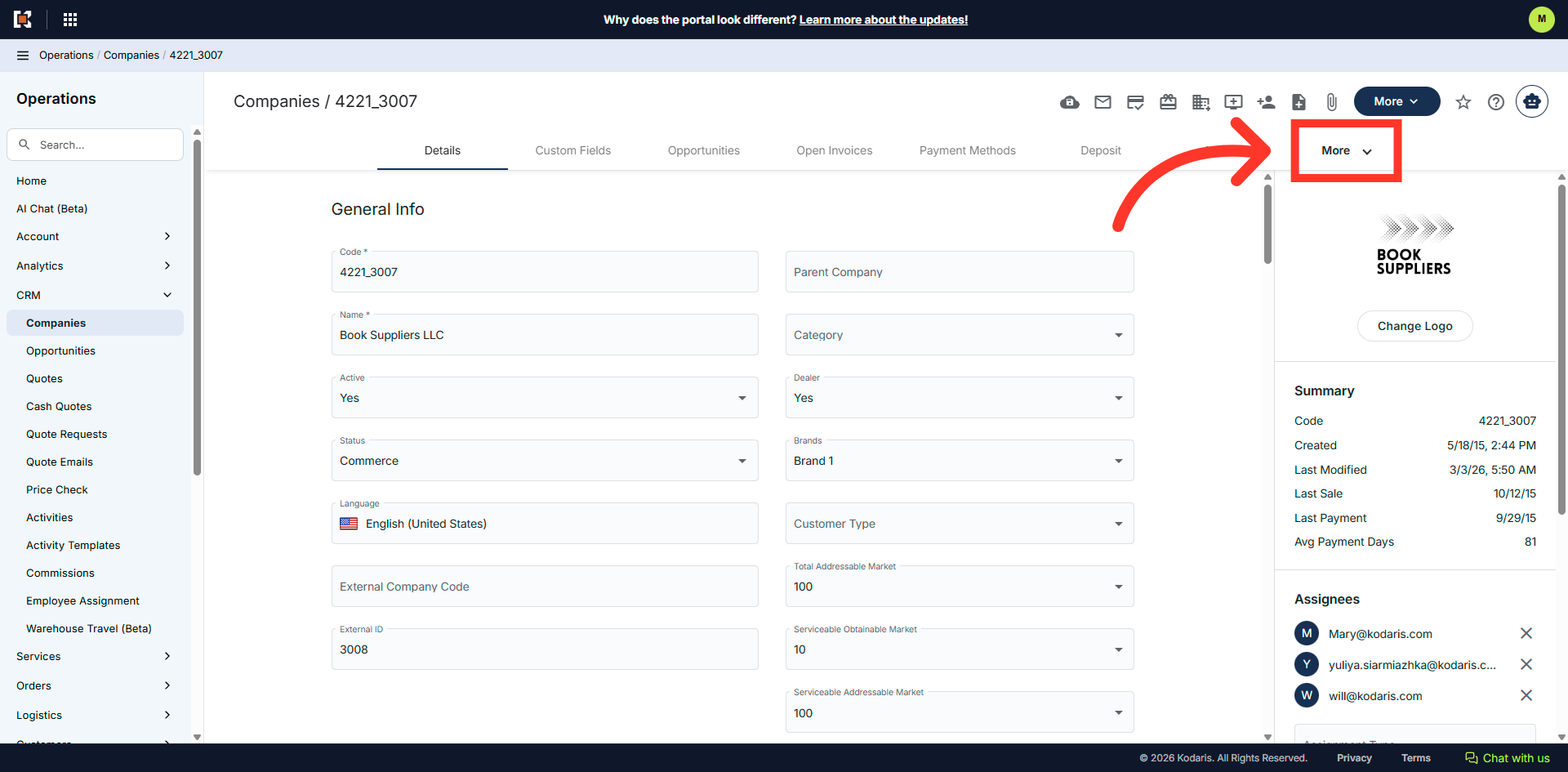
Click "More"
Click "More" to reveal other tabs.
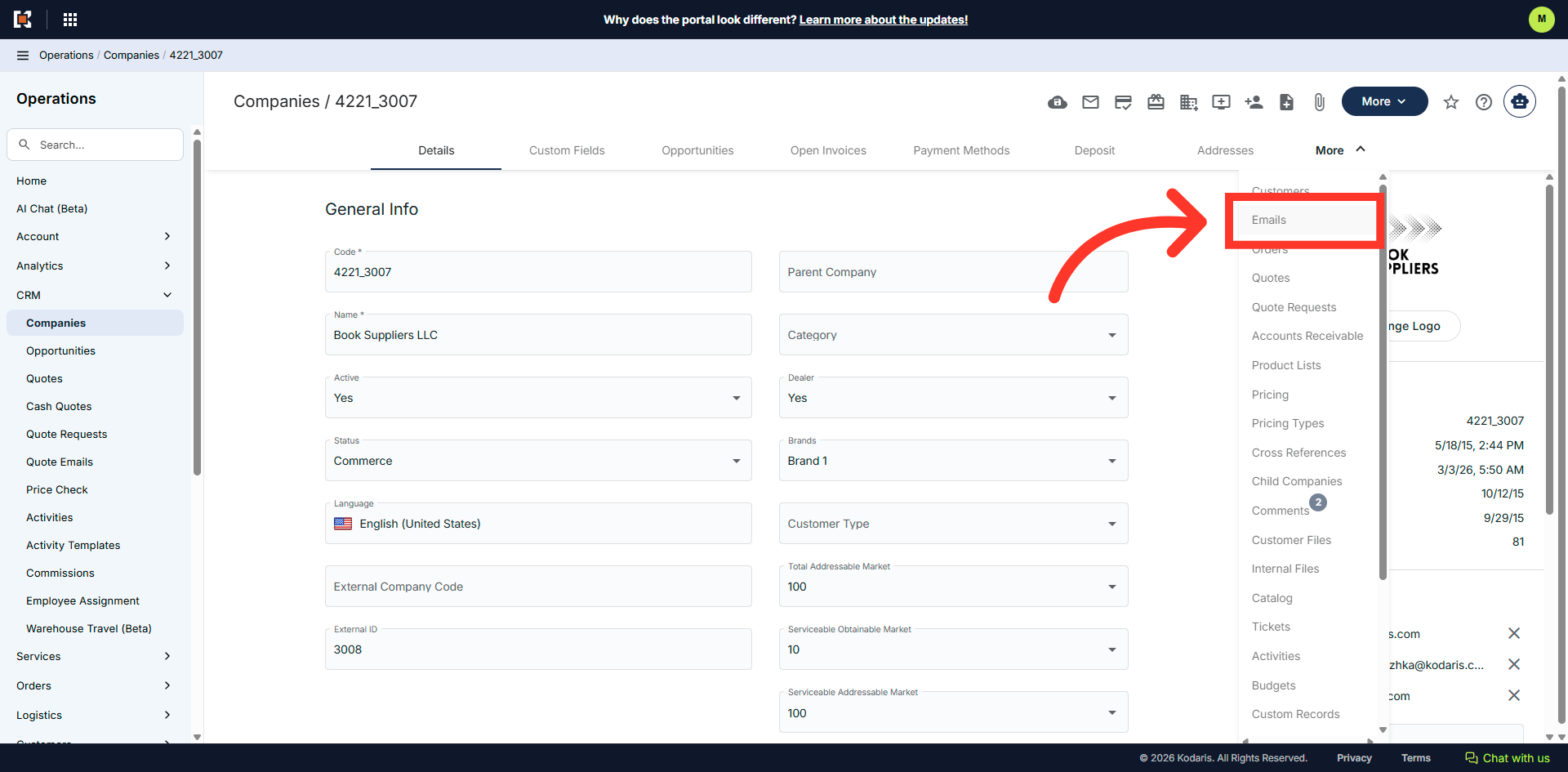
Click "Emails"
Then, click the "Emails" tab to view all emails.
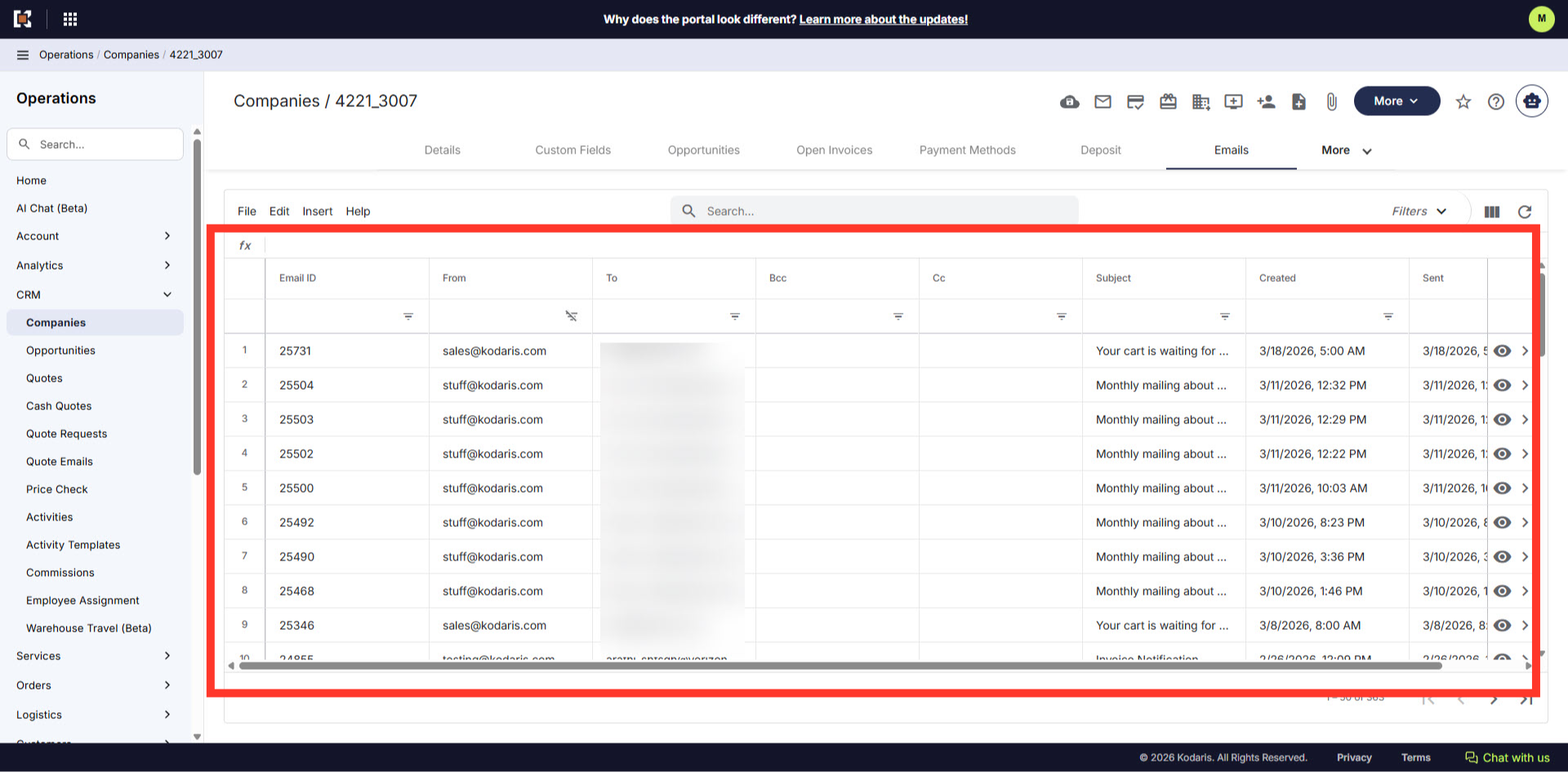
All emails sent to the contacts are shown
All emails that were sent to customers assigned to this company are shown.
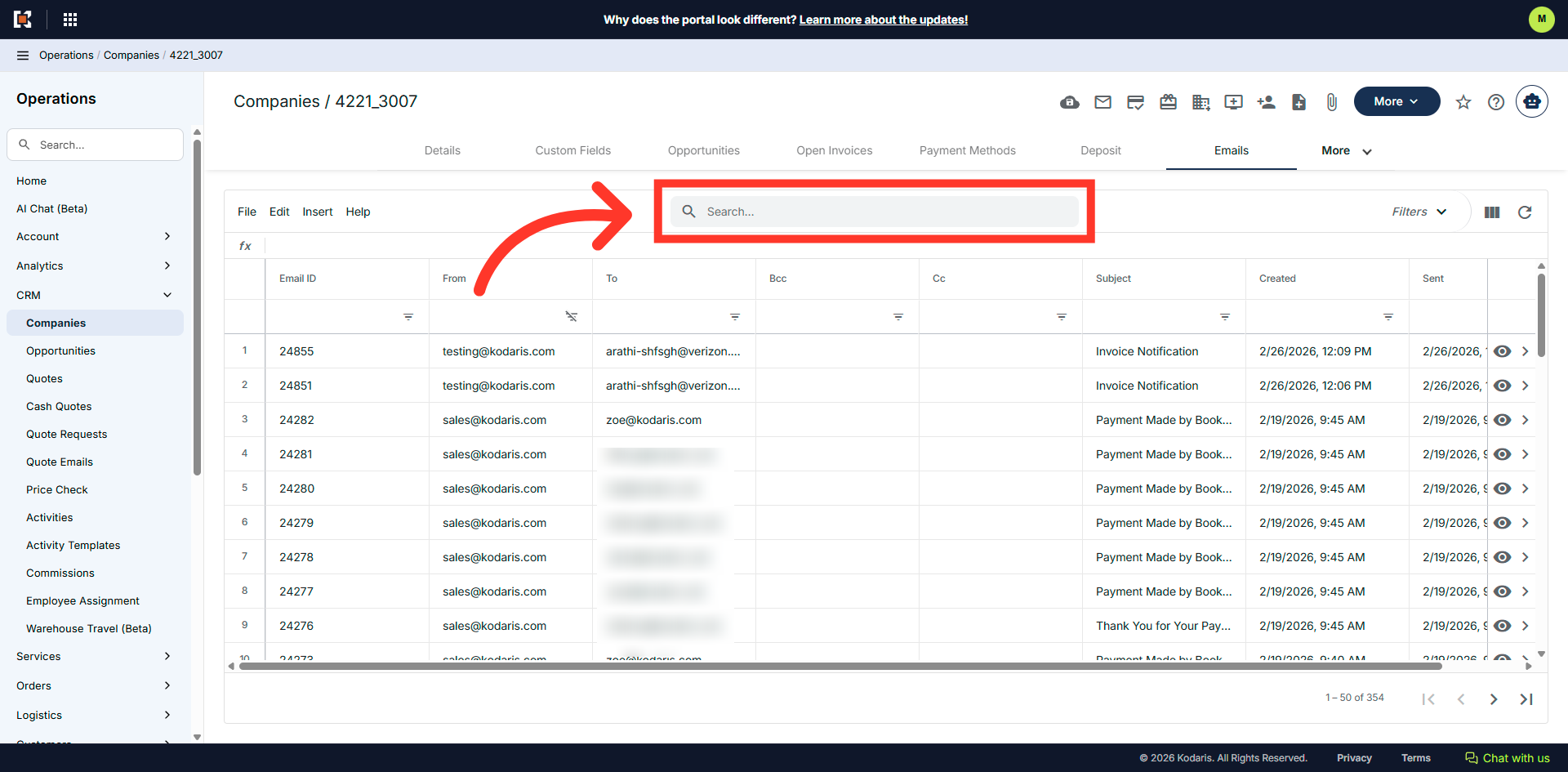
Search for a specific email
Click the "Search..." field to search for a specific email.
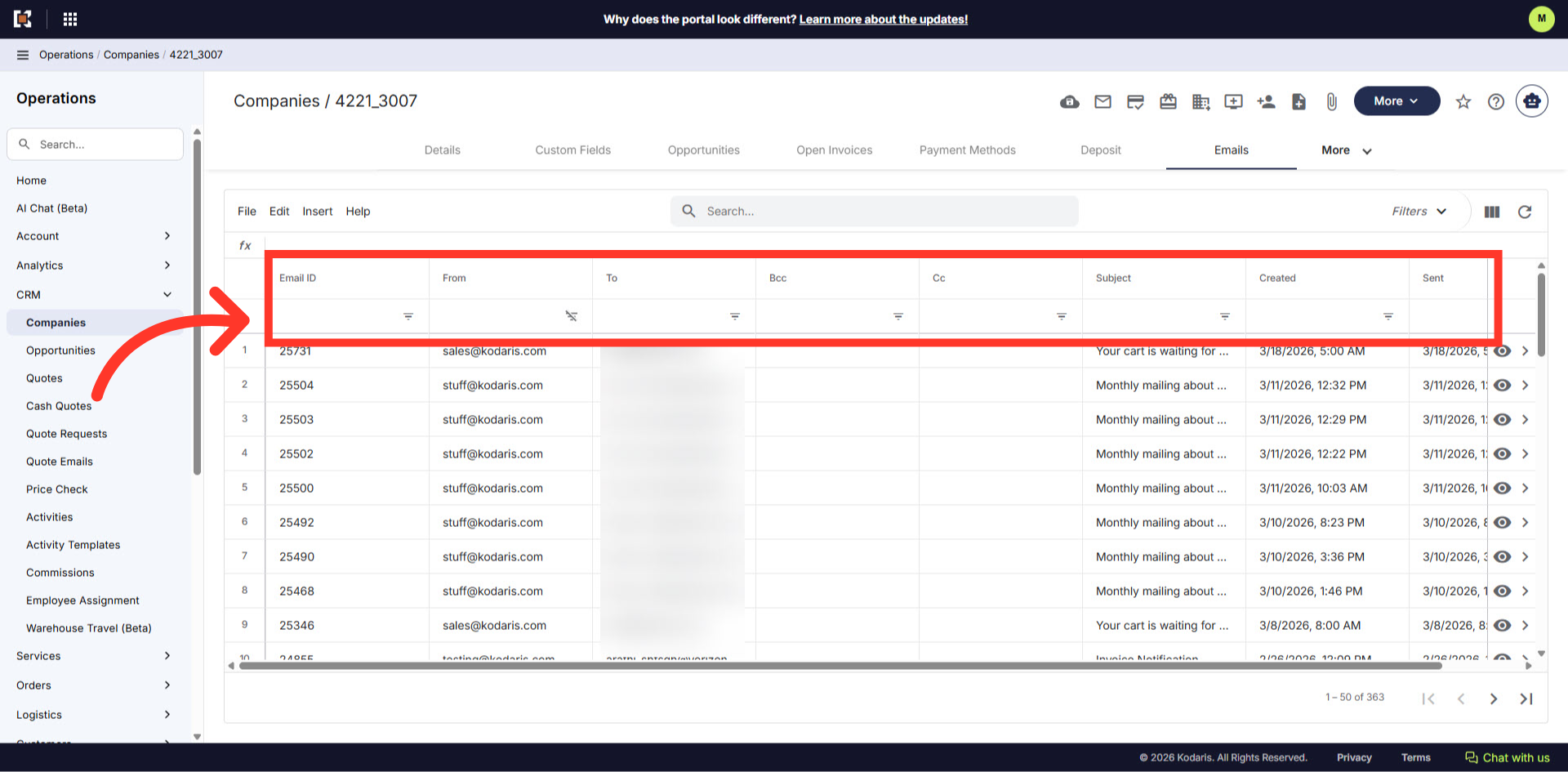
Use filter columns to filter emails
Emails can also be filtered by columns to narrow down the results.
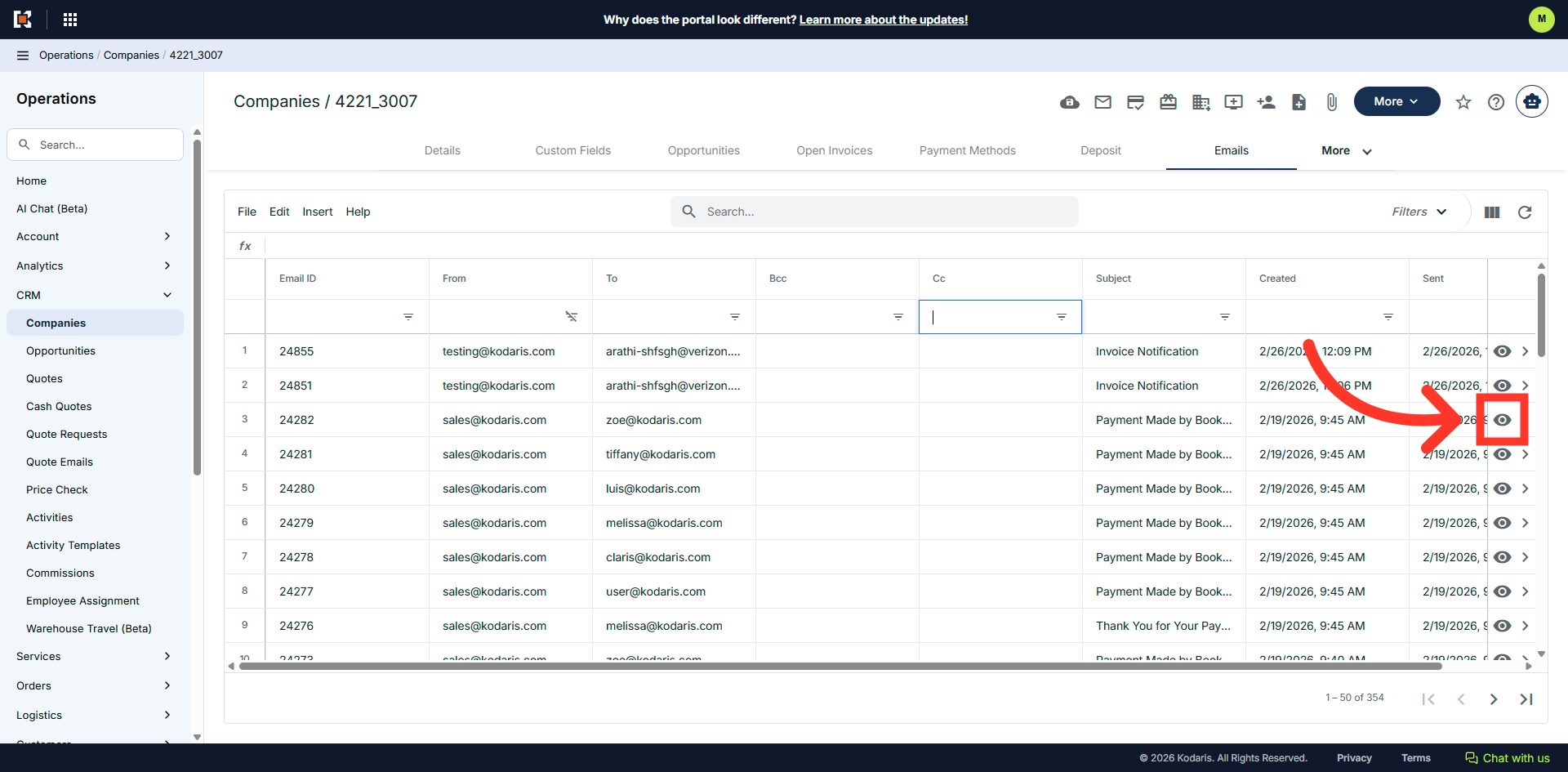
Click "View" to preview email
Click the "View" or the eye icon to preview the email.
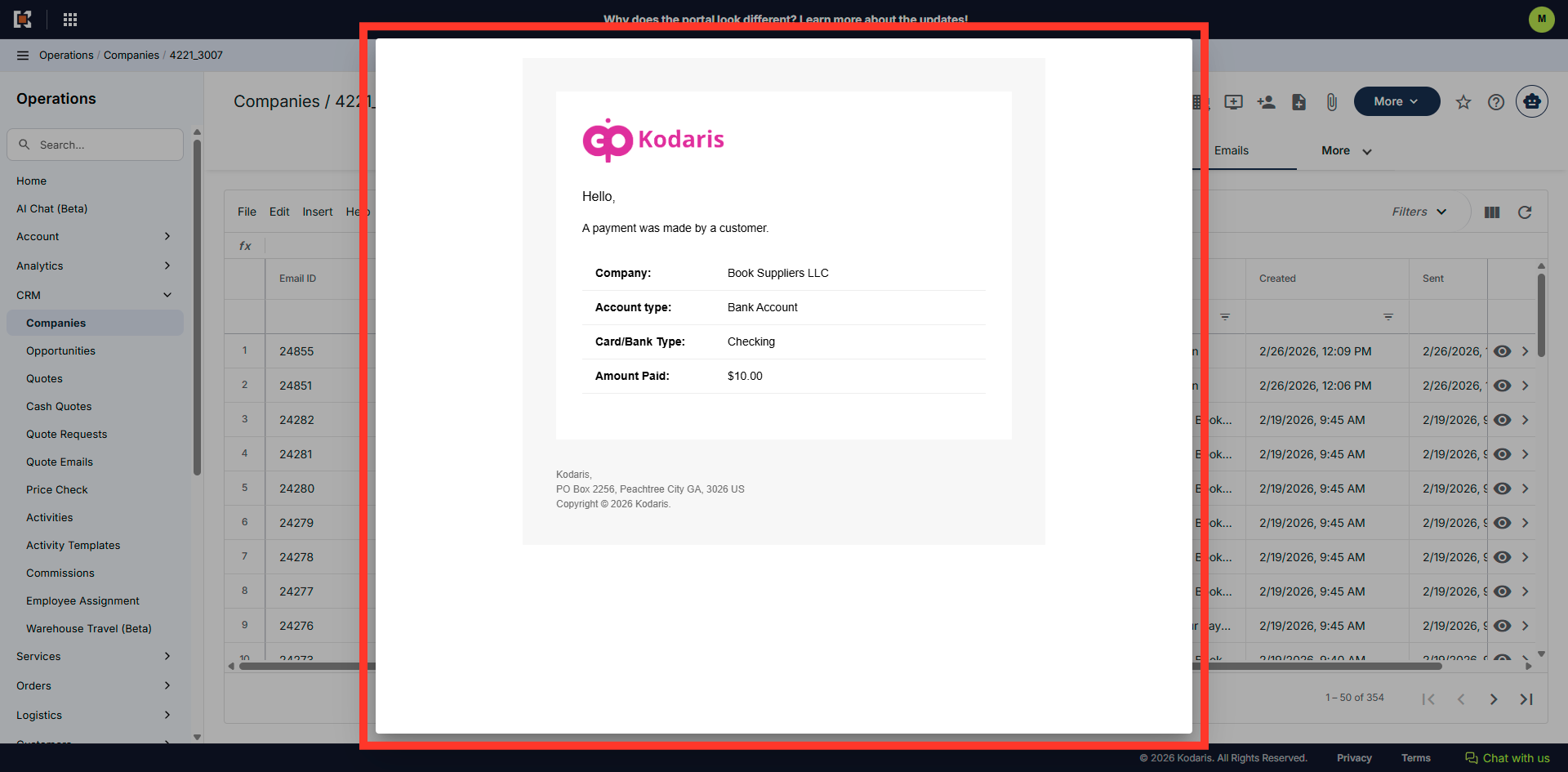
Previewed email
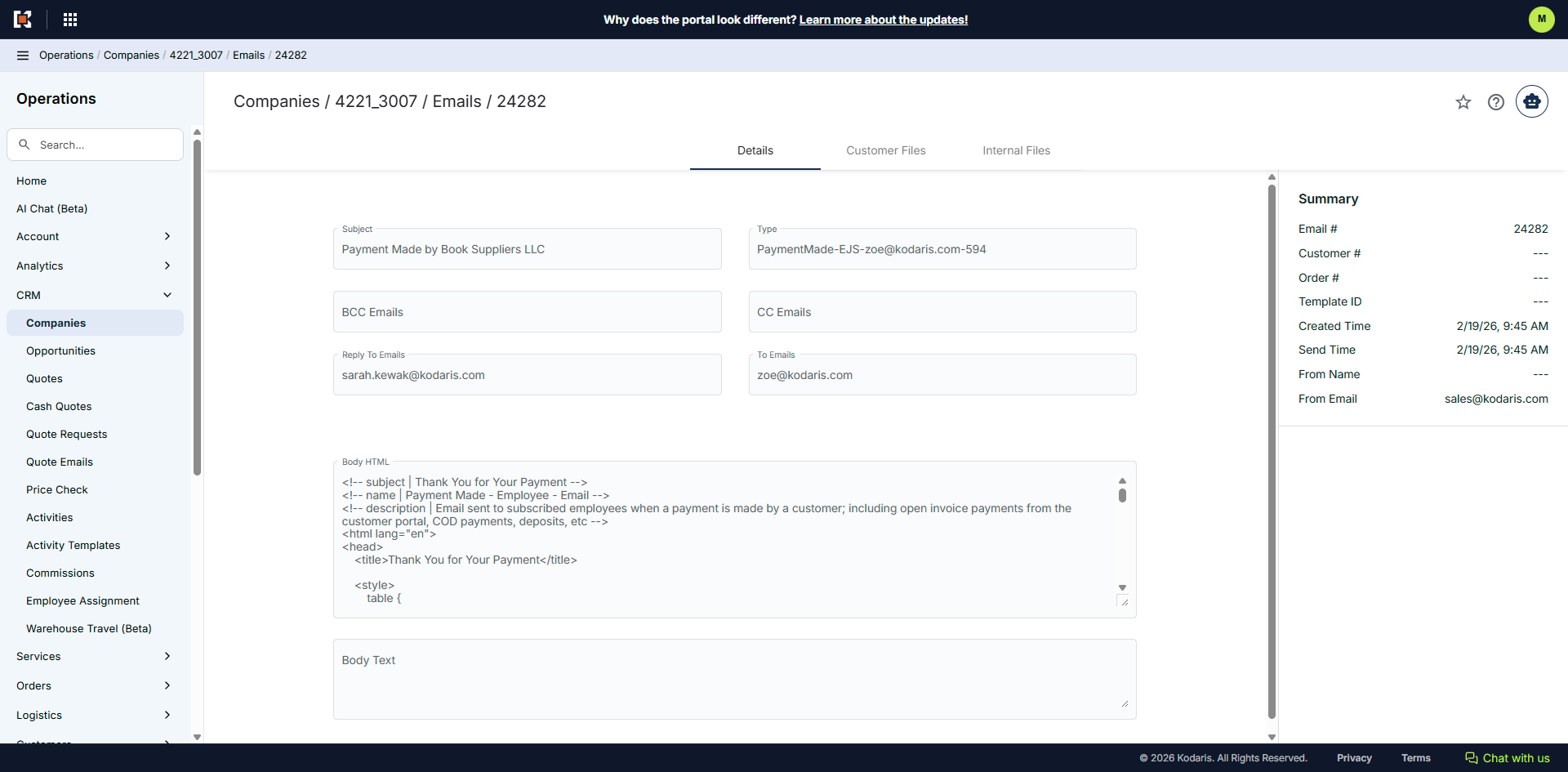
This is a preview of an email that was sent to a customer assigned to the company.
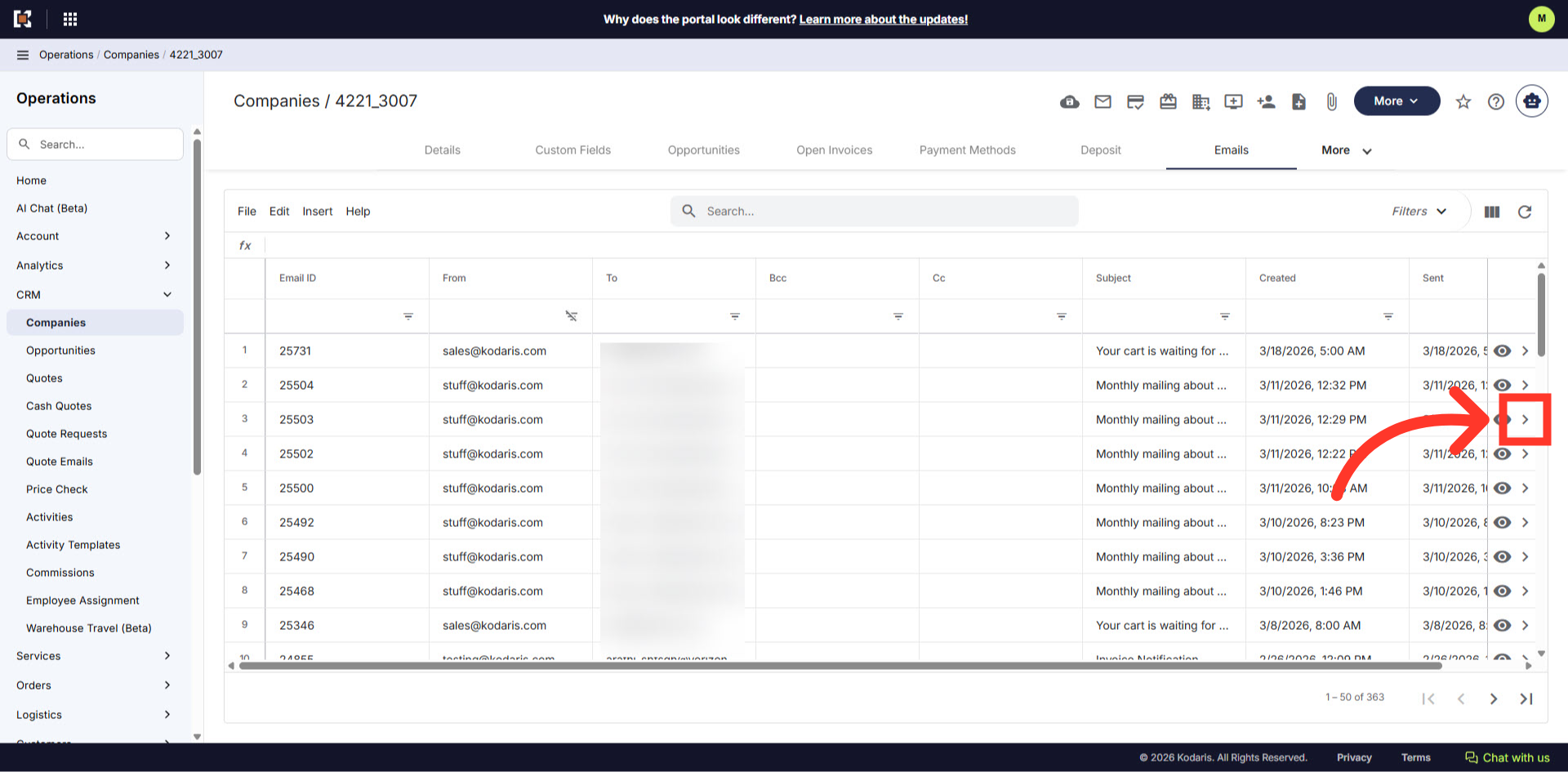
Go to the email details
Click on the more details icon to view additional details of an email.
Additional email details are shown
Additional details of the emails are shown here.