Operations CRM - Attach File to an Opportunity
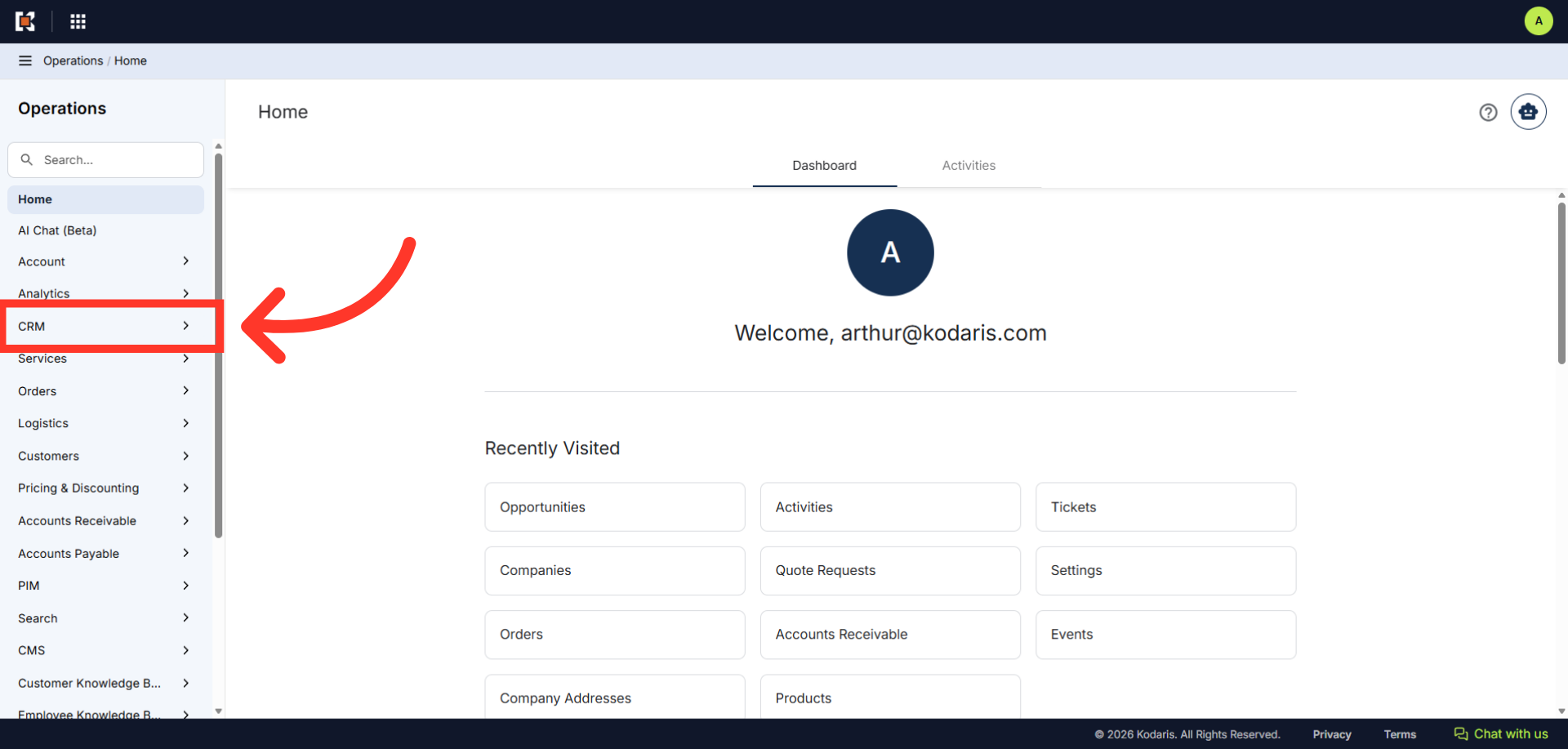
Navigate to "CRM"
In order to attach a file to an existing opportunity in the Operations Portal, navigate to the "CRM" section.
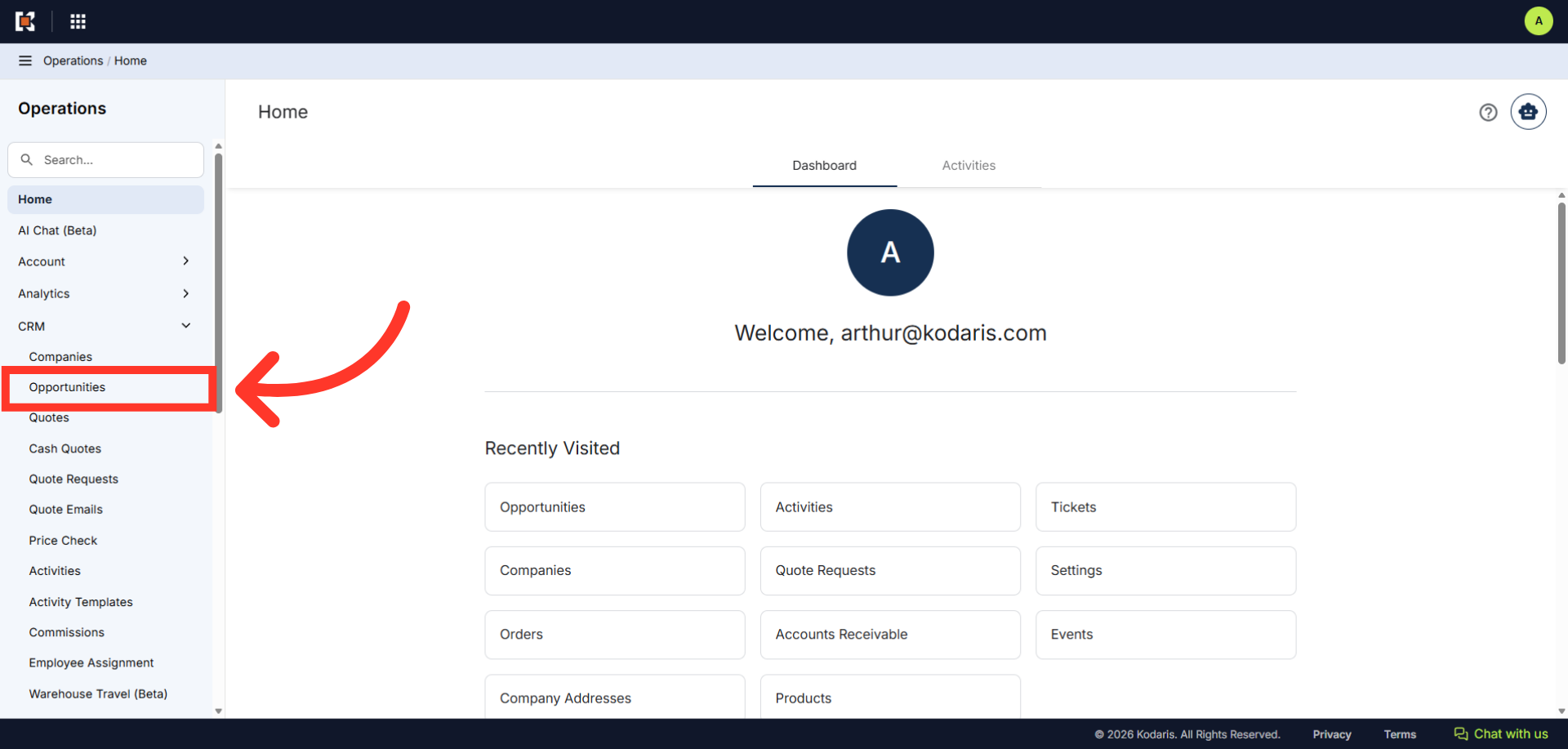
Click "Opportunities"
Then, click "Opportunities". In order to access and update "Opportunities" you will need to be set up either as an "administrator" or a "superuser", or have the roles of: "accountQuoting" and "dashboardSearch".
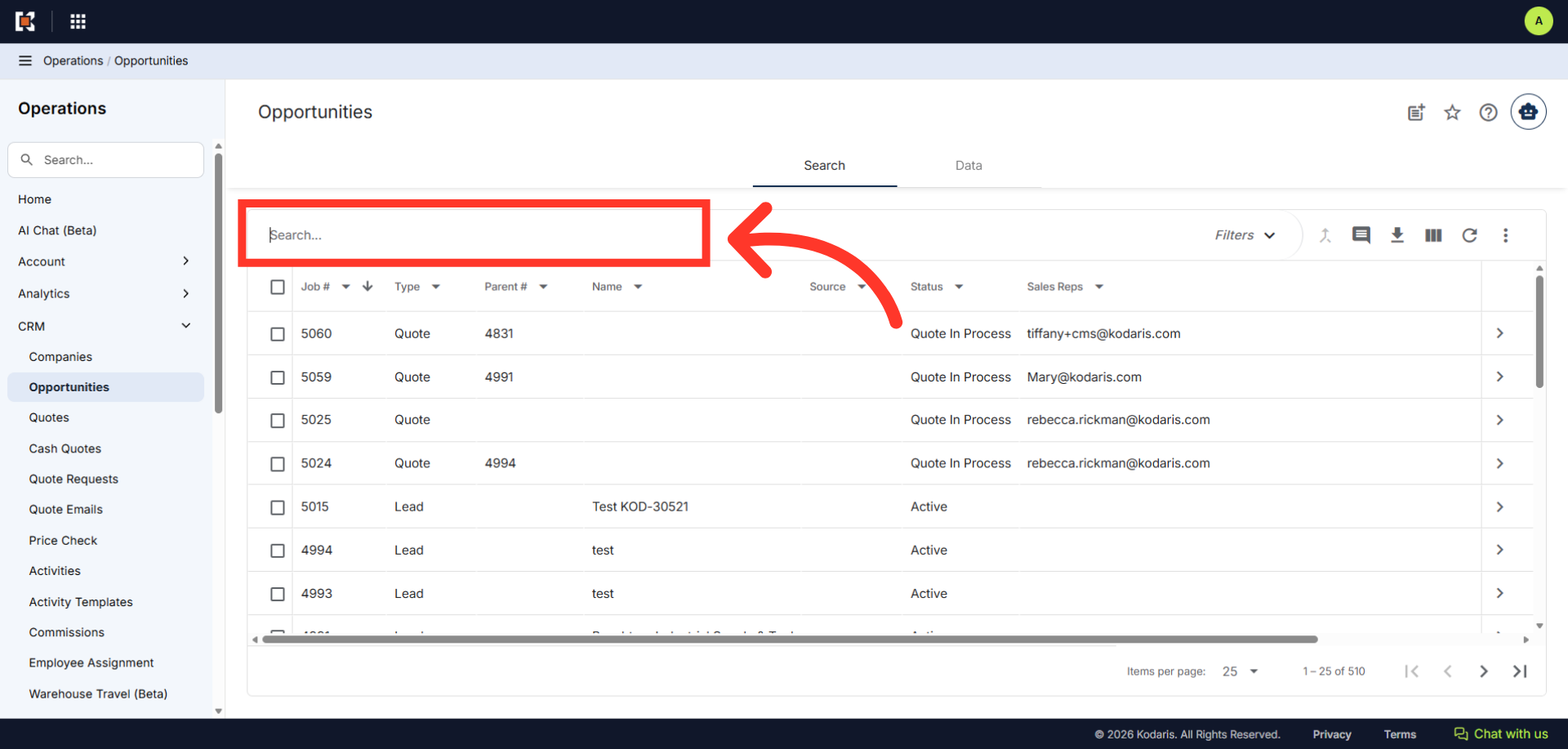
Search for the opportunity
On the "Opportunities" screen, search for an opportunity either by browsing the list or by entering a keyword in the "Search..." field. Results that match the keywords entered will appear as you type.
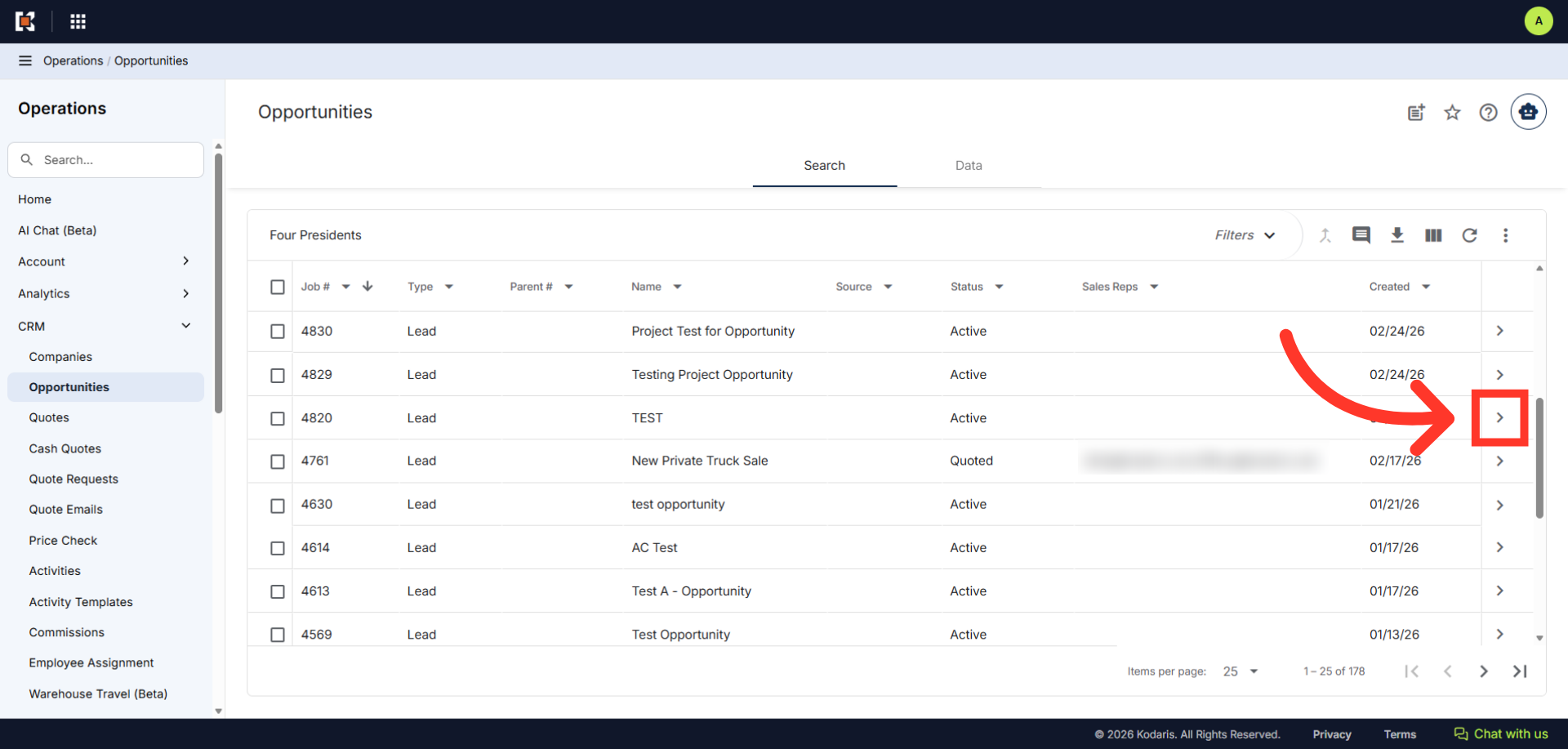
Click on the more details icon
Click on the more details icon to view its details.
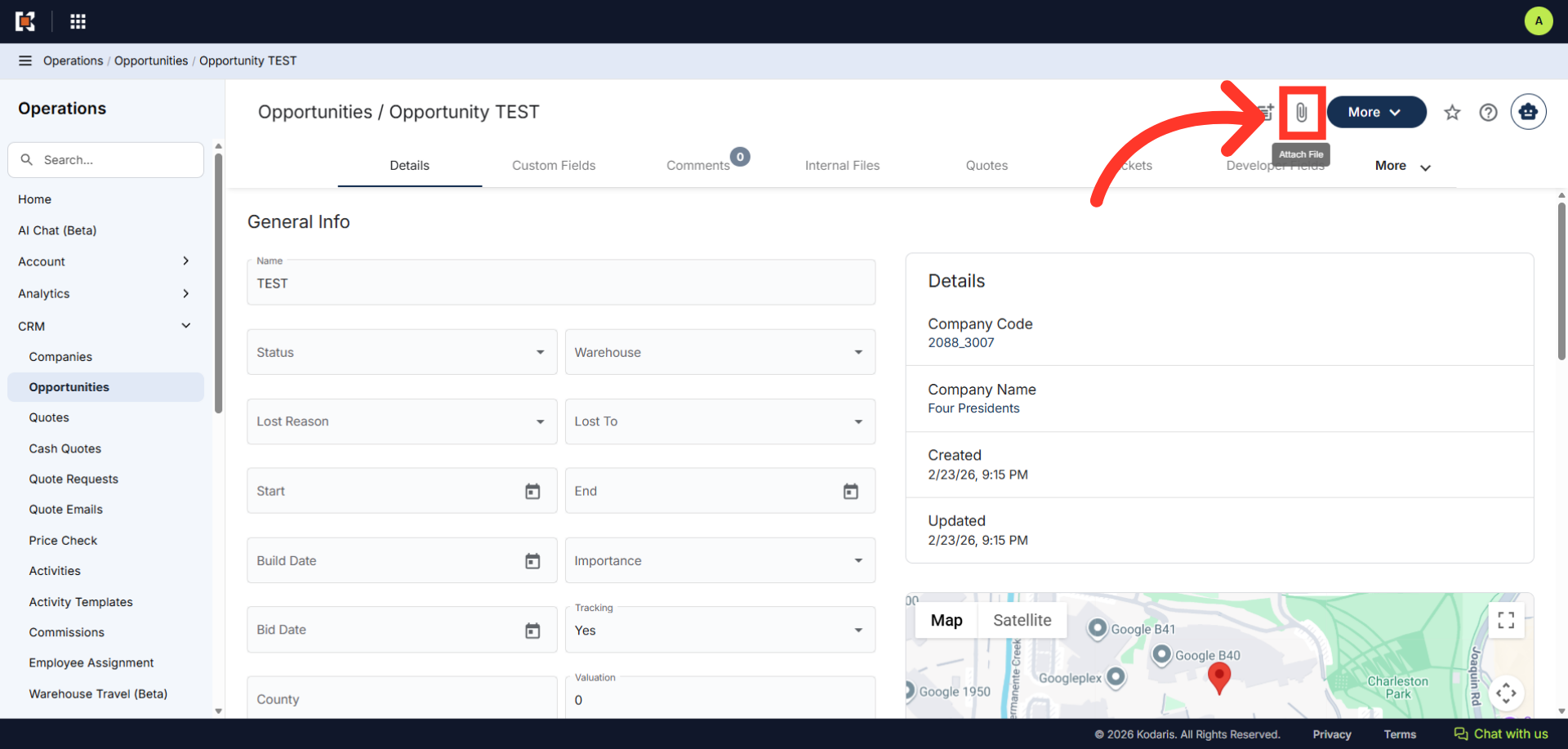
Click on the "Attach File" icon
Click on the "Attach File" icon. To attach a file, you will need these additional roles: "internalFileEdit" and "internalFileView".
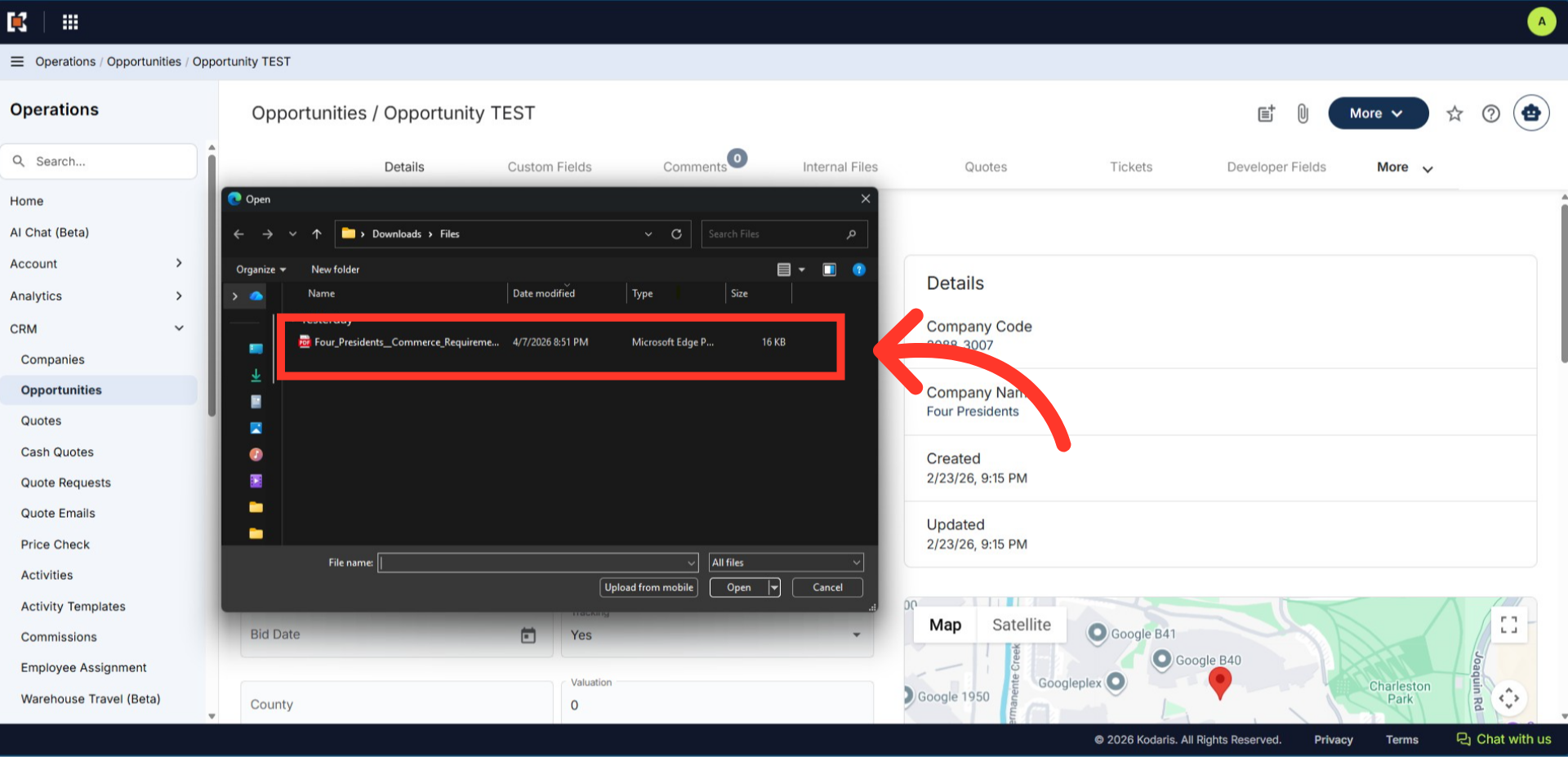
Select the file to be attached
Select the file to be attached.
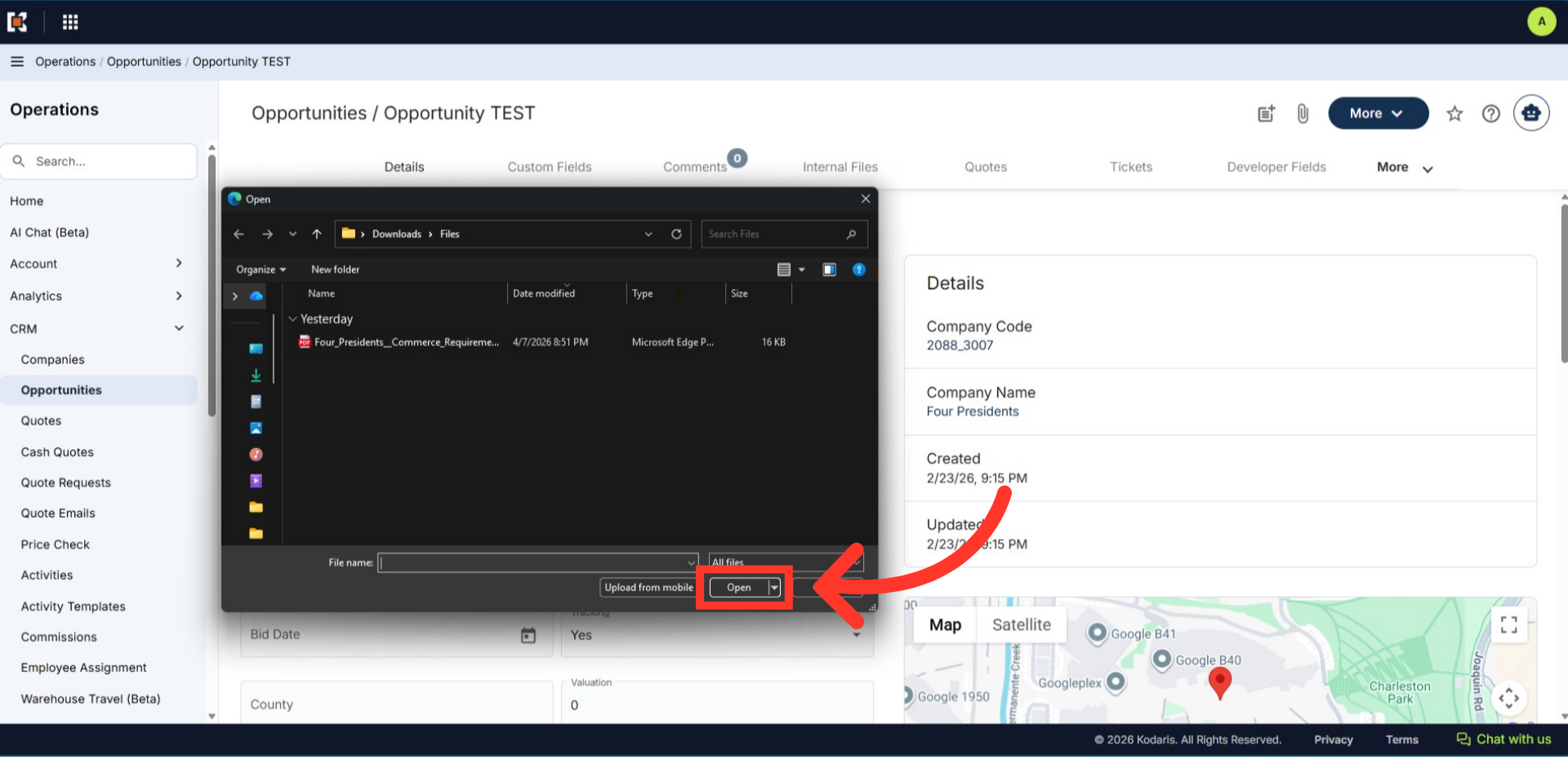
Click "Open"
Then, click "Open" to upload the file.
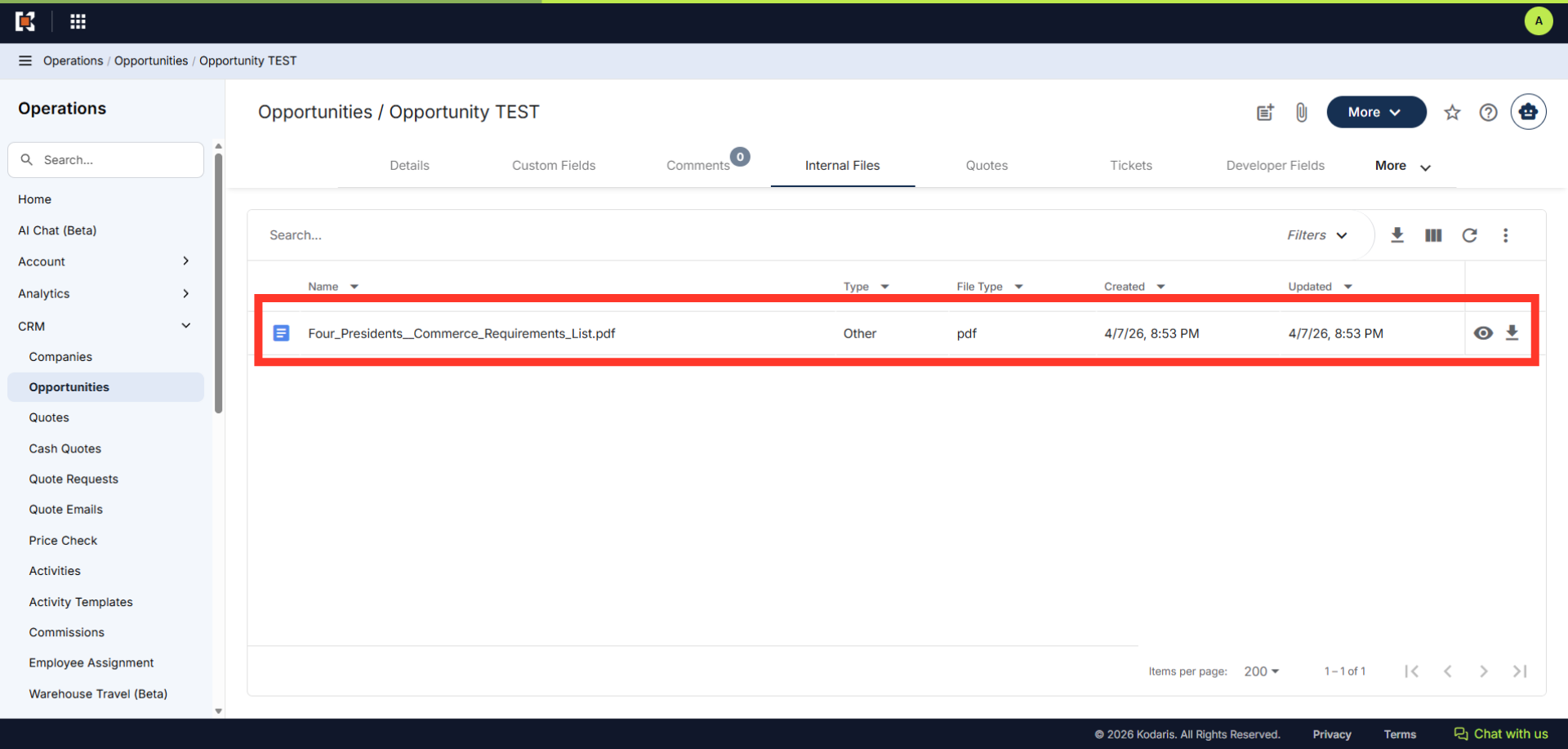
The file has been added to "Internal Files" tab
The file will be uploaded to the "Internal Files" tab. Any other attached files would also appear on this tab. Just as a reminder, internal files are only visible to users with access to internal files in the operations portal.
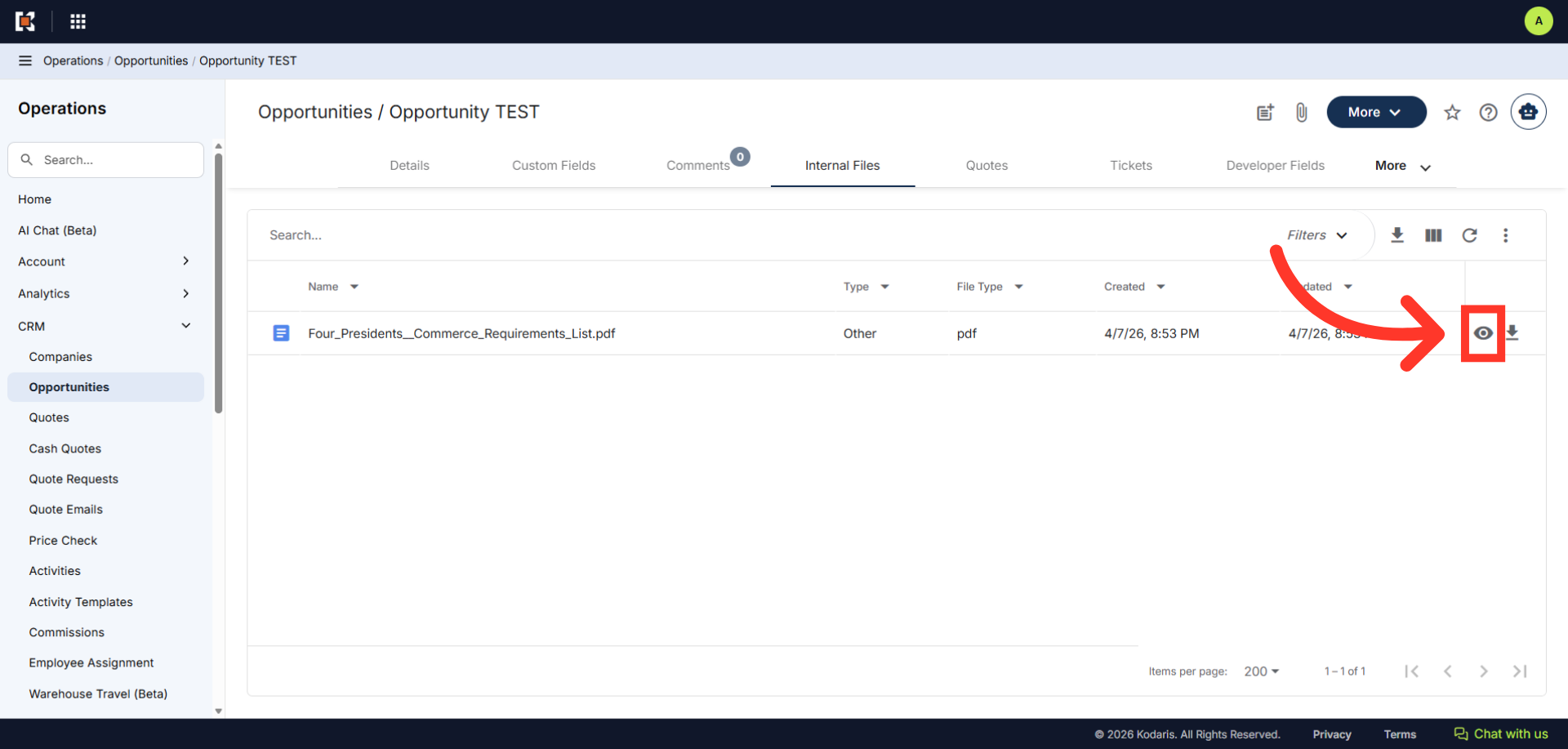
Click the "Preview" icon to preview the file
Click the "Preview" icon to view the uploaded file.
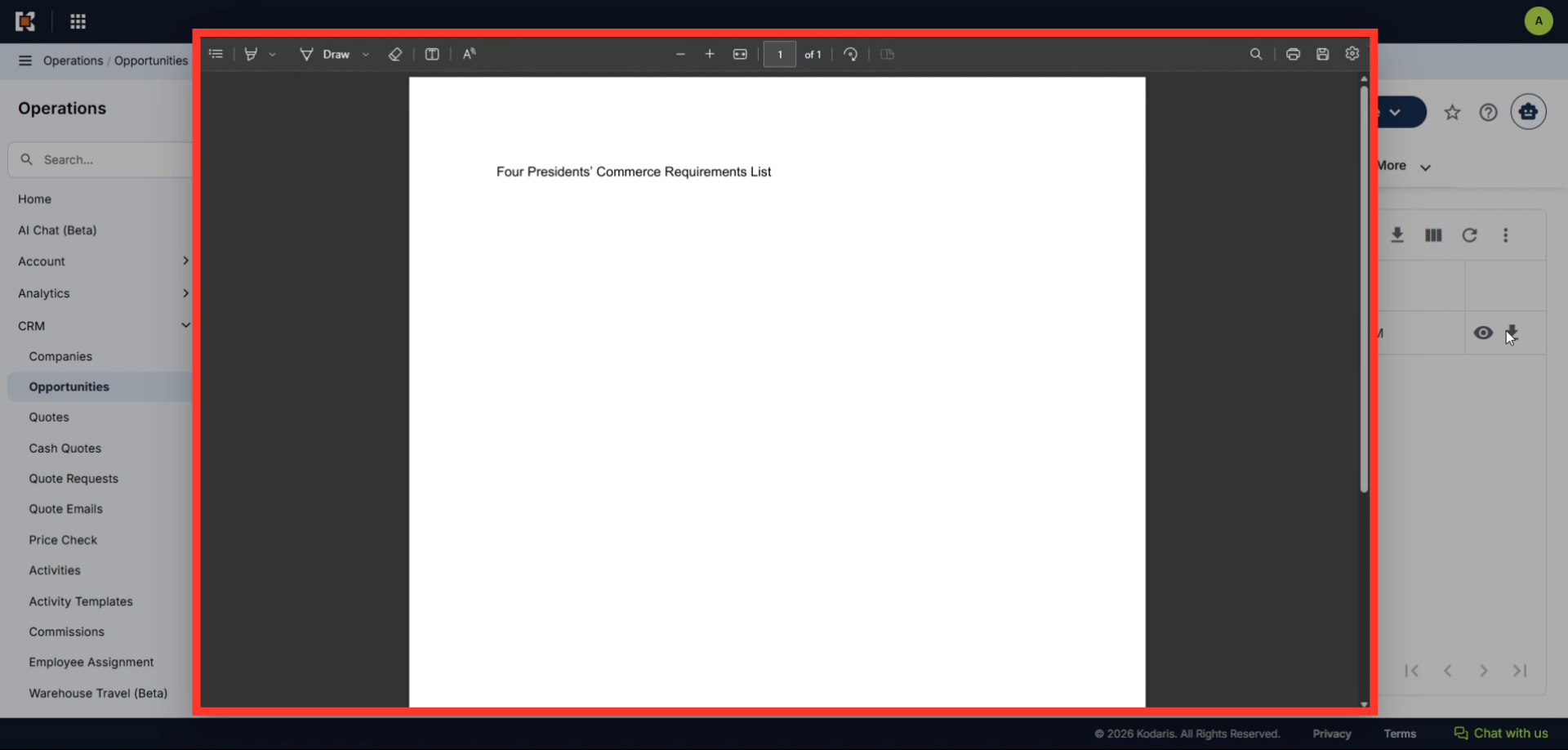
Attached File Preview
The preview of the attached file would appear on the screen.
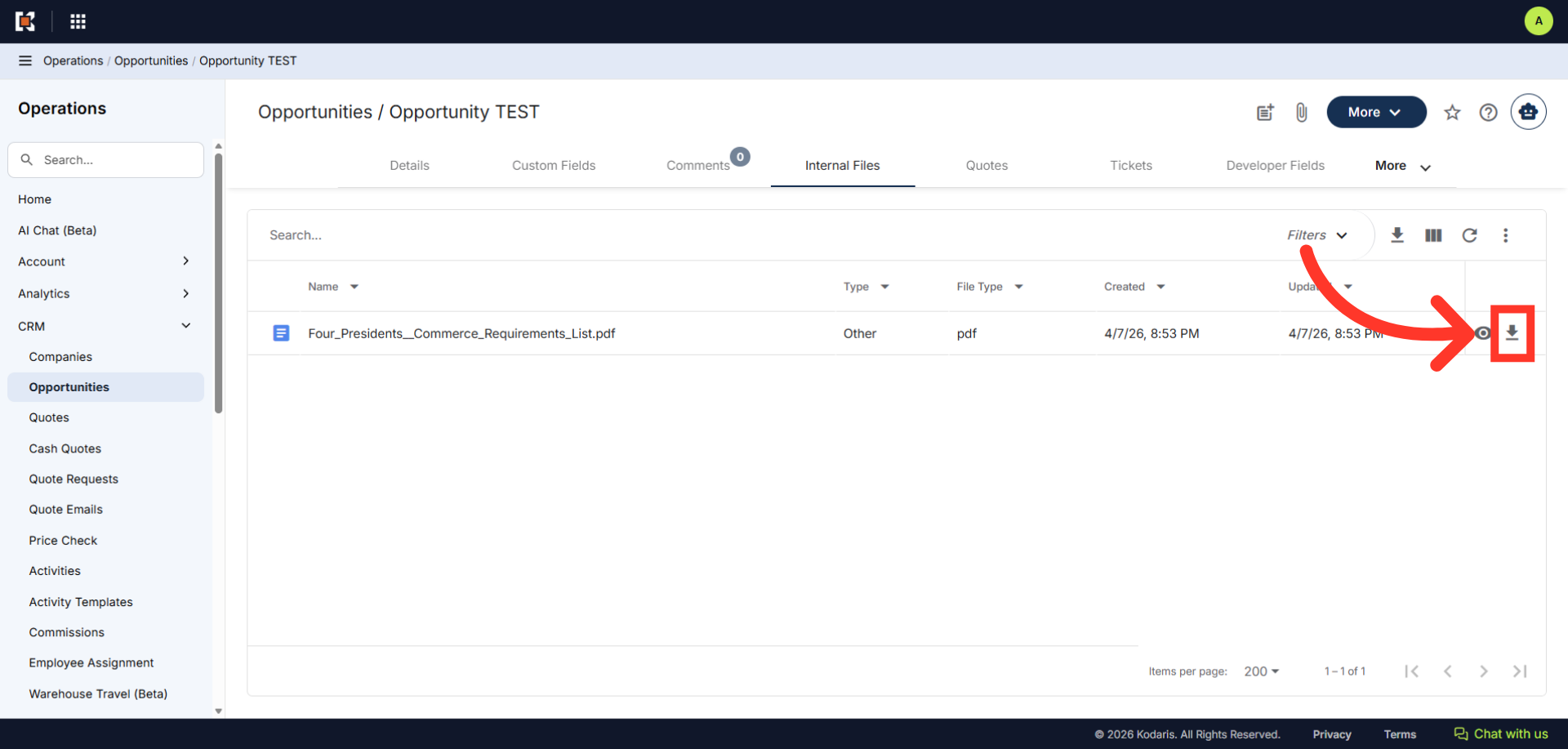
Click the "Download" icon to download the file
If you wish to download an attached file, click the "Download" icon and the file will be downloaded to your computer