Operations Settings - Include ERP Number in a Confirmation Email
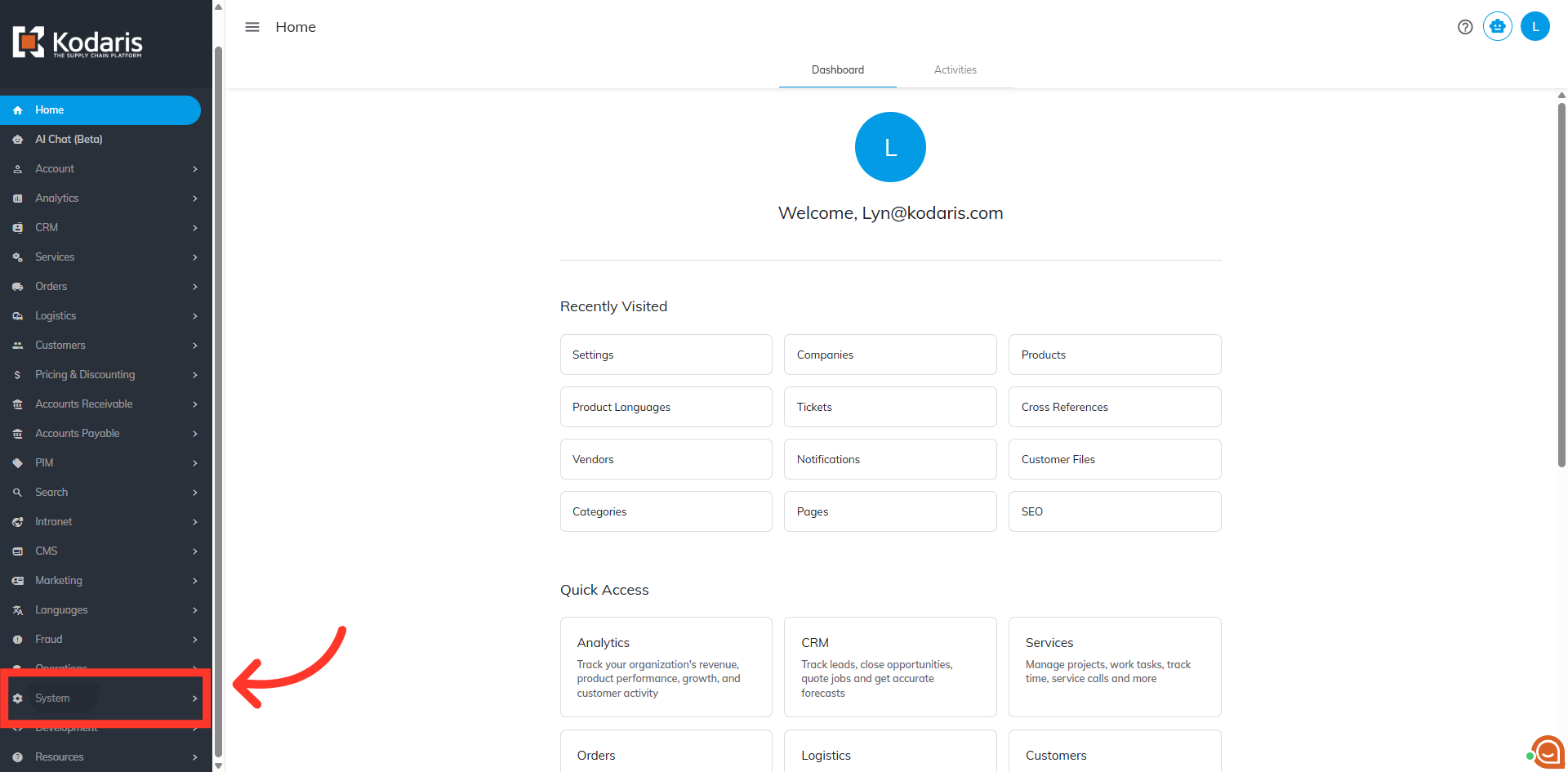
Navigate to "System"
A delayed customer email confirmation can be configured so that your ERP order number can be included in the email in place of the web order number. To configure, navigate to "System" section in the operations portal.
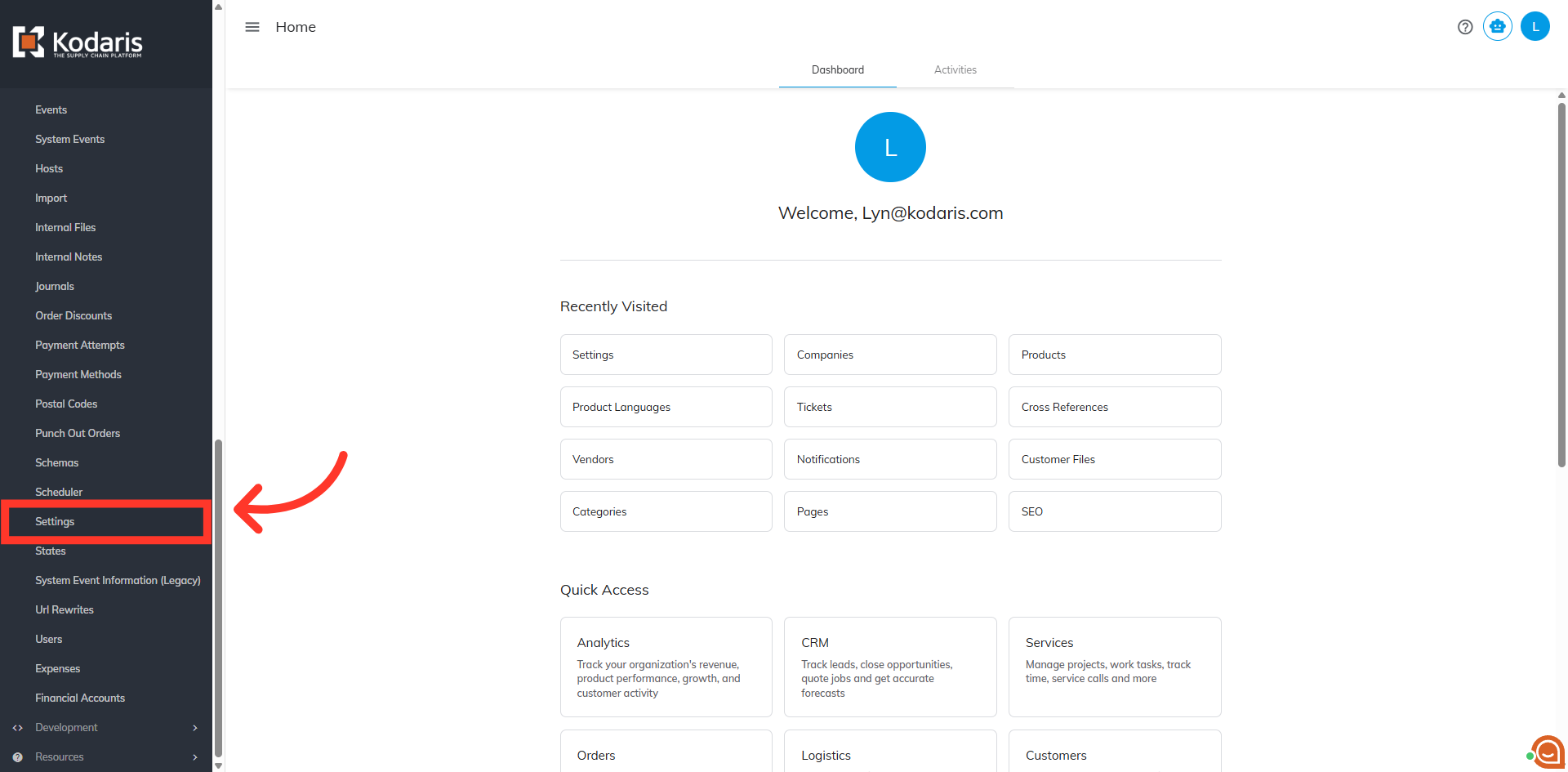
Click "Settings"
Click "Settings". In order to access and edit settings, you will need to be set up either as an “administrator” or a "superuser", or have the following roles: "settingEdit" and "settingView".
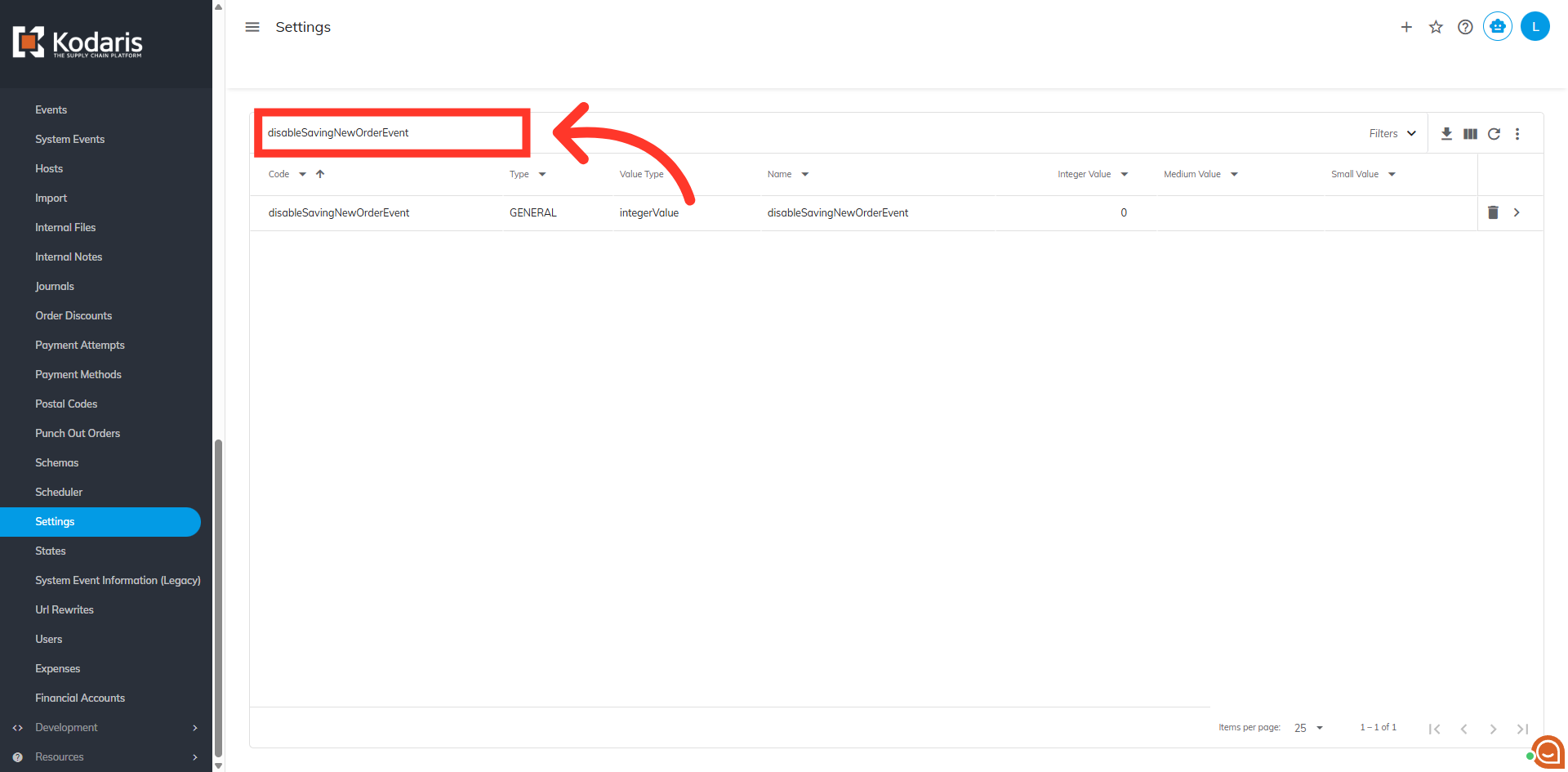
Search for "disableSavingNewOrderEvent"
There are two settings that you need to configure to include ERP # in the confirmation email. First, search for "disableSavingNewOrderEvent" setting.
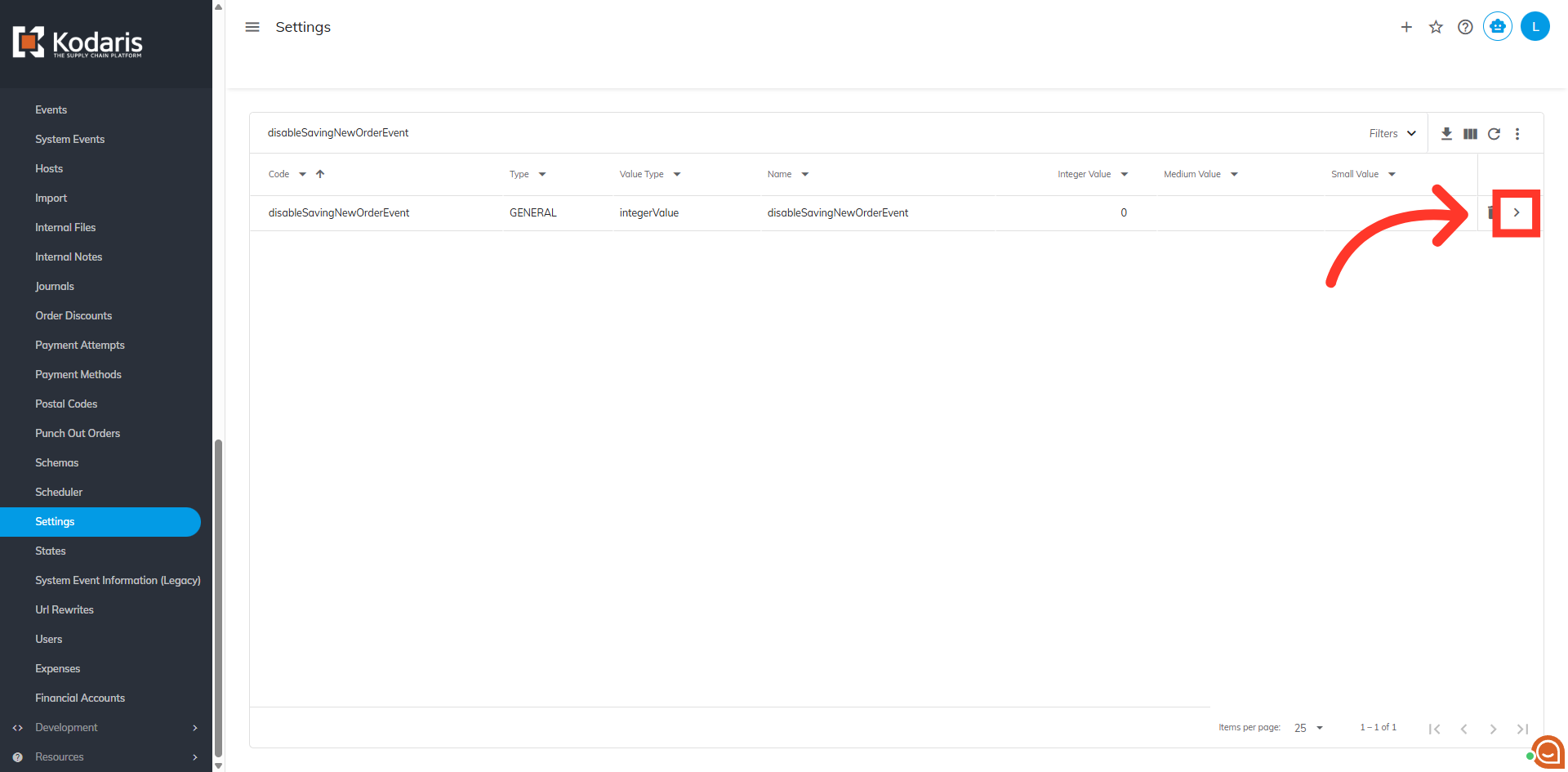
Click on the more details icon
Click on the more details icon.
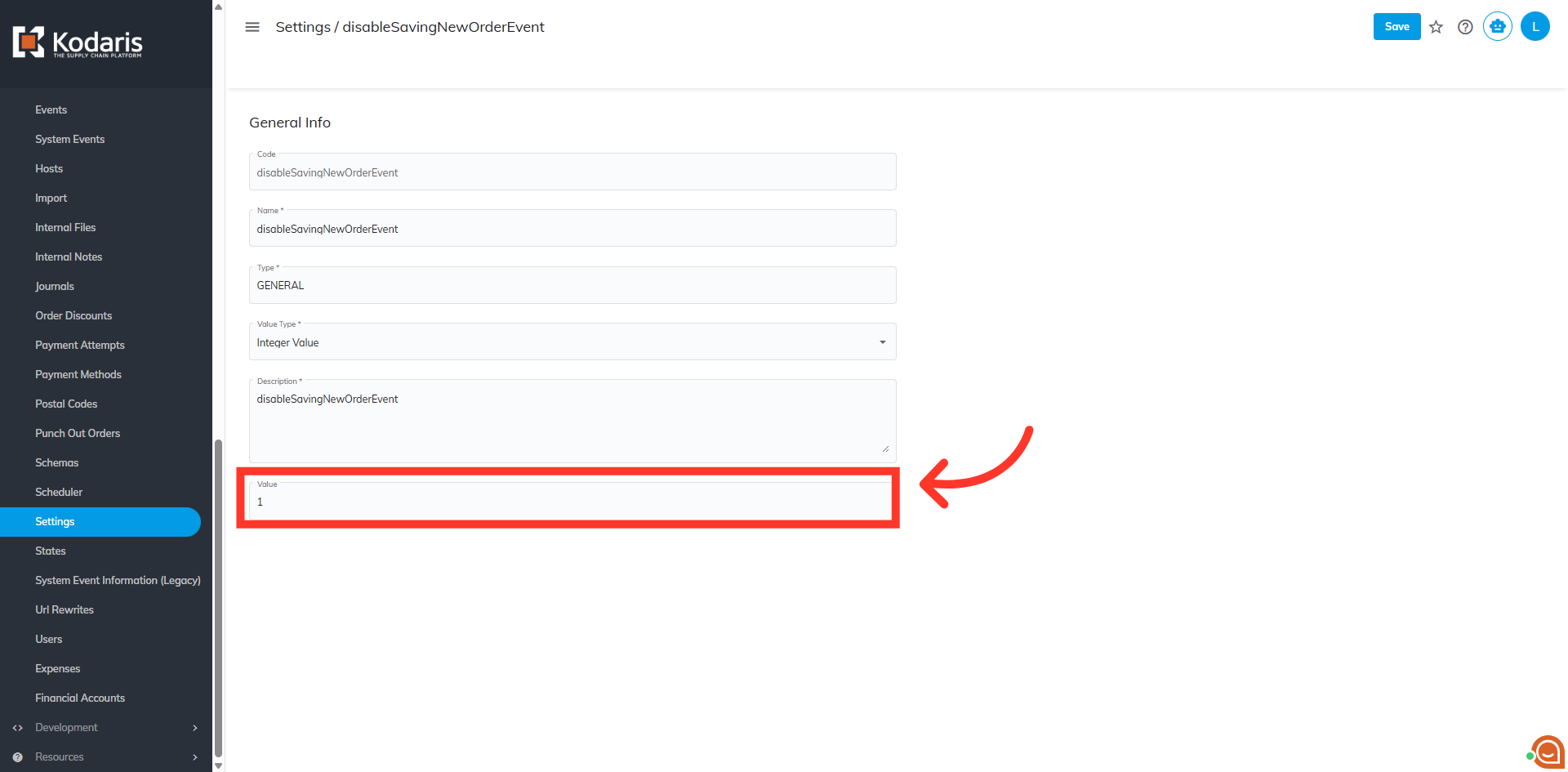
Set the "Value" to "1"
To enable the setting, set the "Value" to "1".
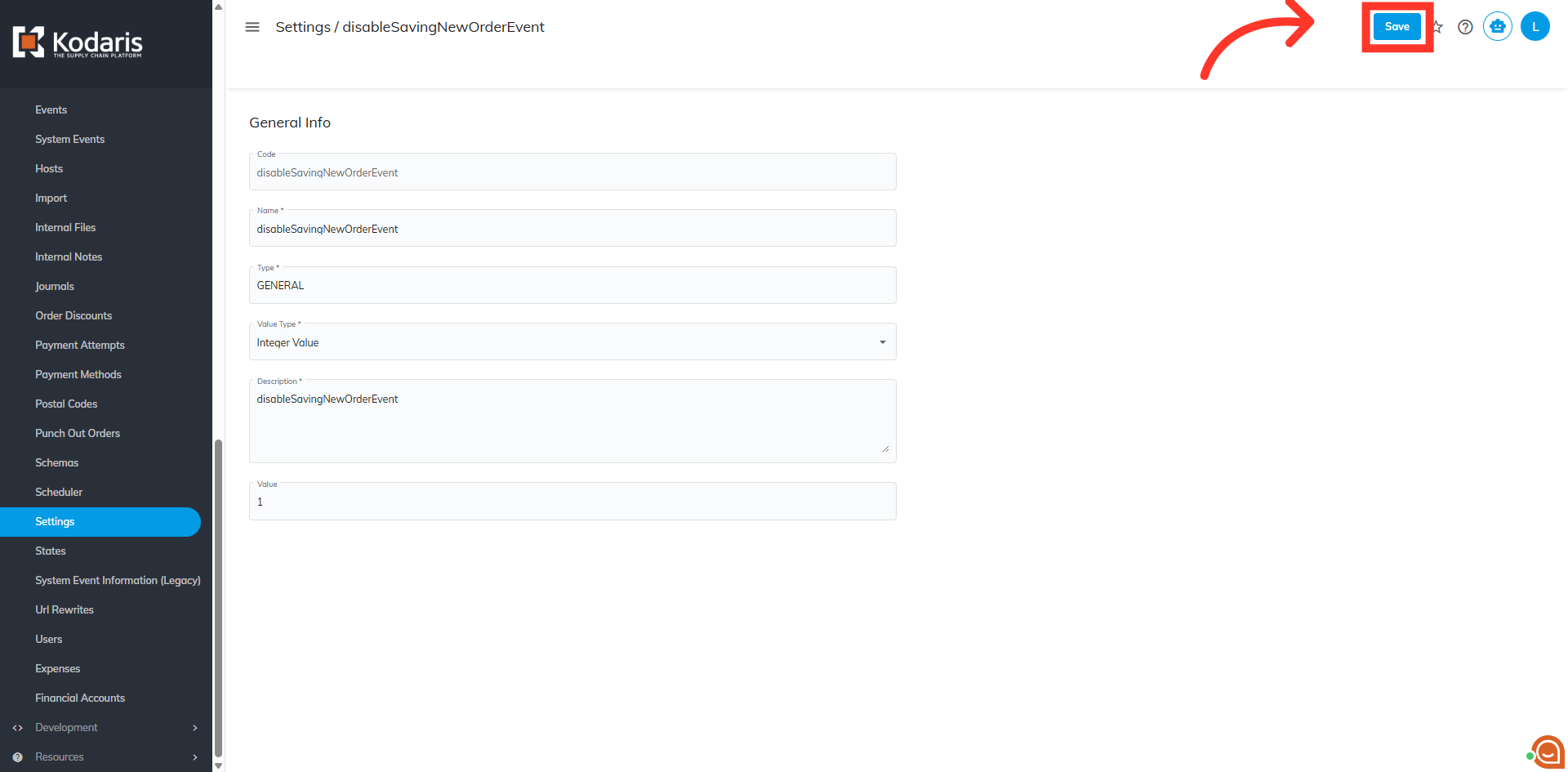
Click "Save"
Then, click "Save".
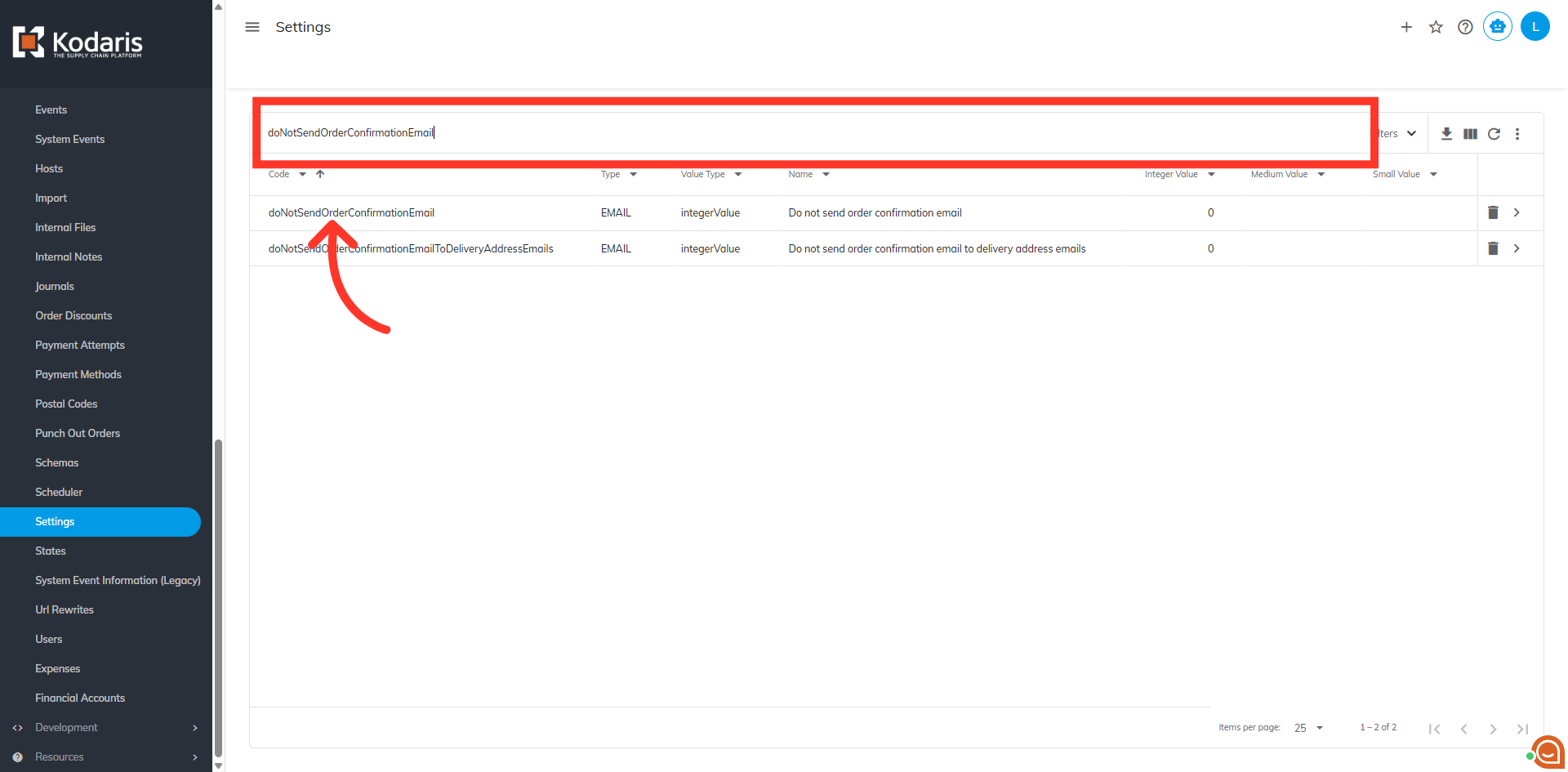
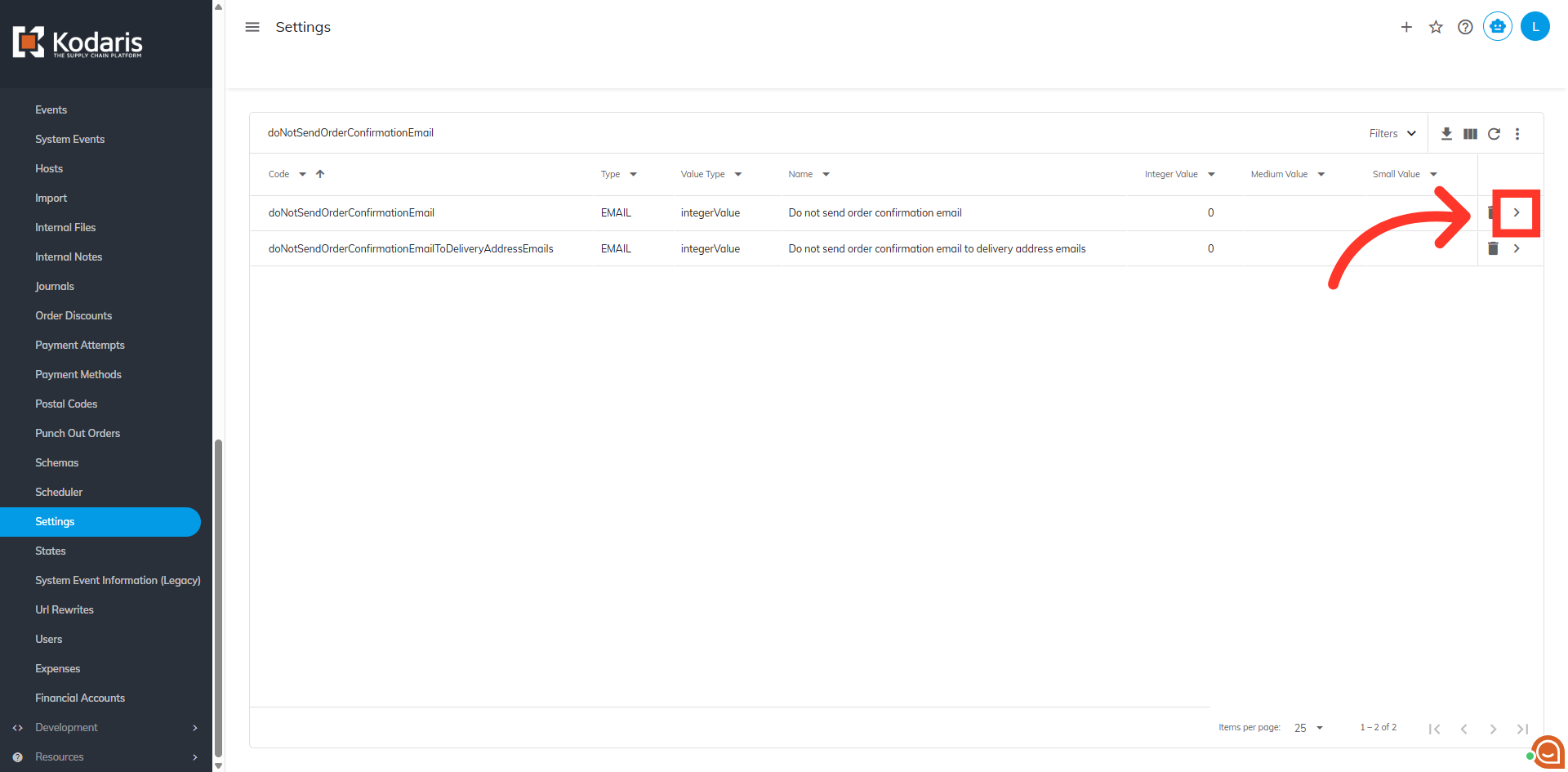
Search for "doNotSendOrderConfirmationEmail"
Second, search for the "Do Not Send Email" setting code. Type in "doNotSendOrderConfirmationEmail".
Click on the more details icon
Then, click on the more details icon.
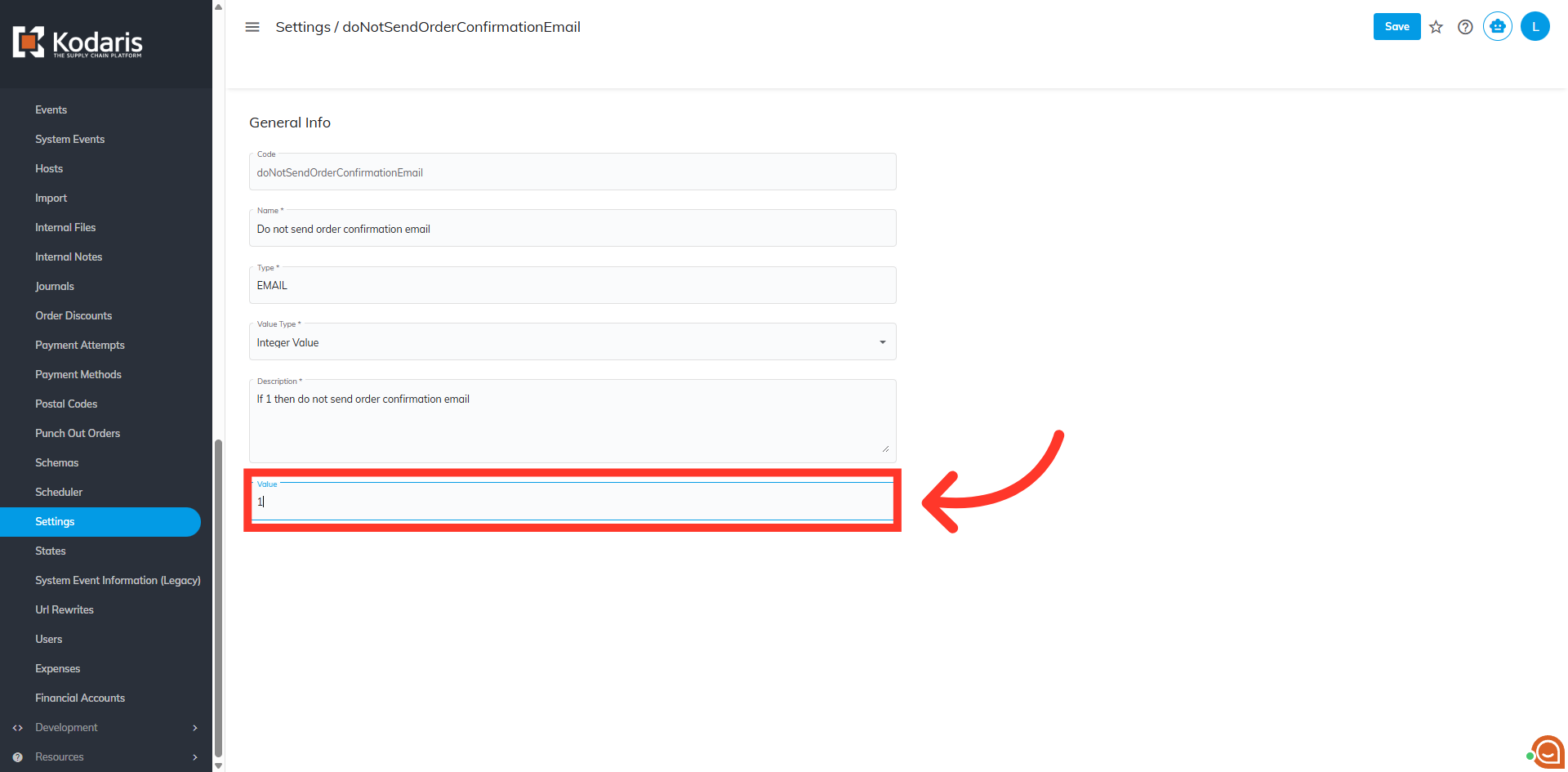
Set the "Value" to "1"
To enable the setting, set the "Value" to "1".
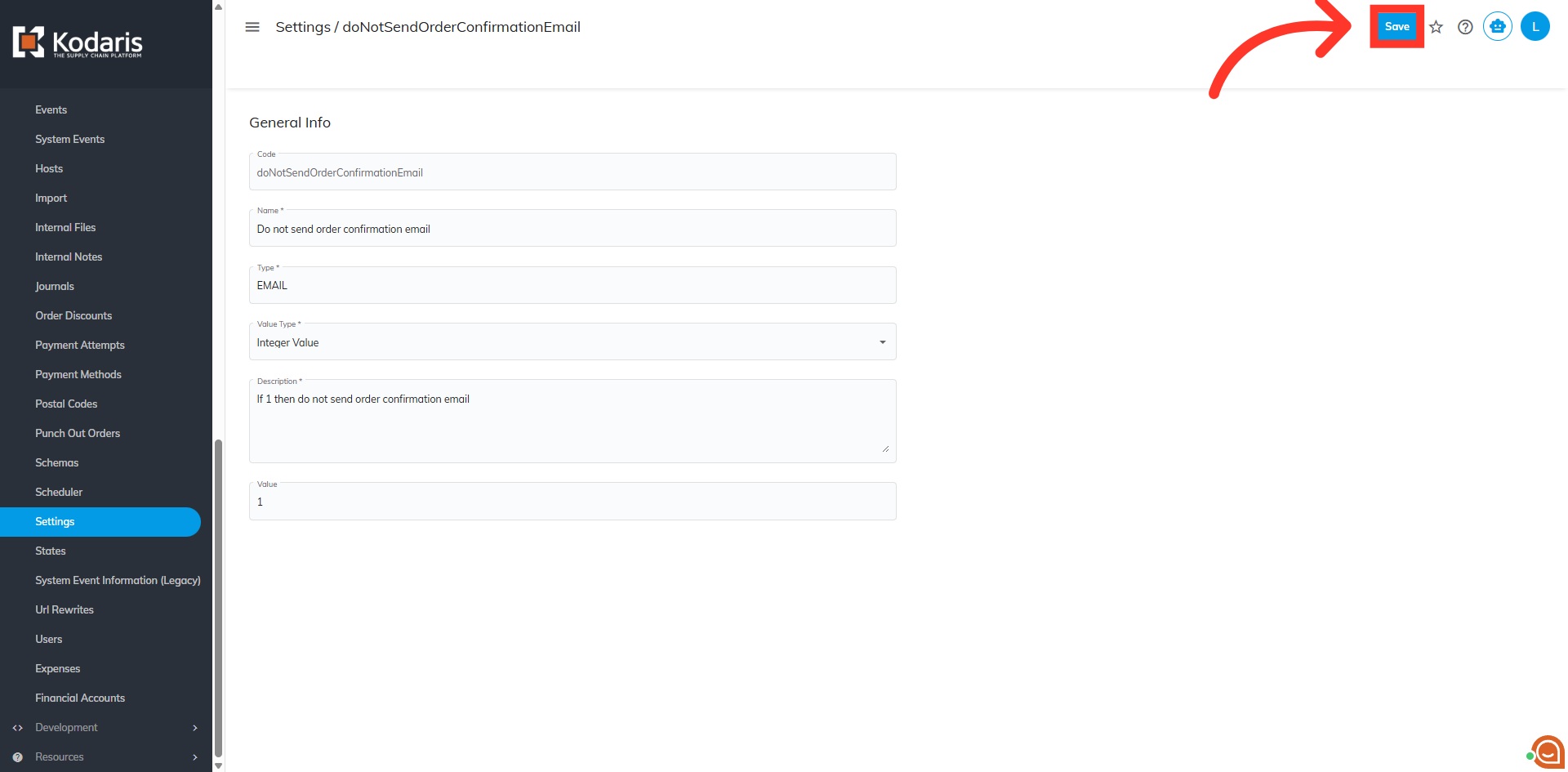
Click "Save"
Lastly, click "Save".
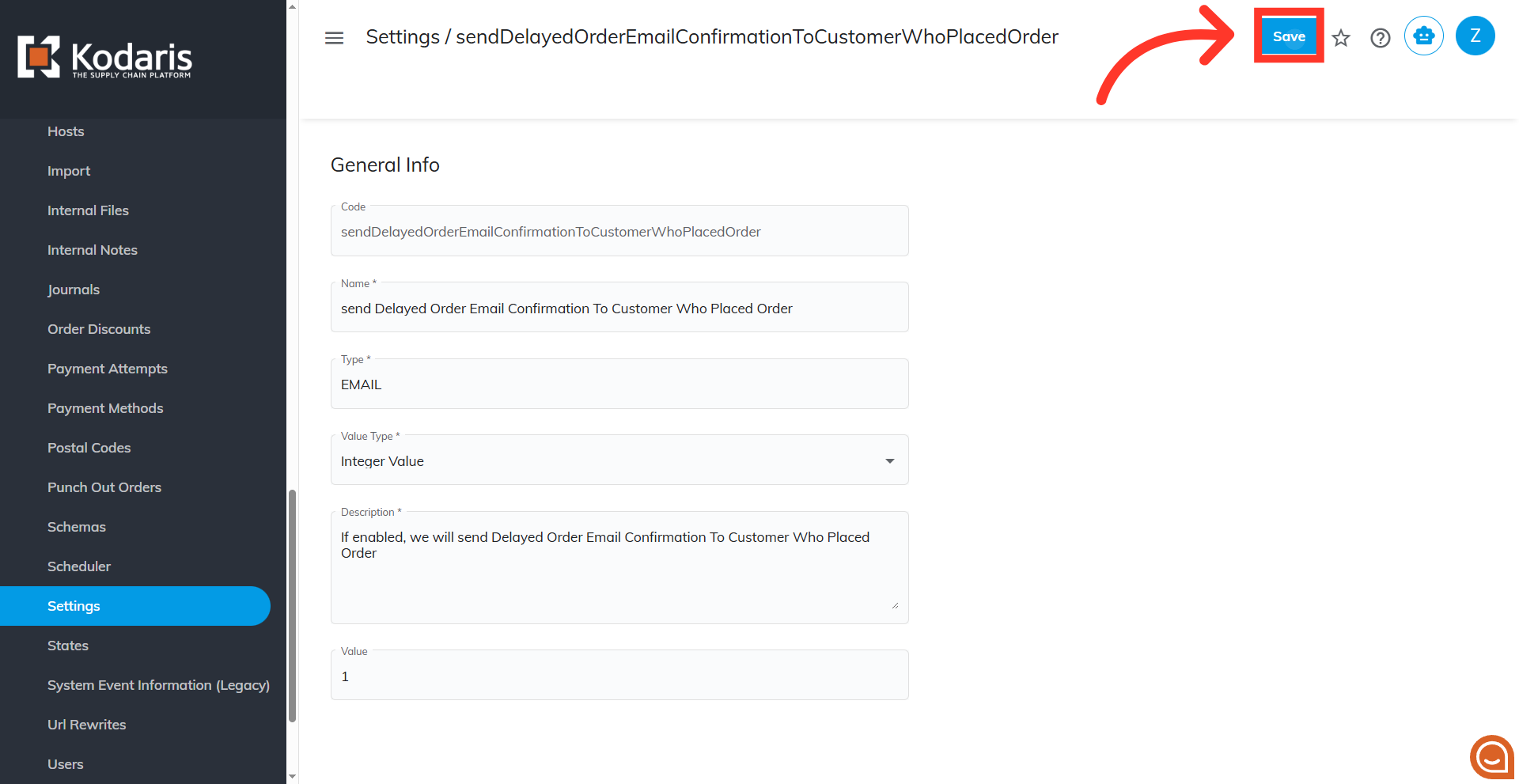
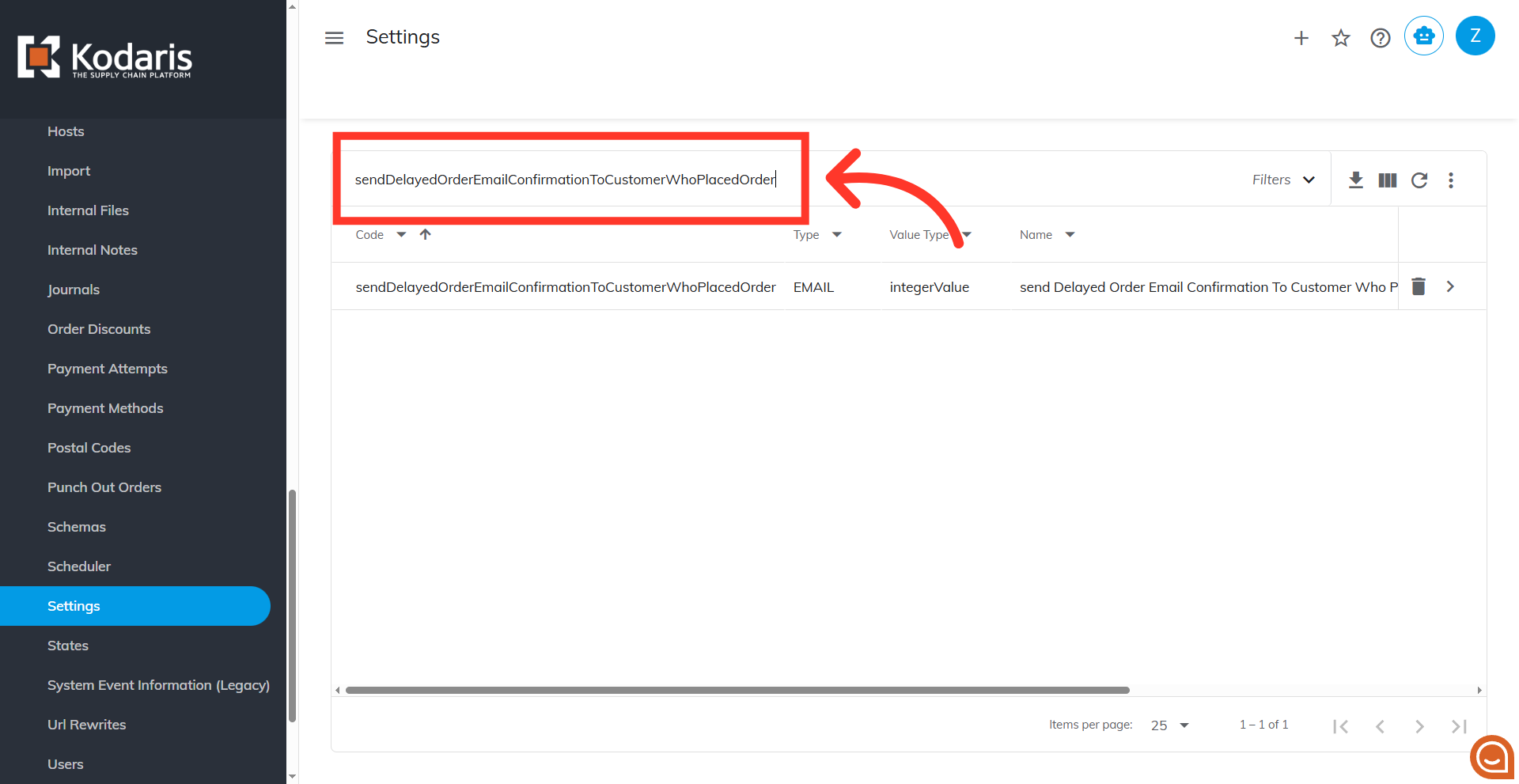
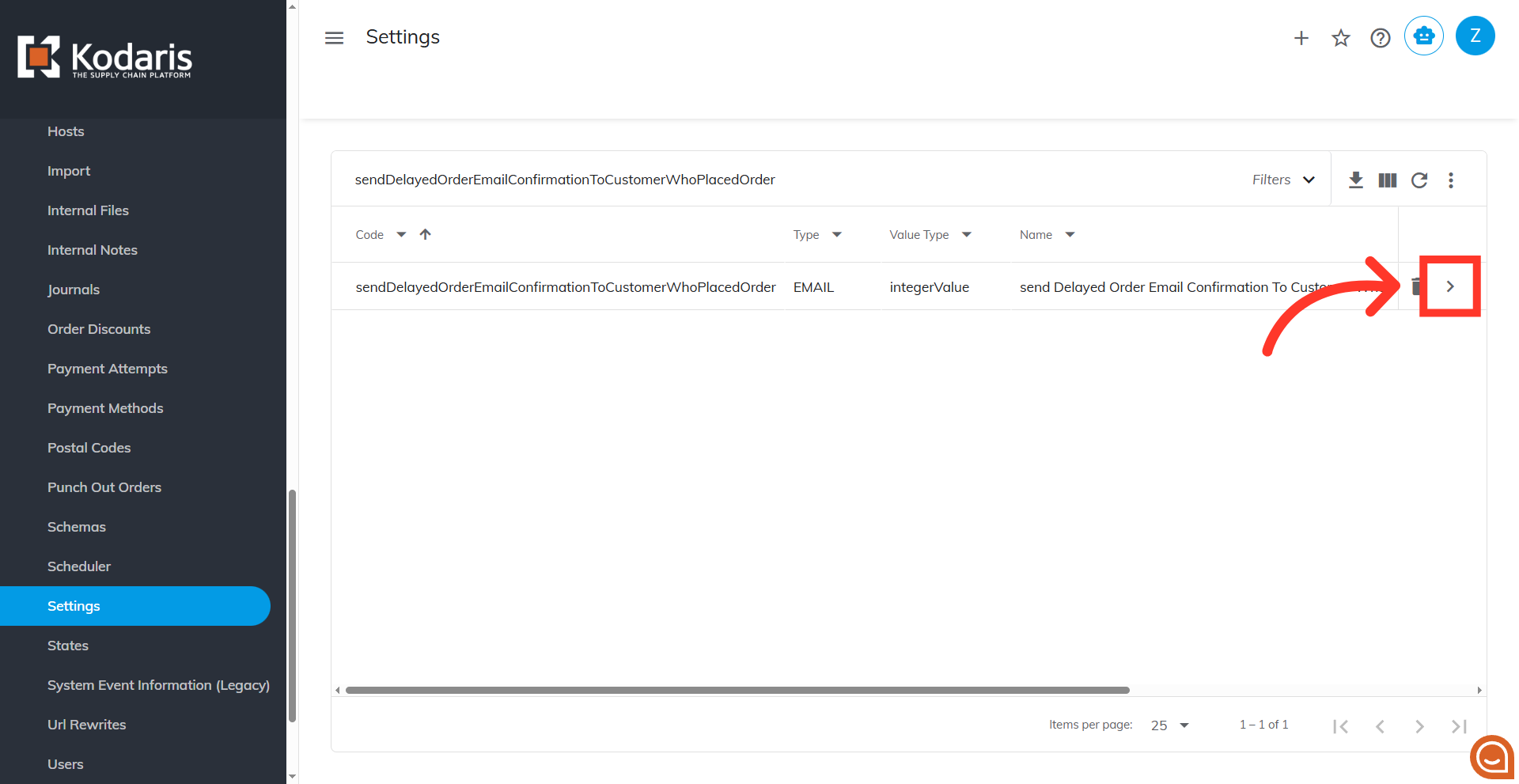
Search for "sendDelayedOrderEmailConfirmationToCustomerWhoPlacedOrder"
If you would also like the confirmation email to go to the person who placed the order, rather than the billing & delivery email addresses on file, you’ll configure this setting. Search "sendDelayedOrderEmailConfirmationToCustomerWhoPlacedOrder".
Click on the more details icon
Click on the more details icon.
Set the "Value" to "1"
To enable the setting, set the "Value" to "1".
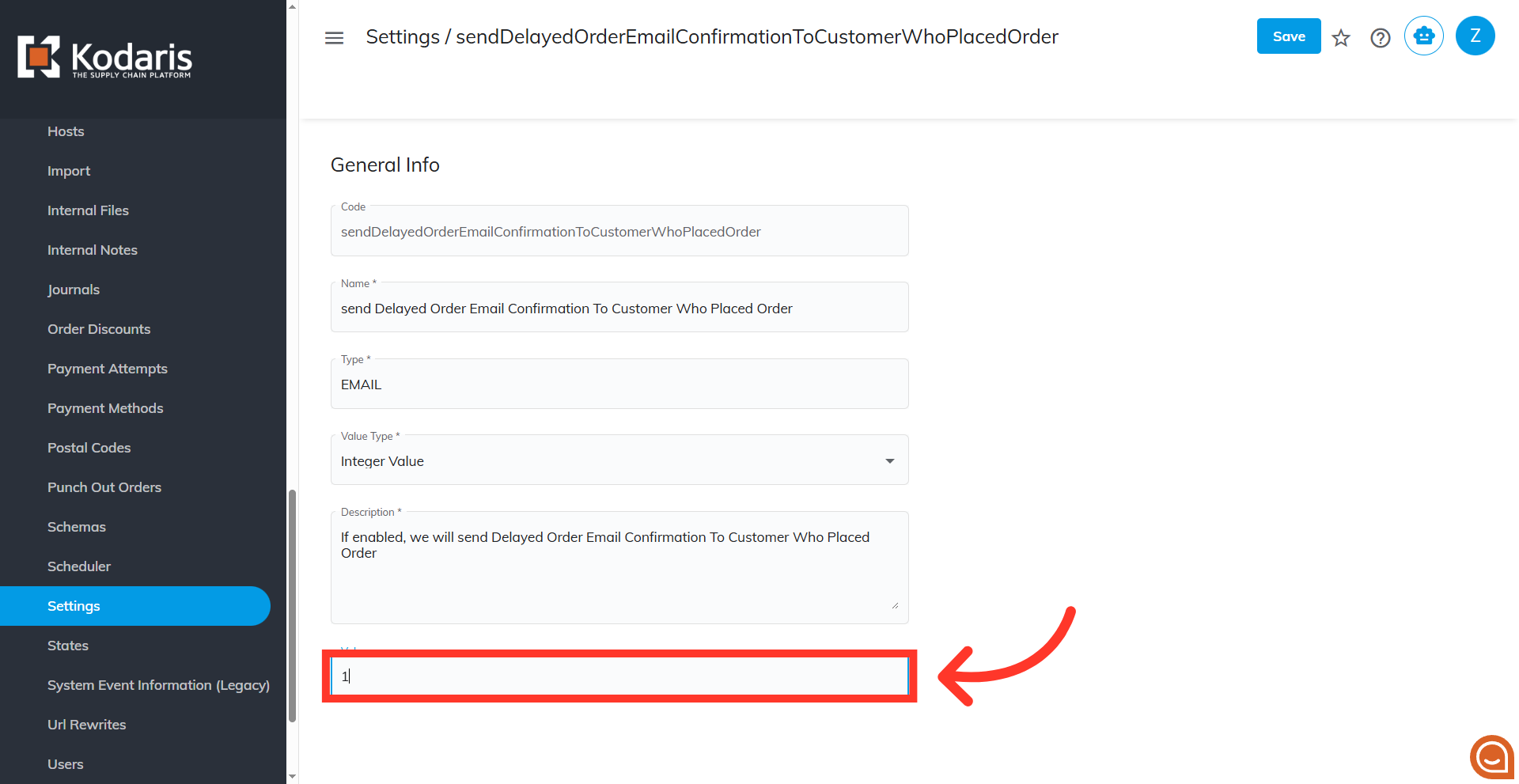
Click "Save"
Click "Save".