Operations PIM - Configure Parent Product Setup & Adding Product Variants
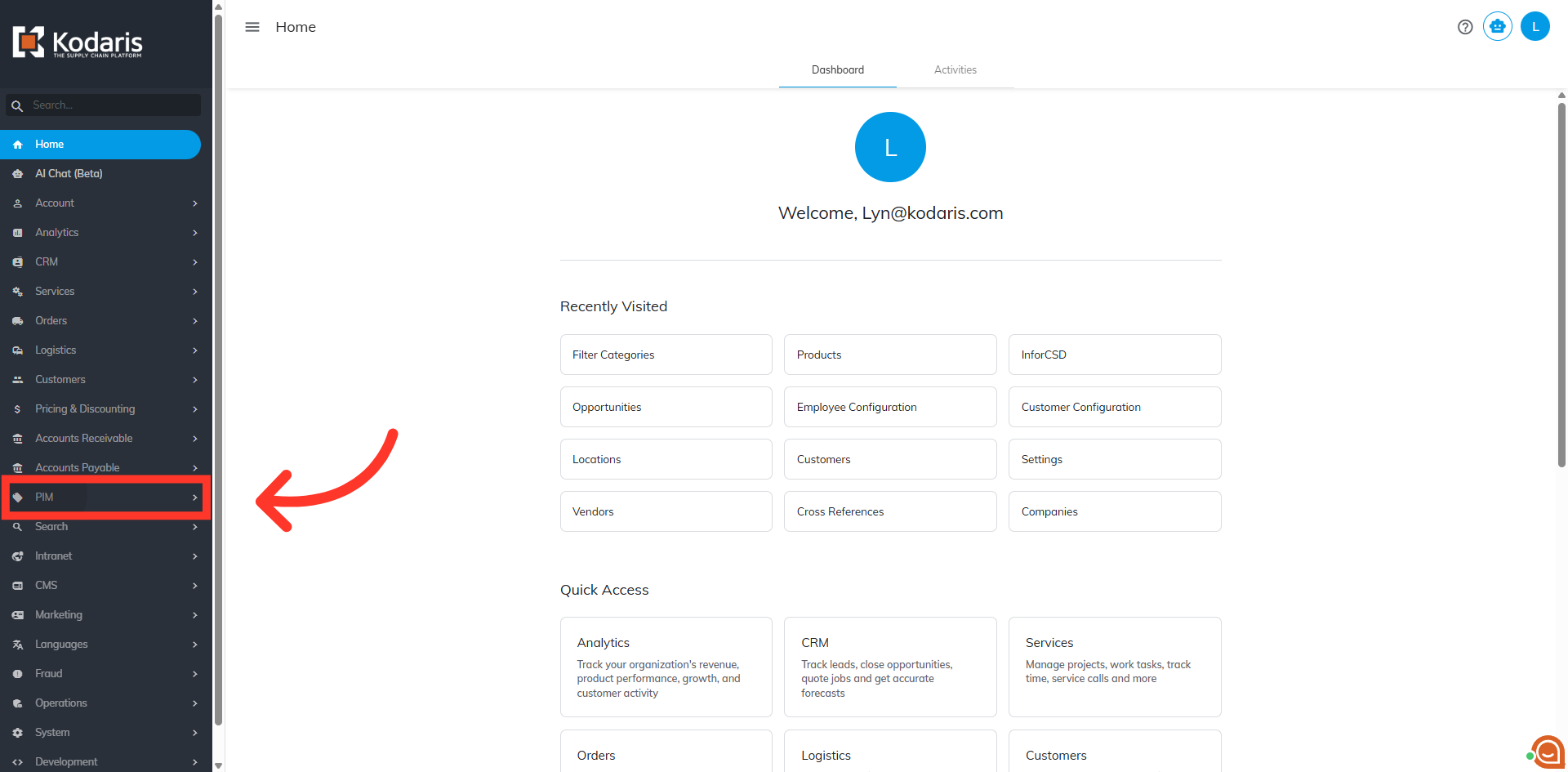
Navigate to "PIM"
In order to create configurator parent products and then link product variants, navigate to "PIM" section in the Operations Portal.
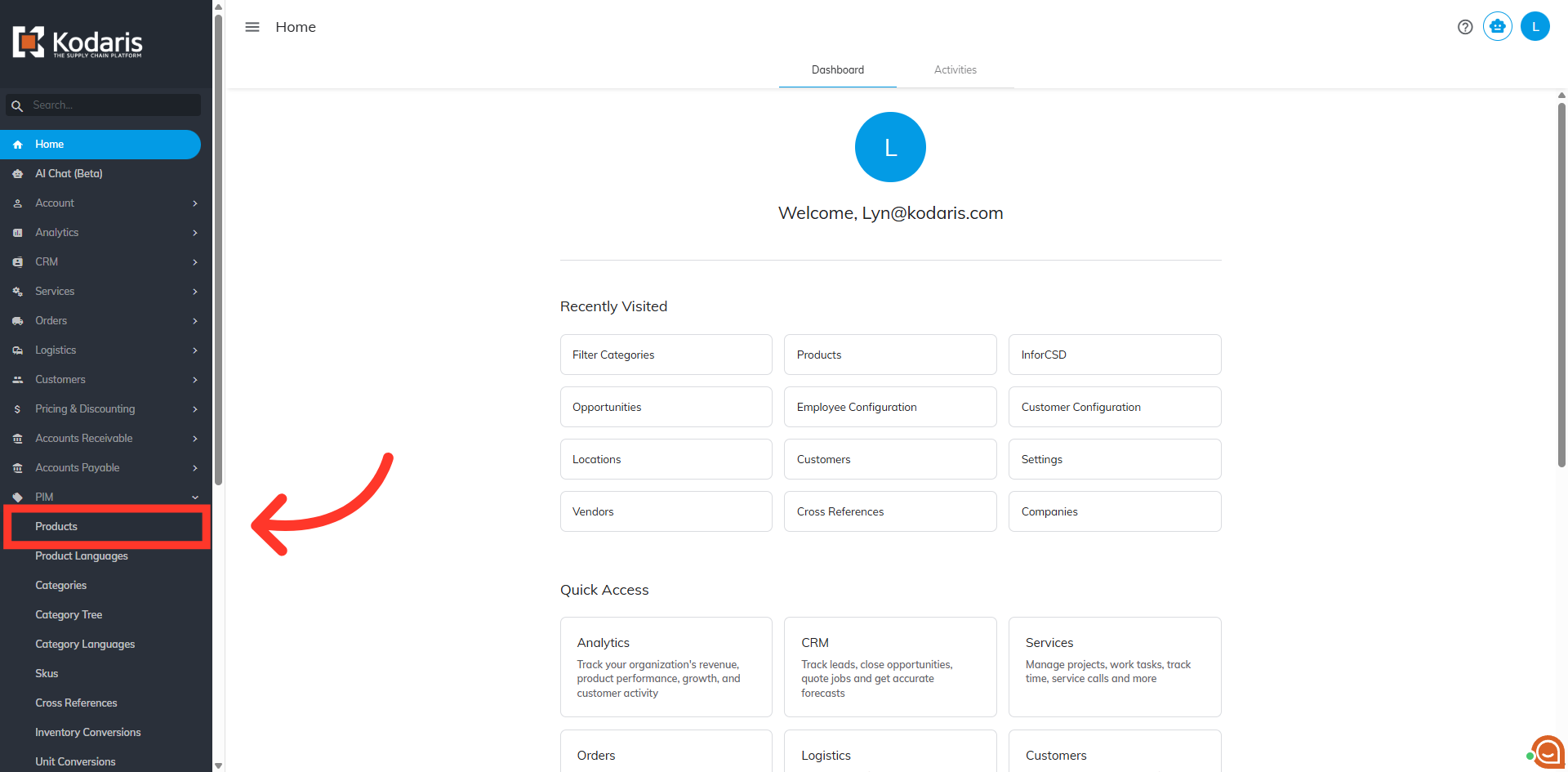
Click "Products"
Then, click "Products". In order to access and update “Products” you will need to be set up either as an “administrator” or a “superuser”, or have the role of “productEdit”.
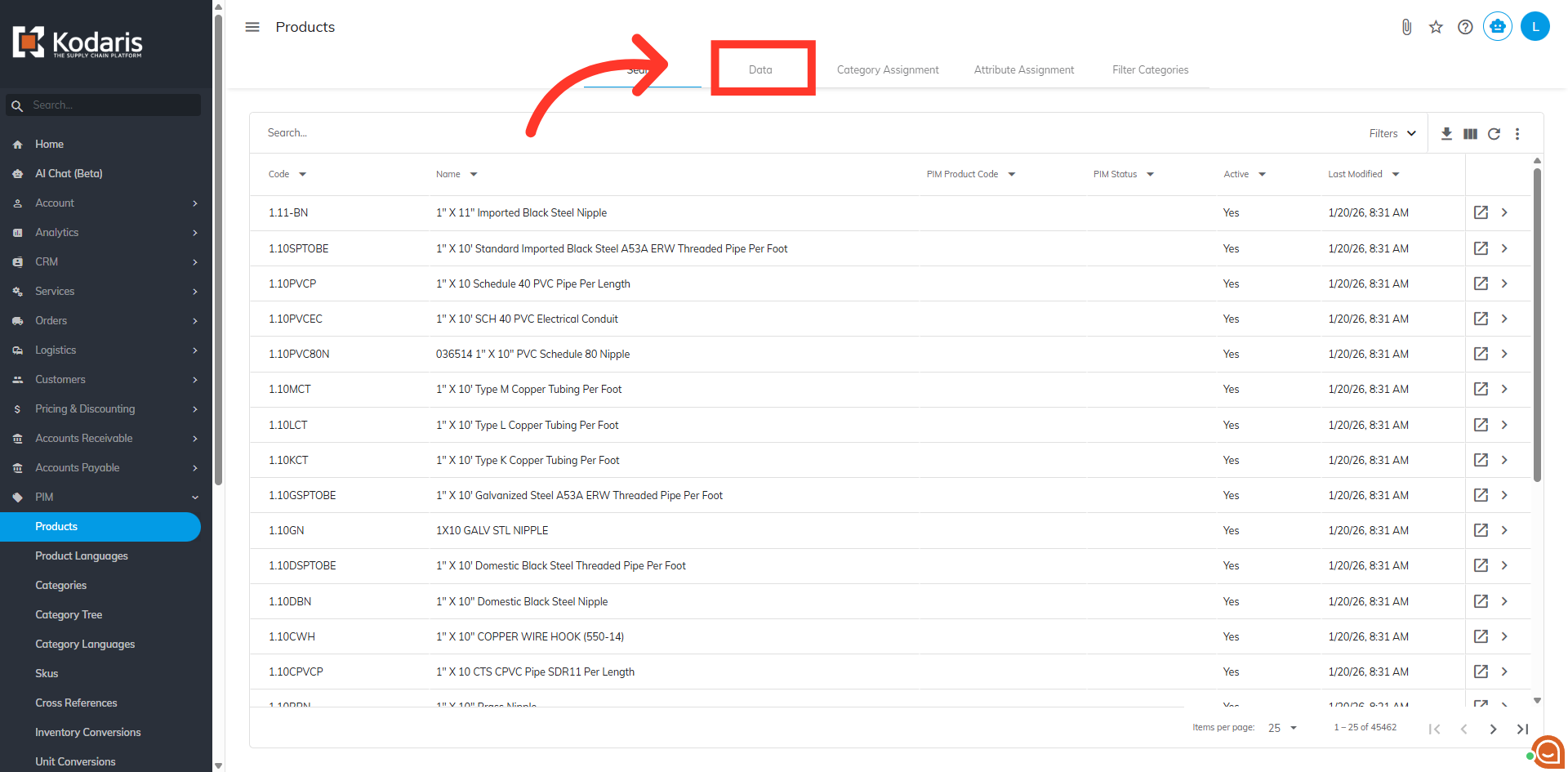
Select "Data"
Select the "Data" tab.
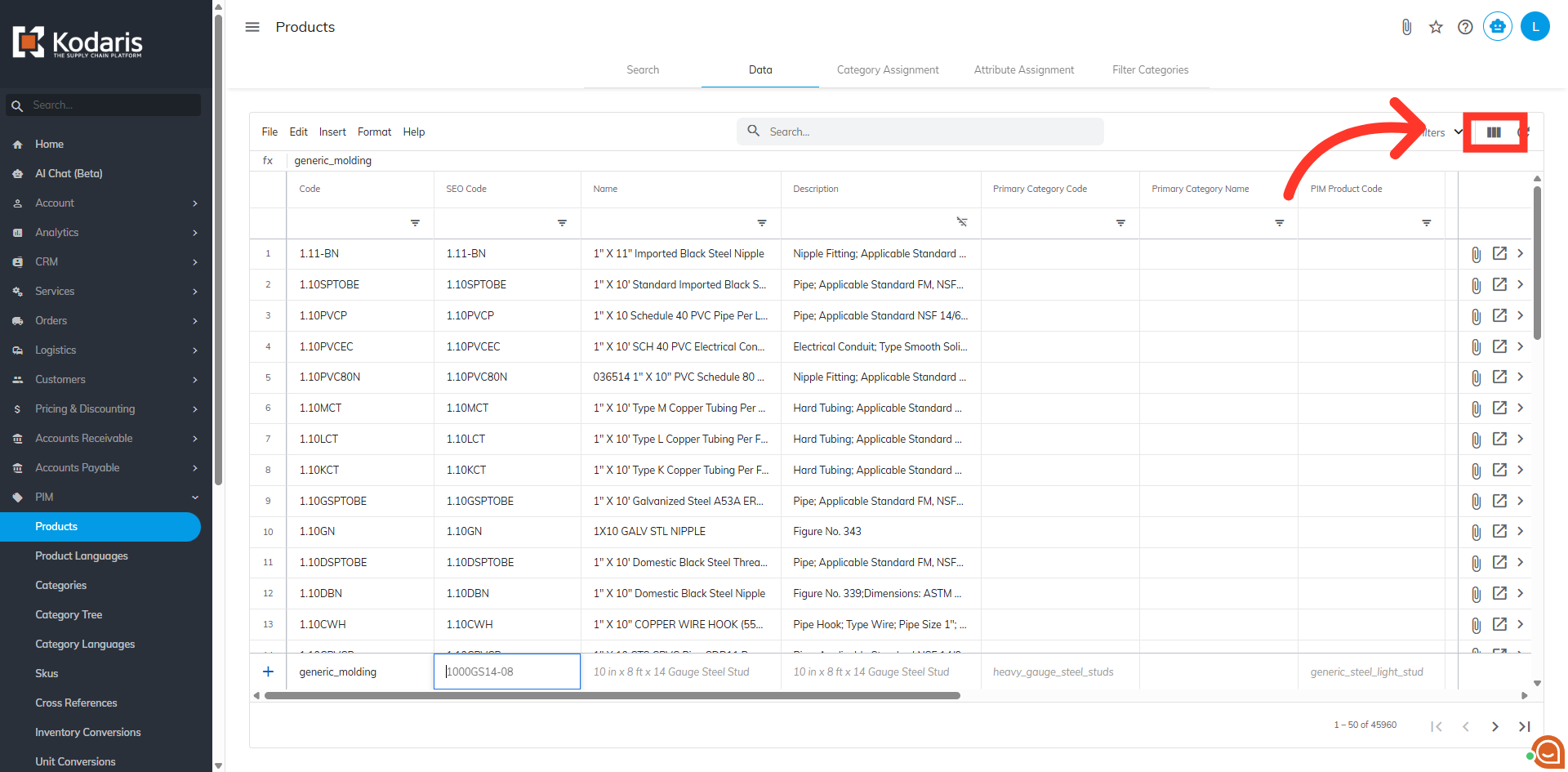
Click the "Show/Hide Columns" icon
Click the "Show/Hide Columns" icon.
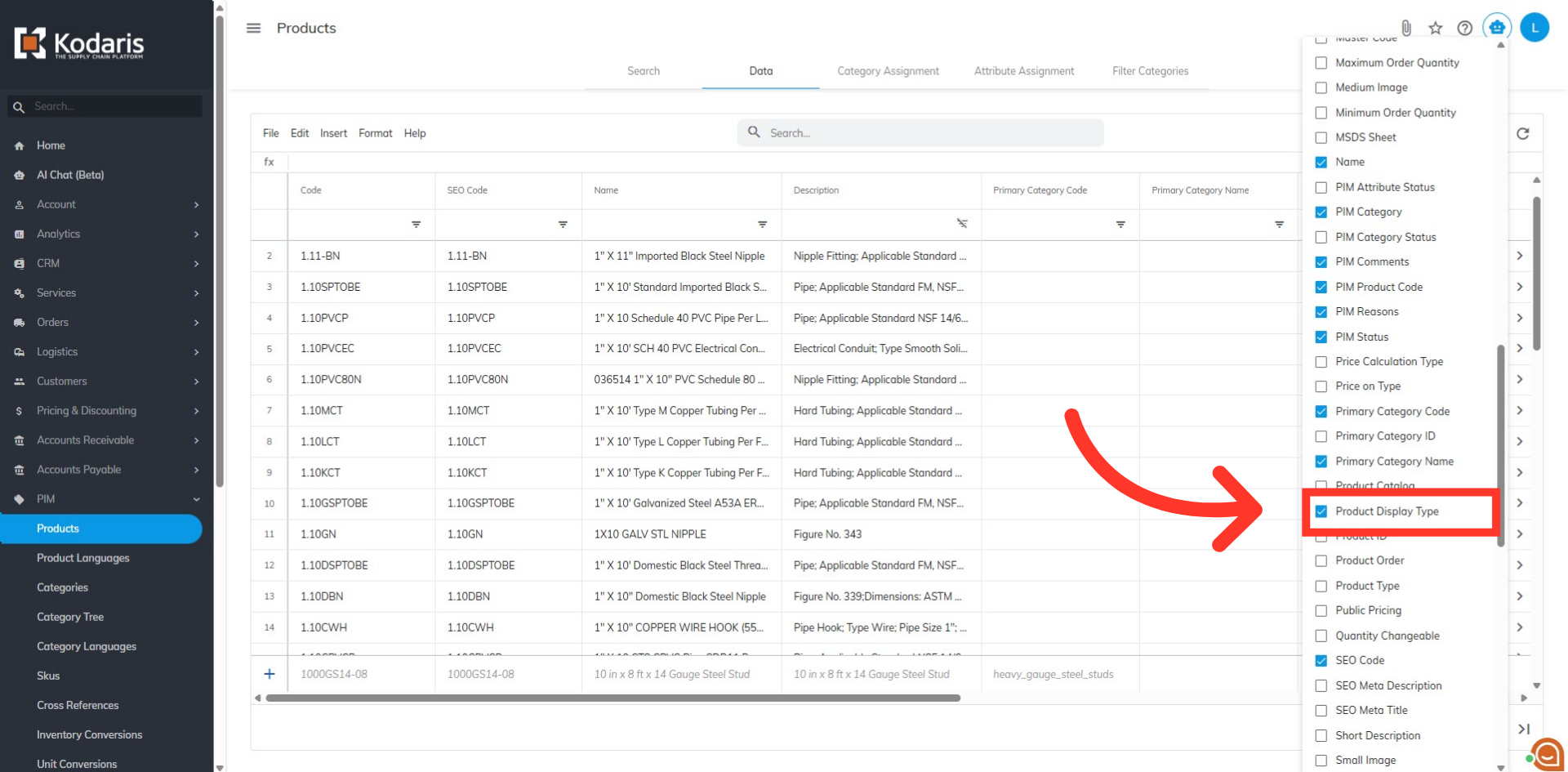
Select "Product Display Type"
Select the "Product Display Type" column to be added to the grid. This column will be used when creating configurator parent products.
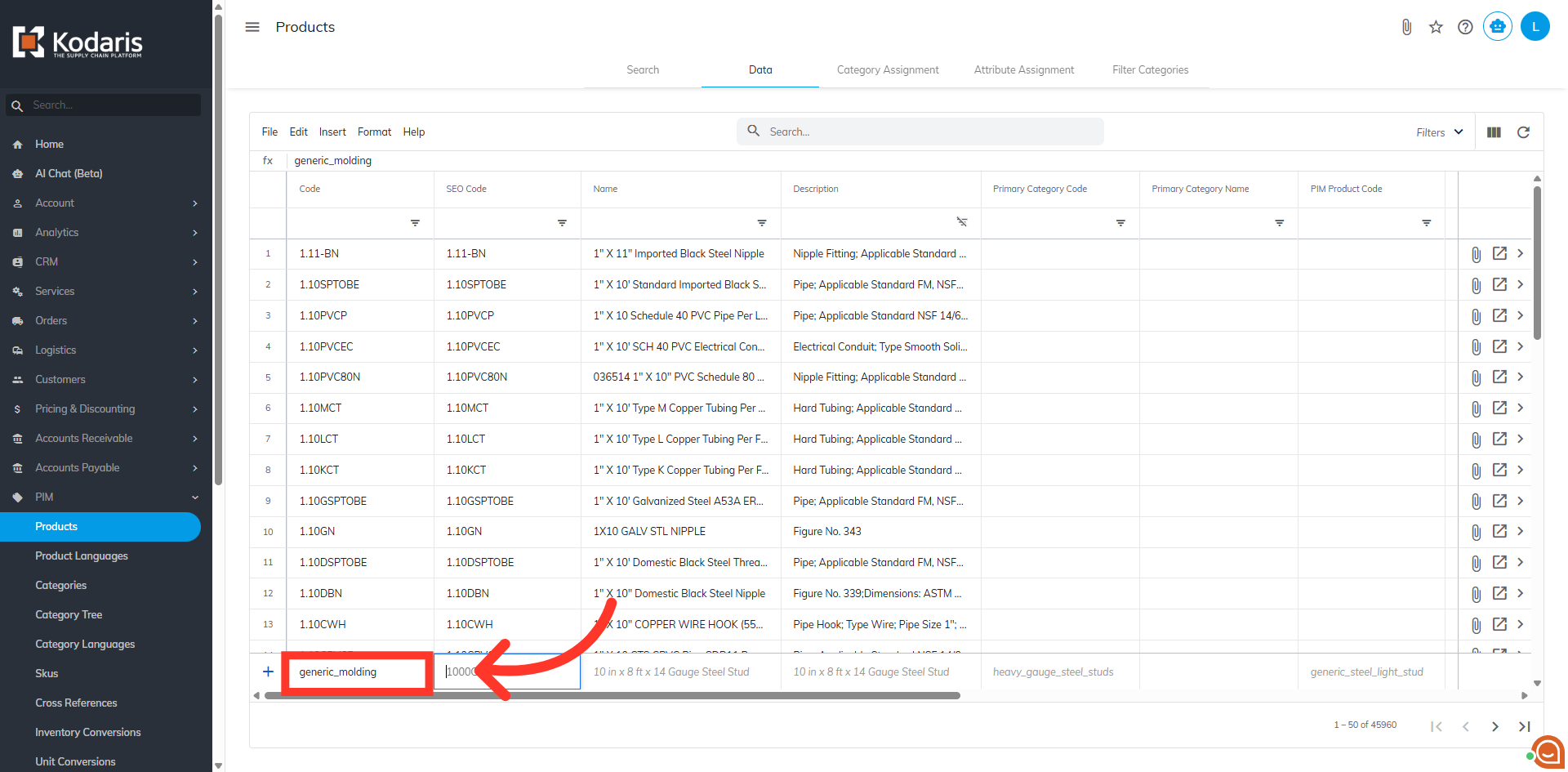
Enter the desired product code
You will need to create a new product that will act as a configurator parent product. This configurator parent product serves as the primary container that houses all configurator variant products linked through the related products functionality. Enter the desired product code in the "Code" field.
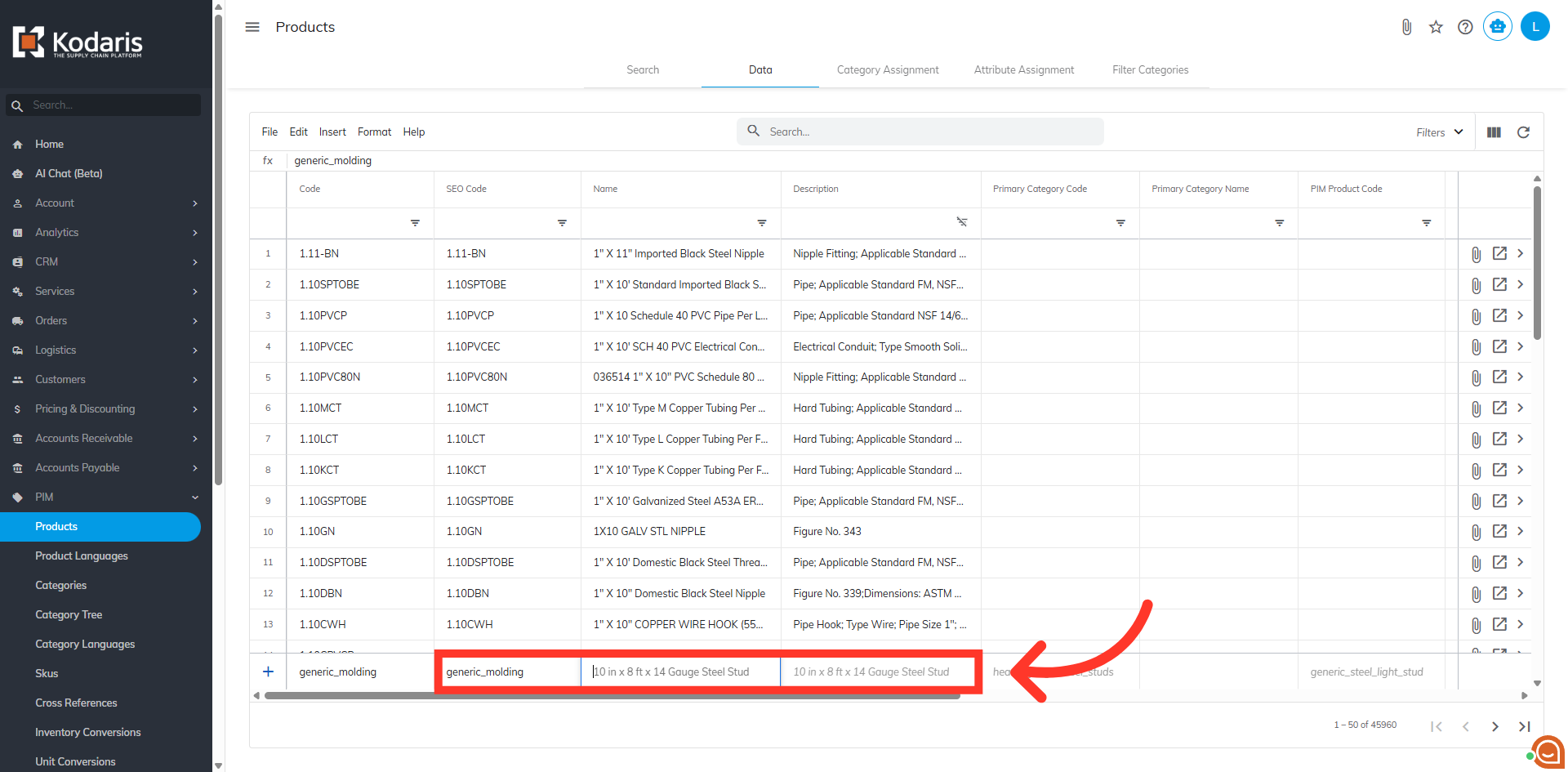
PIM Fields
You can see in this example that we have added some columns that we would like to update. While "SEO Code", "Name", and "Description" are optional fields, it is best practice to update these fields - particularly customer-facing "Name" and "Description" fields as this data will be used for product detail values on the commerce site if your product variants do not contain these values.
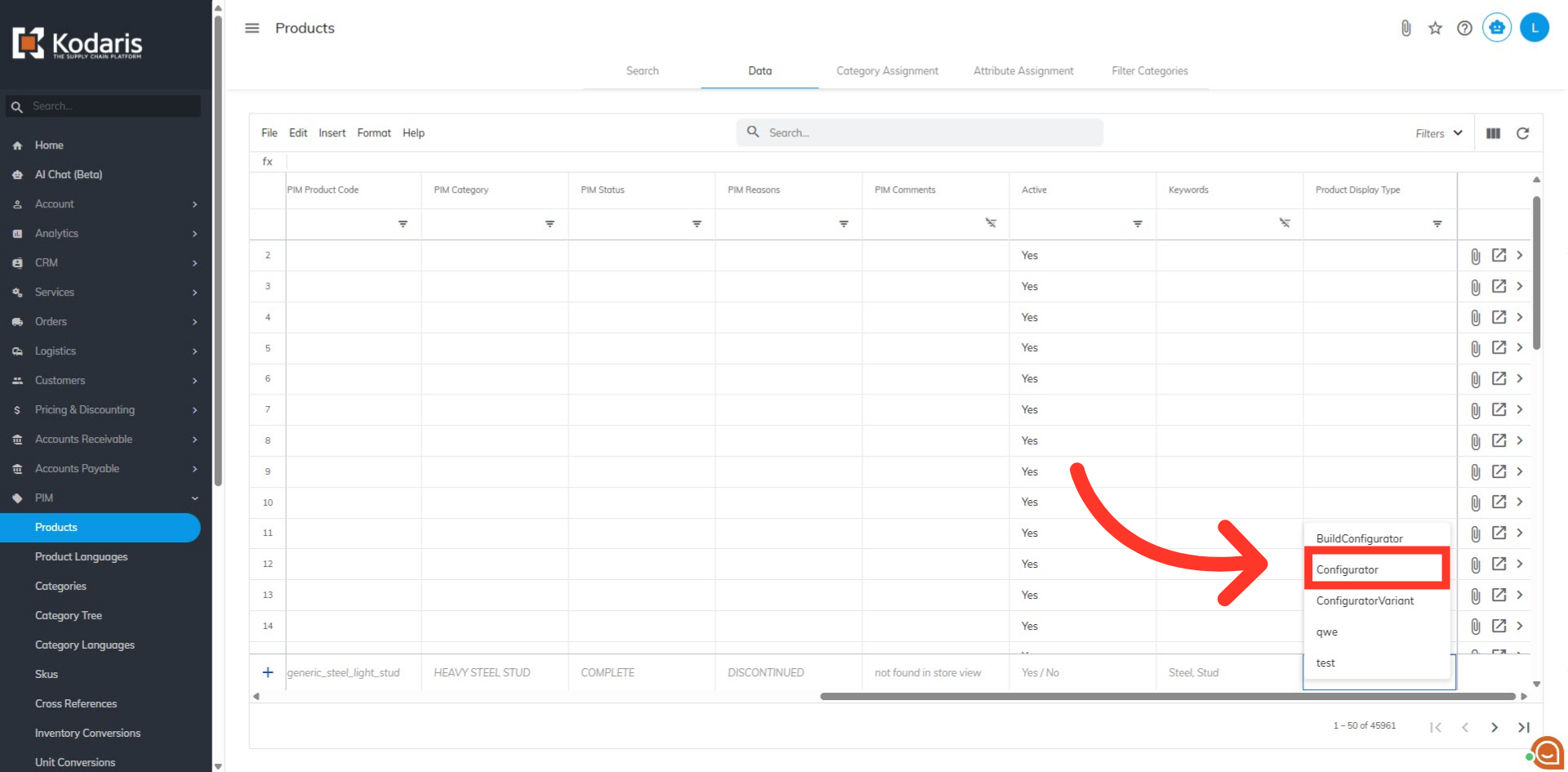
Set "Product Display Type" to "Configurator"
Update the "Product Display Type" to "Configurator". This tells the system that this product will have variant products. Then, hit "Enter" to save.
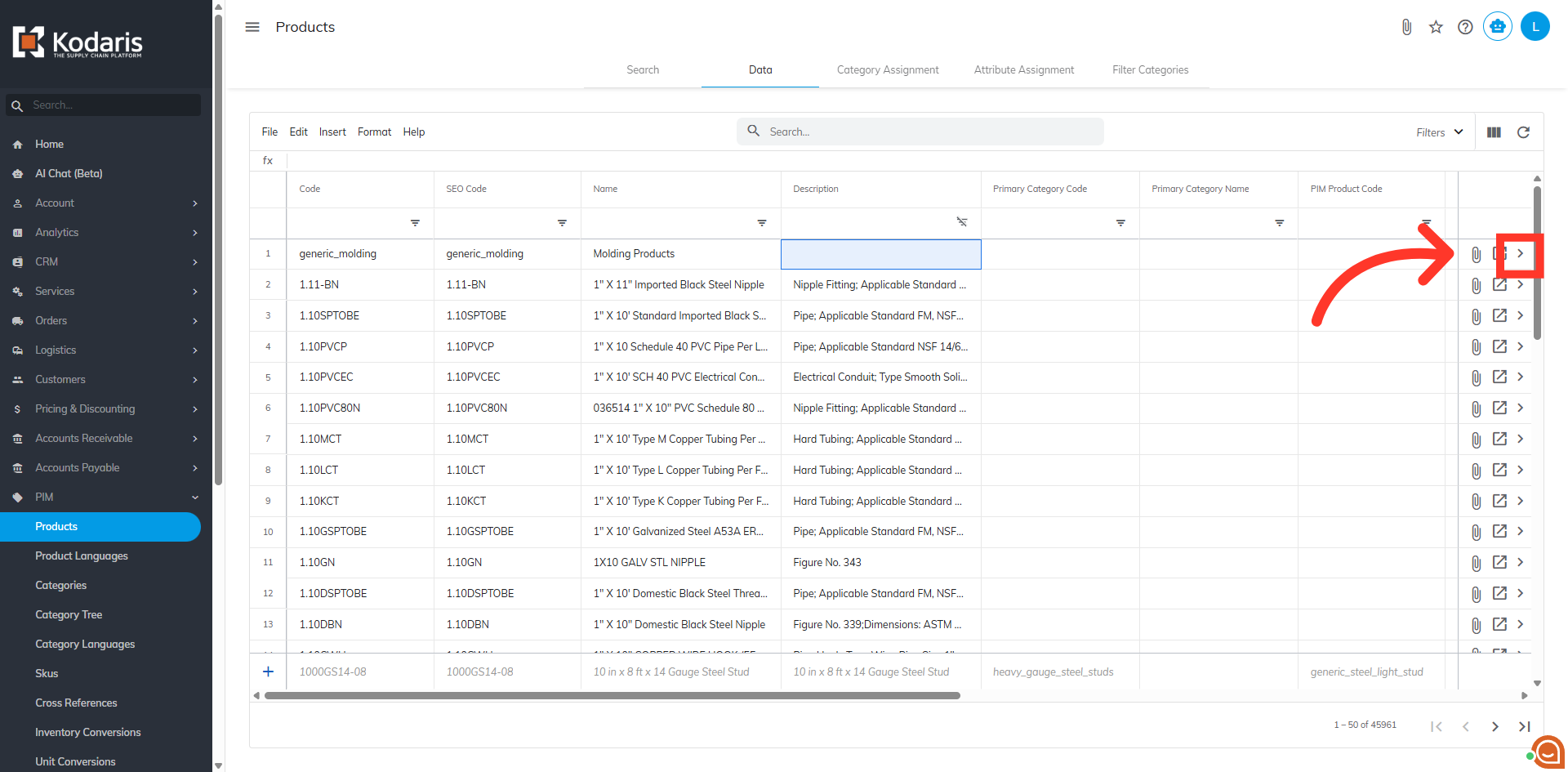
Click on the more details icon
Once you have created the configurator parent product, you will need to assign the product variants. These variants are the actual purchasable products that are in your system. Click on the more details icon of the parent product.
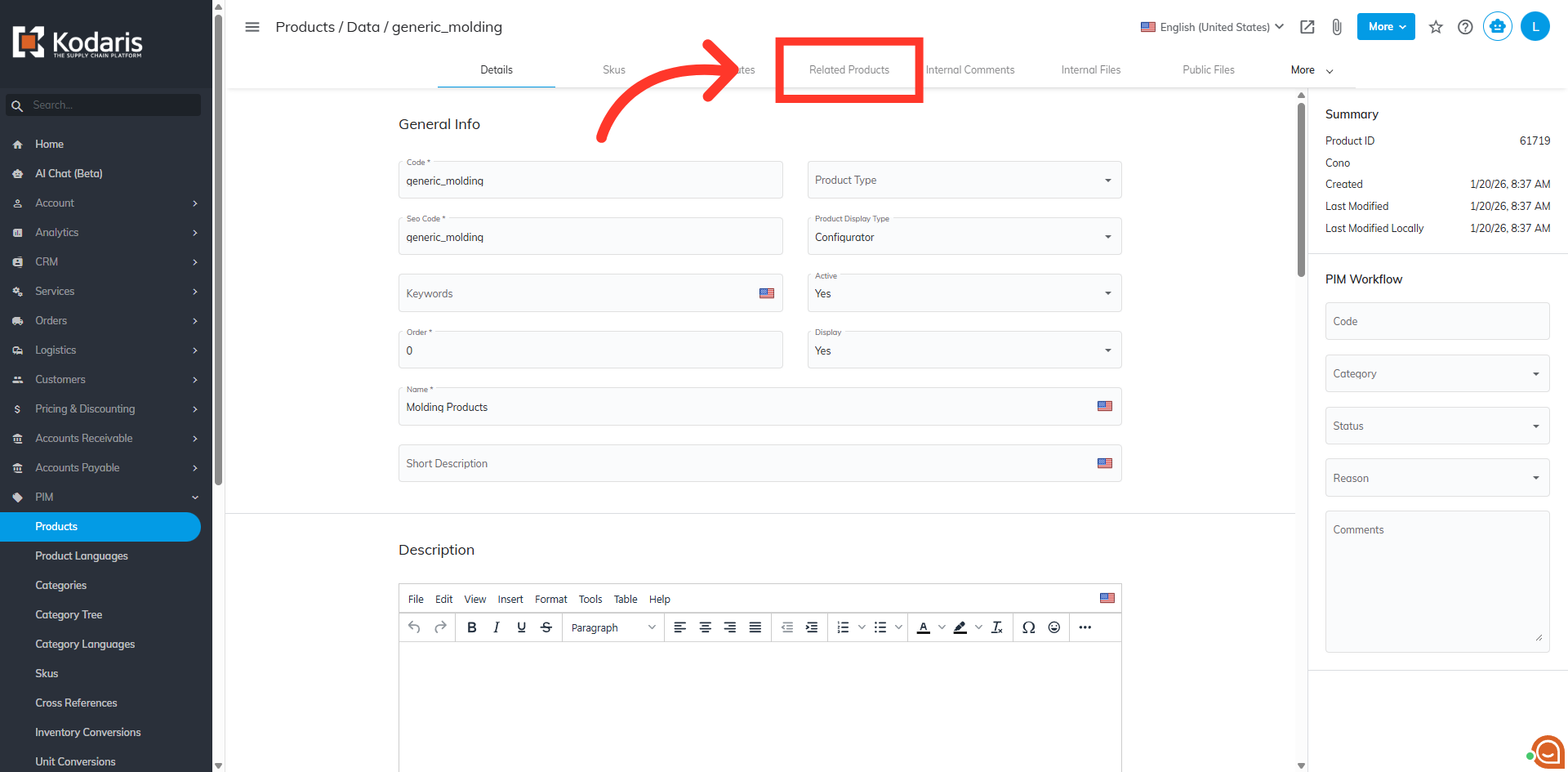
Select "Related Products"
Select the "Related Products" tab.
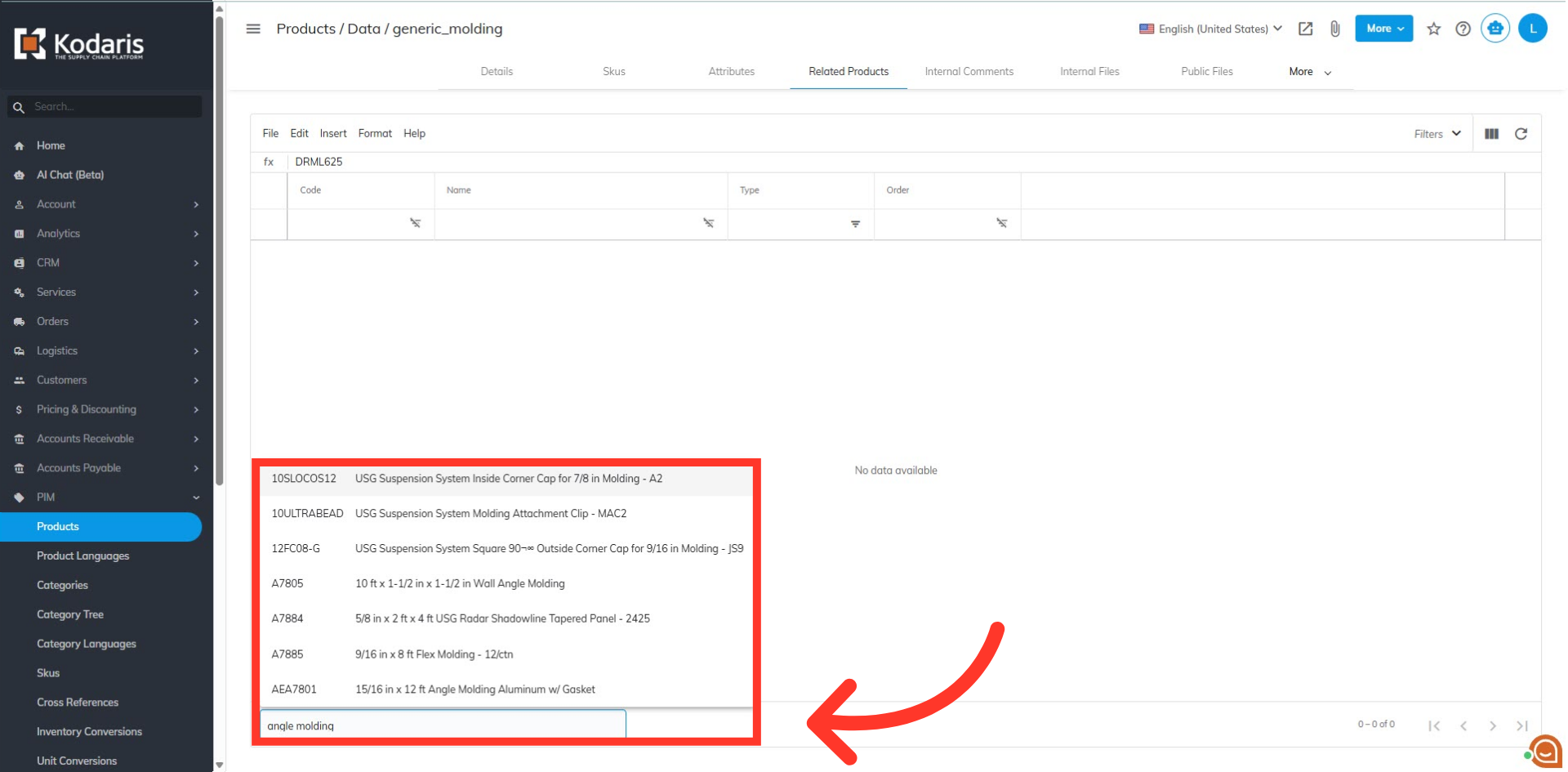
Search in "+ Relate product"
Search to find the product variant you would like to add in "+ Relate product" field. Then, select the product to add to the list.
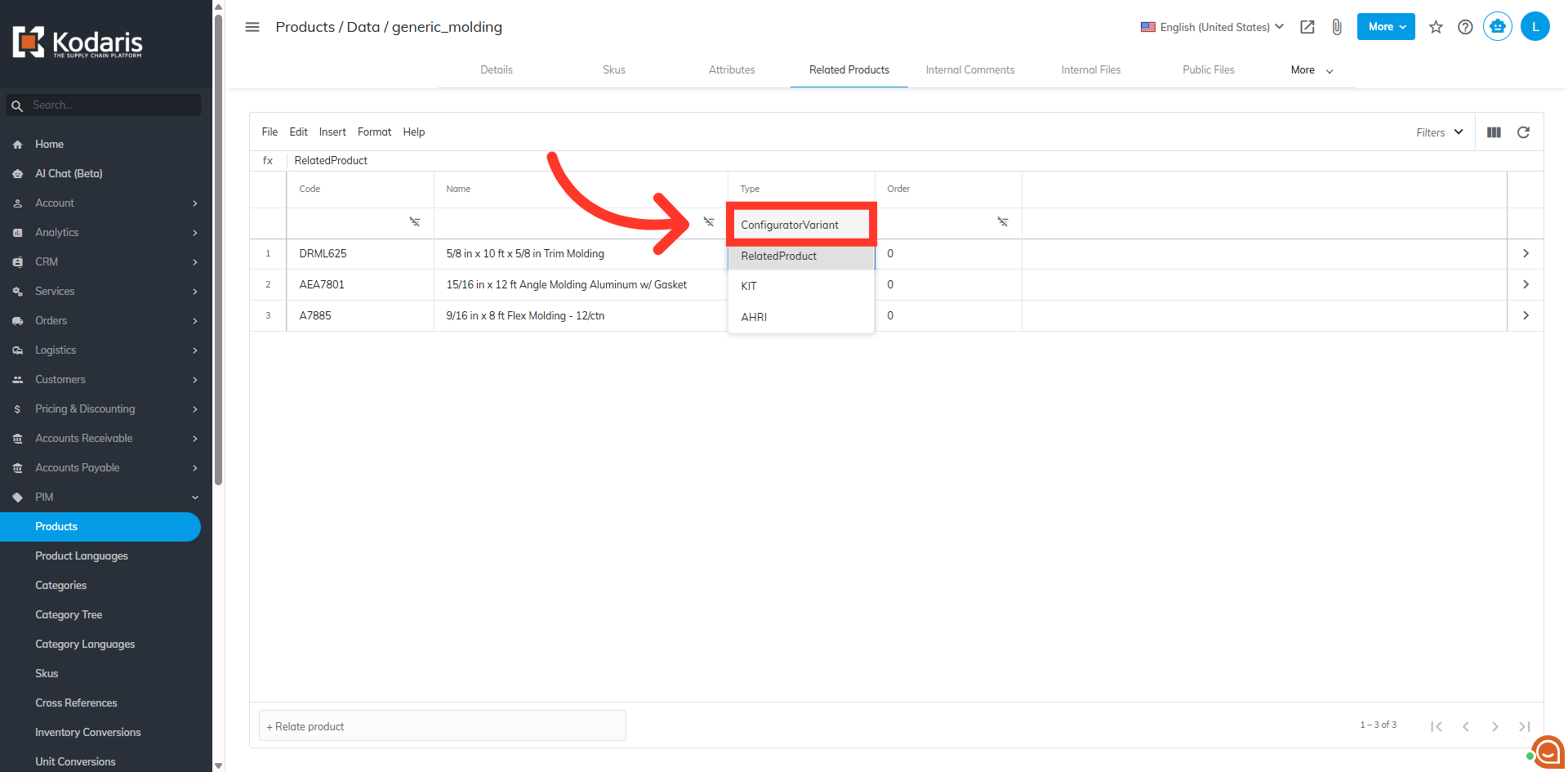
Set "Type" to "ConfiguratorVariant"
Once the variant products are added, update the Related Products "Type" as "ConfiguratorVariant".