Operations PIM - Assigning Product Variants to Product Configurator Attributes
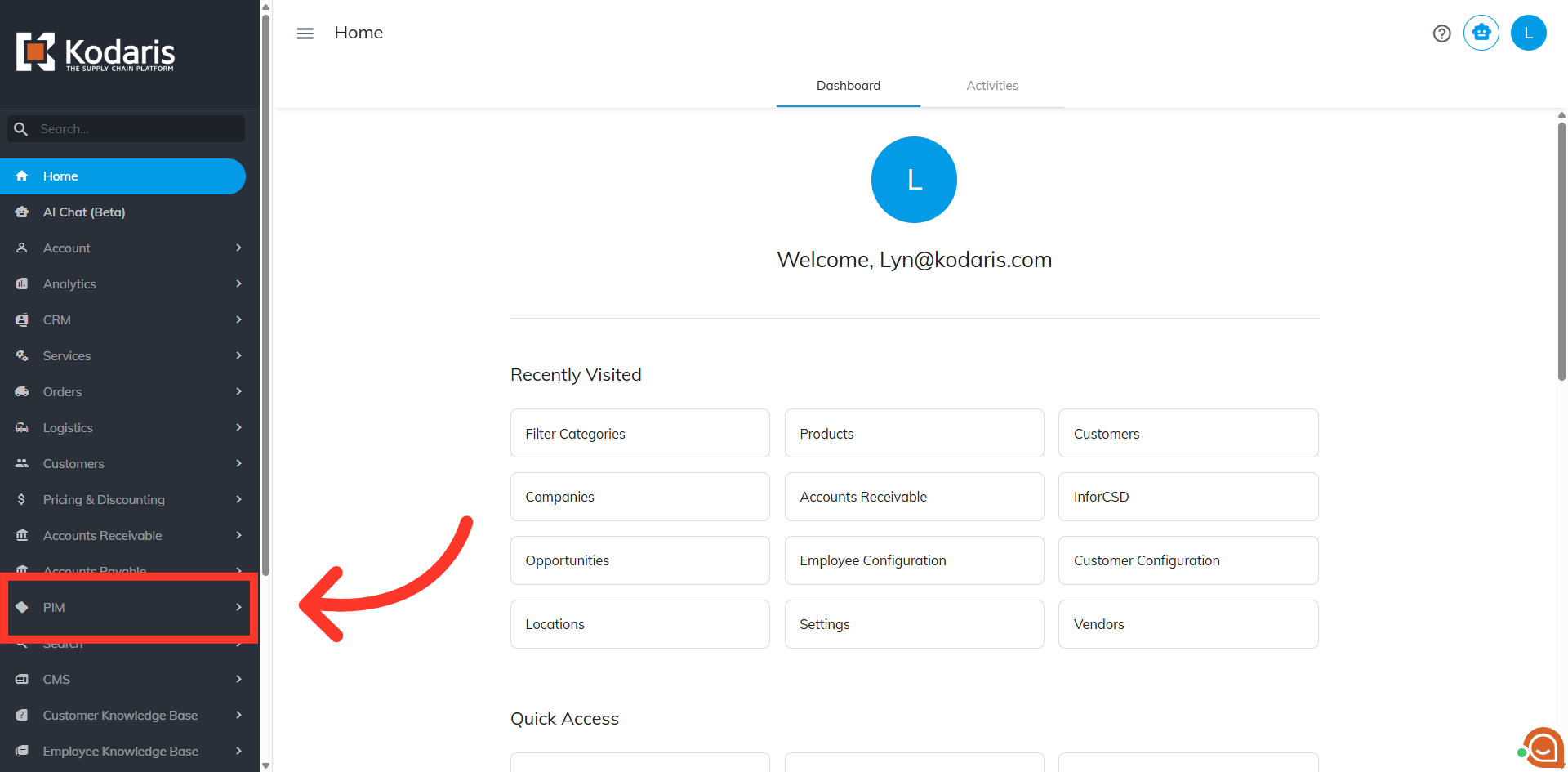
Navigate to "PIM"
To assign product variants to attributes, navigate to "PIM" section in the Operations Portal.
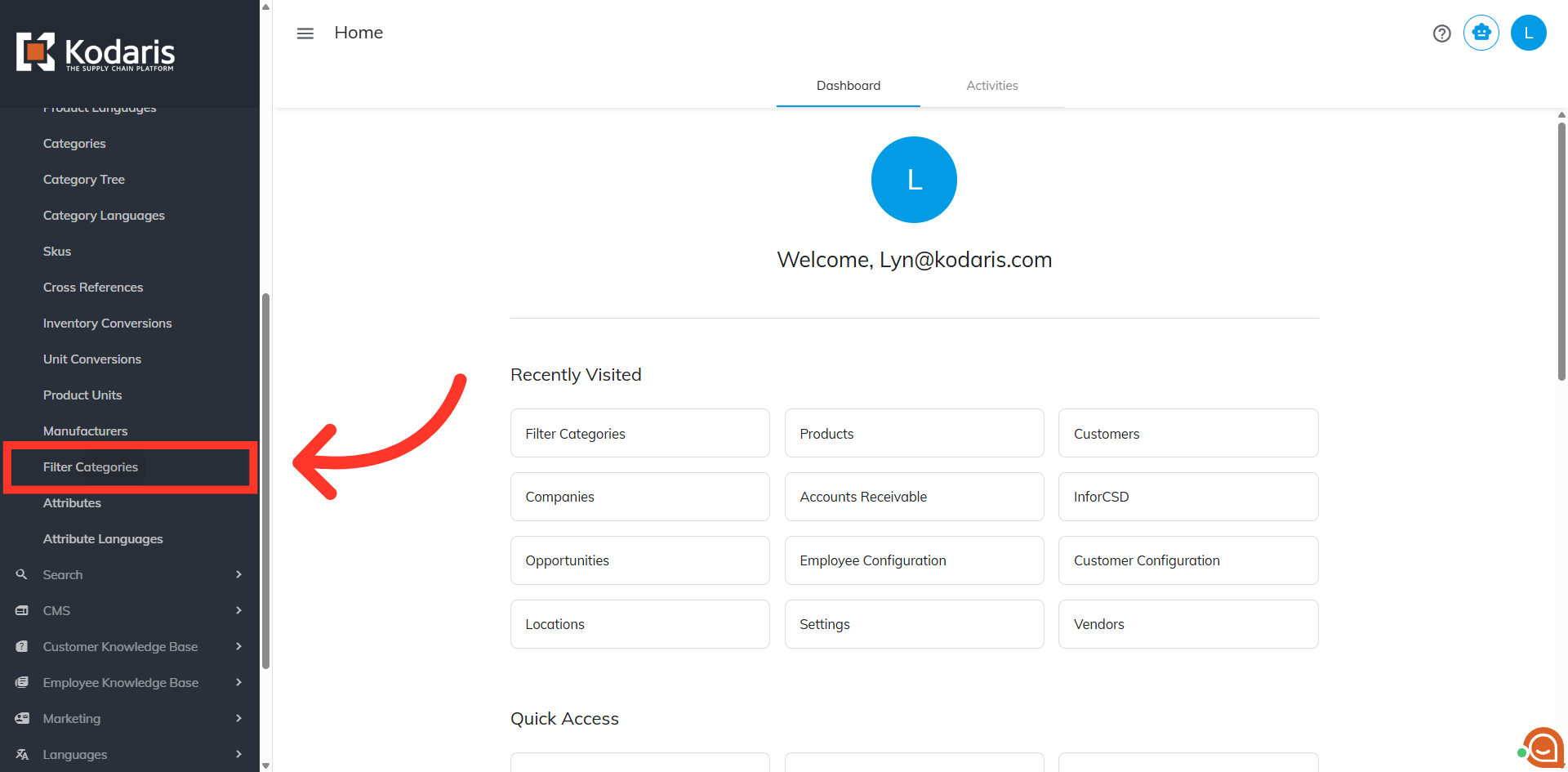
Click "Filter Categories"
Then, click "Filter Categories". In order to access and update “Filter Categories” and “attributes” you will need to be set up either as an “administrator” or a “superuser”, or have the role of “facetGroupEdit”.
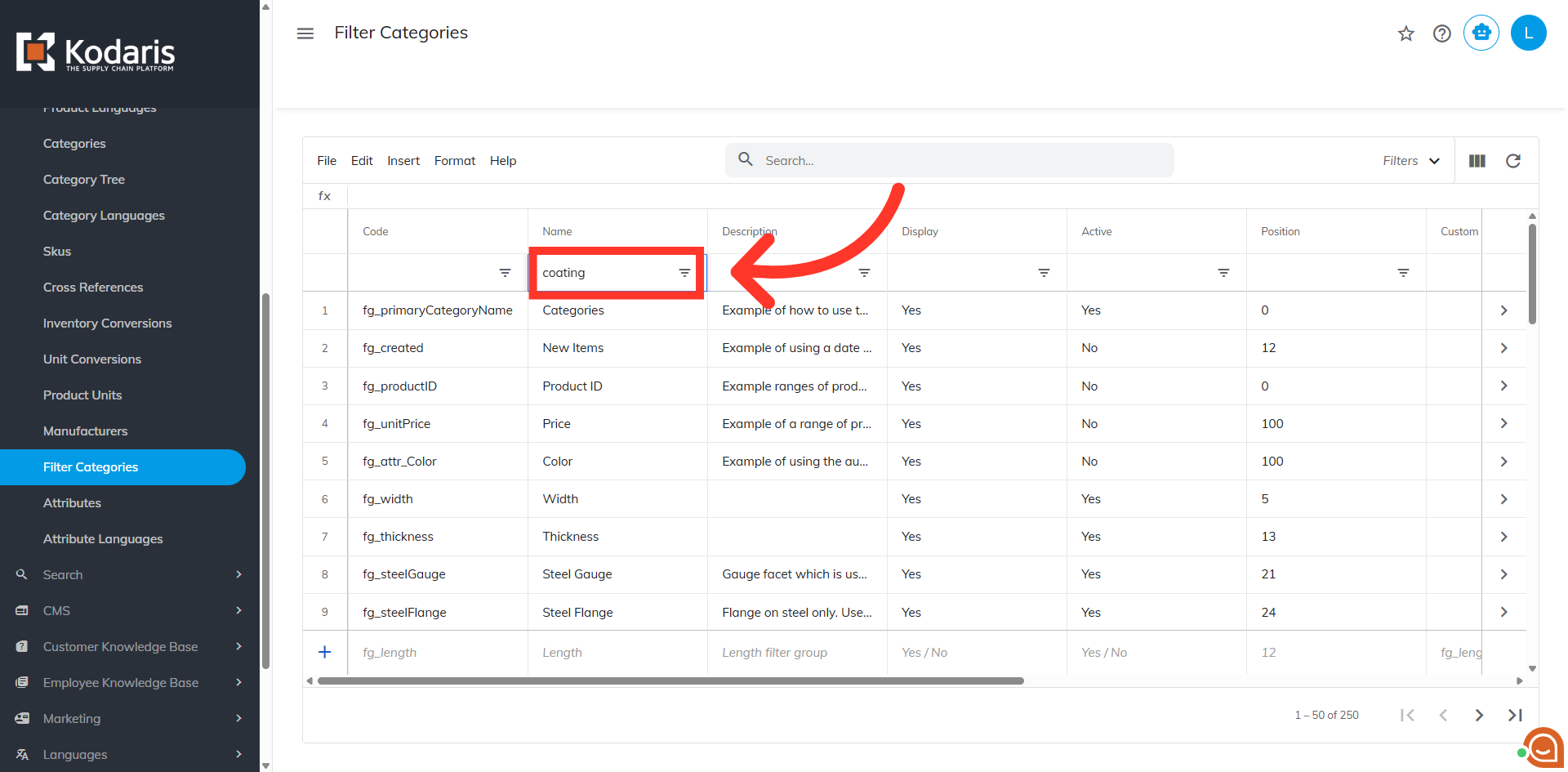
Search for the filter category
Search for the filter category that you would like to update. In this example, we will use "Coating". Then, hit enter.
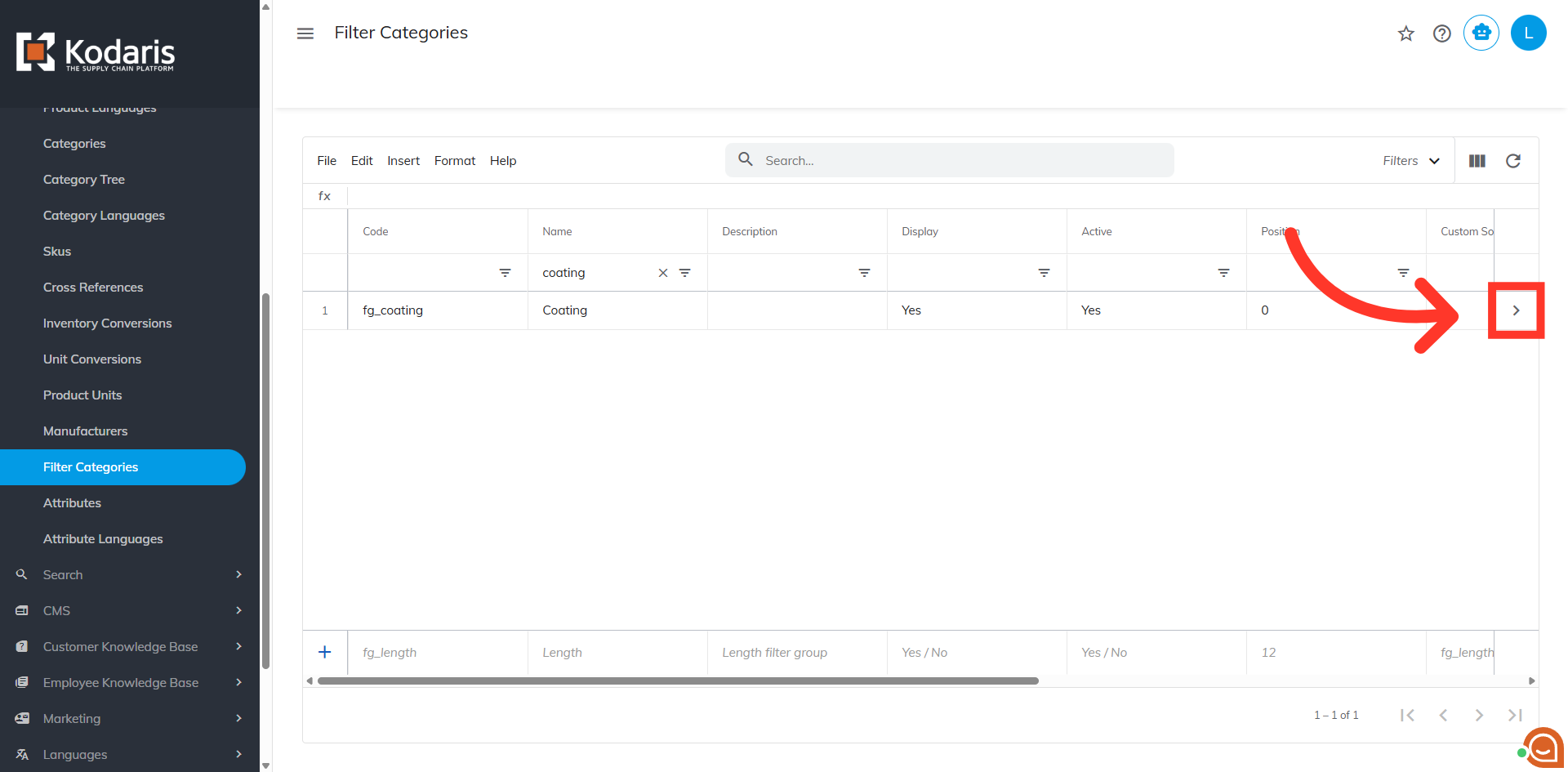
Click on the more details icon
Click on the more details icon.
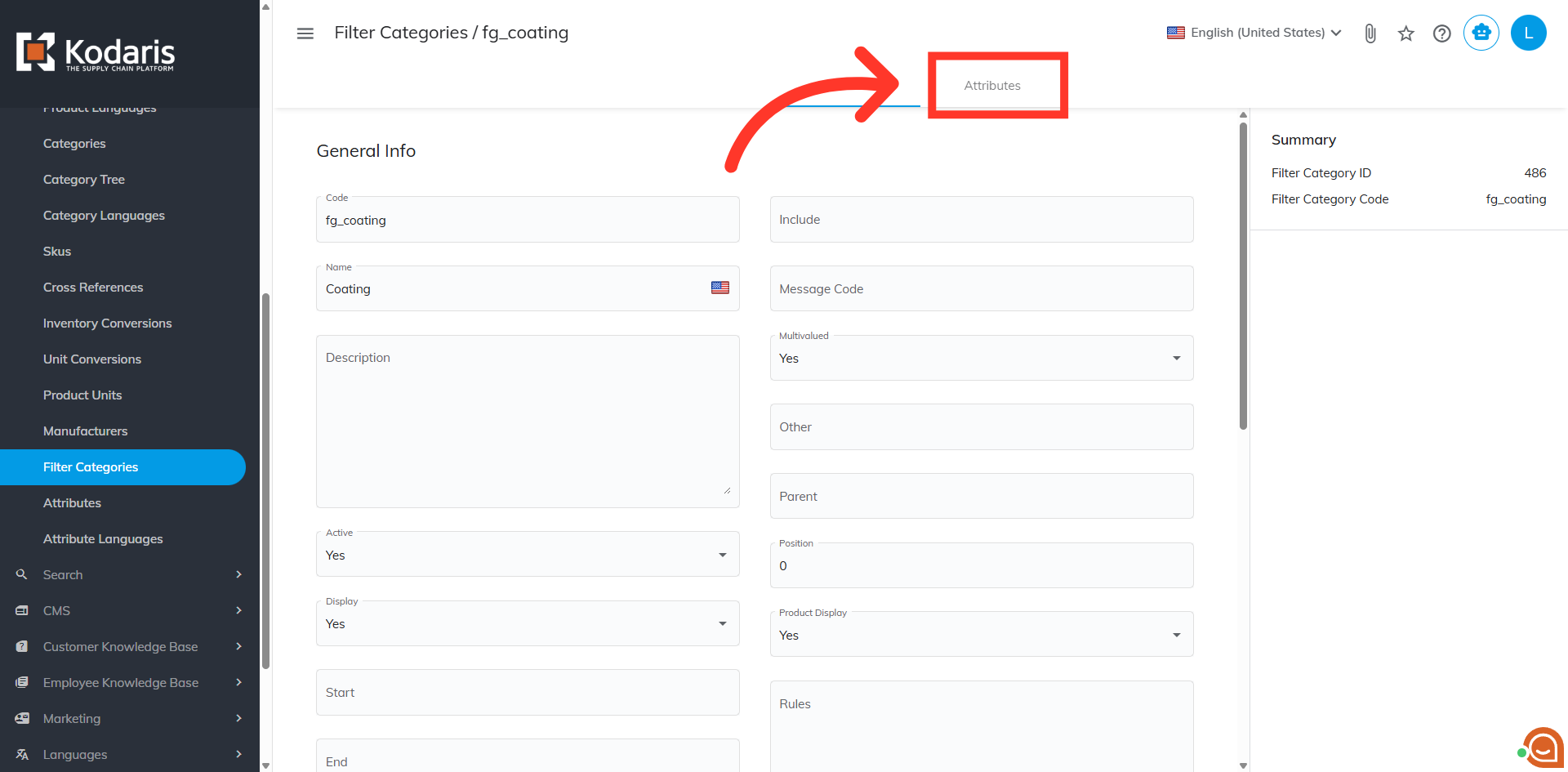
Go to "Attributes"
Go to the "attributes" tab.
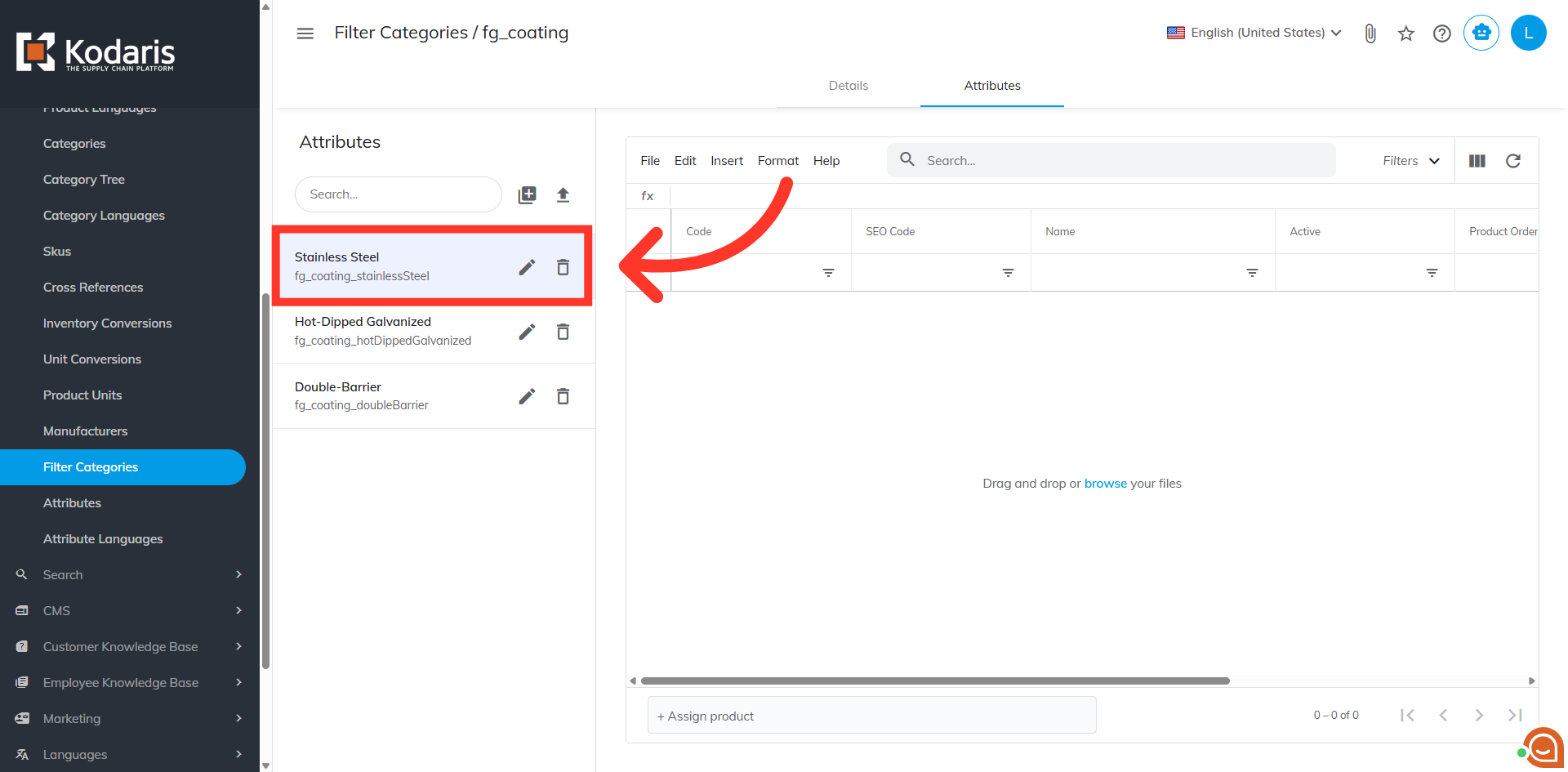
Select the attribute
Select the attribute to which you would like to add products. In this example, we used "Stainless Steel".
Search for the product variant
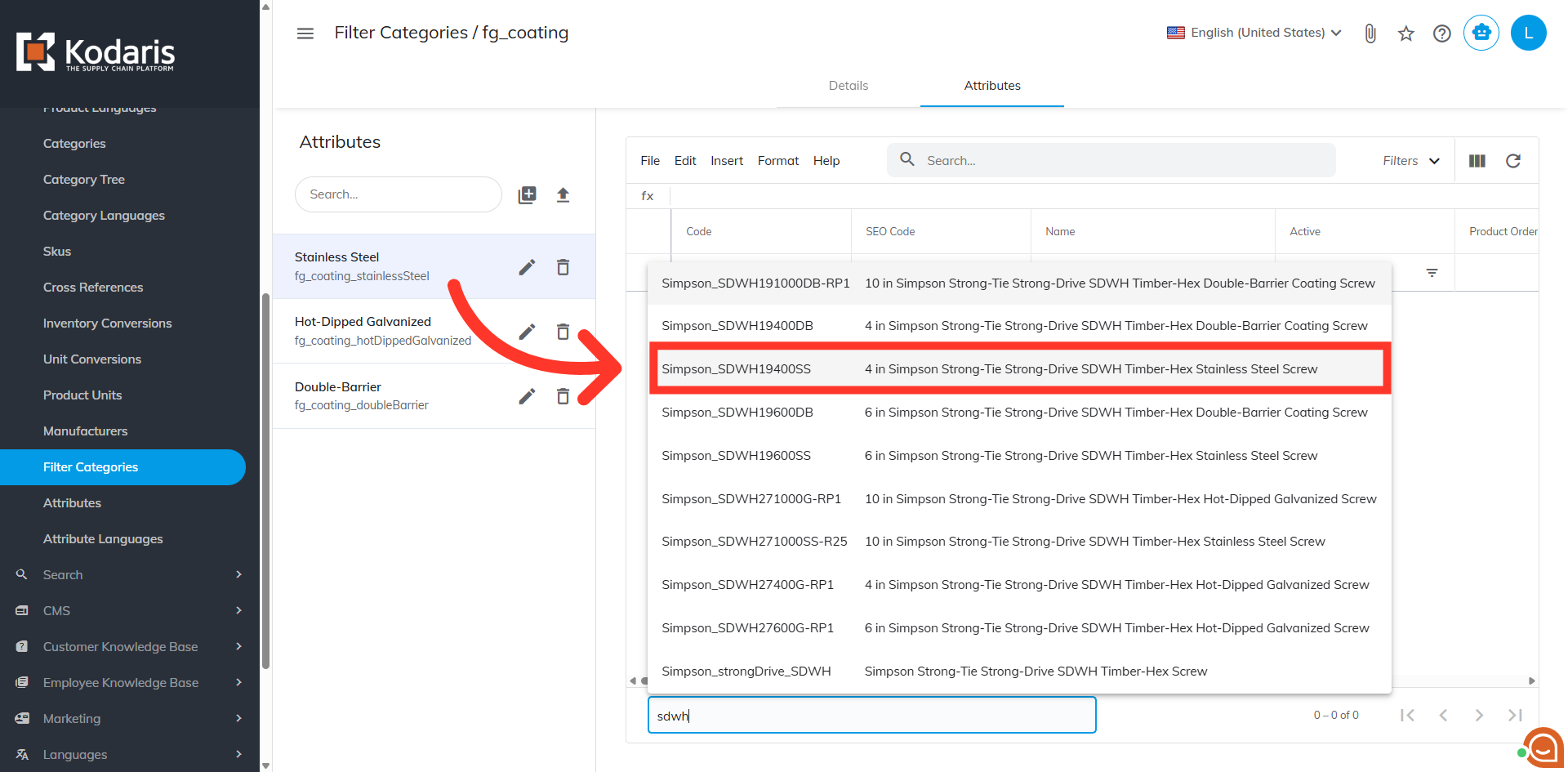
Search for the product variant that you would like to add to the product configurator by typing the keywords in the "+ Assign Product" field.
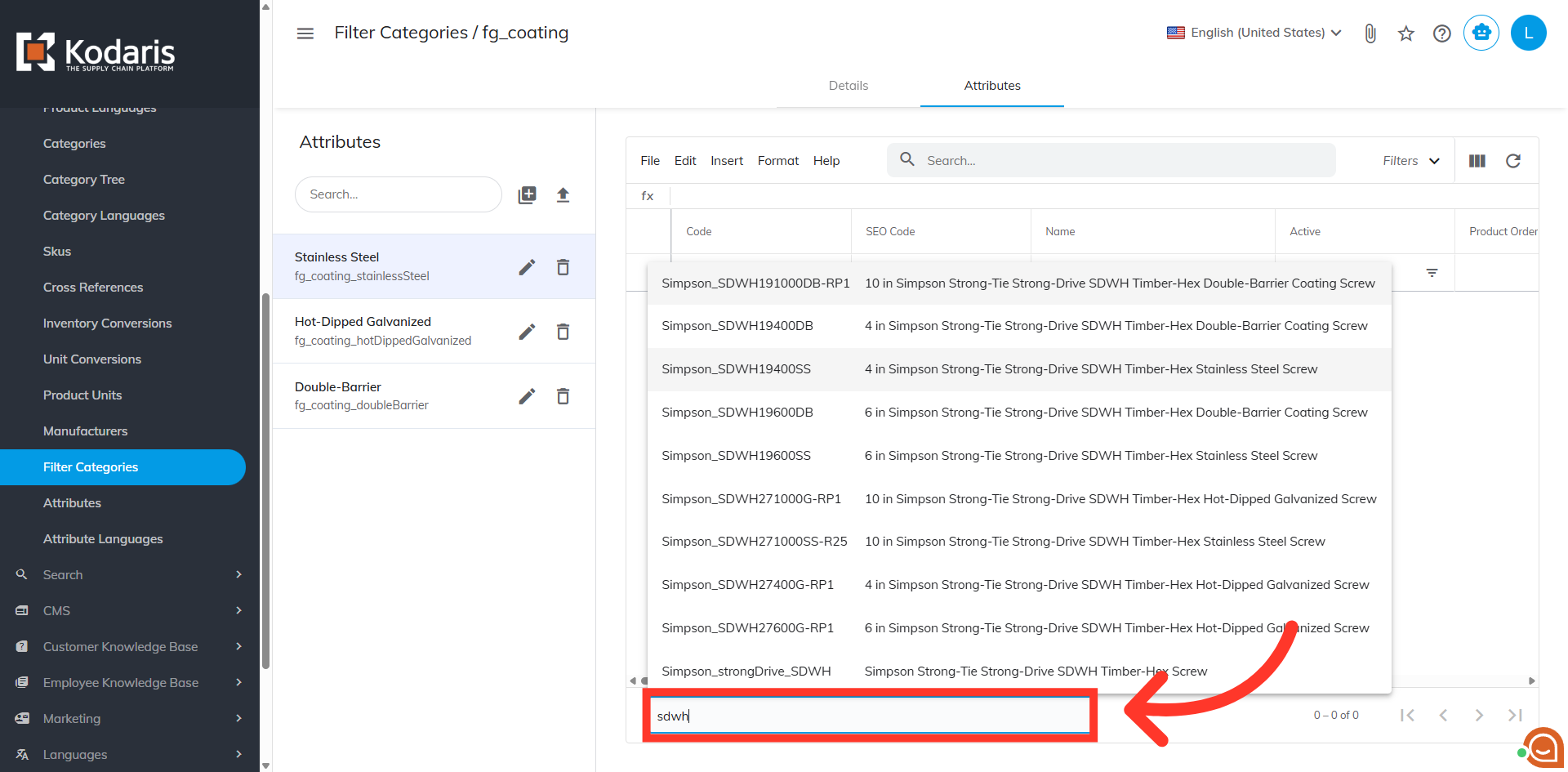
Select the product variant to add it to the attribute
Then, select the product variant to add it to the attribute. You will want to be sure and add any product variants to all needed attributes in order for the product configurator dropdown to populate correctly. In the following examples, you can see we have added products to the different "Coating" attributes.
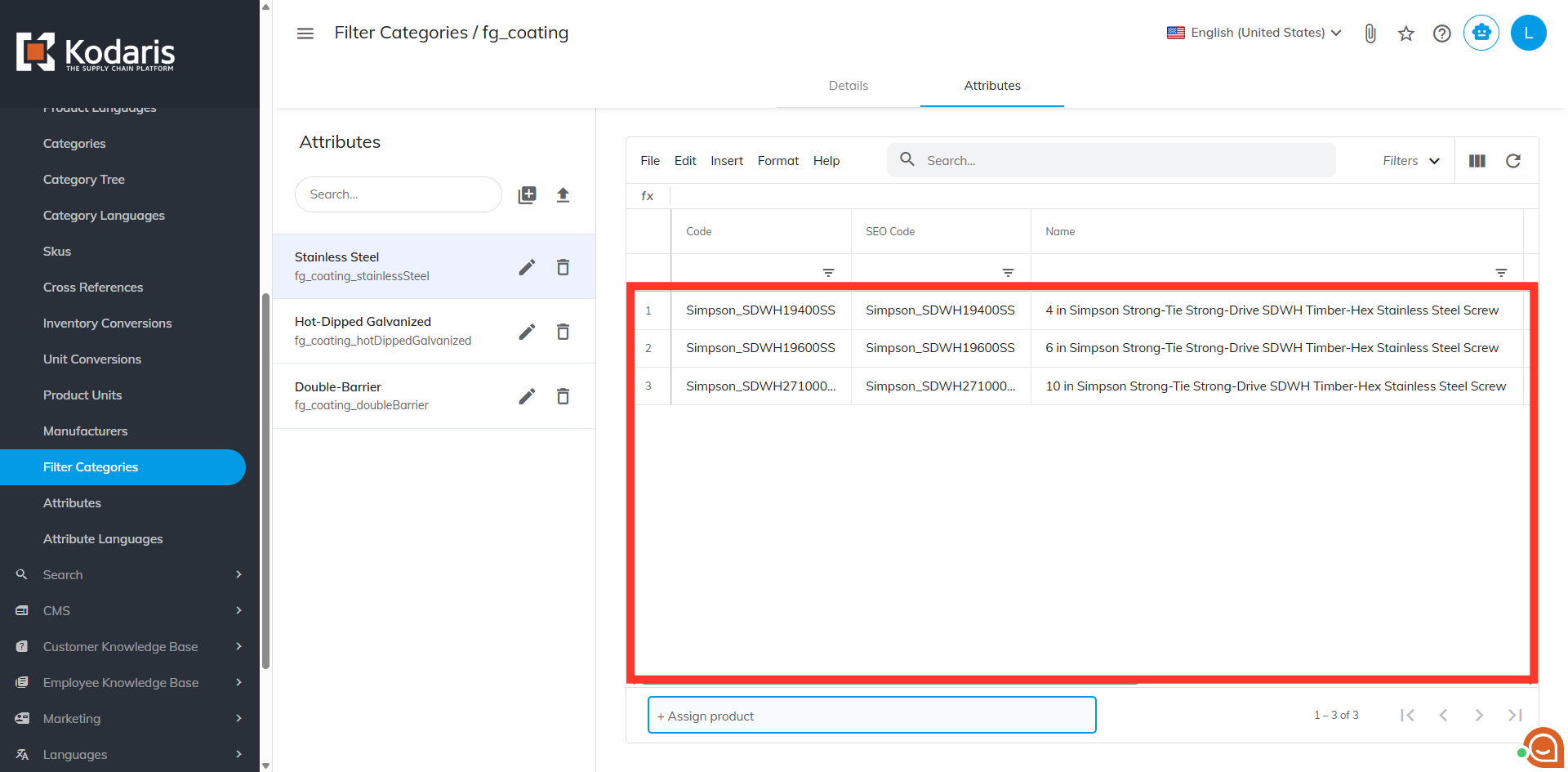
"Stainless Steel" attribute
For example, if you are also populating length attributes for the product configurator, you would also want to add the product variants to the appropriate filter category and attributes. This example shows the product variants added in "Stainless Steel" attribute. We also want to add appropriate product variants to the other coating attributes.
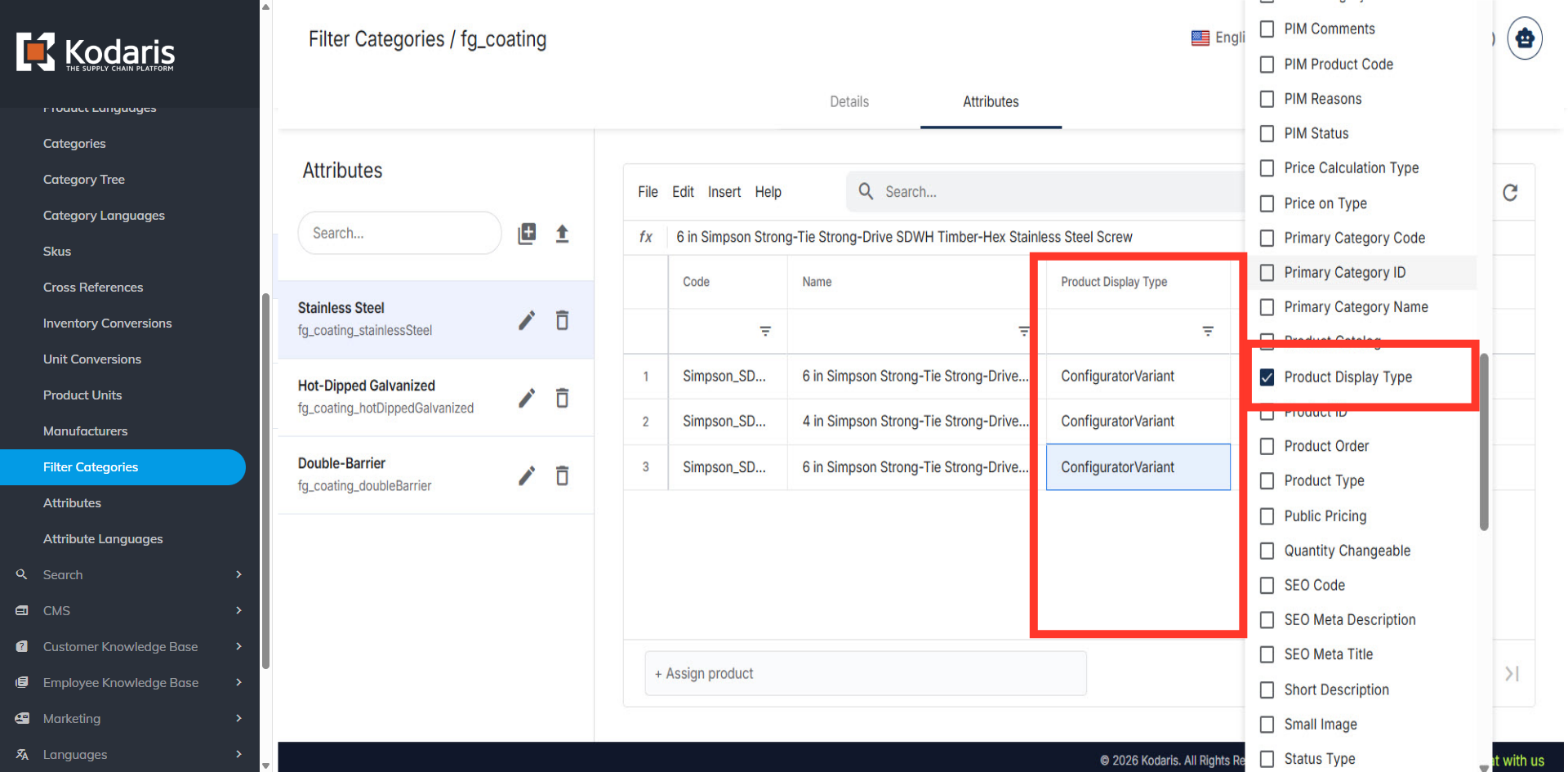
Verify "ConfiguratorVariant"
Make sure that any products added to your product configurator have the "Product Display Type" field set to "ConfiguratorVariant". You can verify this by adding the "Product Display Type" column to your screen.
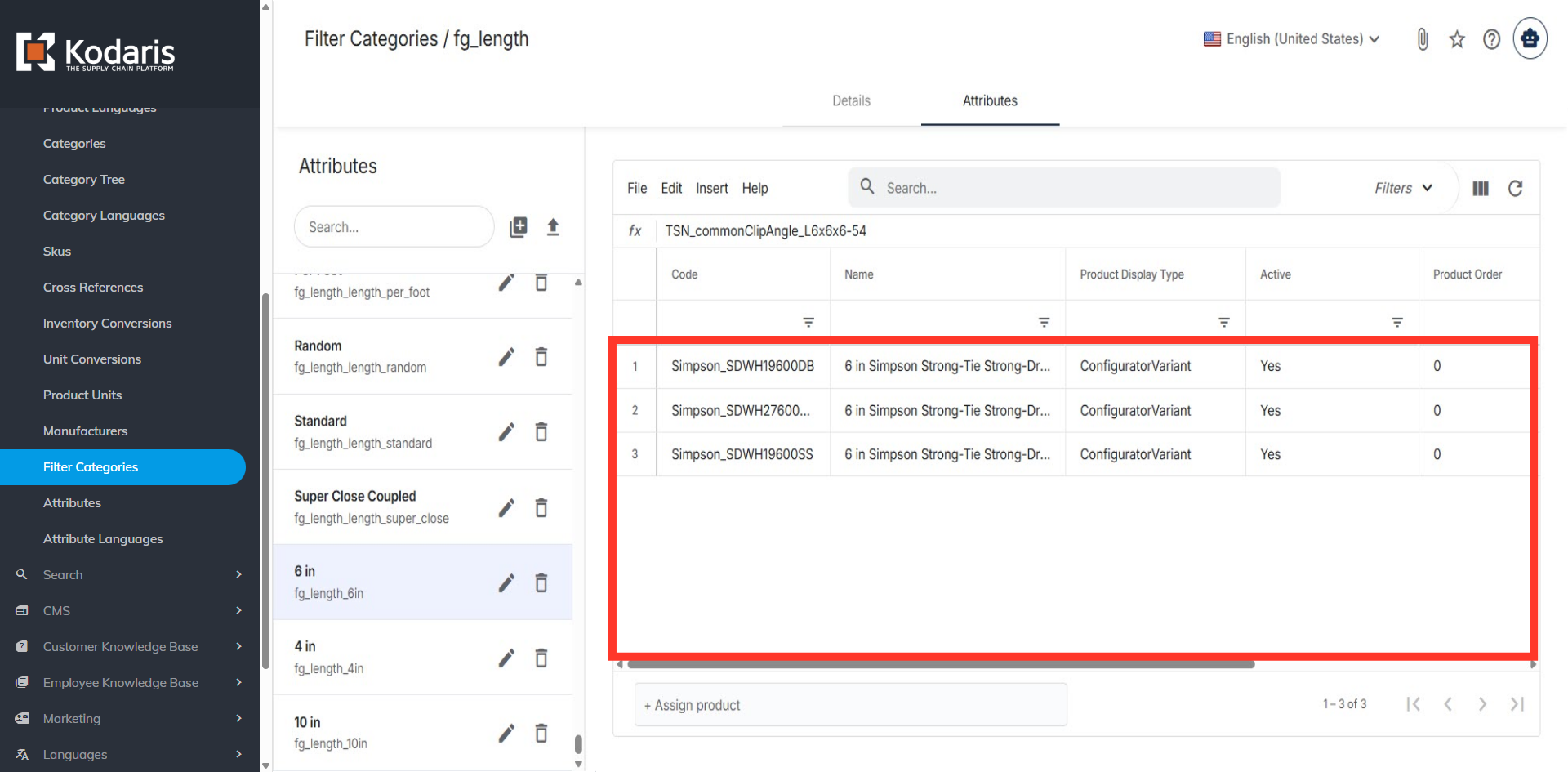
Assign Products
Here, you can see that under the "Length" filter category, products have been added to the 6 inch attribute. We will also want to add appropriate product variants to the other length attributes.
Commerce View
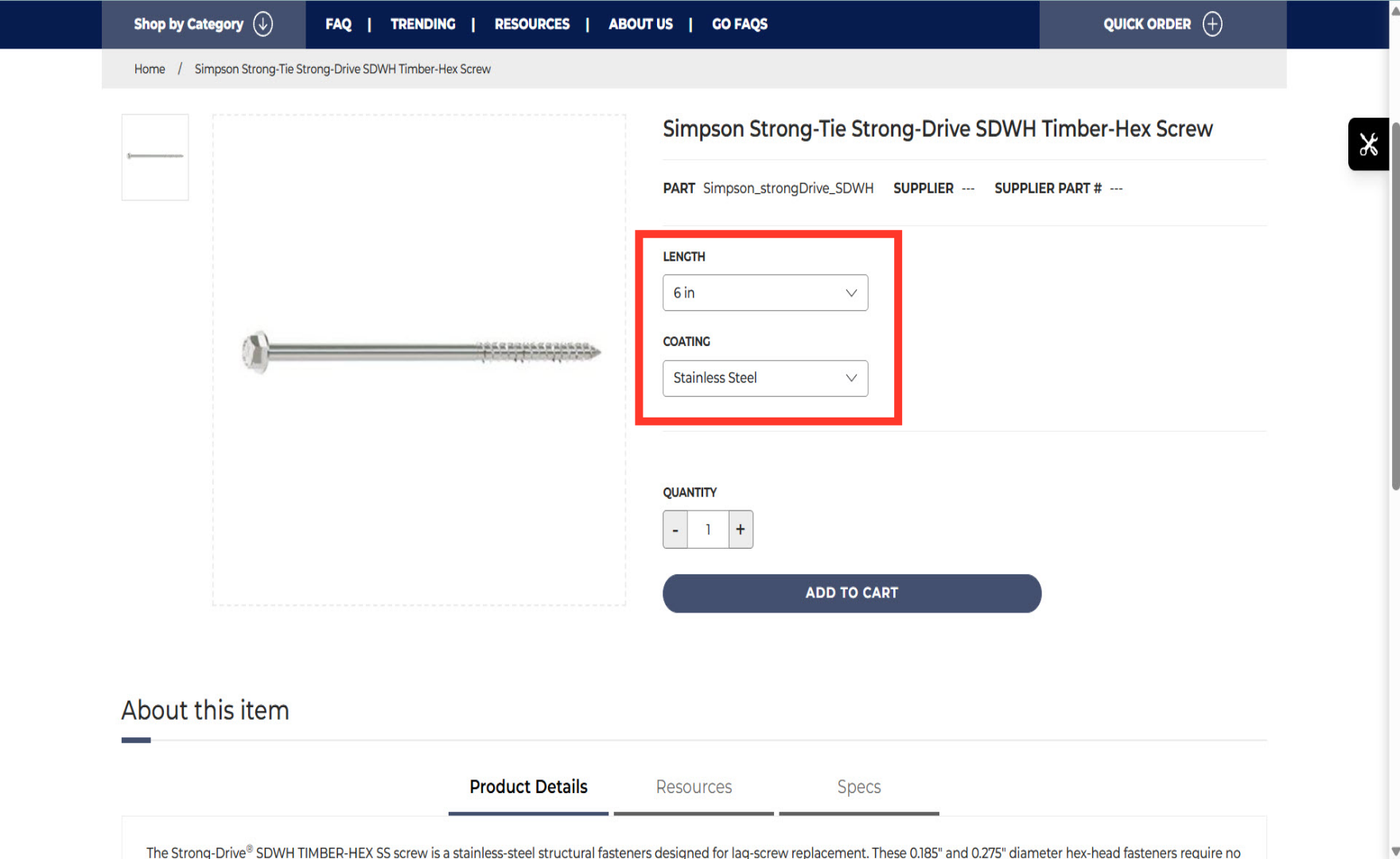
This example shows the product details on the commerce site. There are two drop-downs "Coating" and "Length" which are filter categories that have products assigned to the associated attributes. Values in those drop-downs are the attributes under the corresponded filter category. By selecting the preferred length and coating, the product page will be automatically updated to reflect your selection and display the information from the matching product variant.
Product Variant Code
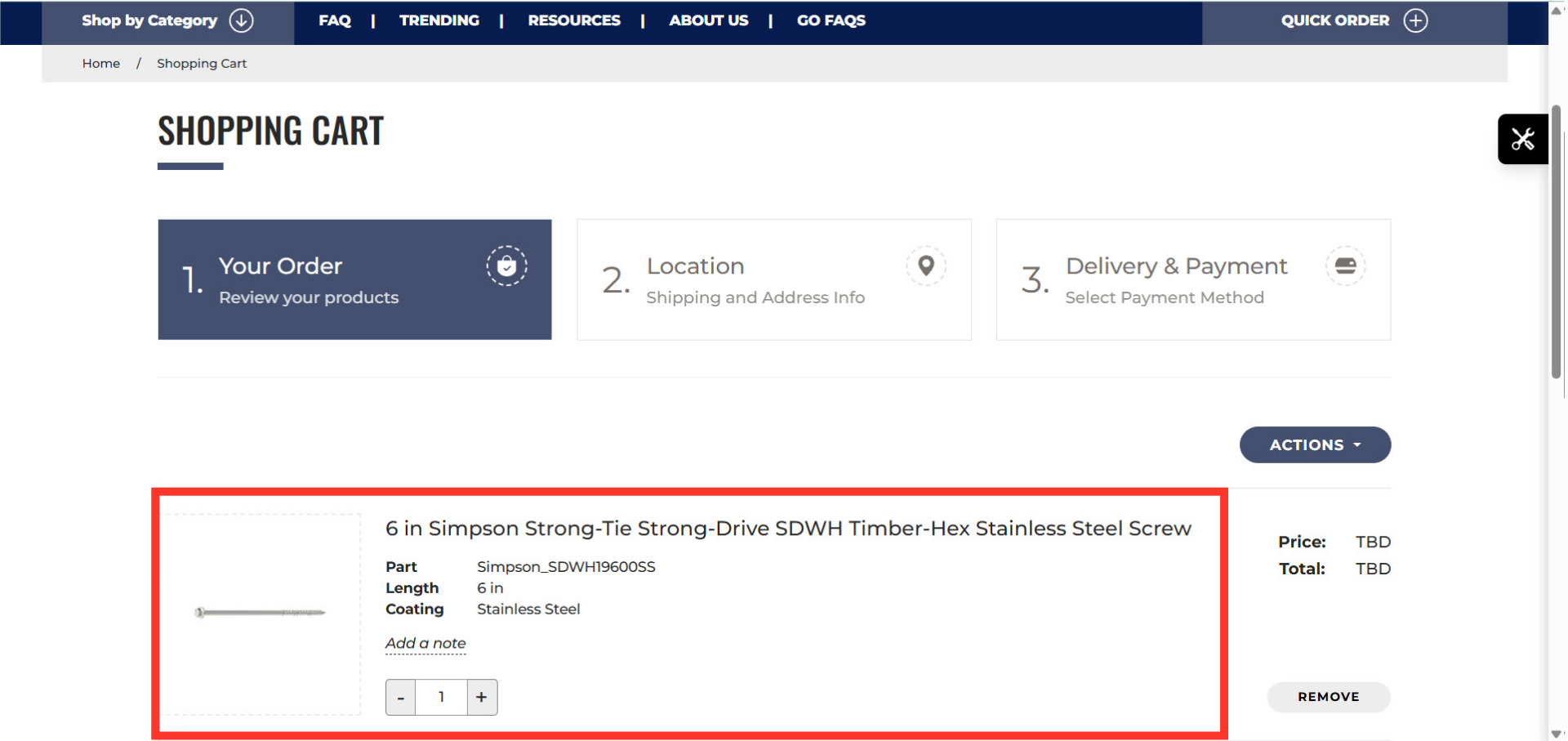
Once a product variant is selected and added to the cart, you can see that the product code will match the variant that was selected.